
You can setup new google account on your Moto device after Bypass FRP Moto G45 5G (Android 14). If you have forgotten your current logged-in account and unable to access your device main home-screen. That means, your device is being protected via (FRP) feature. Just follow up our this guideline to setup new account using (Sidebar Menu).
Disclaimer: We highly recommend you to apply this method only on your own device, if you are not owner of this device, or you found this from some where, you must return to its real owner.
Let’s Start to Bypass FRP Moto G45 5G:
-Start process by turning on your Moto phone & Connect WiFi first.
-Put your moto back to first (Hello) screen. Afterwards, go to (Privacy and Software updates page) by tapping on > Start > Skip.
-Tap over “Motorola Privacy Policy”. After that, tap to “How do i contact Motorola’s Privacy Programme?”. From there, just scroll down little bit and tap to a link “Lenovo.com/contact”.
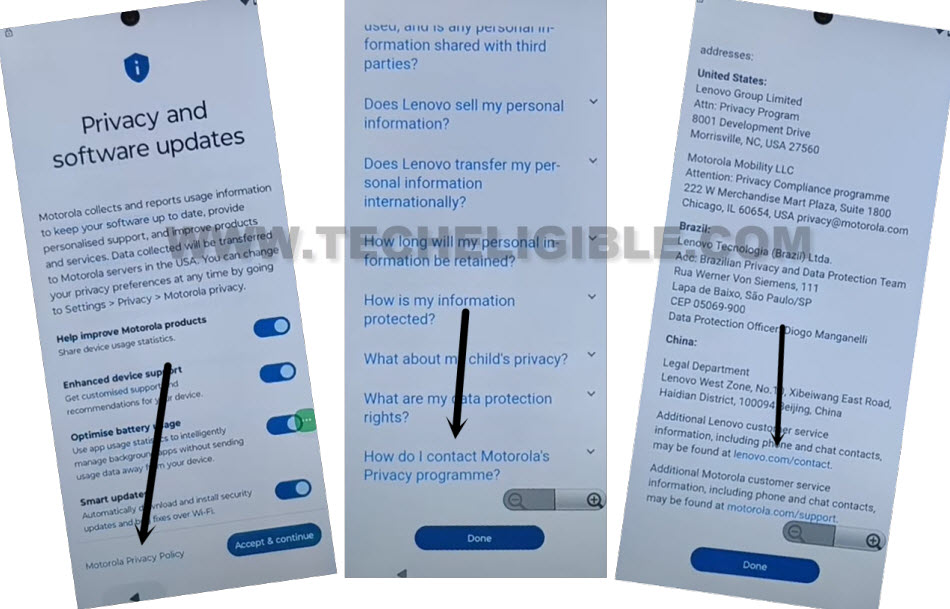
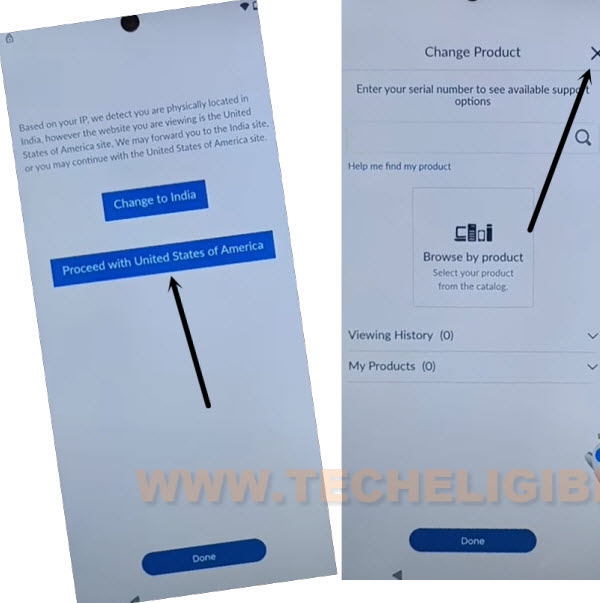
-Tap to an option “Proceed with United States of America”. After that, tap to “Cross icon” from top corner.
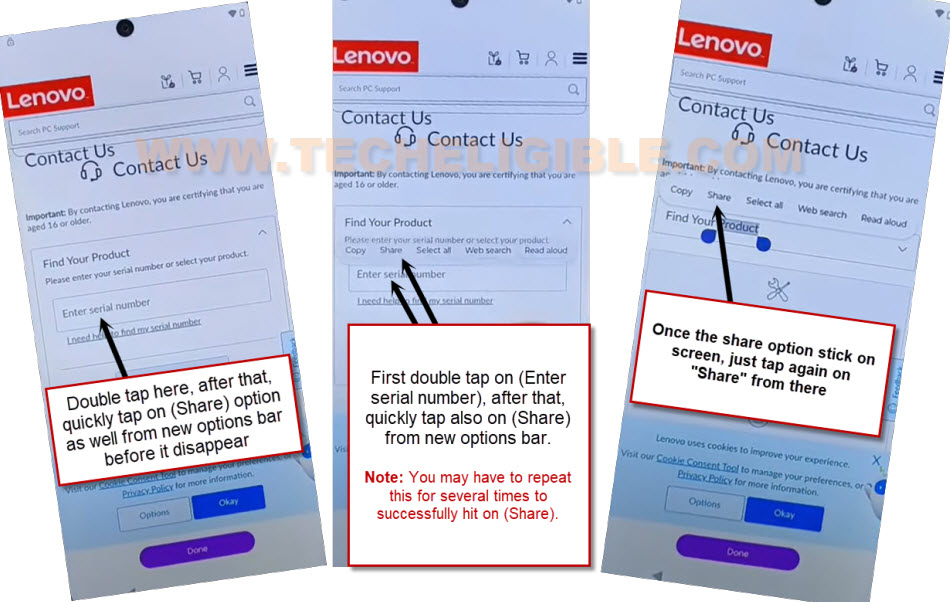
-Quickly double tap on “Enter Serial number”, after that, you will see some more options will popup there, just quickly tap on “Share” option from there before they disappear. If those options disappear, just try again. keep doing this as quick as possible..
-Once the new popup option bar stop disappearing and displaying properly, just tap again on “Share” option.
| Trick to Hit on Share Option ⇒ Quickly tap two times on (Enter Serial Number), after that tap one more above (Enter Serial Number) whether you see popup options or not. Just tap over that. By doing this, you will tap 3 times in row. Means, 2 tap on (Enter serial number) and 1 tap above (Enter enter serial) number. After that, you will be able to see (Copy, Share, Select all….) options over there. |
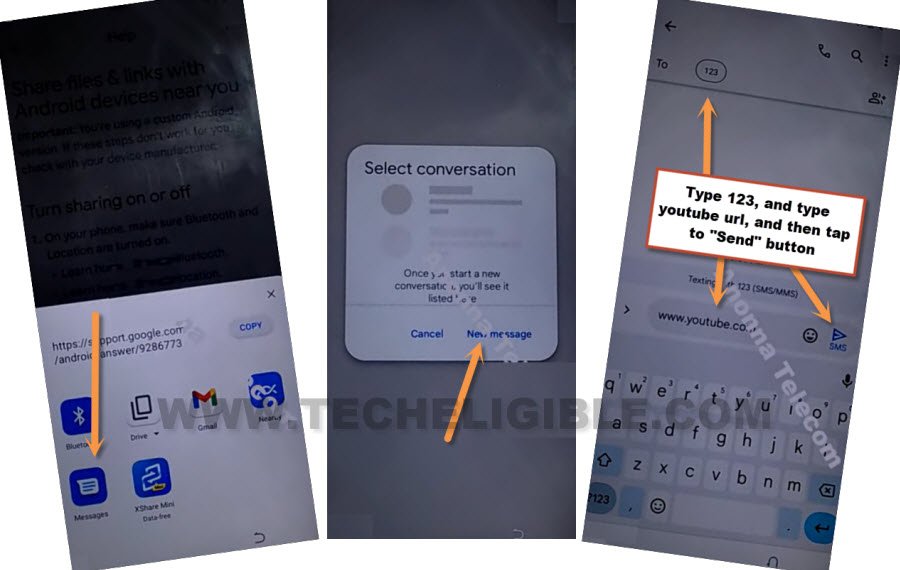
-Hit on a “Message” icon from bottom share box, and tap to “New Message”.
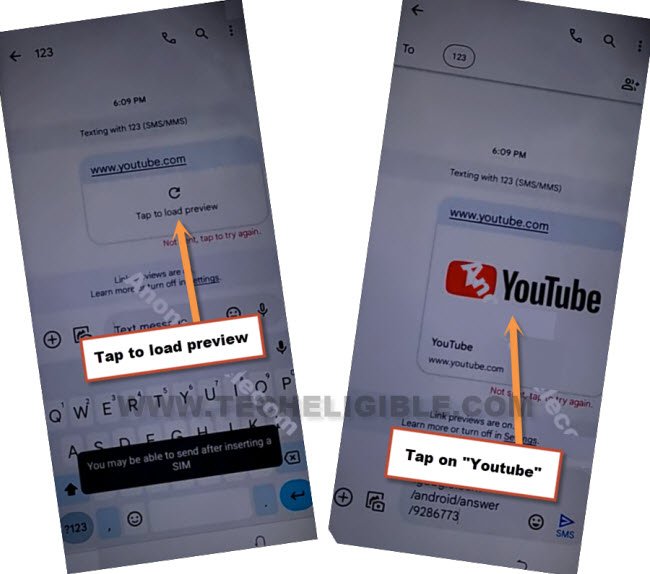
-You will reach to message conversation page, just type and send this “www.youtube.com” url to any random number as a text message.
-Hit on a “tap to load preview” option from your sending url, after that, you will have a “Youtube” image, just tap on that image to reach to youtube website directly.
-Hit on “Allow” from popup window.
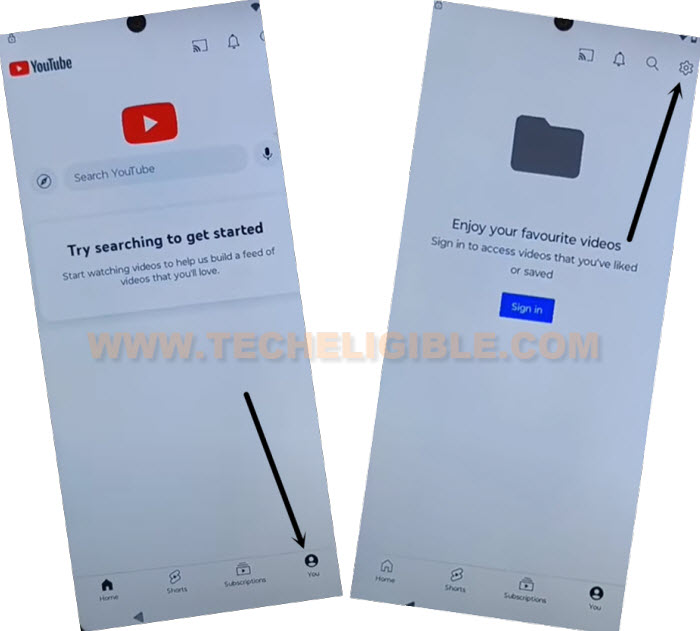
-From youtube page, go to > Profile icon > Settings.
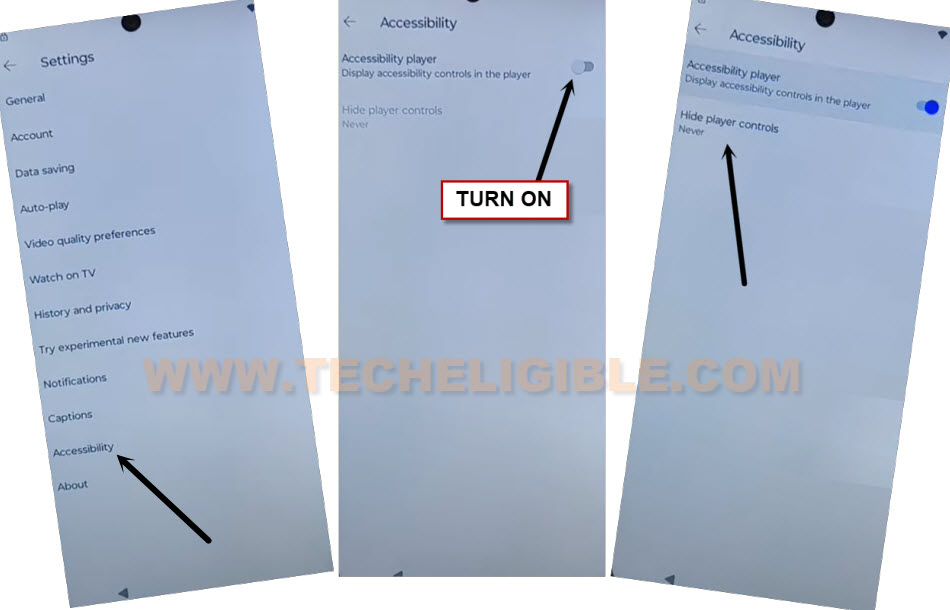
-Tap over “Accessibility “. After that, turn on “Accessibility player”. Tap to “Hide Player Controls”.
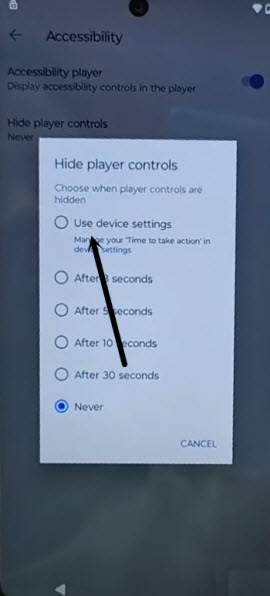
-Tap on “Use device settings” option from new popup window to bypass frp Moto G45 5G.
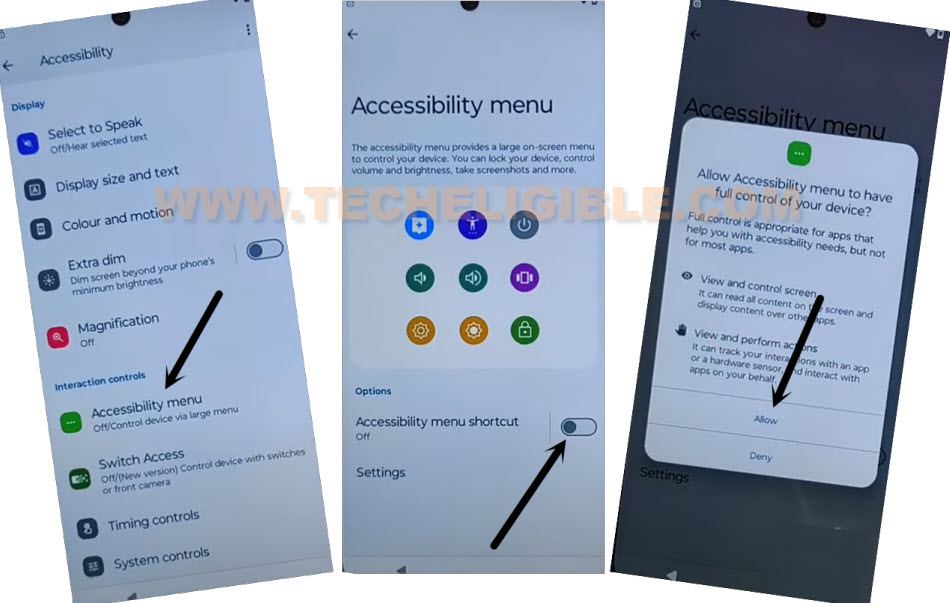
-We are gonna switch on accessibility feature by going to “Accessibility menu”. After that, turn on “Accessibility menu shortcut”.
-Tap to > Allow > Ok. After that, you will have green colored (3 dots) icon at the right edge of your screen.
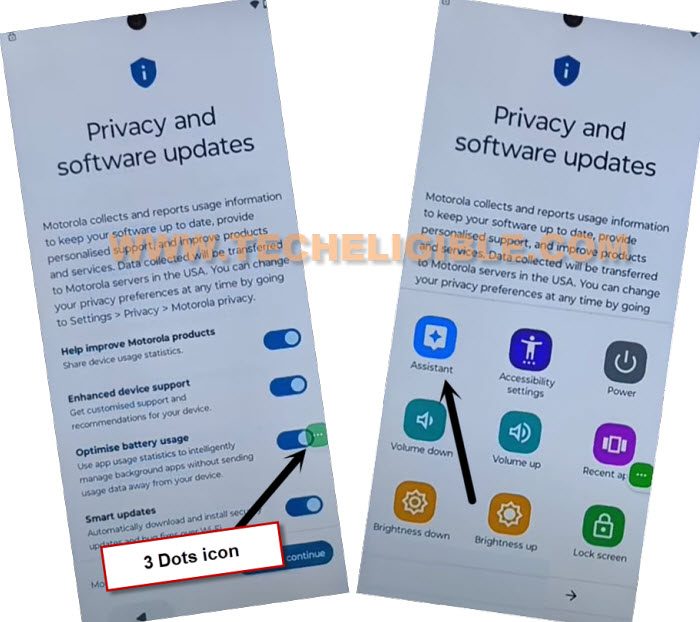
-Go all the way back to (Privacy and Software updates) page, from there, hit on a > 3 dots icon > Assistant.
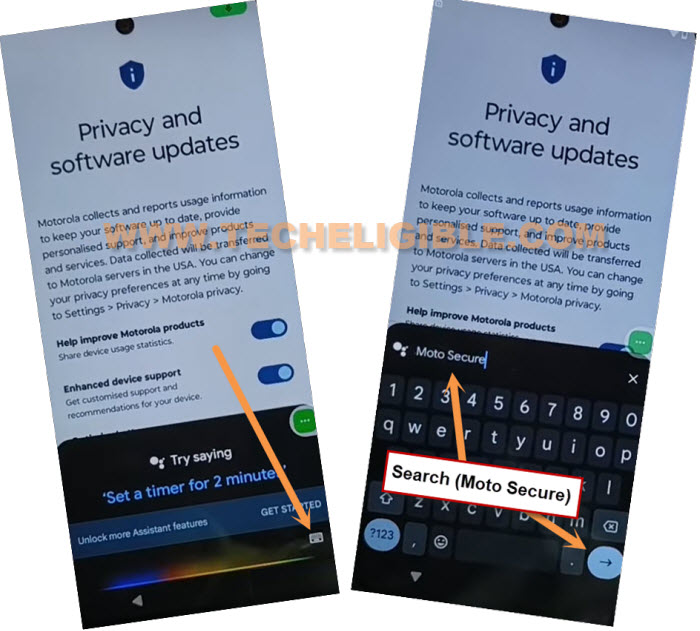
-Go to “Keyboard” icon from bottom right corner and tap “Moto Secure” and tap to “Next arrow” icon from your device keyboard.
-You will reach to (Moto secure) page, from there, tap at anywhere on screen, and tap to > Continue > Next > Next > Ok.

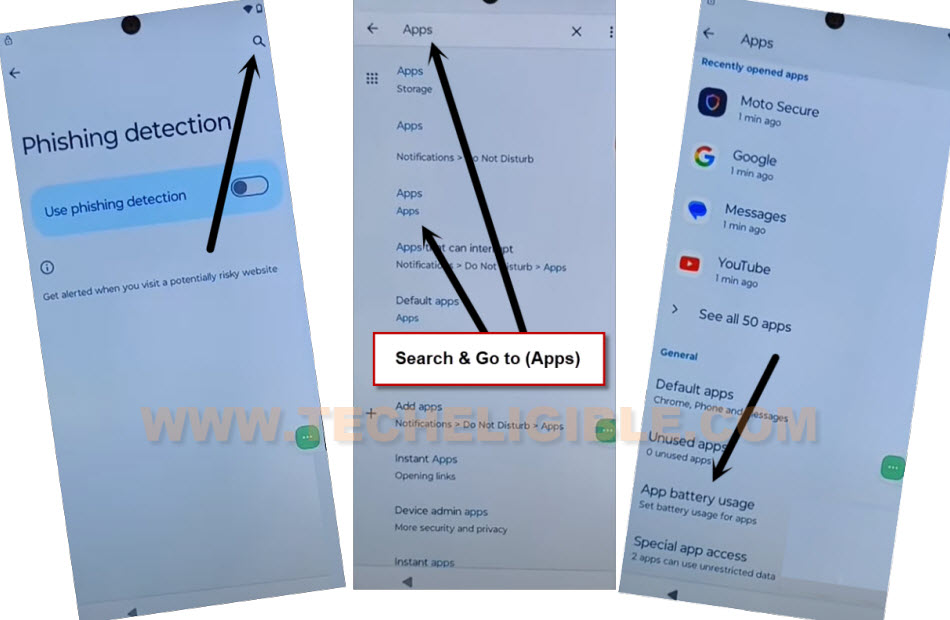
-Go to “Phishing detection”.

-Tap to “Search icon” from top right corner.
-Search with “Apps” and go to “Apps” searched result same as shown in below screen shot.
-Go to “App battery usage”.
-Afterwards, tap to > Moto > Open.
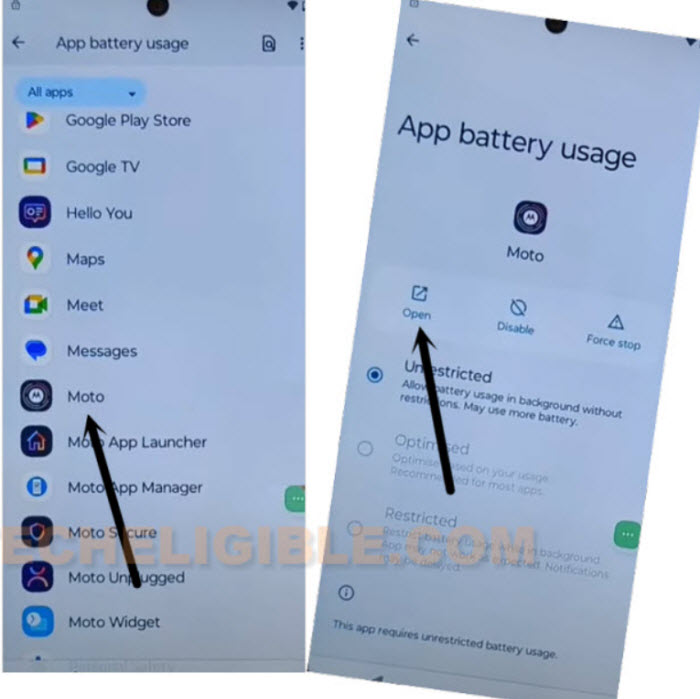
Setup Sidebar Menu:
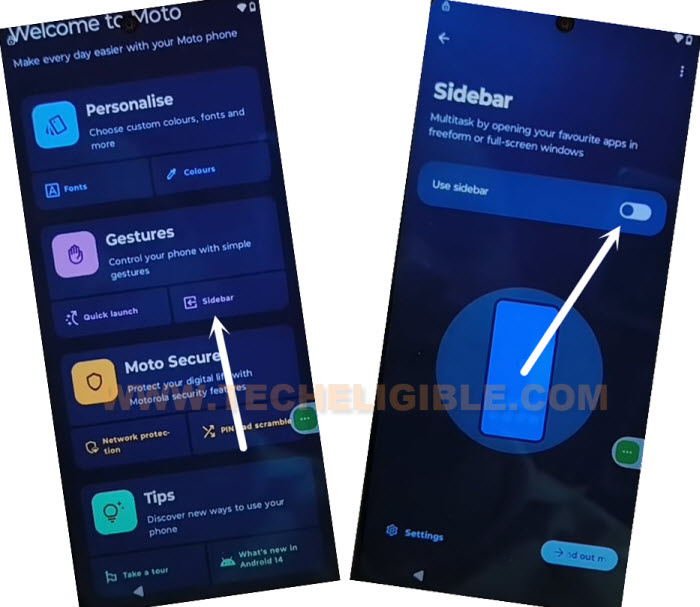
-We have to setup sidebar menu, and will add 2 apps in this menu. This will be a shortcut way to reach back to main home-screen with single tap. (You will understand later on, just keep on following steps from below).
-Tap over a “Sidebar” option from (Gesture) option. Toggle “Use sidebar” option.
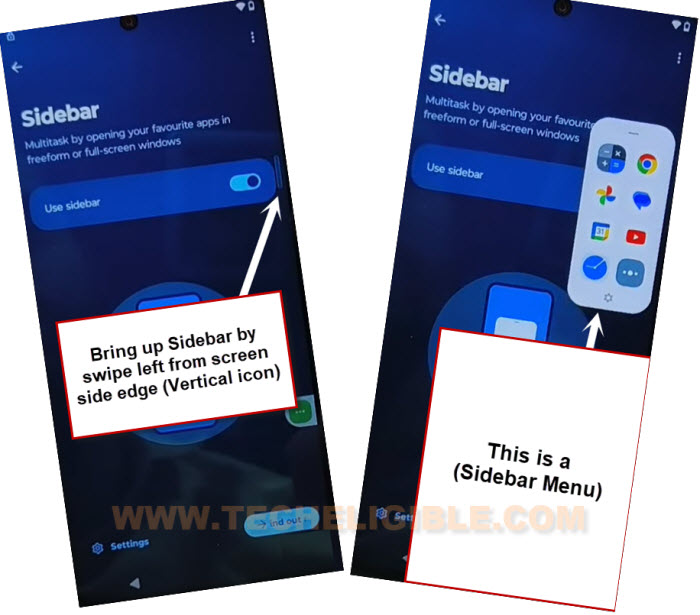
-Bring up sidebar from right edge of the screen and tap to few times on (Next > Next > Ok).
-Tap to “Settings” icon from bottom left corner and remove all apps from there by hitting on (Red minus) icon.
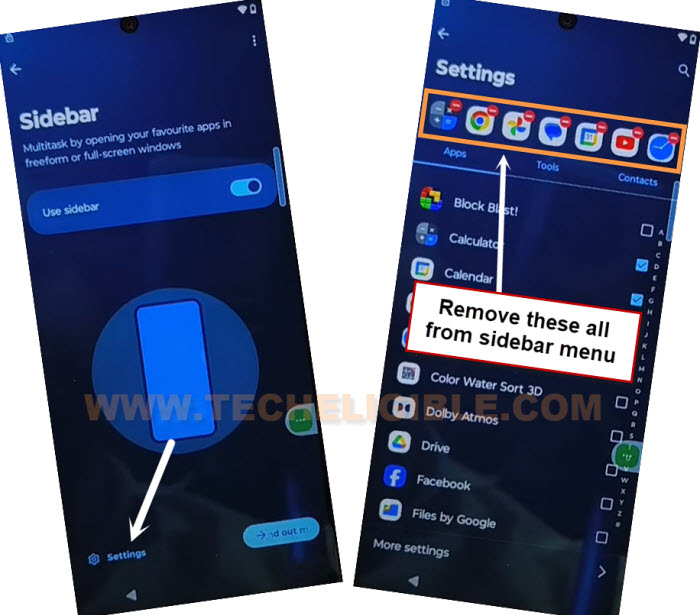
-After that, go to “Tools” from top bar.
-Select two apps from there. 1st is (Back to Home) and 2nd is (Switch to the last app).
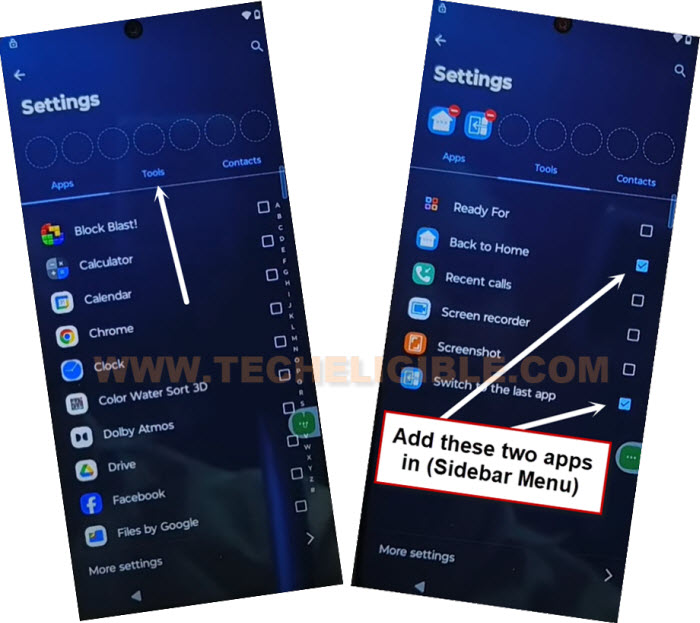
-Lets go back by hitting once on the back arrow from bottom left corner of your device panel.
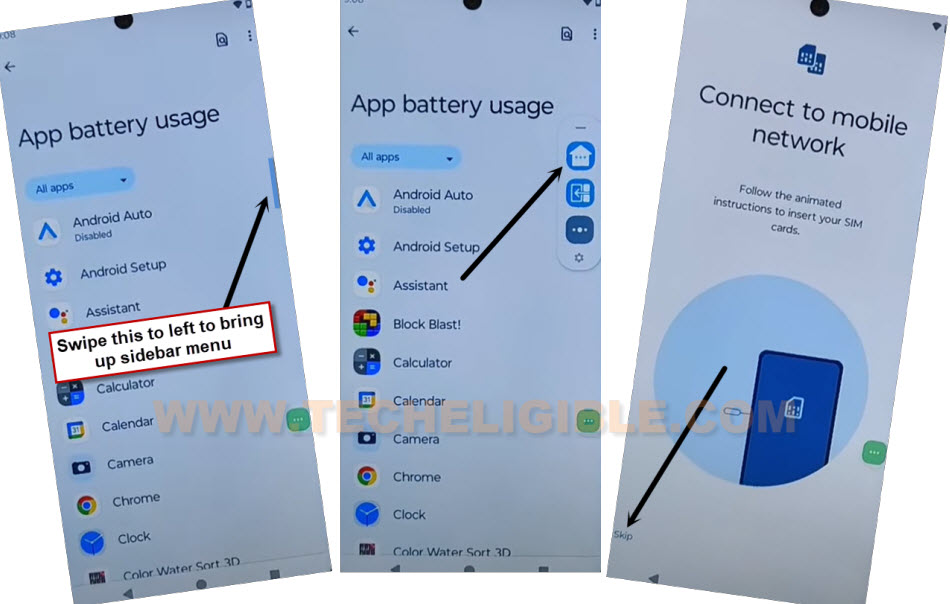
-Bring up side bar menu by swipe left and verify that, has your both selected apps are being shown there or not?.
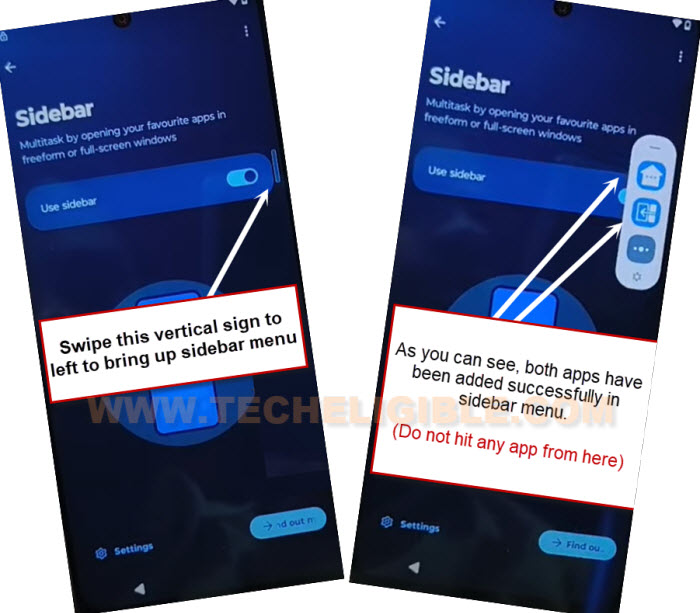
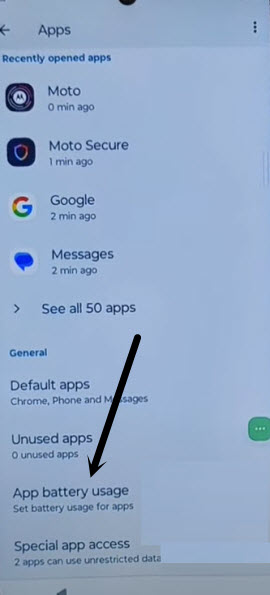
-Go all the way back to (Apps) page by hitting on back arrow icon for 3-4 times same as shown in below screen shot.
-Tap to “App battery usage”.
Disable Some Apps to Bypass FRP MOTO G45:
-Go to “Android Auto” app. After that, disable and force stop this app respectively.
-Tap once on the back arrow to get back to app list page. From there, go to > Android Setup > Force Stop > Ok.
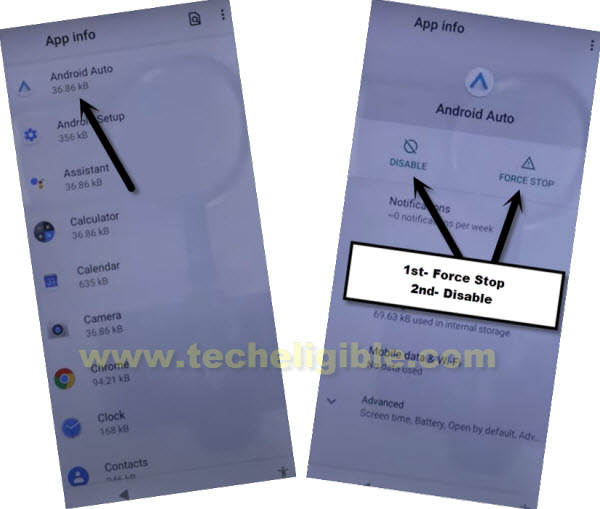
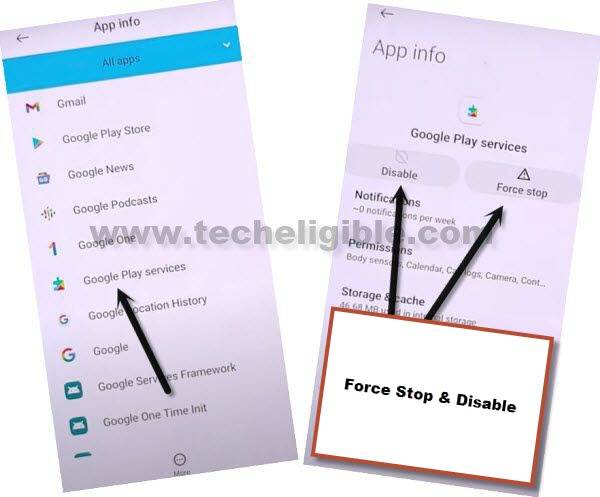
-Tap once on the back arrow to get back to app list page. From there, go to “Google Play Services” app.
-Disable & Force stop (Google Play Services) application as well to bypass frp Moto G45 5G.
-Lets get back to home page using sidebar menu app. Bring up “Sidebar Menu”, from there, tap to “Home” icon.
-You will reach back on (Connect to mobile network) page, from there, tap over “Skip” option.
-Wait on (Getting your phone ready…), after few seconds wait, you will have a (Privacy and Software updates) page. From there, hit on “Accept & Continue”.
-Wait again on a loading screen, after that, tap to “Don’t Copy”.
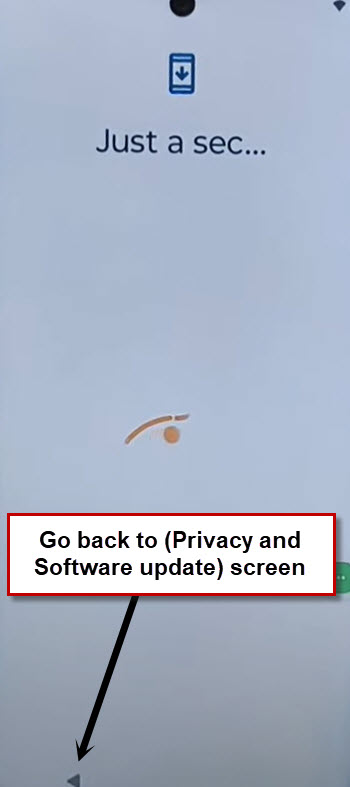
-Your device will stuck on (Just a sec….) loading screen. Just go back to again on (Privacy and Software updates) screen.
Enable Moto G45 Google Play Services:
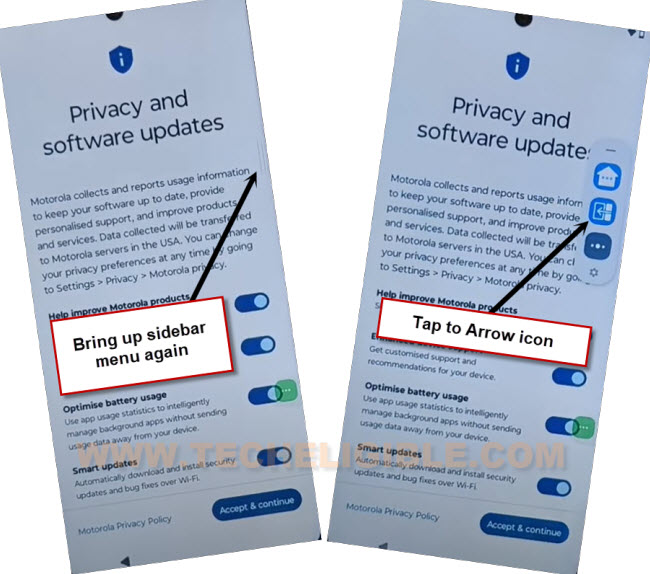
-Bring up sidebar menu again, and tap to (Switch to the last app) app from there same as shown in below image.
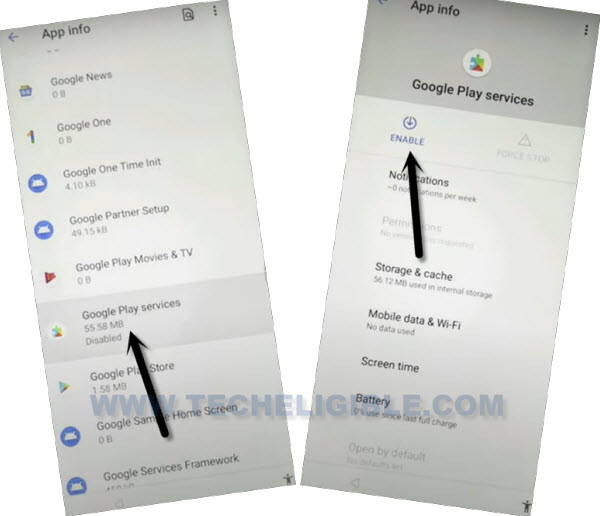
-You will be redirected back to the (App list) page. From there, find and tap to > Google Play Services > Enable.
-After enabling this app, just tap also on > Force Stop > Ok.
-Bring up sidebar menu, and tap to “Home” icon again to reach back to your device (Connect to Mobile network) page.
-Tap over “Skip” from there, and hit on “Back Arrow” icon from bottom on a loading screen.
-You will reach back to (Connect to WiFi) screen, from there, tap over a > Setup offline > Continue.

-Tap to > Accept & Continue > More > More > Accept.
-Skip also (PIN Locke Setup) page.
-You will be taken to (Let’s Stay in touch) screen, from there, turn off (Email address) option, and tap to > More > Next > Next.
-Congrats, you are all done from bypass frp Moto G45 5G without using any paid services. You can setup new google account in your device now to setup new FRP protection.