
Are you worried about accessing your device main home-screen and unable to complete your device verification process due to forgetting already signed in Gmail account. That happens sometimes, when we just create any random Gmail account to login with our device and after that, we don’t even care of our that account for many years. If you have hard reset your device and unable to recover your account. Follow up this guideline to Bypass FRP Tecno Pova 6 Pro without using any PC and paid services.
Remember: Do not try this frp method on a stolen phone, this is a serious crime, if you are trying to bypass frp on a stolen phone, you may also be jailed, this process is for device owner and for educational purpose only.
Let’s Start to Bypass FRP Tecno Pova 6 Pro:
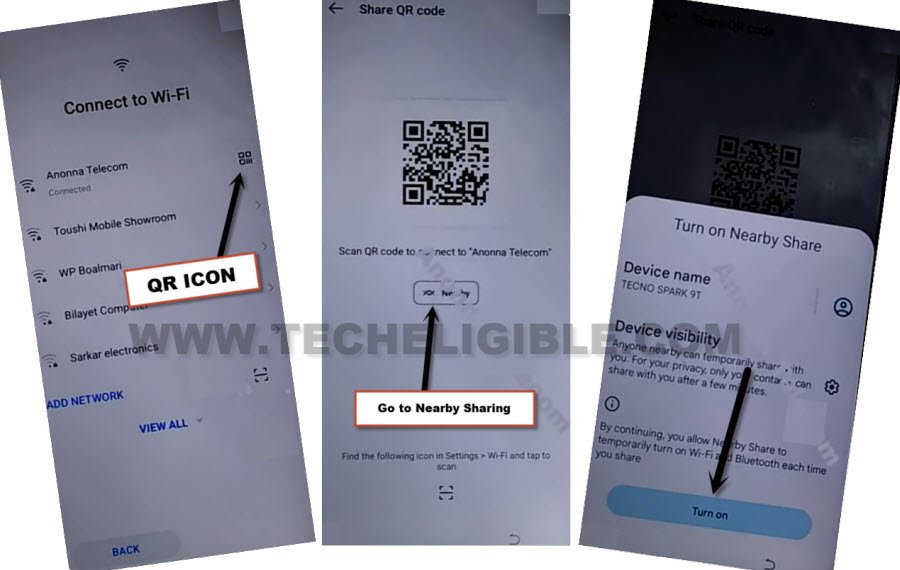
-Being this method by connecting WiFi first. After that, from same WiFi page, just hit on a “Share” icon that is right next to your device connected WiFi name.
-After that, tap to > Share > Nearby > Turn on.
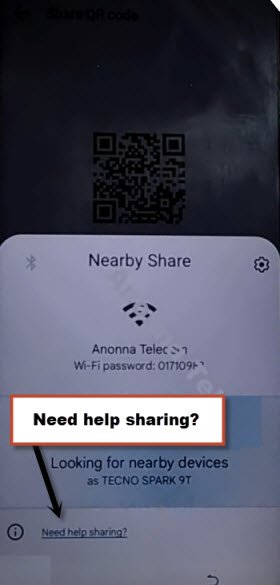
-You have to hit on a blue colored link “Need help sharing?”.
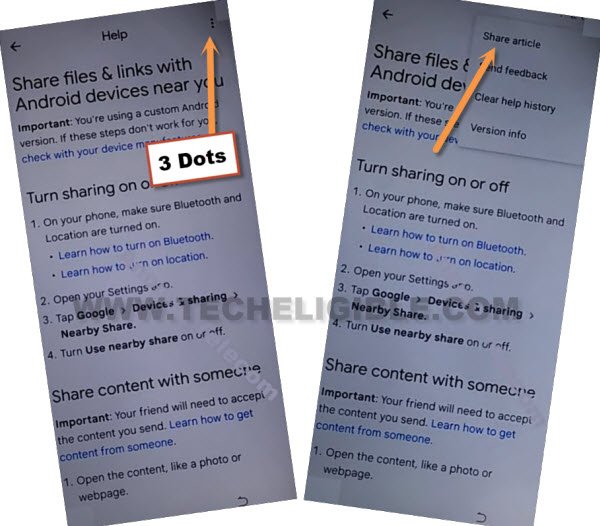
-We have to access to youtube webpage, just tap to “3 dots” icon and hit on “Share Article”.
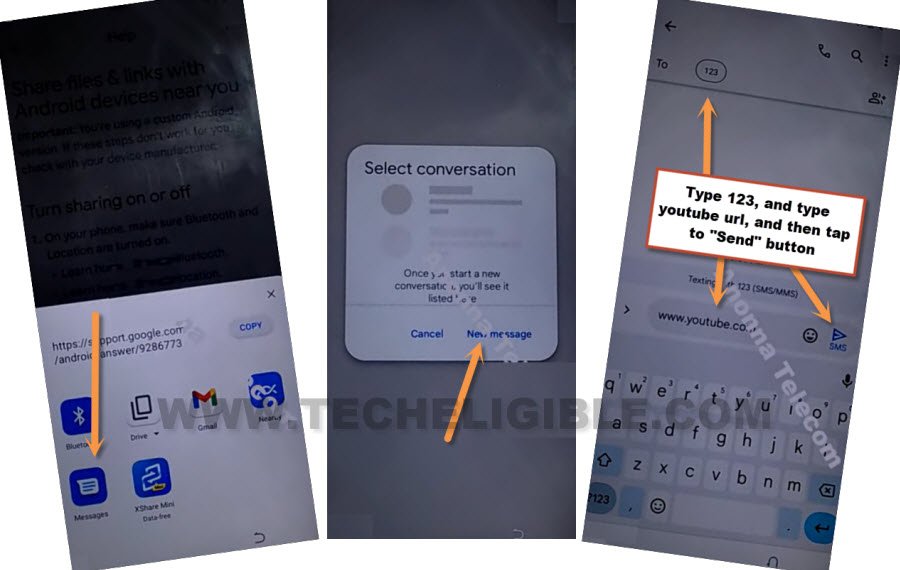
-From bottom sharing apps, just choose “Message” app. After that, tap on “New Message”.
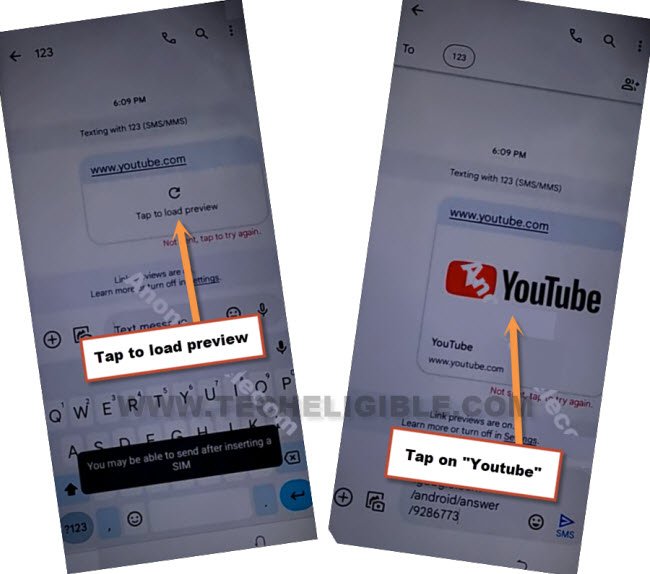
-Send ww.youtube.com url to as a text message to any random number (See below image).
-Once the url is convert to hyperlink same as shown in below image. Just tap over a “Tap to load preview”. After that, tap on “Youtube” image.
-After accessing inside youtube webpage, just tap over a “Human” icon from right corner and tap to “Settings”.
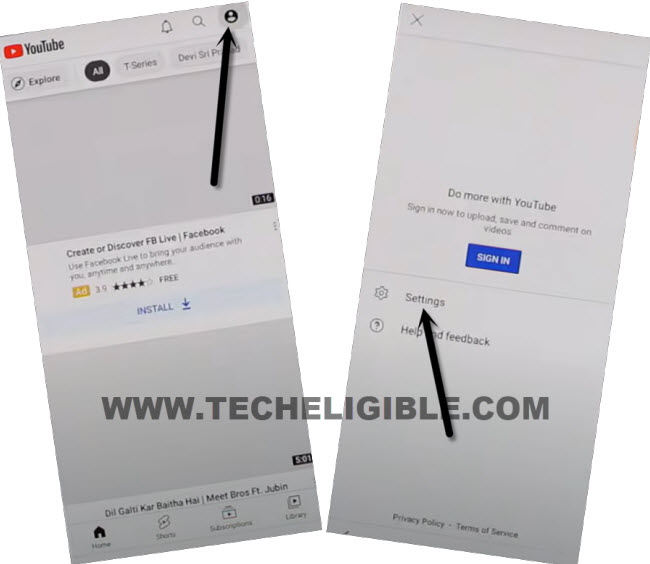
-Afterwards, just hit over > About > Youtube terms of service.
-Go to “Use without an account” and hit on “No Thanks” from popup window.
Go inside Tecno Settings Page:
-We’re gonna search in browser with “Techeligible” text.
-From searched result, go to techeligible official site. After that, tap to “Menu” option from top corner and go to “Download FRP Tools” option to be redirected to the frp tools page.

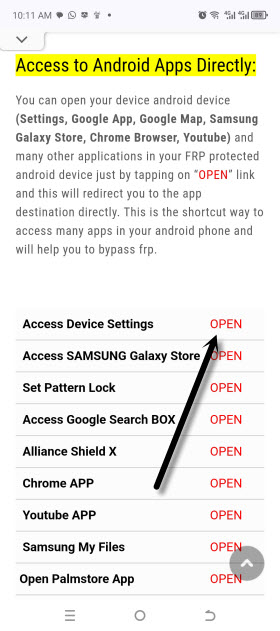
-Just hit on “Access Device Settings” option same as shown in below image to Bypass FRP Tecno Pova 6 Pro.
-From settings page, just tap on “Special Function” option from there.
-After that, tap over > Accessibility > Accessibility MENU.
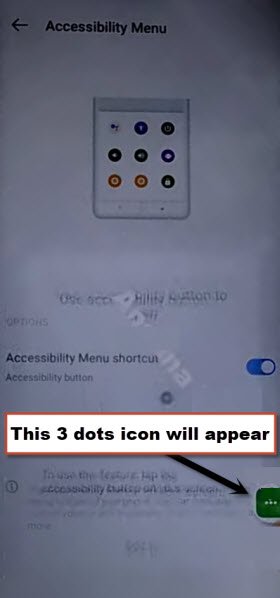
-Turn on “Accessibility Menu Shortcut” function. After that, from popup screen, go to > Allow > Got it.
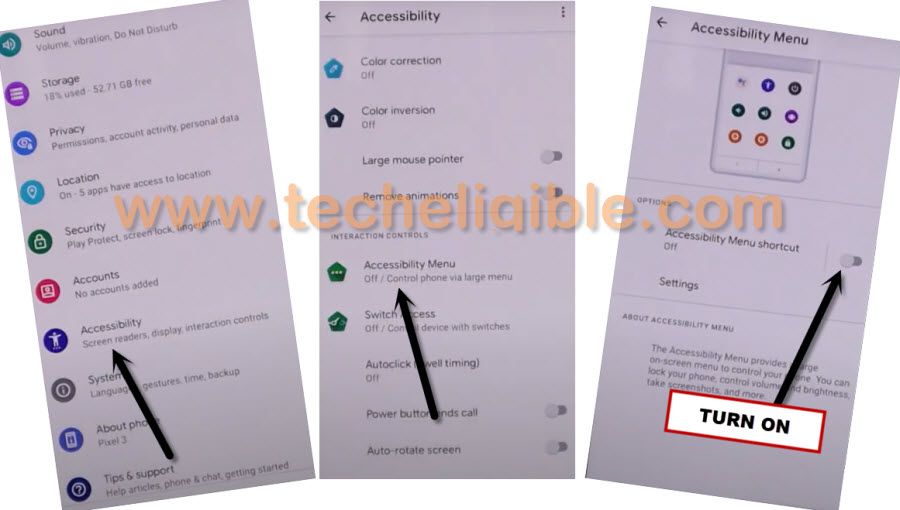
-After enabling above option, you will start having (3 dots) icon on your ridge edge of the screen. We will this function while completing setup wizard.
Disable Google Play Services & Android Setup:
-Firstly, we have to disable some apps from this device, just go back on your device main “Settings page by hitting back arrow icon from bottom.
-From there, tap to > App Management > App list.
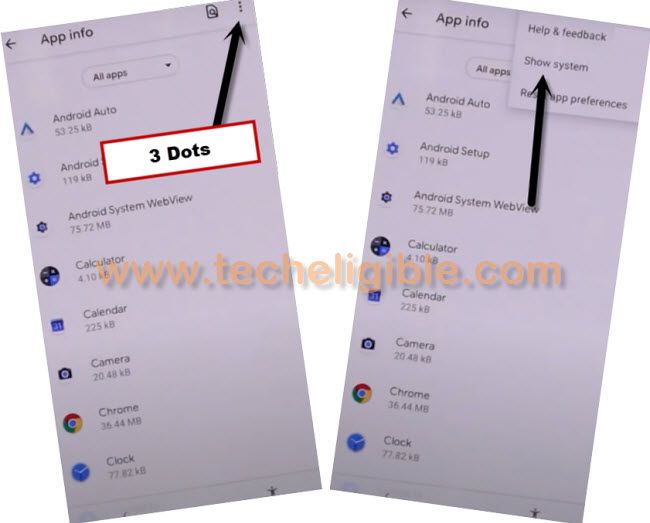
-Hit over a “3 dots” icon from top right corner and tap to “Show system” option.
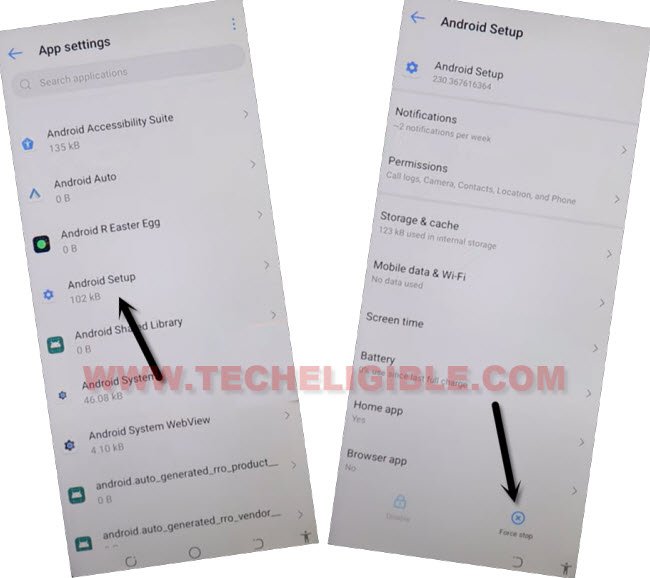
-Find and tap to > Android Setup > Force Stop > OK.
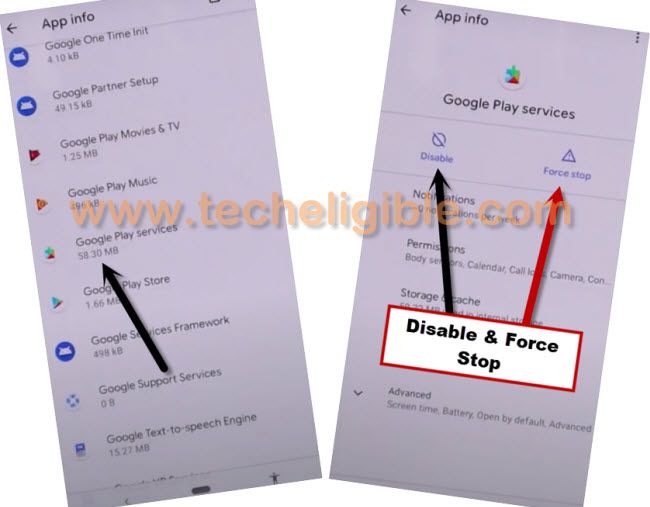
-By hitting on back arrow, just go back on main app list page again. From there, go to > Google Play Services > Disable > Disable App.
-After that, go to > Force Stop > Ok.
Disconnect and Connect WiFi:
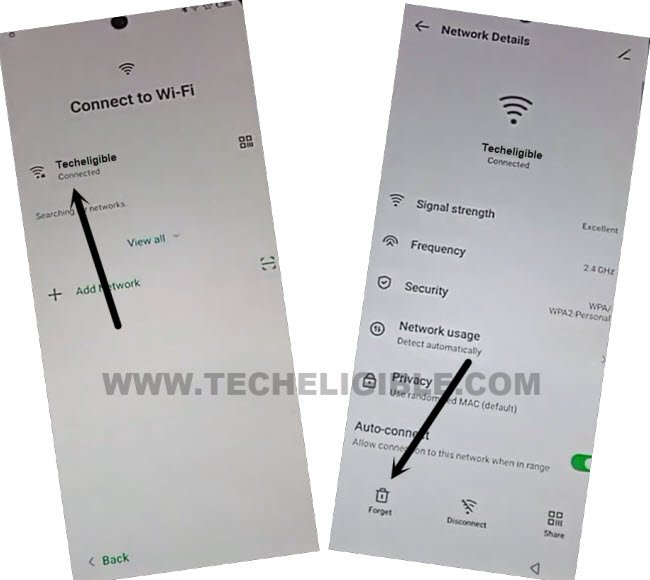
-Keep tapping on “Back Arrow” icon from bottom until you reach back on (Connect to WiFi) screen. From there, tap to your (Connected WiFi name) and tap on “Forget” option to disconnect WiFi.
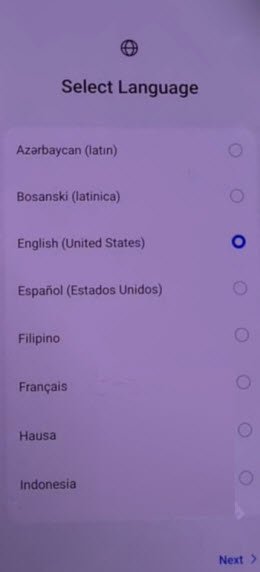
-After that, go all the way back to first (Select Language) screen.
-Go to > Next > Skip.
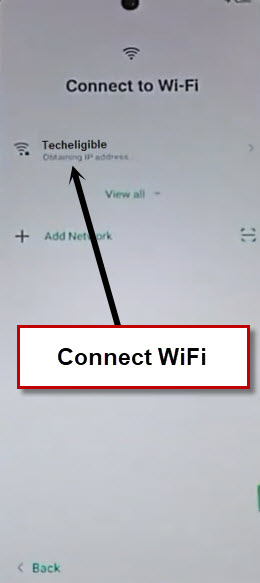
-You will reach back to WiFi page, just connect your WiFi again.
-After that, you will be taken to (Operation instructions) page, from there, tap to > Next > Don’t Copy.
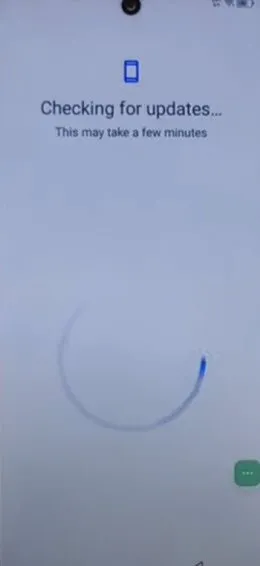
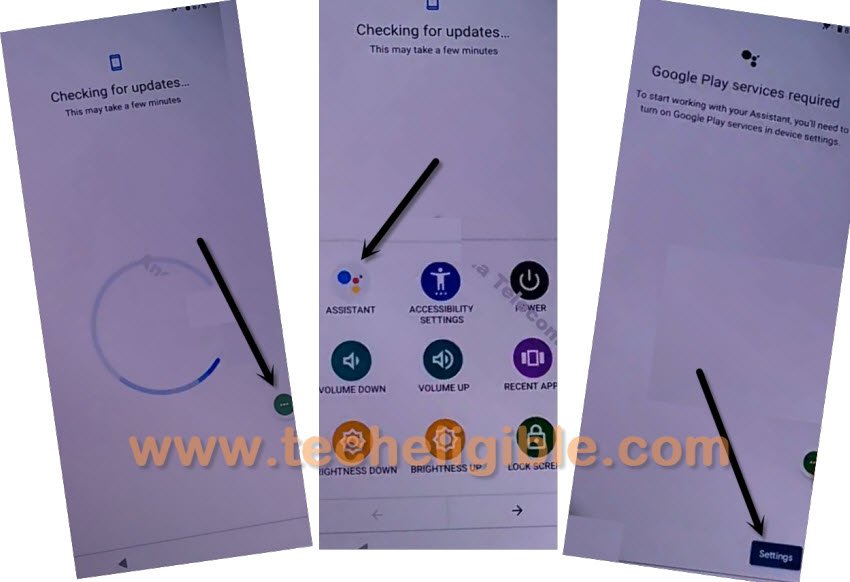
-You will see (Checking for update…). To get this loading screen done, we have to enable back google play services app. For that, follow below steps.
Enable Google By Following Below Steps too Quickly and Repeatedly:
-We have tap these 3 options very quickly as much as possible, so quickly hit on > 3 dots icon > Assistant > Settings.
| Note: You may miss hitting on (Settings) option. Keep repeating steps until you successfully hit on (Settings) option and reach to next page of (Google Play Services). You may have to repeat steps for about 10-20 times. The more fast you repeat, the higher chances are there to successfully reach on google play services page. |
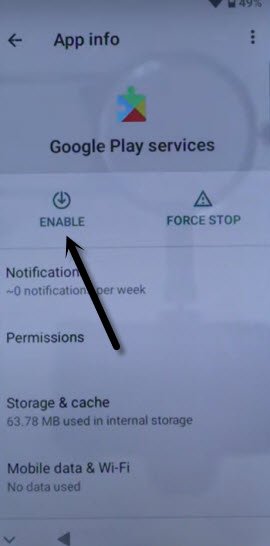
-Tap on “Enable” button to enable google play services application. After that, we will be able to complete setup wizard steps easily. Its all done from Bypass FRP Tecno Pova 6 Pro
-Just go back to (Checking for update) page. Let this page to be done. After that, complete all remaining steps on your own.