You can easily Remove FRP Account Moto G7 Power just through changing your device language and add some more keyboard languages. After that, we will switch back to (English). After doing these all, we will be able to open google chrome browser easily to download (Apex Launcher) app. With the hep of this app, we can easily setup new google account and password. Follow steps from below.
Disclaimer: We highly recommend you to apply this method only on your own device, if you are not owner of this device, or you found this from some where, you must return to its real owner.
Let’s Start to Remove FRP Account Moto G7 Power:
-Turn on moto phone & Connect to proper WiFi network. After that, get back to first (Hi there) startup screen.
-Let’s change your device language. From language list, just go all the way down and select “Last language” same as shown below.
-Tap to “1st option” from popup screen.
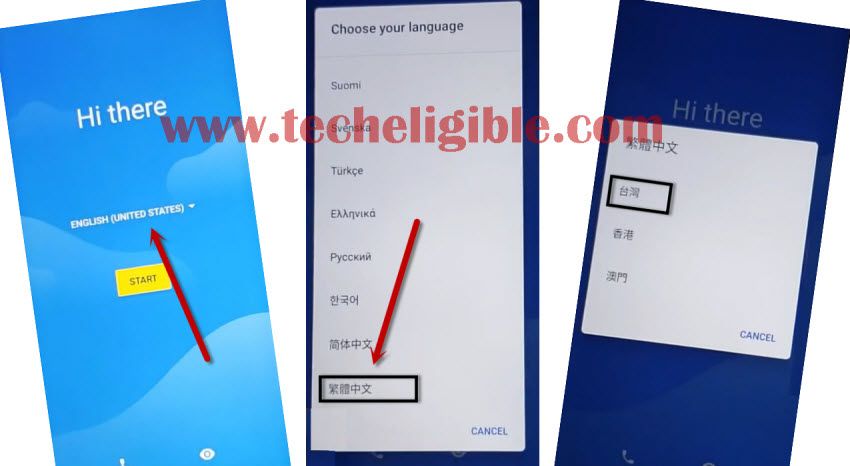
-After that, tap on “Calling” icon from bottom. Tap two times on top “Center option”. After that, go to “edit” icon from top corner.
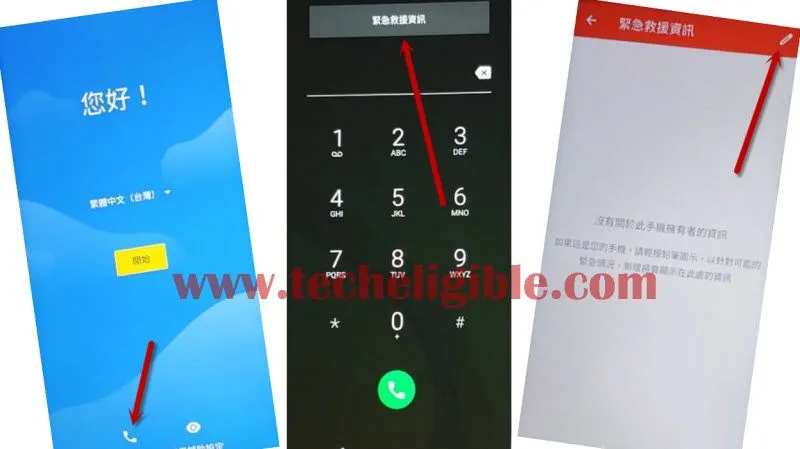
-Tap on first “Pencil icon” option.
-Let’s tap to “Human” icon from top. After that, tap to blank area from popup window.
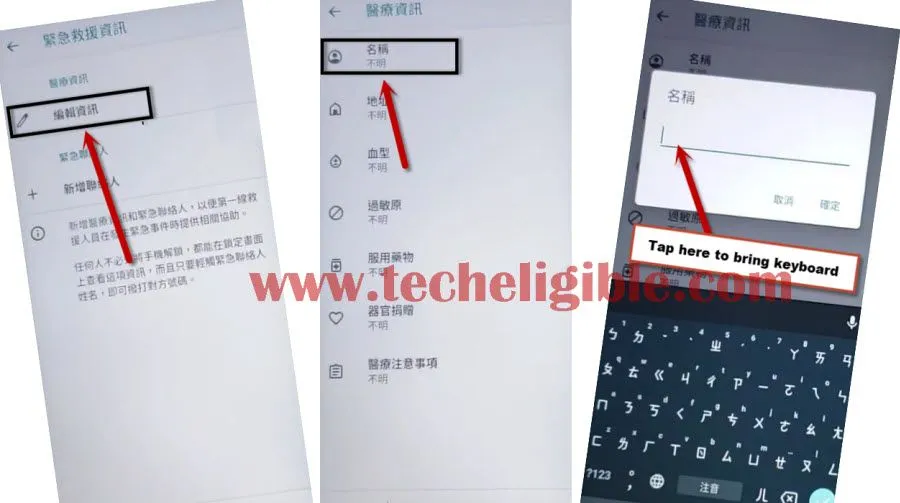
-Once you get your device keyboard, from there, long tap on “World” icon.
-Tap to “last option” from popup screen.
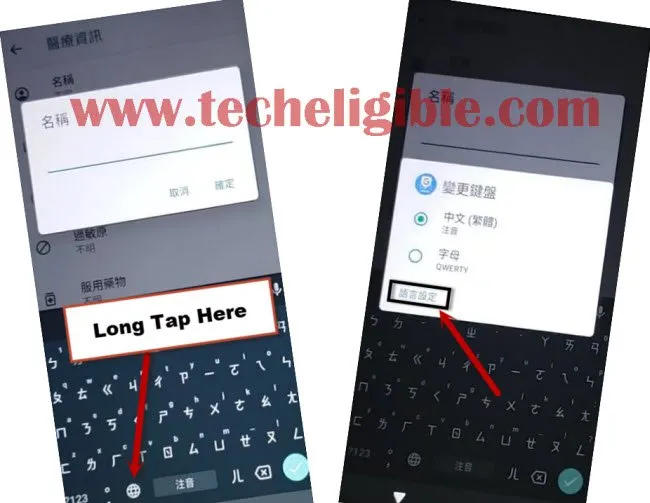
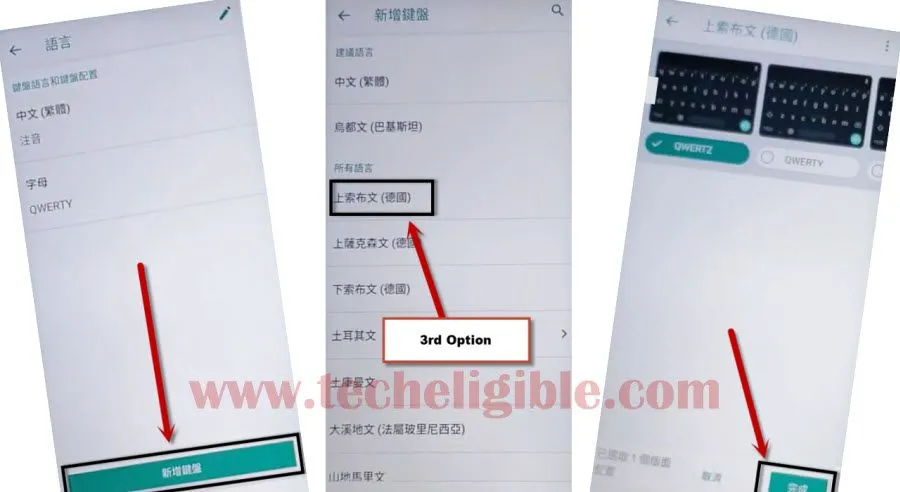
-Tap to “Green option” from bottom center, after that, tap to “3rd option”.
-Let’s tap to “bottom right option”.
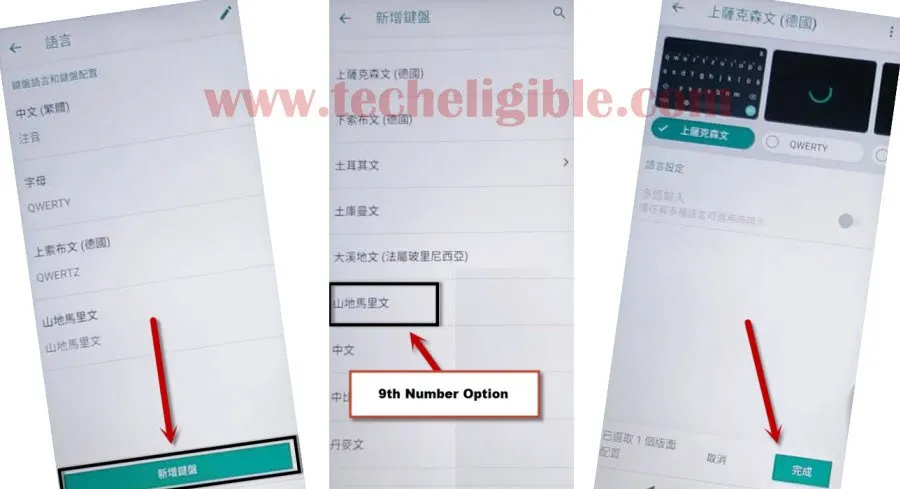
-Tap again on “Green option” from bottom center. After that, tap to “9th number Option”.
-Tap to “Right” option from bottom.
-We have to tap again on “Center green option”.
-This time, select “4th number option”. After that, tap again on “Right option” from bottom corner.

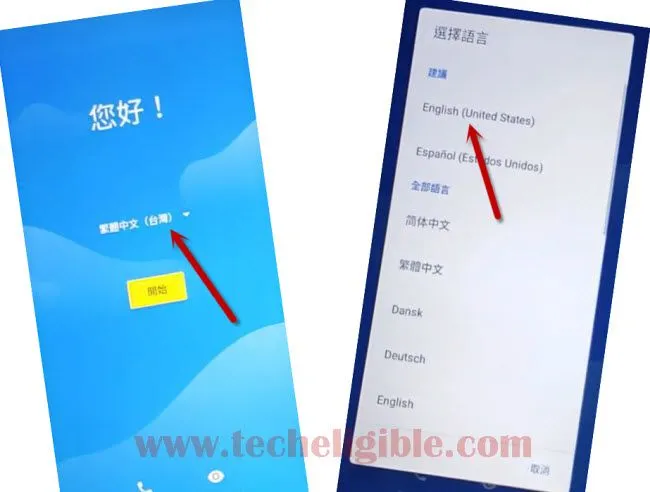
Change Device Language to (English):
-Let’s go all the way back first startup page and change your moto phone language back to (English) to Remove FRP Account Moto G7 Power.
-We have to tap again on “Emergency Call” option. After that, tap two times on “Emergency Information”.
-Go to “edit” icon.
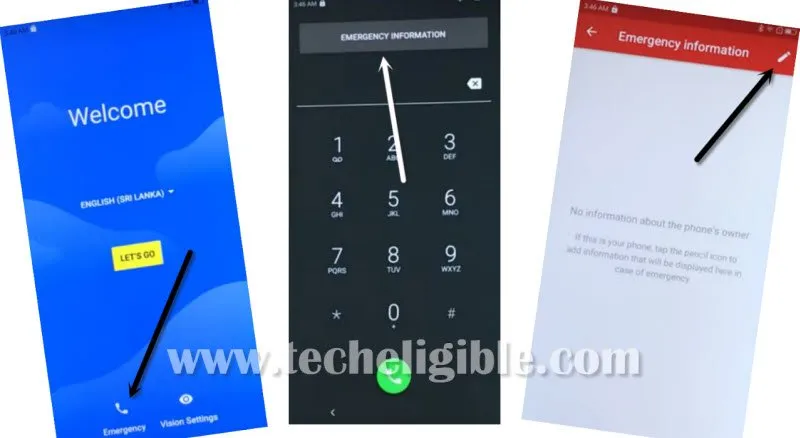
-Go to > Edit Information > Name.
-Tap on “Name” field tab to get the device keyboard, from there, long hold at “World icon”.
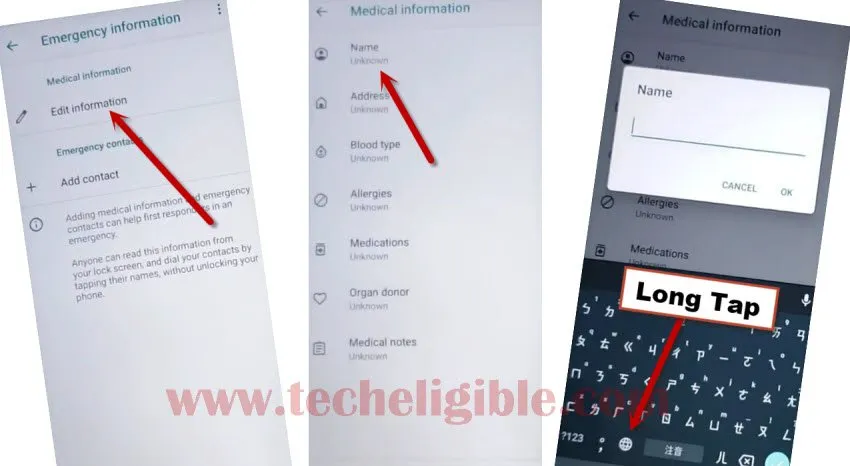
-You will have a popup screen, just go to > Language Settings > Add keyboard.

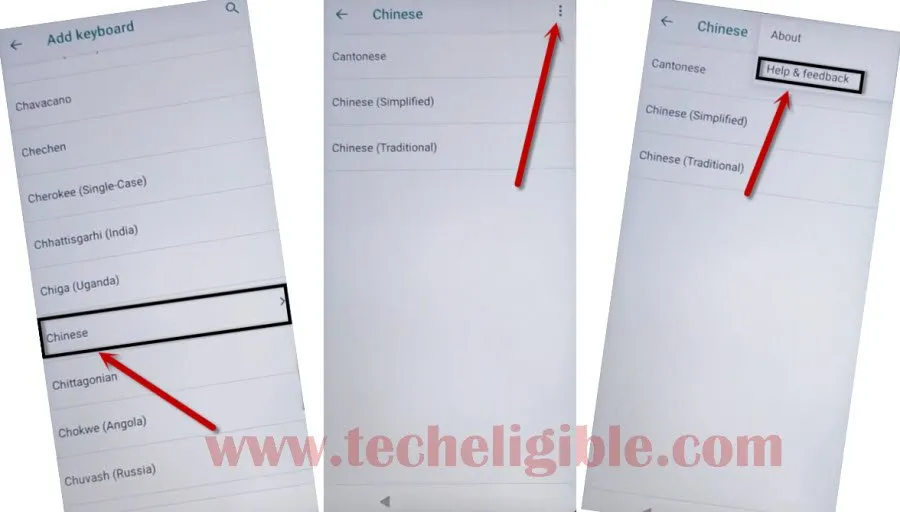
-From language list page, tap at “Chinese” language name which has an “Arrow” icon.
-Go to > 3 dots > Help & Feedback.
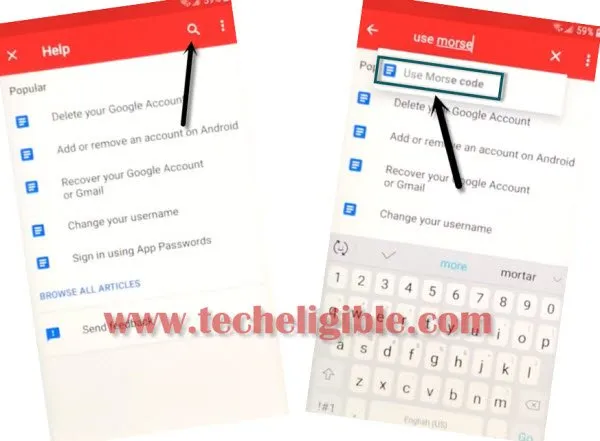
-Open up search bar by hitting on “Search” icon.
-Search there with “Use Morse code”.
-Go to “Use Morse Code” searched result same as shown below.
-Tap on “Video” to get video title highlighted.
-From there, tap to “3 dots” icon those are right next to the video title.
-Tap to “Share” option.
-After that, tap to “3 dots” icon those right next to the twitter icon.
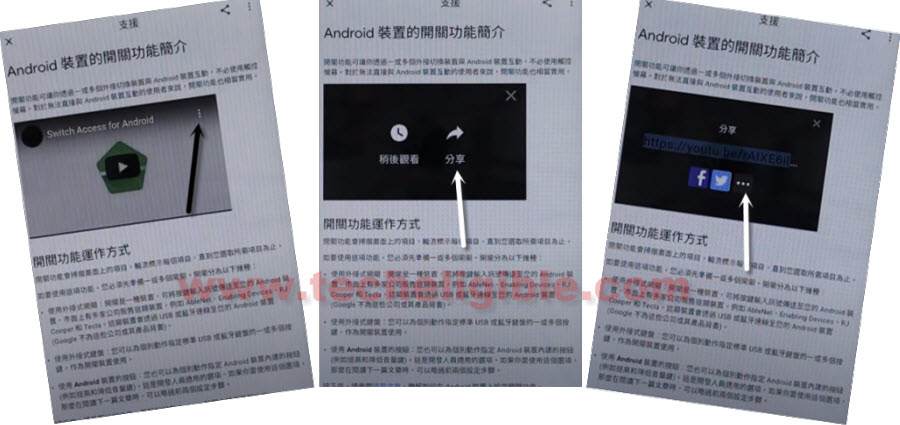
-You may have a youtube update screen, just tap to “2nd option” from there to skip that updating screen.
-You will be redirected to the youtube app. Form there, hit on “3 dots” icon from top corner and go to “Terms & Privacy Policy”.
-From (Welcome to chrome) screen, go to > Accept & Continue > Next > No Thanks.
Download FRP Tools:
-Let’s search in browser with “Techeligible” and go to our official site. From there, hit on a “Menu” icon from top corner and tap to “Download FRP Tools”.

-download from there below 3 apps.
1-Apex Launcher 3.3.3.
2-Google Account Manager 6.
3-Account Login.
-Once the downloading process is done, just scroll up and go top of the browser page.
-Tap to > 3 dots > Downloads.
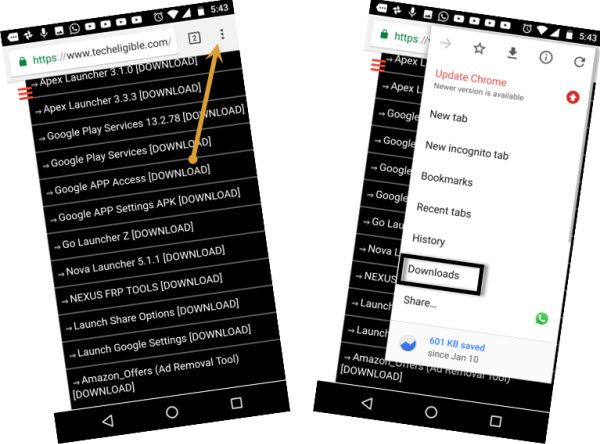
-After reaching in download folder, we will be able to see our all recently downloaded apk apps there. Let’s install one by one.
-Firstly, tap to “Apex Launcher” application.
-From chrome popup window, just tap on “Settings”, and then enable option “Allow from this sources”.
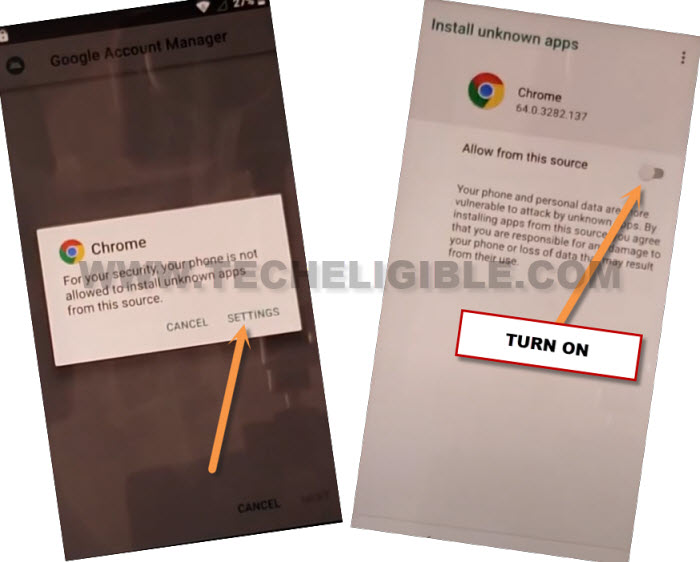
-We have to go back by hitting over a “Back Arrow” icon from bottom.
-Afterwards, tap to > Install > Open.
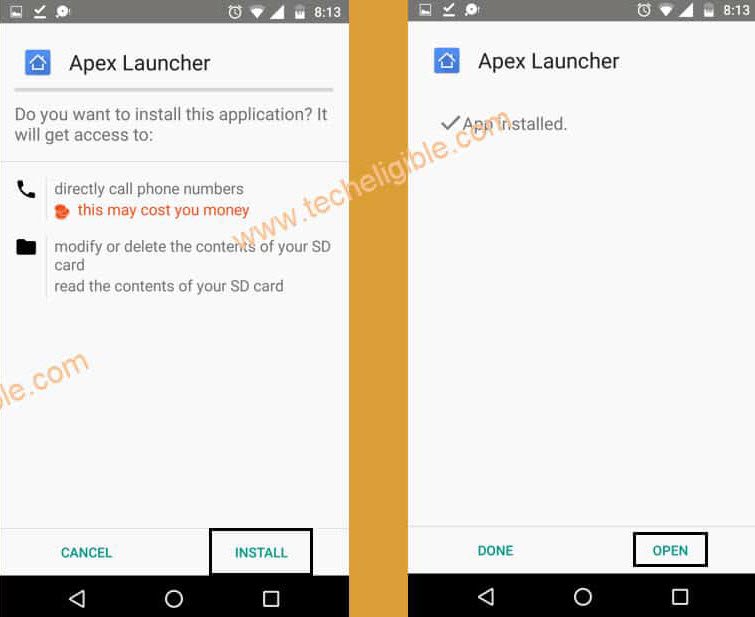
-Congrats on accessing your device main home-screen without logging with forgotten account.
-Open your device main “Settings”.
-Go to > Security & Location > Location. After that, turn on location from there.
-Let’s launch google chrome browser from your device main menu.
-Tap again on > 3 dots > downloads.
-Tap on > Google Account Manager 6 > Install > Done.
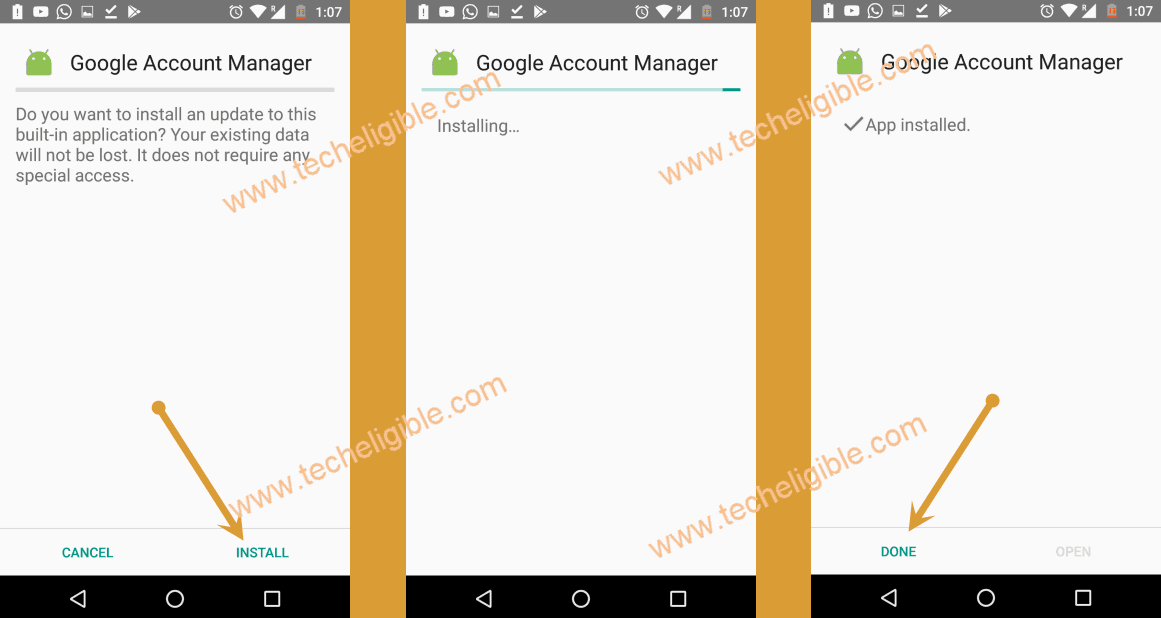
-This is the final app, that, we are going to install and login with new google account to completely Remove FRP Account Moto G7 Power
-Tap on > Account Login > Install > Open.
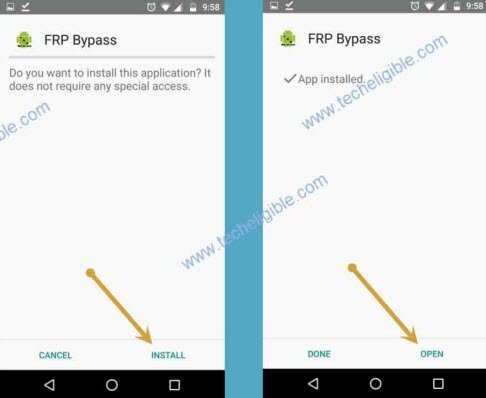
Let’s Login with new Gmail ID:
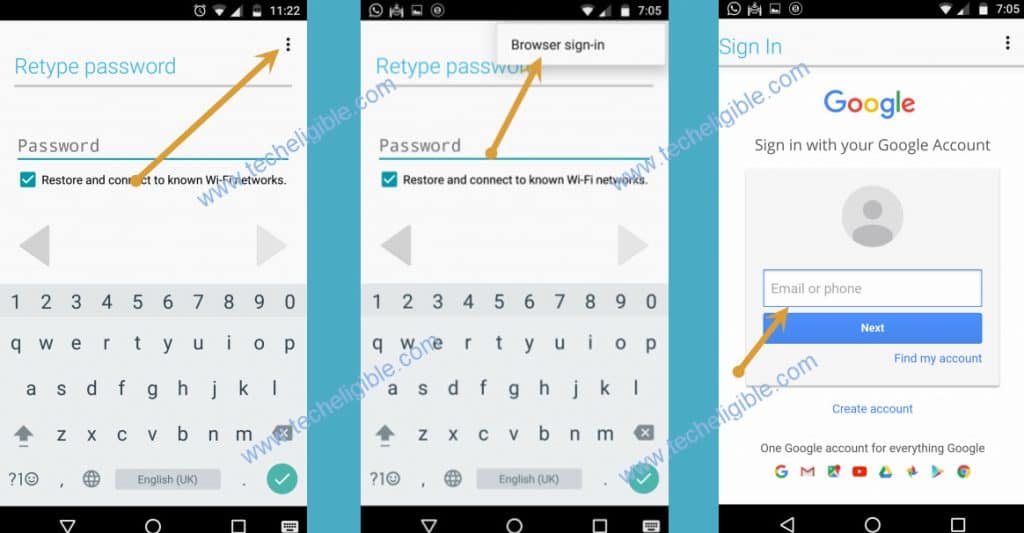
-Go to > 3 dots > Browser Sign-in.
-You will access to google sign-in page. Enter there your any Gmail account to login with.
Setup more Protection on MOTO G7 Power:
-Go back to device main menu screen, from there, open “Google Chrome browser” again.
-Search there with “Find My Device Google”.
-Go to searched result “Find My Device – Google”.
-Let’s sign-in again with same google account that was previously added.
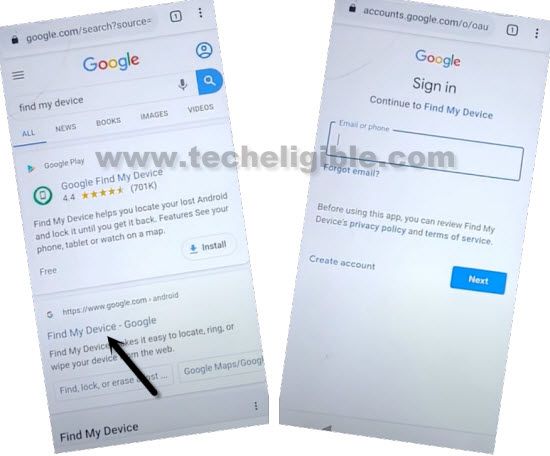
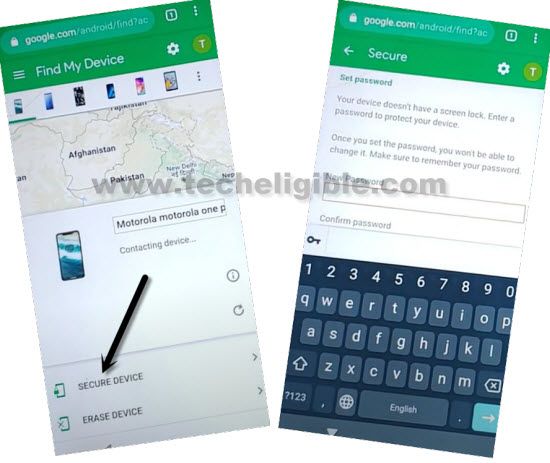
-Setup your any password there and go to > Next > OK > Secure Device.
-Give any password on screen to protect your Moto G7 Power.
-Congrats, you’re all done from Remove FRP Account Moto G7 Power without using any paid tool.