
We can access back to our device even after hard reset and forgetting google account just by Bypass FRP Account Infinix Zero 40 (Android 14). If you are a real device owner, then, you can follow up this instruction to get back your device and setup new google account easily without stuck on (Google Verification Screen).
Disclaimer: We are creating this post to educate people about how to get back their lost device due to forgetting Google account. This method is only for device owner and for educational purpose only.
Let’s Start to Bypass FRP Account Infinix Zero 40:
-Start method by turning on your infinix device and connect WiFi.
-Go back to (Connect to WiFi) page, from there, hit on a “Add network” option to open your device keyboard.
-Hit on a “Keyboard” icon from bottom corner.
-Tap on a “Emoji Keyboard” from popup window.

-After that, tap to “Smiley icon” from there. Tap again on “Smiley” icon from top same as shown in below screen shot.
-Hit on a “Settings” icon from bottom.

-Go to “Theme” and tap at any theme from there. After that, you will be displayed (Share) icon, just tap on that “Share” option.
-From popup screen, just tap over a “Phoenix Image Reader” icon.
-You will be displayed (Emoji Keyboard) image, just tap to “Back Arrow” icon from bottom.

Go to FRP Tools Page to Enable Accessibility:
-Search in browser with “Techeligible“. After that, go to same site as shown in below image.
-Let’s bring up sidebar menu by tapping on “Menu” icon from top corner and tap on “Download FRP Tools” option to access official frp tools page.

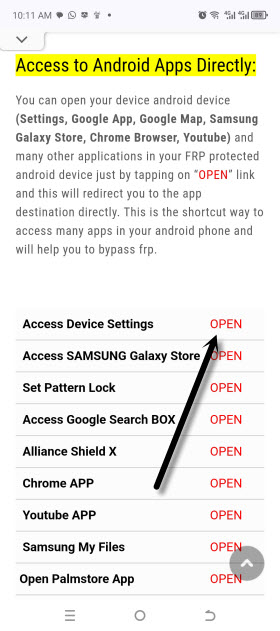
-After successfully accessing to frp tools page, just tap to “Access Device Settings” option.
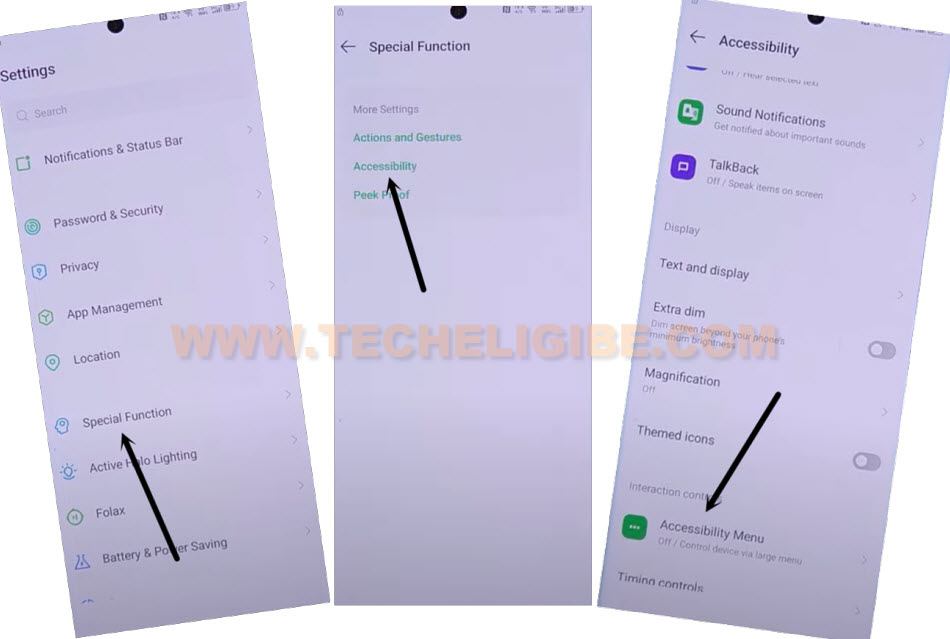
-Let’s enable accessibility function from settings page. Just, tap to > Special Function > Accessibility.
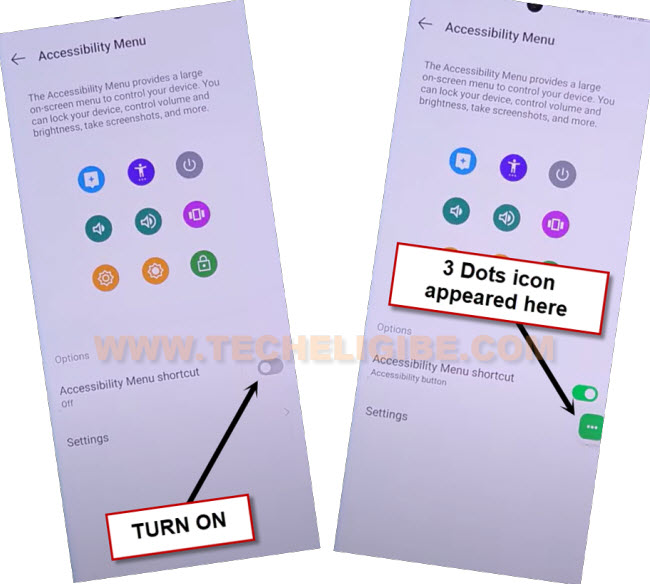
-Go to “Accessibility Menu” and turn on “Accessibility Menu Shortcut” option from there.
-Hit over a > Allow > Got it from popup screen.
-Once the accessibility function is enabled successfully, you will start having a (3 dots) icon on right edge of your device screen.
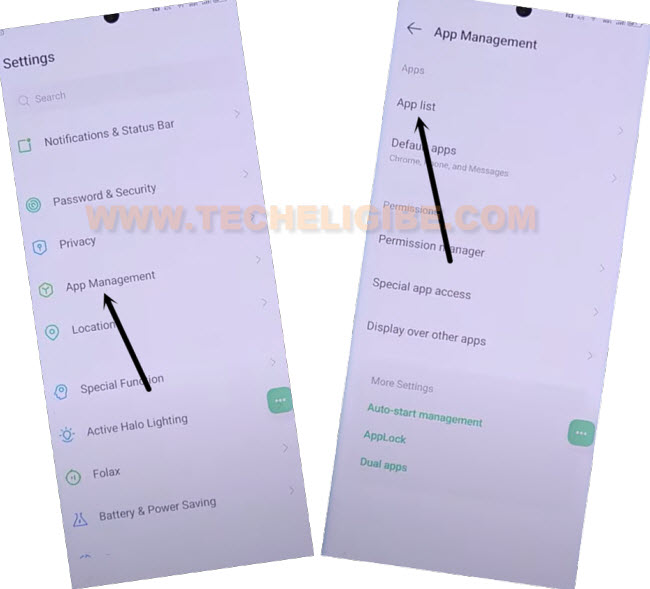
-Let’s get back to main (Settings) page by hitting on back arrow icon from bottom.
-We’re going to disable some apps from app list page by going to > Apps Management > App list.
-Tap over a “3 dots” icon from top corner and hit on “Show system”. After that, all hidden apps will be displayed there.
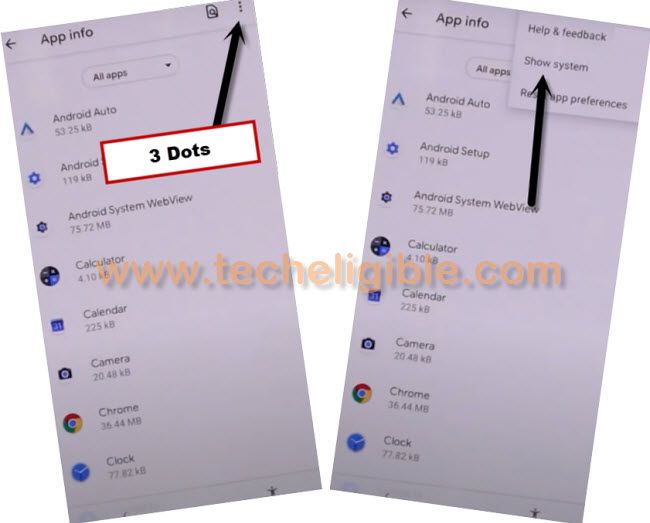
-From app list page, just find and tap to > Android Setup > Force Stop > Ok.
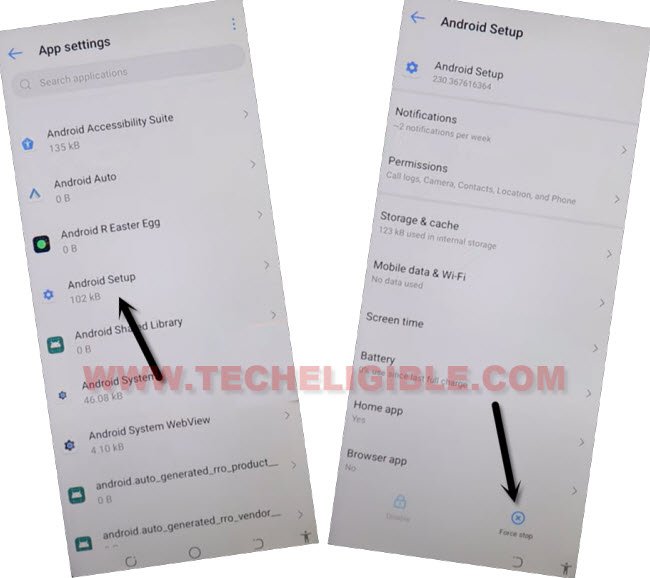
-Tap once on the back arrow icon from top left corner to reach back on a app list screen.
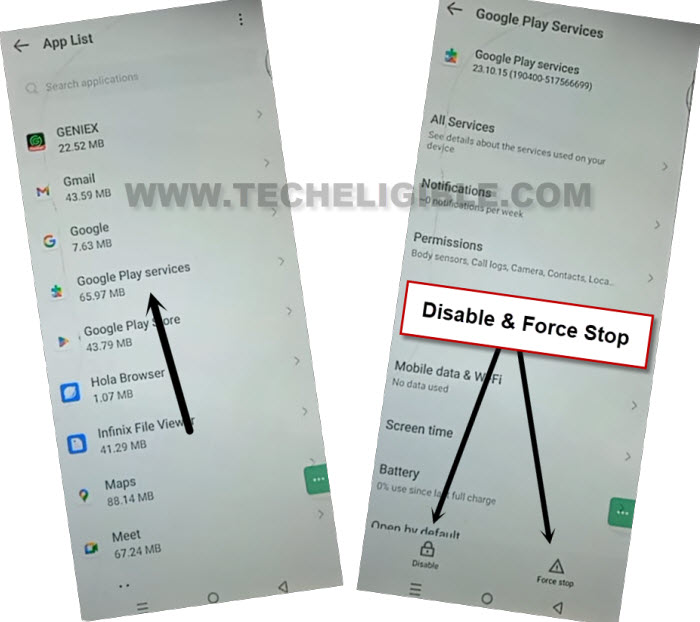
-Find and tap on “Google Play Services” application.
-Afterwards, force stop & disable this app as well to Bypass FRP Account Infinix Zero 40.
-Its time to get back on a (Connect to WiFi) screen by hitting several times on back arrow icon. After reaching over there, just hit on > Next > Next > Don’t Copy.
-Your device Infinix Zero 40 will stuck on a (checking for updates…) screen.
Follow Below Steps too fast:
-You have to follow up below steps very quickly as much as possible.
-Quickly hit on a > 3 dots > Assistant > Google > Always.
| Note: You may not be able to hit on “Google” and “Always” option at first few attempts, but, the more fast you do, the more chances are there to hit both options successfully. Keep your both fingers on stand by position where (Google & Always) option appears. By doing this, you will be able to hit both options very quickly before they disappear. |

-Quickly, tap at > Google > Always.
-If these options disappear before you hit on, just repeat steps by hitting again on > 3 dots > Assistant > Google > Always.

-After successfully hitting on “Google & Always”, you will be able to see “Try Saying” screen will popup.
-From that popup screen, just hit on a “Keyboard” icon from bottom.

Repeat Some Steps Enable Back Google Play Services:
-Tap on a “Emoji Keyboard” from popup window.
-After that, tap to “Smiley icon” from there. Tap again on “Smiley” icon from top same as shown in below screen shot.
-Hit on a “Settings” icon from bottom.
-Go to “Theme” and tap at any theme from there. After that, you will be displayed (Share) icon, just tap on that “Share” option.
-From popup screen, just tap over a “Phoenix Image Reader” icon.
-You will be displayed (Emoji Keyboard) image, just tap to “Back Arrow” icon from bottom to Bypass FRP Account Infinix Zero 40.
Go to Settings Page:
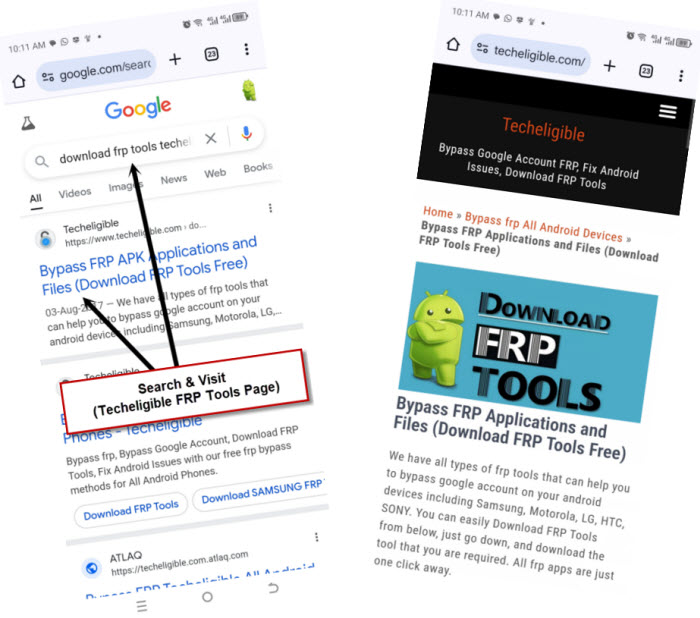
-After that, you will see search bar there, just type there with “Download FRP Tools Techeligible“.
-Go to 1st searched result same as shown below.
-After successfully accessing to frp tools page, just tap to “Access Device Settings” option.
-Let’s go to to app list page again by tapping at > Apps Management > App list.
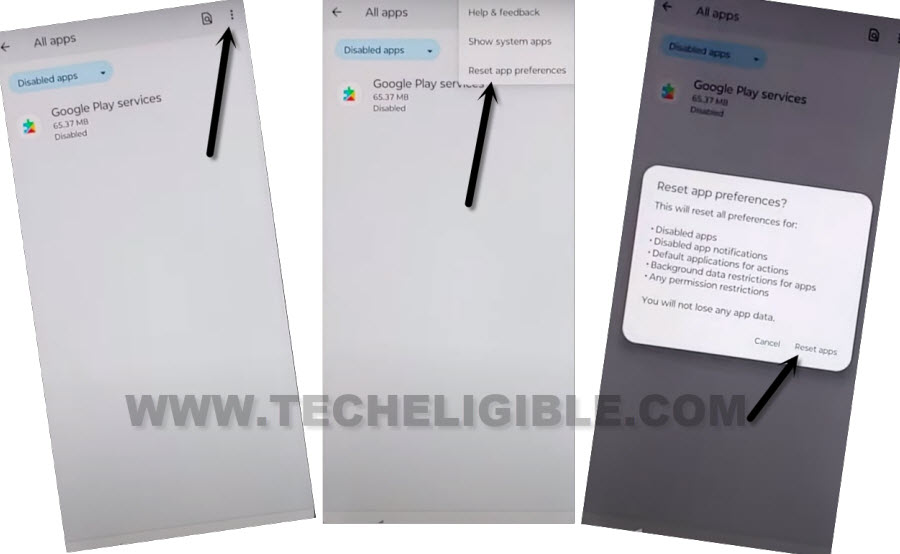
-From there, tap to “All Apps” from top and tap on “Disabled Apps”.
-You will be displayed google play services app there, that, we recently disabled.

-To enable back this application, just hit on “3 dots” menu from top corner and tap to “Reset App Preferences”. After that, hit on “Reset App” from popup window.
-Go all the way back on a (Checking for update…) screen by hitting on a back arrow icon from bottom.
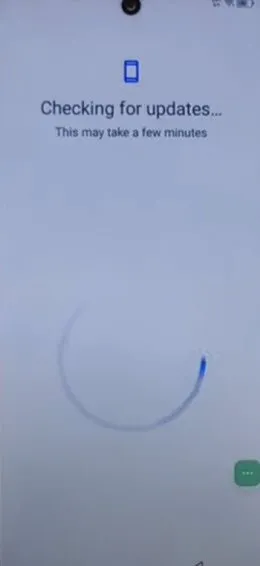
-This time, this loading page will be completed, and you will reach on a next screen of (Google Services).
-All remaining setup wizard steps can easily done without any further instruction. You are all done from Bypass FRP Account Infinix Zero 40 without any frp bypass app and PC.