
Have you forgotten your google account?. If the device hard reset recently, then, FRP protection will not allow you to access your BLU G5 Plus device main home-screen. You will have to apply below steps to Remove FRP BLU G5 Plus (Android 9). We will switch our BLU phone language from English to Chinese. After that, add 1-2 keyboards language there. Through this, you can go to youtube webpage and bypass frp.
Disclaimer: We are creating this post to educate people about how to get back their lost device due to forgetting Google account. This method is only for device owner and for educational purpose only.
Let’s Start to Remove FRP BLU G5 Plus:
-Turn on your device and connect to proper WiFi. Once the WiFi is connected successfully, just go all the way back to first (Hello) screen. From there, change BLU G5 Plus language to (Chinese) same as shown in below image.
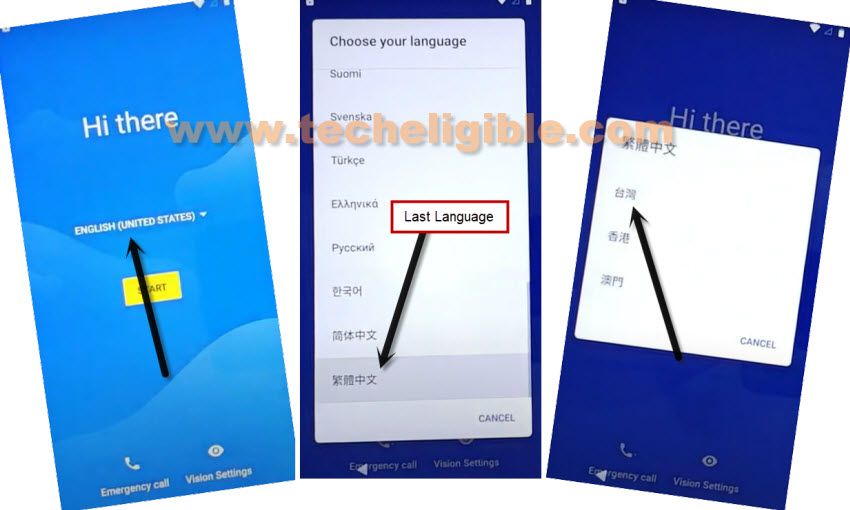
-Get back to first startup page after switching the device language to Chinese. From there, tap to “Yellow” button to go next page.
-Tap on “Call” option from bottom and hit 2 times on a “Grey button” from top center.
-Go to “Pencil” icon.
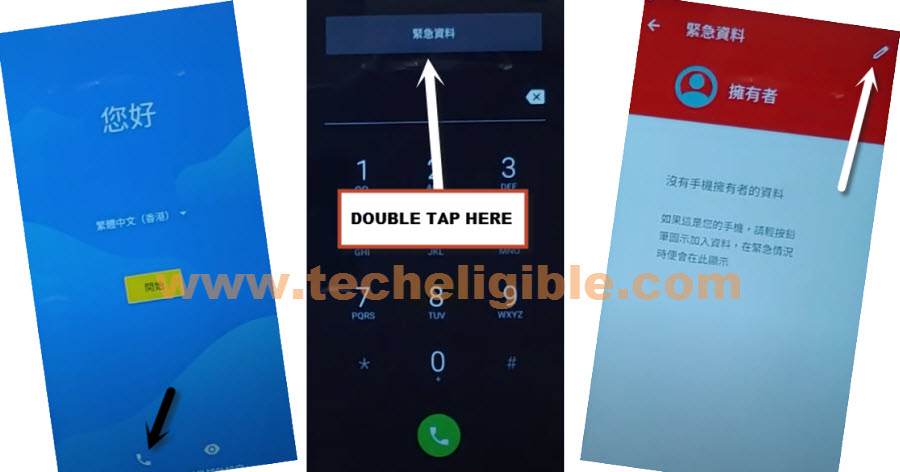
-Tap again on a “Pencil” option. After that, tap to “Human” icon option from the top of the list. This will open up a popup window.

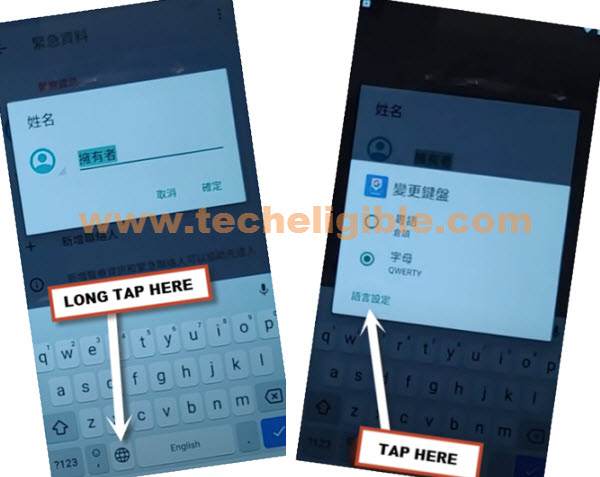
-Tap on a center of the popup window box to get your device keyboard same as shown in below image.

-Let’s long tap to “World” icon from there, and tap to “Last link” from popup window.
Add Some Keyboards Languages:
-Let’s go to “Add keyboard” option from bottom center BLU colored button.
-Choose and tap on any random language from there. After that, tap to “Right BLU option” from bottom. This will save new language in your keyboard.
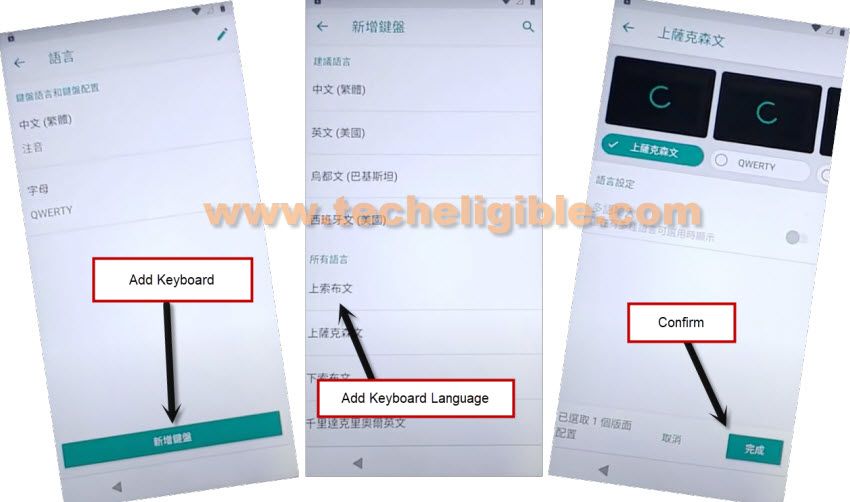
-Let’s add one more language by tapping on a “Add keyboard” button from bottom center.
-Tap to any language from language list page and then, tap to “BLU option” from bottom right (See below image).
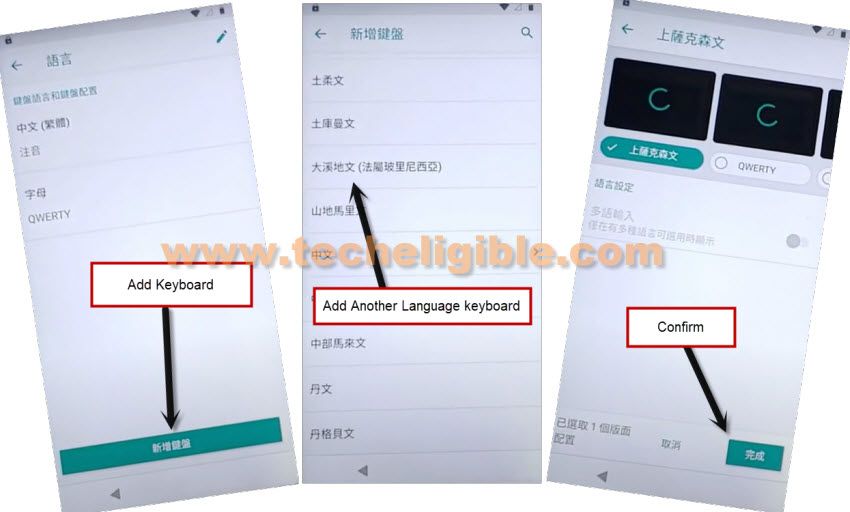
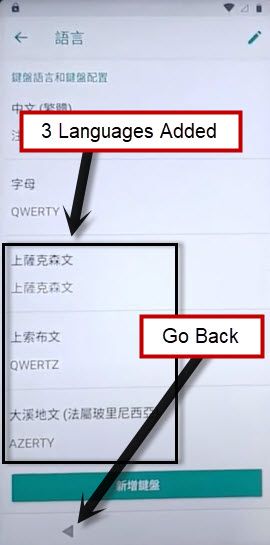
-As you can see, your language has been added in your keyboard.
-Go back on first startup page again by tapping on back arrow several times.
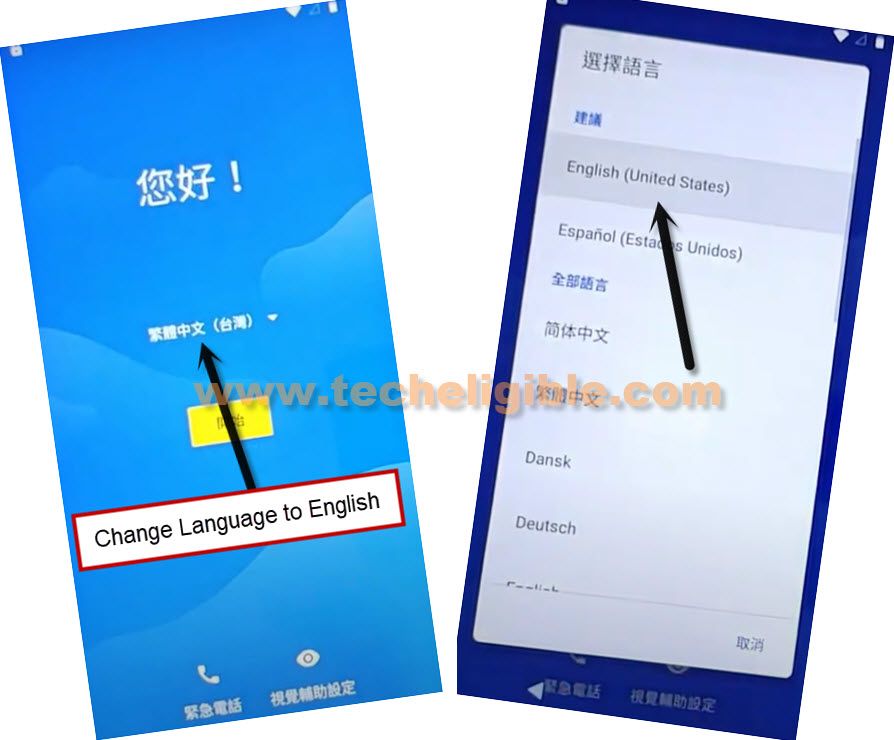
-Let’s change our device language to (English) again.
-Tap to “Call icon” from there.
-Tap two times on “Emergency information” option.
-After that, you’ve to hit on a “Pencil” icon from top corner.
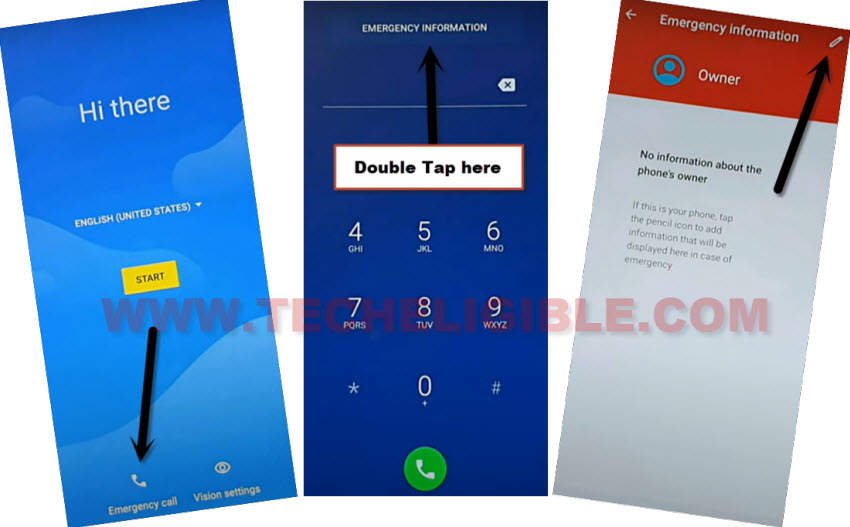
-Go to > Edit information > Name.

-Your device keyboard will come up on screen. Just, long tap on “World” icon from there and tap to “Language Settings” option to access to your device keyboard setup page.
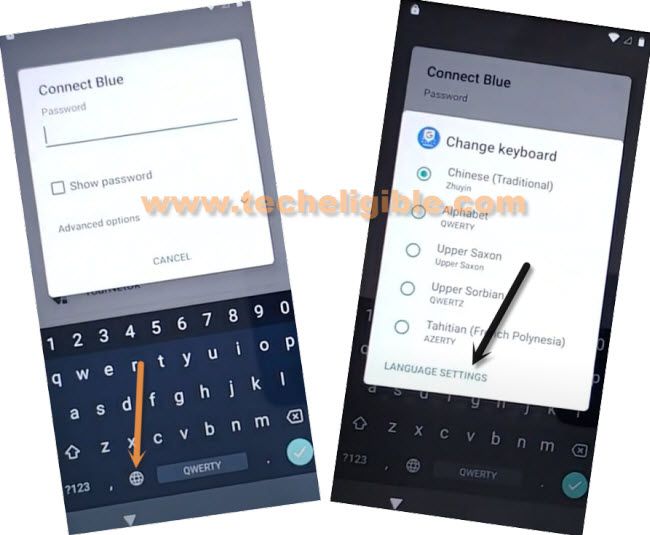
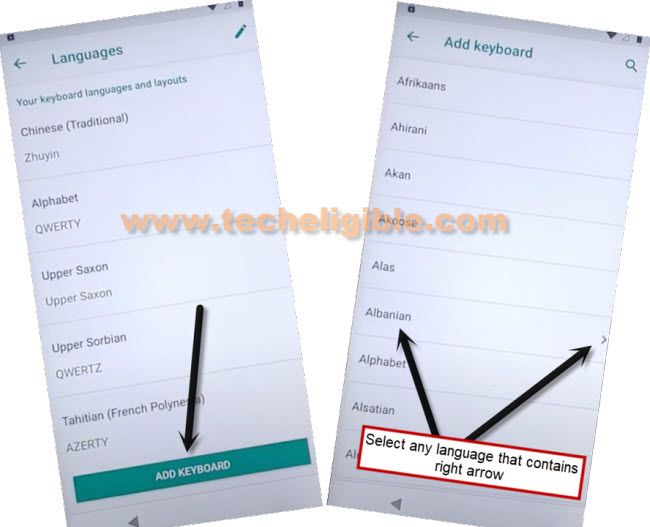
-Go to “Add keyboard” button.
-Tap to any arrow mentioned language from language list page. In below image, you can the the (Albanian) Language is selected, because this has an arrow icon.
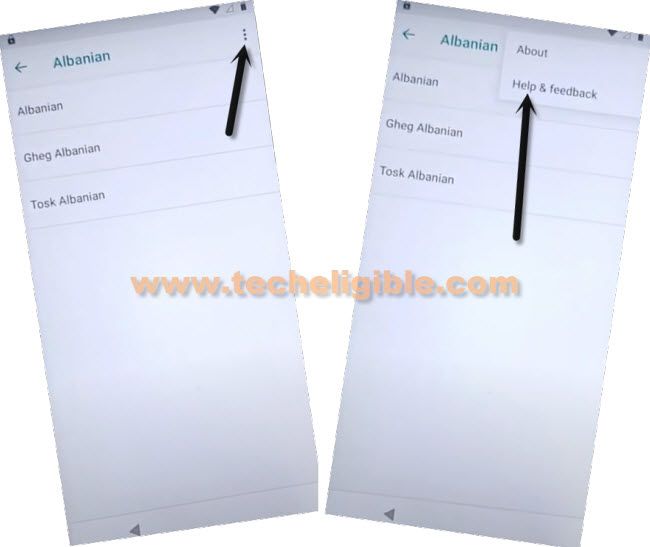
-You will be able to have a 3 dots icon on top corner of the page. Just tap to > 3 dots > help & feedback.
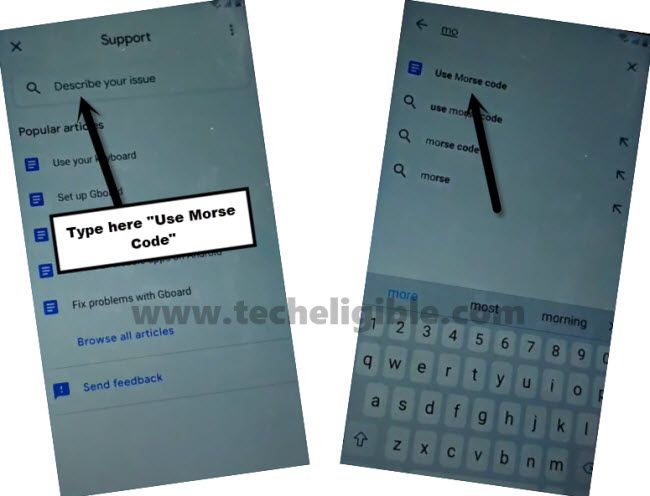
-If you don’t see any (Use morse code) in article list, just search there “Morse” and go to “Use Morse Code” article page.
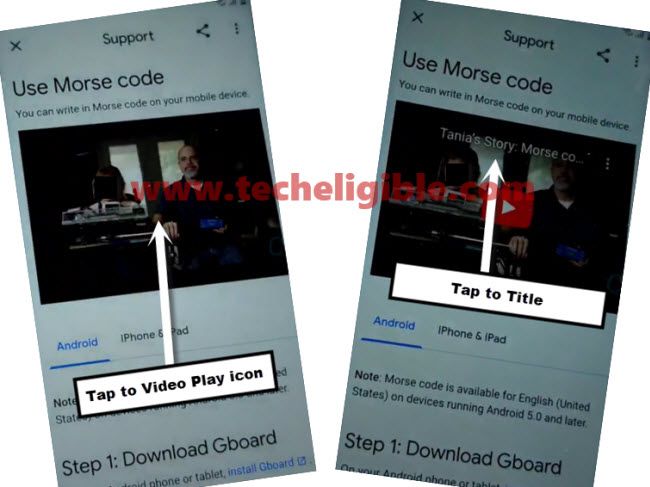
-In this article page, you will see a youtube video is embedded. Let’s tap to “Play button” from the video.
-Tap on a video title same as shown in below image.
-Within few seconds, you will be taken to the youtube webpage. From there, go to “Profile” icon from top corner. After that, tap to “Settings” option.
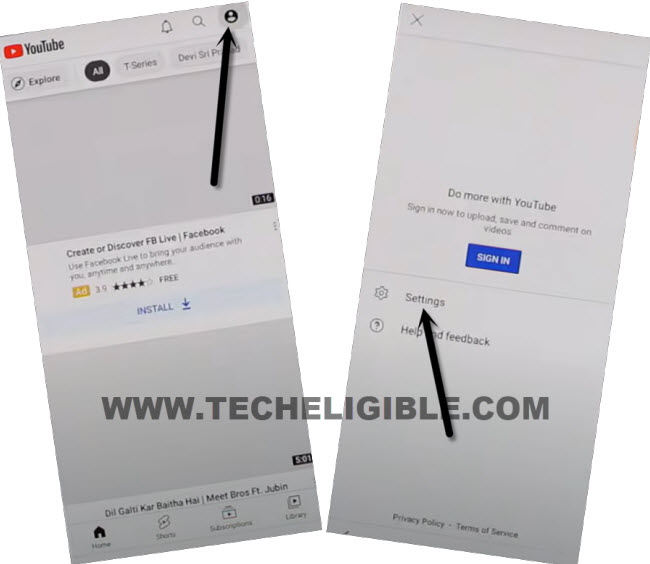
-After that, hit on a > History & Privacy > Youtube terms of services. This will launch google chrome browser.
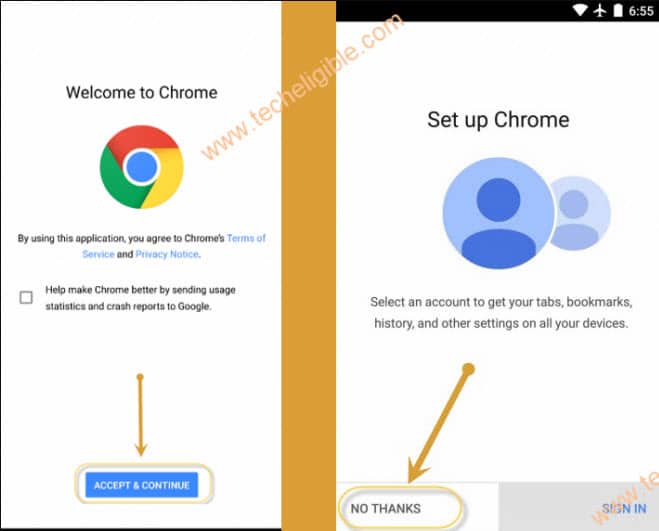
-Hit on a > Accept & Continue > Next > No Thanks.
Download the FRP Removal Apps:
-Access to techeligible website. After that, go to official frp tools page from there by hitting on “Menu icon” from top corner.
-Tap to “Download FRP Tools” text from sidebar menu.

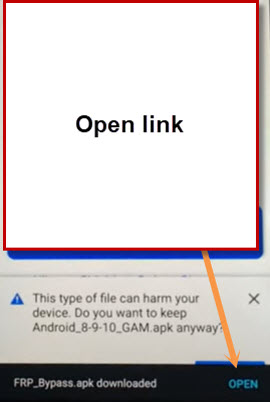
-Download from there “Google Account Manager 6″. Once the downloading is done, you will have a “Open” link at the bottom notification bar. Just tap to “Open” from there to access to installation page.
-Before the installation process starts, you will have to give permission. Just tap to “Settings” from popup window and turn on “Allow from this sources” option.
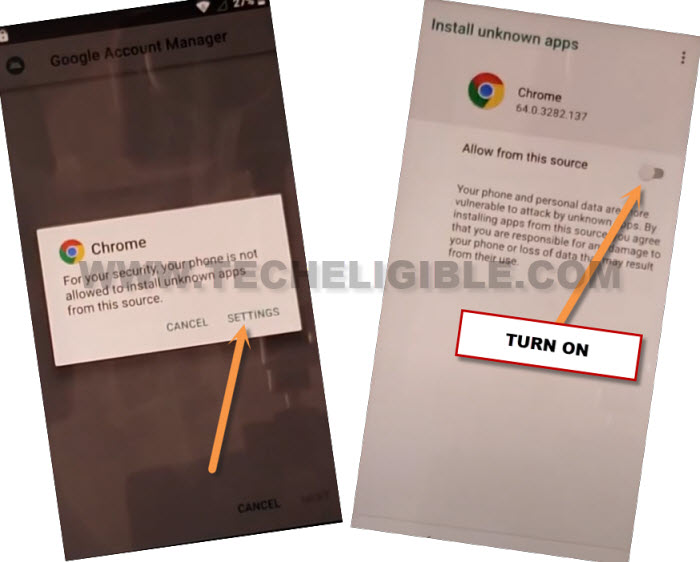
-Go back to frp tools page again. Download again “Google Account Manager 6“. Once the downloading is completed. Tap again on “Open” link from bottom.
-After that, install this app in your BLU G5 Plus phone by tapping to > Install > Done.
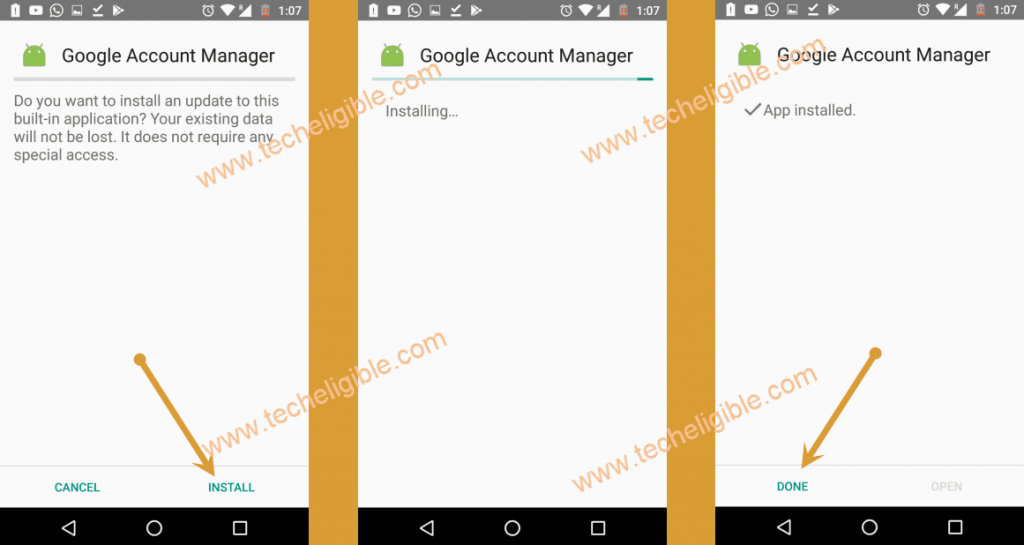
-Go back on a frp tools page, from there, download one more app named “Account Login“.
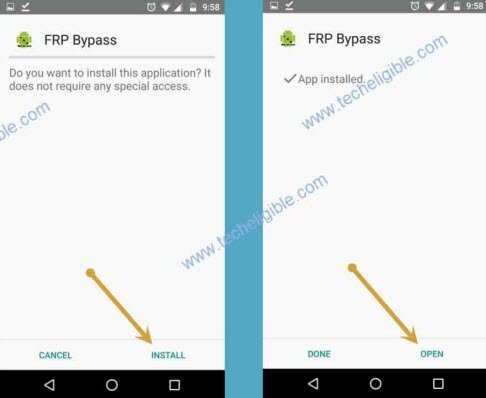
-After downloading is completed, just tap on a “Open” link from bottom notification bar to go to installation page of this app.
-Tap to “Install” option. After that, tap to “Open” to launch this app.
Setup new Gmail Account to Bypass FRP:
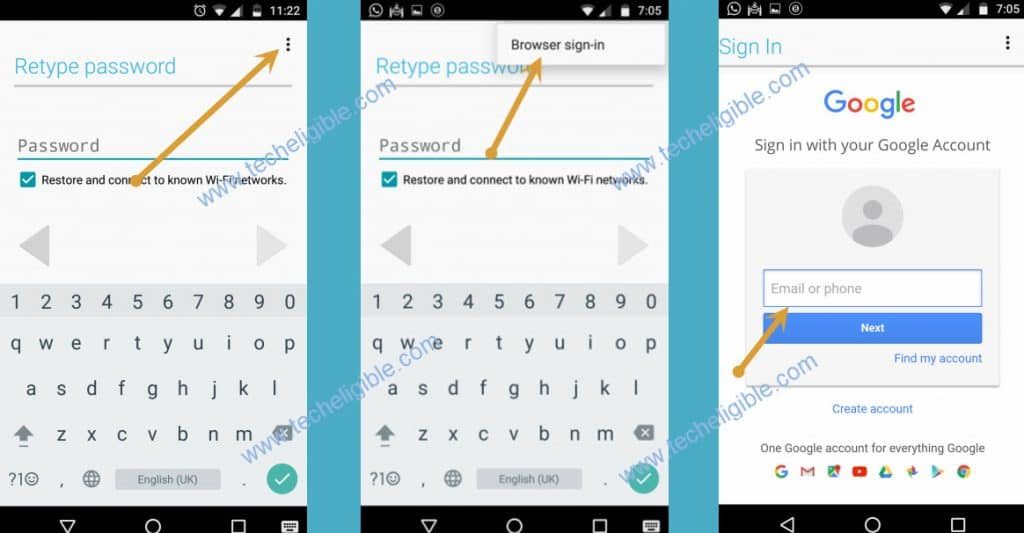
-We can easily sign in with any google account in this device now. Just go to “3 dots” option from top corner.
-Afterwards, go to “Browser Sign-in” to Remove FRP BLU G5 Plus.
-After adding google account successfully. You can restart your device and finish up setup wizard steps easily.