You can use (Google Assistant) option to fix your Oscal C80 device frp bypass issue. If you don’t remember your old google account and you have done a factory reset on your device. Then, you definitely need this method to Bypass FRP Oscal C80 (Android 12). We will enable talkback and access main Oscal device settings page through google assistant option. Follow all steps from below.
Disclaimer: We highly recommend you to apply this method only on your own device, if you are not owner of this device, or you found this from some where, you must return to its real owner.
Let’s Begin Bypass FRP Oscal C80 Steps Here:
-You have to turn on your device and connect to WiFi first.
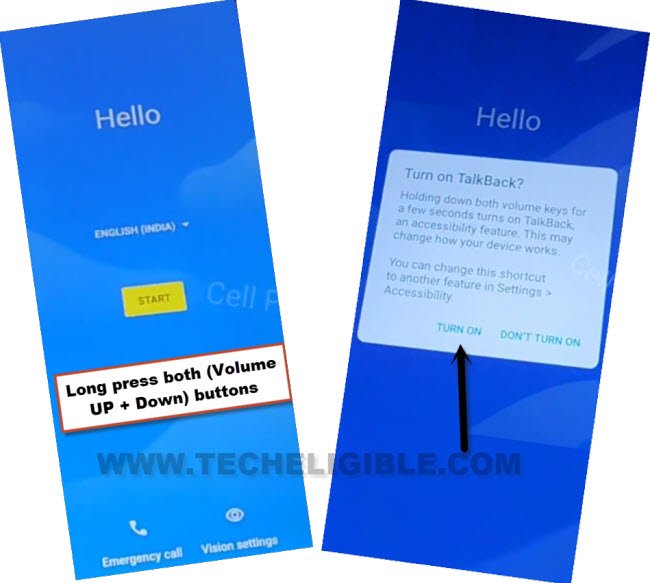
-Get back on first startup screen. From there, let’s turn on talkback function by long holding both buttons (Volume up + down). Keep holding buttons until you have a popup window. From there, tap on “Turn on” option.
-Long hold again both (Volume UP + Volume Down) buttons until you being redirected to the (Welcome to Talkback) screen.
-Let’s swipe right and swipe up on screen same as shown in below screen shot. After that, from (Voice command) popup window, just double tap to > While using the app > Use Voice Command.
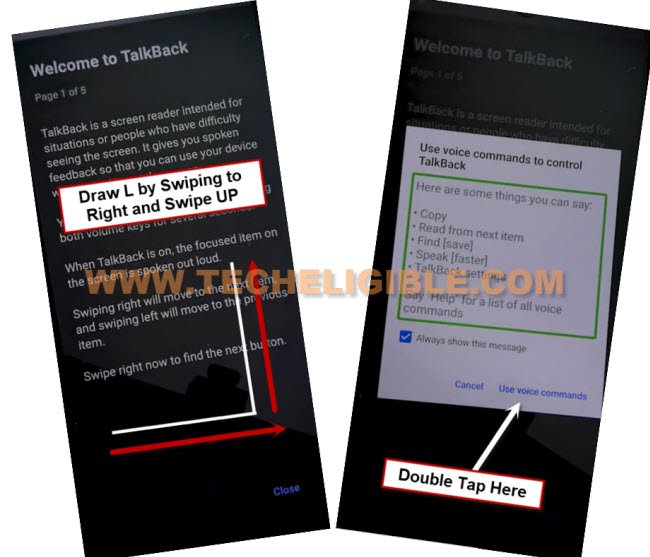
-Once you have a green lines on screen, you’ve to speak loudly “Open Google Assistant“.
-You will be shown another popup window. From this popup window, speak loudly “Open Settings“.
-Tap over the “Settings” option from google assistant popup window.
Enable Accessibility and Disable Apps:
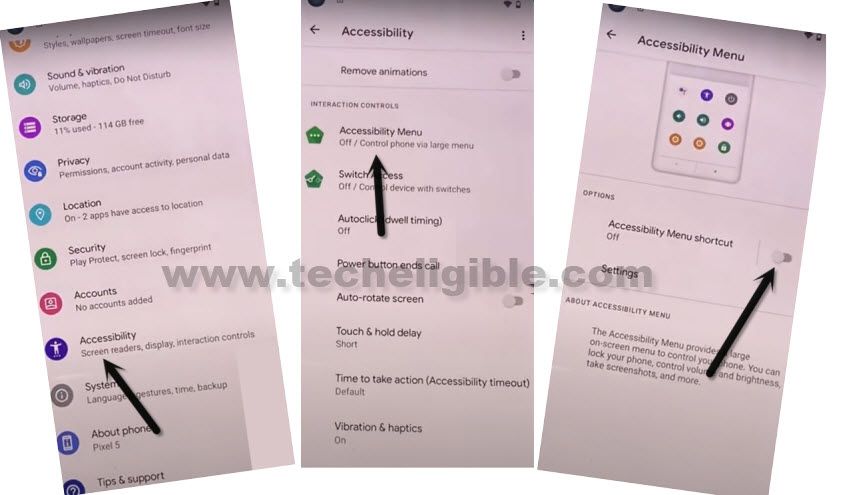
-From (Settings) page, scroll down and go to “Accessibility” option.
-We have to enable accessibility function by going to “Accessibility MENU”.
-After that, enable “Accessibility Menu Shortcut” option from there.
-After successfully enabling accessibility function, you will be shown another popup screen. From there hit on > Allow > Got it.
-You will also have a small (Human) icon at the bottom corner of the screen.
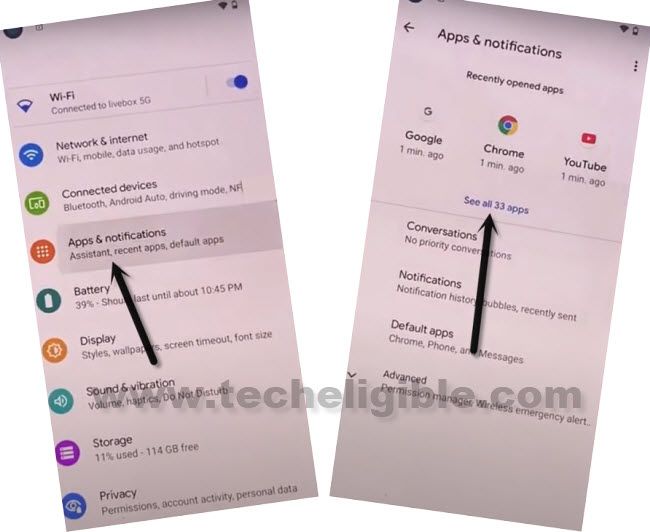
-Let’s go to disable some apps form app list page to Bypass FRP Oscal C80. From main settings page, just hit on ” Apps & Notifications”.
-Tap on the blue option “See All Apps”.
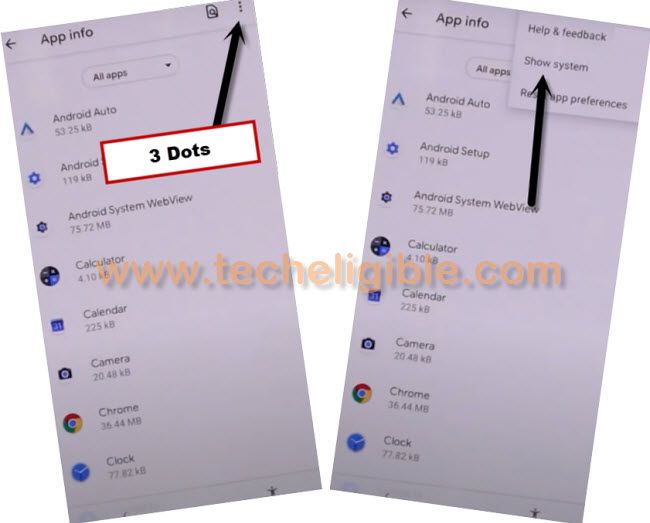
-Firstly, go to “3 dots” menu from upright corner and hit on “Show system”. This will show you all hidden apps there.
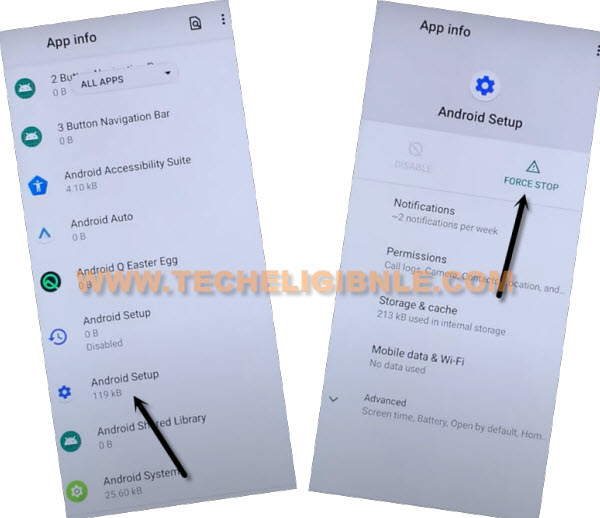
-Let’s find and tap on a “Android Setup” app same as shown in below image.
-From there, tap to “Force Stop” option and hit on “Ok”.
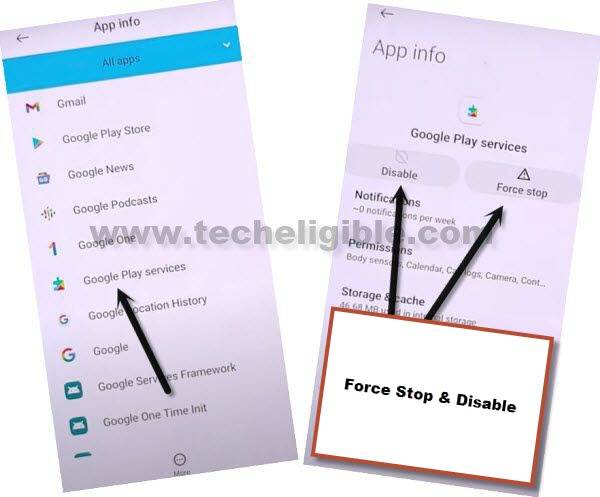
-Go back to app list page again. From there, find and tap on a “Google Play Services”.
-Tap to > Disable > Disable this app.
-After that, you need tap also on a > Force Stop > Ok.
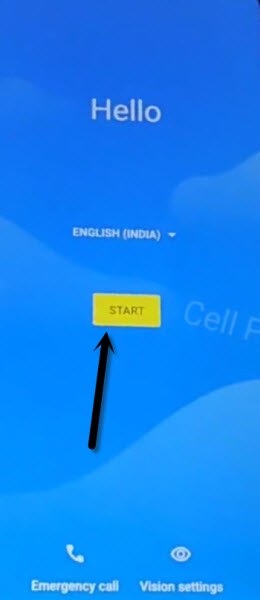
-After disabling apps. You have to get back to first startup screen (Hello / Hi there) by tapping on back arrow icon several times.
| Note: If you stuck somewhere on screen while going back to first startup page. You can restart your device. |
-From first startup page, just tap on > Start > Skip.
-If the WiFi is not connected, firstly, connect WiFi.
-Go back to your (Connect to WiFi) screen. From there, tap to > Setup offline > Continue.

Follow Steps Quickly to Enable Google App:
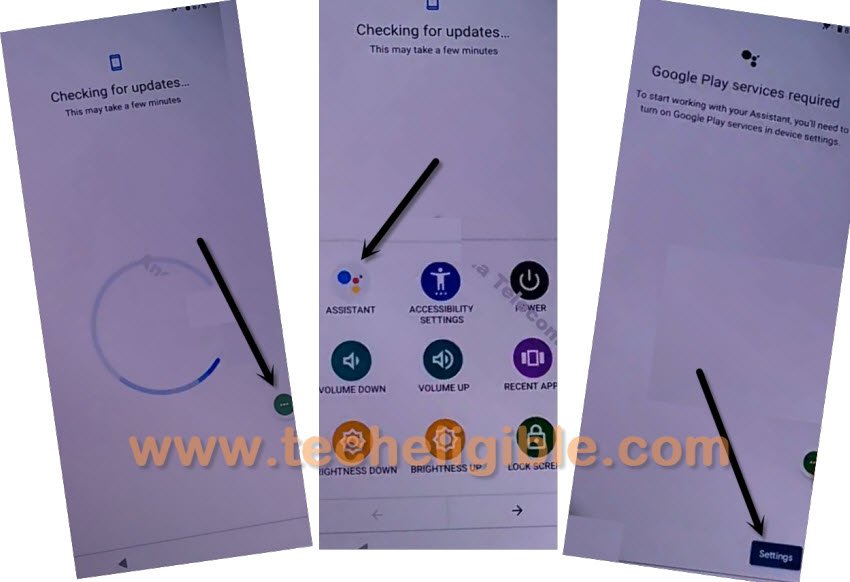
-Wait on a loading screen for a minute. After that, tap on > 3 dots > Accessibility Settings.
-After few attempts, you will reach to (Accessibility Settings) page.

-From there, tap again on “3 dots” icon and this time, tap on “Assistant”.
-After that, go to “Settings” option.
-Let’s hit over the “Enable” button to turn on google play services. After that, we will be able to complete setup wizard steps easily to Bypass FRP Oscal C80.
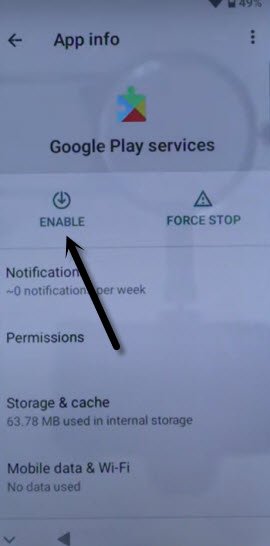
-After enabling the google app. Just tap 1-2 times on back arrow icon to go back to loading screen. This time, this loading screen will be completed within a seconds and you will reach to google services page. From there you can easily finish up all remaining steps on your own.