
Stuck on google verification screen because of lost already signed in google account detail? That means, you are on a FRP protection being owner and locked yourself. But, No worries at all, you still have an opportunity to remove verification obstacle by walking through the pattern lock setup. Yes, you can Bypass FRP All Sony Xperia Android 13 without using any paid services.
We will use SIM card and dial any emergency number using (Emergency) option, that appears up on the first (Welcome) screen. After that, you will be able to see (Google Map) preview there. You have to use that preview to access to the device security lock setup screen. Follow the guide from this post. This method will work on all Sony Xperia Android 13.
Let’s Start to Bypass FRP All Sony Xperia Android 13:
-We have to switch on Sony Xperia device & Connect WiFi first. After having Connectivity, just get back on (Welcome) home-screen.
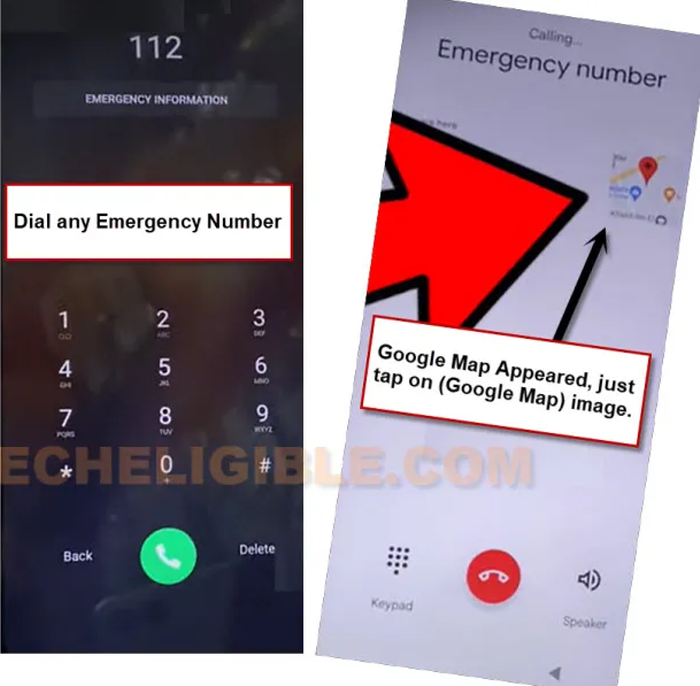
-You have to make a call to any emergency number. Insert SIM card first. Dial any emergency number by going to “Emergency” option from bottom of the welcome screen.
-You can dial (112) number, if you see (exclamation) icon on calling screen, that means, we are unable to get (Google Map) preview there. Disconnect call & call again. Keep trying this process until you successfully get a (Google Map) preview.
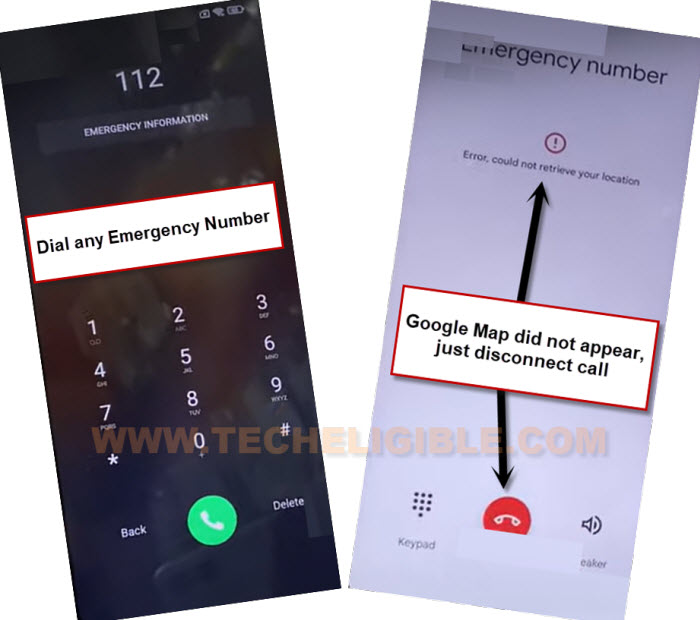
-Once you have a google map on calling screen, quickly tap on google map to open up this application, so that, we could go for further frp bypass steps.
-Tap to “Skip” from top corner of the google map screen.
-Eject your SIM tray to disconnect the call.

-Search with “Restaurant” in top search bar. This will show list of all available nearby restaurant.
-Hit on a “Call” icon from any restaurant to go to dialing screen.

-After reaching to dialing screen, lets insert back your SIM card. Enter your SIM PIN and unlock the screen. After that, you will reach back to same (Dialing) screen.

-From there, go to “3 dots” icon and hit on “Add Wait” option from there.
-Let’s hit over the “Send a message” option.

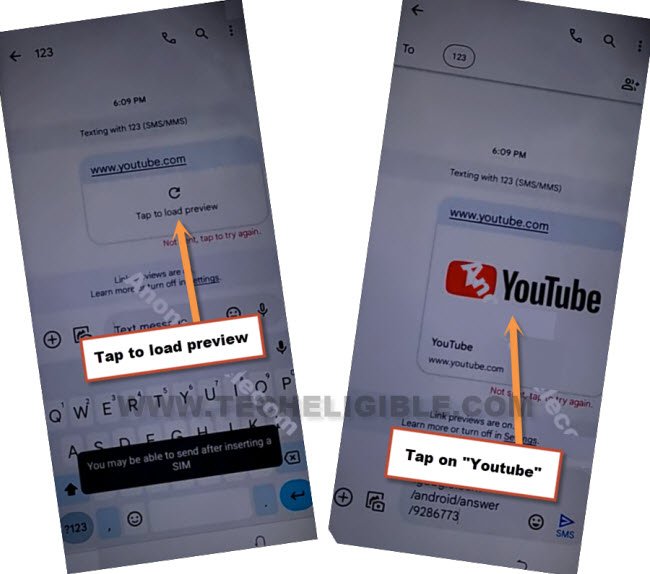
-After that, you just type www.youtube.com url and send this message as text message.
-Once the message is sent, tap on “Tap to load preview” option from there. Once the youtube preview appears up, just tap on that youtube preview to lead to main official youtube site.
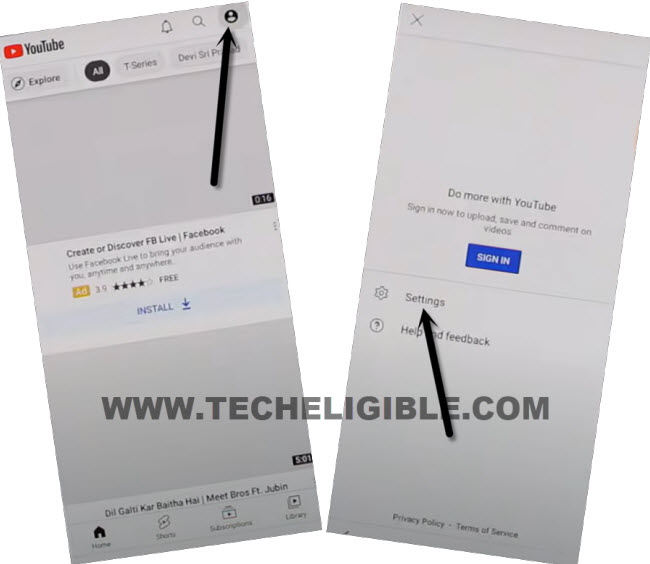
-Let’s tap to “Account profile” icon from top corner of the youtube screen and go to “Settings” option.
-Afterwards, hit over the > History and Privacy > Youtube terms of service.
-You will access to welcome to chrome browser, from there, hit on a > Accept & Continue > No Thanks.
-We can setup new pattern lock protection on our device to Bypass FRP All Sony Xperia Android 13.
Navigate to Phone Security Protection Screen:
-From chrome browser, go to techeligible official site. From there, tap to “Menu” icon and then, go to “Download FRP Tools“.

-Scroll down a bit and tap over the “Set Pattern Lock” option to lead to security lock setup screen.

-We have to follow up below steps repeatedly and very fast. Because, after some attempts, your Sony Xperia device will accept pattern lock.
-Let’s tap over the > Pattern > Setup your Pattern quickly. After hitting over the “Confirm” option.
-At first, attempt, either you redirect back to frp tools screen or see a error popup window.
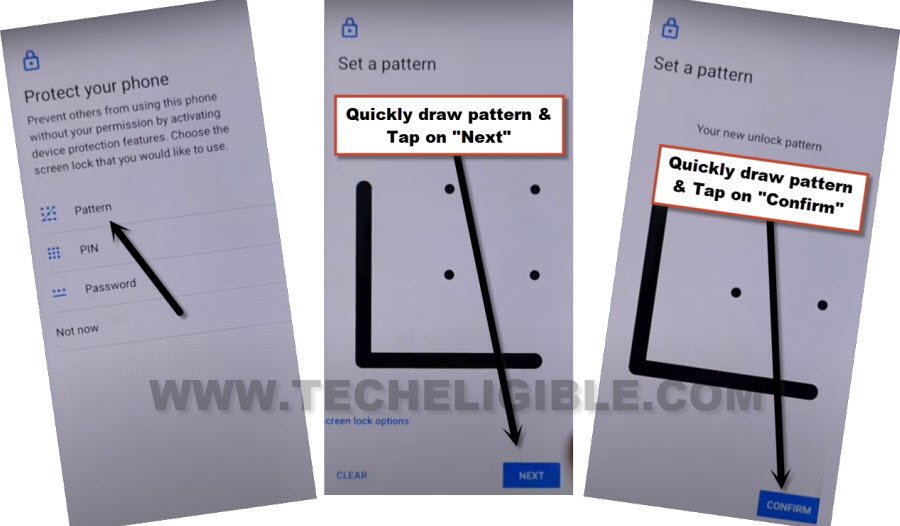
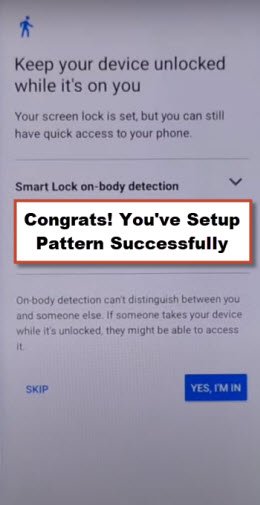
-Repeat steps again and go to security lock setup page. Try to setup pattern lock again by tapping on > Pattern > Setup your desire pattern lock there. After 5-10 attempts, you will be able see (Keep your device unlocked while its on you) screen.
-Once you this see screen (Keep your device unlocked while its on you), that means, the pattern lock has been successfully, just tap to “Skip” option from there.
-Get back to main (Welcome) screen by hitting over the back arrow icon from your Sony Xperia device.
-From there, tap to > Get Started > Accept. Your device will stuck on (Just a sec….) screen. Wait on that screen for 30 seconds. After that, eject your sim card and restart your device.

-Repeat, from first welcome screen, tap again on > Get Started > Accept. You just have to wait on a (Just a sec….) screen until its completed. This may take few minutes to be finished,
-Finally, you will see a screen of (Connect to Mobile Network). From there, tap to > Skip > Accepts > Don’t Copy.
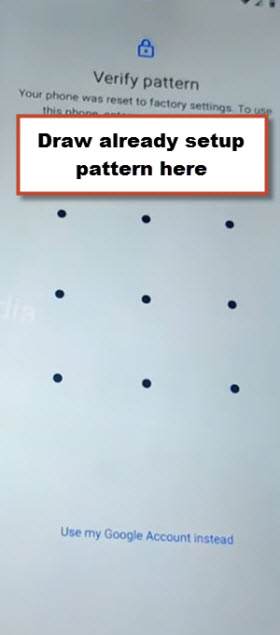
-You will be asked to draw your pattern lock. You just have to draw your recently setup pattern lock to finish the verification screen.
-Let’s wait on a (Checking info…) screen. Finally, you will reach back to (Google Sign in) page. Just, tap to > Skip > Skip from there.
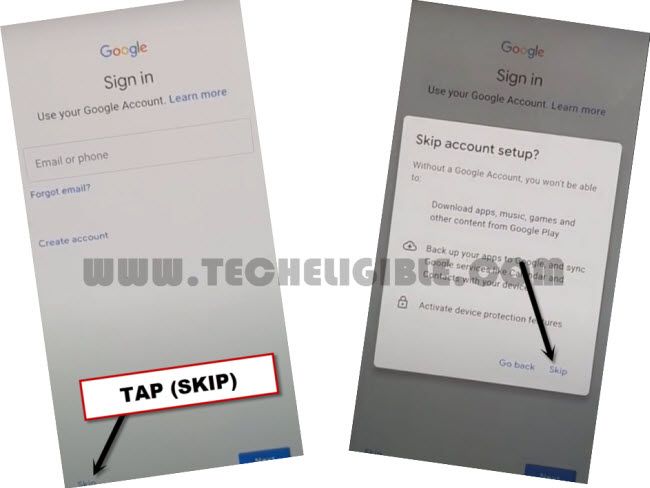
-Other all remaining steps can be completed on your own without any help. Because, you are done from Bypass FRP All Sony Xperia Android 13 with the help of pattern lock setup.