
This guide help you to access back to your device after losing access and forgetting google logged in id. This happens very often when a person buy 2nd hand android device. If you are one of those and facing FRP lock on your own ZTE Blade device. You can follow this guideline to Bypass FRP ZTE Blade V60 Smart (Android 13).
We will use (Change Phone) application, that is already installed in almost all ZTE devices. Firstly, we will access to FRP tools page, from there, we will be able to run Change phone app directly. After that, connect your ZTE device to any other android device and receive (Activity Launcher) application. Through this way, you will succeed in bypassing google frp easily. Check out step by step instructions below.
Let’s Begin to Bypass FRP ZTE Blade V60 Smart:
To finish this frp bypass procedure on the ZTE Blade V60 Smart, we will use here an another android phone. We will also use the (Change Phone / Switch Phone) app to automatically log in with the same Google account on another Android smartphone. After the signing process is complete, New FRP is set up using another Google account. You can later delete that account from the settings. Check out the steps below to Bypass FRP ZTE Blade V60 Smart.
Follow Stepwise FRP Bypass Guide:
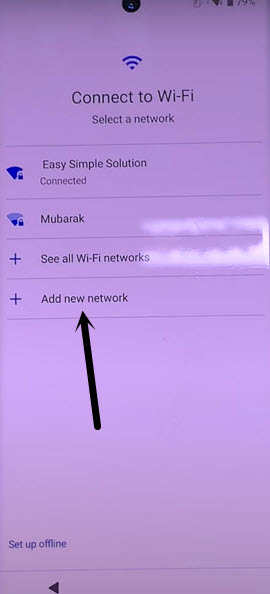
-Turn on the device & Connect WiFi to start frp removal steps.
-From WiFi screen, tap over the “Add new network” option.
-From your device keyboard, go to “Emoji icon” same as illustrated in below image.
-Let’s tap to “Try Again” option 2-3 times.
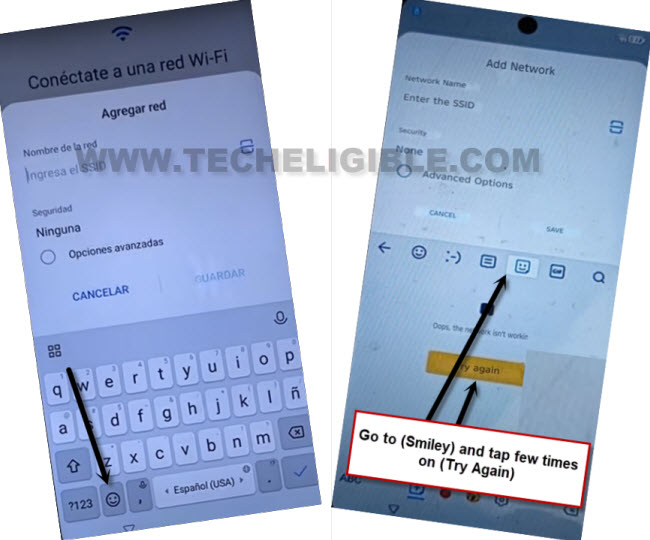
-After that, hit over the “Gif” icon from there and go to “Accept & Continue”.
-From next screen, hit on a “Cancel” option.

-Repeat steps, go back to WiFi screen, from there, tap to > Add new network.
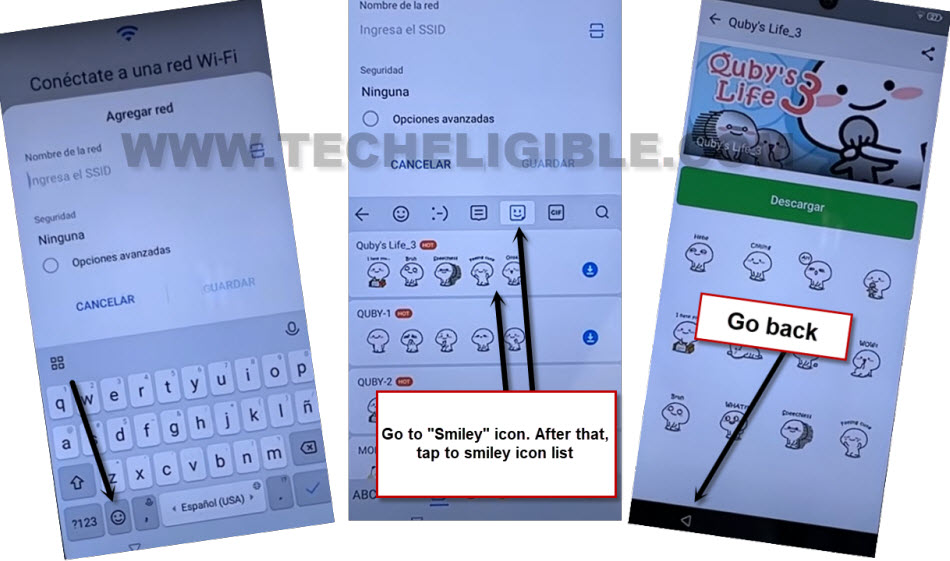
-Hit again on a “Smiley icon” from bottom of the keyboard, after that, tap to another “Smiley” icon from keyboard top. This time, you will be displayed all relevant emojis icon list there.
-Tap on first emoji icon list. After that, hit on “Back Arrow” option from bottom of your device panel. This will take you back to the theme screen.
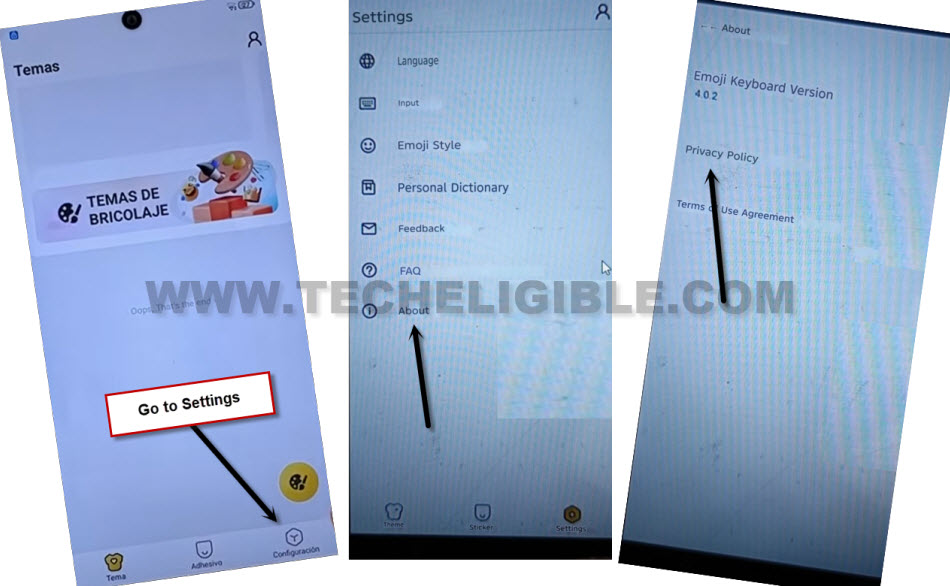
-Let’s tap over the “Settings/Configuration” option from bottom right corner.
-From (Keyboard Settings) page, just tap to last “About” option. Go to “Privacy Policy”.
-Long hold at any random text and tap over the “3 dots” icon from popup options. After that, hit on “Share and Search (Recommended)” option.
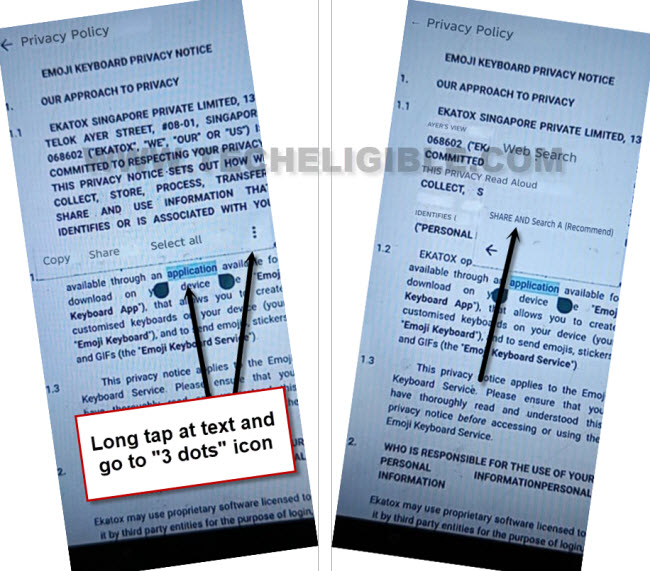
-From popup screen, go to > Accept > Accept > Allow.
-You will redirected to web browser page. From there, we have to reach to techeligible official frp tools screen.
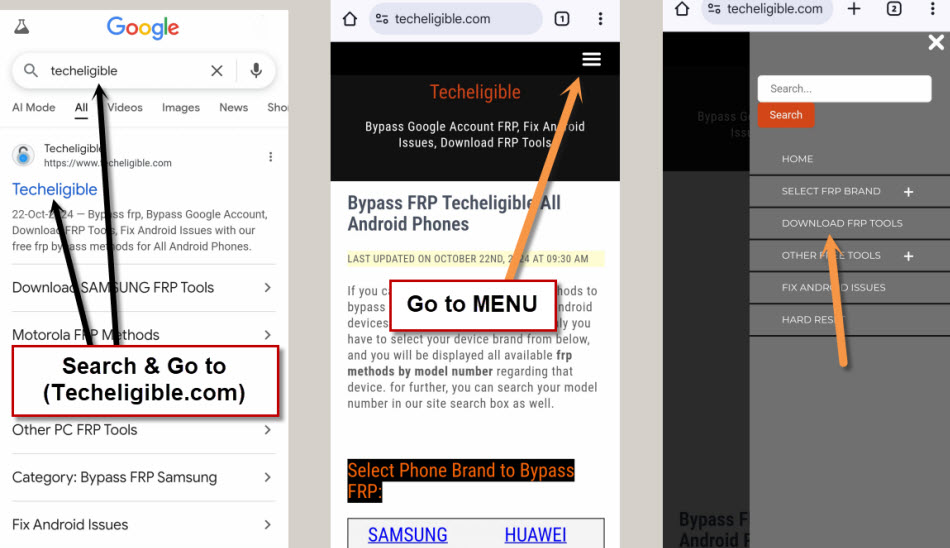
-Search in top search bar with “Techeligible” and go to official techeligible site.
-After that, you have to hit over the “Menu” icon from top corner & Go to “Download FRP Tools”.
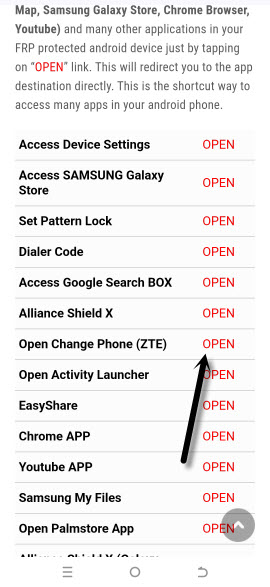
-In your ZTE device, the (Change Phone) app is already installed. We just have to launch this app directly with 1 single tap for FRP bypass ZTE Blade V60 Smart. From frp tools page, scroll down little bit and tap on “Open” option from “Open Change Phone (ZTE)” app to launch this app (See below image).
-After that, tap on “Accept” and tap few times on “Allow” option from popup window.
-You will reach to (Switch Phone) app main home-page. Just keep your device on this screen. We have to use another android device here to transfer apps in ZTE Blade V60 Smart device.
Download & Open (Change Phone) App in Other Android Device:
-Open browser in your other android device and search and go to techeligible official site.
-From there, go to (Menu) option and tap on “Download FRP Tools” option.
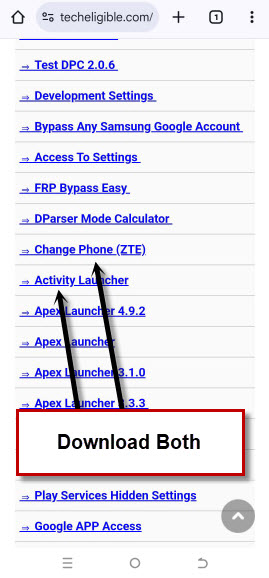
-Download From there below 2 applications.
1st: Change Phone.
2nd: Activity Launcher.
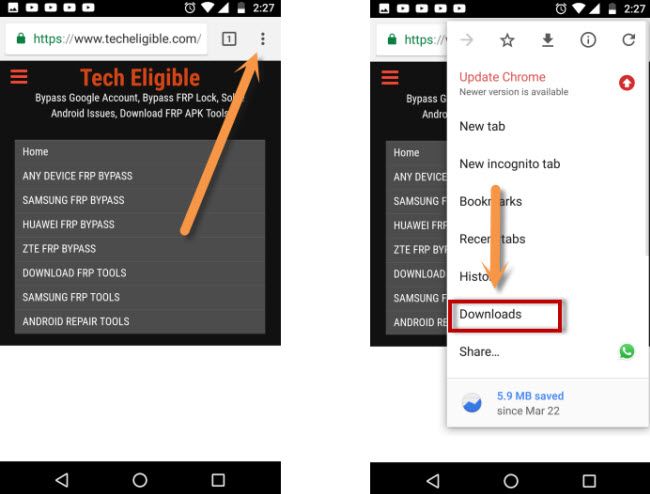
-After downloading process is completed, just go to top of the browser page and tap over the “3 dots” option from top corner. After that, tap on “Downloads” option to reach to download folder. Where, you will have your both downloaded applications.
-Let’s install both apps one by one in your other android device.
| Note: If you get a popup window of chrome installation blocked etc, just go to “Settings” from that popup screen and turn on “Allow from this sources / Unknown Sources”. After that, go try to install app again. |
-Once the installation process is done. Just open your “Change Phone” application in other android device.
-Keep your both devices nearby. In your both devices (Change Phone) app is opened.
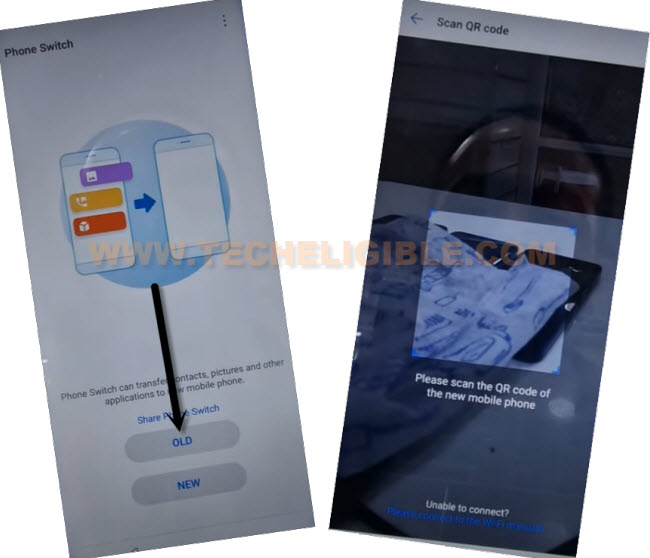
-From other android device, tap to “Previous/Old” option. After giving some permissions, this will show you QR Code scanner.
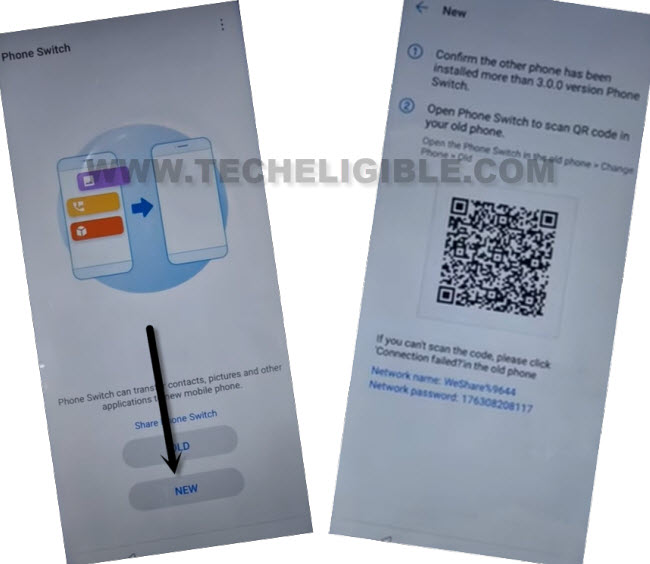
-From (ZTE Blade V60) device change phone screen, tap to “New” option, after giving some permissions, this will show a (QR Code).
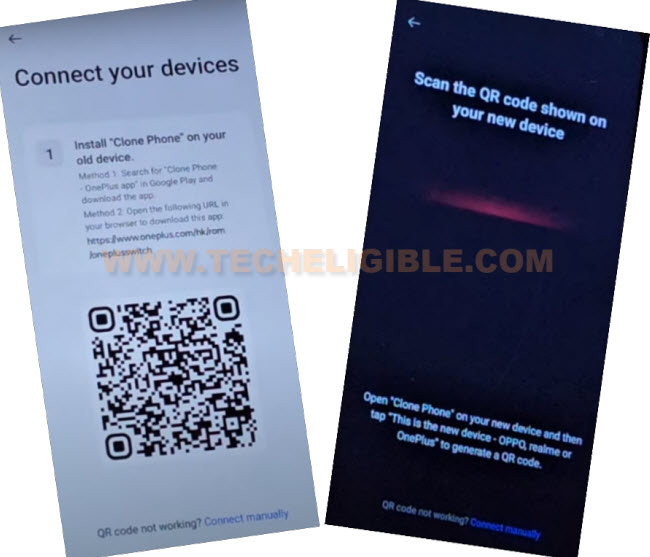
-Let’s connect both devices by scanning QR Code using other android device.
-From other android device, uncheck “Application”. After that, go inside “Application” and check mark only “Activity Launcher” application.
-Tap once on the back arrow icon and tap to “Start Changning” option to transfer your selected app (Activity Launcher) in your ZTE Blade V60 device.
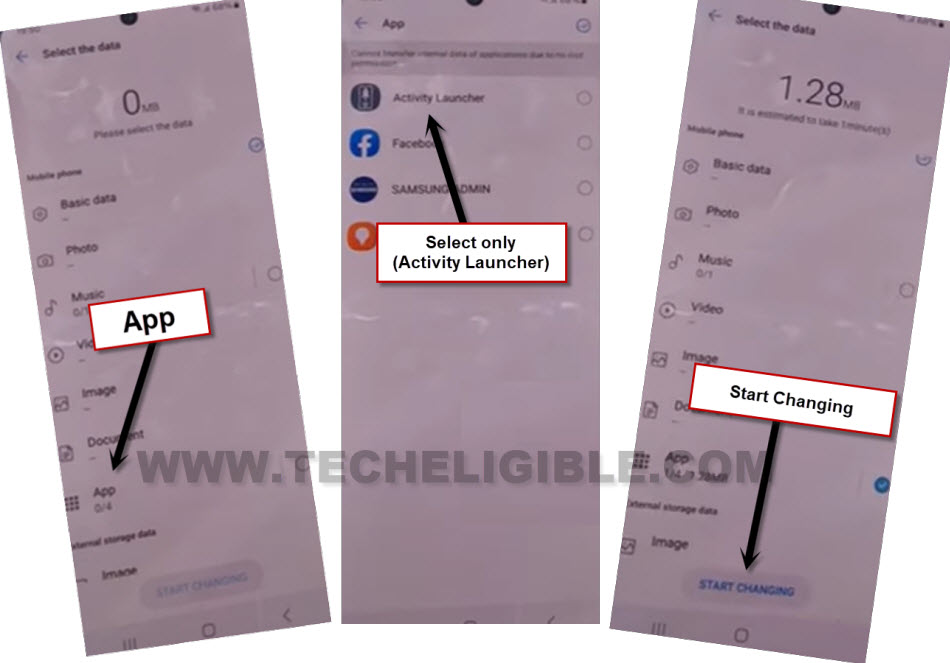
-Once the app is received successfully, let’s get back to (FRP Tools) page by tapping 2-3 times on back arrow icon. Do this carefully to Bypass FRP ZTE Blade V60 Smart.
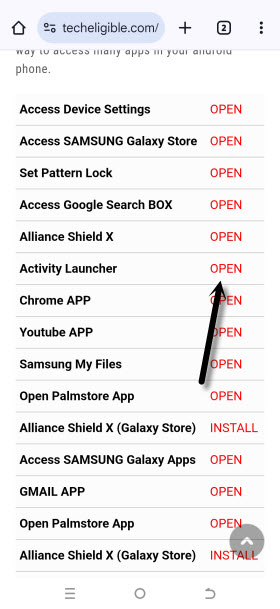
-After reaching at techeligible official frp tools page, just, scroll down a bit, and tap to “Activity Launcher” app from there to open directly. Hit over the “Open” link, which is right next to the (Activity Launcher) app. See below image.
-You will be taken to the page that says “Loading.” Hit the “Ok” button after waiting over there.
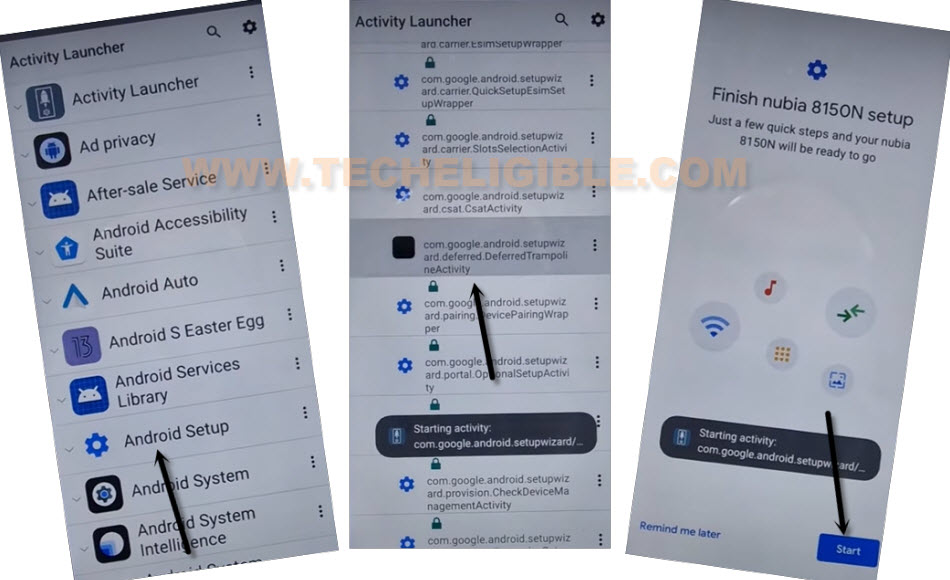
-You are currently on the list page for the activity launcher app. Next, locate “Android Setup” and tap on it. This option will display a lengthy list of (Android setup) options as it collapses further (See below image).
-Tap the “Android Setup” option from that list same as seen in below image.
Note: Do make sure, tap on (Android Setup) that end text with (TramplineActivity).
-You will reach to (Finish ZTE Setup) page. From there, hit on > Start > Skip > Next.
-A (Use another device) page will be displayed to you. Tap Next > No Cable > Copy without cable from that page.
-The (Pattern lock) screen will appear. Simply select the “Use my Google account instead” link.
-Lets hit over the > Next > Next.
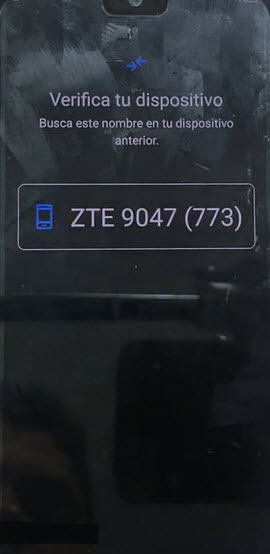
-At last, a page titled “Verify your device” appears. We need another Android device here, and you need to know the details of that other Android device’s signed-in Google account.
Follow these Steps on Another Android Phone to Bypass FRP:
-Let’s launch google app first from your device main menu.
-Tap to “Mic” option after opening up the google and say loudly “”Setup my device”.
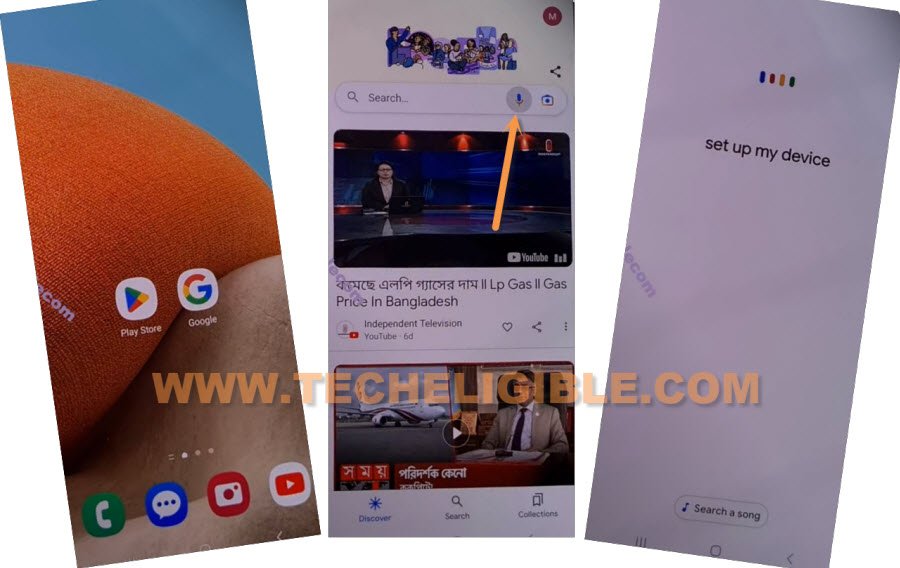
-The (Getting started) screen will then be displayed to you. Tap “Next” after that.
-Few moment later of search, you will have a (Shape Verification) screen on both your device.
Note: Do make sure, your both android devices are on same WiFi connection.
-Navigate to “Next” option and then “Copy” option from other android device.
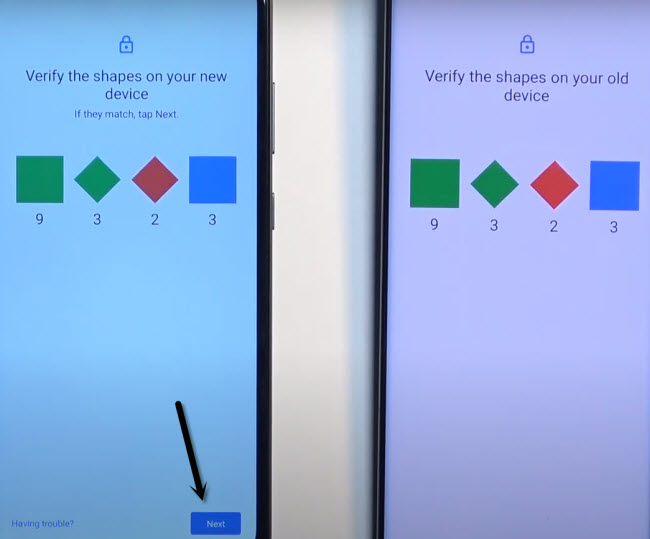
-On your (ZTE Blade V60 Smart) device, the copying process will start and you will lead to (Verify your account) page. From there, login with the same google account credential, that was already logged-in on your other android device to Bypass FRP ZTE Blade V60 Smart.
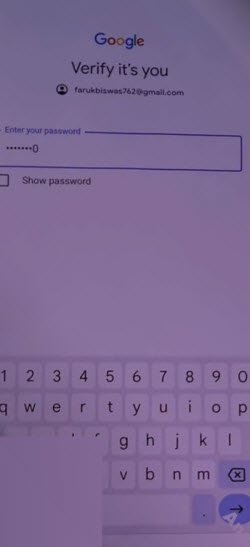
-The ZTE phone (ZTE Blade V60 Smart) will display the message “Getting ready to copy…” after the logging process is finished. Simply tap > Don’t Copy > Don’t Copy > Next.
-Everything is finished now. You may simply access your device’s main home screen by completing the remaining steps on your own.