
Lost access ZTE Blade V41 after forgetting signed in google account? You might have put your own device on FRP Lock. This could be a big trouble for someone, if he has hard reset his ZTE device and unable to get himself verified from google sign in screen due to forgetting google credential. You can follow up steps here to Bypass FRP ZTE Blade V41, ZTE Blade V41 Smart, ZTE Blade V41 Vita.
To use this method on your ZTE mobile, you do need an additional Android device. We can quickly bypass FRP account on our device and log in with a different, updated Google account by using another Android handset. From below, let us take further action.
Disclaimer: We highly recommend you to apply this method only on your own device, if you are not owner of this device, or you found this from some where, you must return to its real owner. This process is just for educational purpose to assist device owner, how to approach on their own FRP locked ZTE Blade V41.
Begin Steps Here for Bypass FRP ZTE Blade V41/V41 Smart/V41 Vita:
For your ZTE Blade V41 to complete the frp bypass process, you will need a (Change Phone) app. All ZTE devices come pre-installed with this app. In reality, two ZTE handsets may exchange apps and data using the Change Phone app. It is really straightforward to use; just launch the app on your ZTE handset and scan the QR code to connect to another Android device. Send or receive the necessary app after that. You can check out step by step guideline from below to bypass frp account on ZTE Blade V41, ZTE Blade V41 Smart, ZTE Blade V41 Vita.
Let’s Start FRP Bypass Guides in Steps:
-Switch on the device and navigate to the WiFi page.
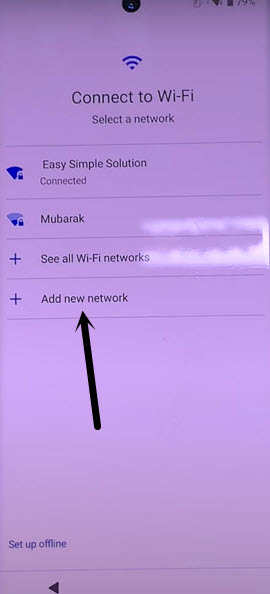
-Connect to WiFi, then select “Add new network” to activate your device’s keyboard.
-Tap on the “Emoji” sign once the keyboard appears on your screen.
-You must then select another “Emoji” icon from the top bar. A few times, tap the “Try Again” button. However, this will not work for you.
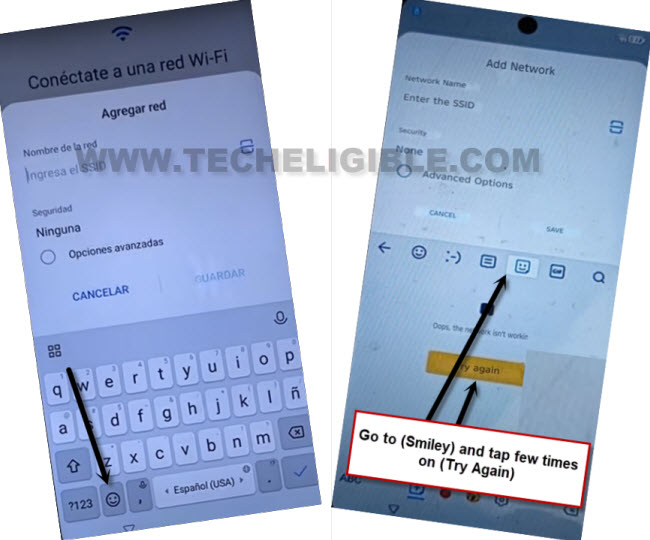
-Select “Gif” from the top bar.
-A popup box will appear; select “Accept & Continue” and then “Cancel” to exit.

Repeat Steps & Launch Web Browser:
-Tap the back arrow icon at the bottom of your ZTE device to return to the Connect to WiFi screen. Next, hit the “Add new network” option once more.
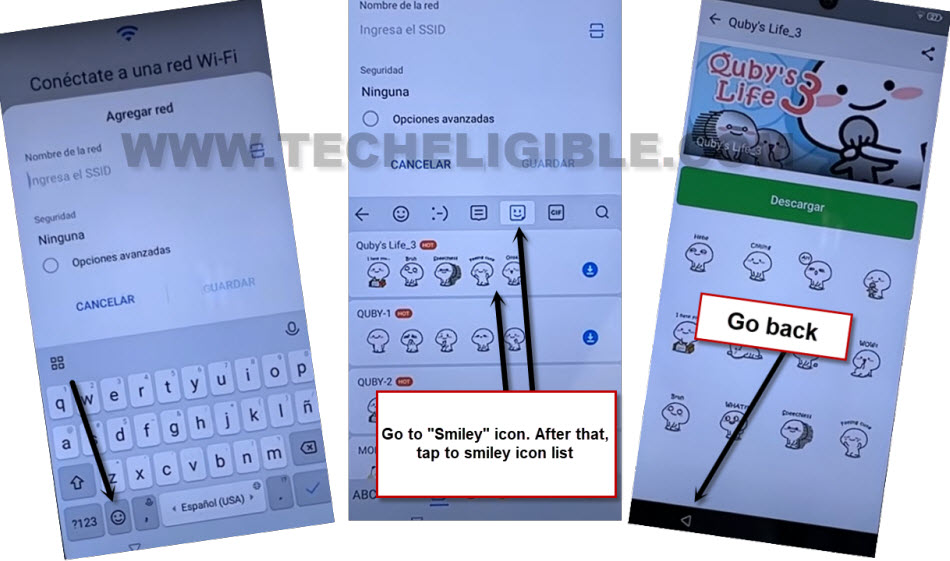
-Tap the “Emoji” sign when the keyboard appears on the screen.
-As seen in the figure below, tap the “Emoji” symbol once more from the top keyboard bar.
-A list of emojis will be displayed to you. From there, tap the list of emojis.
-On the following screen, select the “Back Arrow” option located at the bottom of the ZTE Blade V41.
-Just choose the “Settings” option at the bottom of the Temas page. Then tAP the option labeled > About > Privacy Policy.
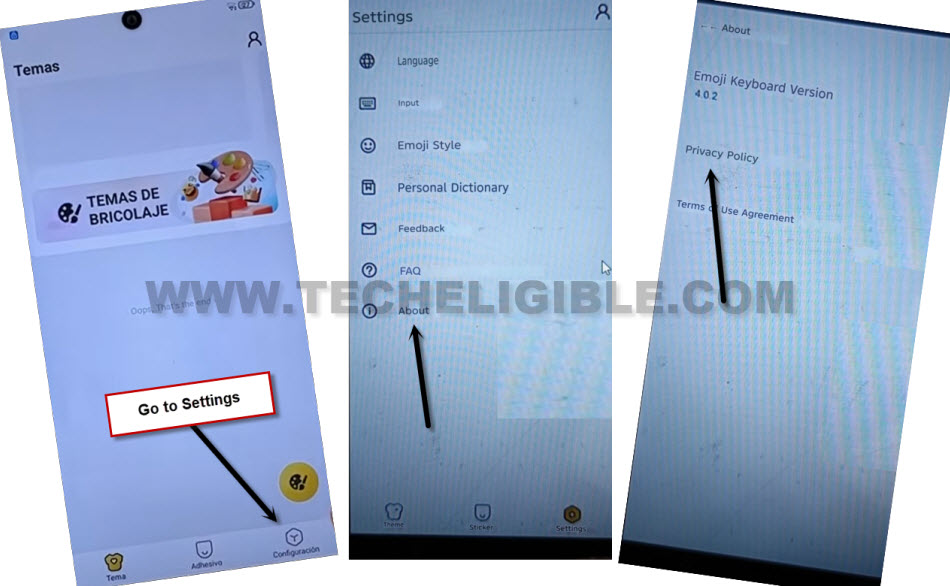
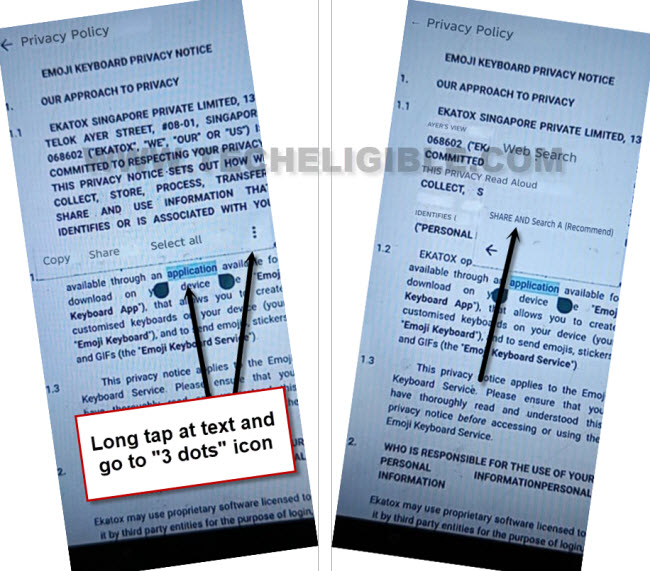
-Long-hold any text on the Privacy Policy article screen. After that, tap to “3 dots” option.
-Hit over the “Share and Search (Recommended)” option after that.
-Select > Accept > Accept > Allow.
-Well done for getting to the web browser. We may now quickly open the (Change Phone) app that is already installed.
Let’s Open (Change Phone) Application from FRP Tools Page:
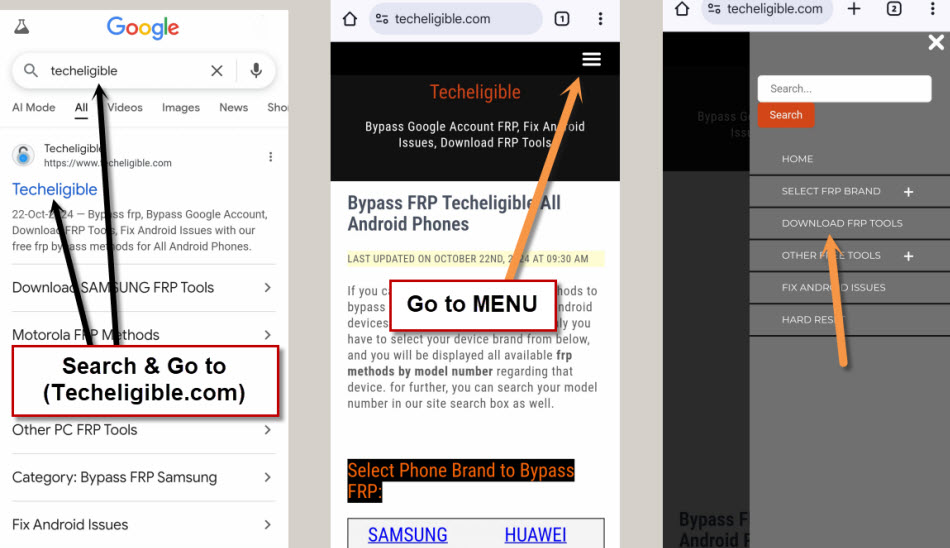
-First, search for “Techeligible” in the browser to reach the official Techeligible FRP Tools page. Go to Techeligible’s official website for Bypass FRP ZTE Blade V41.
-Click on > Menu icon > Download FRP Tools.
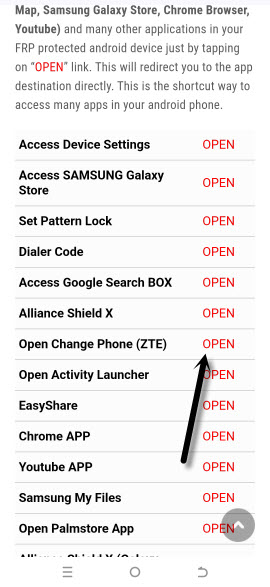
-Open the (Change Phone ZTE) app after a little scrolling down from the FRP tools screen.
-Tap on > Accept > Allow > While using the app to grant some permissions before the app launches fully.
Follow These Steps on Another Android Device:
-It is fantastic if you have another ZTE device. Do not worry if you don’t; you may use any other Android device to follow the instructions below. All we have to do is download the frp bypass app and send this downloaded app to the ZTE Blade V41/V41 Smart/V41 Vita.
-Open google chrome browser and search there “Techeligible“.
-Go to techeligible official site. From there, go to FRP tools page by tapping on > Menu icon > Download FRP Tools
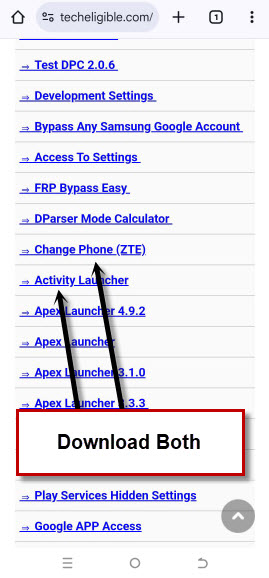
-On your other Android device, you must download the two apps listed below. As seen in the figure below, both applications are accessible on the FRP Tools page.
1st App to Download: Change Phone (ZTE).
2nd App to Download: Activity Launcher.
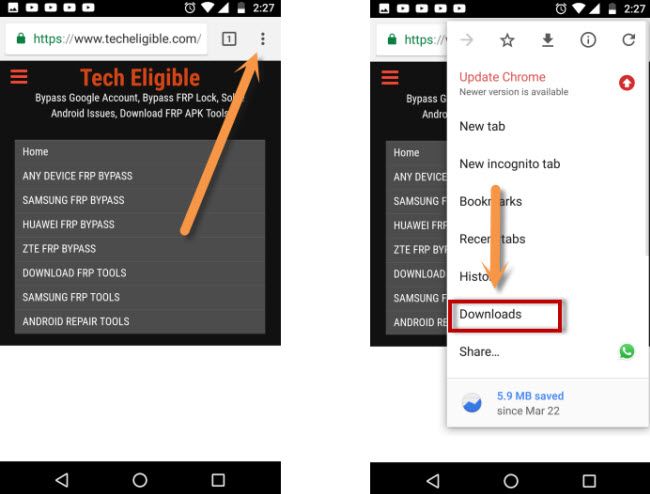
-Once the apps have successfully downloaded, navigate to the top of the Chrome browser page and tap the “3 dots” symbol in the upper right corner.
-The Chrome browser’s sidebar menu will appear; select the “Download” option. This will take you to the folder where the two downloaded applications are located.
Install Downloaded FRP Apps on Other Android Smartphone:
-Tap the “Activity Launcher” app that has been downloaded. Select “Settings” from the popup window and activate the “Allow from this sources” option.
-Return to the page with the download folder. Lets tap again on > Activity Launcher > Install > Done.
-Install the second frp bypass app that you downloaded. Tap on > Change Phone > Install > Done
Open (Change Phone) App on Other Android Phone:
-Tap the installed app icon (Change Phone) from the main menu on your other android phone.
-After granting certain rights, you will be able to access the app’s main screen, which is the phone switch.
-Tap the “Previous/Old” button from there. View the image below.
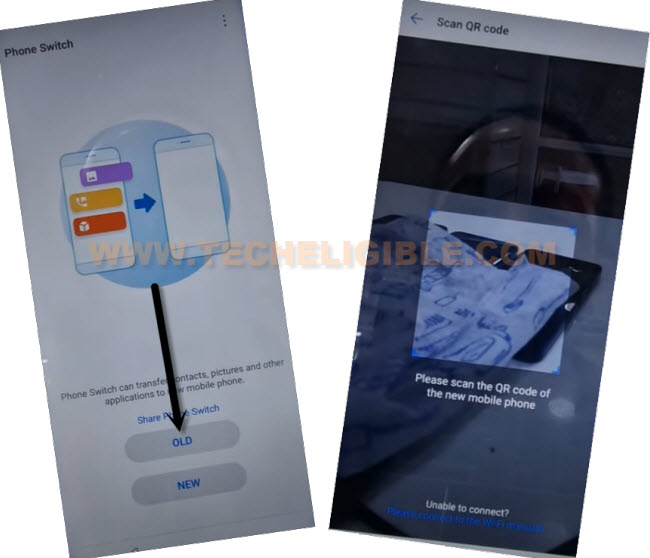
-Let’s hit on “New” option from (ZTE Blade V41) device.
-A QR code will appear on the screen of your ZTE handset. We must use another Android device’s QR scanner to scan this code.
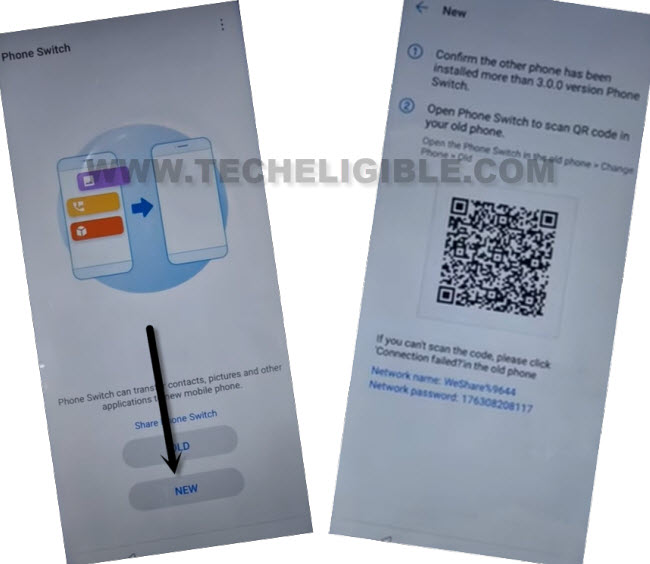
-Use another device’s QR scanner to scan the ZTE phone’s QR code. Both devices will then be connected to one another.
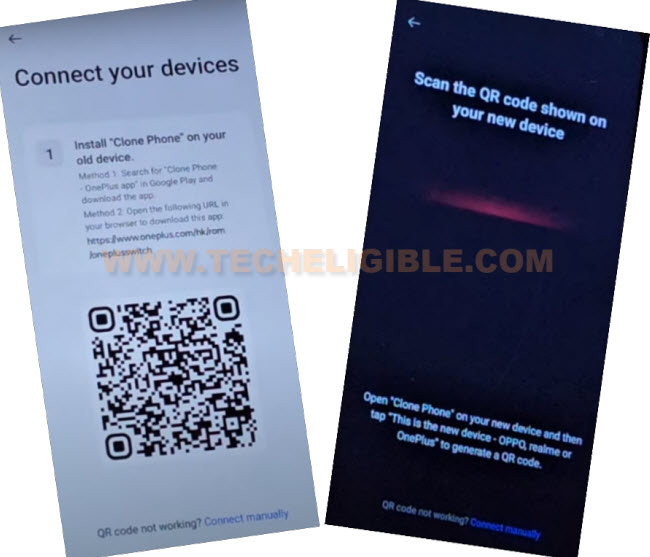
Send (Activity Launcher) App to ZTE Blade V41:
-The FRP bypass (activity launcher) app needs to be moved to our ZTE BladeV41 device.
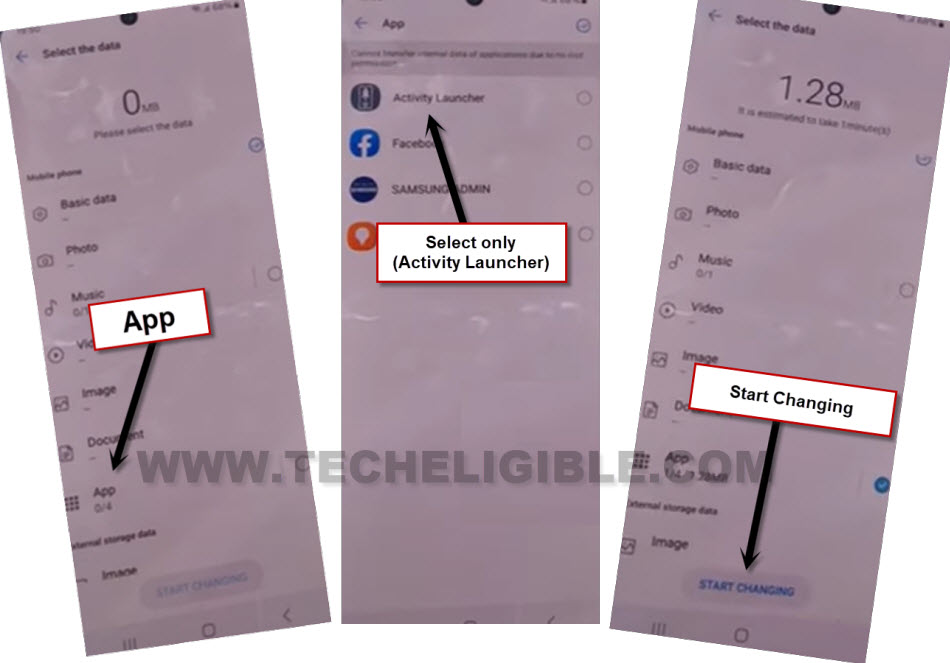
-De-select “Applications”. After that, tap on “Application” to get inside this app.
-From the list of apps, check mark just one app named “Activity Launcher”.
-Return on main primary screen of change phone app by tapping on back arrow. From there, tap to “Start Changing” button.
Open FRP Bypass (Activity Launcher) App from ZTE V41:
-Once the sending app is received on ZTE V41 device. Just go back to (FRP Tools) screen from ZTE V41 device.
-Scroll down and open (Activity Launcher) app.
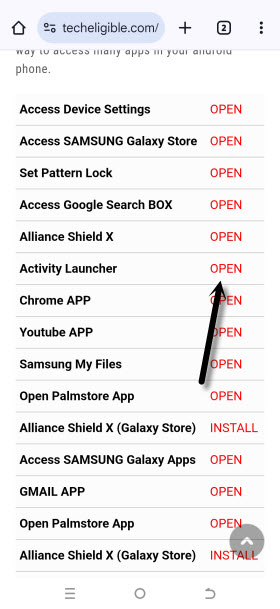
-Wait until the (Activity Launcher) app is fully launched. From popup window, tap to “Ok”.
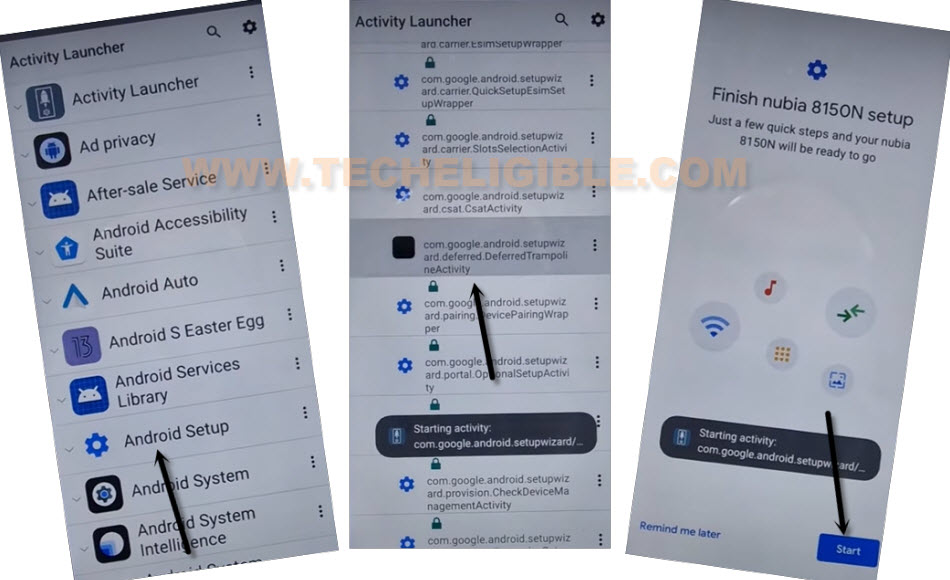
-Go to “Search” icon from top corner and search there “Android Setup”.
-Go to “Android Setup” that has a gear icon same as shown in below image.
-Android Setup will then further collapse and display a lengthy list of (com.google.android.setupwizard…).
-Select the “com.google.android.setupwizard.deferred.DeferredTrampolineActivity” option from the list.
-From the next (Finish Setup wizard) screen, select > Start > Skip > Next.
-Click on Next > No Cable > Copy without a cable
-Tap the “use my Google account instead” hyperlink from the pattern lock page.
-Next, select > Next > Next.
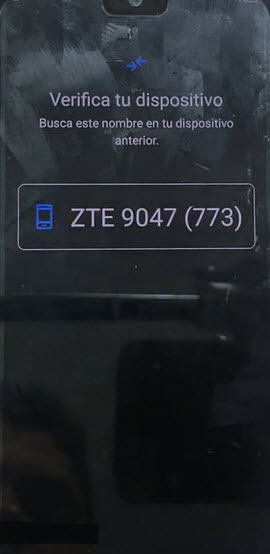
-After arriving at the screen that reads “Verify your device.” Just put your ZTE handset on this screen.
Follow Below FRP Steps on Other Android Smartphone:
-Open the “Google” app from the main menu on your device. Next, select the “Mic” option from the search box and say “Setup my device” aloud.
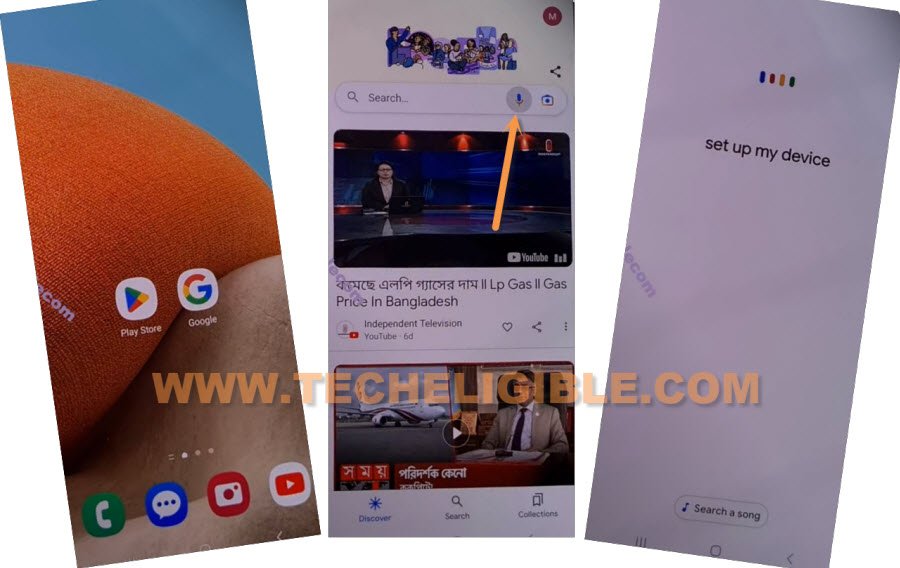
-The “Getting started” screen will appear in a few seconds. Next, select the “Next” option.
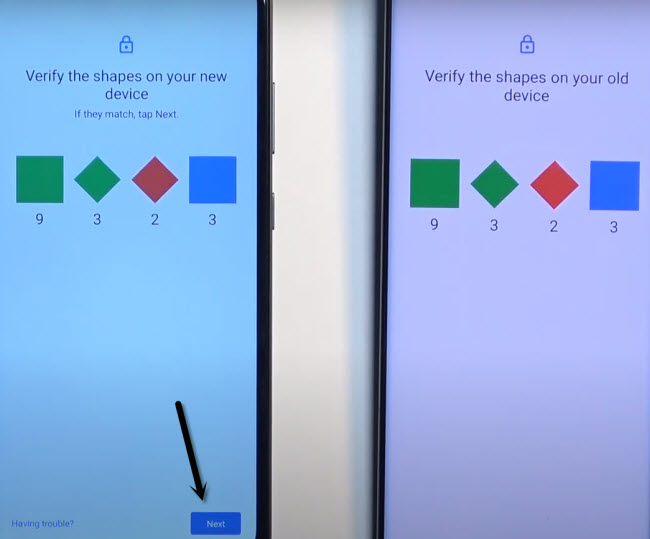
-The (Shape Verification) screen will appear. Both of your devices will display this screen.
Note: Please ensure that the WiFi network is the same for both of your Android devices.
-From your other Android device. You must select > Next > Copy .
-The ZTE Blade V41 will replicate the Google account that is logged in on your other Android device.
Finalize Start-up Steps Without Stuck on Google Verification Screen:
-You only need to enter the same Google account information that is logged in on another Android device if you get a popup that says, “Verify it is you.”
-This means that the same Gmail account will be used on both devices.
| Note: ZTE FRP locked phone will accept only that google account, that is already logged in on your other android device. |
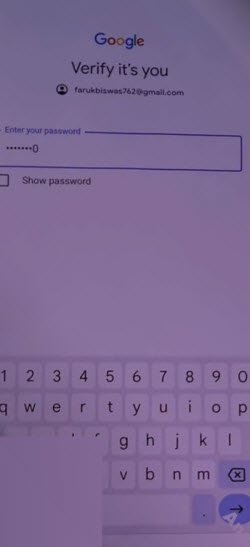
-After the login process is finished, the screen “Getting ready to copy…” will appear. Tap > Do not Copy > Do not Copy > Next from there.
-Now, everything is finished and you are all done from Bypass FRP ZTE Blade V41/V41 Vita/V41 Smart with the help of transferring (Activity Launcher) application to your ZTE device.
Read More: