Are you feeling annoyed because you are locked out of your android device? If you are the genuine owner of this device, you rightly should discover the ideal FRP bypass option. You have arrived at the right location; we will provide you with a simple step-by-step guide on how to Bypass FRP Samsung S23/S23+/S23 Ultra, which operates on Android 15 version.
Experiencing a Google FRP lock on your device is often due to user mistakes. Many users try to perform a hard reset in in a rush to resolve other problems, and unintentionally, they find themselves in a significant problem when they forget their Google account login details.
Disclaimer: We highly recommend you to apply this method only on your own device. If you are not owner of this device, or you found from somewhere, you must return this device to its real owner.
How to Bypass FRP Samsung S23/S23 Plus/S23 Ultra (Android 15)
In this below frp bypass steps, we will download and install Samfw software on PC. After that, connect the phone with PC and check your device correct already installed firmware details. After that, download firmware from the given website link. Once its done, you just have follow up the flashing process from below. Check out step by step guideline from here.
FRP Unlock Steps to follow:
-Firstly, you need to download the tool on from below given link.
| ⇒ Samfw Tool V5.4 [Download] Pass: techeligible |
-Extract and launch Samfw tool.
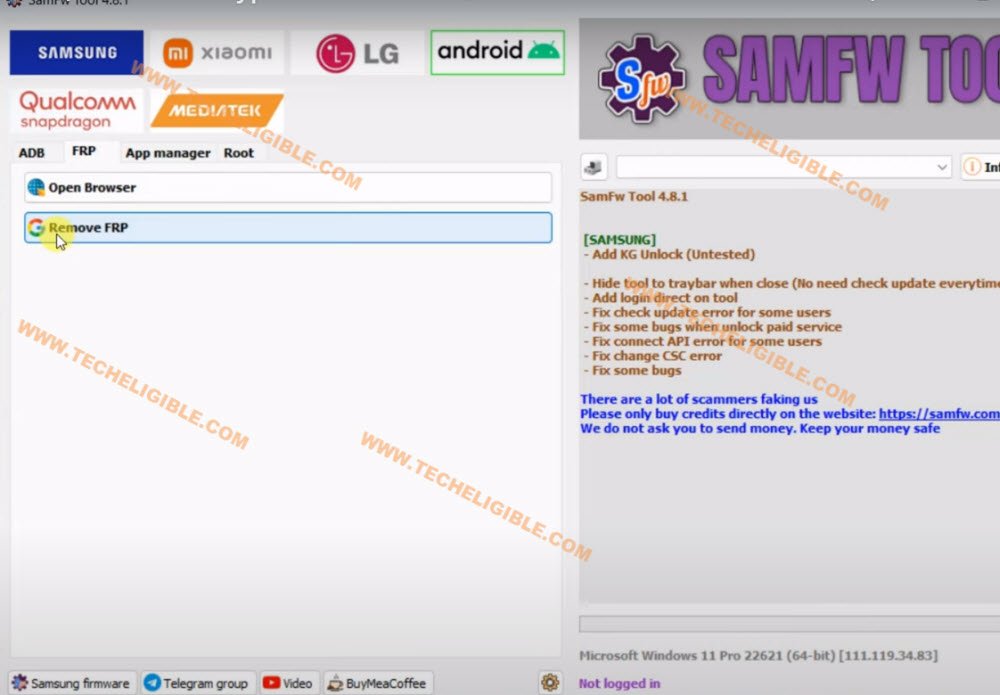
-Connect one end of the USB cable to PC USB port.
Put Samsung S23 in to Download Mode:
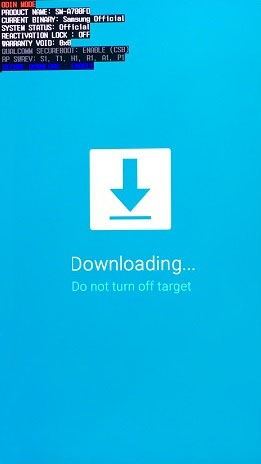
-Turn off your Samsung S23 phone. After that, we’re gonna put our device into the download mode screen.
-While long holding (Volume UP + Down) keys simultaneously, just plug-in USB Cable into your phone. Keep holding both keys until you see something on screen.

-Release both keys and press once the (Volume Up) button to get into the download mode screen successfully.
Connect Phone to Samfw Tool
-Go to PC screen, from the Samfw tool interface, go to > Samsung > Odin Flash.

-Hit on “Info” option. After that, choose “[Samsung] Download Mode Info” option. This will drag all your device software and firmware info on the screen.

Note Down Model/Binary/Country Code:
-Note down Model number, binary number & country code. In below screen shot, the model is being shown (SM-S906U1) the binary code is (8) and country code is (XAA). You have to note down these both things, we will use this info while downloading firmware file.

Download Android 15 & 14 Samsung S23 Firmware
-Visit Samfw tool website. Search with your model number.
Note: Below image is being illustrated with (S22 Model), you have to search with your own Samsung S23 Model number.

-After selecting your model number, just scroll down and choose country code. In our case, we are choosing (XAA).

-Download (Android 15 & Android 14) version firmware by matching with your device (Binary & Country Code).
Note: We have mentioned already, in our case, the binary code is (8) and country code is (XAA). Keep this thing in your mind while downloading the firmware.

-Once the downloading process is completed, extract your both android 15 and android 14 version firmware from winrar archive.
Flash the Phone with Downloaded Android 14 Firmware:
-Firstly, we have to flash our Samsung S23/S23+/S23 Ultra phone with downloaded Android 14 version firmware.
-Go to Samfw tool screen, give file path of (BL/AP/CP/CSC) respectively from (Android 14 version firmware) folder.

-Give file path from downloaded (Android 14 firmware of Samsung S23/S23+/S23 Ultra).

-Click to (Flash) option to start flashing the phone with android 14 version firmware, wait until the flashing process is completed successfully.

-After flashing is done, you will see a (Welcome) screen on your Samsung phone screen.

-After that, click to “Clear” option from the Samfw tool screen to clear all input, so that, we could give new file path from android 15 firmware to flash with.

Flash Again with Samsung S23 Android 15 Firmware:
-Let’s flash again with downloaded (Android 15 version firmware).
-This time, we have to give file path again of all 5th file (BL/AP/CP/CSC/HOME CSC) respectively from Android 15 version firmware folder.
-Lets click to (Flash) option to start flashing Samsung S23 phone with android 15 version firmware.

Disconnect the Phone from PC
-You will have a (Samsung Logo) on screen. Unplug the cable from Samsung phone. Wait for a while until optimizing the app process is done. After that, you will see (Welcome) screen.

-Congrats, you are all done from Bypass FRP Samsung S23, Samsung S23 plus, Samsung S23 ultra.
-Setup your phone without stuck again on google sign-in screen.
FAQs About Samsung S23/S23+/S23 Ultra
Is this free FRP Bypass method for Samsung S23 phone?
Yeah, its totally free, you can download flashing tools Samfw and firmware at no cost.
Why do i need to download 2 firmware of Android 14 and Android 15 Version?
Because, firstly, we will flash our phone with (Android 14) version firmware to downgrade. Once its done successfully, then, we will re-flash the phone with (Android 15) version firmware. By doing this, FRP will be bypassed.
Downloading Firmware is free from Samfw Webpage?
Yeah, You can download firmware with the given link in free of cost.
What, if download other country code and binary firmware?
You may could put your device into brick. That is why, its essential part to check out your device correct country code and binary number of the firmware before downloading.
Is it safe to flash with downloaded firmware?
Yeah, but always use correct firmware for your Samsung S23 phone.
The Bottom Line (How we Bypassed FRP?)
We just downloaded Samfw Tool on PC. After that, put our Samsung S23 phone into the download mode. Connect the phone with PC and checked our device firmware detail including (Model no + Binary Number + Country Code). After that, we just visited the official Samfw website to download our device Android 14 + 15 versions firmware by matching with our device already installed firmware details.
Finally, we just flashed frp protected Samsung S23/S23+/S23 Ultra with the downloaded Android 14 firmware. Once its done successfully, re-flashed with Android 15 firmware. After that, frp was automatically bypassed without applying further steps.