
The FRP lock feature does work with the already logged in Gmail account. Once you go for the (Hard Reset) process on your phone, there, this feature is actually triggered and ask you to login again with already singed in google account while completing the setup wizard steps. If you remember your account, then, there is no issue at all. If you don’t, then issue arises and you find yourself stuck on the google verification screen. To get this issue resolved, check out guide to Bypass FRP ZTE Blade A33/A33+/A33s.
Disclaimer: It is strongly advised that you utilize this technique solely on your own device. If you are not the legitimate owner or have come across this information elsewhere, you must return it to the rightful owner. This technique is intended for instructional purposes only.
Let’s Start to Bypass FRP ZTE Blade A33/A33+/A33s:
-Simply, download & extract the tool with the help of this link.
| ⇒ BFT Tool V1.7 [DOWNLOAD]. |
Note: Before the tool is run, just temporarily disable any active @ntivirus software on your PC.
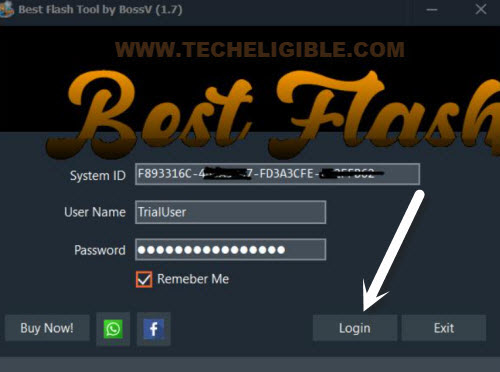
-Let’s login the best flash tool now by clicking on “Login” option.
-Choose the correct “0-UNISOC” option from top left corner.
-Afterwards, check mark on the “Manual”‘ option.
-Select correct chipset name, “[AUTH] SC9863A (64)“.

Download & Install Required Drivers
-Hit over the “Driver” button from top right corner of the tool interface.
-Select the “Install SPD Driver“. This may time to be fully download. After that, install it on computer.
-Let’s download another driver named “Install LibUSB Filter Driver“.

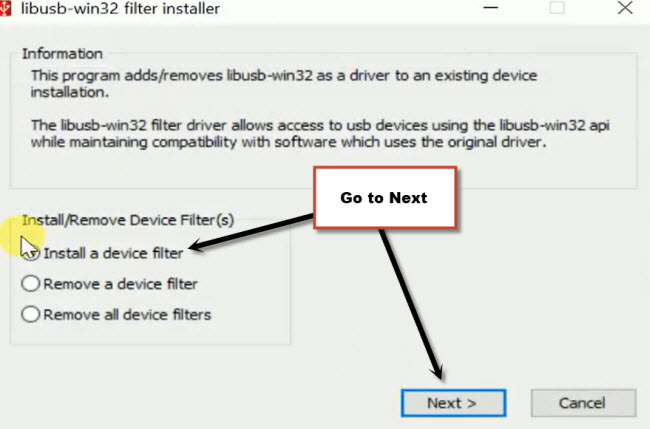
-Once the downloading is done, from the popup window, just install this driver on your PC by clicking on “Next” option.
-From the popup window of (libusb-win32 filter) popup screen, just choose “Install a device filter” option, then, go to “Next”.
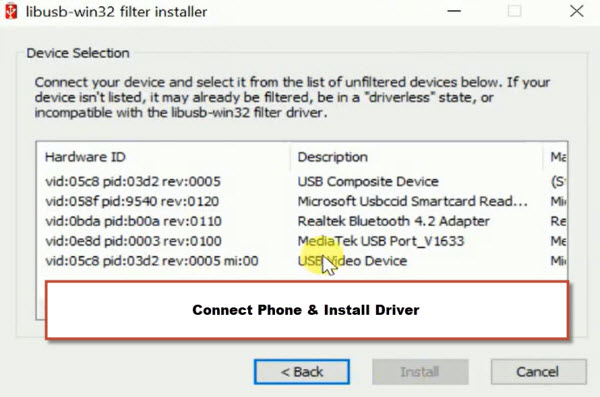
-Let’s turn off your ZTE A33 phone. Connect the phone to PC while long pressing the (Volume Down) button.
-Once the device is detected by the PC, you will get your connected phone driver details on the (libusb-win32) popup window.
-Select your newly appeared driver and go to “Install” option. Complete all the installation process of your device driver.
-Unplug your phone from PC.
Use BFT to Reset FRP
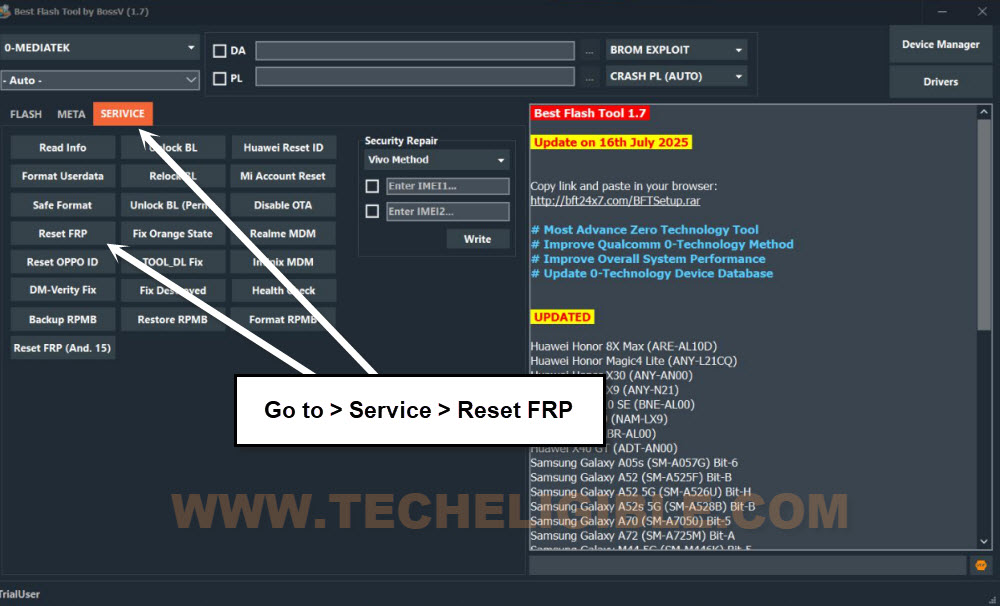
-Get back to best flash tool interface, from there, tap on “Service” tab option. From there, click to “Reset FRP” button.
-Let’s connect the phone again with computer while holding the (Volume Down) key.
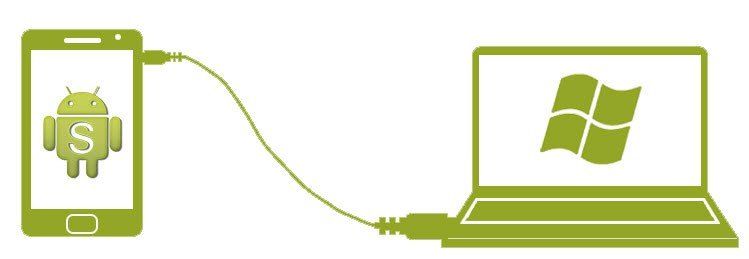
-After that, the frp bypass process will continue on its own once the phone is successfully detected by the tool.
-It will bypass frp ZTE Blade A53/A53+/A53 Pro.
| Note: FRP is not bypassed?, restart the (Best Flash Tool). Then, try again by selecting a different chipset name from the (Manual) section, such as [Tiger T610 (64)] or [Tiger T606 (64) V2]. Don’t know your device chipset detail?, check it out on (GSM Arena site).
|

-If you see the message (FRP Reset END) on bft tool screen. That means, you are all done.
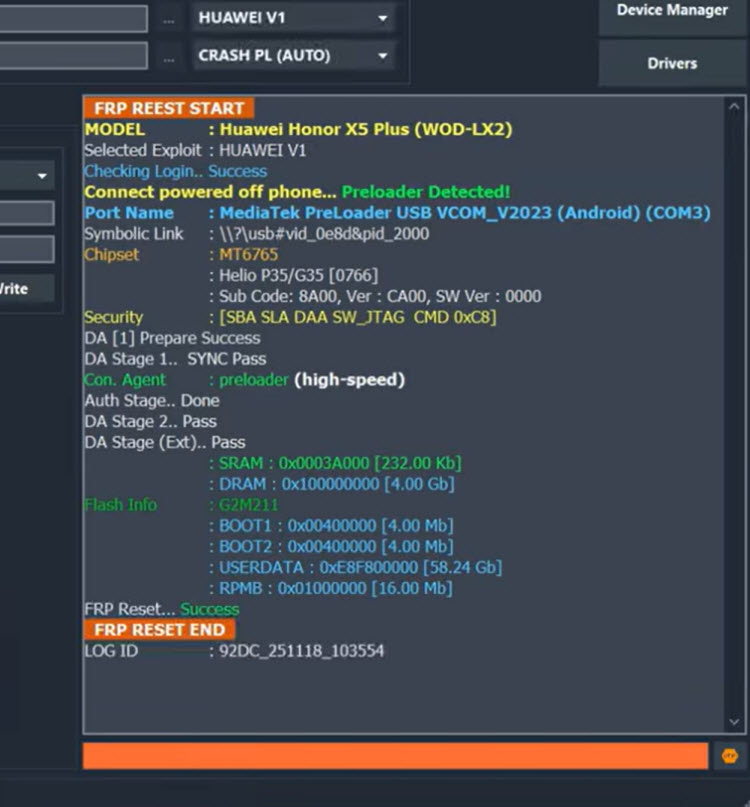
Note: Is your devices not being detected by the tool? That means, your PC need proper (SPD Drivers), try to install it manually from below link. After that, try again all steps.
|
-You have to unplug the phone from PC and complete all remaining steps.
-If you see again (Google Verification) screen, just skip that screen to go for the next steps.
Remember: If your phone is stuck on loading page, simply hard reset it by getting into (Android Recovery Mode). After that, complete setup wizard steps again.
The Bottom Line:
We just downloaded and installed (Best Flash Tool) on PC. After that, installed proper drivers of ZTE A33/A33+/A33s. Finally, we selected correct chipset name and processor (0-unisoc) on tool and clicked on “Reset FRP” button. This action took few seconds or a minute in bypassing frp. Then, disconnected the phone and completed setup wizard steps.