
Are you hurry in getting back to your phone after forgetting the google account and getting FRP locked protection due to hard reset? Don’t worry, if you’re owner and you don’t any option to remember and recover your logged in Gmail account, then, you can follow up this way to Bypass FRP All Sony Xperia Android 14 with the help of extra safe and extra easy steps.
We will use easy (Battery Usage) option for disabling the google play services application. After that, we can easily complete the setup wizard steps in offline mode.
Disclaimer: This FRP Unlocking process is only for the device owner. For those, who have forgotten the google account after hard reset.
Bypass FRP All Sony Xperia Android 14
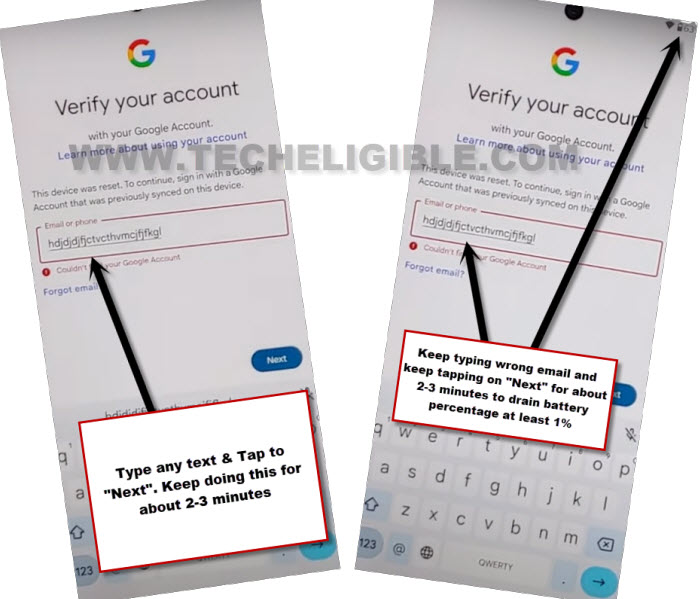
-We are going to consume 2% of battery in spending some activities on the (Verify your account) page.
-Firstly, connect WiFi on the phone and go to (Verify your Account) Page.
-Let’s type any random text on (Email or phone field) tab. Then, tap on the “Next” option.
-Keep on doing this activity multiple times for 4-5 minutes on this page.
-Insert any SIM card on your phone. After that, turn on the device and connect to WiFi first.
Go to Google Map Through Emergency Option
-Once its done, return on (Welcome) screen. From there, hit on the “Emergency” option.
-Dial the number (112). On next screen, if you see (Exclamation) error message or its keep on loading, simply, disconnect the call.
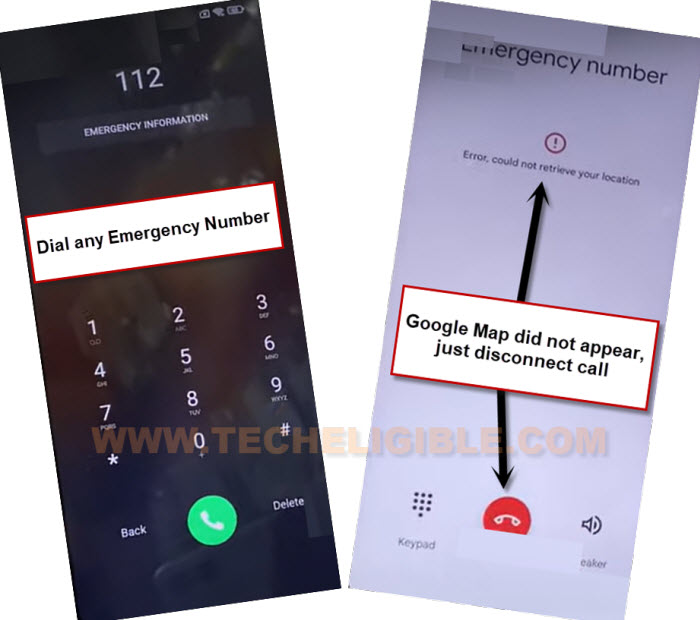
-Redial emergency number (112), and keep repeating this process until you see the (Google Map) image on next calling screen same as shown in below image.
-After that, quickly, tap on the “Google Map” image to launch this directly.
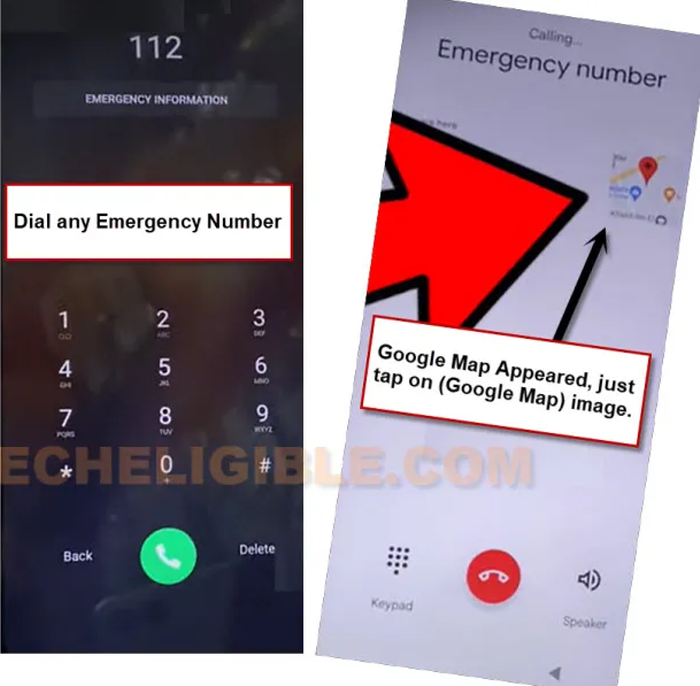
-If you see google map startup page, and there is a (Skip) option available, just hit on “Skip” option.
Launch Sony Xperia Dialer
-Let’s type any famous restaurant name or hotel name there and search with this.
-There, you will get the calling option, just tap on “Call” icon to open up the phone dialer directly.

Note: To disconnect your connected call, you may eject SIM tray, once its disconnected successfully, just insert it back.
-Hit on the “Create new contact” option and give any name in the (First Name) field.
-After that, tap at “Save” option.
-Then, go o “Send a message” option same as shown in below image.

-Go to > Next > Next > Allow.
-Once you reach on the message inbox screen, type there this url “www.youtube.com” url and tap to “Send” option to send this as text message.
-After that, tap on the youtube url from the message screen to be redirected on youtube webpage.
Note: In some cases, you may not get the (Tap to load preview) option, just simply, tap on the youtube url from the screen.

-Hit over the “Account” icon from top corner.
-Then, go to “Settings”.
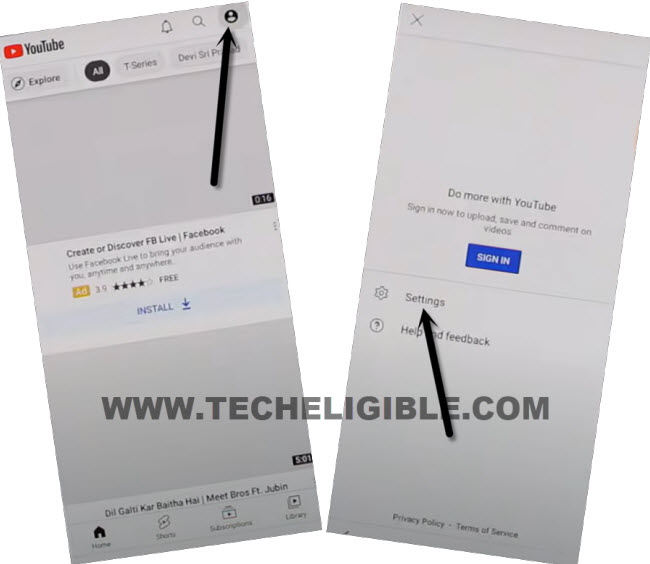
-Tap at “About”, then, go to “Youtube terms of service” option.
-You will reach at the (Welcome to chrome) page, form there, choose > Use without an account > No Thanks.

Open the Settings Page & Enable Accessibility Option
-We are gonna access over the primary settings page of the phone, for this, make search on google with “Techeligible”.
-After that, go to first searched result to access the official techeligible site.
-Open up the site menu and tap on “Download FRP Tools”.

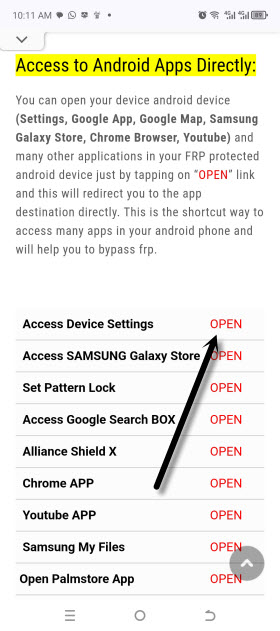
-Go on the “Access device settings” option.
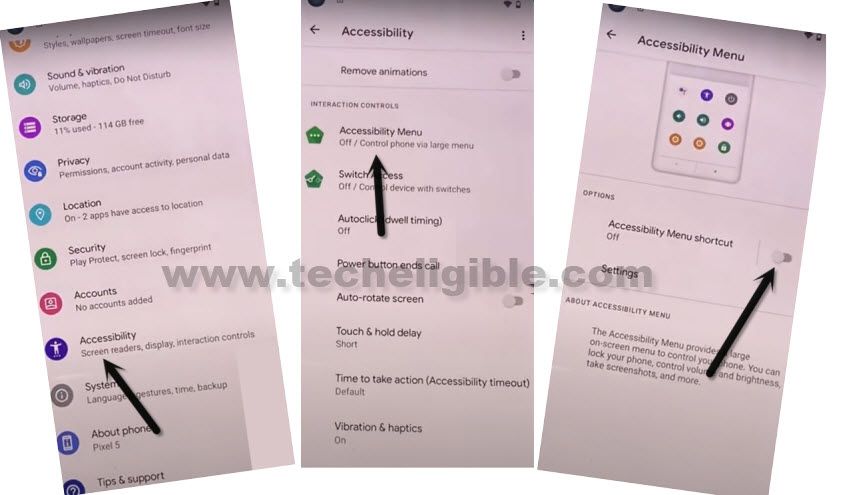
-We need to enable the (Accessibility) option, for this, scroll down from settings page and tap on the “Accessibility” option.
-Then, hit over the “Accessibility Menu”. From there, enable the “Accessibility Menu Shortcut” option easily.
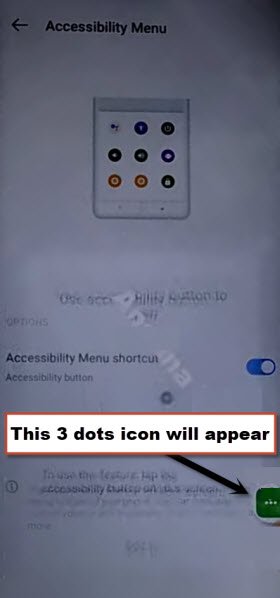
-Finally, you will get the (3 green dots) icon will appear up on screen and stick on the right side edge. We will this option later on.
Disable Google Play Services from Battery Usage
-Let’s get into the battery usage option by going to > Battery > Battery Usage.

-There, you will see the (Google Play Services) app is listed. Just go to “Google Play Services” application and force stop & disable this app completely by tapping on > force stop > Ok.
-After that, tap on the > Disable > Disable app.

-Let’s return on the first startup page (Welcome). Go to “Get Started” option.
-Then, tap on the “Accept”.

-Wait until the loading screen is done and tap to “Don’t Copy” option.
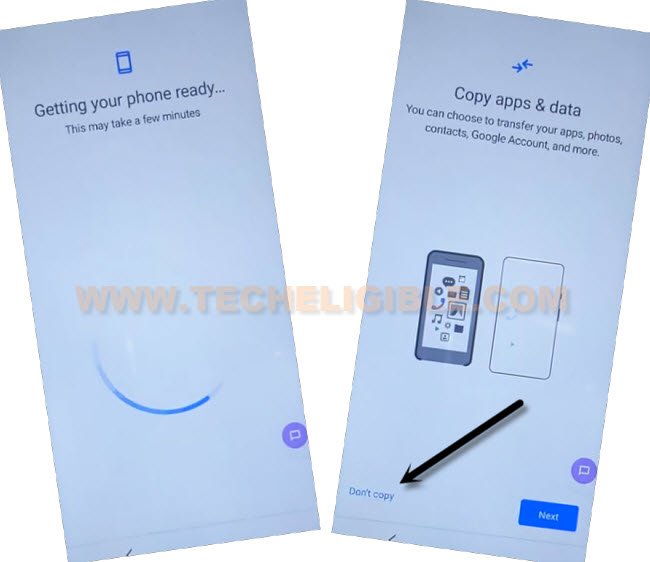
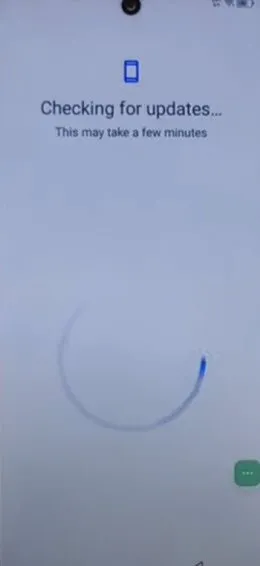
-You will see the (Checking for update..) loading page, just tap on “Back Arrow” icon from there to go back to (Connect to WiFi) screen.
Let’s Enable Google Play Services
-On WiFi page, you will get the (Setup offline) option on bottom left corner of the screen. But, we don’t need to hit on this option right now.
-Firstly, we have to enable back the disabled (Google Play Services) application. For this, simply, tap on > 3 dots > Accessibility Settings.

-Go to > Talkback > Settings.
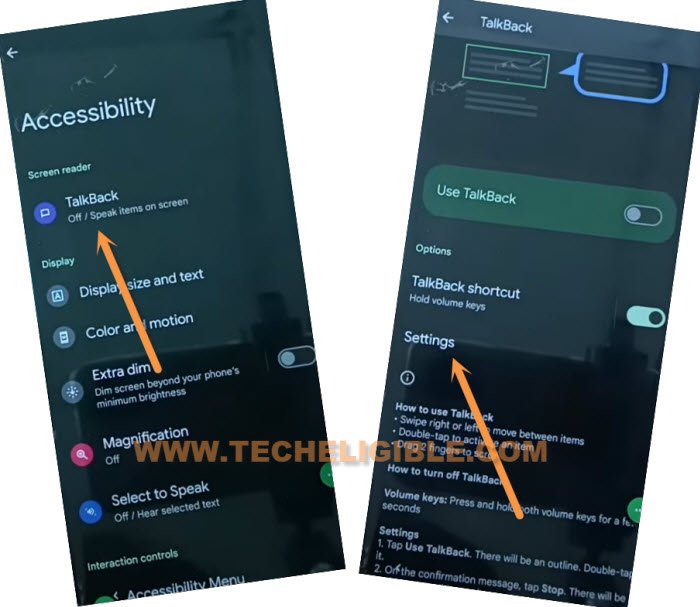
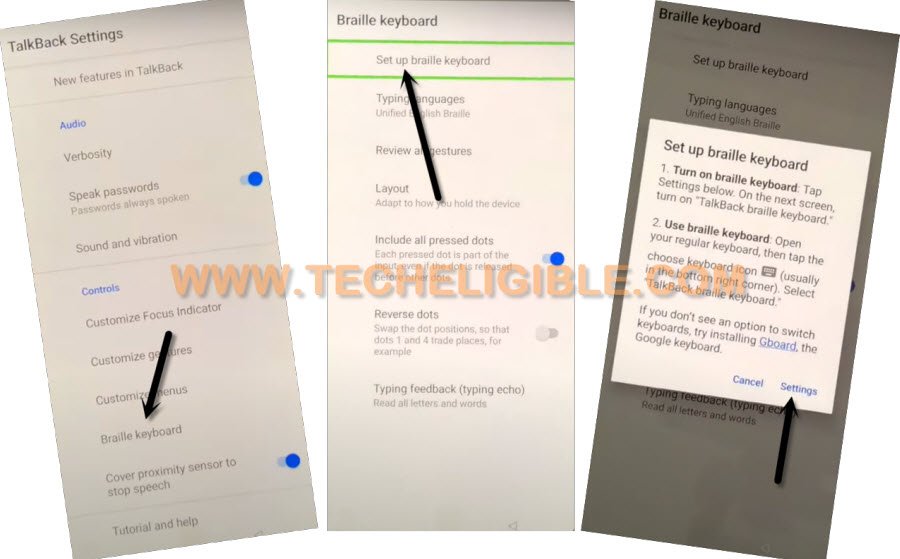
-Then, open up the “Braille Keyboard option”, after that, tap on first “Set up braille keyboard”.
-You will be shown a popup screen, let’s hit on “Settings”.
-Tap at the > Gboard > Share Gboard > Share.
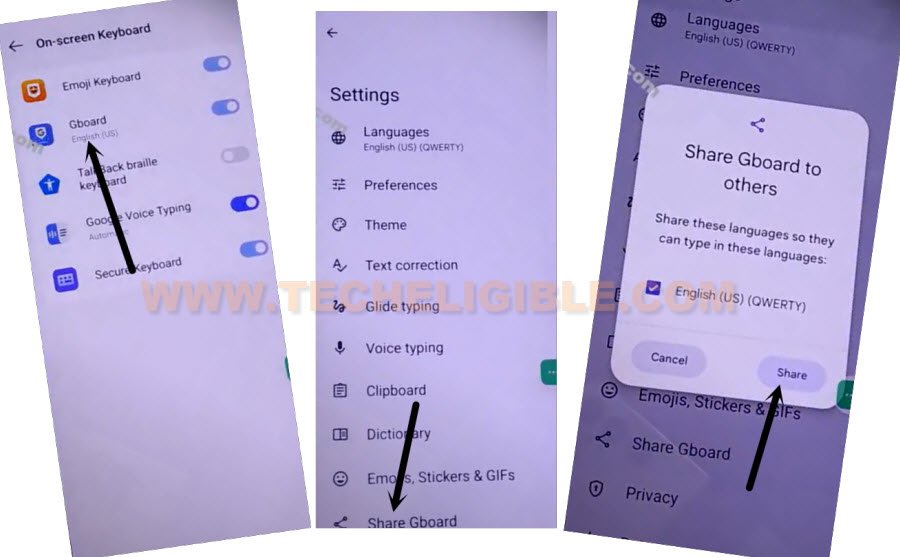
-You will have a popup window, just choose the “Message” application.
-You will be displayed your recently saved contact name there, just tap on that contact name and send www.youtube.com url again as text message.
-Tap on your already sent youtube url to access the official youtube webpage.

-Hit over the “Account” icon from top corner.
-Then, go to “Settings”.
-Tap at “About”, then, go to “Youtube terms of service” option.
-You will reach at the (Welcome to chrome) page, form there, choose > Use without an account > No Thanks.
Go on Settings Page
-We are gonna access over the primary settings page of the phone, for this, make search on google with “Techeligible”.
-After that, go to first searched result to access the official techeligible site.
-Open up the site menu and tap on “Download FRP Tools”.
-Go again on settings page by tapping at the option “Access device settings“.
-Let’s get into the battery usage option by going to > Battery > Battery Usage.
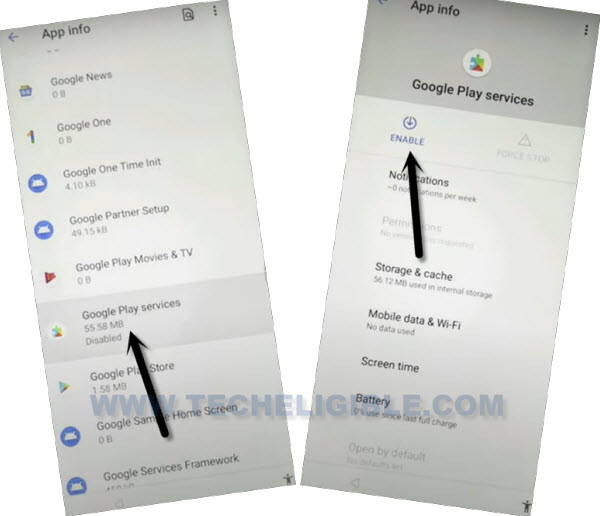
-Tap again on “Google Play Services” and finally, hit over the “Enable” option to enable this app again.
-Get back to (Connect to WiFi) page again by hitting numerous time on the (Back Arrow) option.
-Now, you just hit over the > Setup offline > Continue.

-From the google services page, tap at > More > More > Accept.

-Then, skip the (Setup a PIN) screen.
-Tap at > Continue > Next > Finish.
The Bottom Line
This is very simple and easy way to follow up. We just inserted SIM card and accessed to google map through dialing the emergency number. After that, reached to the phone dialer screen and saved new contact. Then, sent a message with youtube url. After that, by tapping on the youtube url, we successfully reached to the official youtube webpage. From there, we reached on the google chrome browser.
Finally, accessed to the primary settings of the Sony Xperia Android 14 phone through techeligible official frp tools page. From there, we just accessed to the battery usage function and disabled the google play services application. After that, we completed setup wizard steps easily.