
Loosing access to the phone right after doing a forcefully factory reset using the android recovery mode can trigger the FRP security feature. Because, this feature is totally linked with the Gmail account, that was setup recently. If you don’t remember your phone account and you just go for the hard reset process. then, you will surely stuck on the verification screen. For resolving this kind of issue, you can follow up our guide to Bypass FRP Cubot X18.
Disclaimer: This FRP method should not be attempted on a stolen device, as it is a serious offense. Attempting to bypass FRP on a stolen device could lead to imprisonment. This process is meant solely for the rightful device owner and for educational purposes.
How to Bypass FRP Cubot X18 With Free Way
-Firstly, download 2 apps on your SD Card. For this, open up the chrome browser and search there with “Techeligible“.
-Go on the 1st searched result, after accessing on the official site of techeligible, just, open up the site menu and click on “Download FRP Tools”.

-Download from there below 2 applications.
1st: Google Play Services.
2nd: Development Settings.
-Let’s keep these both apps on your SD Card.
-Turn on the Cubot X18 device and connect it to proper WiFi network.
-Finally, insert the SD Card on a FRP locked device. There, you will get the popup window of (SD Card Ready), simply, tap on > Ok > SD Card.

Install Apps & Disable (Find My Device)
-You will be taken into your sd card display directly. From there, there, you will have your both frp apps.
-Let’s start with the installation process by tapping at the “Google Play Services” app. You will be shown a (Block Installation) popup screen, from there, tap on the “Settings”, then, enable the “Unknown Sources”.
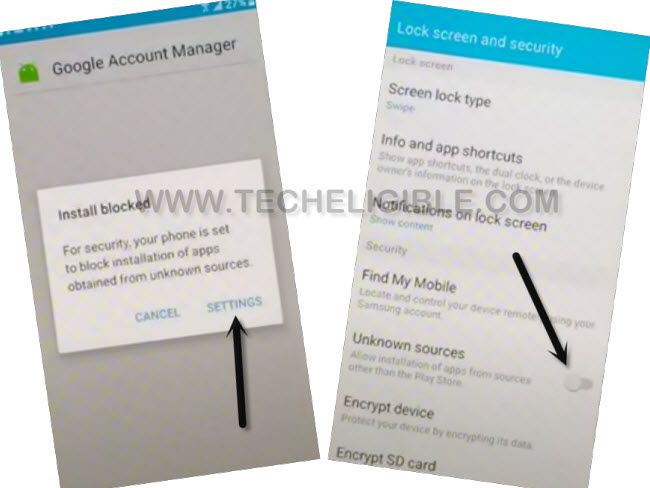
-Tap on “Ok”.
-From the same screen, go on the “Device Administrator” option.
-Lets disable the (Find My device) by tapping on > Find My Device > Deactivate this device administrator.
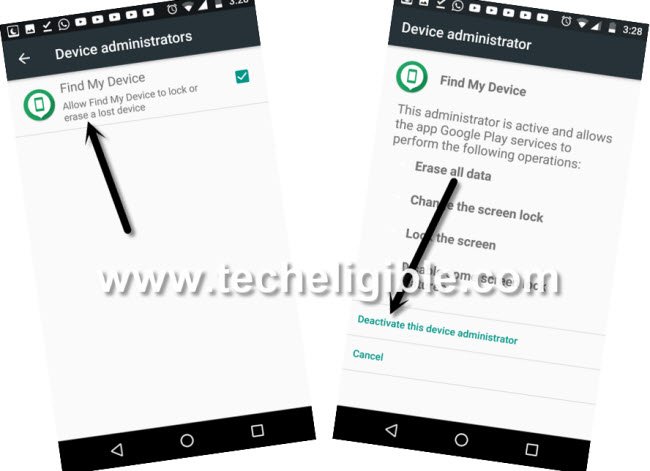
-Go back on the storage screen, tap again on > Google Play Services > Next > Install > Done.
-Install another app now by tapping on “Development Settings” applications.
-Tap to > Install > Open.

Disable an App for Easily FRP Bypass
-You will be taken inside the primary settings screen of the phone. Now, we need to hit over the “Apps”.
-After that, go on “3 dots” icon and choose the “Show system” option.
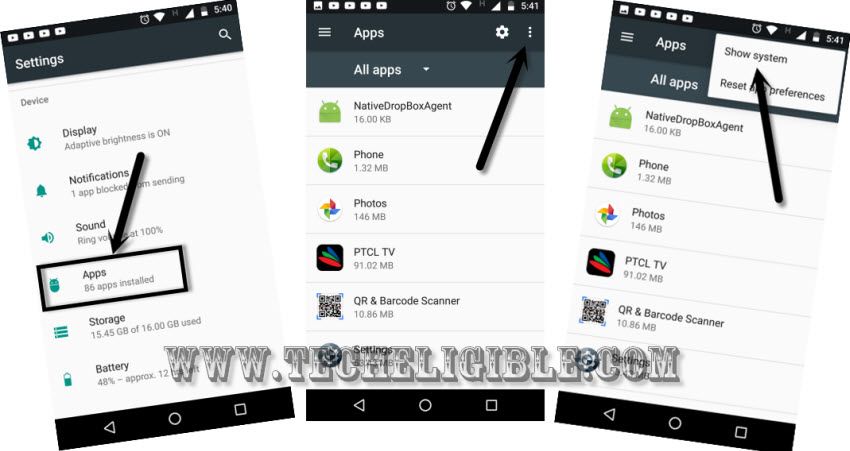
-We have got displayed all the hidden apps, let’s scroll down and tap on the > Google Play Services > Disable > Disable app.
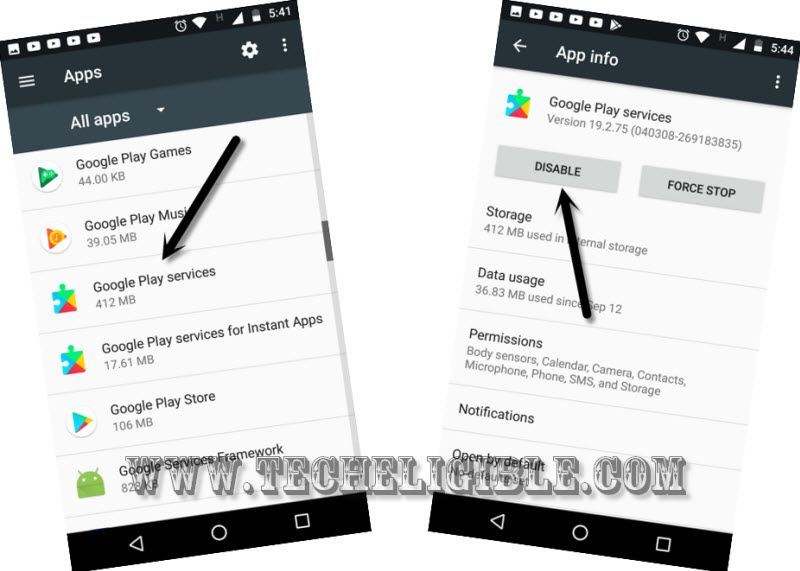
-After disabling this app, we can now setup another google account from settings options.
-Get back on (Settings) page, after that, tap on the > Accounts > Add Account > Google.
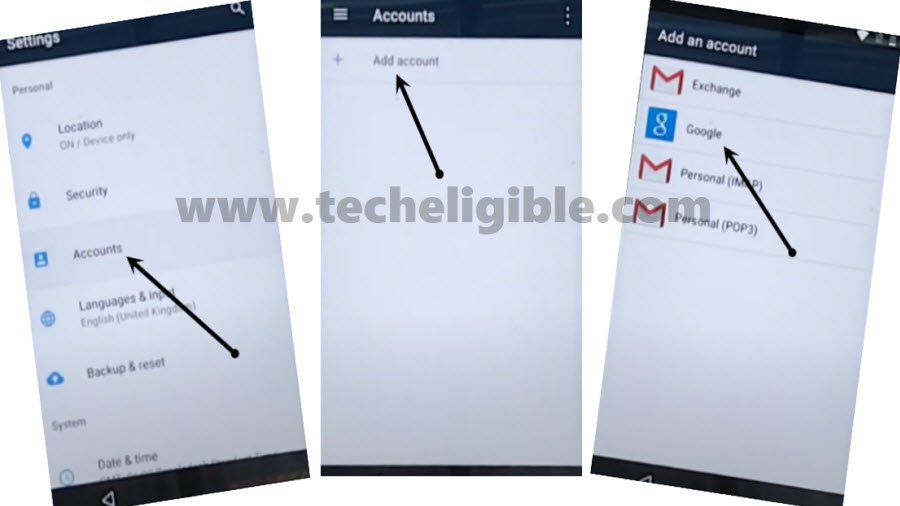
-You will be shown a (Google Sign-in) screen, let’s login there with another Gmail account to bypass frp.

-We are going back to app list screen for enabling back the (Google Play Services) application. For this, get back to (Settings) screen.
-After that, go to “Apps”. Then, tap over the “3 dots” icon and hit on “Show system” option.
-Its all done, let’s restart the phone by long holding the (Power key) and choose the “Reboot” option.
-You can complete all the remaining startup steps easily without facing any verification screen.
Final Words
Arranged 2 apps on the SD Card first. Then, installed both apps one by one by inserting the SD card on the FRP locked Cubot X18 phone. Then, accessed to the main settings page and deactivated the (find my device) application. Afterwards, we manually disabled the (Google Play Services) application as well from the primary settings. Finally, logged in with another google account and complete all the setup wizard steps easily.