
Are you suffering of FRP lock protection on your own phone even being a device owner? You must have done factory reset on this phone and lost the already setup google account. Well, google provide you some easy steps to recover your lost account using your recovery options. If, even then, your Gmail account is not recoverable, then, check out this guide to Bypass FRP Cubot King Kong 3.
Disclaimer: We are creating this post to educate people about how to get back their lost device due to forgetting Google account. This method is only for device owner and for educational purpose only.
Bypass FRP Cubot King Kong 3 [With FRP Apps]
-Ensure that the SIM card is already in place on the device that is locked with FRP.
-Next, power on the device and connect it to a WiFi. Once connected, return to the initial screen that says (Hi there).
-Let’s access the emergency contact list by selecting the “Emergency” calling option.
-Afterwards, we need to double tap on “Emergency information,” then select the “Pencil” icon located at the top corner.
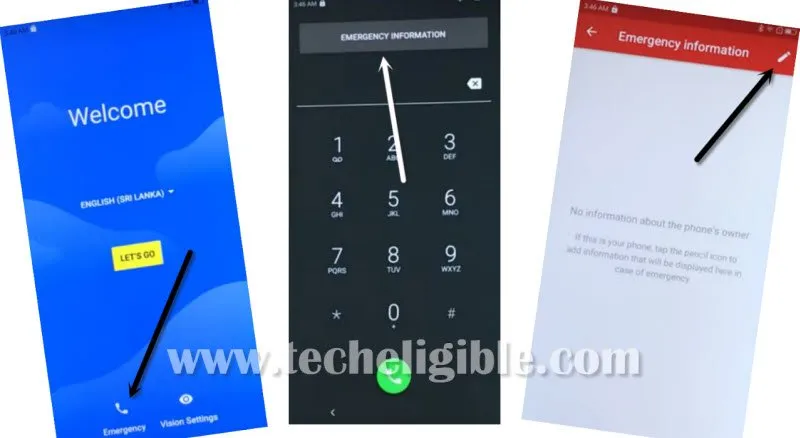
Go on Contact Page
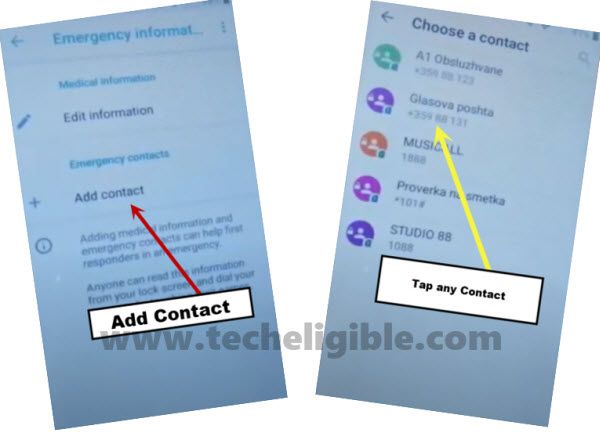
-Next, click on the “Add Contact” option.
-A list of contacts will appear; choose any “Contact Name” from this list.
-Select the same “Contact Name” again on the following page.
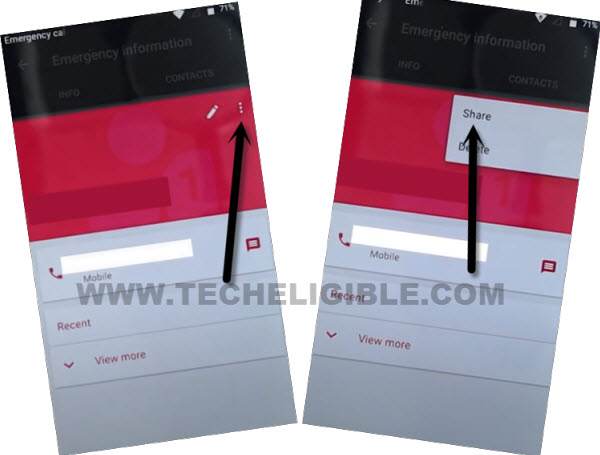
-After reaching on the contact name’s edit page; click on the “3 dots” icon and choose the “Share” option.
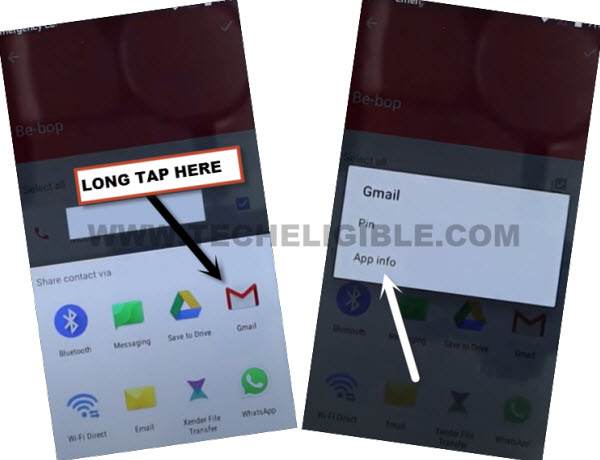
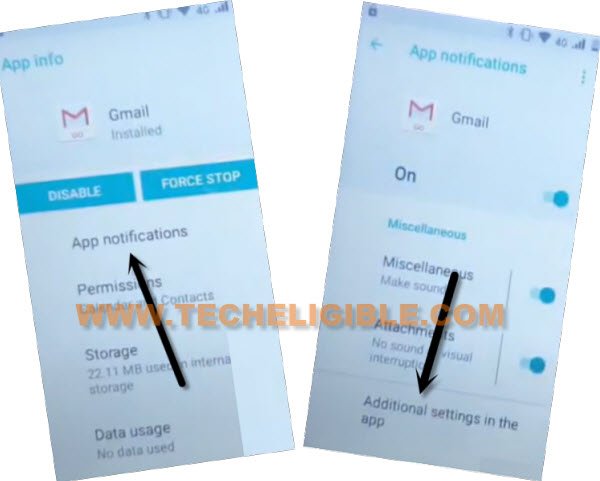
-In the popup window, long press the “Gmail” application. Next, tap on the “App info” option.
-Once you arrive at the Gmail app settings page, navigate to > App Notification > Additional Settings in the app.
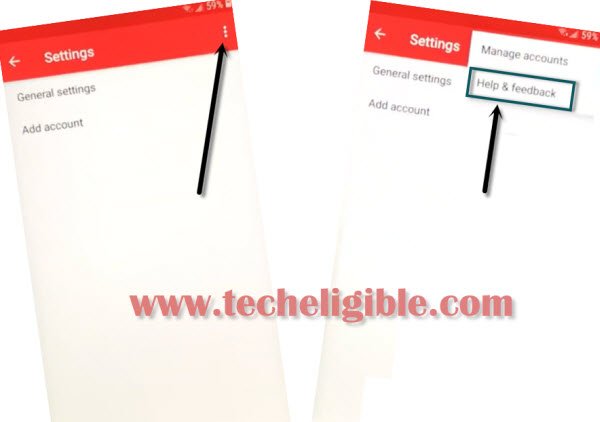
-Access the help and feedback page by selecting > 3 dots > Help & Feedback.
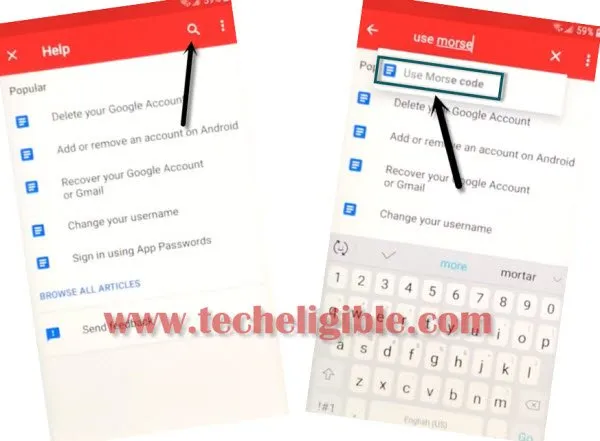
Search and go (Use Morse Code)
-In the search box, type “Morse,” and then select the search result that says “Use Morse Code.”
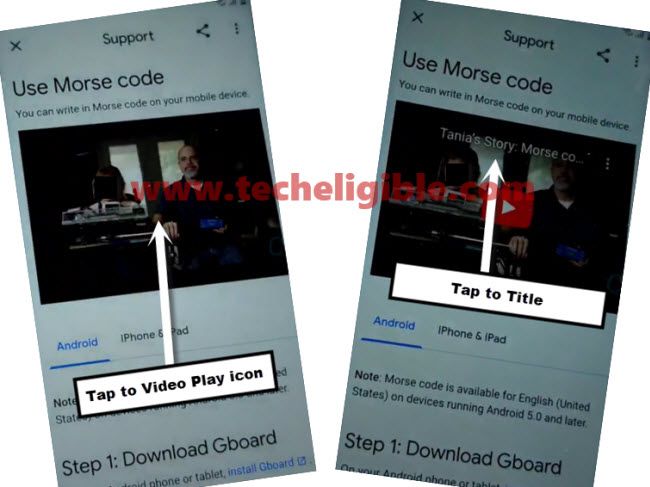
-On the subsequent article page, a video related to (Use Morse Code) will be displayed. Simply click on the “Play” option in the video.
-When you see the title of the YouTube video, tap on that title.
-Proceed to > Accept & Continue > No Thanks.
-The YouTube link will open in the Chrome browser.
Download Apps for FRP Bypass
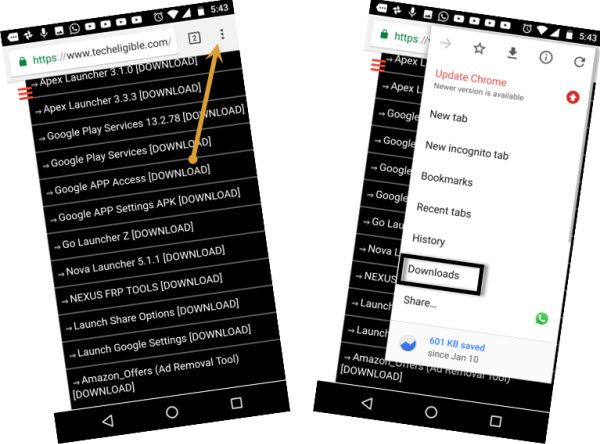
-At the top of the browser search field, enter “Techeligible” and access the first search result as depicted in the image below.
-Then, click on the “Menu” option and select “Download FRP Tools.”

-When on the FRP tools screen, scroll down a bit and download the “Google Account Manager 6” application.
-Once the download is finished, download one more application called “Account Login.”
-Access the downloads folder by tapping the “3 dots” icon in the top corner of the browser and selecting the “Download” option.
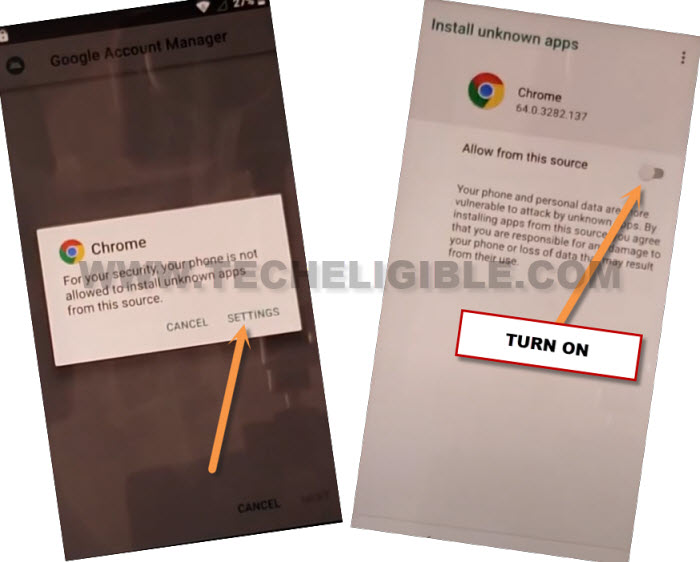
-Both downloaded apps will appear. Begin by installing “Google Account Manager 6.” If a popup appears stating that installation is blocked, go to “Settings” and enable the “Allow from this source” option.
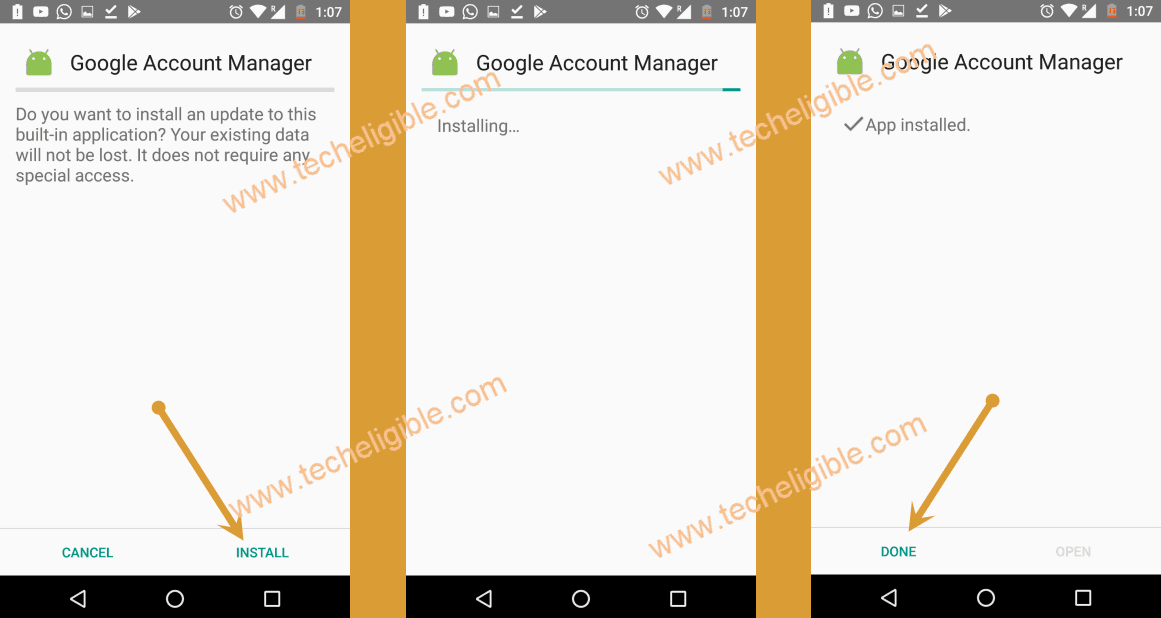
-Return to the downloads folder and tap on > Google Account Manager > Install > Done.
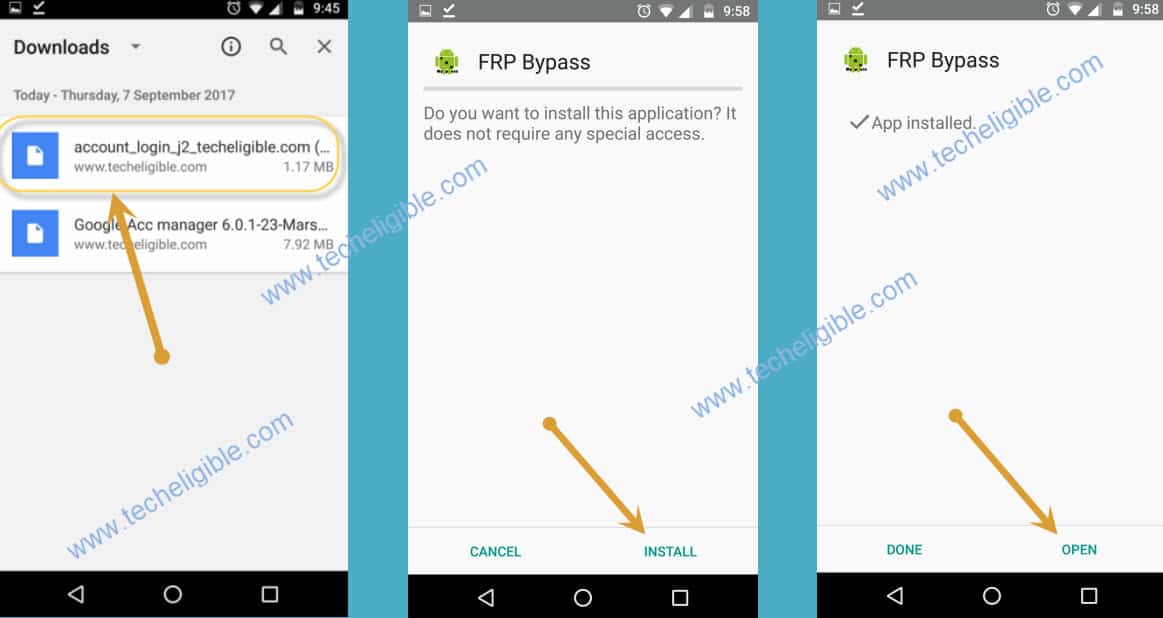
-Another application is needed to set up a different Gmail account on this device.
-Tap on > Account Login > Install > Open.
-Once on the login page, press the “3 dots” icon and select the “Browser Sign-in” option.
-We easily add another google account on our Cubot King Kong 3 device.
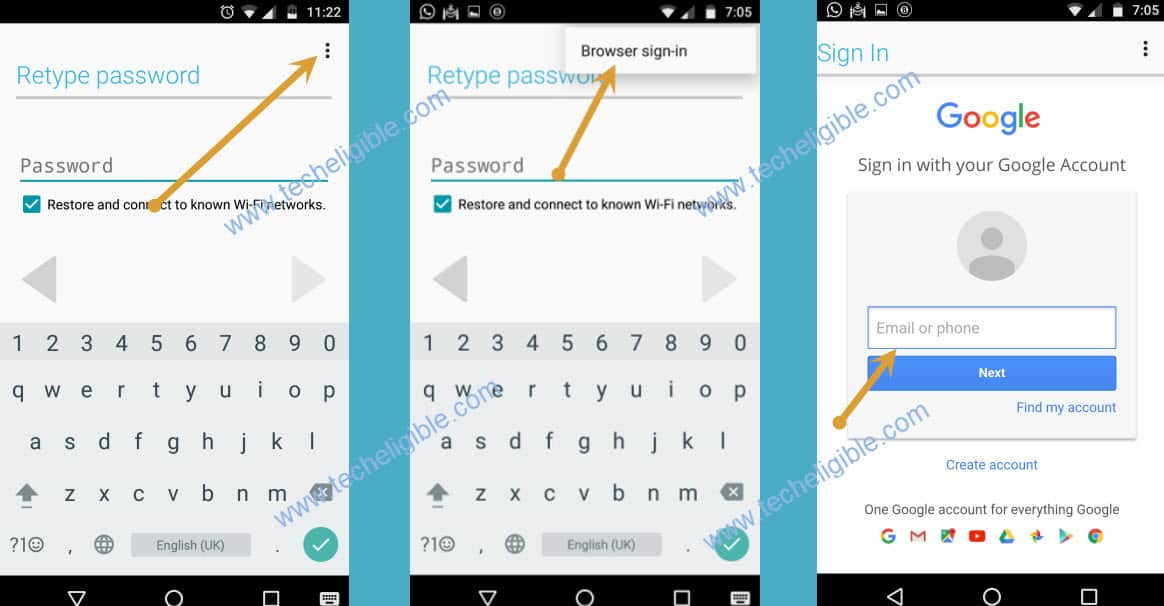
-Congratulations, you have successfully bypassed the FRP on the Cubot King Kong 3 phone after logging in with a new Google account. You can now restart the device and complete all the startup steps without encountering the verification screen.
Final Words
We just inserted the sim card and accessed on the contact list page. From there, we chose any random contact and reached to edit page of that contact. Then, we accessed on the chrome browser using the Gmail application additional settings and youtube. Finally, we just downloaded 2 frp bypass applications and setup google account on this phone using the (Account Login) app.