
Lost Reaching to your device immediately after performing a forced factory reset through the Android recovery mechanism can activate the FRP security function. This function is completely associated with the Gmail account that was recently configured. If you cannot recall the account linked to your phone and proceed with the hard reset procedure, you will inevitably find yourself at the verification screen. To address this type of problem, you may refer to our instructions on how to Bypass FRP CUBOT P50.
Disclaimer: This FRP method should not be attempted on a stolen device, as it is a serious offense. Attempting to bypass FRP on a stolen device could lead to imprisonment. This process is meant solely for the rightful device owner and for educational purposes.
Let’s Start to Bypass FRP CUBOT P50
-Firstly, insert any SIM card on the phone that has some contacts saved already.
-Switch on the FRP lock device & Connect to WiFi network. Once its complete, go back on first (Hi there) screen.
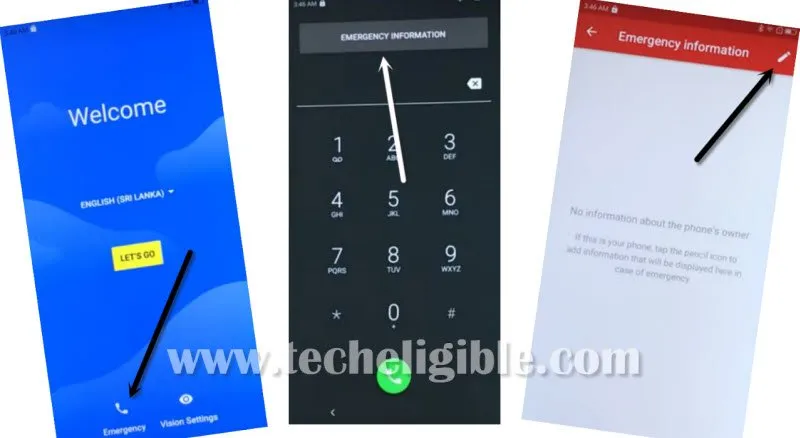
-Go to > Emergency > Emergency Information > Pencil icon.
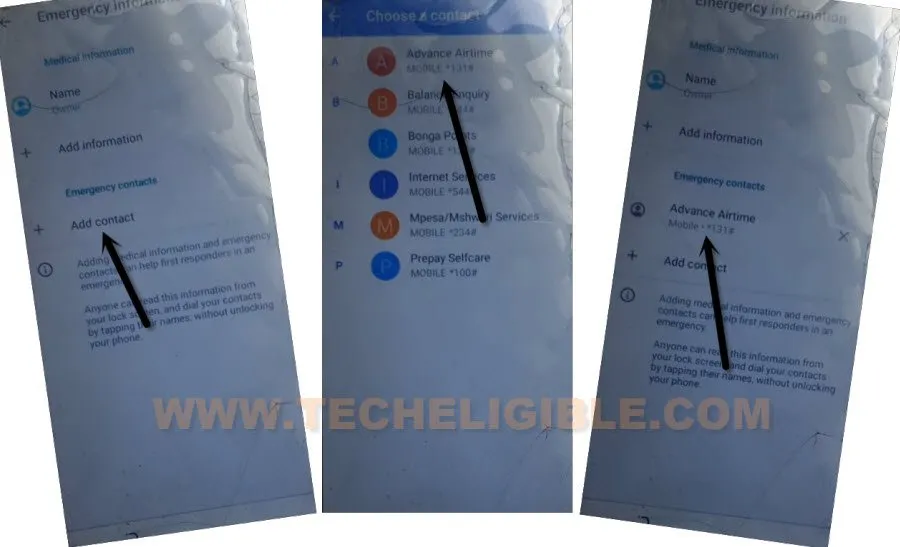
-On next screen, tap over the “Add contact” option to be redirected on the contact list page.
-Tap on any contact name.
-Tap again same contact name from the next screen.
Go on the Youtube through Text Messaging
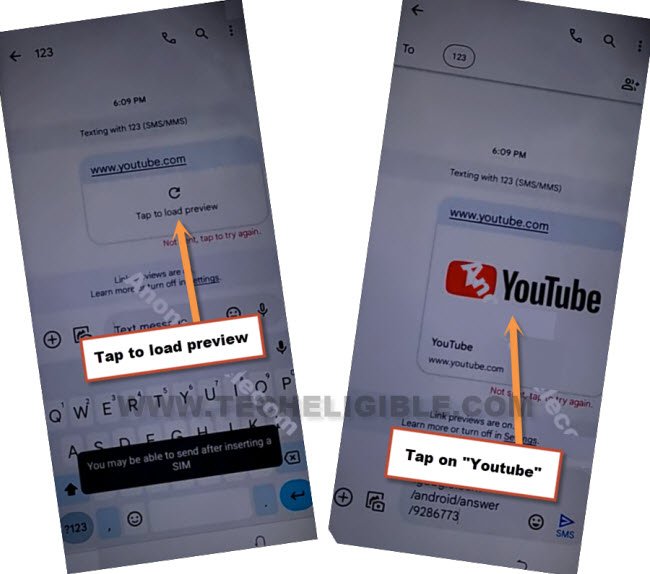
-Let’s open up the message page by tapping on “Message” icon. Then, type and send “www.youtube.com” url as text message to any random contact.

-After that, the url will convert into hyperlink, just hit on the “Tap to load preview”. Once you get the youtube preview image, just hit o that youtube image.
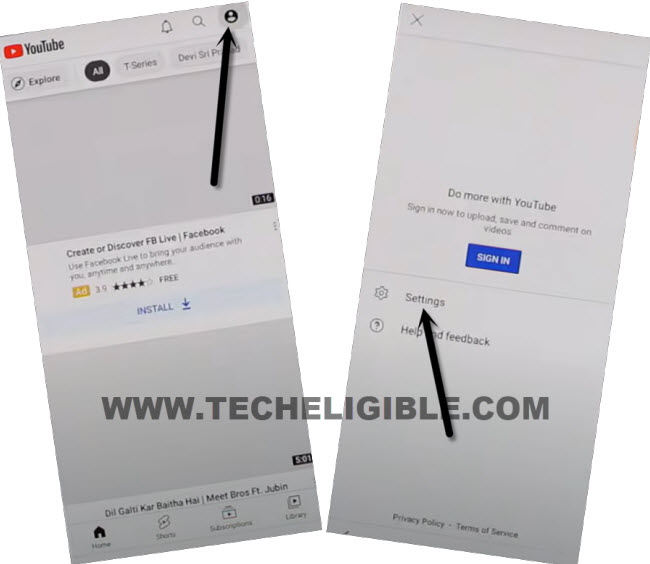
-After reaching on the official youtube page, go on the “Profile” icon from top corner and tap on “Settings”.
-Let’s go over the > About > Google Privacy Policy.
-The chrome screen will come up, choose option > Accept & Continue > No Thanks.
Disable Apps by Going to Settings
-Type the text “Techeligible” on chrome search bar and visit the 1st searched result of the official techeligible site.
-Go on the official site and open up the site “Menu”. After that, tap on “Download FRP Tools” option.

-Let’s hit over the “Access Device Settings” option.
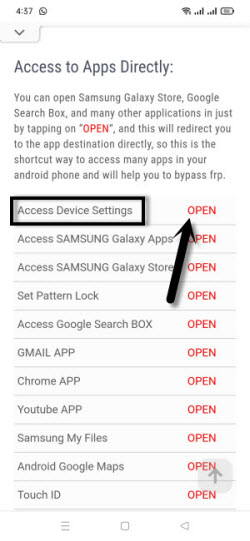
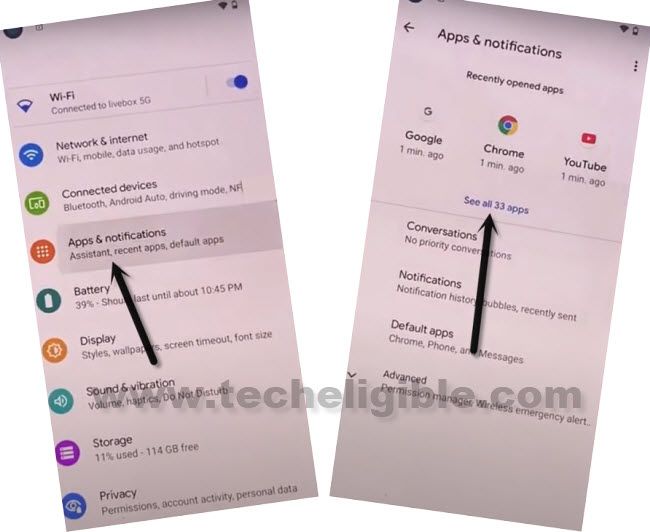
-Once you reach on primary settings of the Cubot P50 phone, just scroll down little bit and tap to > Apps & Notifications > View All App.
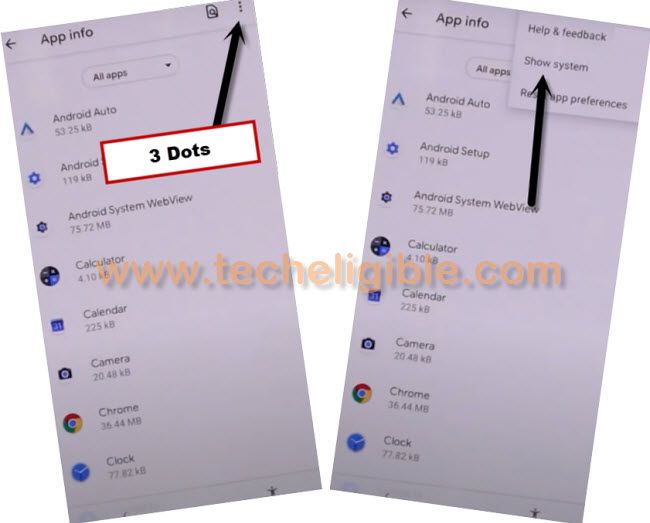
-Let’s display all the hidden apps by going on > 3 dots icon > Show system.
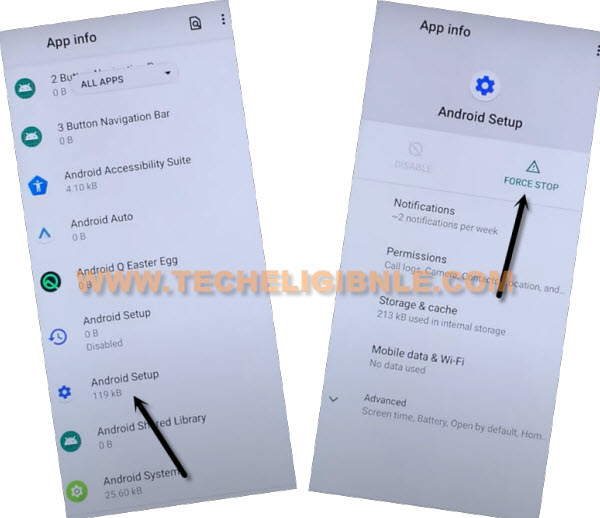
-Find the app and tap on “Android Setup” that is with the settings gear icon. Then, click to > Force Stop > Ok,
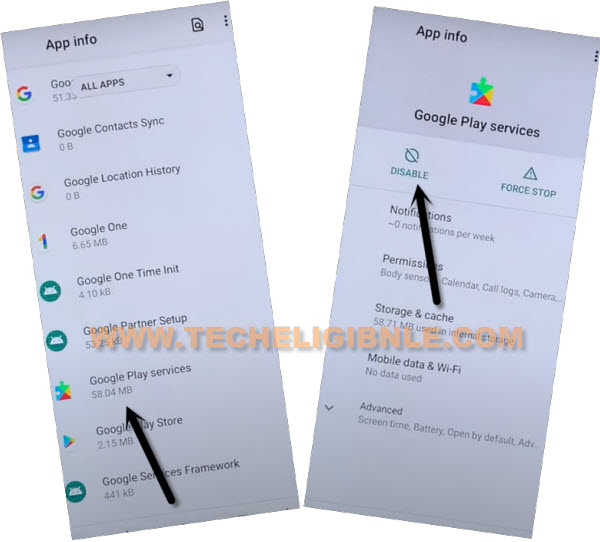
-Get back to app list page, find and go to app “‘Google Play Services”.
-Afterwards, tap to “Disable” option. From popup window, tap again on “Disable App”.
Complete Startup Steps
-After that, get back on the first (Hi there) page. For this, keep tapping back arrow option multiple times.
-Tap to “Start” option.
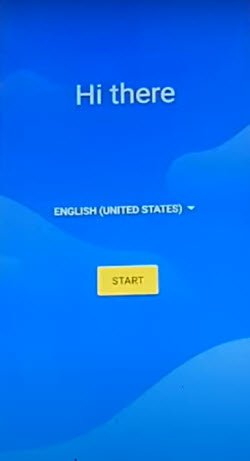
-Once you see the loading screen of (Just a sec…), just tap on “Back Arrow” option, this will take you on the (WiFi) page.
-There, you must see the (Setup offline) option, but do not hit on this option right now.

Repeat Steps for Enabling Google Play Services
-Go to > Emergency > Emergency Information > Pencil icon.
-On next screen, tap over the “Add contact” option to be redirected on the contact list page.
-Tap on any contact name.
-Tap again same contact name from the next screen.
Go on the Youtube through Text Messaging
-Let’s open up the message page by tapping on “Message” icon. Then, type and send “www.youtube.com” url as text message to any random contact.
-After that, the url will convert into hyperlink, just hit on the “Tap to load preview”. Once you get the youtube preview image, just hit o that youtube image.
-Afterwards, you will be shown a popup window, asking you to enable the google play services. Just, tap over the “Enable” button.

-Go all the way back to (Hi there) screen. From there, hit on “Start” button.
-Once you reach at the (Copy apps & data) page, just hit on “Back Arrow” icon.
-You will reach back to (Connect to WiFi) page. From there, hit on the > Setup offline > Continue.

-Hit on “Next” from (Date & Time) page. After that, you will access on the (Google Services) page.
-Go to > More > More > Accept.
-Let’s complete all startup steps and reach to main home-screen.
The Bottom Line
We just disabled the google play services application using the sim contact. Then, reached back to main startup page (Hi there). From there, we reached on the (Connect to WiFi) page. After seeing there a (Setup Offline) option, we just got back to (Hi there) and re-enabled the google play services application. Then, we just completed all startup steps without stuck on verification screen.