Unable to access your device after performing a hard reset Android recovery mode to address various bugs and problems? The underlying cause of this issue is the FRP locking function. You’re unable signing in with the correct Google account that was previously used to finalize your verification steps. You have two choices: either recover your account and sign in again or proceed with the guidance provided here to Bypass FRP Motorola Moto G05 (Android 15).
Disclaimer: Attempting this frp removal method on a phone that is not yours, is not allowed. This post is only for the device owner or follow up with the consent of the owner. This is an educational guide.
Bypass FRP Motorola Moto G05 (Android 15)
-Get the (Prime Tool X V26) your PC by hitting the link below.
Note: You will be redirected on the next article page after hitting below link, from there, you have to download and activate the tool free of cost, all instructions have been mentioned there already, that is very simple.
| ⇒ Prime Tool X V26 [DOWNLOAD] |
-After, you’re all done from downloading and activation side. Let’s run the tool on computer.
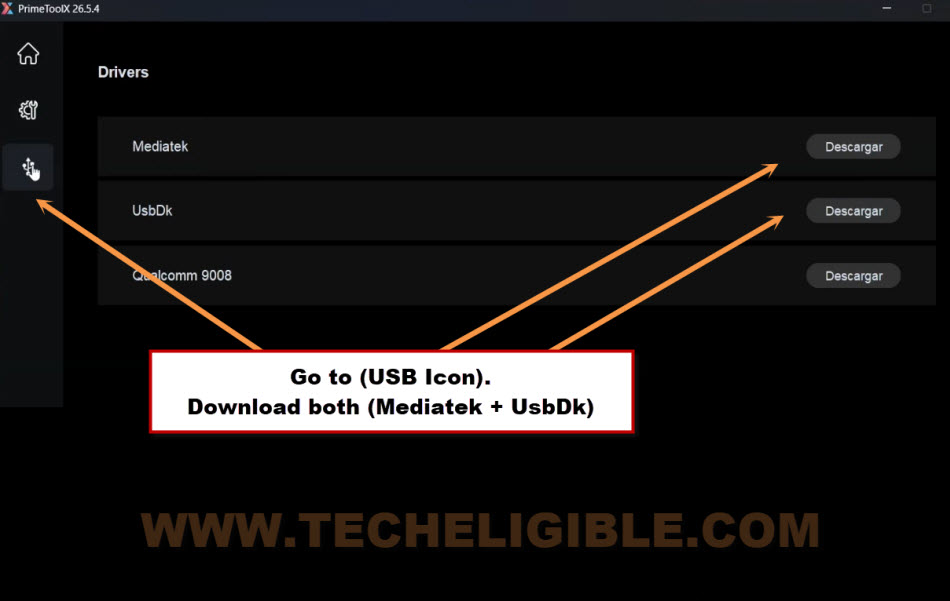
-Then, hit on the “USB” icon from side panel of the prime tool x to access the driver downloading page.
-From there, download & install both drivers named (Mediatek & UsbDk).
-After you are done, go back to settings page of the tool by clicking at the “Settings” option.

Chose the Model (Moto G05) in the Tool
-To successfully bypassing frp account from Moto G05 phone, we need to select this right model from the tool interface.
-Hit on the > MediaTek > Motorola.
-Finally, select the model named “Moto G05”.

-Let’s click on the button “Remove FRP” and you will be shown some device connection guideline.

Power off the Phone & Connect to PC
-Let’s completely turn off the Moto G05 device and wait for 10 seconds.
-Afterwards, connect the phone to PC using already tested USB cable.
-Once you see the (Charging) icon appears up on the phone display, quickly hold the (Power key) for 4 seconds only and release it. By doing this correctly, the phone will be detected by the tool and FRP bypassing process will just continue.

-Within a minute, you will see the text of (FRP bypass finalization) on the tool screen.
-After that, turn on the phone by pressing the (POWER) key and disconnect it from PC.
Important Notice: If the tool is unable to recognize your device despite having installed the drivers, then simply reboot your computer and attempt the process again. If you still encounter the same issue afterward, it will be necessary to download the drivers using the (Libusb Tool). To do this, just click here.

Complete Startup Steps & Factory Reset
-Once the restart process is complete, the (Lock icon) will no longer be displayed in the upper corner of the phone’s screen. This indicates that you have effectively overcome the FRP lock security. Now, proceed to the (WiFi) screen. From there, tap to > Setup offline > Continue.
Note: If the (Setup offline) choice does not appear, just connect the device to a WiFi network. After that, this will appear up there. Or, you may see thee (Skip) option. Both are same.

-Complete all remaining steps on your own.
-After reaching to home-screen successfully, its recommended to perform factory reset the phone from settings to remove any type of bugs.
-For this, go to > Settings > System > Reset options.
Note: This action will erase all data from the phone
-Tap few times on (Erase Data) option to reset the phone completely.
The Bottom Line
We just utilized an excellent and cost-free application (Prime Tool X V26). We chose our device within the application and proceeded to download and set up drivers. Subsequently, we linked the Moto Phone to the computer and successfully completed the FRP bypass in under a minute without any difficulties. This tool is entirely free of charge. Afterward, simply power on your device once more and easily finish all the outstanding steps.
Troubleshooting Steps (If Moto G05 is not being Detected by PC)
1st: Check your USB cable, is it working okay or not & Also your phone and laptop input and output
2nd: Required drivers have been installed properly (Mediatek & USBdk).
3rd: Still same issue exist, it is likely that drivers are lacking, which we can address by installing the LibUSB software on computer. This application will automatically identify any absent drivers on your system, allowing you to install all of them with just one click.
Let’s Install LibUSB Drivers on PC
-Firstly, download the tool from below given link.
| ⇒ LibUSB Driver for Windows [Download] Pass: gsmprime |
-Afterwards, we just have to extract the downloaded tool frin winzip. Then, install it on PC by clicking next option.
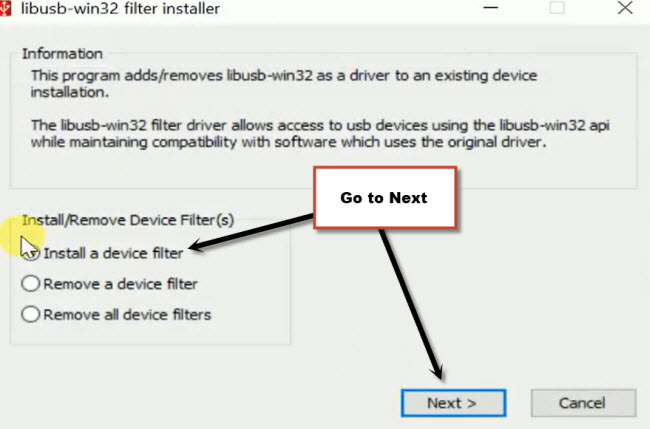
-Once you get the popup screen of (libusb-win32). Choose option (Install a device filter) and then, click to “Next” option.
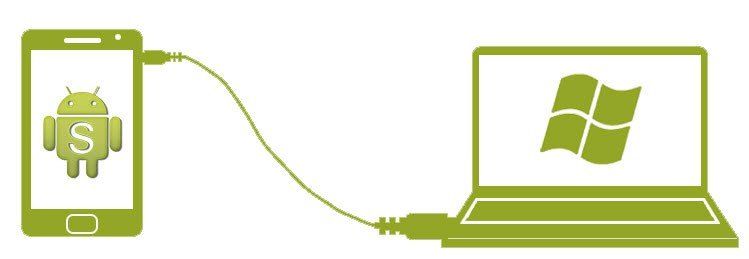
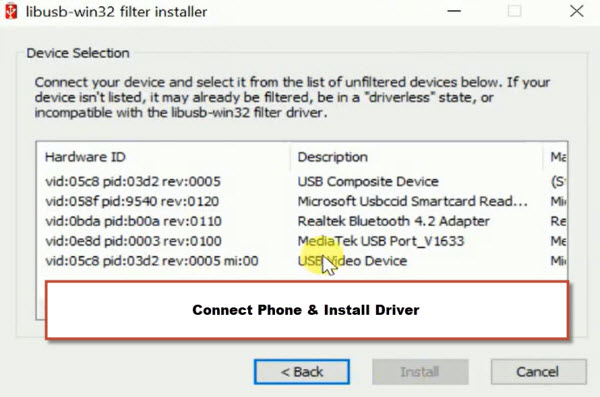
-Time to connect the phone to PC, turn off the Moto phone completely and connect it with computer.
-All the missing drivers will be listed on the popup screen, just install them one by one until you see empty screen.
-Its all done, let’s try to bypass frp again. We hope, this time, the phone will be detected by the PC and tool.