Can’t get back to your phone after doing a hard reset or factory data reset from android recovery mode to fix some other bugs and issues? The reason behind this issue is FRP lock. You are not logging-in with the already logged in correct google account to complete your verification process. You have 2 options, either you recover account and login again or follow up the process here to Bypass FRP Motorola Moto G06 (Android 15) with latest free tool.
Disclaimer: Attempting this frp removal method on a phone that is not yours, is not allowed. This post is only for the device owner or follow up with the consent of the owner. This is an educational guide.
Bypass FRP Motorola Moto G06 (Android 15)
-Simply, click the link below and download the (Prime Tool X V26) latest tool on your computer.
Note: You have to follow up complete procedure from downloading to activating the tool from the below given link. Once you are done and the tool is running perfectly, then follow further frp bypass steps from here.
| ⇒ Prime Tool X V26 [DOWNLOAD] |
-Next, we are gonna download some drivers on PC as well. So that, we do not face any type of connectivity issue.
Install Drivers on PC
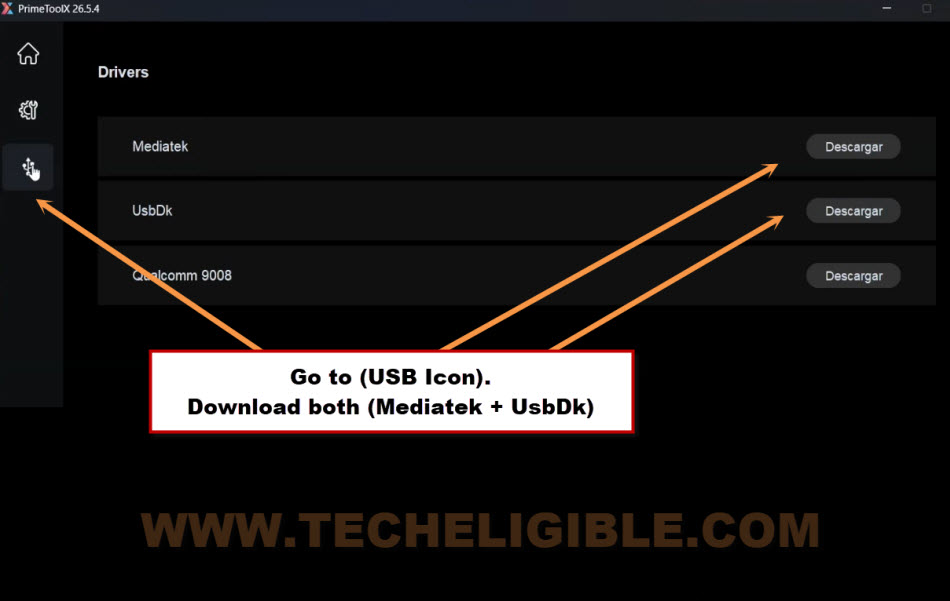
-From the same (Prime Tool X), just click over the “USB” icon option.
-Then, click on “Download/Descargar” button to download the “Mediatek” driver. After downloading is done, just install it on your PC by clicking (Next) option several times.
-After that, download and install another driver named “UsbDk“.
-Let’s get back over the frp bypass screen by clicking on the “Settings” icon from the left side of the tool.

Select Correct Model & Click on (Remove FRP) option
-Here, we have to choose our device model. For this, firstly, go to “MediaTek” option.
-Then, click at the “Motorola” brand.
-Choose the model “Moto G06”.

-After that, we just have to hit over the “Remove FRP” option and you will be displayed some instructions about how to connect the phone to PC.

Power off the Phone & Connect to PC
-For connecting phone PC according to the tool instructions, we have to switch off the Moto G06 completely.
-Then, take a good quality USB Cable and connect the phone with PC.
-As soon as, you see the (Charging Logo) is displayed on the phone screen, quickly press & hold the (Power Button) for 4 seconds only and then, release it.

-Afterwards, the FRP process will start and bypass the FRP from the phone completely with few seconds and you will see the (Operation Finalization) text there.
-Once you get the operation is successfully, you can disconnect the device from PC and turn it on by long holding the (Power button).
Note: In case, if the phone is not turning on after pressing the (Power button) multiple times. Then, you just long hold the (Power + Volume Down) buttons for 7-15 seconds, this will reboot the phone.
Important Notice: If your device is not being detected by the tool even after completing the installation of the drivers. Then, you just restart your PC and try again. Even then, you get the same result. Then, we will have to download drivers through the (Libusb Tool). For this, click here.

-Disconnect the phone from PC after getting the phone restarting process is done.
Finish All Setup Wizard Steps Easily
-After restarting is done, you will not see any (Lock icon) over the top corner of the phone screen. That means, you have successfully bypassed the FRP lock protection. Let’s Go to (WiFi) screen.
-From there, tap on the > Setup offline > Continue.
Note: If you don’t get the (Setup offline) option there, simply, connect the phone with WiFi.

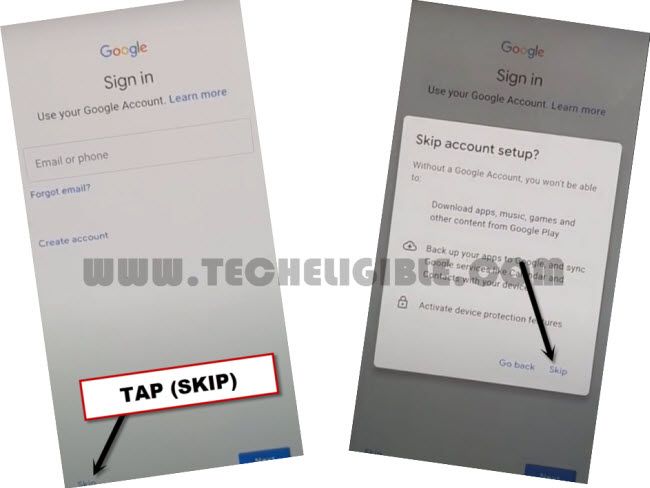
-Somehow, if you reach on the (Google Sign in) page, there, you must see the little skip option, just tap on this option to skip and complete all the startup steps easily.
-Its all done, you can finish all the remaining steps on your own without facing again the google sign in screen.
Conclusion
We just used a very best and free too (Prime Tool X V26). Selected our model in the tool and downloaded and installed some drivers. After that, connected the Moto Phone to PC and then, go the FRP bypass completely with a minute without any struggle. This is totally a free tool. After that, you just turn on your phone again and complete all the remaining steps easily.
Troubleshooting Steps (If Moto G06 is not being Recognized by PC)
1st: Firstly, you make sure, your phone USB cable is working fine.
2nd: After that, your Laptop/PC output and phone input ports.
3rd: Do make sure, you have already installed proper (Mediatek & USBdk) drivers on windows.
4th: If even then, your phone is not being recognized, then, there must be missing drivers, those we need to find out through installing the (LibUSB software) on PC. This will auto detect all missing drivers on your PC and you can install all of them with single click.
Install Moto Driver through LibUSB Driver
-Get the Libusb Driver on PC by clicking the link below.
| ⇒ LibUSB Driver for Windows [Download] Pass: gsmprime |
-You will be redirected on the GSMPrime official site, from there, download the driver on your PC.
-Extract it and install the LibUSB driver on your PC.
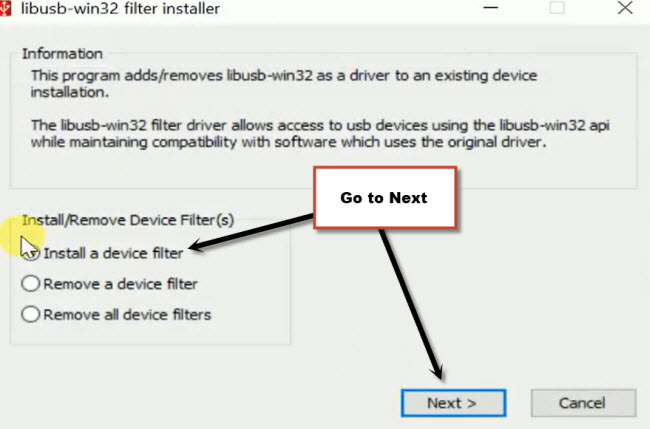
-Once its done, you will get the (libusb-win32) popup box, from there, select the option “Install a device filter” and then, click on “Next”.
-Let’s turn off your completely and connect it with PC.
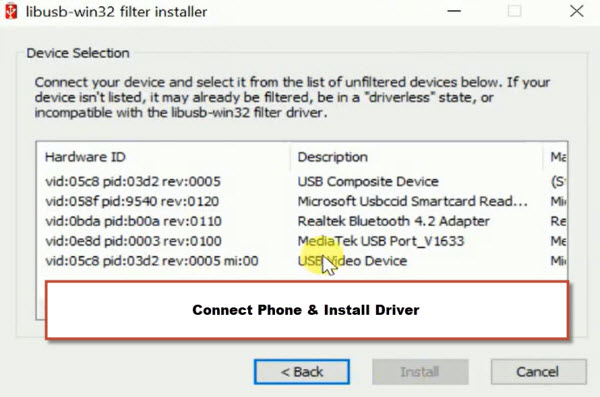
-You will be displayed all the missing drivers on the (Libusb-win32 installer) box.
-Select the missing driver and install it. After that, the installed driver will be removed from the box list.