Is it challenging to skip the Google sign-in interface after executing a hard reset on your device? If so, you are likely required to log in using the same Google account that was previously configured. Failing to do this will result in your phone being stuck in the FRP locked state. In the event that you cannot recall your forgotten account, you have the option to use a different method to restore access to your device, which is through the guide of Bypass FRP ZTE Blade V70 Max.
Disclaimer: We highly recommend you to apply this method only on your own device, if you are not owner of this device, or you found this from some where, you must return to its real owner. This method is for educational purpose only.
Bypass FRP ZTE Blade V70 Max [Android 14]
-Simply, download the below (BFT Tool V1.7) on your PC. This is totally free software, and working on many other ZTE android devices as well.
| ⇒ BFT Tool V1.7 [DOWNLOAD] |
Note: Don’t forget to turn off your any active @ntivirus software before extracting and running this tool. Otherwise, the file will be removed and you won’t be able to use this software smoothly. This action is required for temporary only.
-Go on your PC Desktop, and double click over the “BF Software” icon to run this tool.
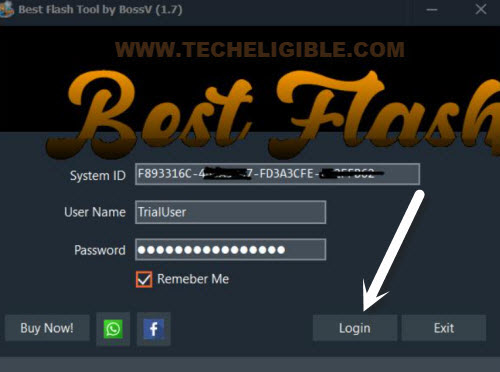
-After few seconds wait, you will get a popup screen, just hit on “Login” button.
Select Settings According to Device Processor & Chipset
-Once the interface of the tool is opened completely, let’s choose the “0-UNISOC”.
-Then, you have to choose the “[AUTH] Tiger T606 (64) V2”.

Install SPD Driver
-Let’s move on to driver downloading step, just click over the “Driver” button from top corner of the tool.
-Select the driver “Install SPD Driver” and install it by clicking (Next) option.
-Once its done, just click at the “Service” button.
-After that, click at “Reset FRP” button.
-Finally, you will be asked to connect the phone with PC.

-Turn off ZTE device and wait for 10-15 seconds.
-After that, using a working USB Cable, just connect the device to PC while keep holding (Volume Down) button.
Note: Do make sure, connect phone to PC with holding the (Volume Down) key.
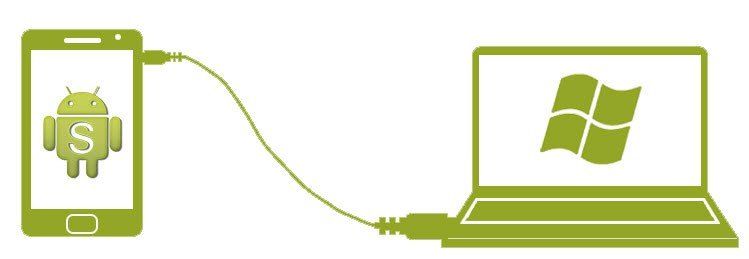
-Finally, release the holding key, once you get connectivity progress on the tool screen.
-Withing few seconds or a minute, you will get (FRP Reset END) message. That means, you are all done from bypass frp on the ZTE Blade V70 max phone.
| Note: If the frp is not being bypassed or you get any error except the connectivity issue, you just try to changing with chipset name, try with [Tiger 606 (64)] or [Tiger T616 (64) v2]. If you are facing connectivity issue, then, click here to troubleshoot this issue. |

Setup Phone Without Stuck on (Google Sign-in)
-We can safely disconnect our device and turn on the phone.
-You can finish up all setup wizards now easily. If you face the google sign in screen again, just tap on > Skip > Skip.
-Don’t forget to activate your @ntvirus software now. Because, we don’t need the BFT tool anymore.
| Note: If your device is frozen on a loading display after overcoming FRP. There’s no need for concern; just switch your phone to recovery mode and perform a hard reset (Wipe Data/Factory Reset). Once completed, go through the setup wizard steps once more. |
Conclusion
We utilized the complimentary software (BFT V1.7) to effortlessly remove the frp account. To begin, we downloaded the software and installed the appropriate (SPD) driver on the computer. After that, we opened the software and configured various settings based on the phone’s processor and chipset. When this was finished, we pressed the (Reset FRP) button and linked the phone to the computer to finalize the FRP bypass procedure.
FAQs
Question: My device is not being recognized by the PC?
Answer: This might be due to driver issue or USB Cable. Firstly, do make sure, your phone and PC input is working fine. Then, check your USB Cable. Finally, go for proper driver installation process, may be, your pc has not correct driver of your ZTE phone.
Follow Step to install driver through (LibUSB)
-From top corner of the BFT tool screen, just click to “Driver” and choose the option of “Install LibUSB Filter Driver“.

-Install it by click in (Next). Once its done, just run the (LibUBS) driver.
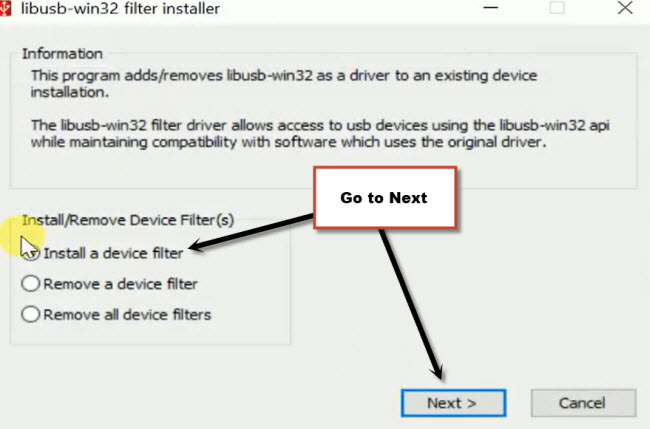
-You will see the same window as shown in below image.
-Select “Install a device filter” and go to “Next”.
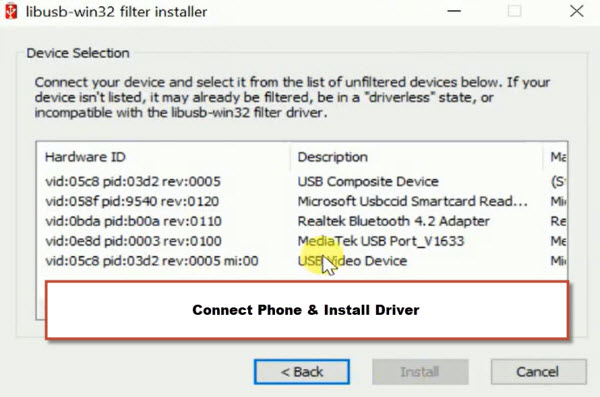
-On next screen, you will see a driver list window.
-Turn off your phone and connect the phone to PC while holding (Volume down) key, by doing this, the libusb will detect your phone driver and show you in driver list. You just select that driver and click to “Install” option,
Note: If nothing popup, just relaunch the (Libusb-win32). After that, check any (Mediatek or USB driver or Unisoc) driver is listed, just install those drivers one by one. If nothing is shown up even after 1-2 tries, don’t worry, your computer may have those drivers already.