
Don’t have any idea, why your device is inaccessible after doing hard reset and you are failing again and again on google verification screen?. This is occurring due to unable to login with exact Gmail account, that was setup earlier. If you are unable to remember or recover the account, in this condition, you can go for the alternate guideline, which is to bypass frp Condor Griffe T5.
Disclaimer: We highly recommend you to apply this method only on your own device. If you are not owner of this device, or you found this from some where, you must return to its real owner. This FRP bypass process is just for educational purpose.
Bypass FRP Condor Griffe T5
-Start this process by inserting a working SIM card on the phone, then, power it on.
-After that, from the first (Hi there) screen, hit over the “Emergency Call” option.
-Let’s tap twice on the top option “Emergency information”.
-Go on the “Pencil” icon from upper right corner.
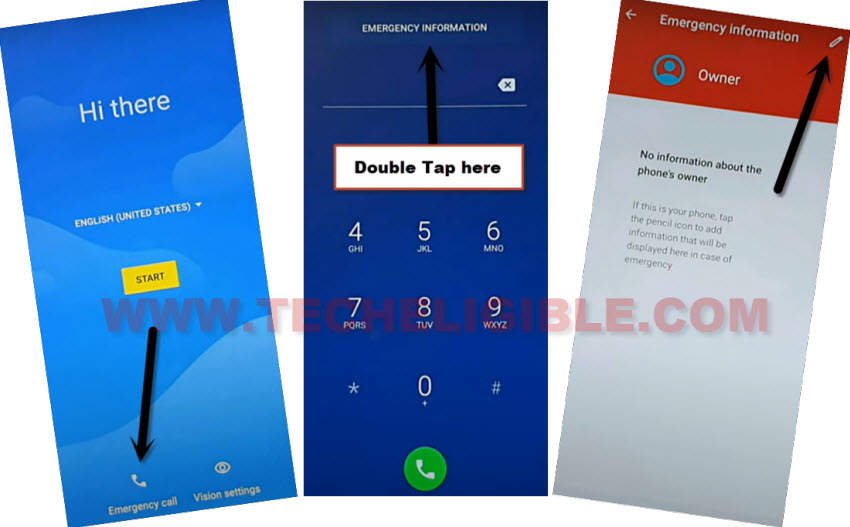
-Tap to “Add contact” option.
-You may not see any contact list on next page. We have to add new contact info on this page.
-Firstly, make call from any other phone to your Condor Griffe T5.
Go to Message App to Save New Contact
-From the calling screen, just drag up the (Message) app from bottom left corner of the screen and then, tap on a message “Write on your own”.

-Go over the “3 dots” option from upper right corner and select the option > Add contact > Add contact.

-Hit over the > Create new contact > Phone.

-Type any name in the (First Name & Last Name) field tab.
-Go down and tap on the “More Field” option to expand it further. After that, look for the (Address) field tab.
-Type any place address in the address field tab, then, hit on “Save” option.

-Once its done, you will see again the (Message) screen. Just, tap once on the “Back Arrow” icon from bottom corner to reach back to (Choose a contact) screen.

Access to Google Map
-Afterwards, tap on your already created contact name.
-Tap again on same “Contact Name”.
-From next page, hit on “Arrow” icon, this will take you to the (Google Map) screen.

-You may get a chrome popup screen, just, choose the “Accept & Continue”.
-After reaching to the google map, just, tap to “Menu” icon from upper left corner and choose the “Ok” option.
-You may be displayed the location screen, just tap the “Back Arrow” icon from upper left corner to go back on the main home-screen of the google map.
-Let’s tap again on “Menu” icon and hit on the “May Map” option.

-Choose respective options from the chrome window > Accept & Continue > Next > No Thanks.
-You will see the google screen, from there, hit on the > 3 dots > Open in Chrome.

Search & Download FRP Apps
-From there, you have to visit the frp tools page. Let’s type “Techeligible” in the search bar, and go to 1st searched result.
-After accessing on the official techeligible site, just, hit on “Menu” icon from top corner and choose the “Download FRP Tools”.

-Download from there below 2 applications
1st: Google Account Manager 8.
2nd: Account Login.
-Wait until the downloading process is completed, after that, just go to top of the browser screen and tap on > 3 dots > Download.
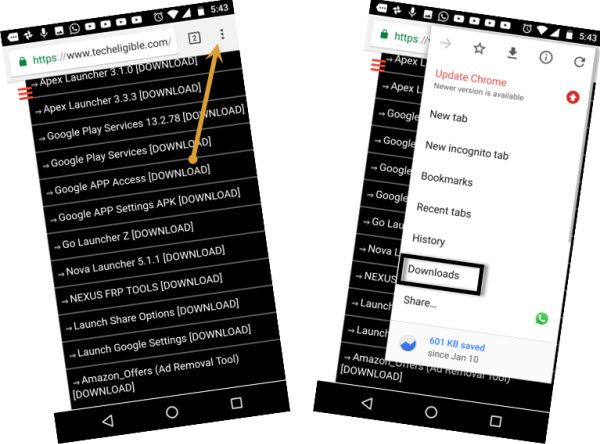
-You will reach over the download folder, where, you will be able to see your downloaded application. Let’s install this app now by hitting on “Google Account Manager 8”.
-From the popup window, just, hit on the “Settings” ‘option and toggle on the “Allow from this sources”.
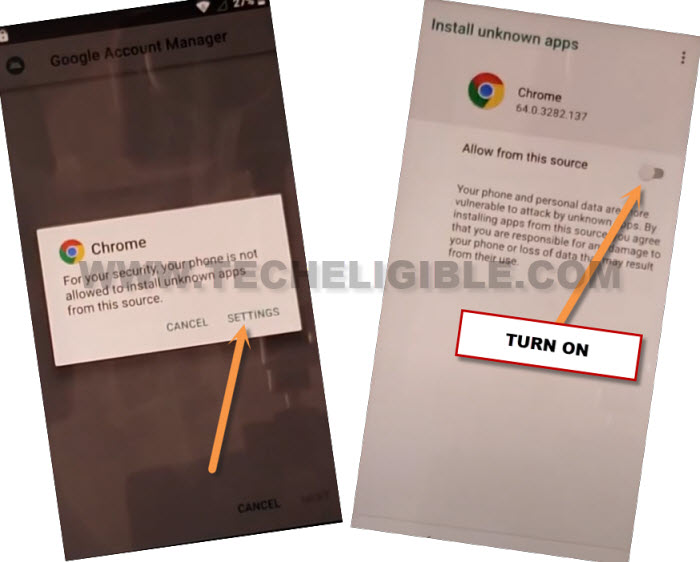
-Tap once over the “Back Arrow” option to go back on the installation screen.
-Let’s install this app now by hitting on > Install > Done.
Setup Google Account
-We have to install 2nd app now, through this app, we can setup google account easily. Let’s do this now by tapping on > Account Login > Install > Open.
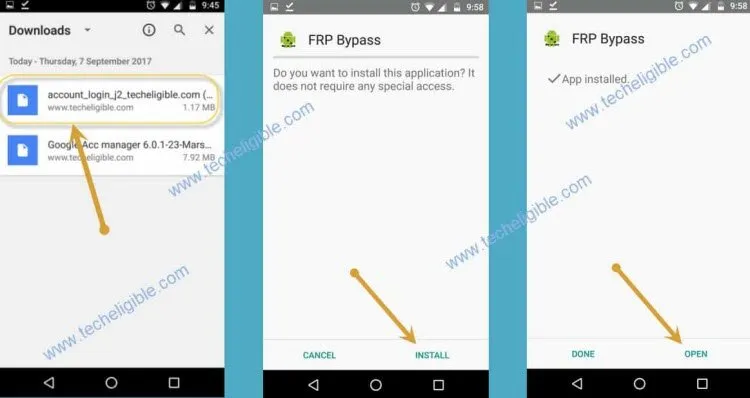
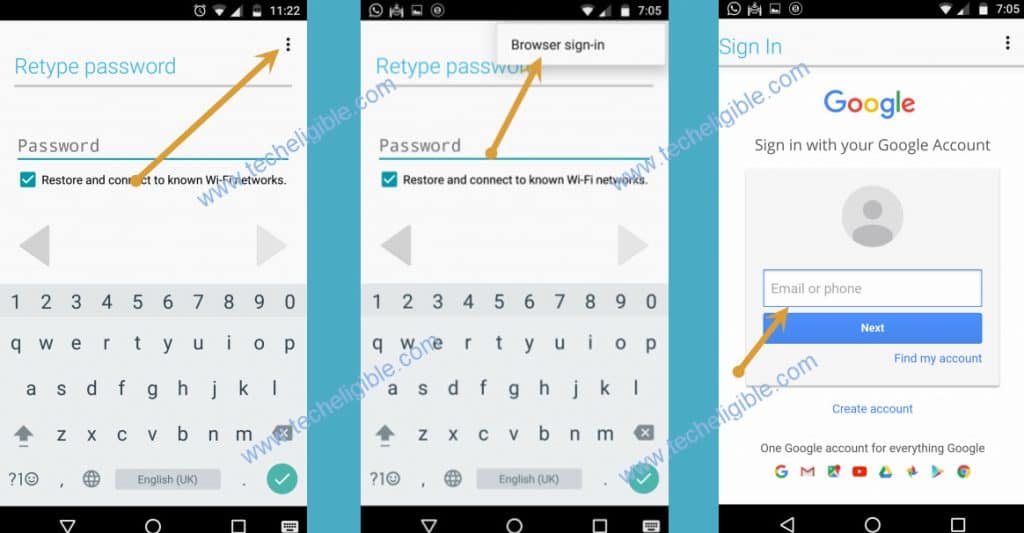
-From the next retype password page, go on the > 3 dots > Browser sign-in. Now, login with your valid Gmail account.
Conclusion
We accessed on the (Emergency Calling) page and make call from other phone to our frp protected phone. From the calling page, we just reached to the message app and saved new contact detail. Then, we accessed to the chrome browser and downloaded 2 main frp bypass applications. With the help of those apps, we just setup another gmail account and bypassed frp account successfully.