
Are you stuck on your Blackview device google sign in page? You might have hard reset your phone without knowing your already signed in Gmail account. If this is the case, then you must follow up this way to Bypass FRP Blackview Oscal C20 (Android 11) without using any PC. We will simply access to main settings page, from there, will disable google play services application.
Warning: This method is only for a real device owner, who has lost his/her Gmail account after hard reset. If you are unknown to this phone & trying to gain access, you will be jailed once the device is traced. This is a serious crime & Sin. You must return this phone to its real owner.
Let’s Start to Bypass FRP Blackview Oscal C20:
-Remove SIM card, and turn on your device. After that, Connect WIFI.
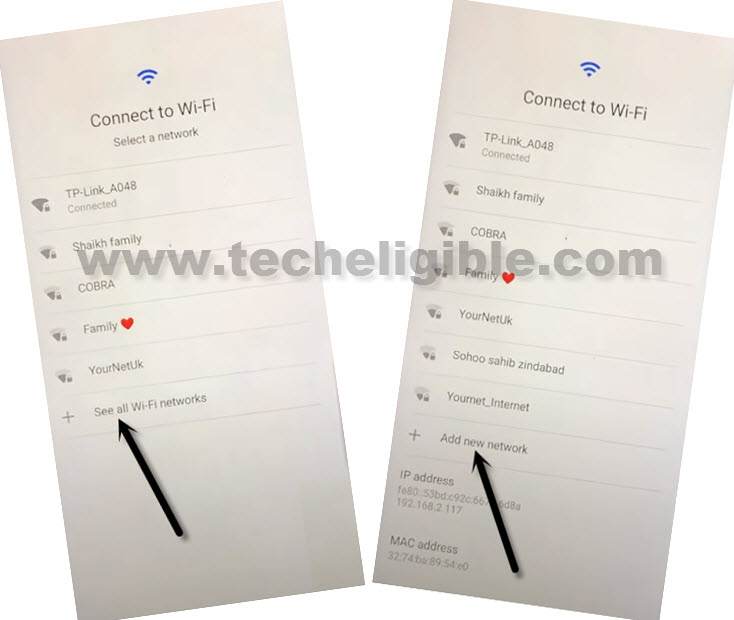
-Go back to (Connect to WiFi) screen. From there, tap over > See all WiFi network > Add new network.
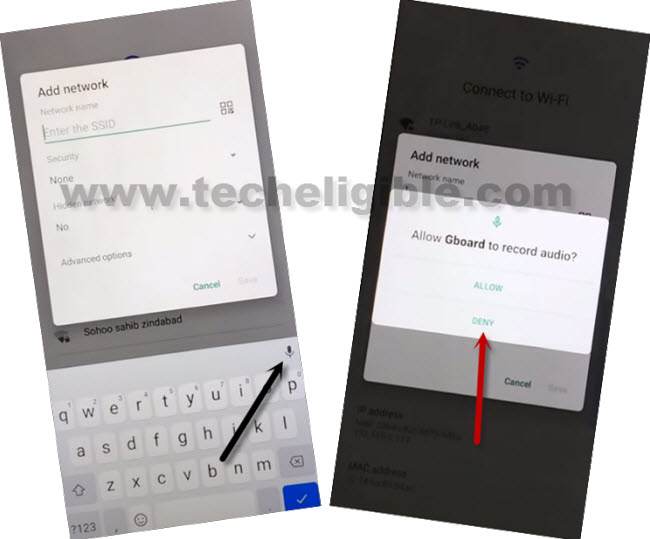
-Tap to > Mic icon > Deny.
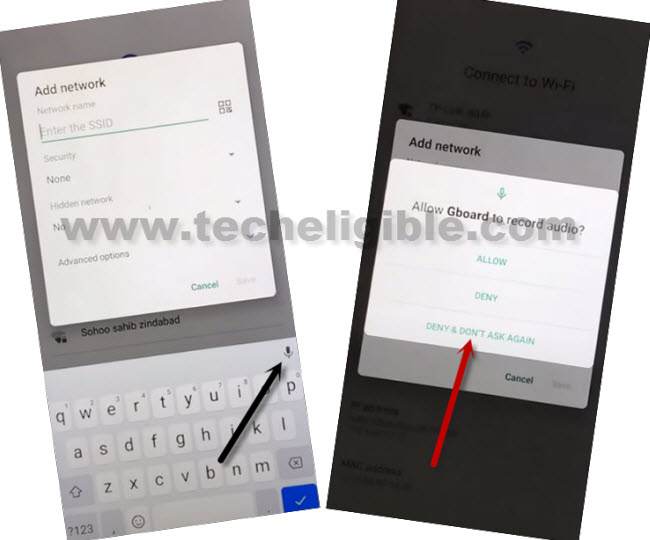
-Tap again over > Mic icon > Deny & don’t ask again.
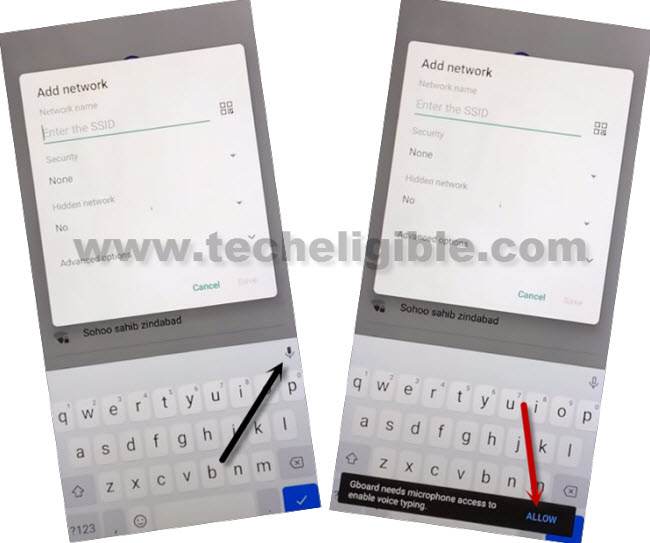
-At the 3rd time, hit again on “Mic” icon. After that, tap to “View” from popup flash message.
-You will have a (Gboard) page. Just go to > Permissions > Search icon.
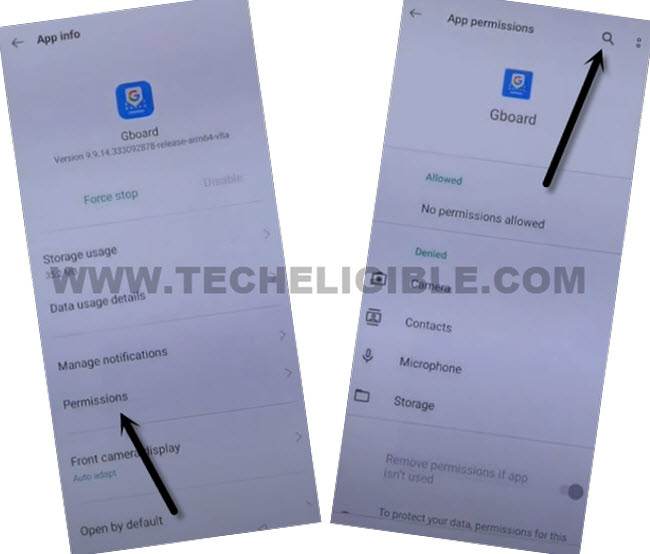
-Type “Settings” in search box. You will be displayed some searched result related to (Settings).
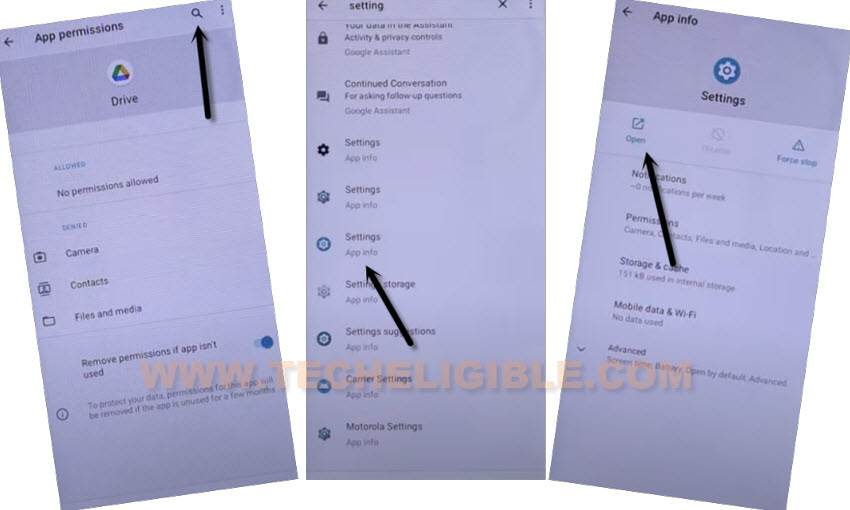
-Scroll down and tap to “Settings app info” app, after that, tap to “Open”.
| Note: If you don’t get proper (Settings app info) searched result, just tap again on “Search” bar, and there, you will have a recent searched “Settings” displayed, just tap over that again. This time, you will be able to get same searched result as shown in below screen shot. |
Disable Blackview Oscal C20 Apps:
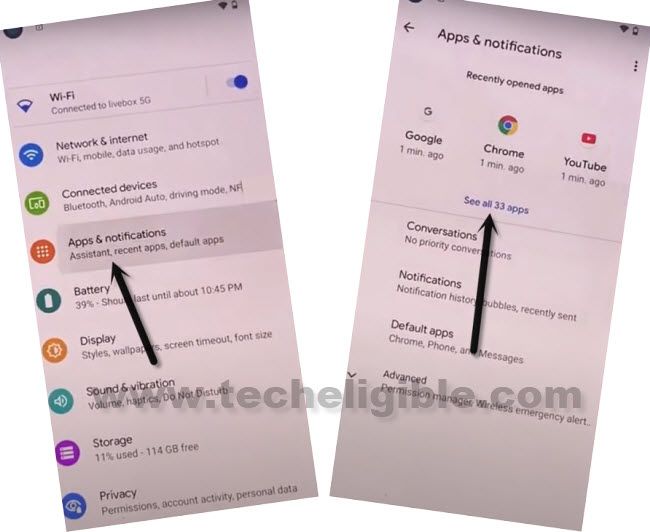
-Tap to > Apps & Notifications > See / view all apps.
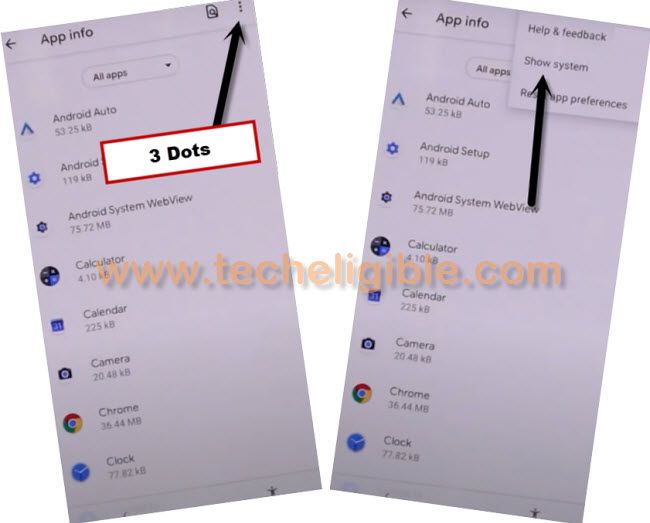
-Let’s get displayed hidden apps by hitting on “3 dots” from upright corner.
-Tap to “Show system”.
-Firstly, find and hit on “Android Setup” gear icon.
-You have to force stop this app just by tapping at > Force Stop > Ok.
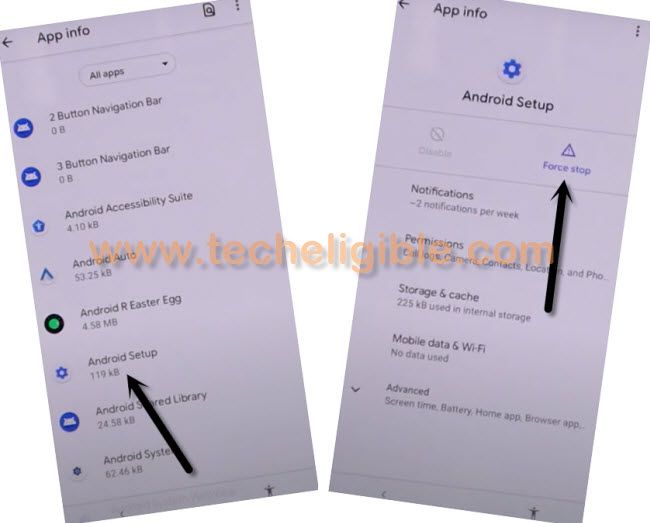
-Tap over “Back Arrow” icon from bottom to go back to (App info) page.
-Find another “Android Setup” app that has (Clock icon). See below image.
-You have to force stop & disable this application to Bypass FRP Blackview Oscal C20.
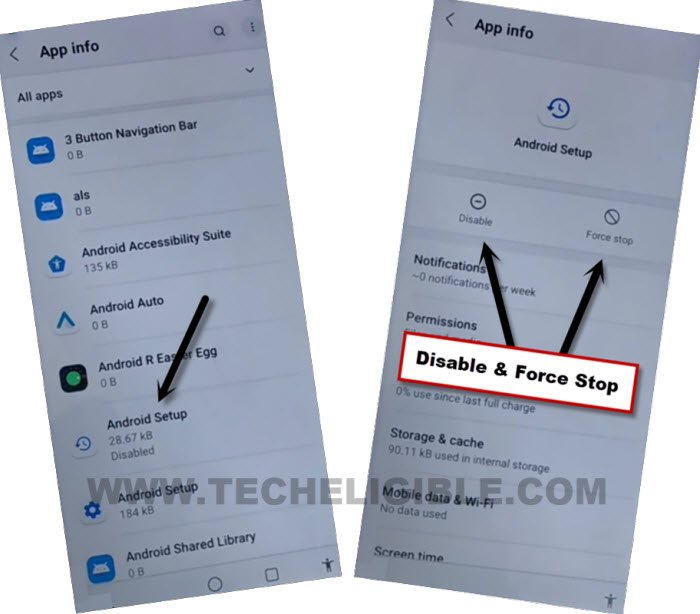
-Let’s go back again to (App info) page.
-This is the most important app, we will enable back this app later on while completing setup wizard.
-Find and tap to “Google Play Services” app.
-Tap to “Force Stop”, and hit on “Ok”.
-After that, tap to > Disable > Disable this app.
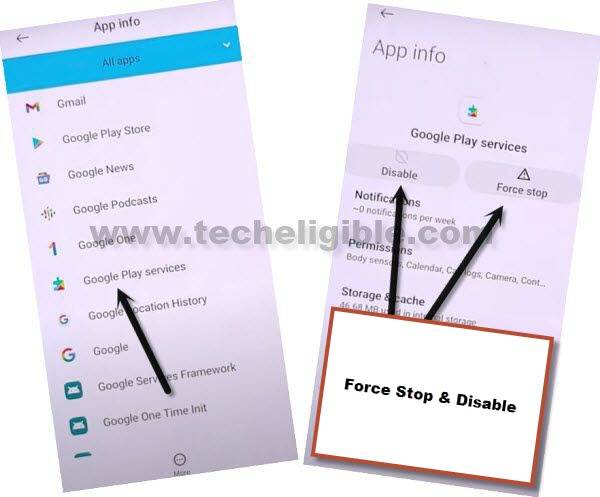
-Go all the way back to (Connect to WiFi) screen by hitting on “Back Arrow” icon cautiously.
-Tap to > Setup Offline > Continue.

-Wait for 30 sec at least on loading screen. To get this loading scree done, we are required to enable again (Google Play Services) app.
-Let’s repeat steps to access back to (App info) page.
Repeat Some Steps to Enable Google App:
-Go back to (Connect to WiFi) page, from there, tap to > See all WiFi network > Add new network.
-Tap to > Mic icon > Deny.
-Tap again over > Mic icon > Deny & don’t ask again.
-At the 3rd time, hit again on “Mic” icon. After that, tap to “View” from popup flash message.
-You will have a (Gboard) page. Just go to > Permissions > Search icon.
-Type “Settings” in search box. You will be displayed some searched result related to (Settings).
-Scroll down and tap to “Settings app info” app, after that, tap to “Open”.
| Note: If you don’t get proper (Settings app info) searched result, just tap again on “Search” bar, and there, you will have a recent searched “Settings” displayed, just tap over that again. This time, you will be able to get same searched result as shown in below screen shot. |
-Tap to > Apps & Notifications > See All Apps.
-Let’s get displayed hidden apps by hitting on “3 dots” from upright corner.
-Tap to “Show system”.
-You have to find and tap on “Google Play Services” application from app list page.
-After that, tap to “Enable” to enable this app again to Bypass FRP Blackview Oscal C20.
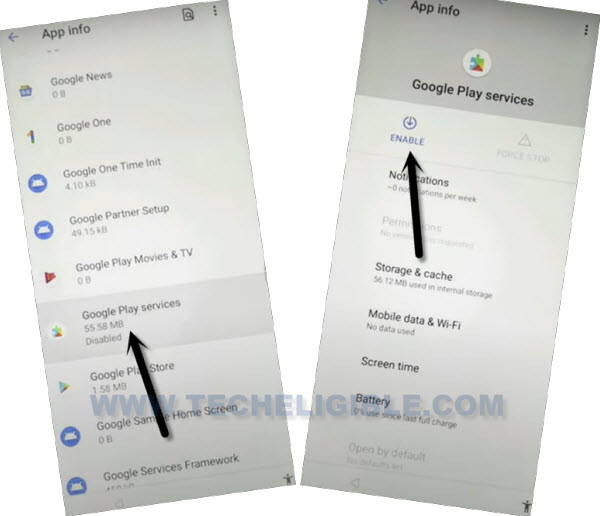
-Let’s get back to (WiFi page) again by hitting back arrow several times. After that, tap to > > Setup offline > Continue.
-After that, you can finish up all remaining steps on your own without stuck on google verification page.