You can easily get back your phone just through Bypass FRP POCO C61 (Android 14) without getting help of any extra paid services and paid frp tools. If you don’t remember your google account after hard reset the device, and unable to complete setup wizard steps. Follow our this easy guideline to reach into your device main home-screen and setup new FRP protection.
Remember: Do not try this frp method on a stolen phone, this is a serious crime, if you are trying to bypass frp on a stolen phone, you may also be jailed, this process is for device owner and for educational purpose only.
Let’s Start to Bypass Google FRP POCO C61:
-Turn on device & Connect WiFi first.
-Go back to first (Hello) homepage, from there, tap to “Emergency Call”. After that, dial any emergency number such as “112”.
Note: Try to make call on (112) number without inserting SIM card. If you are unable make call to 112, in that, insert SIM card, after that, try again.
-On dialing screen, before the call is picked up, quickly tap over “Contact” icon.

-Lets add new contact by tapping over “+” icon, after that, tap to “use devices internal storage”.
-Type any name in name field tab, after that, tap to “Check mark” icon from top corner to save new contact.

-We have to follow below steps in other device, because, we have to transfer one app (Activity Launcher) app to our POCO C61 phone to successfully bypass frp account.
Follow below steps in other Android Phone:
-You can use any of your relative android device.
-Open google play store, and, install “Activity Launcher” app.
-Install also “Share me” application from google play store.
-Launch “Share Me” application from main home-screen page.

-Give some permission by tapping over > Agree > Join > Next. Turn on “Allow access to manage all files”.
-After that, hit over “Back Arrow” from bottom, tap few more times on > While using the app > While using the app > Allow.
-Tap on “Receive” option to Bypass Google FRP POCO C61.
-After that, go to “Change System settings”, and turn on “Allow modifying system settings”.
-Go back by hitting back arrow from bottom. After that, tap to “Turn on” Bluetooth option. From popup window, tap to > Allow > Next > Allow.

-Finally, you will have a (QR Code) on your other android device screen. We have to scan this code using Xiaomi PCOO C61.
Follow Below Steps from POCO C61:
-You will have your already saved contact name on the screen same as shown in below image.
-If you see same screen, tap to your “Contact Name”, after that, you will be explored your contact name on big list. From there, tap to > 3 dots > Share.

-Hit on “File” option from popup. After that, choose “ShareMe” app.
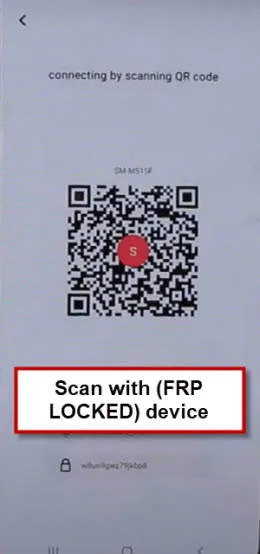
After that, you will have a (QR Code) scanner there.

-Scan QR Code of other android device using POCO C61 phone.
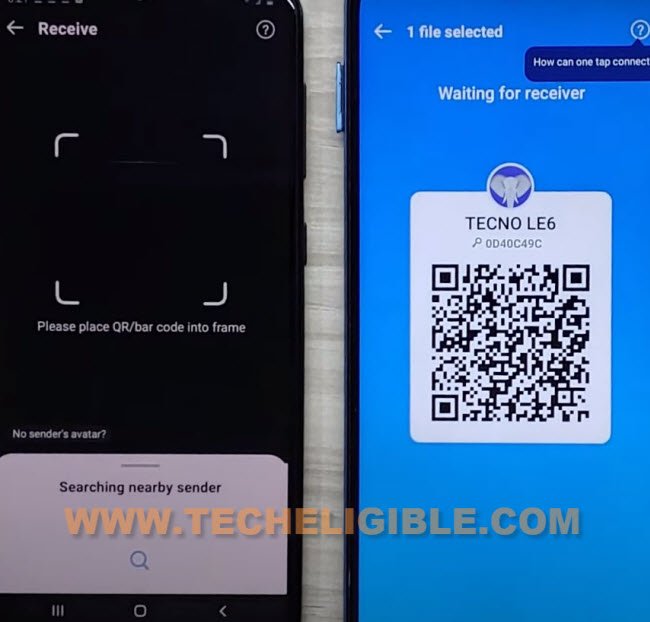
-Tap to “Connect” from popup window on POCO C61. After that, both devices will be connected each other.
-From other android device, tap to “Share Files”. Tap over “Apps” from top bar.
-Select “Activity Launcher ” app, and, hit on “Send” button.

-The (Activity Launcher) app will be transferred to your Xiaomi POCO C61 phone.
-Its all done from other android device side, you can put away your other android phone an follow remaining steps from Xiaomi POCO C61.
-Let’s move on to Xiaomi POCO C61 phone, from there, tap to “Install” button to install activity launcher app. After that, tap to “Run” option.

-Hit on “Ok” from disclaimer popup window. Wait over “loading…” screen.
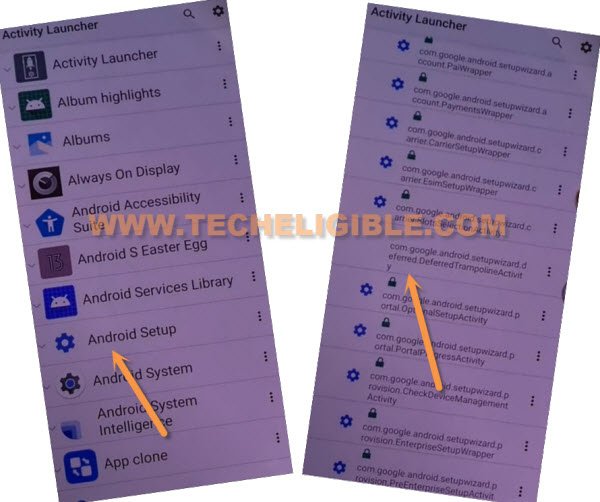
-You are now inside activity launcher application, from there, tap on “Android Setup” to Bypass Google FRP POCO C61.
-You will see there a big list of too many android setup, just scroll down, and tap to “com.googel.android.setupwizard.deferredTramplineactivity” same as shown in below image.
-Tap to > Start > Skip, After that, connect WiFi.
-After connecting WiFi, wait on loading screen. After that, tap to > Next > Next > No Cable > Copy Without Cable.
-Hit on “Next”, this will show you (Verify pattern) screen, just tap on “Use my google account instead”, after that, go to > Next > Next.
Follow Below Steps in Other Android Device:
-Open google app in your phone. Tap over “Mic icon” from the google address bar.
-Say loudly “Setup my device”.
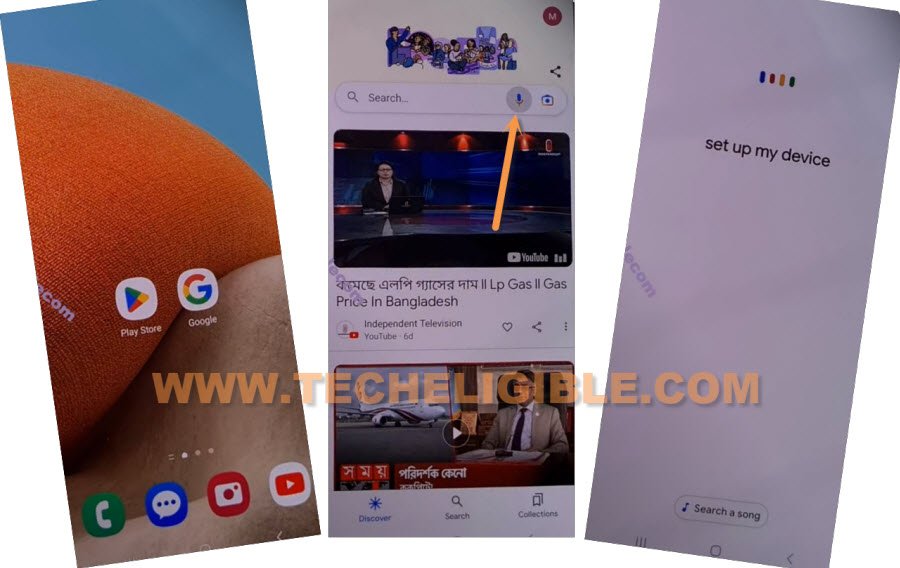
-From (Getting started) page, go to “Next”.
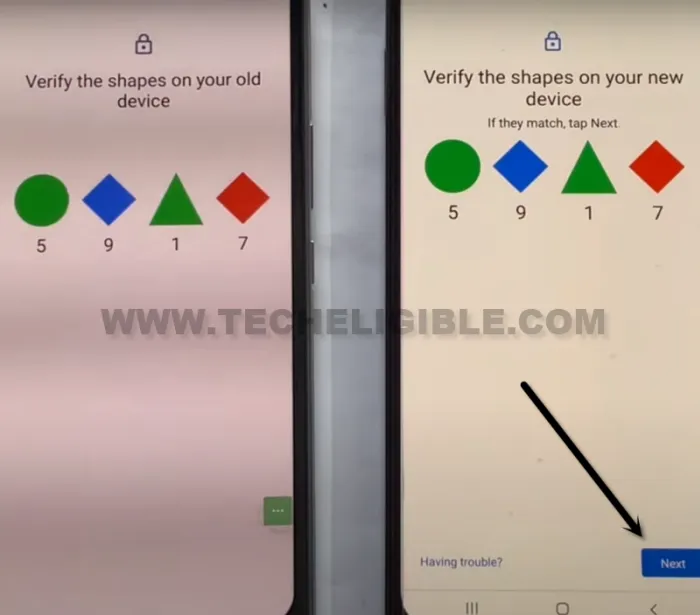
-You will be displayed (Verify the shape…) screen.
-from other android device, tap to > Next > Copy.
-Once you signed in successfully, now you can easily complete rest steps on your own, thanks for visiting us.
-From POCI C61 device screen, uncheck all options, check mark only “Device Settings” option. After that, hit on “Copy”.
-You can now easily complete setup wizard and access to your device main home-screen. You are all done from Bypass Google FRP POCO C61.
-You POCO C61 device has now same google account signed in, that is also signed-in in other android phone.