
If you have forgotten your already added google account on this android device after hard reset it. So, don’t worry, you can easily bypass frp from this phone just by using (Emergency Calling) option. We will access to (App info) page to disable few apps. After that, we will be able to Bypass Google FRP Premio X85, X85 Pro through setup offline option. Follow steps from below.
Warning: Do not try this frp method on a stolen phone, this is a serious crime, If you are trying to bypass frp on a stolen phone, you may also be jailed. This process is for device owner and for educational purpose only.
Let’s Start to Bypass Google FRP Premio X85 & X85 Pro:
-Turn on Premio X85, X85 Pro phone. After that, connect to a proper WiFi network.
-Lets use emergency calling option to start bypassing frp process. Get back first (Hello) page. Tap to “Emergency Call” option.
-Tap 2 times on “Emergency information” button.
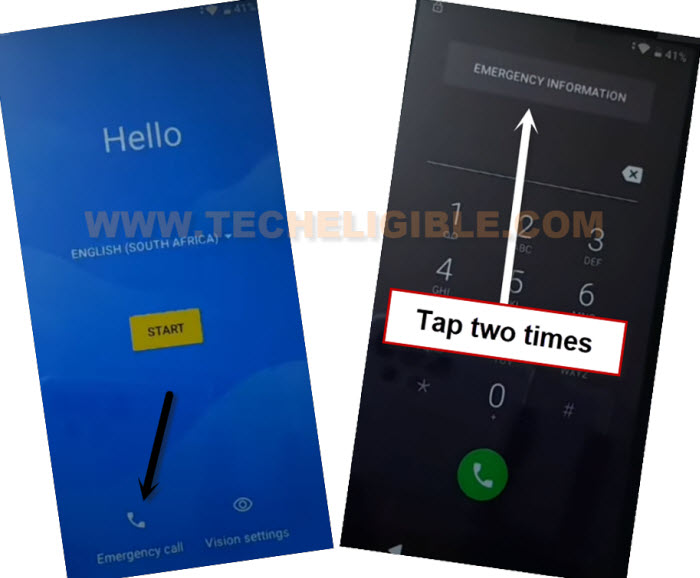
-Go over a “Pencil” icon from top right corner of the page. Afterwards, you have to tap on “Name” same as shown in below image.
-Tap to a “Small down arrow” from profile image. You will be shown some options, just tap to “Choose an image”.
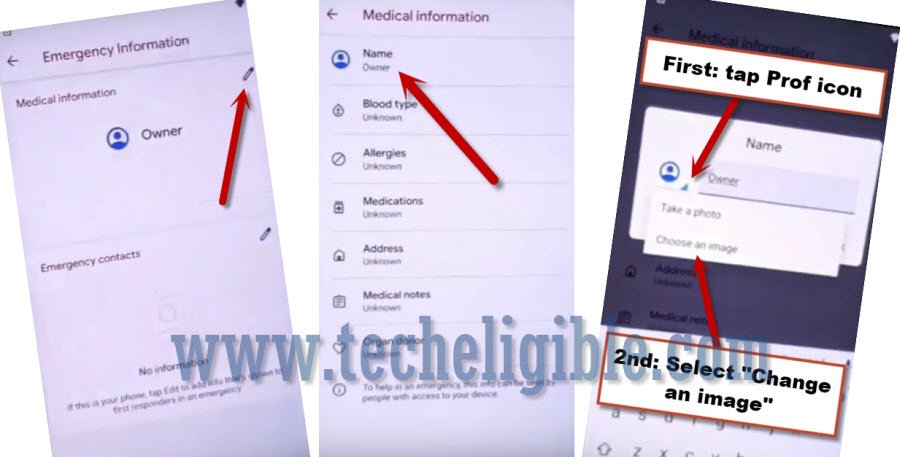
-You have to bring side menu by tapping at “MENU” icon from top corner. Afterwards, long tap on “Gallery Go” icon & tap to “Permissions”.
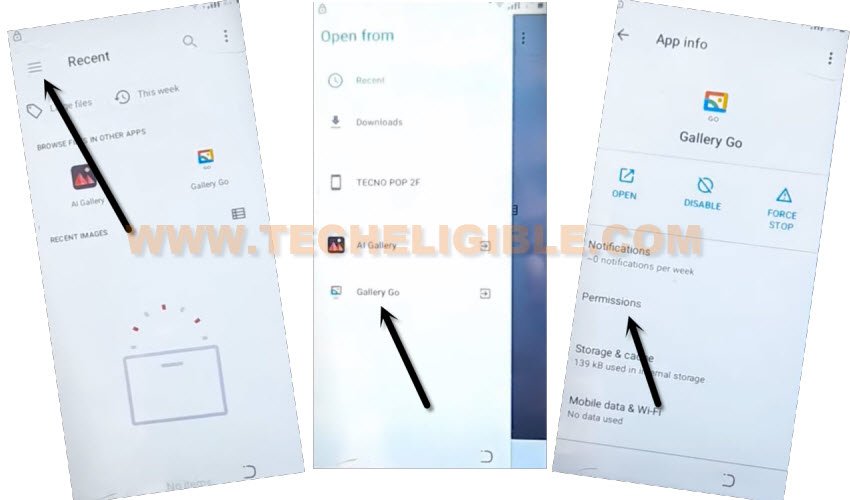
-Its time to reach (App info) page to disable some apps from there.
-Tap over a “Search” icon from upright corner of the page, and search there with “Apps”.
-Hit on > Apps & Notifications > App info.

Disable Google Play Services App:
-Hit on a “3 dots” icon from upright corner of the page, and go to “Show system”. By doing this, all hidden applications will be displayed.
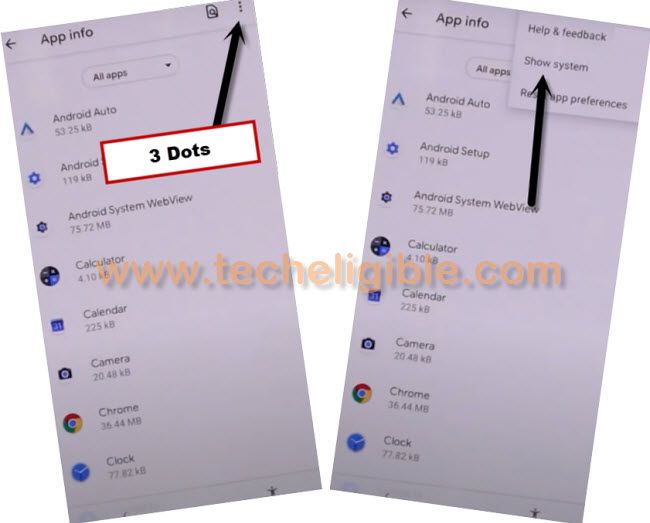
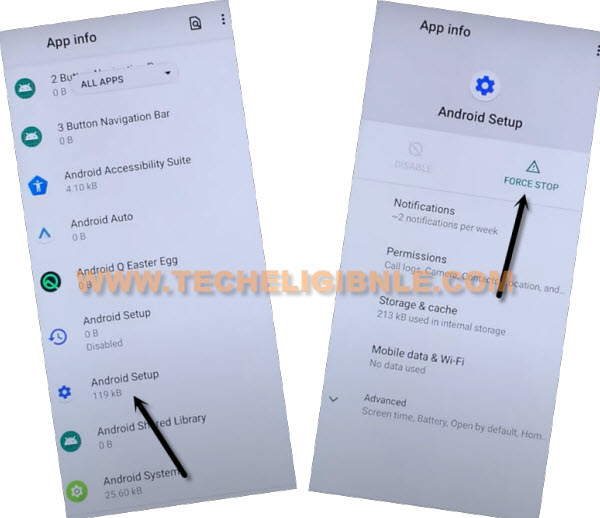
-Lets disable some apps, find and go to “Android Setup” application same as shown in below image.
-After that, force stop & disable this app.
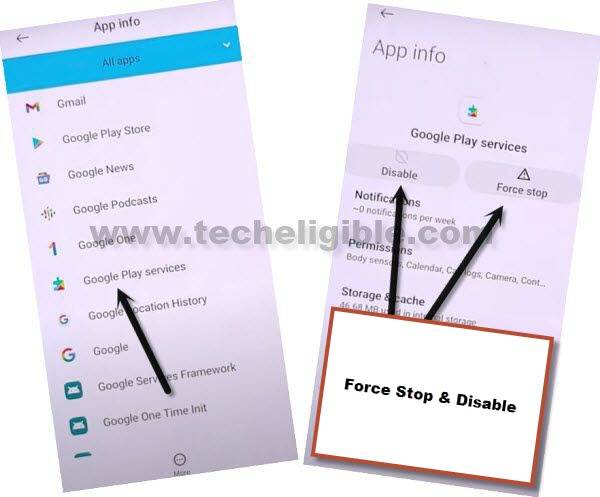
-By tapping back arrow from bottom, just go back to app list page. From there find and tap to “Google Play Service” app.
-Afterwards, just force stop & disable this app as well.
-Get back to first (Hello) page by hitting back arrow. From there, tap to > Start > Skip to Bypass Google FRP Premio X85.
-After that, from loading page, hit on “Back Arrow” from bottom. By doing this, you will get back to (Connect to WiFi) screen.

-From (Connect to WiFi) screen, just tap over > Setup offline > Continue.

-Wait 1-2 minutes on loading screen. This screen will not go away until we enable back (Google Play Service) app.
Repeat Steps & Enable Google Play Services App:
-Tap to “Emergency Call” option.
-Tap 2 times on “Emergency information” button.
-Go over a “Pencil” icon from top right corner of the page. Afterwards, you have to tap on “Name” same as shown in below image.
-Tap to a “Small down arrow” from profile image. You will be shown some options, just tap to “Choose an image”.
-You have to bring side menu by tapping at “MENU” icon from top corner. Afterwards, long tap on “Gallery Go” icon & tap to “Permissions”.
-Its time to reach (App info) page to disable some apps from there.
-Tap over a “Search” icon from upright corner of the page, and search there with “Apps”.
-Hit on > Apps & Notifications > App info.
Enable Google Play Services App:
-Hit on a “3 dots” icon from upright corner of the page, and go to “Show system”. By doing this, all hidden applications will be displayed.
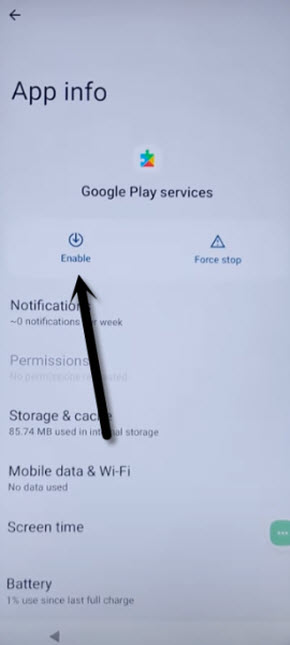
-From app list page, find and tap to “Google Play Service” application.
-Tap “Enable” button to enable this app, after that, we can easily Bypass Google FRP Premio X85, X85 Pro
-Get back to (Hello) homepage again. after that, tap to > Start > Skip. Hit on “BACK Arrow” from loading page.
-You will reach back on (Connect to WiFi) page, just tap to > Setup Offline > Continue.
-Thanks for visiting us, you can complete all remaining initial setup steps without having a google sign in page.