If you are unable to access your device and cannot recall the details of your previous Google account login. After that, the only option available to you is to remove the FRP ZTE Blade A72 5G/A72s (Android 12, Android 11). Because, as you are aware, your device is protected by FRP, and you cannot use it until you log in again using the same Google account that you used to log in.
We will use (Change Phone) application to successfully bypass frp. There are 2 devices of ZTE (A72 5G & A72s). You just have to follow up frp method according to your device model number and android version.
Disclaimer: We highly recommend you to apply this method only on your own device, if you are not owner of this device, or you found this from some where, you must return to its real owner. This process is just for educational purpose to assist device owner, how to approach on their own FRP locked ZTE Blade A72/A72s.
| Method 1: Delete FRP Account on ZTE Blade A72s (Android 12) |
| Method 2: Delete FRP Account on ZTE Blade A72 5G (Android 11) |
Method 1: Remove FRP ZTE Blade A72s [Android 12]
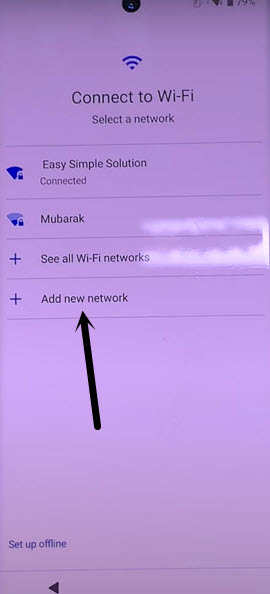
-Start up this frp bypass process by connecting to WiFi network first.
-Afterwards, from the same WiFi page, go to “Add new network” option to bring up your device keyboard.
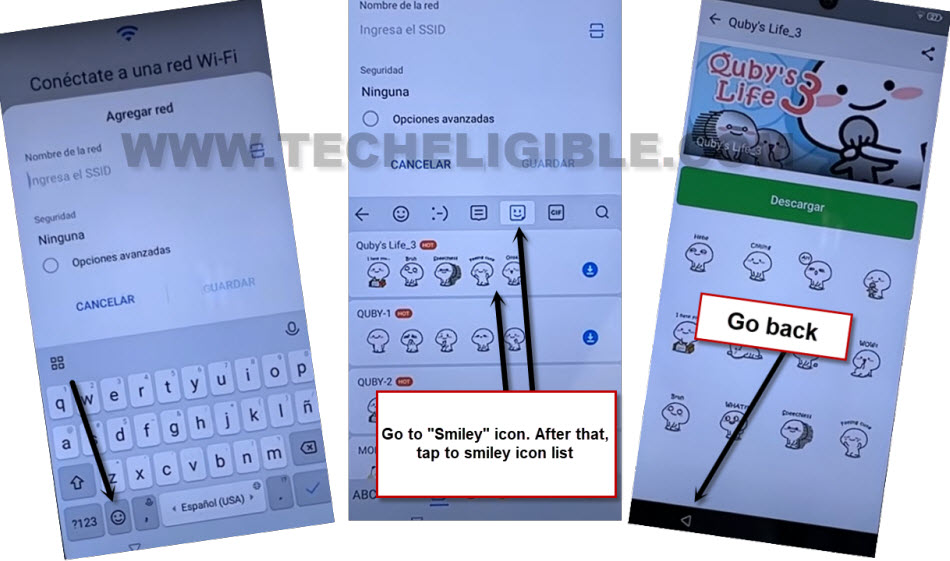
-Let’s hit over the “Emoji” icon from keyboard bottom and then, go to another “Emoji” icon from top keyboard bar same as displayed in below image.
-You may have a (Try Again) button there, just tap on that for 2-3 times. But, nothing will happen.
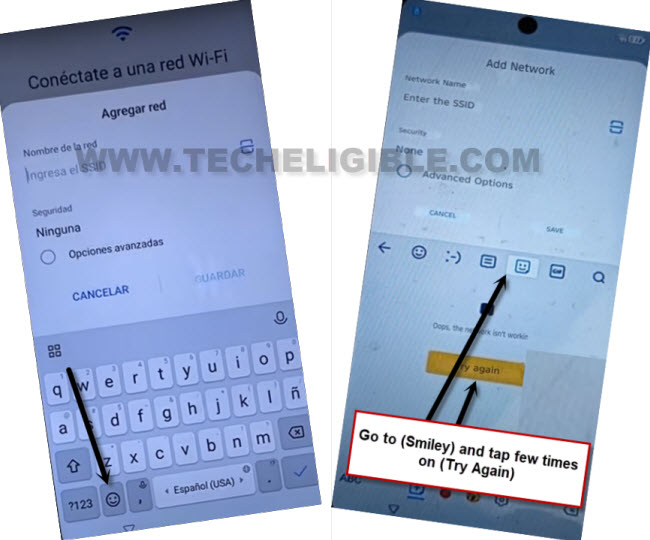
-Tap over the next icon, that is “Gif”. After that, go to > Accept & Continue > Cancel.

-Return to main WiFi page and hit again on a “Add new network”.
-From your device keyboard, let’s hit again on > Emoji icon > Emoji icon.
-This time, you will be shown a list of cartoon stickers. From there, tap at any cartoon sticker list to go to next screen.
-After that, hit on “Back Arrow” icon from bottom panel of your device.
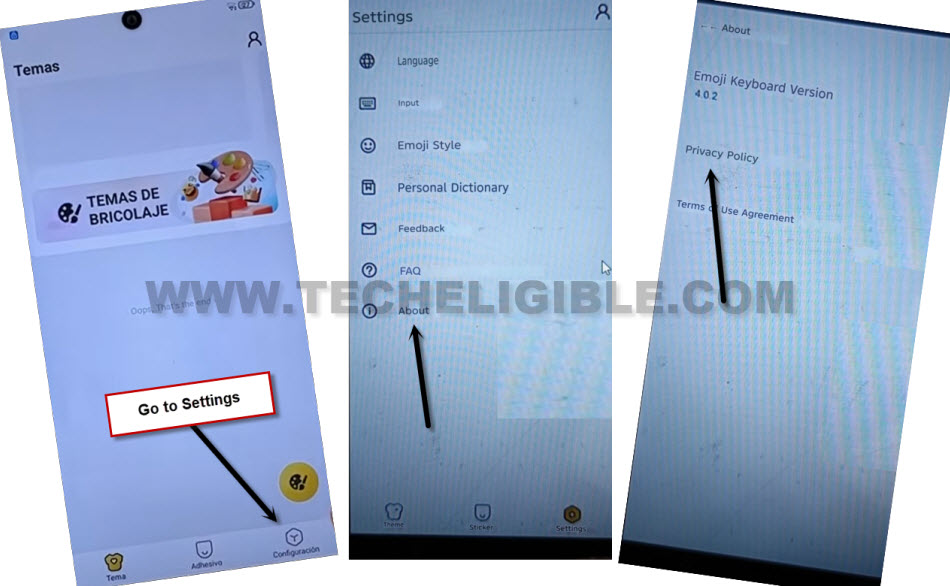
-Time to go to > Settings > About > Privacy Policy.
-You have to long hit any text and from some popup options, just go to “3 dots” and then, go to “Share and Search (Recommended)” option to launch web browser.
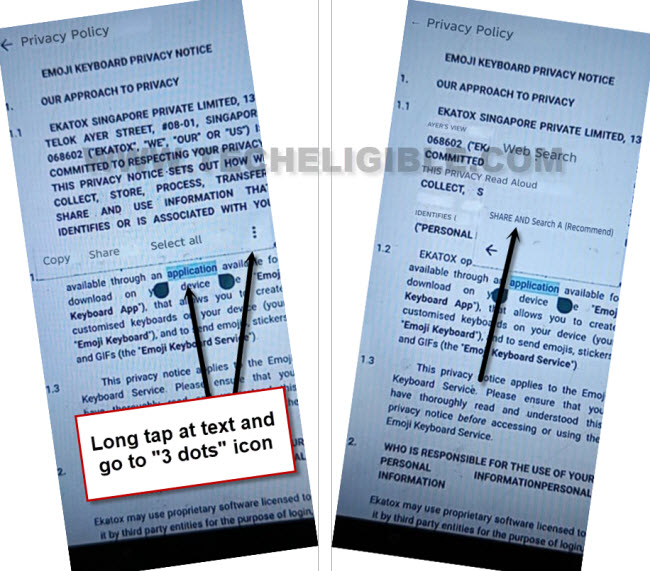
-Let’s give some permissions by tapping on a > Accept > Accept > Allow. Finally, you will on a web browser screen.
Search & Go to FRP Tools Page:
-Search in top search bar with “Techeligible” and go to official techeligible site.
-After that, you have to hit over the “Menu” icon from top corner & Go to “Download FRP Tools”.
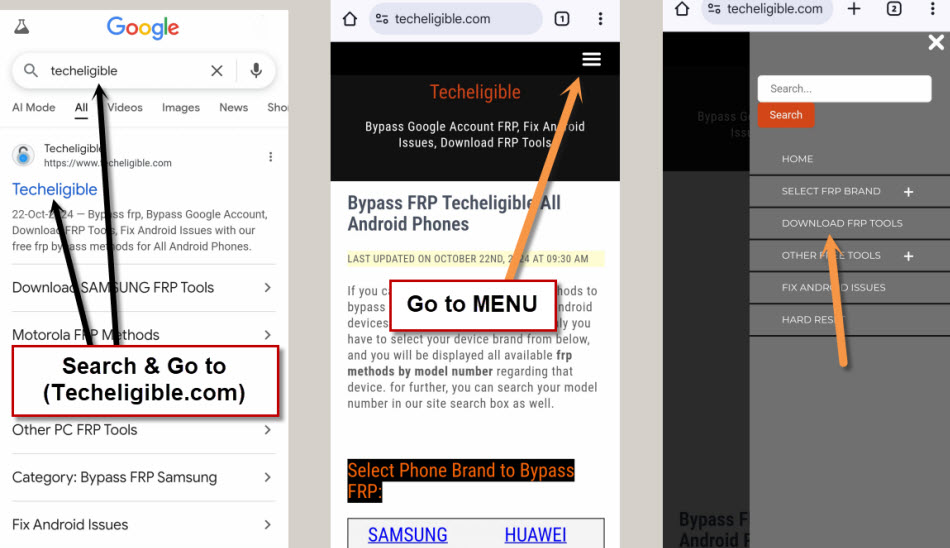
-Scroll down a bit from there and go to open “Open Change Phone (ZTE)” app directly. This is pre installed app, that can help you to Remove FRP ZTE Blade A72/A72s.
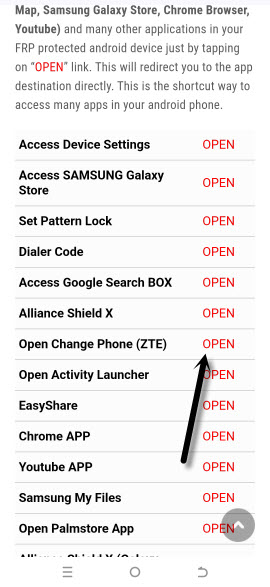
-Go to > Accept > Allow. After that, the change phone app will be fully launched.
-You are required one more android phone here.
Apply Below Steps in 2nd Android Device to Remove FRP:
-In your 2nd android device, let’s go to “browser” and search there “Techeligible“.
-Go to 1st searched result, and then, after reaching to official techeligible site. Just open up the “MENU” by tapping from top corner.
-Tap on “Download FRP Tools”.
-We have to download below 2 main applications in our 2nd android device.
1st: Change Phone.
2nd: Activity Launcher.
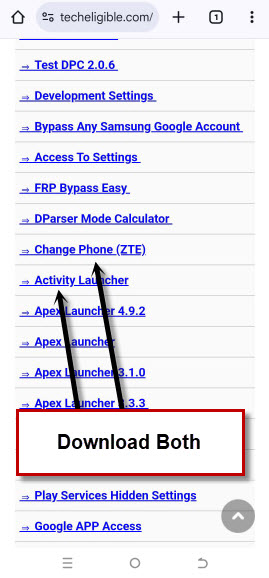
-Wait until downloading is done. Afterwards, scroll up to top and go to > 3 dots > Downloads.
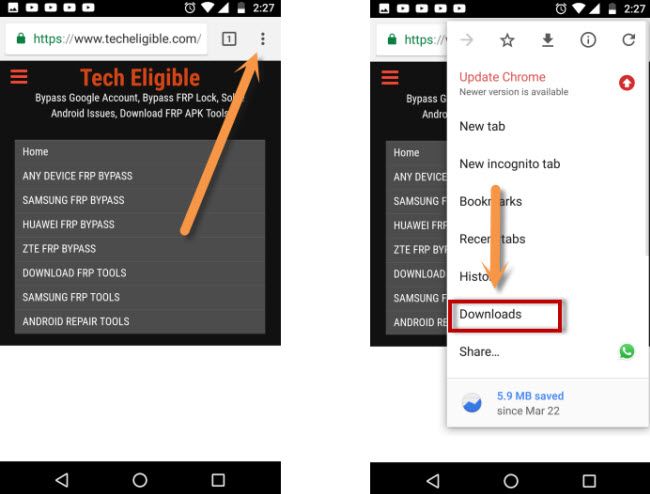
-You will be able to see your both downloaded apps there. You have to install both apps one by one on your 2nd android device in order to Remove FRP ZTE Blade A72s.
| Note: If you get a popup window of chrome installation blocked etc, just go to “Settings” from that popup screen and turn on “Allow from this sources / Unknown Sources”. After that, go try to install app again. |
-Let’s open up the installed app “Change Phone” on your 2nd android device.
-Well, on both of your devices, the Change Phone application is opened. Do make sure, your both devices are on same WiFi network. Because, we are gonna transfer downloaded (Activity Launcher) app from 2nd android device to ZTE A72s.
-From your 2nd android device, tap over the “Previous/Old” button and then allow some permissions to your this app. Finally, you will see (QR Code Scanner) screen.
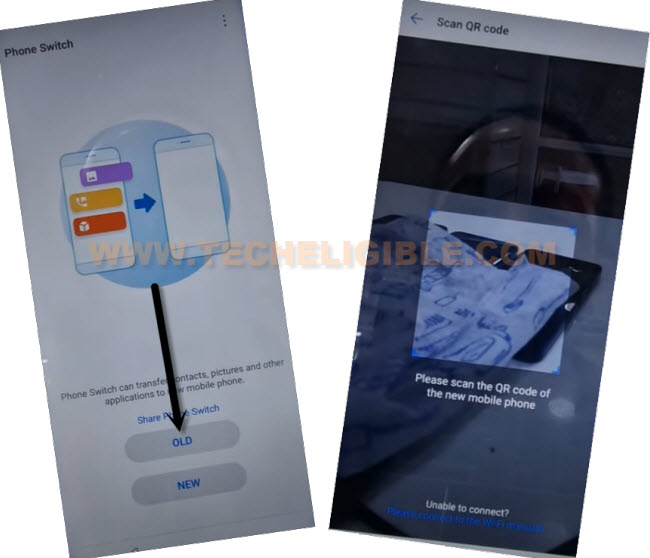
-From (ZTE A72s) device change phone screen, go to “New” option.
-Give some permissions here as well, after that, you will be shown (QR Code) there same as shown in below image.
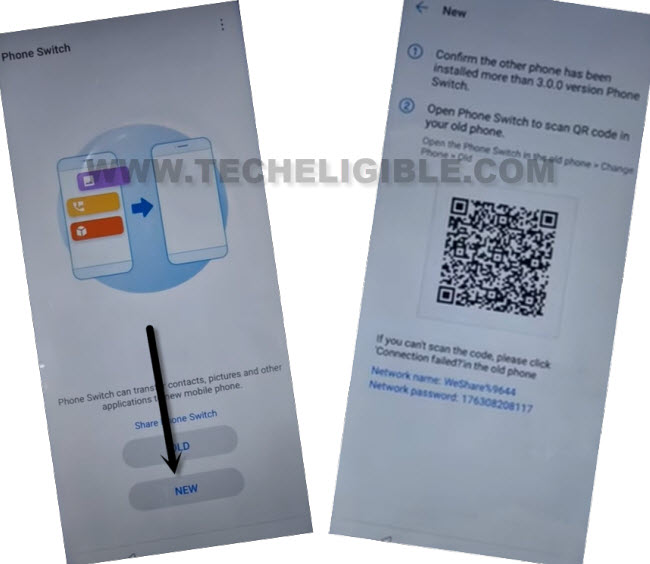
-Scan the QR code from ZTE A72s using your 2nd android device. By doing this, both devices will be connected together. After that, we will be able to transfer application easily.
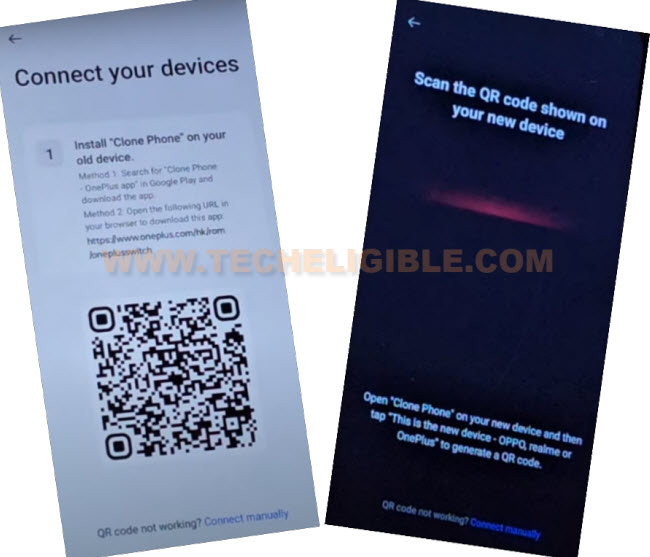
-Once the both devices detected and connected. from your 2nd android phone screen, just remove check marked from “Application”.
-Tap on “Application” to get inside. After that, check mark only single app named “Activity Launcher”. After that, tap once on on the back arrow icon to go back.
-Let’s transfer your selected app by tapping on the “Start Changing” button.
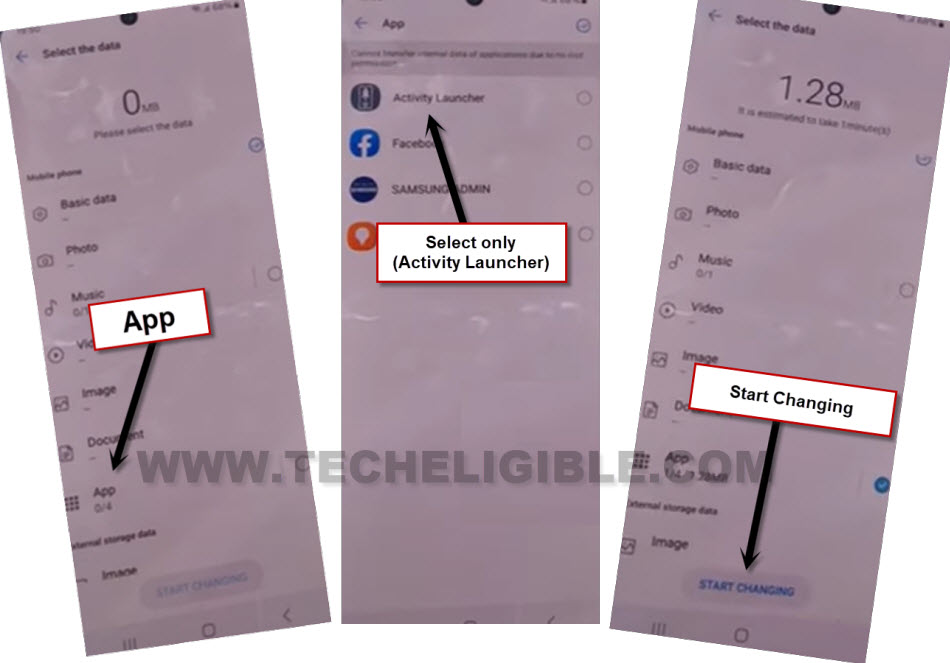
-After you received the app (Activity Launcher) on your ZTE A72s device. Let’s get back to frp tools screen by tapping 2-3 times on back arrow icon.
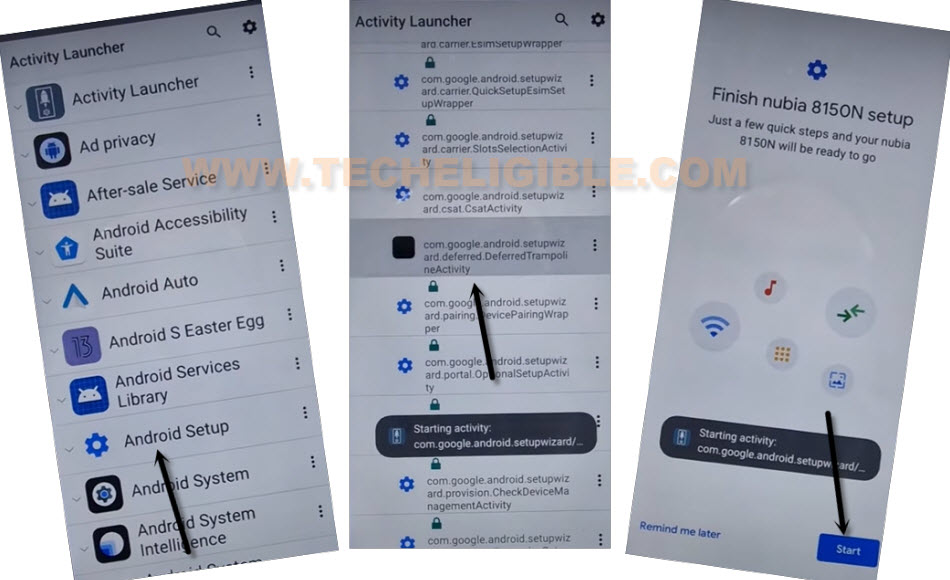
-From there, scroll down and open “Activity Launcher” app directly on your device by tapping on the “Open” link, that is right next to the activity launcher application. (See below image).
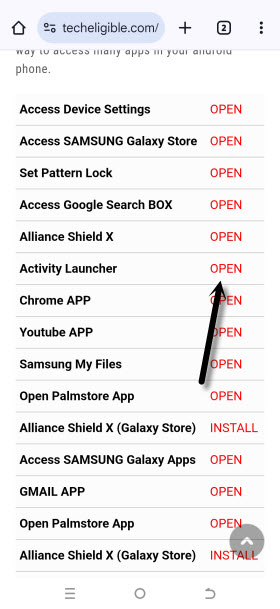
-Once the app is fully launched, just tap to “Ok” from popup screen. From app list, find and tap on “Android Setup” that is with gear icon.
-Android setup will collapse down further. From there, choose option that end with (TramplineActivity). For better understanding, have a look at below image.
-You will be taken on a (Finish Setup wizard) screen. From there, go to > Start > Skip > Next.
-From next screen, hit on further more options by tapping at > Next > No Cable > Copy without cable.
-From the verification screen, go to this link ““Use my Google account instead”. After that, tap at > Next > Next.
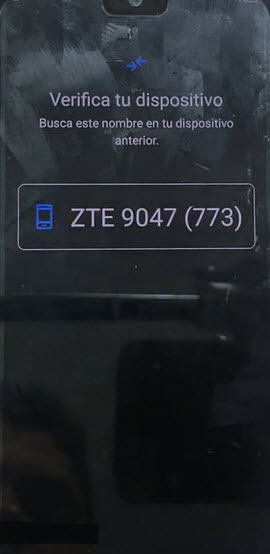
-Finally, you will access to (Verify your device) page. On this point, we need again our 2nd android device. We can now use back our ZTE A72s by logging with the same google account, that is already logged-in on your 2nd android device.
Follow these Steps on 2nd Android Phone:
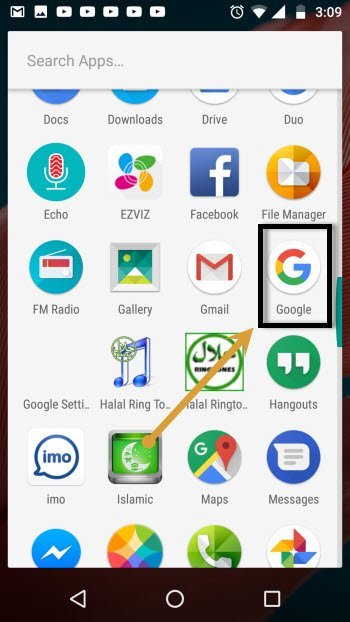
-Open “Google” application on your 2nd android device.
-After that, tap to “Mic” option from search bar. Say loudly “Setup my device”.
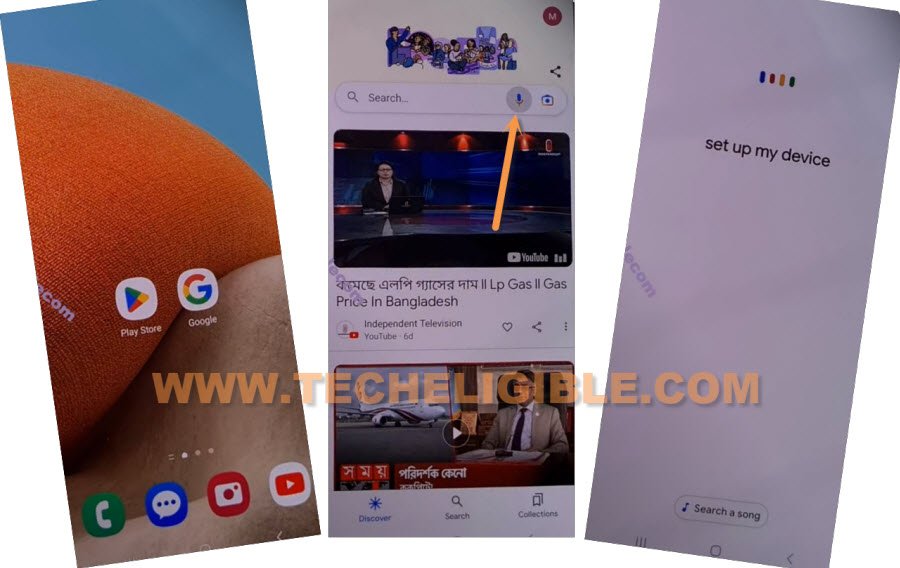
-Let’s hit on a “Next” from getting started page.
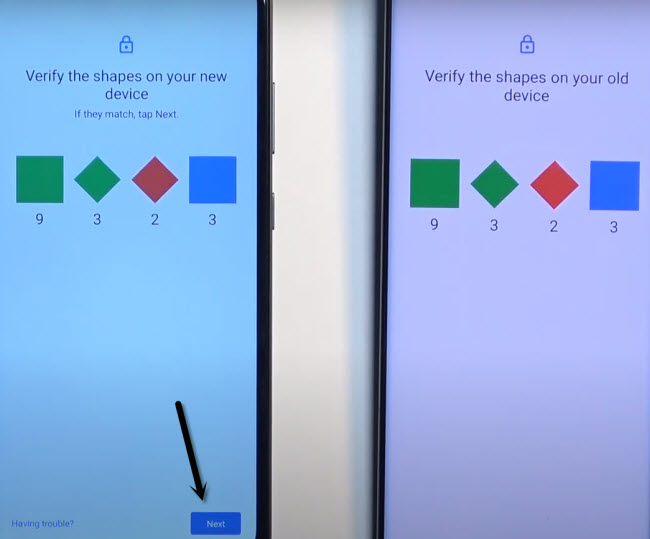
-You will see same (Shape Verification) page on your both of your android device.
| Note: Do make sure, your both android devices are on same WiFi connection. |
-From your 2nd android device screen, just tap on > Next> Copy.
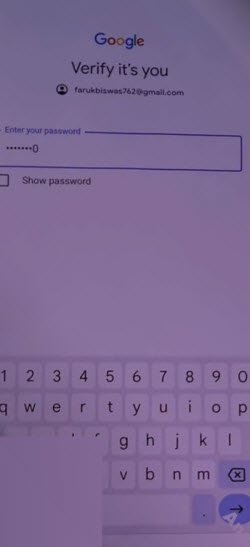
-After few seconds, you will have a screen of (Verify its you) etc. Let’s sign in there with the same google account credential, that is already signed-in on your 2nd android device. If you did this correctly, you will succeed in bypassing frp account from ZTE A72s.
-After signed in successfully, you will have a screen of (Getting ready to copy..) on your ZTE device. Just, go to > Don’t Copy > Don’t Copy > Next.
-Let’s access your device’s main home screen by completing the remaining steps on your own.
Method 2: Bypass Google Account on ZTE Blade A72 5G [Android 11]
Do you wanna replace your old google account with new one on ZTE A72 phone?. You can do this just through Remove FRP ZTE Blade A72 5G (Android 11). We will use (Phone Switch) application to transfer quick shortcut maker application, after that, you can easily setup new pattern lock on this phone and can easily setup new google account. Follow below steps to start bypassing FRP process.
-Connect WiFi, after that, go back on first (MyOS) screen.
-Long hold both (Volume UP + Down) buttons until you have a popup of (Talkback Enabled).
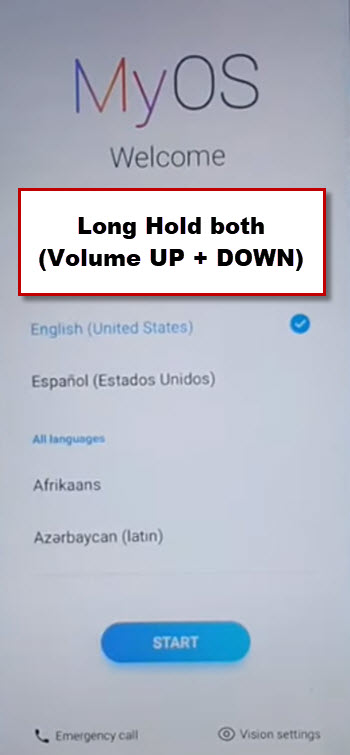
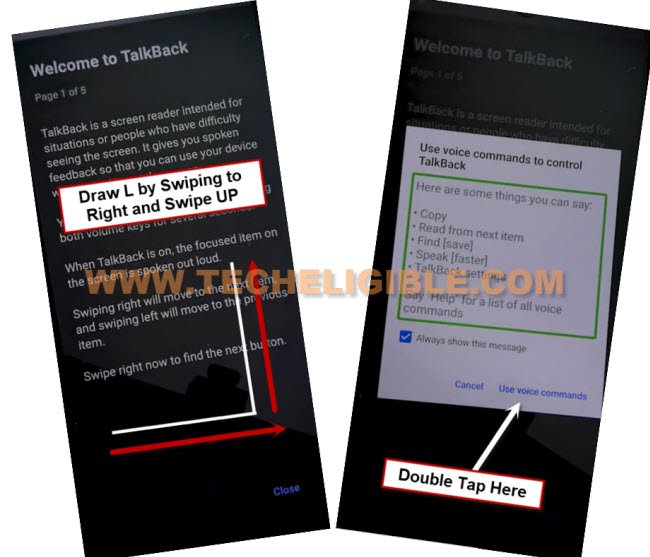
-Long hold again both (Volume UP + Down) buttons. After that, you will be inside (Welcome to Talkback) screen.
-Make _| this shape on screen, just swipe right and then swipe up. (See below image).
-From popup window, just double hit on “Use Voice Command”.
-Say loudly “Open Google Assistant” as soon as you see (Green colored boarder) on screen.
-After that, you will have a (Try Saying) popup window.
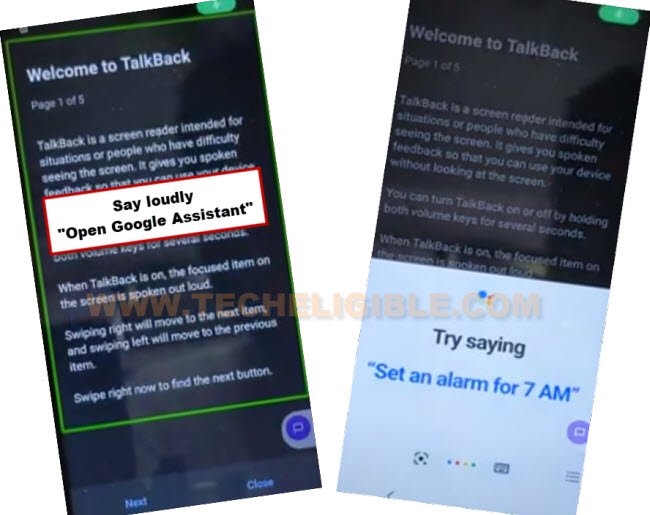
-Turn off talkback feature by long hold both (Volume UP + Down) buttons.
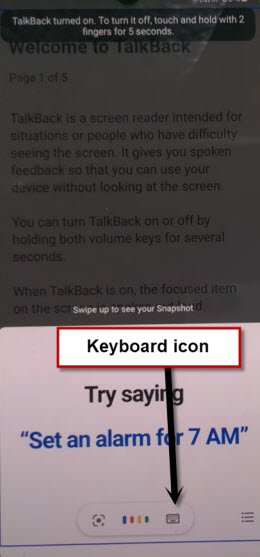
-Go to “Keyboard” icon from try saying popup window.
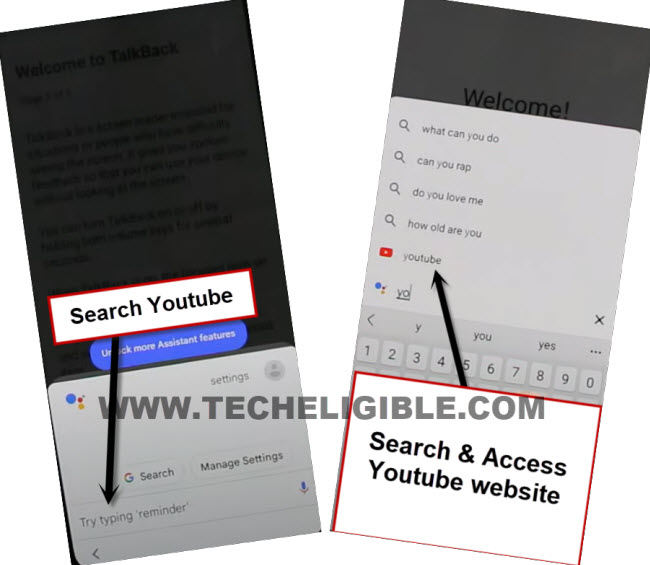
-Search there with “Open Youtube”, after that, tap on “Open Youtube” searched result from there.
-Hit on “Youtube terms of services”, after that, tap to “Just once”.
Reach inside ZTE A72 Settings:
-Follow up below screen shot to access techeligible site directly. After that, reach to main frp tools page by going to “Menu” icon from top corner and tap over the “Download FRP Tools” option from sidebar menu.

-Go to our website 1st searched result, after that, tap on “Access Device Settings“.
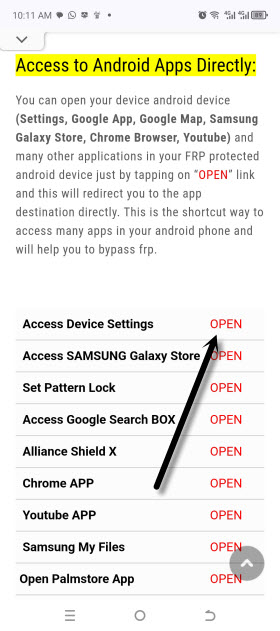
-Go to your device “Battery” from settings.
-Turn on “Ultra Power Saver”. Tap to “Ok” from popup.

-You will be taken inside (Ultra Power Saver) screen.
-Tap on + option to add new app.
-Select “Phone Switch” app from MENU screen to add this app on (Ultra Power Saver) screen.
-Launch “Phone Switch” app to connect with other ZTE phone.

-Tap on > Ok > Allow. After that, tap on “New”.
-Tap to “Allow” option for 4-5 times.
-After that, tap again on > New > While Using the app > Settings.

-Turn on from there “Use Location”.
-Swipe from left to right to go back, and there, you will have a (QR Code) on screen. We have to scan this code with other ZTE device to connect and transfer (Quick Shortcut Maker) app.

Use Another ZTE Device to Remove FRP:
Note: If you don’t have one more ZTE model phone, you can use any other android device just for try. Because, we are gonna use (Phone Switch) application of ZTE, and this app available only in (ZTE Devices). But, other (Phone Switch) apps are also available, you may try with other phone switch apps to connect with your ZTE A72 device for transferring quick shortcut maker app.
-Follow below steps in other ZTE device.
-In other ZTE phone, you will have already (Phone Switch) app installed.
-Open Google chrome browser, and search there with “Download Quick Shortcut Maker Techeligible“.
-Go to our website 1st searched result.
-Download & Install from there “Quick Shortcut Maker 2.4.0” application in your other ZTE Android device.
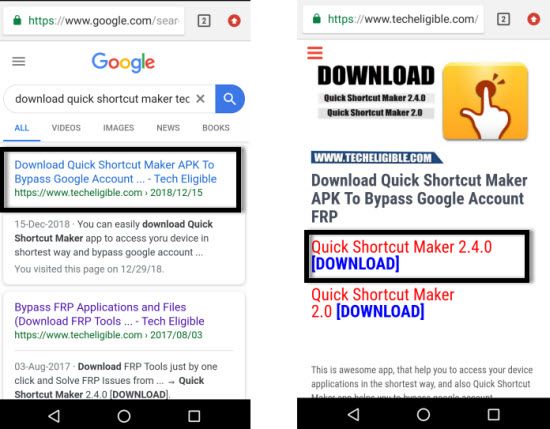
-Let’s open “Phone Switch” app from other ZTE phone, after that, tap on “Old”.
-You will be displayed (QR Scanner) screen.

-Let’s scan with your FRP protected ZTE A72 phone to connect both devices together for start transferring quick shortcut maker application to Remove FRP ZTE Blade A72 5G.
-In other ZTE device, go to “App”, and select only “Quick Shortcut Maker” app.
-After that, just go back by hitting on “Back Arrow” from top left corner.
-Tap on “Start Changing” option.

-The app will be transferred successfully to your ZTE A72 phone.
Let’s Access Quick Shortcut Maker from ZTE A72:
-Tap on “Done” from there.
-Go back to (Ultra Power Saver) screen by swipe from left to right.

-Tap to “Add” icon from there, and select “Quick Shortcut Maker” app to add on main (Ultra Power Saver) screen.
-Let’s open “Quick Shortcut Maker” application by hitting on that app icon. Tap to “Ok” from popup.

-Type there “MyOS” and then, give “Space” by tapping on “Space” button from your device keyboard.
-After that, you will be displayed “MyOS” searched result there, just tap on “MyOS” to expand it.
-Go to 5th number “MyOS” from there same as shown in below image.
-Afterwards, tap to > Try > Got it.

-Withing few seconds, you will be inside your device main home-screen.
-Go to “Settings”.
-Go to > Apps > Default Apps > Home App > MyOS Launcher.

-We won’t be able to access MyOS Launcher at first attempt. just keep trying until you get into MyOS launcher screen.
-Tap several times and quickly on > Home App > MyOS Launcher.
-Keep hitting on > Home App > MyOS Launcher until the device screen goes black and show you (ZTE) logo.

-After that, select “Try Again” option from there using “Power” button.
-The device will restart, and you will get back on first (MyOS) screen.

Let’s Setup New Pattern Lock to Bypass FRP ZTE:
-Once the restaring process is done, we have to enable back talkback feature. Through this feature, we can easily access back inside the device main (Pattern Lock Setup) screen. So that, we could easily setup new pattern lock from there to Remove FRP ZTE Blade A72 5G.
-Connect WiFi, after that, go back on first (MyOS) screen.
-Long hold both (Volume UP + Down) buttons until you have a popup of (Talkback Enabled).
-Long hold again both (Volume UP + Down) buttons. After that, you will be inside (Welcome to Talkback) screen.
-Make _| this shape on screen, just swipe right and then swipe up. (See below image).
-From popup window, just double hit on “Use Voice Command”.
-Say loudly “Open Google Assistant” as soon as you see (Green colored boarder) on screen.
-After that, you will have a (Try Saying) popup window.
-Turn off talkback feature by long hold both (Volume UP + Down) buttons.
-Go to “Keyboard” icon from try saying popup window.
-Search there with “Open Youtube”, after that, tap on “Open Youtube” searched result from there.
-After accessing to youtube website, just tap to “Profile icon” from top right corner of the screen. After that, go to “Settings”.
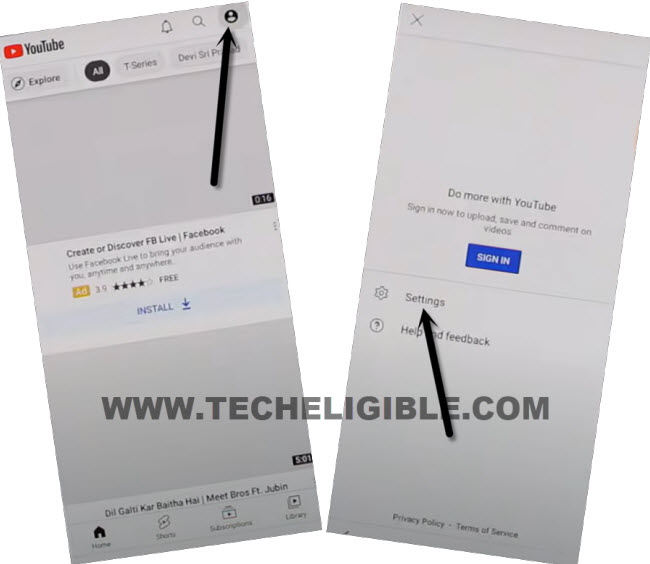
–Go to > History And Privacy> Youtube terms of services, after that, the Google chrome browser will be launched shortly.
-Search in top bar “Download frp tools“, and visit our website searched result by following below image.
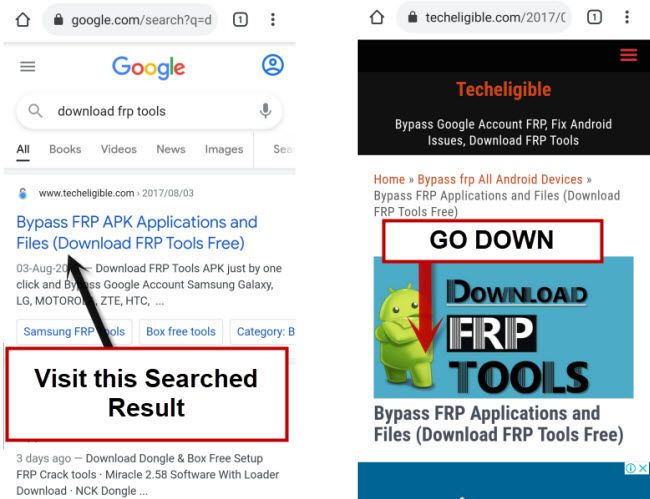
–Scroll down, tap on “Set Pattern Lock” which is under the heading of (Access to Apps Directly).
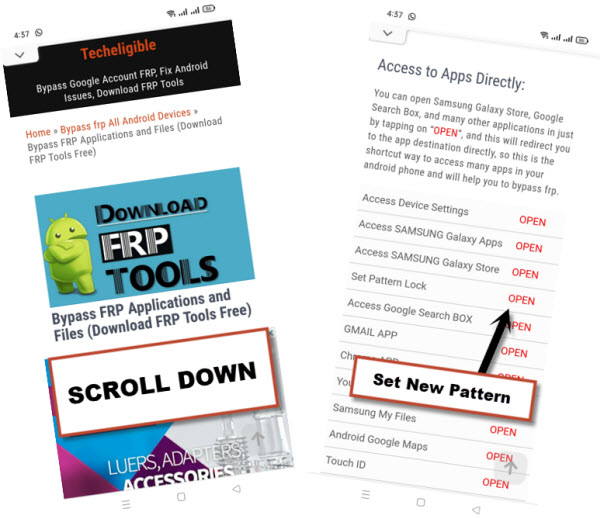
–You will be redirected inside (Set Screen Lock) homepage.
–Tap on “Pattern”, and after that, draw your any pattern lock there 2 times, and hit on “Confirm” button to Remove FRP ZTE Blade A72 5G.
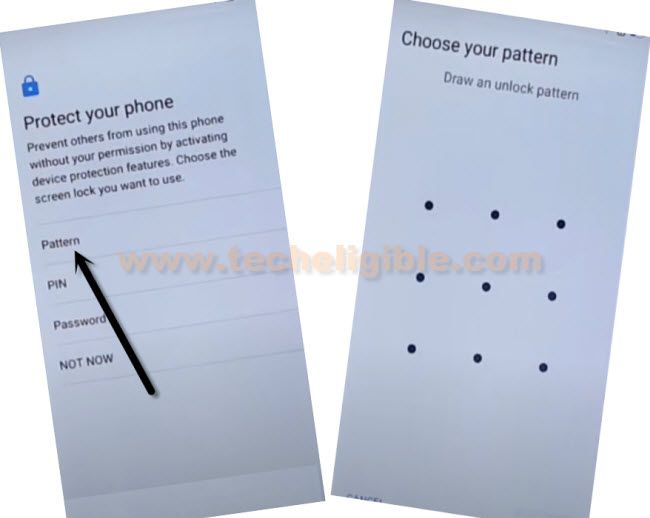
-Once the new pattern lock has been setup, you will have there a (All Set) screen. Just tap to “Got”.
-Go all the way back on first (MyOS) setup screen.
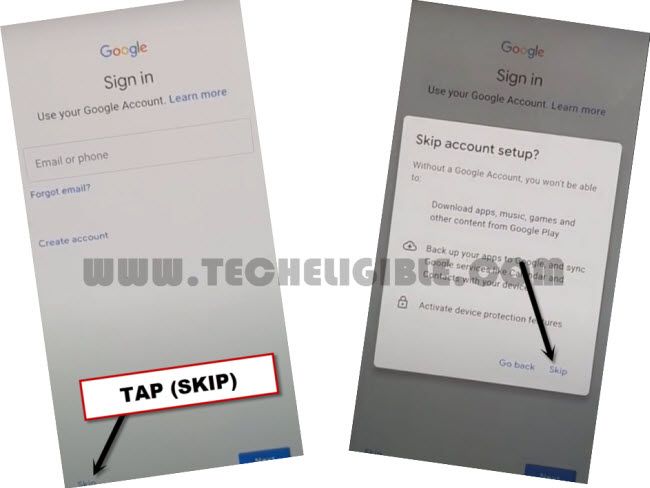
–Complete Setup wizard, if you are asked for giving pattern, you can use your already setup pattern lock there, and from google sign in screen, tap to > SKIP > SKIP.