
Are you getting stuck on the google verification page? That is probably, you’ve got frp lock protection enabled by forgetting the logged in account after doing a hard reset on your tablet. To reach back on your device, you need to clean up the forgotten google account through setup new pattern lock. For this, check out easy steps here for Bypass FRP Alcatel 1T 7.
Disclaimer: We are creating this post to educate people about how to get back their lost device due to forgetting Google account. This method is only for device owner and for educational purpose only.
Continue to Bypass FRP Alcatel 1T 7:
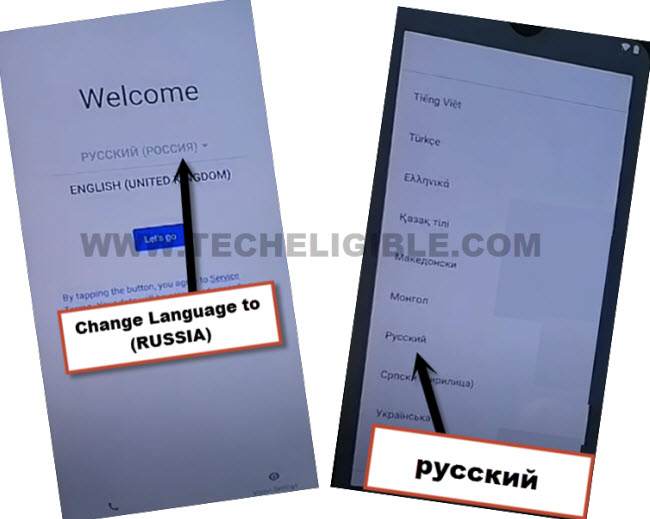
In this guide, firstly, we will turn on WiFi connection, then, change the device language to (Russia). Afterwards, add some keyboard languages. Then, change language back to (English) and continue frp bypass process.
-Turn on the tablet and alter the device language from English to Russian. See below illustrated image.
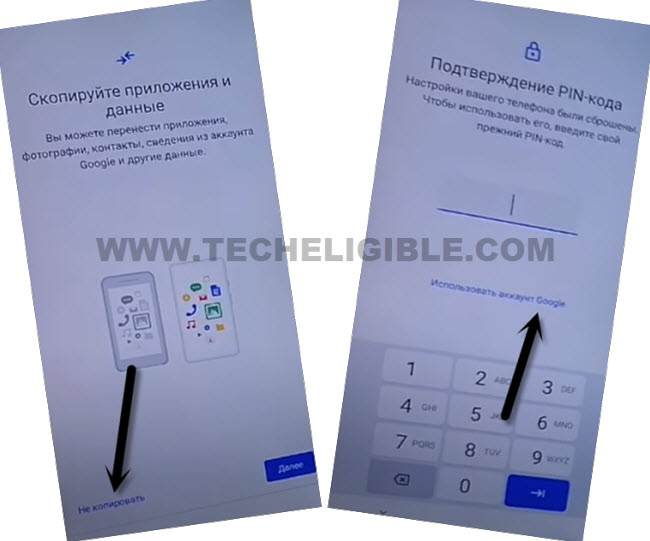
-Let’s continue by tapping at the “Yellow option” from first startup screen.
-Afterwards, you have to tap > Left option > Left option.
-Finally, hit on the “google link” from lock screen.
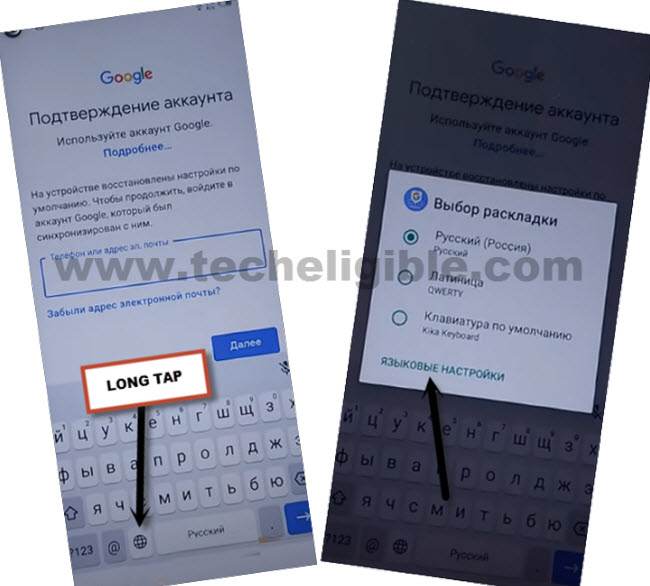
-Get the tablet keyboard popup by tapping once on the (Email or phone) filed area. Then, bring up the popup screen through long holding at “World icon” from keyboard.
-Tap the very last link from popup window.
Set Up New Keyboard Languages:
-Tap on the center “Blue Option” from bottom to add keyboard languages.
-Choose any language and tap “Right Blue option” to add.
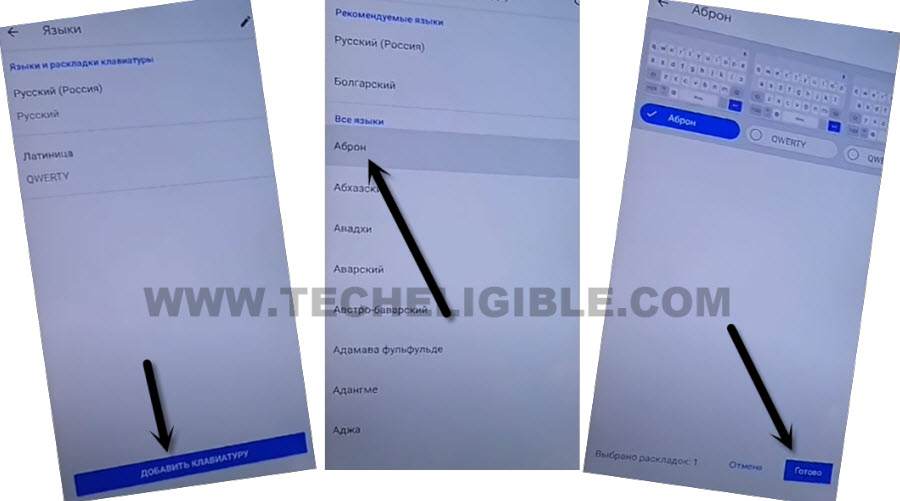
-Tap again on centered “Blue Option”. After that, choose another language and tap to “Right blue option” from bottom.
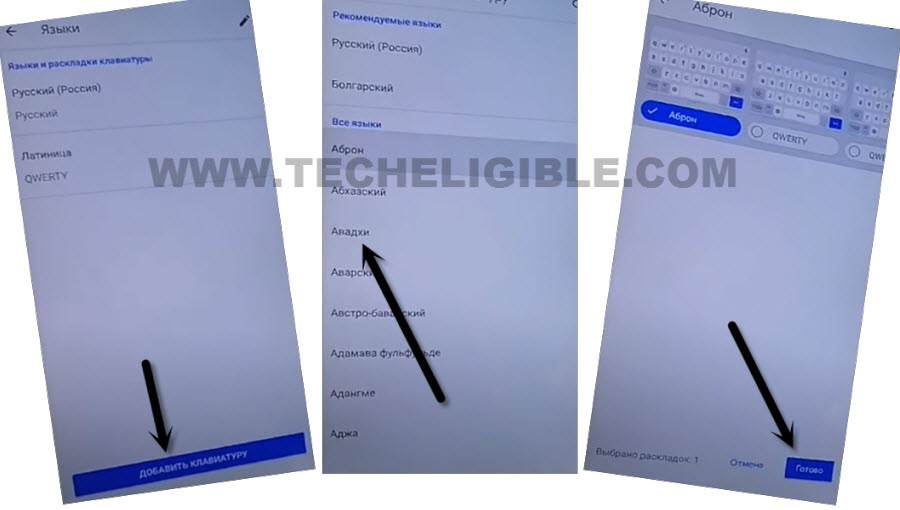
-After set up some keyboard languages successfully, go all the way back on first start up screen.
Change Language to (English):
-From there, switch back to (English) language.
-We have to tap on “Let’s Go” option to go to next page. After that, tap on > Skip > Don’t Copy.
-After reaching at the (Verify your pattern) screen, tap to a link “Use My Google Account instead” from there.
-Let’s get the device keyboard popup again by tapping once on the (Email or Phone) field tab.
-Touch and long hold again on the “World symbol”. Then, tap on “Language Settings” link from popup window.
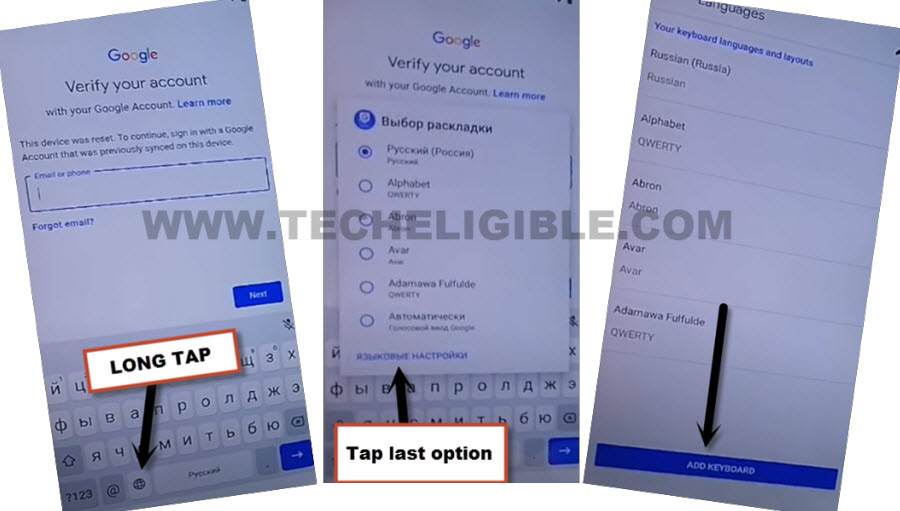
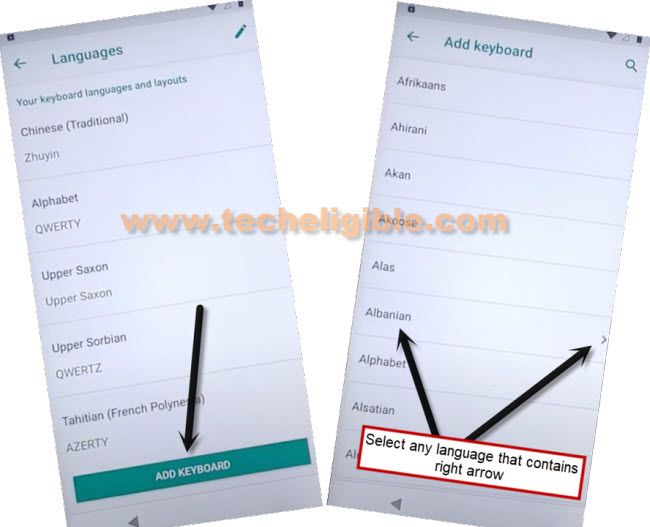
-We have to access on the language list screen by tapping on “Add keyboard” option.
-Then, tap on the any one “Arrow indicated Language”.
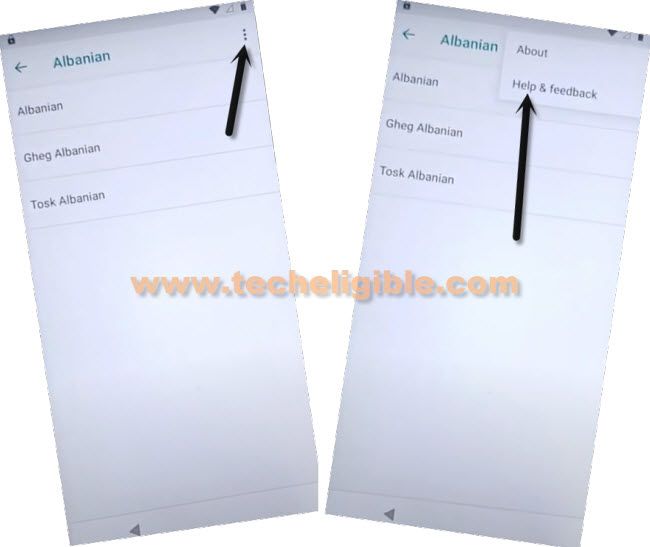
-As you can see, in below image, showed you tapping on the (Albanian) language, because, this language has an arrow icon.
-Tap on the “3 dots” kebab menu from top corner and go “Help & Feedback”.
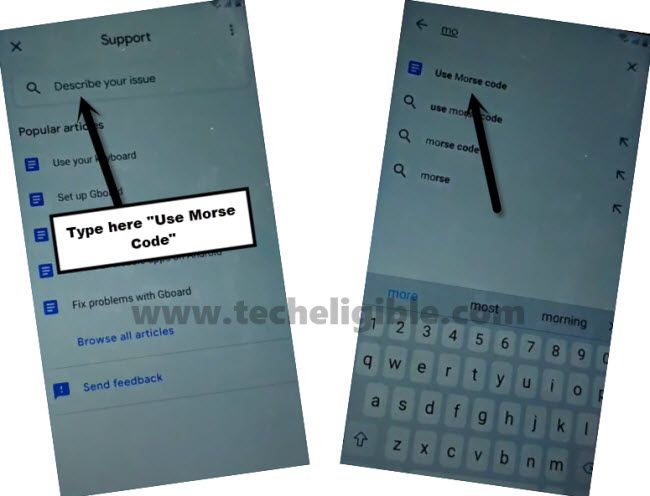
-Type “Morse” on the top search bar and hit on the “Use Morse Code” searched result.
Go to Youtube Site:
-On next screen, you will have a youtube video, just tap on “Play” icon from youtube video.
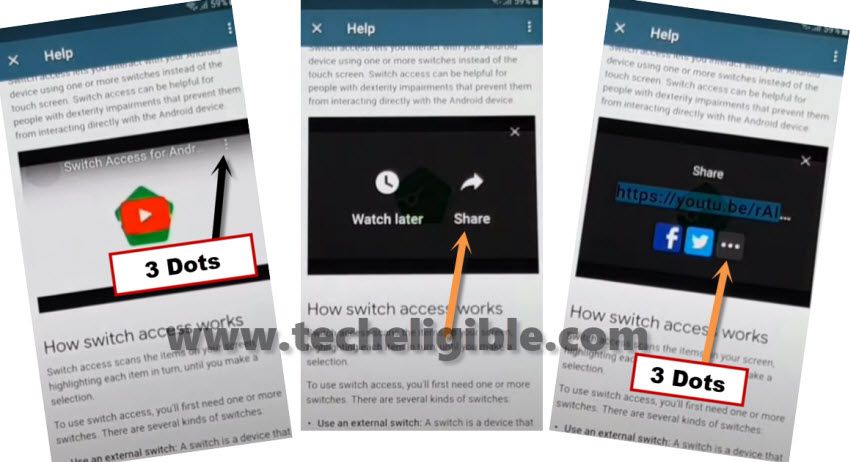
-After that, tap on > 3 dots > Share icon > 3 dots.
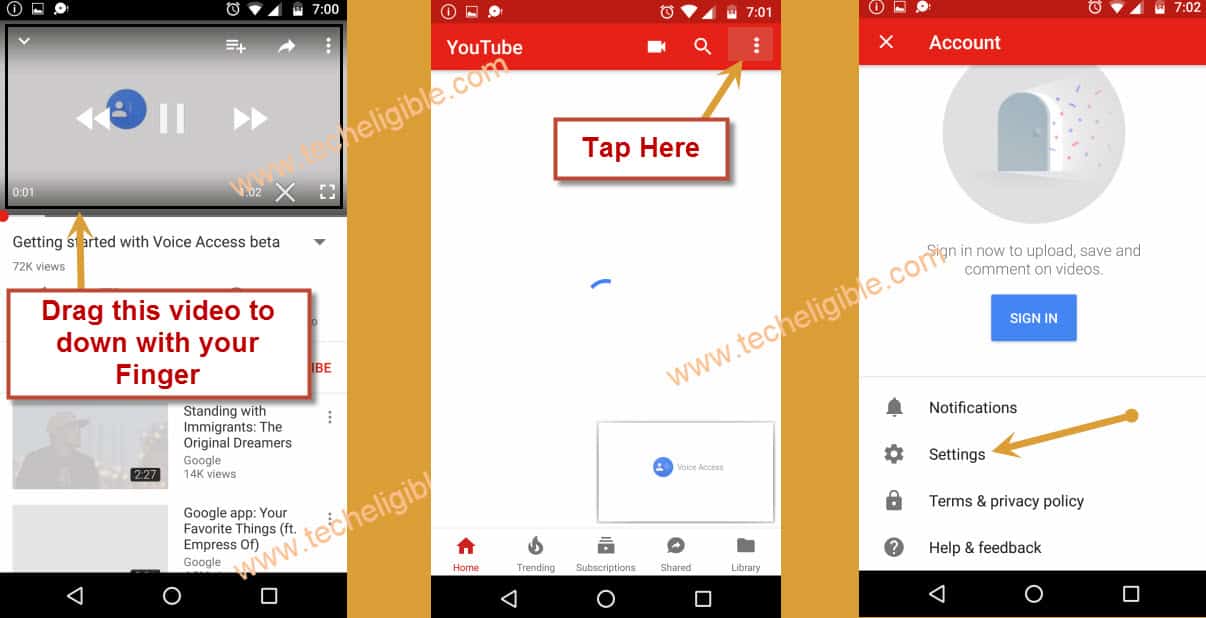
-After accessing on youtube screen, drag down the youtube video, then, hit over the “3 dots” and go to “Settings”.
-From next page, tap over the “About” option and then, go “Youtube terms of services”.
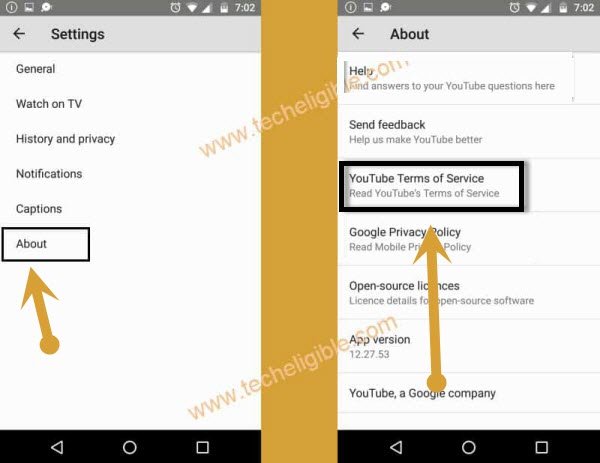
-We can easily launch the chrome browser just by hitting these options > Accept & Continue > Next > No Thanks.
Launch Settings Through Quick Shortcut Maker App:
-Search with “Techeligible” and go to same searched result as shown in below image to reach at the frp tools page of techeligible.
-After that, tap on “Menu” icon from top corner and go to “Download FRP Tools”.

-Download “Quick Shortcut Maker” application from there.
-Once the downloading process is completed, you will receive a notification at the bottom of the browser, from there, hit on “Open” option to go for the installation of this app.
-From popup screen of (Installation Blocked), just tap on “Settings” option. Turn on “Allow from this sources” option. Then, tap at “Back Arrow” from bottom to reach back to installation page.
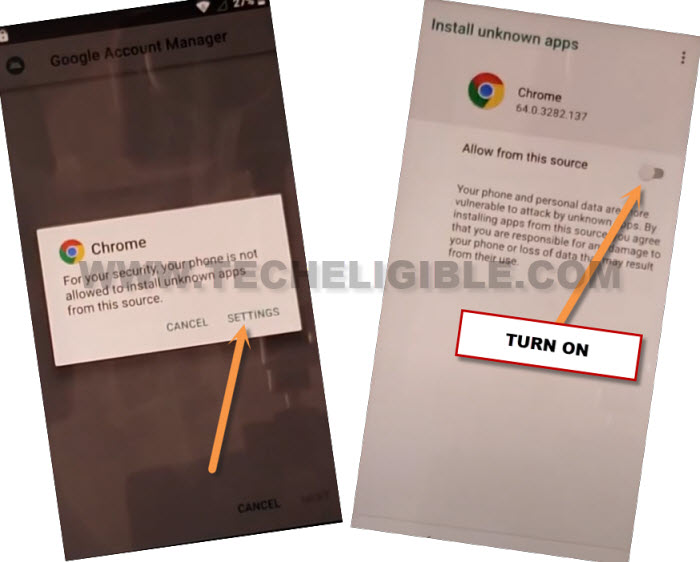
-Go to > Install > Open.
Note: There are two versions of (Quick Shortcut Maker) application, if the old version do not work and showing you error while installation, then, try with (Quick Shortcut Maker 2.4.0).
-We’re gonna access to main settings interface of the Alcatel Tab 1T 7 device by tapping on > Application > Settings > Try.
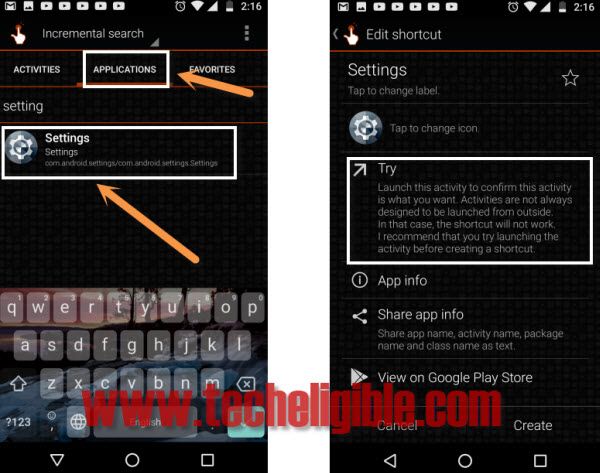
Set up Pattern:
-Scroll down from settings page and tap on “Security” option. Then, turn on screen pinning option by tapping on > Screen Pinning > Turn on.
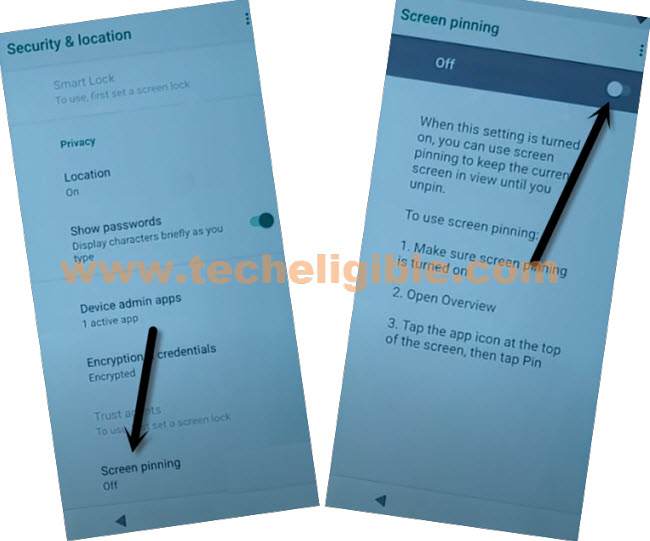
-After that screen pinning is enabled successfully, you will be shown another option, just turn on also “Lock Device When unpinning” option.
-Choose “Pattern” to setup new one and Bypass FRP Alcatel 1T 7.
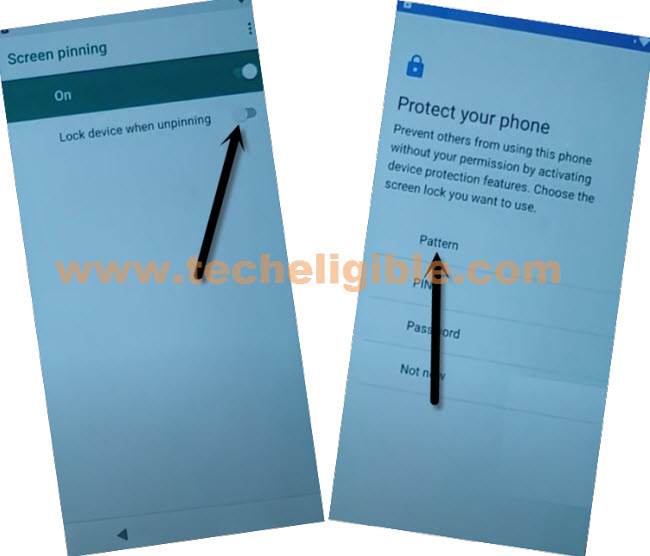
-Draw your any pattern and tap to “Next”.
-Draw same pattern again for the verification and tap “Confirm”.
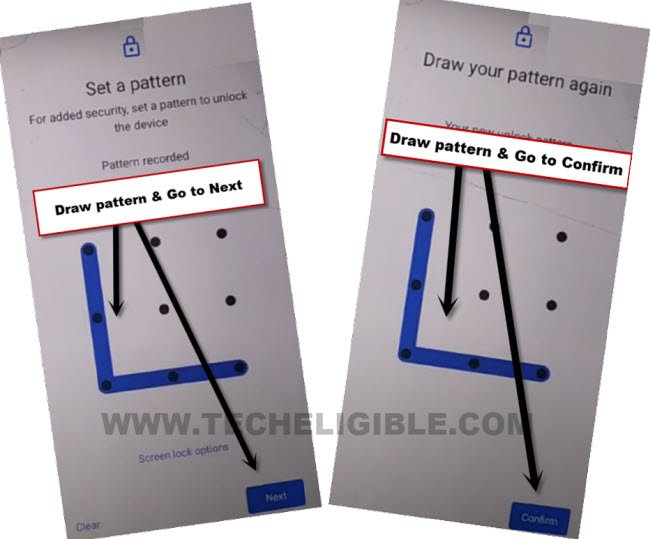
-Just to confirm, whether pattern lock is setup successfully or not, just press once the “Power key”. Press again “Power key” to wake up the phone and you will be asked to enter your recently setup pattern lock. That means, the pattern is been successfully.
Note: If the pattern is not setup at first attempt, you just try again, after 5-10 quick tries, you will be able to setup pattern lock.
Get back to Hello Screen & Complete Setup Wizard Steps:
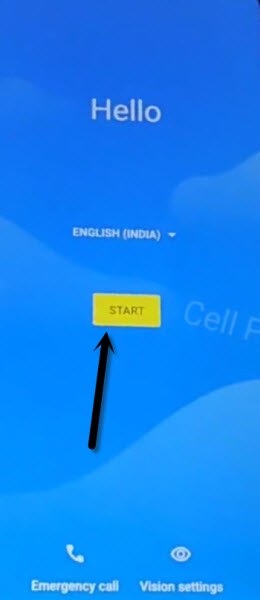
-Keep tapping on the back arrow icon until you reach back to (Hello) page.
-Tap on > Start > Skip > Don’t Copy.
-On verification screen, just enter your correct recently setup (Pattern Lock). Once its done, you will reach on (Google Sign in) page.
-From there, tap on > Skip > Skip.
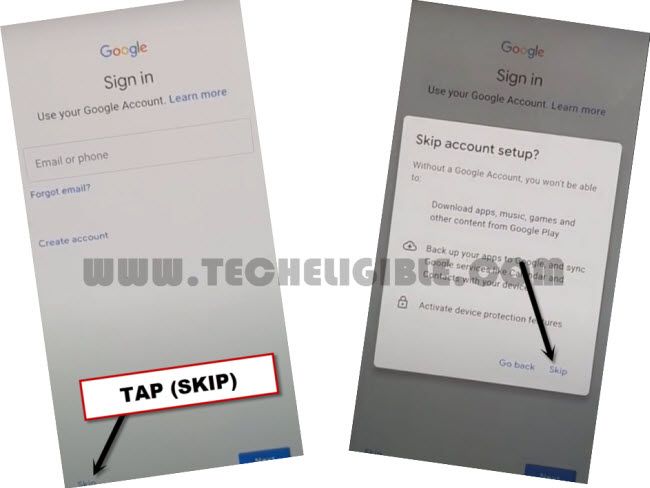
-After skipping the google sign in page successfully, you can complete all remaining setup wizard normally and easily. Its all done from bypassing frp on Alcatel Tablet 1T 7.
Conclusion:
We bypassed frp lock protection just by altering the device language from English to Russian. Next, added some keyboard languages then, change the language back to (English). After that, we accessed to google chrome browser using the keyboard option. Download (Quick Shortcut Maker) app from there, then, managed to access the main settings interface of the frp locked Alcatel Tab. Setup new pattern lock on the device by turning on the (Screen Pinning) option.