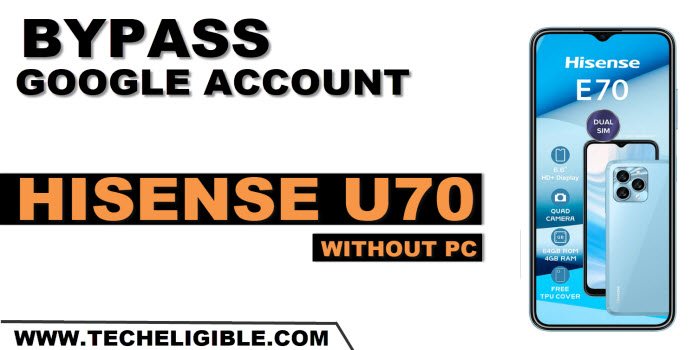
We can easily Remove Google FRP Hisense U70 just by changing the device language. After that, you will be able to access your device main settings page to setup new security lock to bypass frp account. If you have forgotten your Gmail account, and unable skip google sign in page. So, don’t worry about this problem. We will assist you to get yourself verified using security lock protection.
Disclaimer: We highly recommend you to apply this method only on your own device, if you are not owner of this device, or you found this from some where, you must return to its real owner.
Let’s Start to Remove Google FRP Hisense U70:
-Connect WiFi first. After that, go back on first (Hello) page.
-Tap over “English” language option. Choose “العربية” language from the list.

-Go to > Center Yellow Option > Bottom right option. Tap on “Back Arrow” from bottom left.
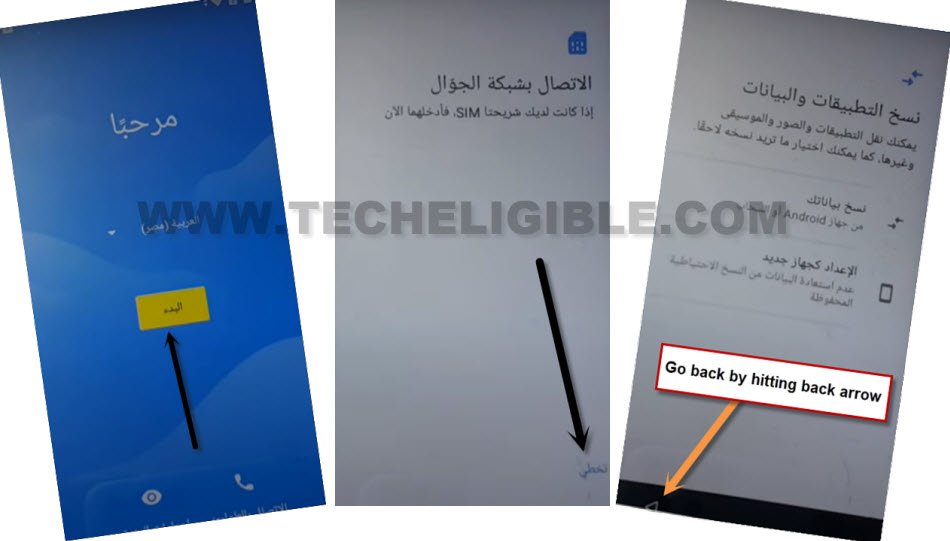
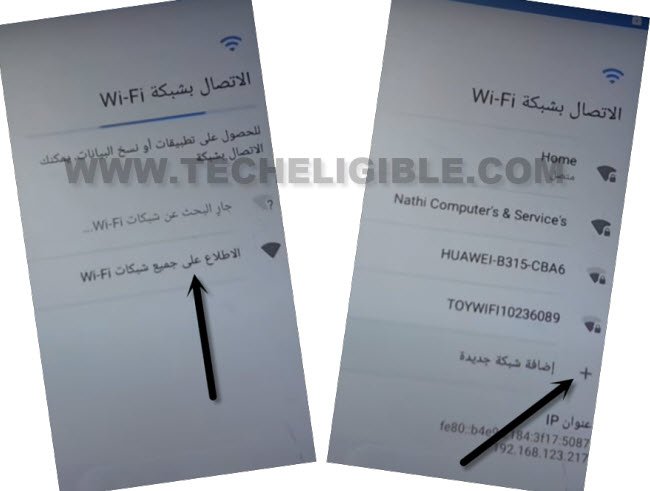
-You will get back on (WiFi connecting) screen. From there, tap on “Last option”. (See below image).
-After that, tap to “+” option.
-Long hold over a “Language icon” from bottom of the screen.
-Tap to very last “blue link option” from popup window.
-Go to “Green button”

-Choose any option from the list, that has an “Arrow” icon. See below image.
-Tap over > 3 dots > 2nd option.
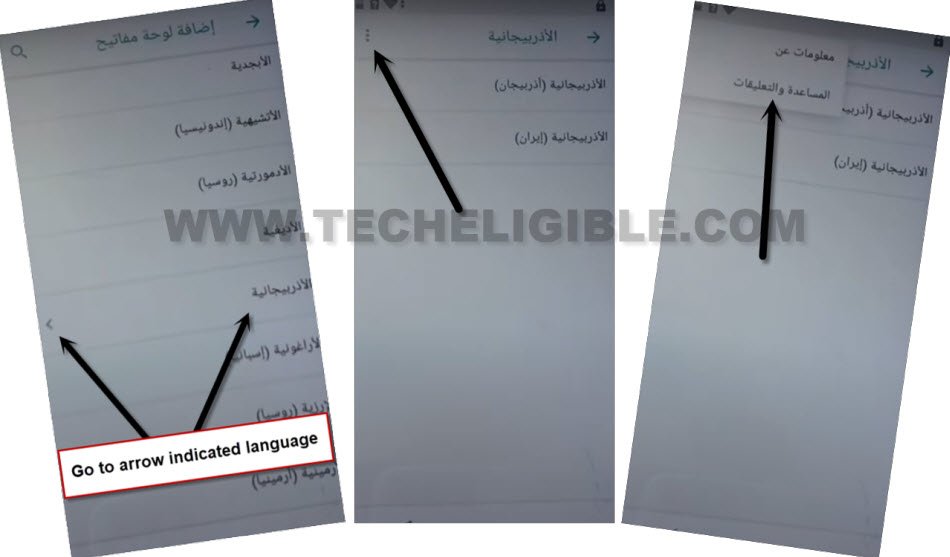
-Tap on “1st option” same as shown in below screen shot.
-Go to “Share” icon from the top. Afterwards, choose “Google go” browser from popup window.
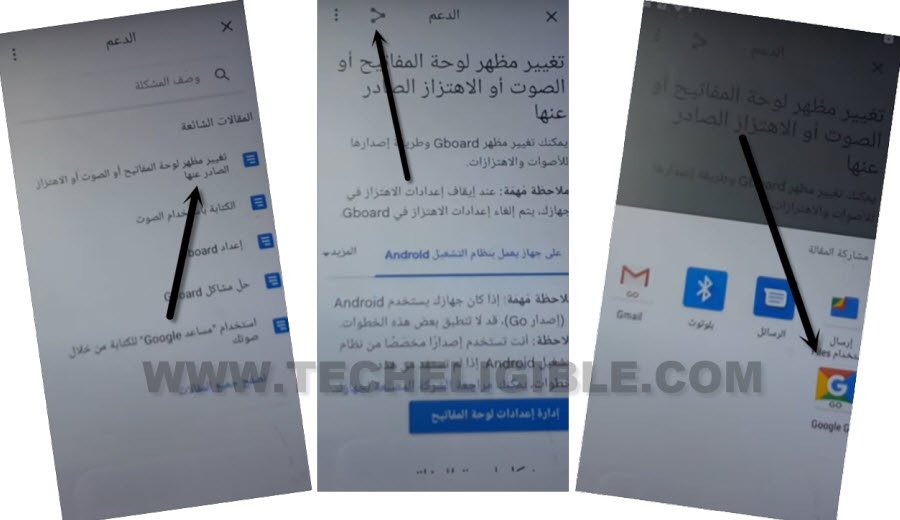
-Tap to “Google option” from popup window, after that, choose > English > Done.
-From google go browser, tap to “3 Parallel lines” from bottom, after that, tap to “Open in browser” option.
-Tap to “Center blue button”, after that, tap to “Bottom right option”.
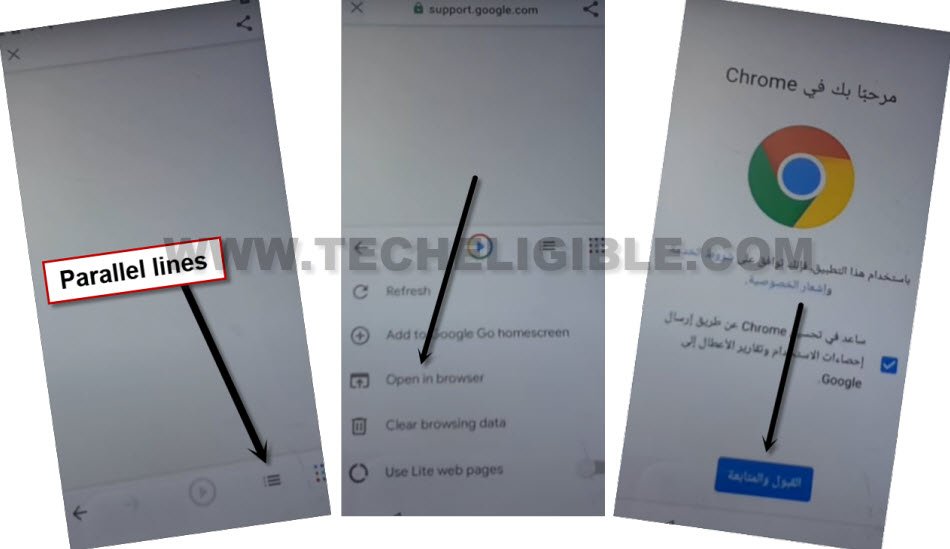
Note: To change your keyboard language to English, just tap once over a “World icon” from keyboard.
Create New Pattern Lock to Bypass FRP:
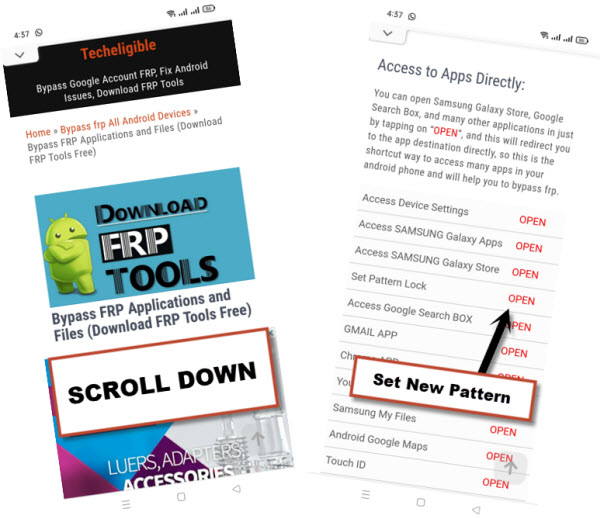
-Search in top search bar of the browser with “Techeligible“. Go to our website 1st searched result same shown in below screen shot.
-From there, you need to go to “Menu” icon and tap on “Download FRP Tools” option to access frp tools page directly.

-Hit on an option of “Set Pattern Lock” from there.
-Tap over a “1st option”. After that, draw your any desire pattern lock over the screen, and, hit on “bottom blue option”.
-Draw same pattern again, after that, tap to “bottom blue option” to confirm your new pattern.
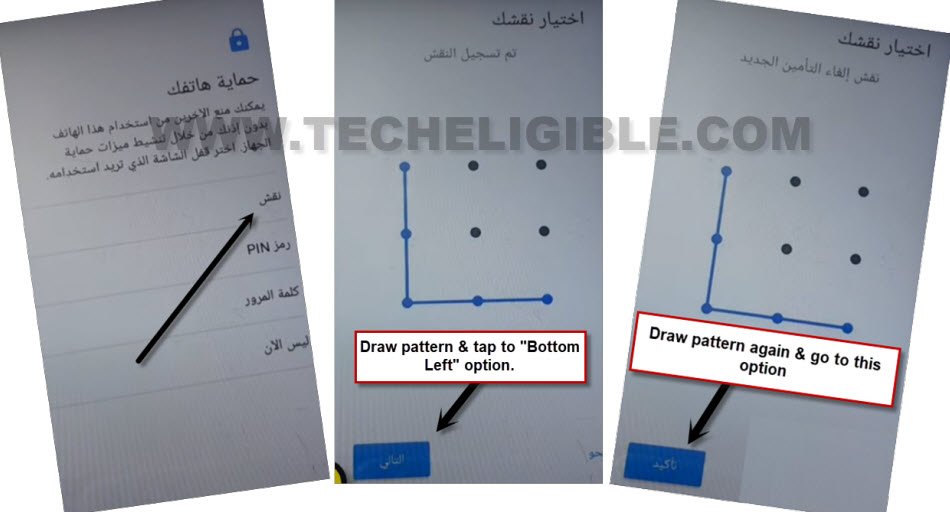
-Tap again over > Bottom blue option > Bottom blue option. Its all done. We have successfully setup new pattern lock on this phone to Remove Google FRP Hisense U70.
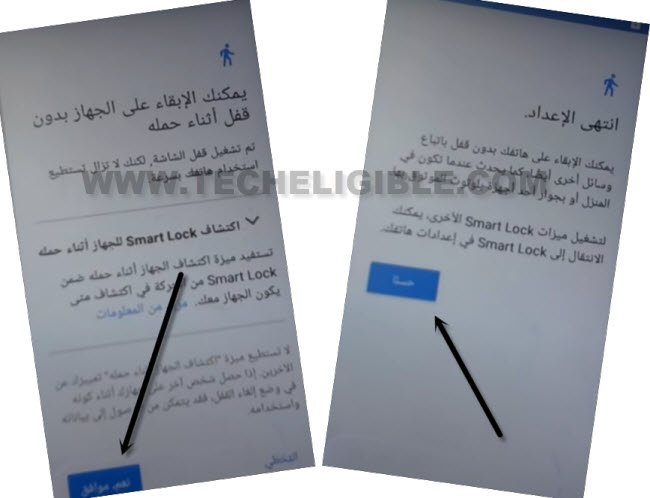
-Just go all back to first (Hi there) homepage by hitting back arrow from bottom. After that, change your device language back to “English”.
-Tap to > Start > Skip > Setup as new.
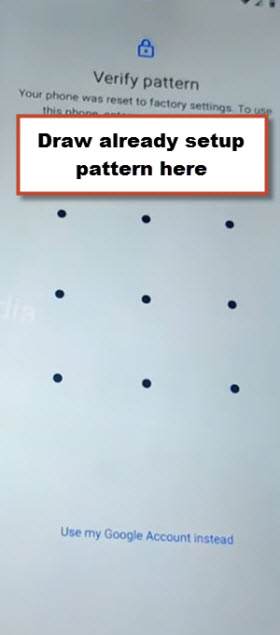
-Draw your already setup pattern lock on screen to complete verification process.
-Skip google sign in page by hitting on “Skip” option from bottom to Remove Google FRP Hisense U70.
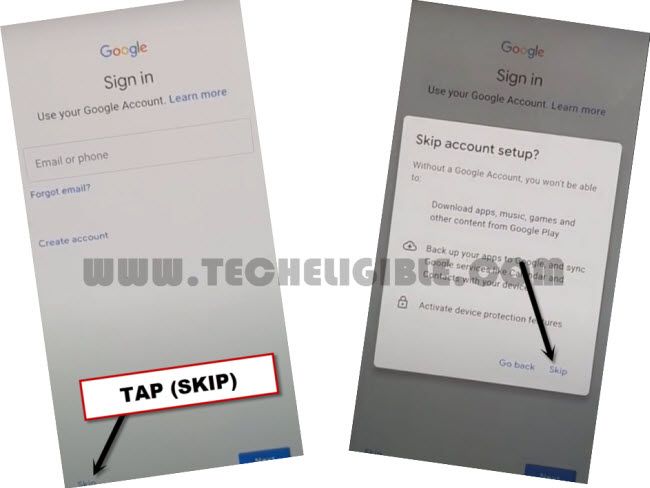
-Its all set now, just finish up setup wizard remaining steps by yourself. Thanks for visiting us.