
If you are looking for a working method to get back your Hisense device with updated google account. You can follow up this way to Bypass FRP Hisense T5 Plus without using any paid tool. We will use (Emergency Calling) option to access our device chrome browser and download some frp removal apps. Follow up steps from below.
Note: This method is just for device owner. In some cases, people just forget their device Gmail account along with pattern of PIN lock and they just hard reset that device. After that, they are asked to login back with previous account to gain access. To resolve this accessing issue, we created this helping post for you only for educational purpose.
Let’s Start to Bypass FRP Hisense T5 Plus:
-Insert SIM card in your device first.
-After that, turn on your hisense T5 Plus device & Connect to WiFi first.
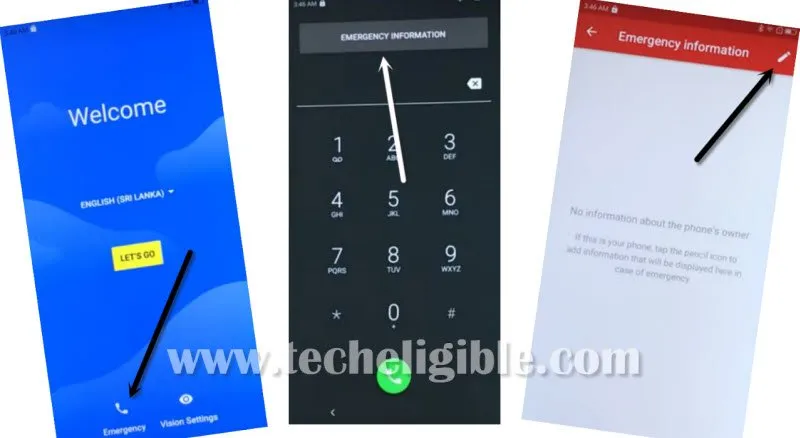
-Get back to (Welcome) screen and tap to “Emergency”. Tap twice on “Emergency information”.
-After that, go to “edit” icon from top.
-Once you reach on (Emergency information) page. Just go to > Contacts > Add contact.
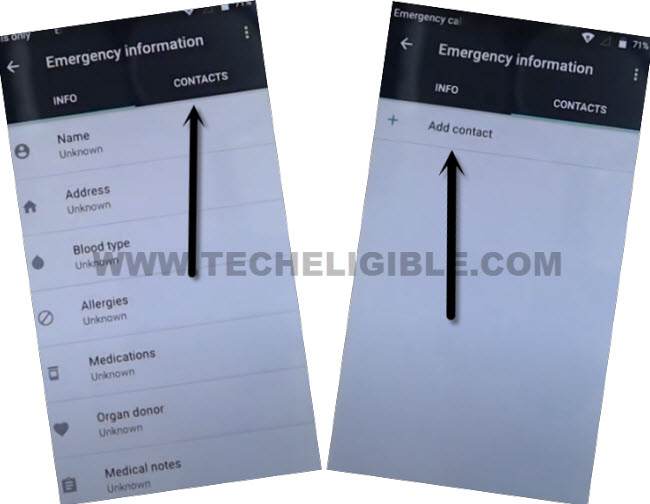
-You will see your sim card contact list there, just tap on any random contact name.
-Tap again on same “Contact name”.

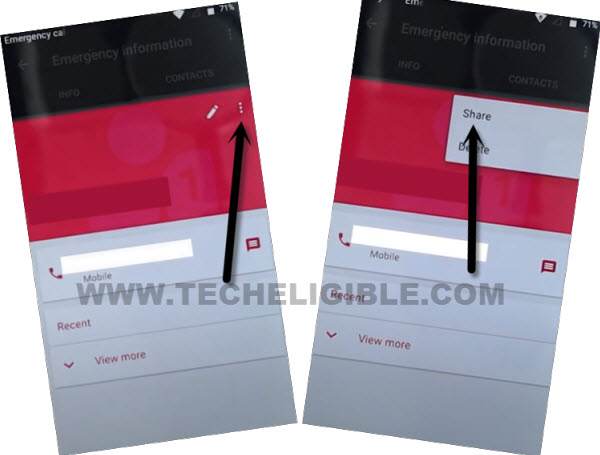
-If you see allow popup screen, just tap to “Allow” option. After that, you will access to your contact detail page.
-Tap on > 3 dots > Share.
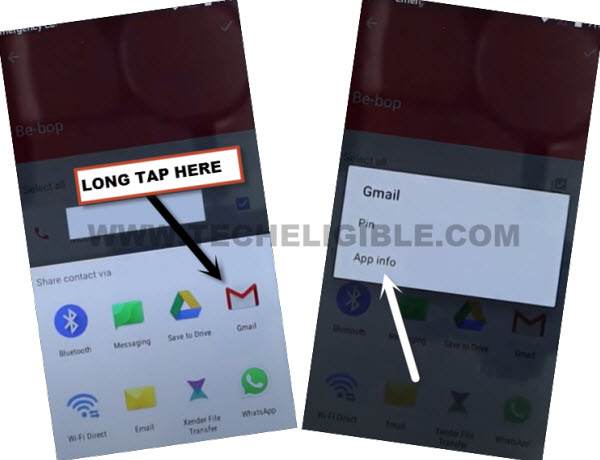
-We have to long hold at “Gmail” icon from popup screen. After that, tap to “App info” option.
-Let’s tap on “Notifications” from Gmail app info screen.
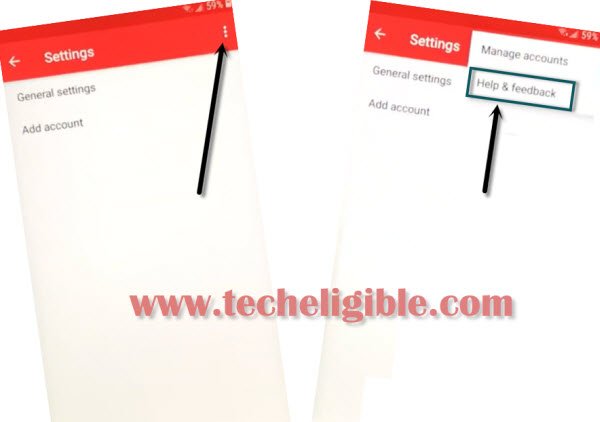
-After that, tap on “Settings” icon that is right next to Gmail app icon.
-We can reach to help page by tapping on > 3 dots > Help & Feedback.
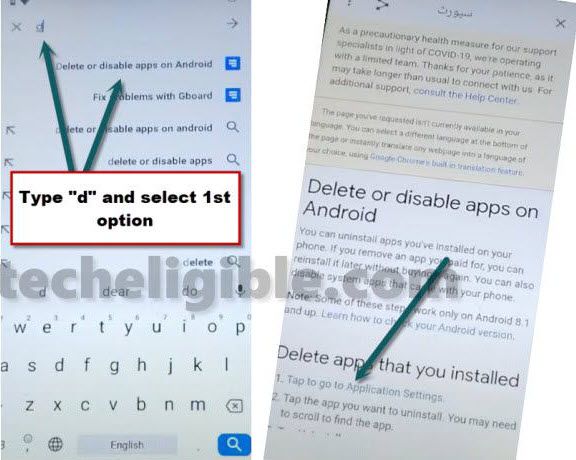
-Type in search box on the top “Delete” and go to “Delete or disable apps on android”.
-After that, go to “Tap to go to applications Settings” link from next page.
-You will face a popup window, just choose “chrome” icon from there. After that, hit on > Accept & Continue > No Thanks.
-You are now in google chrome page.
Download Hisense T5 Pro FRP Tools:
-Search in browser with “Techeligible“. After that, go to same site as shown in below image.
-Let’s bring up sidebar menu by tapping on “Menu” icon from top corner and tap on “Download FRP Tools” option to access official frp tools page.

-From there, find and tap to “Google Play Services” app to download.
-Once the downloading process is done, just go to top of the browser page. After that, tap on > 3 dots > Downloads.
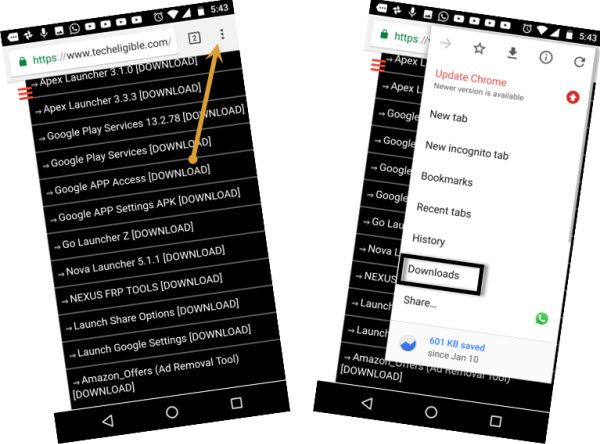
-Tap on “Google Play Services” app to install.
-Before the installation process starts, you will be asked to give permission by hitting on “Settings” from popup windwo and turn on “Unknown Sources”.
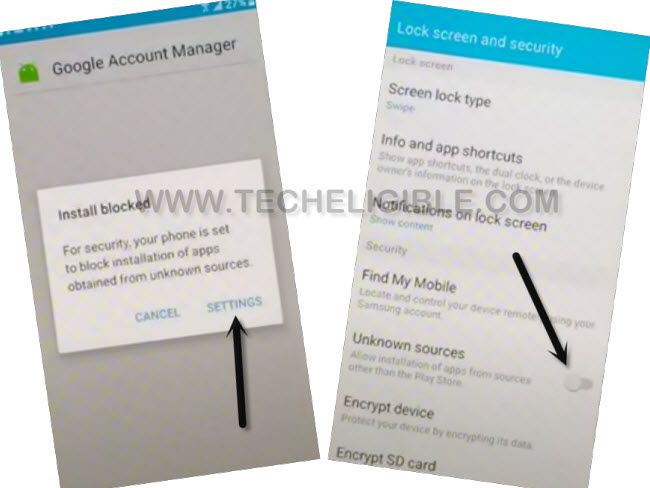
-After that, tap to “Back Arrow” icon to get back to download folder page. Tap again on your downloaded apps > Google Play Services > Next > Install > Done.
-Go back to frp tools page by hitting back arrow icon from bottom.
-From there, hit on “Access device settings” option to reach your device main settings page directly.
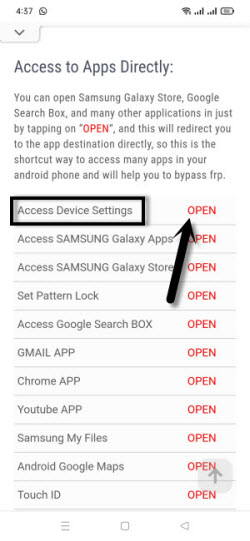
-Congrats, you are now inside your hisense T5 Plus device main settings page.
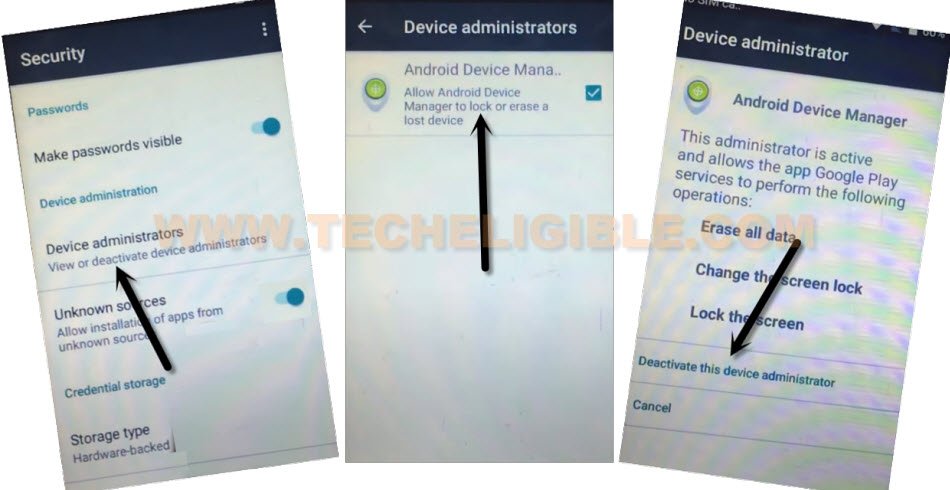
-Scroll down and go to > Security > Device Administrator.
-After that, tap on “Android Device Manager”.
-Tap to link “Deactivate this device administrator”. (See below image).
Go back to Settings & Disable Google App:
-Tap on “Back Arrow” icon to reach back on “Settings” page. From there, go to “Apps” option.
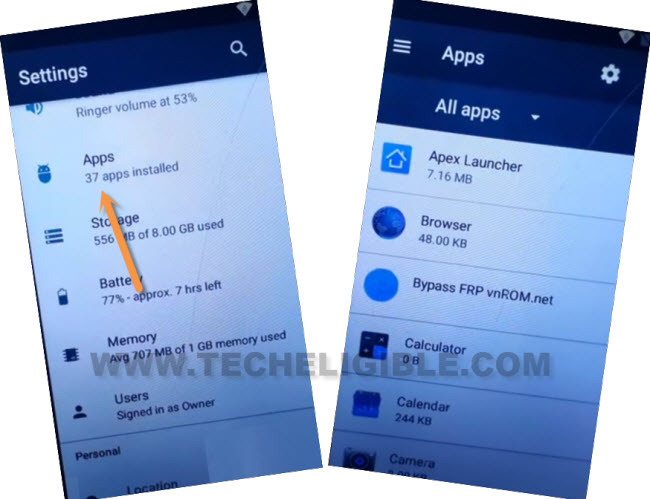
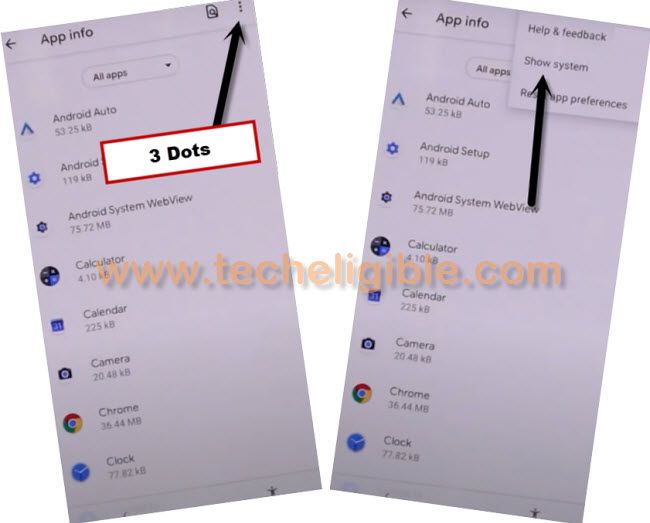
-Get shown all hidden apps by tapping on > 3 dots > Show system.
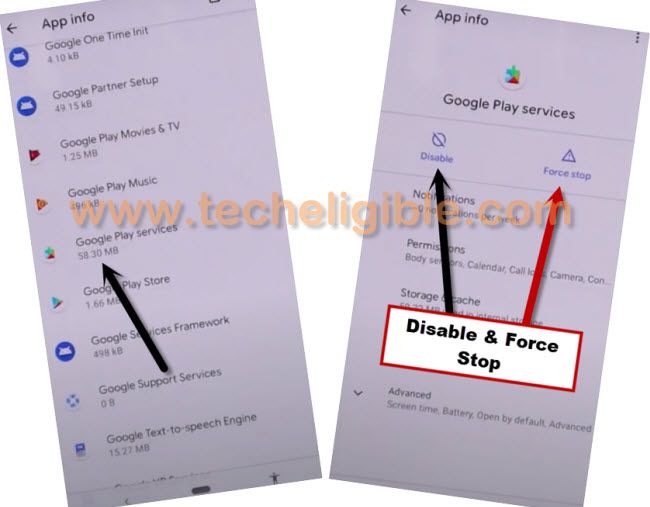
-Fid and go to > Google Play Services > Disable > Disable this app.
-You have to hit on also > Force Stop > Ok.
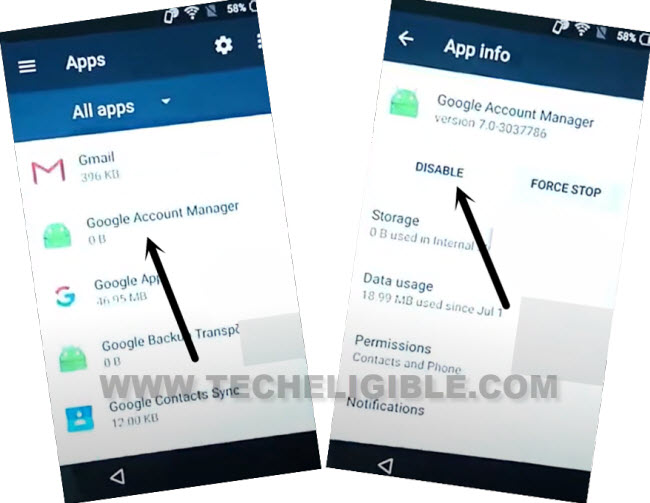
-Get back to (App list) page. From there, find and tap on “Google Account Manager” app.
-After that, tap to > Disable > Disable this app.
Sign-in with Latest Account to Bypass FRP Hisense T5 Plus:
-We can easily setup new google account now. Just go back on main “Settings” page again.
-After that, tap to > Accounts > Add account > Google.
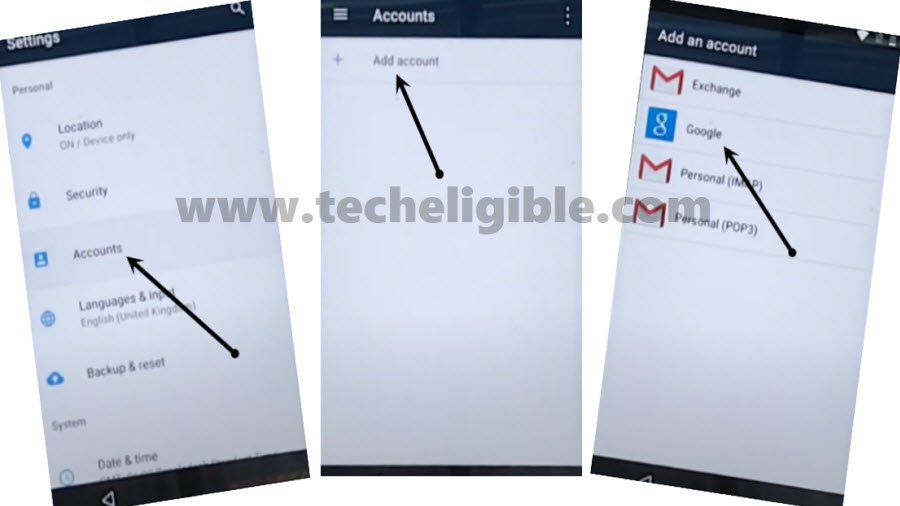
-You will reach on google sign-in screen. Enter your remembered Gmail account to setup new FRP protection.
Enable All Disabled Apps:
-Go back to “Settings” page again.
-After that, tap to “Apps”.
-Tap again on “3 dots” from top corner. After that, choose “Show system” option.
-Hit on “Down Arrow” icon from there and go to “Disabled”.
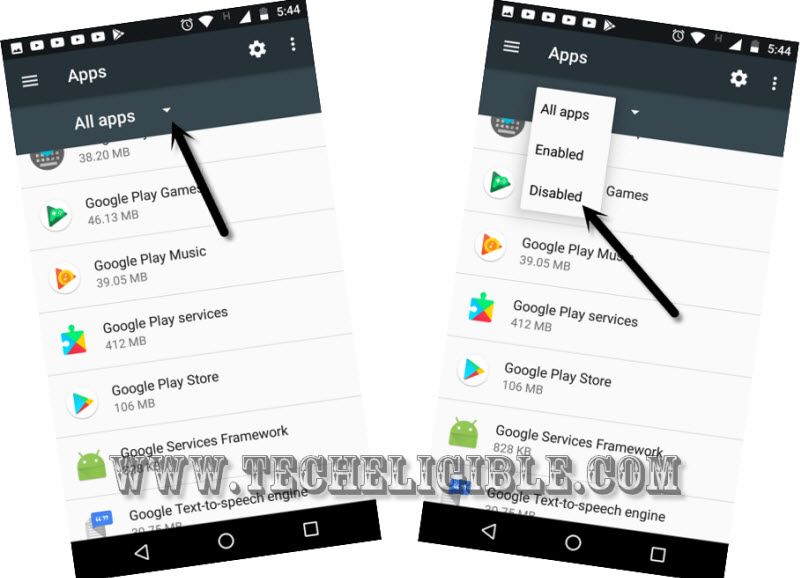
-You will your recently disabled apps there.
-Firstly, tap on > Google Play Services > Enable.
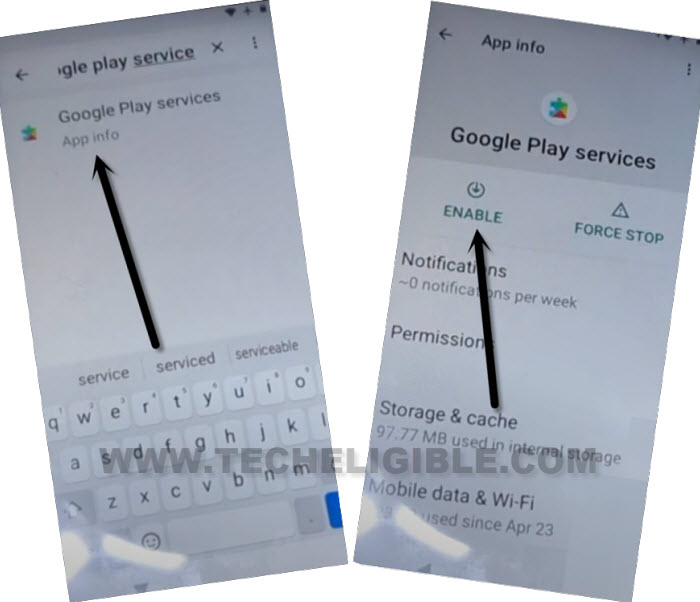
-After that, tap on > Google Account Manager > Enable.
-Go back to “Settings” from there, tap to > Security > Device Administrator.
-Tap to > Android device manager > Activate this device administrator.
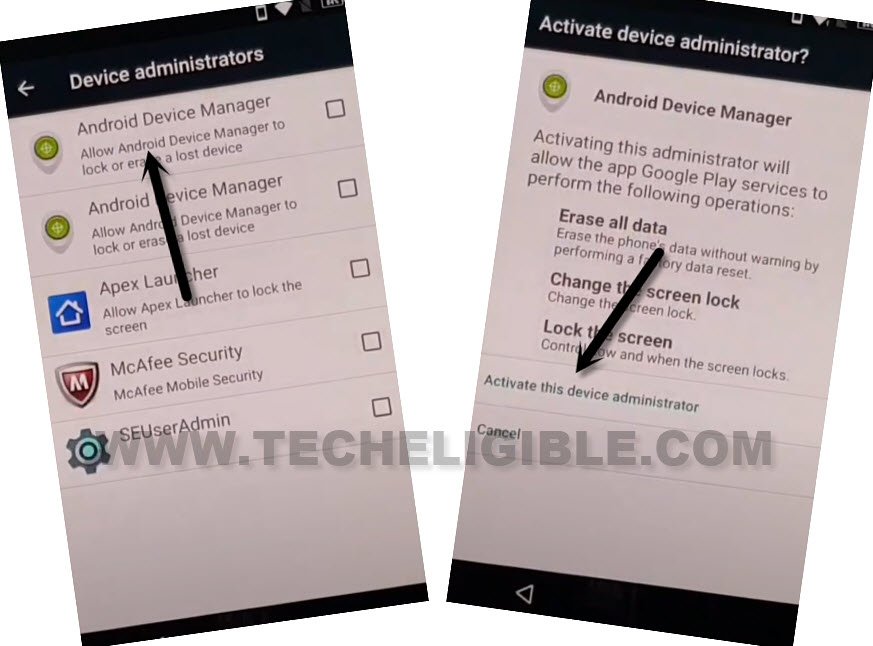
-Congrats, you are all done from Bypass FRP Hisense T5 Plus without getting help of any paid services and PC. You can use your device again without any restriction. Restart device and complete setup wizard steps.