
Are you looking for a working way to fix your device FRP issue after forgetting google account?. If you have lost your google account and hard reset your device. Then, FRP protection will not allow you to go though google sign in screen until you login back with old setup google account. Follow up below steps to Bypass FRP Xiaomi POCO C75 with the help of second android device.
Disclaimer: We highly recommend you to apply this method only on your own device. If you are not owner of this device, or you found this phone from somewhere, you must return this phone to its real owner. This method is for educational purpose only to educate the device owner, how to get back their own device after forgetting google account.
Let’s Start to Bypass FRP Xiaomi POCO C75:
-Turn on device & Connect WiFi first. After that, go back to (Connect to WiFi) page. From there, tap to “Add network”.
-Tap to “Network Name” field tab to get your device keyboard.

-From your device keyboard, hit on a “Smiley icon”. Tap again on a “Smiley icon” from top keyboard bar same as shown in below screen shot.
-Afterwards, hit on a “Settings” gear icon from bottom.

-You will reach on a keyboard page. From there, hit on a “Theme” option from top bar.
-Tap “Black” theme option from there. After that, tap to “Share” icon.

-From popup window, just open with “Shareme” application.

-To run this app successfully, you will have to give some permissions by tapping on these options > Agree > Next > While using the app > Next > While using the app > Allow.
-Finally, you will see (QR Code Scanner) screen on your Xiaomi POCO C75 device display.
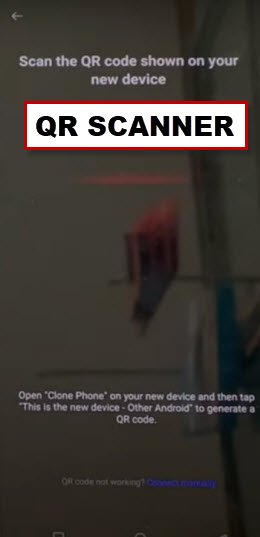
Apply Below Steps in 2nd Android Device:
-You have to use another (2nd android phone). We will transfer (Activity Launcher) app from other android phone to our POCO C75 device to Bypass FRP Xiaomi POCO C75.
-Let’s launch “Google Play Store” app in your second android phone.
-From there, search & install “ShareMe” application.
-Search & install also “Activity Launcher” application.
-Get back to main menu page of your second android device, and open recently installed “ShareMe” app from there.

-Allow some permissions to launch this app completely by hitting on these options > Agree > Join > Next > While using the app > While using the app > Allow.
-After that, you will see there (Send & Receive) page. You have hit on a “Receive” option from second android device.
-From next page of (Before you receive items) screen. Just turn (WiFi & Bluetooth) options from there.
| Note: Some options may be different in your device, you just have to get this (QR Code) on Screen same as shown below. |
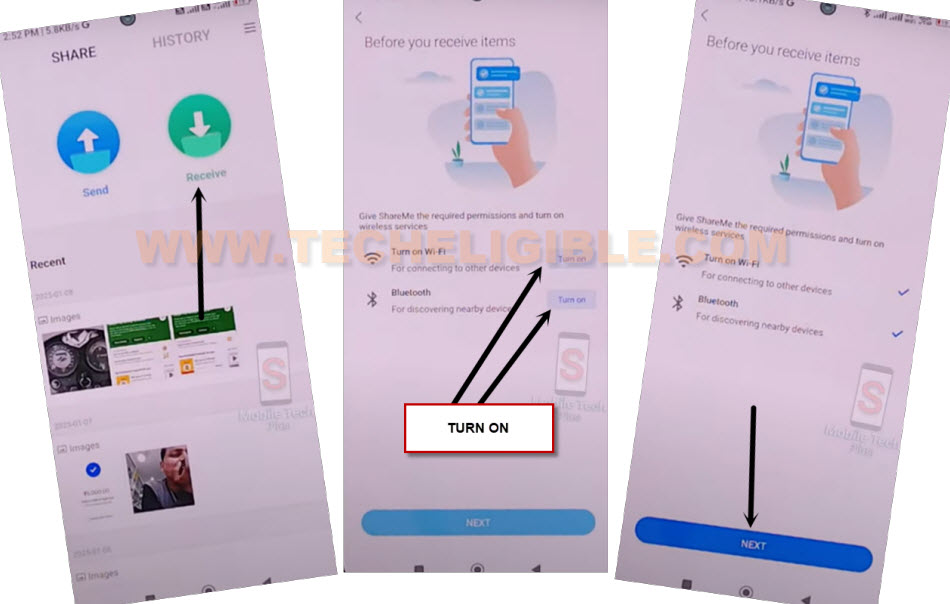
-You will have a QR Code on your second android device screen. Let’s scan this code using your POCO C75 device.
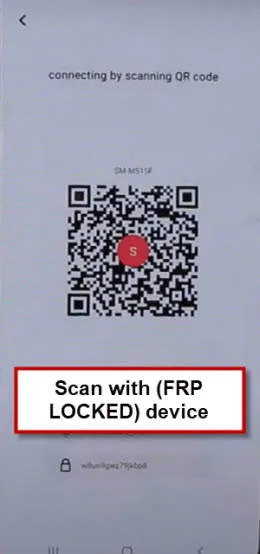
-Scan code now to connect both devices together.
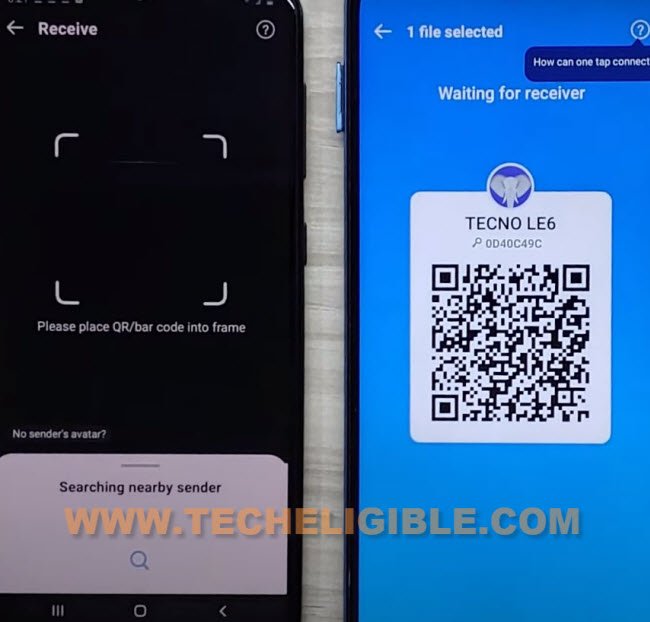
-Tap to “Connect” option from POCO C75 device screen.
-From second android device, let’s hit on > Share Files > Apps.
-Choose “Activity Launcher” app and hit on a “Send” option to transfer this file to your POCO C75 device.

Let’s Use Activity Launcher App:
-From Shareme app screen, tap to “Install” option to install activity launcher app in your Xiaomi POCO C75 device.
-After that, hit on a “RUN” option (See below image).

-Search there “Second Space” by tapping on a “Search icon” from top corner.
-Go to this same searched result “Second Space (com.miui.securityspace.ui.activity.PrivateSpaceMainActivity)”

-Tap to “Turn on Second Space” button.
-Wait on screen until creating second space process is done.

-You may reach to your device main home-screen. Swipe down from top to get top notification bar. After that, tap on “Settings” icon from top corner.
-You will be taken to your device main home-screen. Simply, open your device main settings page. From there, go to > Additional Settings > Factory Reset > Erase all data >Factory reset > Next > Ok.
| Note: If your device auto restart after hitting on a (Turn on Second Space). That means, you will have to repeat steps to create another second space again. |
Repeat Steps to Create Second Space Again:
-If your device auto restart after hitting on a “Turn on Second Space” option. That means, you will have to repeat all steps again to reach back to (Activity Launcher) application screen.
-Go to “Search icon” from extreme top right corner. Search there with “Second Space”.
-After that, go to “Second Space (com.miui.securityspace.ui.activity.PrivateSpaceMainActivity)“.
-Let’s hit on a “Go to Second Space” option. This time, you will be redirected into your device main home-screen successfully.

-You will be redirected to your device main home-screen. From there, bring up top bar menu by swiping down from top.
-After that, tap to “Settings” icon from top bar menu corner.

-Open your device main settings page. From there, go to > Additional Settings > Factory Reset > Erase all data >Factory reset > Next > Ok.

-You are all done from Bypass FRP Xiaomi POCO C75 without using any paid service.