Are you stuck on a google verification page of your Itel S24 device? That means, you might have forgotten your currently setup google account after hard reset your device. To fix this issue, you will have to follow up this free guideline to successfully Remove FRP Itel S24 Android 13 without any PC and FRP bypass application. Follow up steps from below.
Disclaimer: We highly recommend you to apply this method only on your own device. If you are not owner of this device, or you found this phone from somewhere, you must return this phone to its real owner. This method is for educational purpose only to educate the device owner, how to get back their own device after forgetting google account.
Let’s Start to Remove FRP Itel S24:
-Firstly, turn on Itel phone & Connect WiFi to your phone to start frp removal steps.
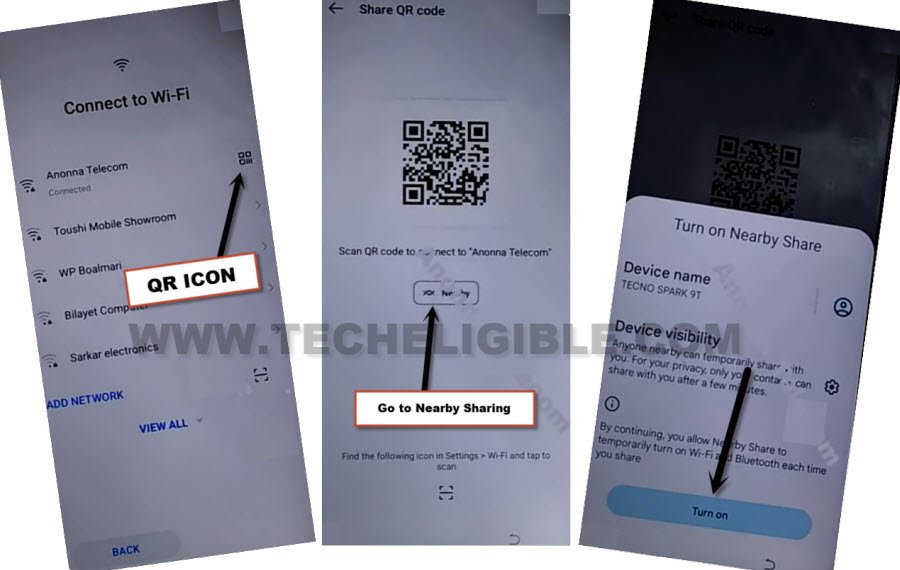
-After that, tap on a “Share” icon, that is right next to your connected WiFi name.
-You will redirected into your connected WiFi network details page. From there, tap to > Nearby > Turn on.
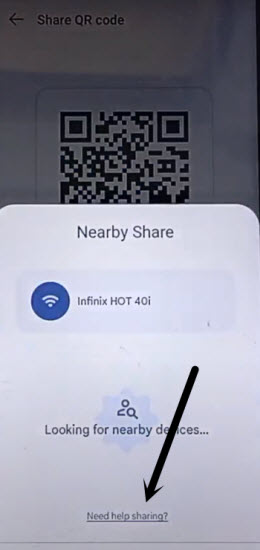
-Hit over a blue colored link named “Need help sharing?”.
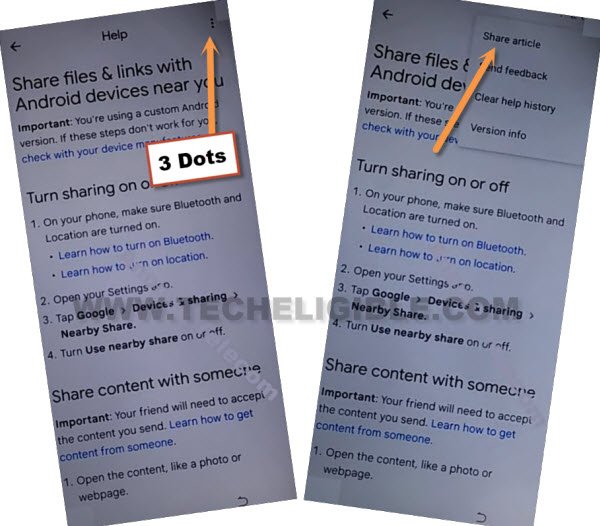
-Afterwards, go to “3 dots” menu icon from top corner. Now, tap to “Share Article” option.
-After hitting on a (Share Article) option, you will be shown a popup window, from there, just tap to “Message” icon.
-Hit on a “New Message”.
-You have to type this url there www.youtube.com. Send this url as text message to any random number.
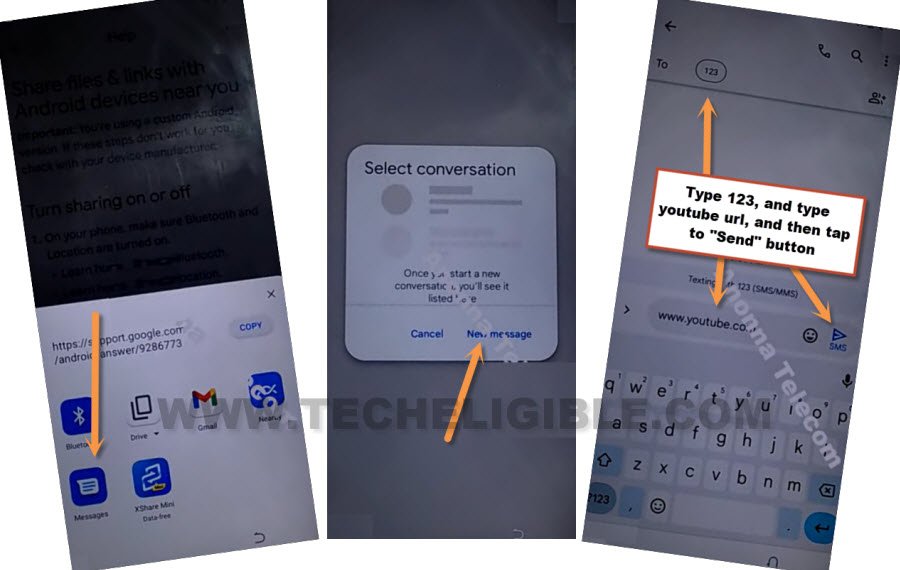
-After that, hit on a “Tap to load preview ” option from your already sent url.
-Tap to “Youtube” image from there.
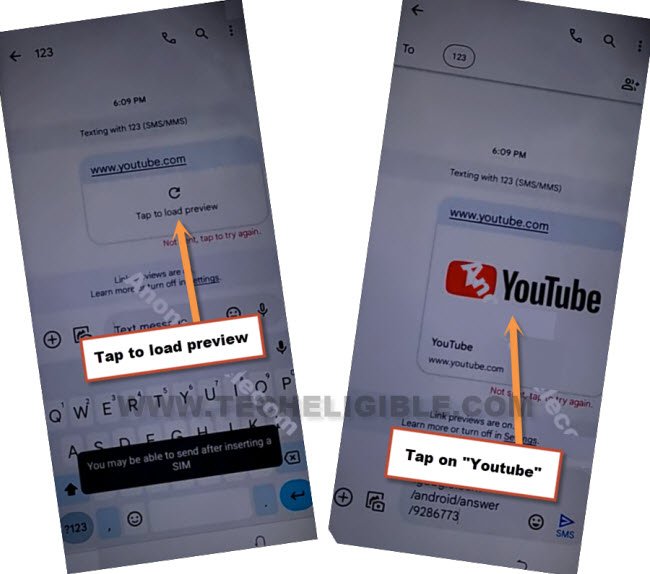
-After reaching to official youtube website, just hit over a “Account” icon from top corner and go to “Settings”.
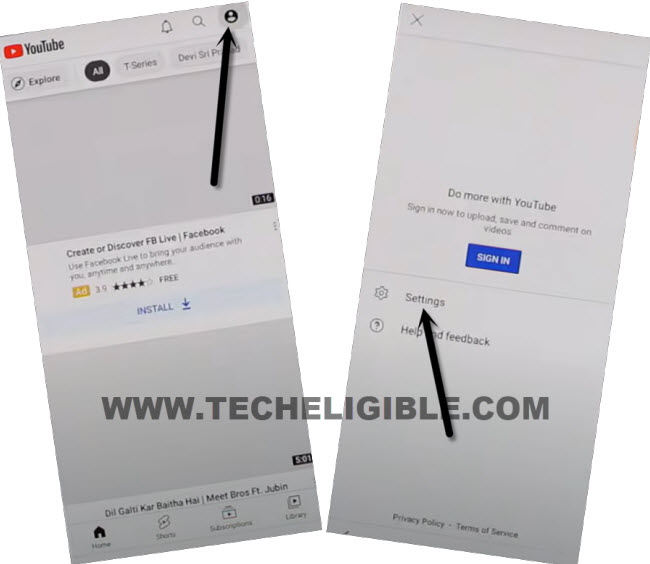
-Hit on a > About > Youtube terms of services.
-You will have a chrome browser popup screen. Just, tap to > Use without an account > No Thanks.
Access to Settings Page to Enable Accessibility Feature:
-You have to type in chrome browse search bar “Techeligible“. After that, visit same searched result as shown in below screen shot.
-From official site, go to “Menu” icon from top corner and hit over the “Download FRP Tools” option to access to frp tools page.

-After that, tap to “Access Device Settings” to Remove FRP Itel S24.
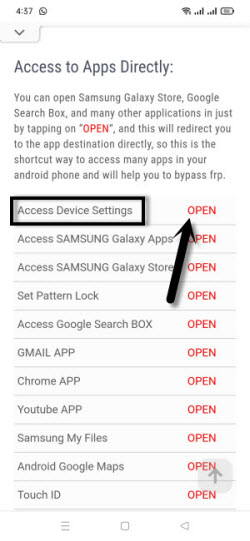
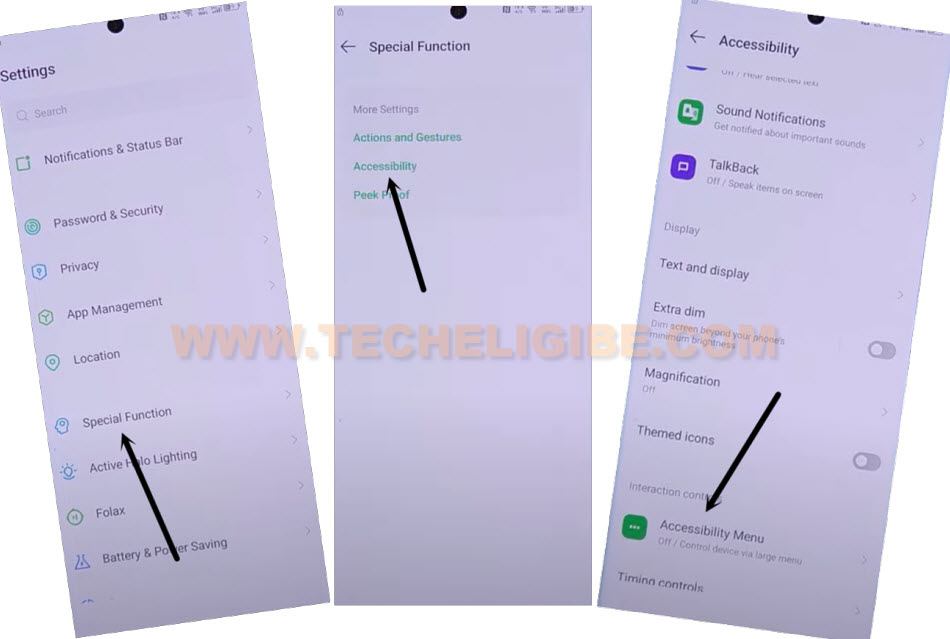
-Let’s turn on accessibility function. Just hit on a “Special Function” from main settings page.
-After that, go to > Accessibility > Accessibility MENU.
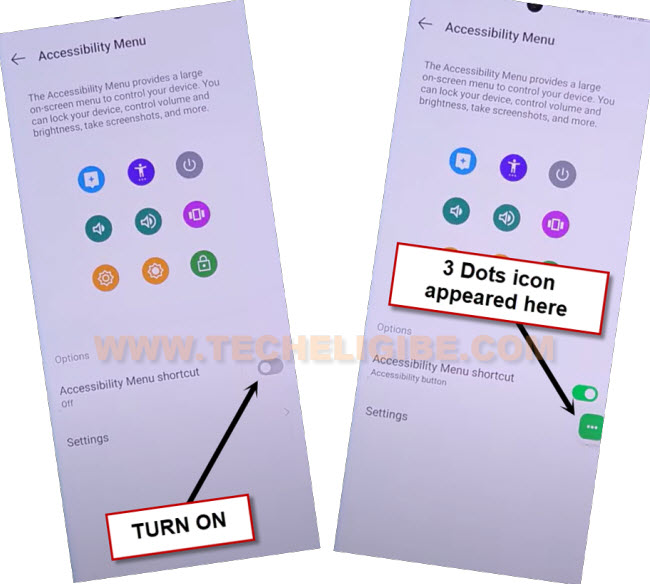
-You have to toggle on “Accessibility Menu Shortcut”. After that, tap over > Allow > Got it.
-You will have a (Green colored 3 dots icon) on right side of your device screen.
Disable Some Apps to Remove FRP:
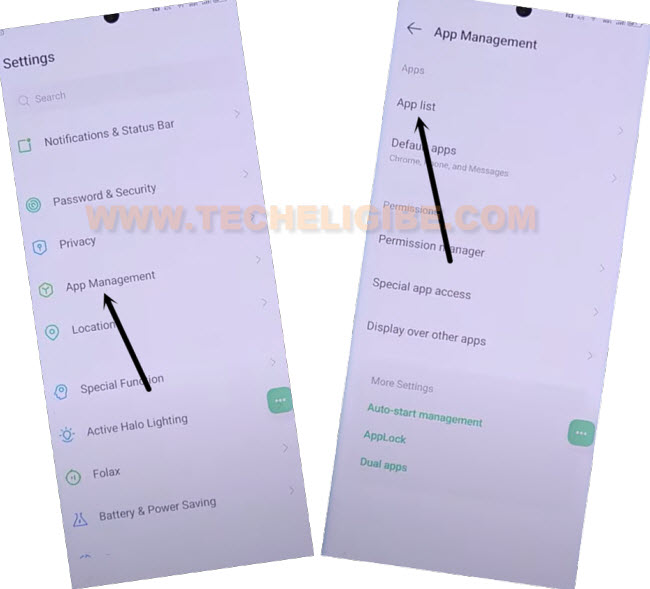
-Let’s go back on a (Settings) page by hitting on back arrow icon.
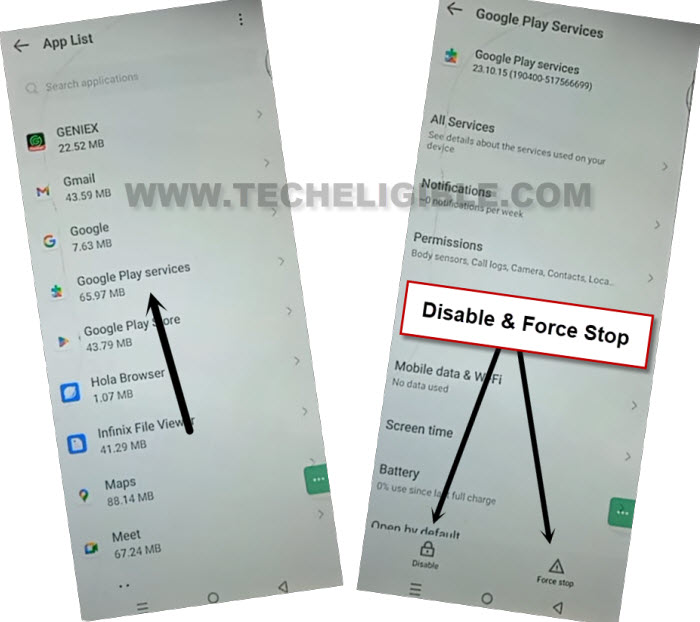
-From there, tap over a > App management > App list.
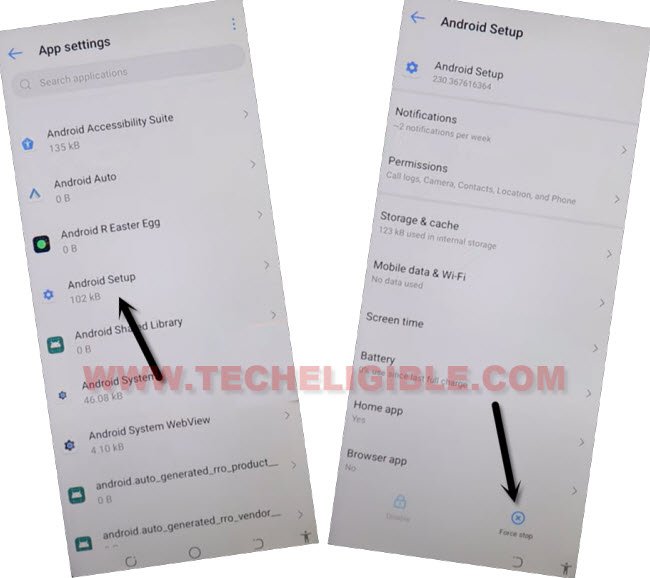
-From app list page, just find and go to > Android Setup > Force > Ok.
-Tap 1-2 times on back arrow icon to reach back on a (App list) page.
-From there, find and go to “Google Play Services” app.
-Force and disable this app as well to Remove FRP Itel S24.
Go back to WiFi Page:
-Get back to (Connect to WiFi) page by hitting several times on “Back Arrow” icon.
-After that, tap on your connected WiFi SSID name and tap to “Forget” option to disconnect your device WiFi connection.
-After disconnecting WiFi successfully, go all the way back on first startup page (Select Language).
-Reach back to WiFi page by tapping on these options > Next > Next > Skip.
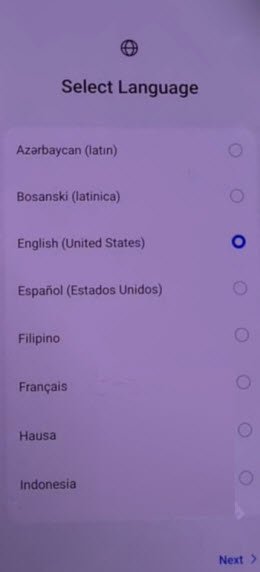
-From WiFi page, just reconnect WiFi to your itel S24 device.
-Let’s reach to loading screen by hitting on a > Next > Don’t Copy.
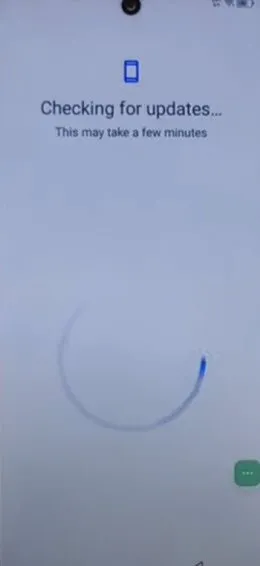
-Your itel device will stuck on a (Checking for update…) page. This won’t get finished until you enable back google play services app.
Use 3 Dots to Enable Google Play Services:
-We are gonna use (3 dots) menu icon to enable google app. Just hit on a “3 dots” icon. After that, tap to “Accessibility Settings” option.
| Note: Keep tapping these options very fast until you reach on main (Accessibility) screen same as shown below. |
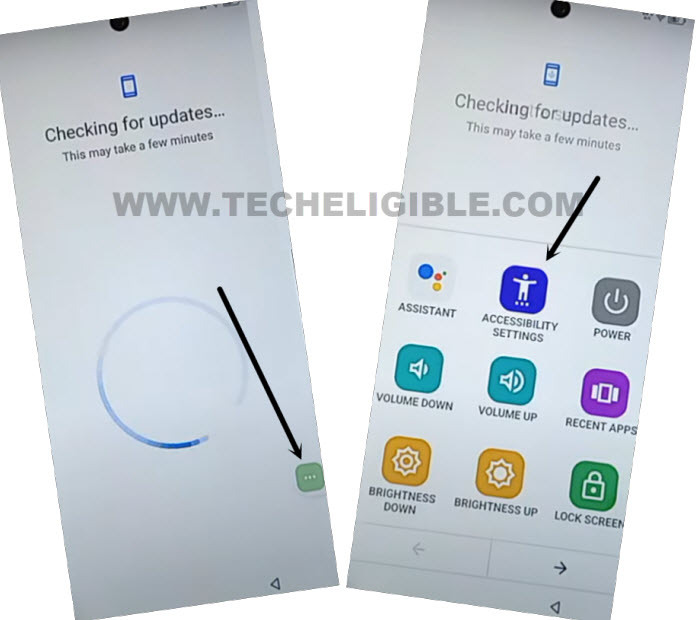
-After reaching to (Accessibility) page, from there, tap to on > 3 dots > Assistant.
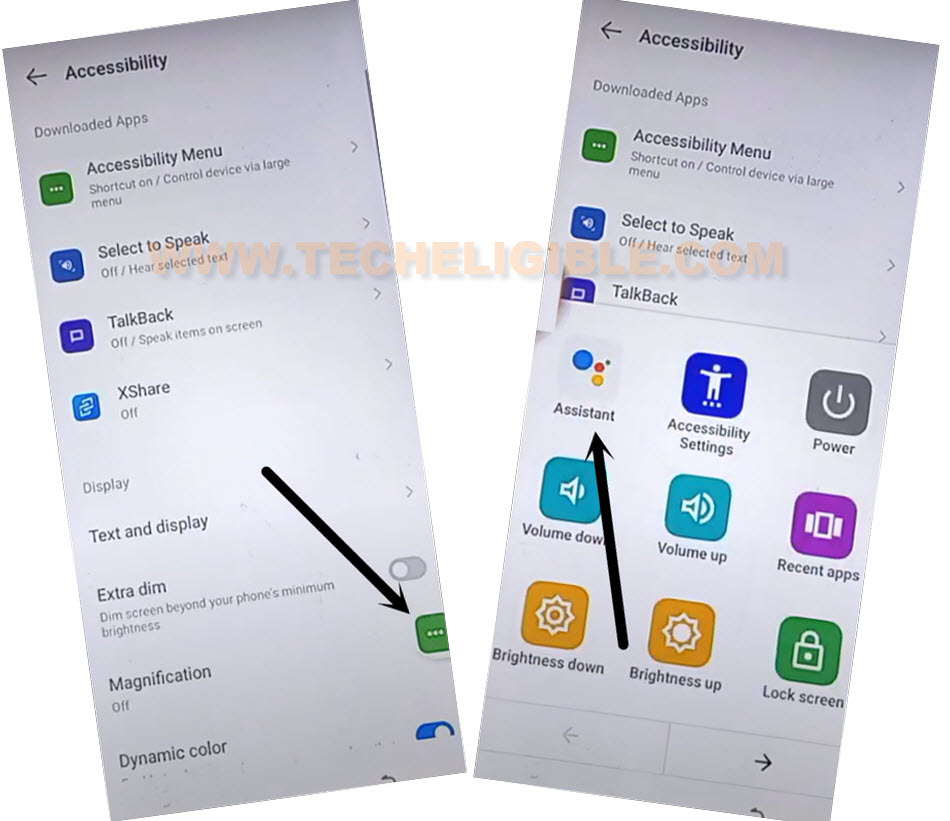
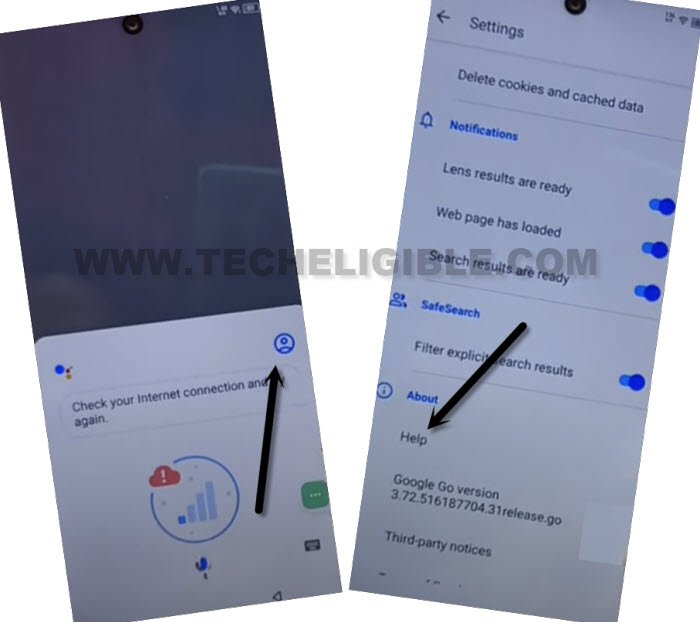
-From bottom popup window, hit over a “Account” icon same as shown in below image.
-After that, go to “Help” option.
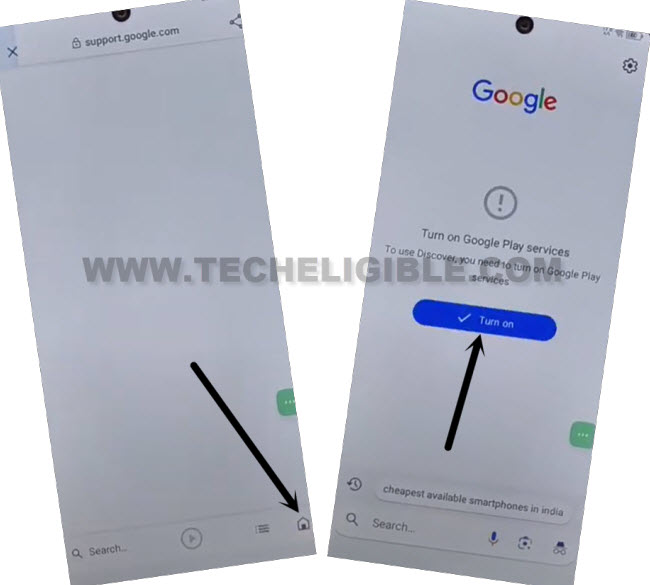
-Tap to “Home” icon from bottom right corner of the screen. After that, hit over a “Turn on” option.
-Here you go, you will be taken on a google play services app page. From there, tap to “Enable” button.
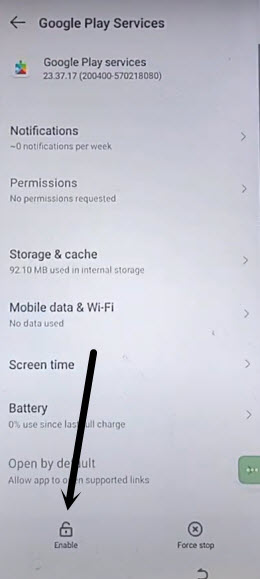
-After enabling above app successfully, get back to (Checking for updating) screen by hitting on back arrow icon few times.
-Wait over there, this screen will be done with few seconds and you will reach to (Google Services) page.
-Its all done now from Remove FRP Itel S24. Finish up setup wizard steps on your own.