
We can assist you to reach back to your device even after losing Gmail account. We will disable (Google Play Services) app from main settings page. After that, install install google play services from SD card directly. This process will help you login with another Gmail account to Bypass FRP NUU Q500. Follow steps from below.
Disclaimer: We highly recommend you to apply this method only on your own device. If you are not owner of this device, or you found this from some where, you must return to its real owner.
Let’s Start to Bypass FRP NUU Q500:
-Type in the browser search box “Techeligible“. After that, go to same searched result as shown in below image to access official techeligible site.
-Tap to “Menu” icon from top corner and hit on “Download FRP Tools” option from there.

-Download from there “Google Play Services” application.
-Once the downloading process is done. Copy and past your downloaded app into your SD card.
-Insert that SD card in your NUU Q500.
-Insert also a working SIM card in your device.
-Turn on NUU Q500 device and connect WiFi.
-Go back to first startup welcome screen. Tap to “Emergency” option from bottom.
-Tap twice on a “Emergency information” option from top center and tap to “Edit” icon from top right corner.
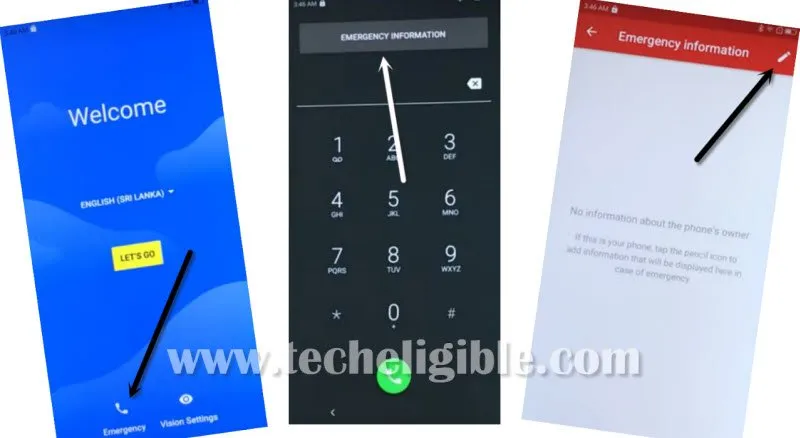
-Hit on “Continue” from the popup window. After that, hit on “Contacts” from the top.
-Tap to “Add contact”.
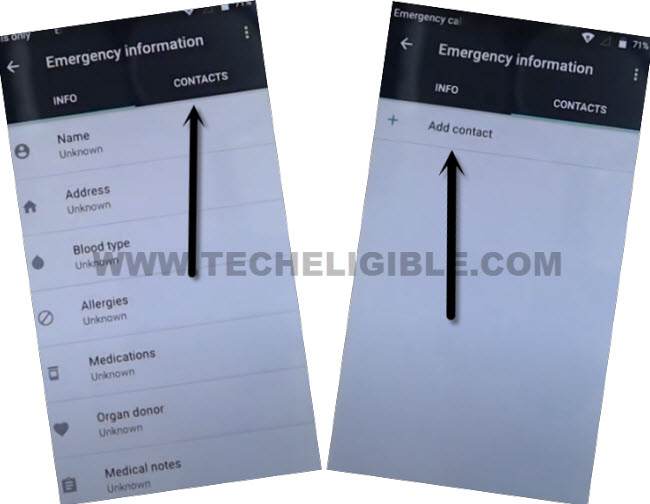
-Choose any contact name from the contact list of your SIM card.
-Tap again on same contact name from there.
-After that, you have to hit few times on “Allow” option from popup window.

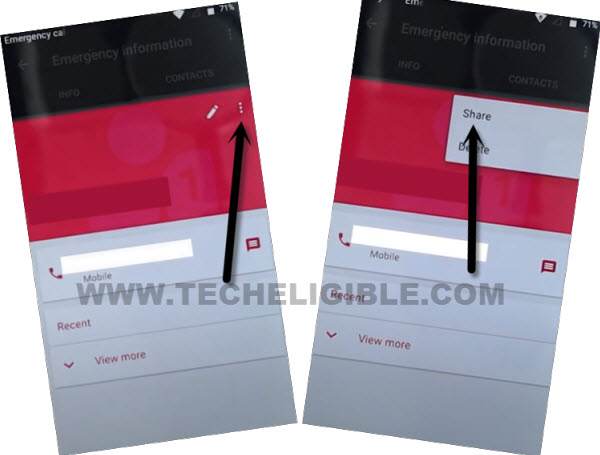
-Finally, you will get your contact details page on screen. From there, go to > 3 dots > Share.
-From popup screen of sharing apps, just long tap on a “Gmail” application and tap to “App info” option after that.
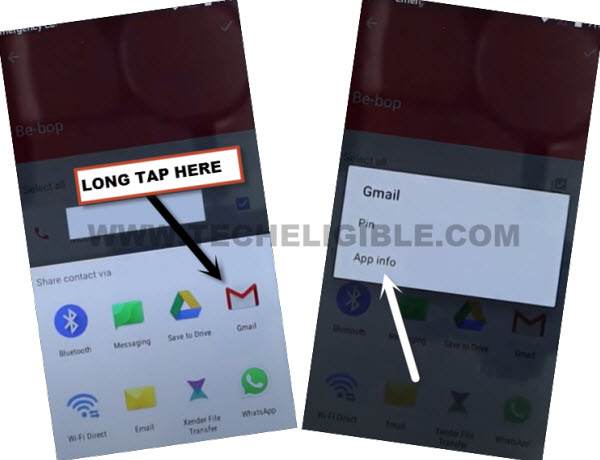
-Let’s tap over a > Notifications > Settings icon.

-Hit on a > 3 dots > Manage Accounts > Continue.
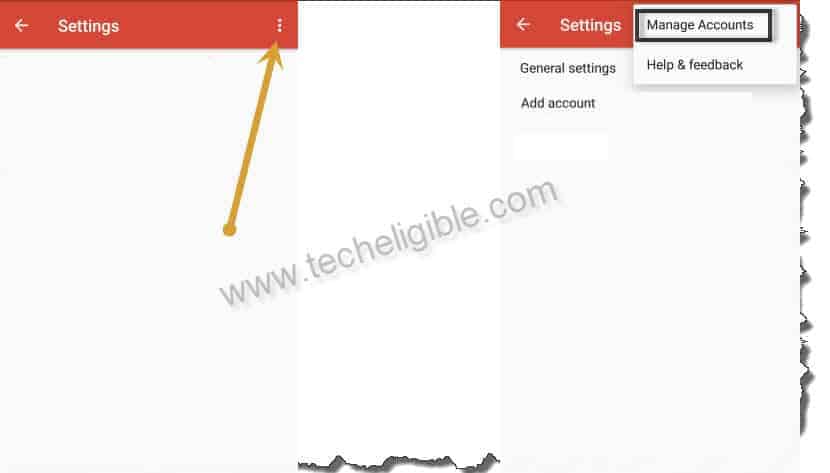
-Congrats. We’re now inside our device main settings page. From here, we will be able to Bypass FRP NUU Q500 without using any paid service.
Disable App on NUU Q500:
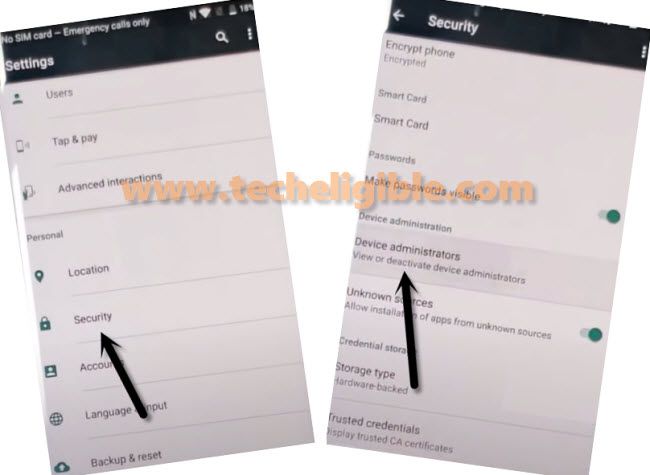
-Let’s go to > Security > Device Device Administrator.
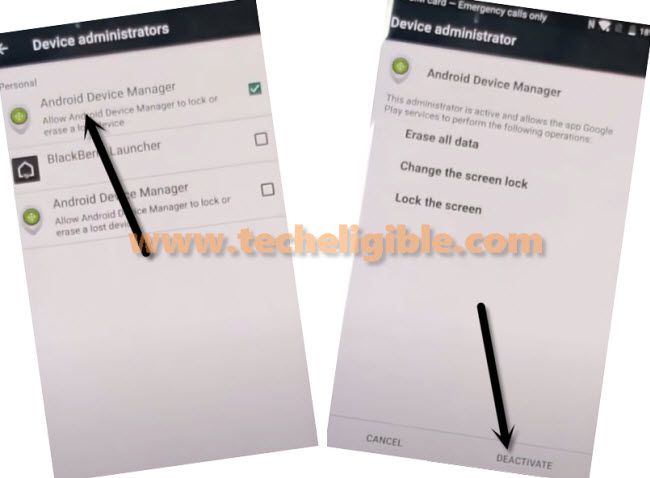
-After that, you have to hit on a “Android Device Manager” and tap on “Deactivate this device administrator” option same as shown in below image.
-Return to main (Settings) screen. From there, go to “Apps”.
-Hit on a “3 dots” icon from top and tap on “Show system” option.
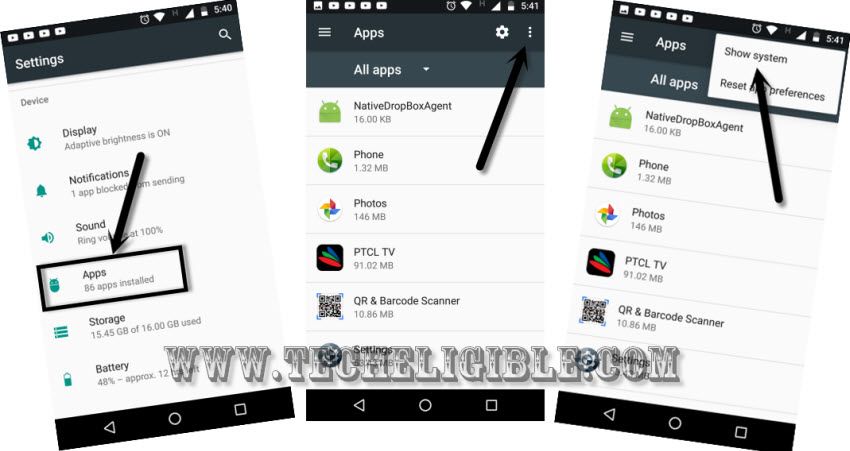
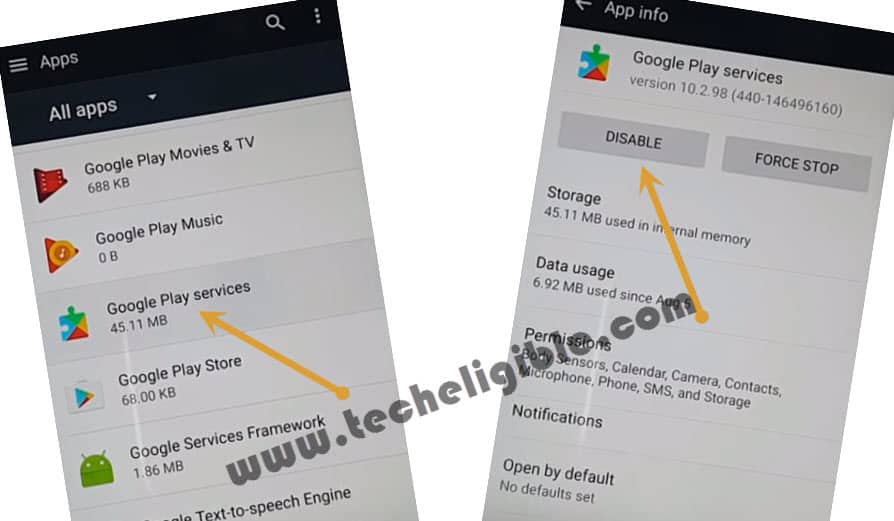
-After that, from app list page, find and tap on “Google Play Services” application.
-Hit on > Disable > Disable App.
-Return to main settings page again.
-Let’s install recently downloaded google play services app directly from our SD card. Just go to > Storage > SD Card.

-Locate to your folder, where you have (Google Play Services) app.
-Tap on “Google Play Services” application to install.
-After hitting on a google play services app, you may face a security popup window, just tap on “Settings” and turn on “Unknown Sources” option from there.
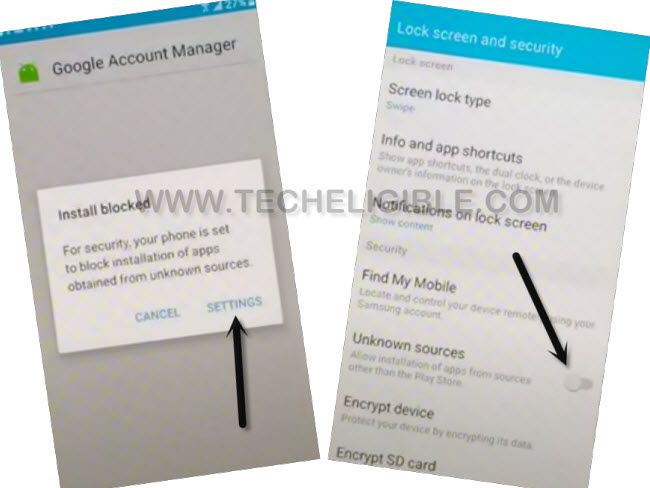
-Go back to folder, where you have google play app. Just tap again on > Google Play Services > Next > Install > Done.
-Return to main settings page to add google account.
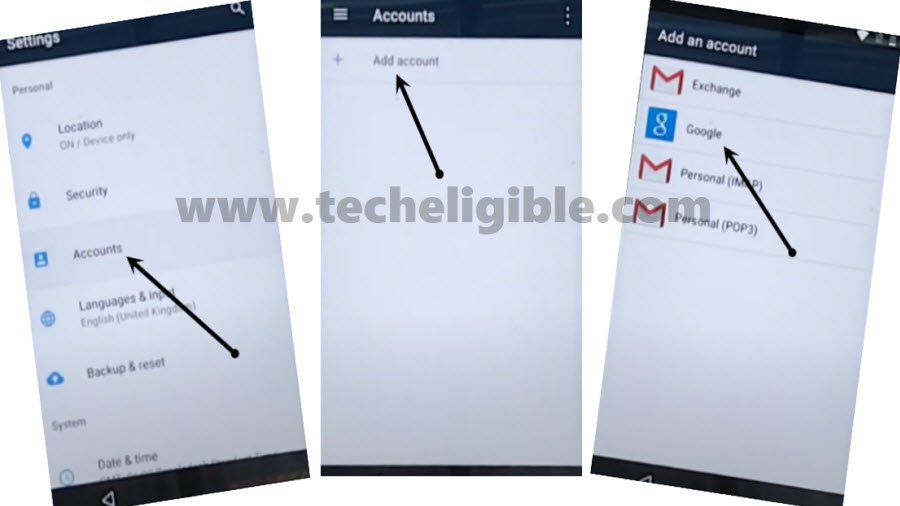
-Go to > Accounts > Add account > Google.
-Wait on jus a sec.. loading screen. After that, login with your google account to setup new FRP protection on your device and bypass old one.
-After successfully logged in with your Gmail Account. Just go all the way back to first (Welcome) screen.
-Restart your device & Complete setup wizard steps.