
If you are unable to complete your device verification process after hard reset because of forgetting currently setup google account. Then, you can follow up this method to Bypass FRP NUU G3 without using any PC and paid FRP tool. We will just change our device language to access the main settings page. From there, we will perform further steps to bypass frp. Follow steps from below.
Disclaimer: We highly recommend you to apply this method only on your own device. If you are not owner of this device, or you found this from some where, you must return to its real owner.
Let’s Start to Bypass FRP NUU G3:
-Insert a SIM card on your device.
-Turn on device and connect to WiFi network. After that, go all the way back on first startup page. From there, change your device language to (Russia) same as shown in below image.

-After switching device language to (Russia), just tap to “Call icon” from bottom.
-Tap two times on “Gray colored button” from top and go to “Pencil” icon from top corner.

-From popup screen, just hit on a “Right option”.
-Go to “Right option” option from top and hit on “+” option to reach to contact list page of your sim card.

-Tap to “Search” icon from top right corner.

-You will be shown a keyboard there, just long hold at “Language” icon from keyboard and tap to “Last link” from popup screen.

-Tap to “Center” option from bottom and choose same language from the list that has an arrow icon symbol. (See below image).
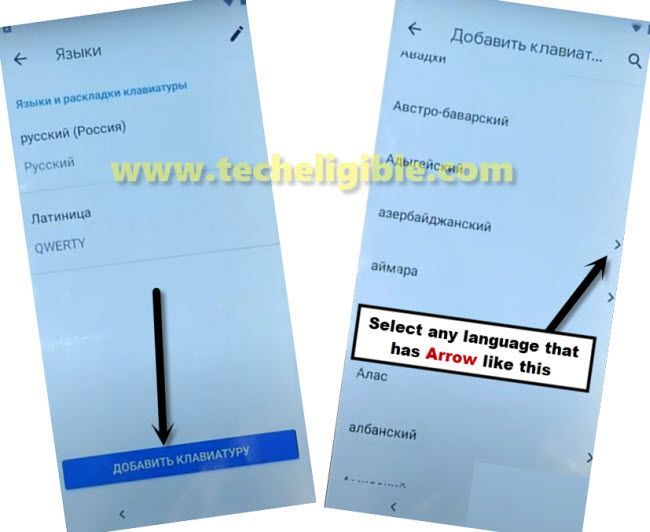
-Simply, hit on a “3 dots” kebab menu from top corner and go to “2nd option” from there.
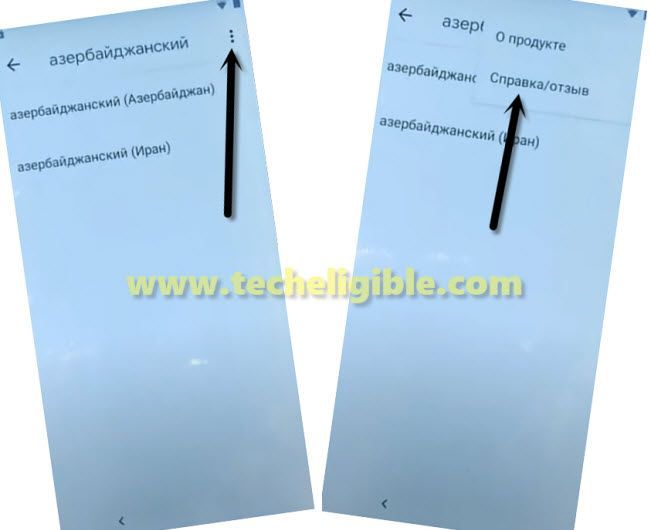
-Let’s tap on a “Search” bar from top. After that, change your keyboard language by tapping once on the “Language” icon.

-Once the keyboard language is changed to English, just search there “Morse” and go to “Use morse code” searched result.
-After that, you will have a youtube video on screen. Tap on play button on youtube video.
-Tap on video title from there same as shown in below image.
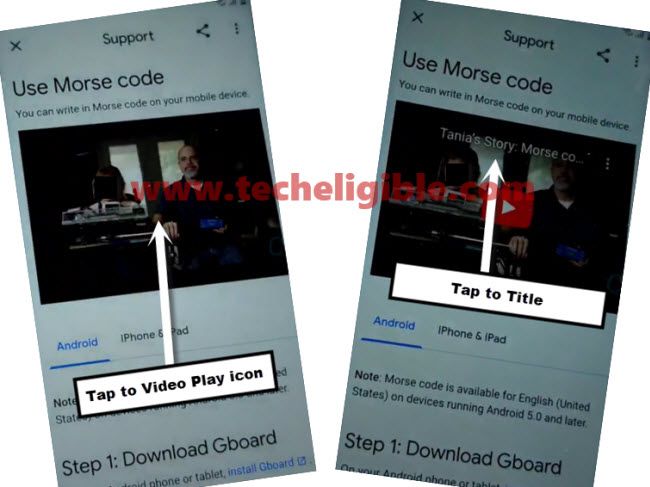
-After hitting on title, you will be redirected to the youtube official webpage. Drag down the playing youtube video to Bypass FRP NUU G3.
-Go to “Profile” icon from top corner and tap to “Settings” icon.

-Tap on a “Last” option from next screen. After that, tap on “4th google option”.

-You will have popup window on screen, just tap on “Chrome” browser app and tap on “Left option”.
-From chrome screen, go to > Blue option > Blue option > Left option. You will be taken in side google chrome browser.
Download FRP Apps:
-Type in the browser search box “Techeligible“. After that, go to same searched result as shown in below image to access official techeligible site.
-Tap to “Menu” icon from top corner and hit on “Download FRP Tools” option from there.

-Let’s download below 2 frp bypass app in your android device from frp tools page.
1st: Google Play Services.
2nd: Apex Launcher 3.1
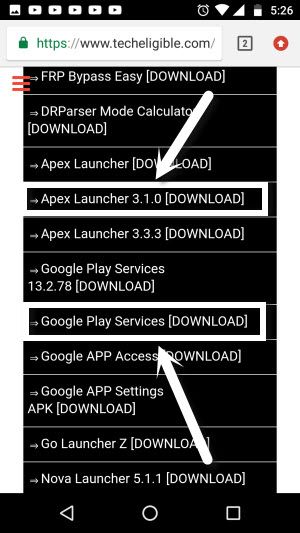
-After downloading is done. Just go to “3 dots” icon from top corner of the chrome browser and go to “6th option” same as shown in below image to reach to download folder directly of the chrome browser.

Install Downloaded Apps:
-We’re gonna install both apps one by one. Firstly, tap on “Google Play Services” app. After that, from popup screen of chrome, just tap to “right option” and turn on the option from next page same as shown in below image. This will allow you to install both apps easily to Bypass FRP NUU G3.

-After allowing that option, you will be able install both downloaded apps easily. Just hit on “Back Arrow” icon from bottom to back to installation page of the google app.
-From there, hit on > Right option > Right option > Left option. We have successfully installed (Google Play Services) app.

-Let’s install apex launcher. Through this app, we will be able reach directly to our device main home-screen without completing setup wizard steps.
-Tap on > Apex Launcher > Right option > Right option. After that, you will be redirected to your device main home-screen.

-Go to settings page of your device by tapping on “Settings” gear icon.
-We’ve to change our device language back to (English). From settings page, go all the way down and tap to last “Exclamation” symbol same as shown in below image.
-Go to “Gboard” option. After that, tap on first “A” icon option.
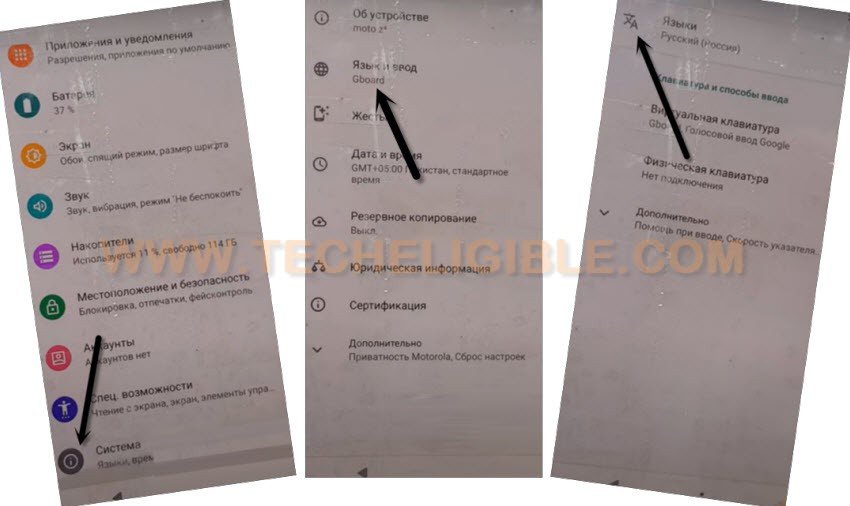
-Hit over the “+” option.
-Choose “English” language from the list and tap on “United States”.
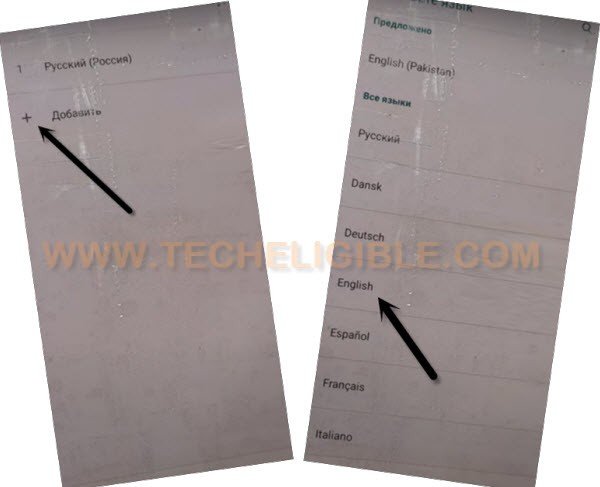
-Swipe up the (English) language by long tap and drag to top.
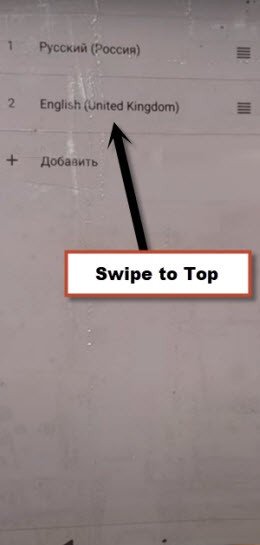
-Once the language is changed to English, just go back to main (Settings) page.
-Go to > Settings > Security & Location > Other Security Settings.
-After that, tap to “Find my device” and hit on a link “Deactivate this device administrator”.
| Note: If you see there (Android Device Manager + Find my device), just do make sure, both apps are un-checked from there. |
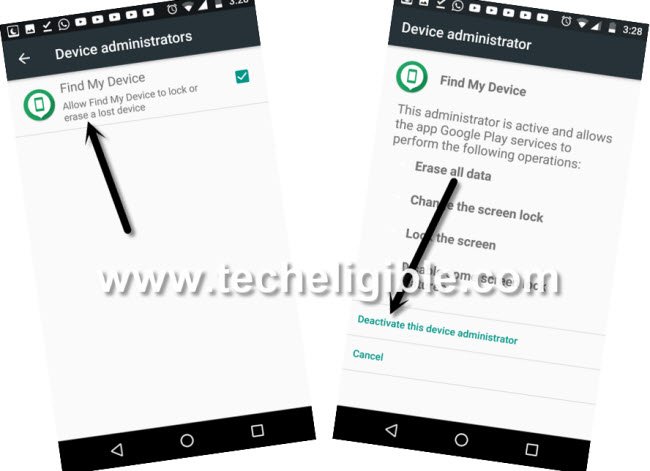
-Go back to “Settings” by tapping on “Back Key” 2-3 times.
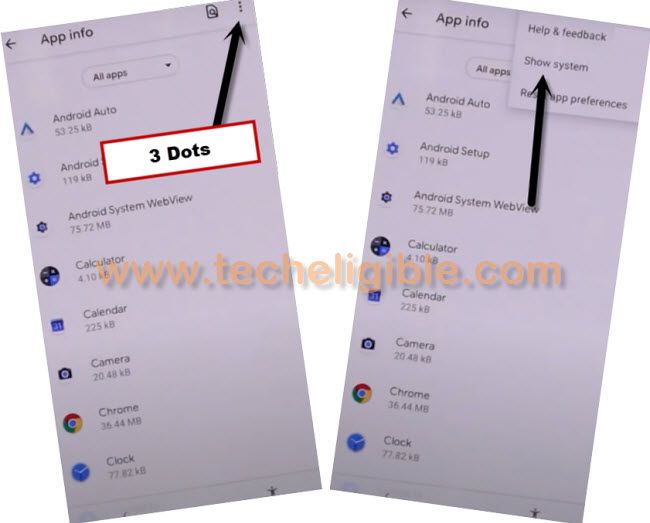
-From the Settings, just go to > Apps & Notifications > App information.
-Tap on “3 dots” from top right corner & select “Show Systems Apps”.
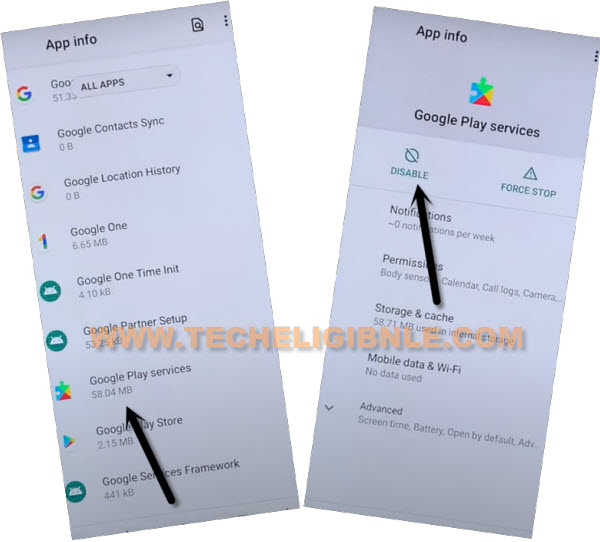
-Go to > Google Play Services > Disable > Disable this app.
-Go back to your device main home-screen by hitting on back arrow icon cautiously.
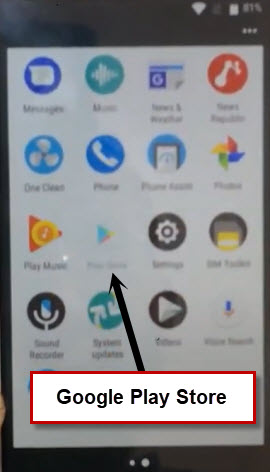
-After that, tap on “Google Play Store” app.
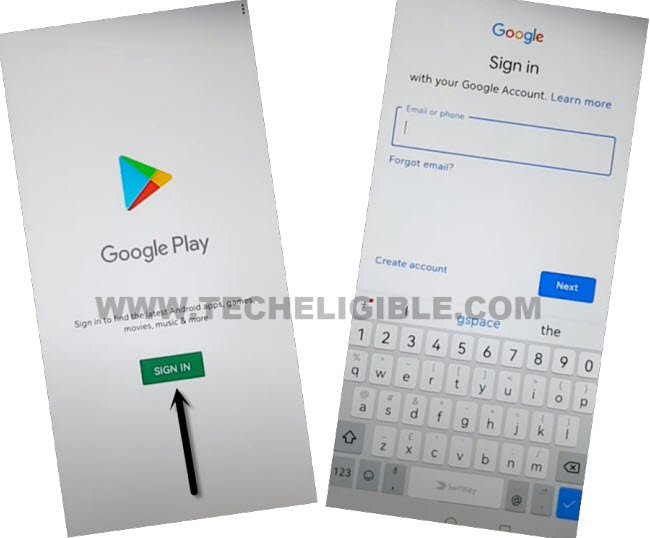
-You will be asked to sign in first to use google play store app. Just tap to “Sing-in” button from there & login with your any valid Gmail account to Bypass FRP NUU G3.
-Once logging-in process is done, just go back to your device main home-screen.
-Go to “Settings”.
-From there, tap to > Apps & Notifications > App information.
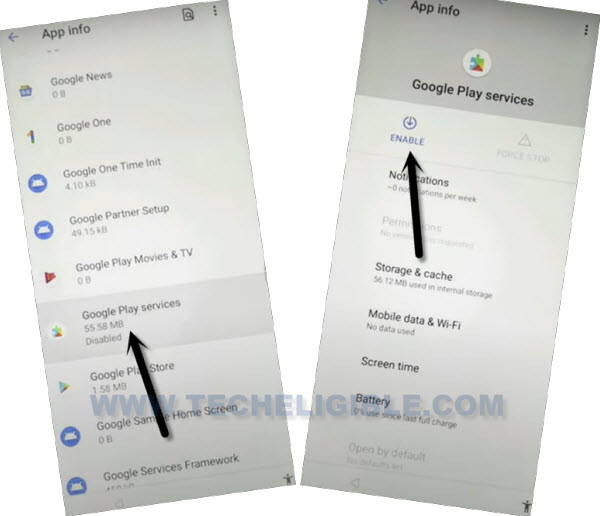
-Find out and tap on recently disabled “Google Play Services” app.
-After that, tap to “Enable” option to enable back this app.
-Restart your device and complete setup wizard steps again without facing any trouble.