If you are still looking for a way to fix your device FRP issue after forgetting the google account. In this case, you can follow up this method for Meizu M6T FRP Remove. We will use a simple free (Smartphone Flash tool) to flash our device with one click. Download the tool from below in your PC and start this process to reach back to your Meizu M6T and register another google ID.
Disclaimer: We highly recommend you to apply this method only on your own device. If you are not owner of this device, or you found this from some where, you must return to its real owner. This FRP bypass process is just for educational purpose.
Let’s Start Meizu M6T FRP Remove Steps:
-Download flashing file in your PC from below.
| ⇒ SP Flash Tool and Flash File (MEIZU M6T) [DOWNLOAD] |
-Extract your downloaded file. After that, go to your extracted folder.
-Extract all files from there including (SP Flash Tool + MTK Drivers + Scatter File).

-We have to install MTK Drivers in our PC. So that, the tool could easily detect your connected device.
-Install both drivers in your PC same as mentioned in below image.
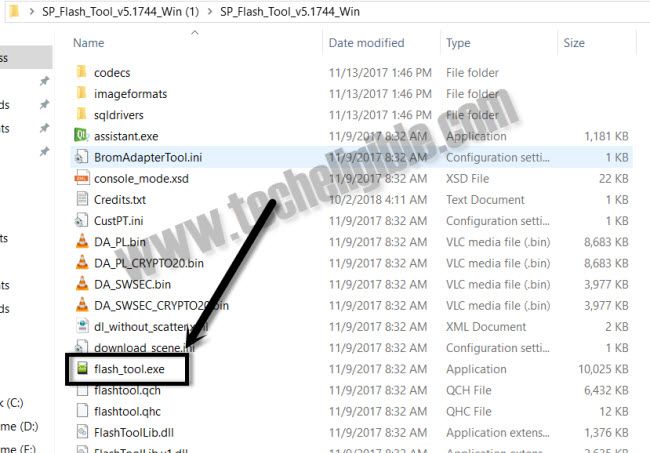
-Go to “SP Flash tool” folder. Scroll down and double click on “flash_Tool.exe” to run on your PC.
-Click on “Ok” from popup screen.
-Hit on a “Choose” button from download-agent for Meizu M6T FRP Remove.
-Give the file path of “DA_PL.bin” which is located in the extracted folder of (SP Flash tool),

-After that, click on “Choose” button, that is right next to the (Scatter_loading File).

-Give file path there of “MT6750_Android_Scatter.txt” file. This file is located in extracted folder of (MT6750…).

-Go to “Format” button from top bar of the Sp flash tool screen.
-Select “Manual Format Flash” option.
-After that, open up “Address Meizu.txt” file from extracted folder.
-Copy first entry from notepad and past into “Begin Address [HEX]” from SP flash tool software screen (See below image).
-Copy 2nd entry from notepad and past into “Format Length [HEX]”.

-Click to “Start” button to start Meizu M6T FRP Remove process.

-Power off M6T android phone and connect to PC using proper USB/DATA Cable.
-Within a minute, your device will be detected by the SP flash tool. After that, frp bypass process will continue.

-You will have a (Check mark) icon in popup screen once the flashing process is done.
-Its all done. Just disconnect the device from PC and turn on your device to complete setup wizard steps.
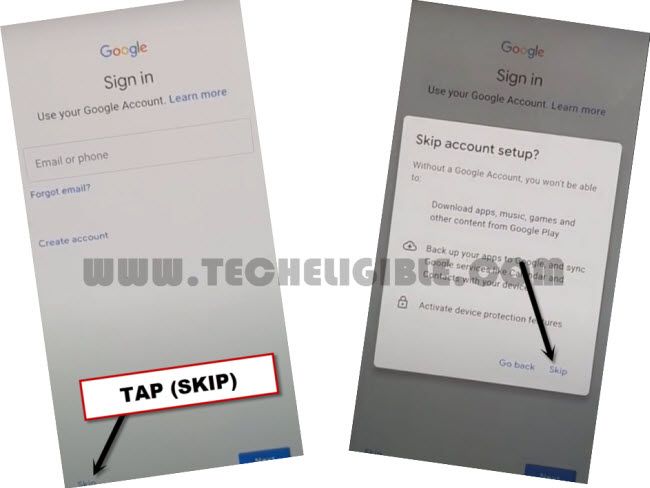
-When you see a (Google Sign in) screen. Just, tap to > Skip > Skip. After that, other all remaining steps can be completed easily without any further guideline.