
If your device is inaccessible after hard reset? That means, you are on a FRP protection. This FRP can be unlocked using a previously signed-in google account. If you’ve forgotten what google account was setup on Blackview phone. Then, follow the instructions below to Bypass FRP All BlackView Android 11 without using a PC.
Disclaimer: We highly recommend you to apply this method only on your own device, if you are not owner of this device, or you found this from some where, you must return to its real owner.
Use Talkback to Bypass FRP All BlackView Android 11:
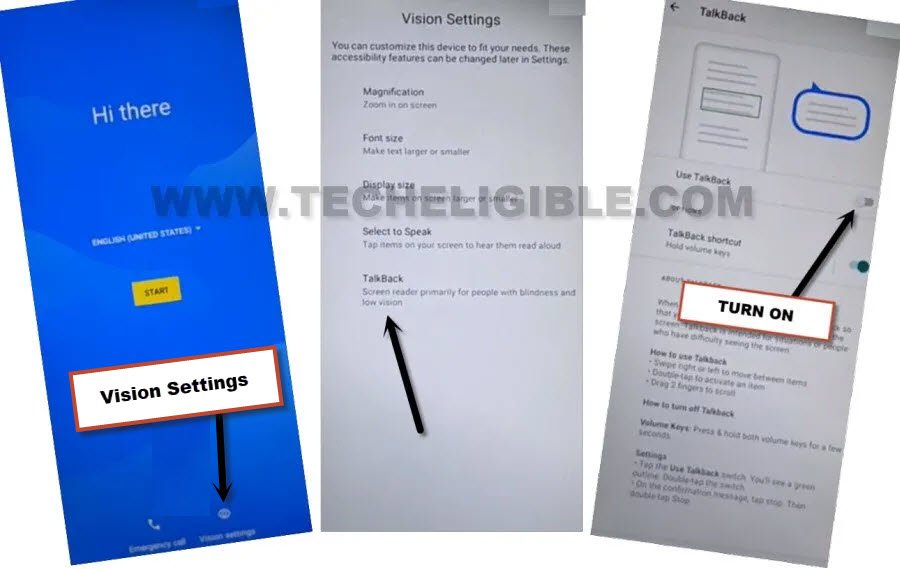
-Connect WiFi and go back on (Hi there) screen first. From there, you have to enable talkback function.
-Tap on a “Vision Settings”. After that, you have to hit on “Talkback”.
-Let’s enable “Use Talkback” function from there same as instructed in below image.
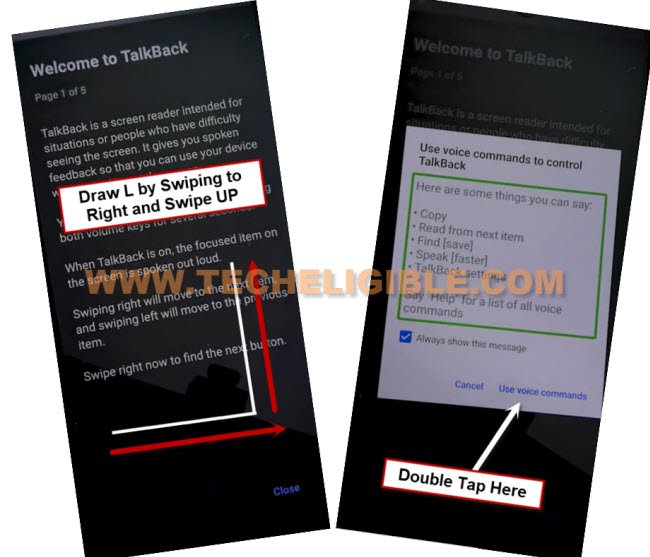
-You will have a (welcome to talkback) screen. Using your finger, swipe right and swipe up. After that, another popup window will appear up there.
-Double tap to > While using the app > Use Voice Command.
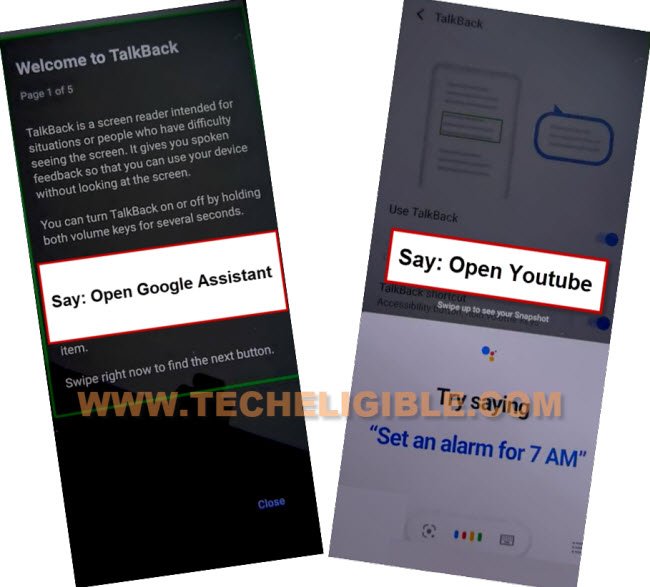
-Wait until you see green lines on screen. After that, speak loudly “Open Google Assistant“.
-The google assistant window will be displayed on screen. After that, speak loudly “Open Youtube“.
| Note: If youtueb is not being launched, then, manually tap to “Keyboard” icon from popup window and search there “Youtube” and go to “Youtube” from searched result. |
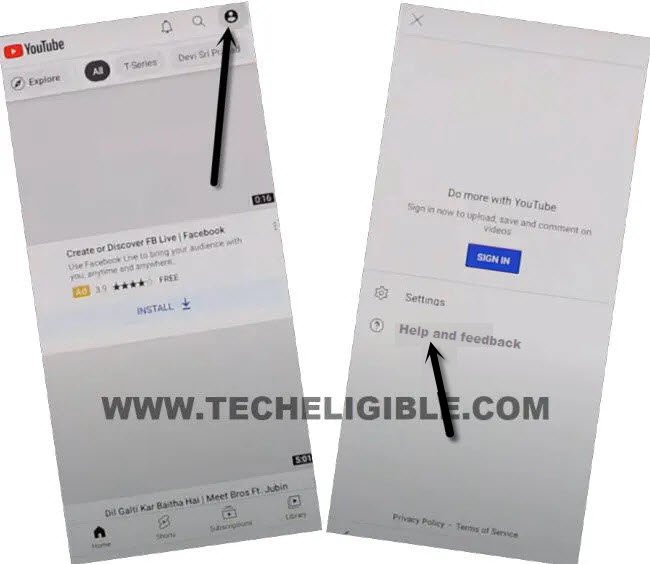
-Once the youtube is launched, from there, hit on “Human” icon from top corner and go to “”Help and feedback”.
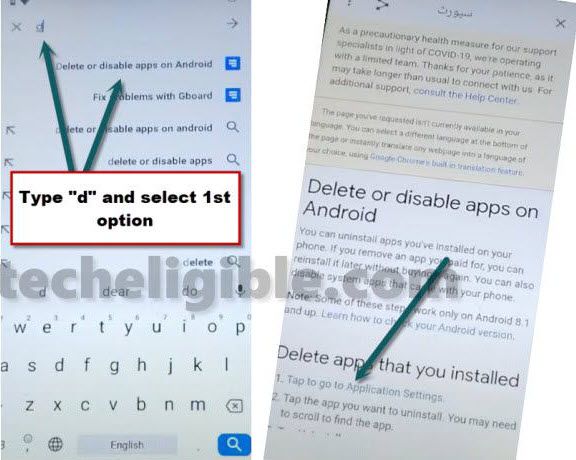
-In top search bar, search there “Delete”. Go to searched result “Delete, disable and manage unused apps on android”.
-After accessing to article page, from there, scroll down and tap to this link “Tap to go to application settings”
Note: Sorry, below screen shot might be different as we instructed above.
Disable 3 Apps from App List Screen:
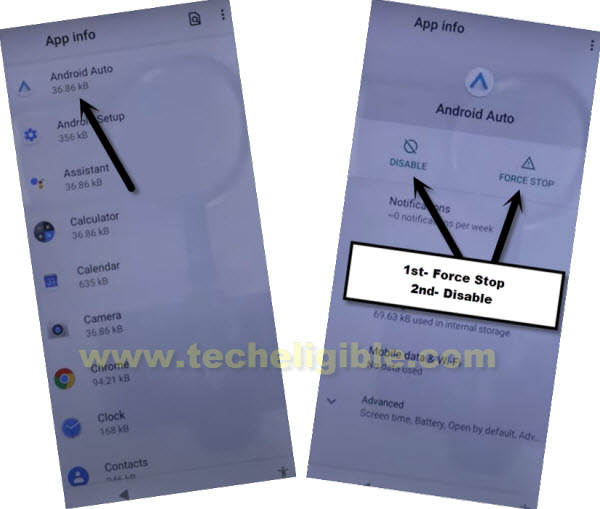
-You will be redirected on a installed application page. From there, find and tap on “Android Auto” app.
-After that, tap to > Force Stop > Ok.
-Tap also on > Disable > Disable this app.
-Hit over the “Back Arrow” icon from bottom to reach back to app installed page.
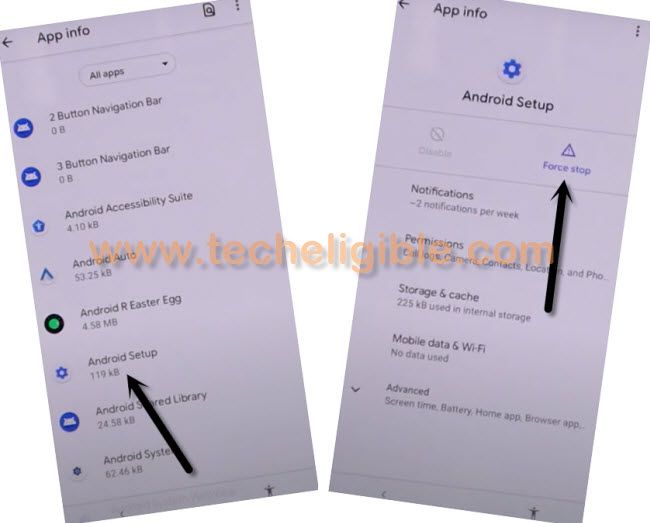
-Find one more app there named “Android Setup” app. Same as displayed in below image.
-Hit over the > Force Stop > Ok.
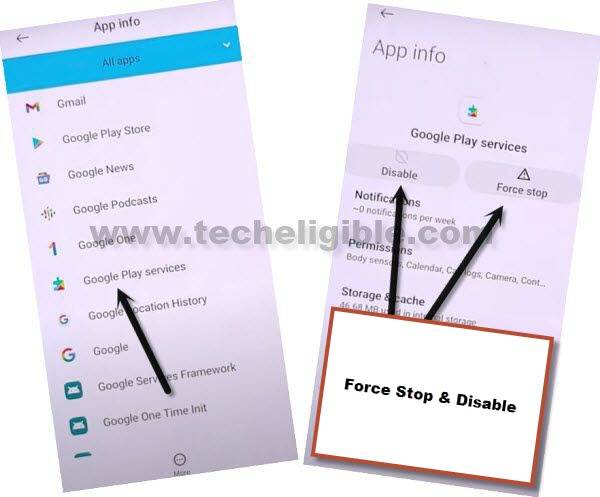
-Tap again on “Back Arrow” icon from bottom to go back. After that, find one more last application named “Google Play Services”.
-Tap on > Google Play Services > Force Stop > Ok.
-From same page, tap also on > Disable > Disable this App.
-We have to access to the main settings screen of Blackview android 11 phone.
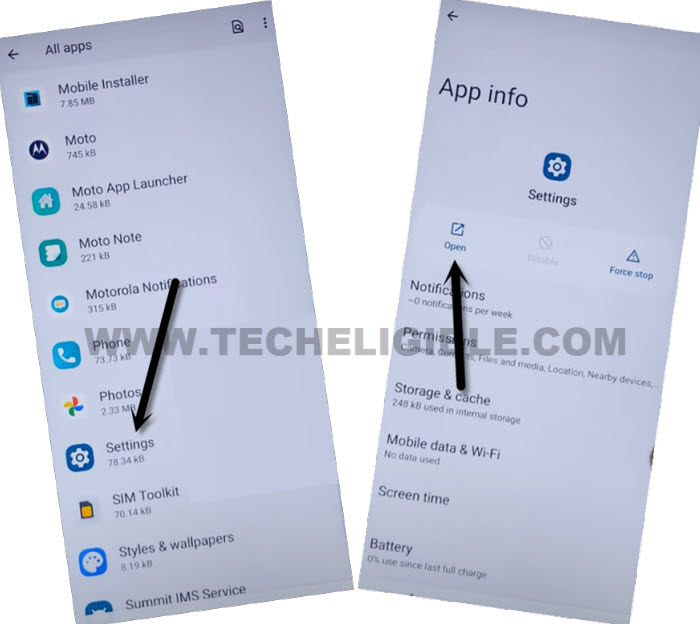
-Go back to app list page. Find and tap on “Settings” application from there.
-Tap to “Open” to be redirected on a main settings screen.
You’ve to Enable Accessibility Shortcut Menu Function:
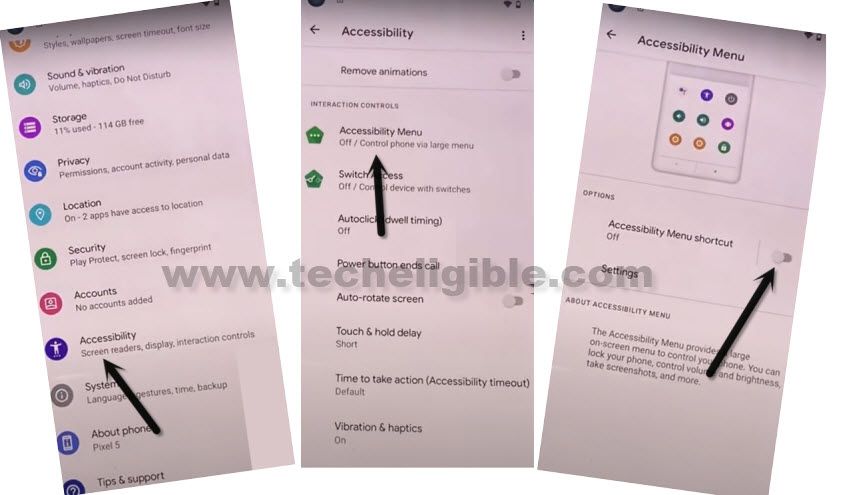
-From main settings screen, go to “Accessibility” option.
-After that, you’ve hit on a “Accessibility Menu”.
-Let’s enable “Accessibility Menu Shortcut” option. From popup window, go to > Allow > Got it.
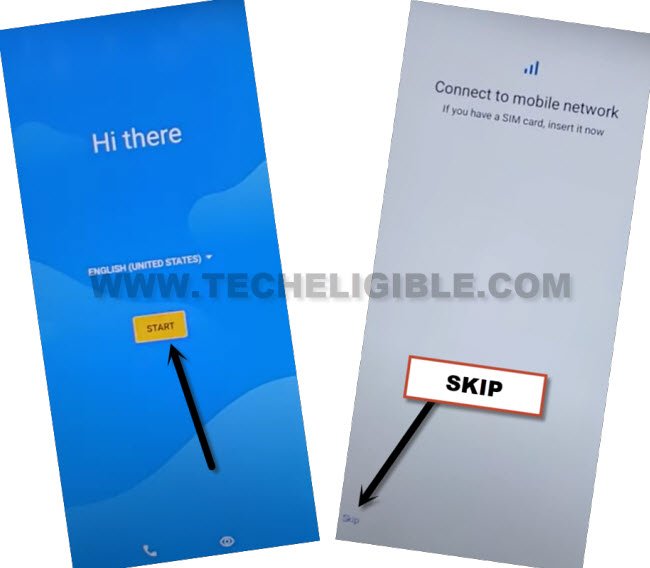
-Go back to first (Hi there) screen by tapping on back arrow multiple times or you can swipe up from bottom using two fingers together. You will automatically reach back to (Hi there) screen.
-Once you reach back to first startup page. From there, go to “Start” option. After that, tap on “Skip”.
-Wait on a loading screen. After that, you will reach to (Copy Apps & Data) screen. From there, tap once on the “Back Arrow” icon from bottom left corner.
-After that, you will reach back on WiFi page. Hit on > Setup offline > Continue.

-You will be shown a (Just a sec…) loading screen. From there, swipe up with two fingers together from bottom to get (Accessibility Menu Shortcut) functions. From there, tap on “Accessibility” option.
Note: If you don’t see (Accessibility) option or same menu as shown in below popup of accessibility, then, swipe the popup window to left side to get same menu as shown in below image.

-After few tries, you will manage to reach on (Accessibility) screen same as shown in below image. From there, bring up accessibility shortcut menu again by swiping up with two fingers from bottom to top.
-Tap to “Assistant” option.

-From (Google Play Services required) page, just tap over the “Settings” option from bottom right and hit on “Enable” button.
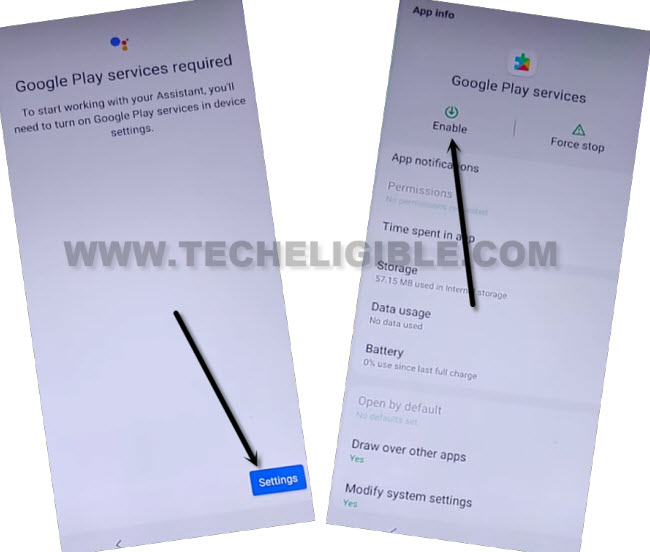
-Tap on back arrow from bottom to go back.
-Tap again on back arrow from bottom to go back. Finally, you will see (Google Services) screen. Just, go to > More > More > Accept.
-After that, you will reach on a security lock setup page. For now, just hit on > Skip > Skip Anyway.
-Tap on “Agree”. After that, select “3 buttons navigation” option. Tap on “Next”.
-After that, you will be redirected to the main home-screen of your device. Just, go to your device main settings page and setup security protection and also sing in with your other Gmail account.