If you still facing a FRP locking screen on your device because of forgetting previously setup google account, then, you will have to get help with this frp bypass guideline to Bypass FRP BlackView A80 Plus. We will access to main setup lock screen to setup latest pattern or PIN lock there. After that, go all the way back over the first (Hi there) screen and complete setup wizard steps easily. Check out steps here.
Disclaimer: We highly recommend you to apply this method only on your own device, if you are not owner of this device, or you found this from some where, you must return to its real owner.
Let’s Start to Bypass FRP BlackView A80 Plus:
-We are gonna startup this process by turning on BlackView phone.
-Go to WiFi screen and connect WiFi to your device. So that, we could start frp bypass steps on this device easily.
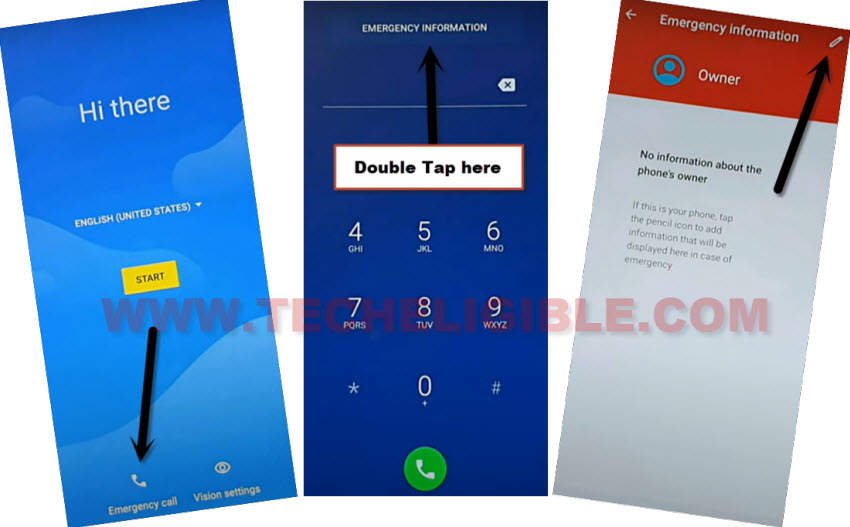
-Return on first (Hi there) startup screen and tap on “Emergency Call” option.
-Double tap on a top button “Emergency information”. After that, go to “Edit” option from top corner of the screen.
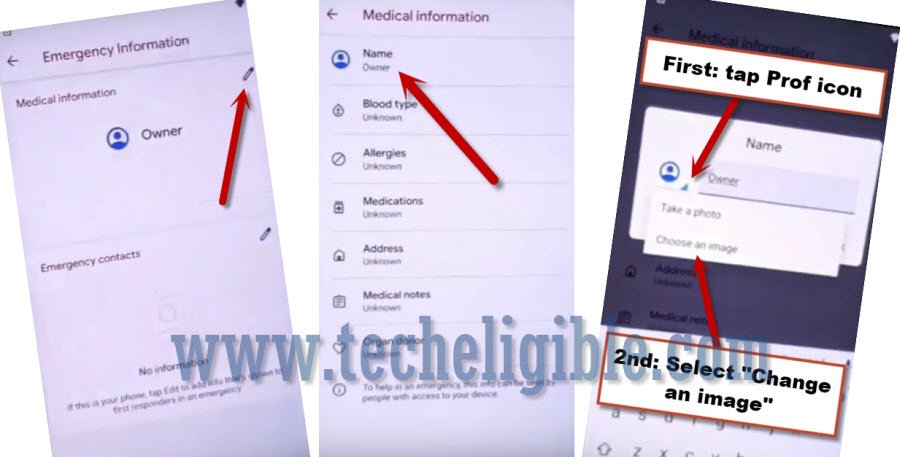
-Hit over the “Name” from top and tap to “Down Arrow” icon from human circle icon same as show in below image.
-After that, few options will collapse down, tap on “Choose an image” option from there.
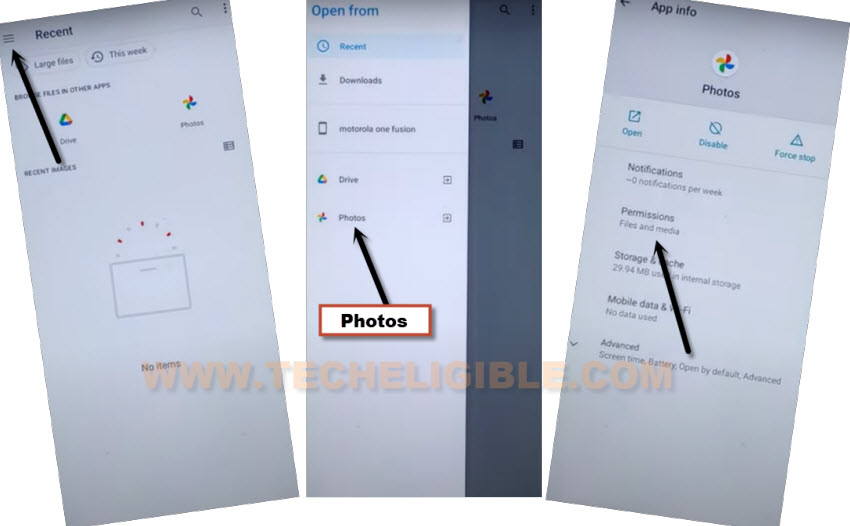
-Open up sidebar by tapping at the “Menu” option from top left corner and long tap on “Photos”.
-This will redirect you to the (App info) screen of photos. From there, tap to “Permissions”.
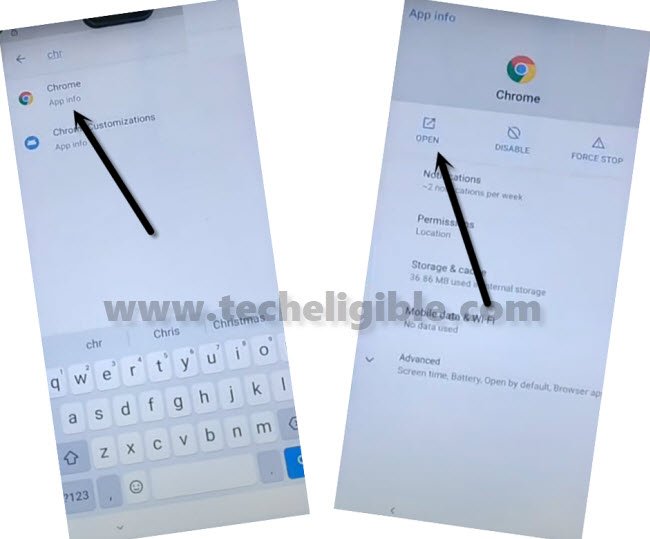
-Search and go to “Chrome” browser and tap to “Open” link from next page.
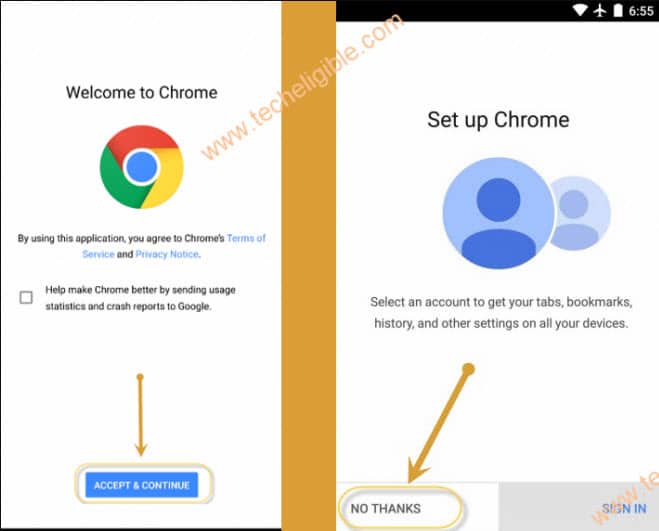
-You will access to (Welcome to chrome) screen. Let’s hit over these options one by one > Accept & Continue > Next > No Thanks.
Set-up Pattern to Bypass FRP Blackview:
-Let’s make search there in top search bar with “Techeligible” and go to same searched result as shown in below image.
-Go to “Menu” icon and tap on “Download FRP Tools” option from sidebar menu.

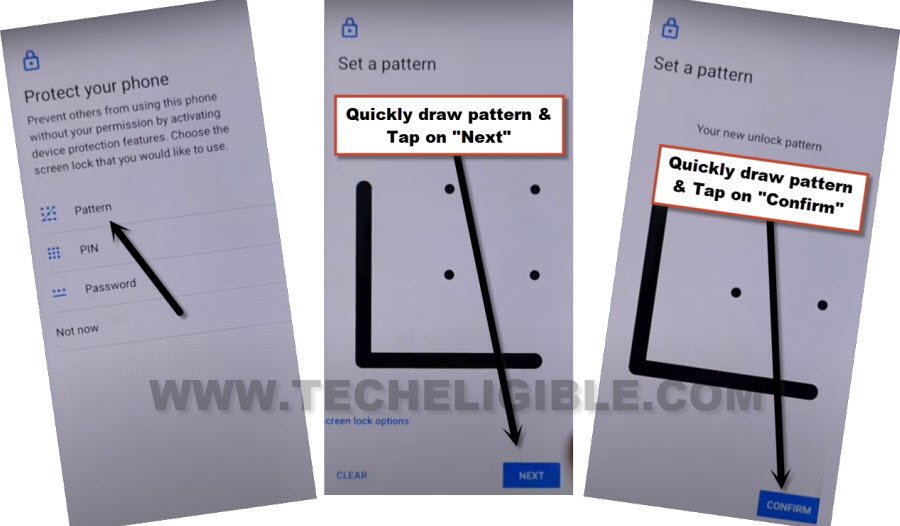
-Hit on “Set Pattern Lock” option to go to directly on screen lock setup screen to Bypass FRP BlackView A80 Plus.

-Setup any pattern lock on Blackview of your choice.
-Draw pattern and tap to “Next”. Draw pattern again and tap to “Confirm” option.
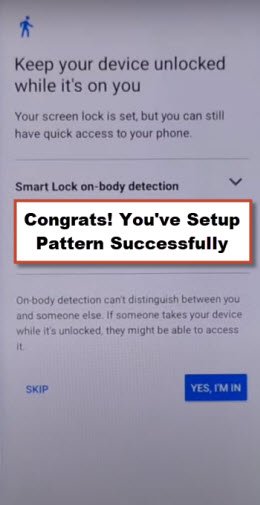
-As soon as you see , that means, you have successfully setup new pattern lock to Bypass FRP Account Xiaomi POCO C51, now we just have to tap over “Skip” option.
-Once the new pattern is setup successfully. You will be taken to the next screen of (Keep your device unlocked while its on you). From there, hit over the “Skip” option. Its all done now from Bypass FRP Blackview A80 Plus.
-Keep tapping at the back arrow option from bottom until you reach on first startup (Hi there) screen.
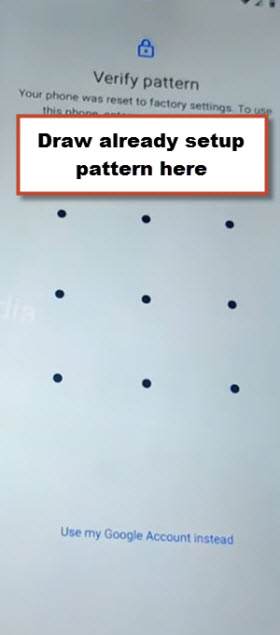
-Let’s complete setup wizard steps. You may be asked to verify pattern while completing the setup wizard. You have to draw recently setup pattern lock here to finish the verification process.
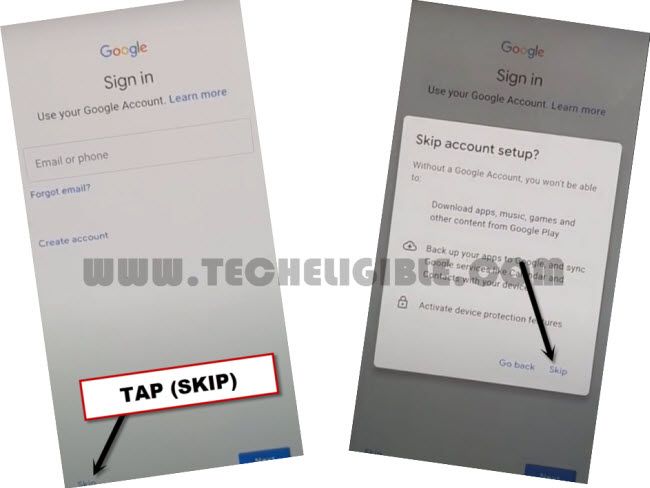
-Finally, you will be on a google sign in page again. From this page, hit on “Skip”. From popup window, hit on “Skip” again.
-That’s it, you can finalize all remaining steps on your own easily without any further instructions.