OTA Files is used to downgrade your realme android version 15.0 to 14.0 and Realme UI 6.0 to UI 5.0. If your phone battery is draining out too fast, or you are facing overheating issue, lags or crash apps and games right after updating your device with latest android version or updates. Then, you should go for rolling back to older version or update. This is your personal choice.
What is Rollback OTA Files
This is called the (Over-the-Air) files, these files need be installed directly on the phone without using any PC or flashing tool. OTA Files are used to update security patch, bugs fixing, and for upgrading the operating system. You can also use to downgrade your realme phone android version as well. We have big list of available (Realme Andrid 14) rollback files from a trusted official realme download center.
How to Install: The procedure is quite simple, without using any computer or paid tool, you can manually install the Realme OTA Files on your phone to downgrade or upgrade android version. You will have to check your device software version first. Check out below link, in which, you will be guided how to check software version and install manually.
Precautions:
1st: Keep your device fully charged, should be at least 60% charged.
2nd: Don’t forget to back up your device data. Otherwise, you’ll lose your all device data.
3rd: Download correct Realme Rollback OTA file by matching with your device software version.
4th: Install with only Official OTA Files of Realme only.
Check for Updates & Software Version
-Access the “Settings” menu on your device. Once there, select the “Software & Update” option.
-Before planning to manually install the OTA file, you must check out, if there any updates available or not. If you have any available update, firstly, update your device first. Do make sure, no update is left to be updated.
-To check out update, go to “3 dots” icon and tap to “Auto update” option.

-Review the software version of your device from that section. As shown in the image below, the software version is (RMX3997). You have to download exact software version matching with your device installed software version

-Download Rollback OTA Files on your realme phone by matching with your (Software Version and Model No). You can also download this file on your PC and transfer it directly to your device using USB Cable.
⇒ Realme Rollaback OTA Files (Android 14) [DOWNLOAD]
| Note: If you are looking for other android versions OTA Files, for that, you will have to search on chrome browser or check out files from the (Realme Community Center). You can also update your Realme phone directly from the realme official software update page. |
Enable Developer Option:
-You will have to turn on the developer mode on your device, otherwise, you won’t be able to install Rollback OTA file manually.
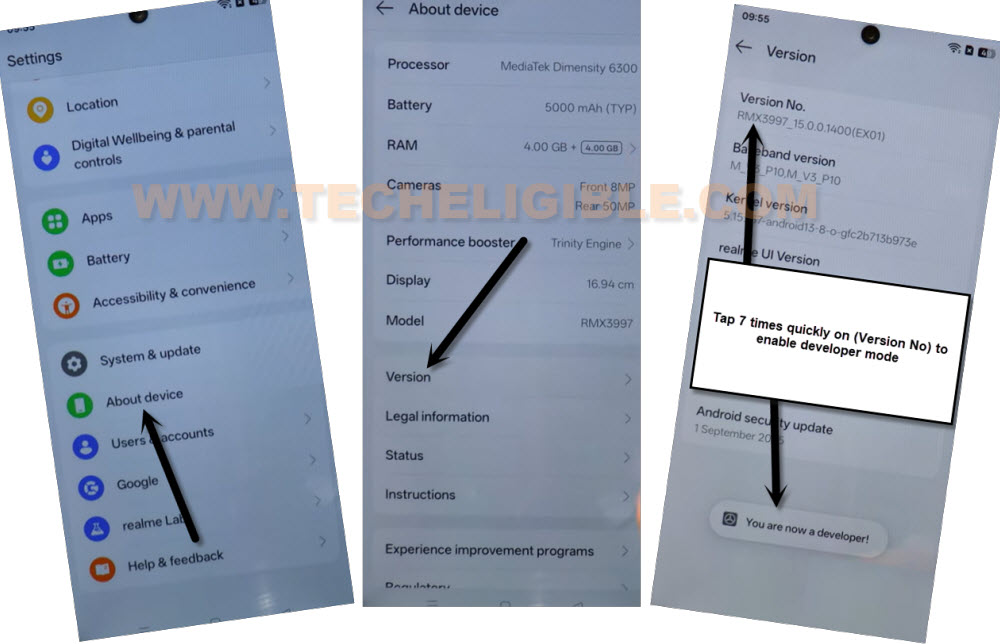
-Go to your device (Settings) interface. From there, scroll down and tap to > About Device > Version.
-You need tap 7 times rapidly over the “Version No” option. This will show you a popup message of (You are now a developer). That means, we have successfully enabled the developer mode.
Install Realme OTA File to Downgrade Realme UI 6.0 to UI 5.0:
-We need to access back on (Settings) screen. From there, hit on “Software & Updates” to reach on software update screen.
-Afterwards, tap over the > 3 dots > Local Install.

-Give your downloaded (Rollback OTA Files) location. If you file is in (Download) folder, then, hit on > Menu icon > Realme device.

-From there, just tap on “Download” folder, or any folder, where your OTA file is available.
-Tap on the OTA files to be selected for installation.

-Finally, hit on > Install Now > My Data is backed up.
-This may take several time to be done, once completed, hit over the “Restart Now” option.

-Your device will be auto restart and wait until installation process is done. After that, you will be shown the first (Hello) homepage. Its all done now from Install Realme Rollback OTA Files without using any PC and paid tool.
Download OTA Files Realme UI 5.0 (Android 14):
If you install below downloaded on your realme phone, then, your device will rollback to (Realme UI 5.0 Android version 14). These below OTA files must be checked first with your device software version. You can easily verify this with the given (Code Name).
We have different Realme models OTA Files of realme UI 5.0 (Android 14) here with one click to download. If you are facing FRP Locking issue on your Realme UI 6.0 Open Beta Android 15 versions phones, then, you can download and install manually the (Realme Android 14 OTA File) on your phone to downgrade the android version from 15 to 14 version easily. After that, you will be able to configure another google account and pattern lock setup on the frp locked phone easily without facing any trouble.
Realme 11 Pro+ 5G |
Realme 11 Pro 5G |
Realme 11 5G Code Name: RMX3780 Version: RMX3780_14.0.0.115(EX01) Android 14 OTA File Link |
Realme 12 Pro+ 5G Code Name : RMX3840 Version : RMX3840_14.0.0.1501(EX01) Android 14 File Type : OTA OTA File Download
|
Realme 11x 5G Code Name : RMX3785 Version : RMX3785_14.0.0.115(EX01) Android 14 File Type : OTA OTA File Download |
Realme 12+ Code Name : RMX3867 Version : RMX3867_11_A_OTA_0260_all Android 14 File Type : OTA OTA File Download
|
Realme 12x 5G Code Name : RMX3998 Version : RMX3998_11.A.60_0600_202412092212 Android 14 File Type : OTA OTA File Download |
Realme 12 Pro 5GPro 5G Code Name : RMX3842 Version : RMX3842_14.0.0.1501(EX01) Android 14 File Type : OTA OTA File Download |
Realme 12 5G Code Name : RMX3999 Version : RMX3999_14.0.1.513(EX01) Android 14 File Type : OTA OTA File Download |
Realme 13 5G Code Name : RMX3951 Version : RMX3951_11.A.45_0450_202411251954 Android 14 File Type : OTA OTA File Download
|
Realme 13 Pro 5G Code Name : RMX3990 Version : RMX3990_11.A.40_0400_202410221455 Android 14 File Type : OTA OTA File Download
|
Realme 13+ 5G Code Name : RMX5000 Version : RMX5000_14.0.1.450(EX01) Android 14 File Type : OTA OTA File Download |
Realme 13 Pro+ 5G |
Realme Narzo 70X 5G Code Name : RMX3998 Version : RMX3998_11.A.58_0580_202411291737 Android 14 File Type : OTA OTA File Download |
Realme Narzo N65 5G Code Name : RMX3997 Version : RMX3997_11.A.46_0460_202411261440 Android 14 File Type : OTA OTA File Download |
Realme Narzo 60 Pro 5G Code Name : RMX3771 Version : RMX3771_14.0.0.912(EX01) Android 14 File Type : OTA OTA File Download |
Realme 14x 5G Code Name : RMX3940 Version : RMX3940_14.0.1.513(EX01) Android 14 File Type : OTA OTA File Download |
Realme Narzo 70 Turbo 5G Code Name : RMX5003 Version : RMX5003_14.0.0.520(EX01) Android 14 File Type : OTA OTA File Download |
Realme Narzo 70 Pro 5G Code Name : RMX3868 Version : RMX3868_14.0.0.514(EX01) Android 14 File Type : OTA OTA File Download |
Realme Narzo 70 5G Code Name : RMX3869 Version : RMX3869_14.0.0.508(EX01) Android 14 File Type : OTA OTA File Download |
Realme C67 5G Code Name : RMX3782 Version : RMX3782_14.0.0.115(EX01) Android 14 File Type : OTA OTA File Download |
Realme P1 5G Code Name : RMX3870 Version-RMX3870_14.0.0.509(EX01) Android 14 File Type : OTA OTA File Download |
Realme P1 Pro 5G Code Name : RMX3844 Version-RMX3844_14.0.0.901(EX01) Android 14 File Type : OTA OTA File Download |
Realme C65 5G Code Name : RMX3997 Version : RMX3997_11.A.45_0450_202411251954 Android 14 File Type : OTA OTA File Download |
Realme C63 5G Code Name : RMX3950 Version : RMX3950_14.1.0.513(EX01) Android 14 File Type : OTA OTA File Download |
Realme P2 Pro 5G Code Name : RMX3987 Version : RMX3987_11.A.08_0080_202410221520 Android 14 File Type : OTA OTA File Download |
Realme GT 6 Code Name : RMX3851 Version : RMX3851_14.0.1.614(EX01) Android 14 File Type : OTA OTA File Download |
Realme P1 Speed 5G Code Name : RMX5004 Version-RMX5004_14.1.0.510(EX01) Android 14 File Type : OTA OTA File Download |
Realme P1 Pro Code Name : RMX3844 Version-RMX3844_14.0.0.901(EX01) Android 14 File Type : OTA OTA File Download
|
Realme GT 6T Code Name : RMX3853 Version : RMX3853_14.0.1.614(EX01) Android 14 File Type : OTA OTA File Download |
Realme GT NEO 3TCode Name : RMX3371 Version : RMX3853_14.0.1.614(EX01) Android 12 (Rollback to Android 12) File Type : OTA OTA File Download |
FAQs About Realme Downgrading UI 6.0
Rollbacking to older version is safe?
Yes, its totally safe to fix up bugs and issues occurs after updating the phone.
How to download correct Rollback OTA File?
Rolling back to Android 14 version OTA Files link is available here, if you are looking for other android version file package, then, you will have to search out on google.
I am not able to search out my device correct OTA File?
Then, you will have to access to this link (https://www.realme.com/in/support/software-update), which is of realme official link, follow up the instructions and download correct file.