
Have you been locked out on your own phone right after doing factory reset? Major reason behind this, you might have forgotten your logged in gmail account details. Factory reset can remove all your device data including settings except the logged in account. FRP protection is actually linked with gmail ID and its the requirement of this security protection to ask the user for logging-in back with same google id that was being used earlier. If you have forgotten your account, then, check out steps here for Bypass FRP OnePlus Nord N30 5G (Android 13).
Remember: Do not try this frp method on a stolen phone, this is a serious crime, if you are trying to bypass frp on a stolen phone, you may also be jailed, this process is for device owner and for educational purpose only.
Let’s Start to Bypass FRP OnePlus Nord N30 5G:
-We will begin this procedure by powering on the phone and connecting to WiFi.
-Return to the (Connect to WiFi) section, then select > Exclamation icon > Share > Nearby.
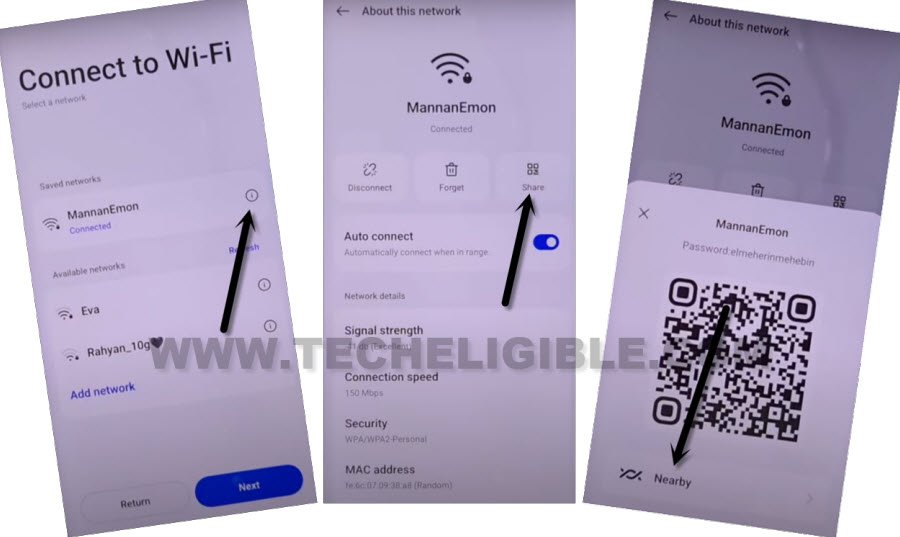
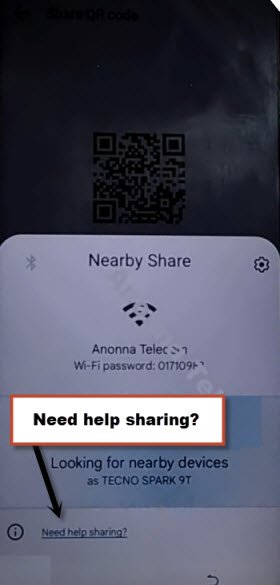
-Then, you need to choose options > Continue > Allow. Tap to hyper link “Need Help Sharing”.
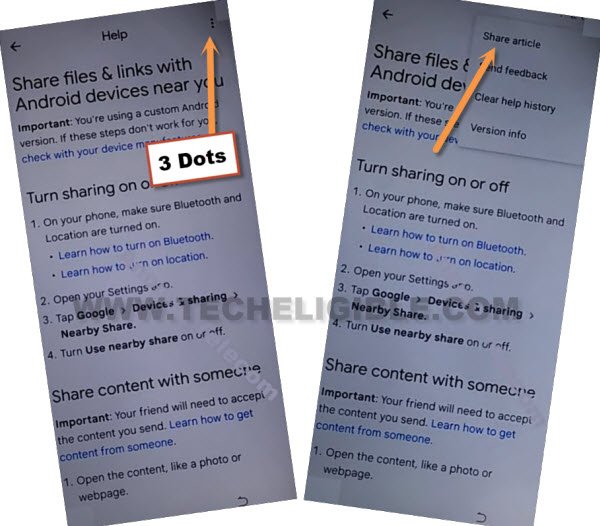
-From the extreme top corner, tap > 3 Dots > Share Articles.
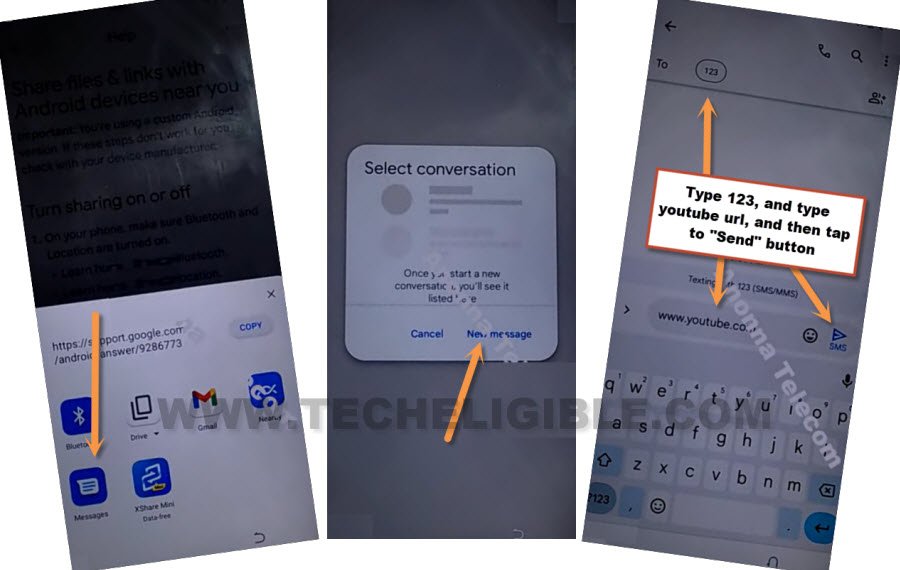
-A sharing popup will appear at the bottom with various share applications; hit > Message > New Message.
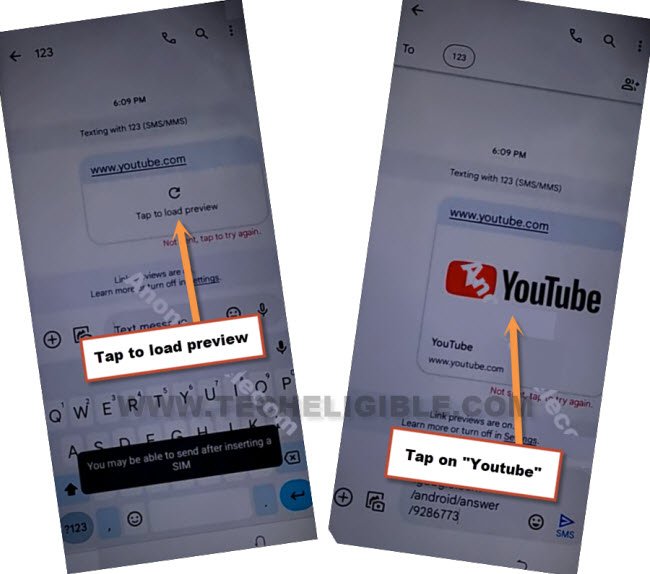
-Enter the URL “www.youtube.com” and send it to any random phone number via text; this URL will later be turned into a hyperlink.
-Click on “Tap to load preview,” after that, from thumbnail preview, just tap “Youtube.”
-Once you reach at the official youtube site. From top corner, go to “Human” icon.
-Then, hit on > Settings > History and Privacy > Youtube terms of services.
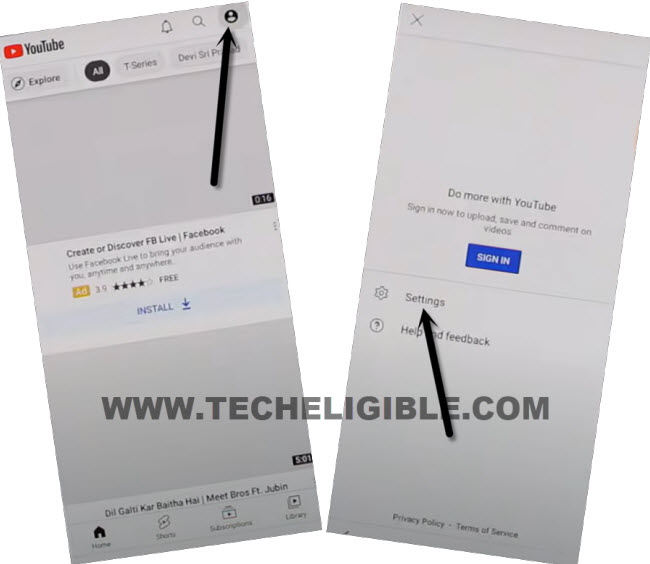
-Let’s hit over the > Use without an account > No Thanks. The Google Chrome browser will now launch successfully.
-After that, We can readily navigate to our device’s main settings page to Bypass FRP OnePlus Nord N30 5G.
Access Settings Directly:
We can seamlessly navigate to the techeligibe website for FRP tools by searching in the browser with “Techeligible“. After that, visit our website from the first searched result.
Select the “Menu” icon in the upper corner to display the sidebar menu. From there, click on “Download FRP Tools.”

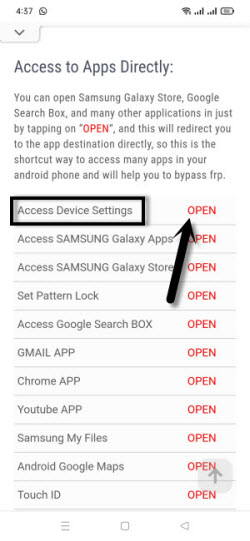
Visit the result of our website search and choose the “Access Device Settings” option from the FRP tools page.
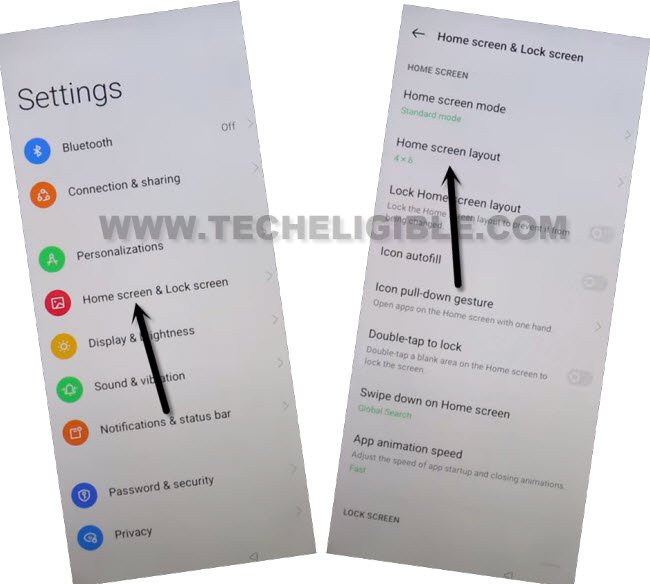
-Once we are in the device settings, scroll down a bit and click on > Home screen & Lock Screen > Home Screen Layout.
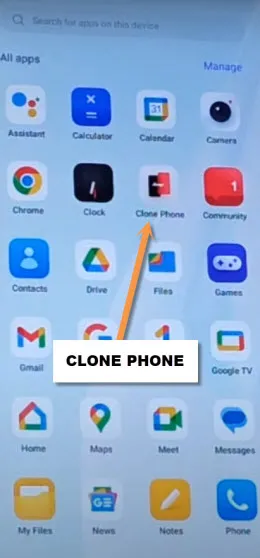
-Launch the (Clone Phone) application from the main menu of your device; this app comes preloaded on all OnePlus phones.
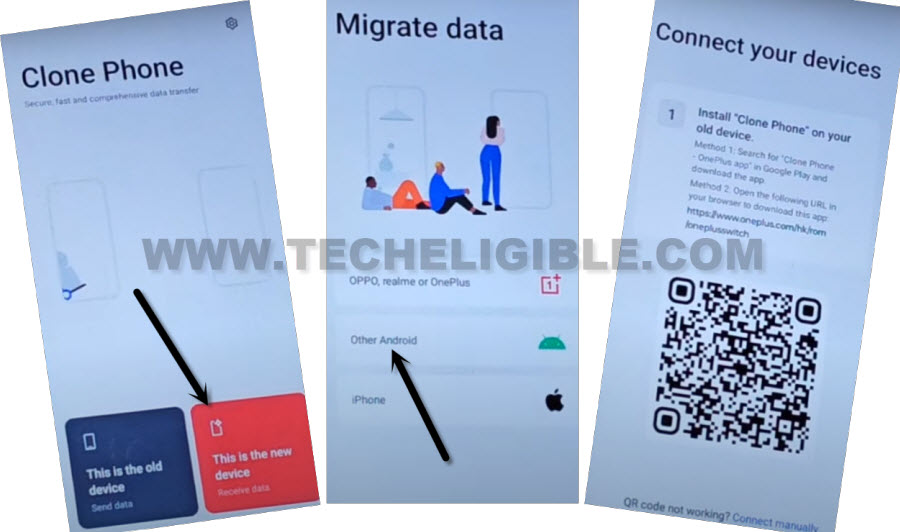
-Choose the option “This is the new device” in the clone phone app. After that, grand permissions by tapping “Allow”. Then, hit on “Other Android”.
Note: You can also choose (Oneplus/OPPO/Realme), if your other phone brand one of these.
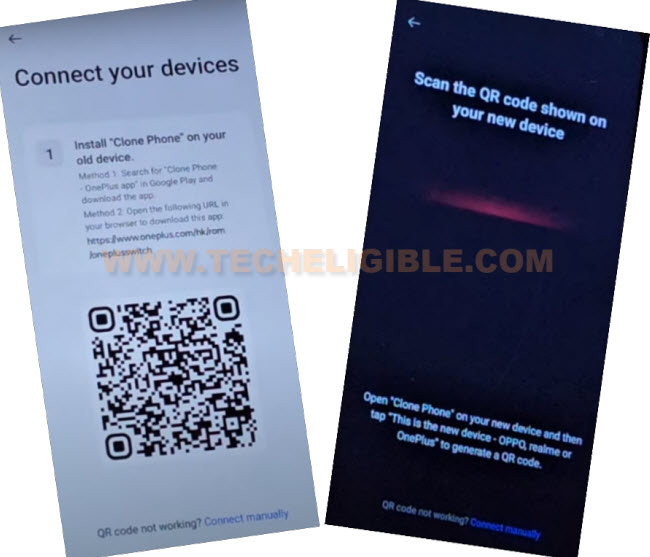
-Then, you will see a QR Code screen.
Use Any Other Android Device:
-Connect your other android phone to the same Wifi network, on which, your frp locked OnePlus Nord N30 5g phone is connected.
-Let’s continue below given steps on your other Android device.
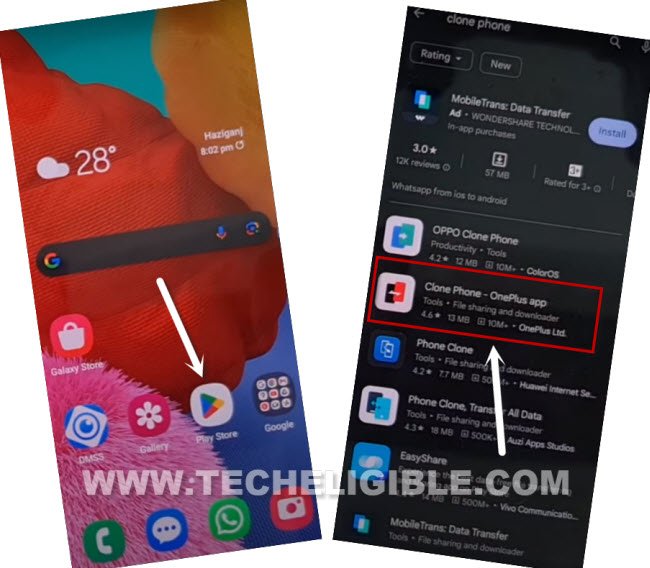
-Open “Google Play Store” and install “Clone Phone – Oneplus App.”
Note: If you are unable to find (Oneplus Clone app), then, look for (OPPO Clone Phone) or any other clone phone.
-Launch the installed app (Clone Phone – Oneplus), and click on “Agree & Continue.”
-Choose the option “This is the old device”.
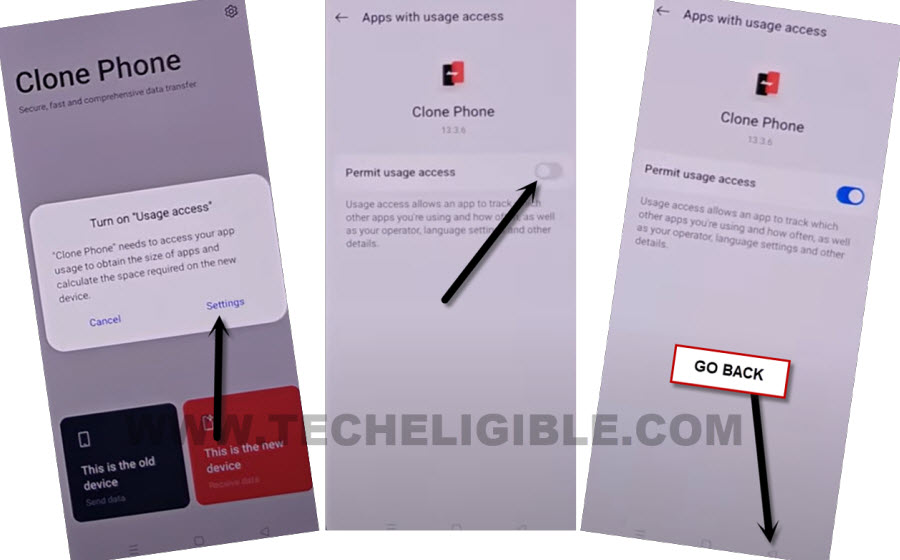
-You will see a popup notification, just tap “Settings” and turn on the required option. Then, go back.
Note: You may see popup screen multiple times, each time, go to “Settings” and turn on required option then go back.
-Also give permissions by tapping on “While using the app and Allow” option. After that, you will be shown (QR Scanner) screen.
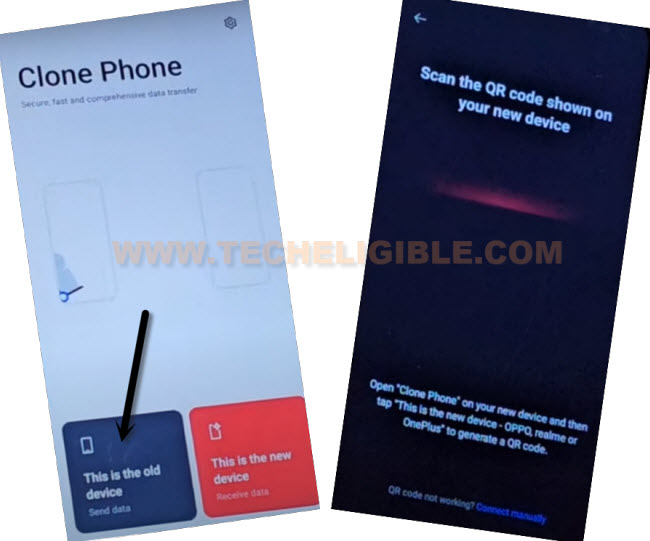
-Its time to scan the QR Code from (OnePlus Nord N30 5G) device using the other phone (QR Code Scanner). By doing this, both devices will be linked together.
Note: Do make sure, both phones are on same WiFi network.
Choose any random app to transfer:
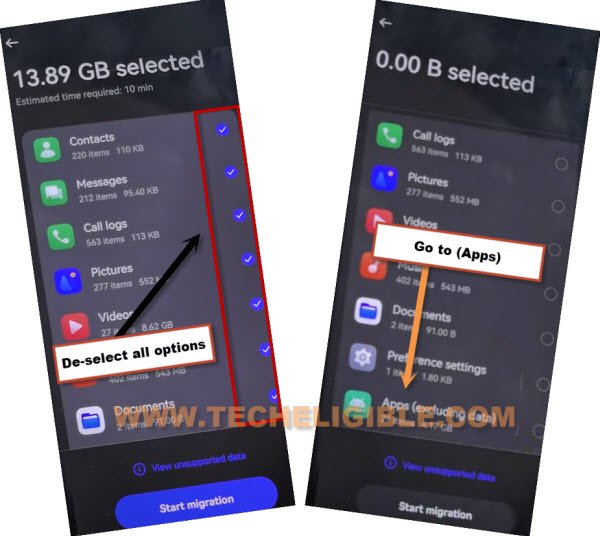
-After both devices are connected successfully, go to your other Android device, uncheck all options, and then select “Apps (excluding data)”.
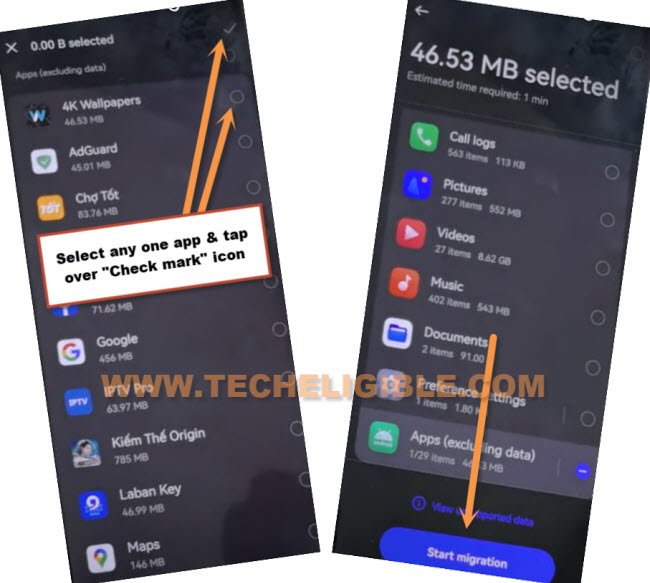
-Choose any app from the list (App); for instance, we will pick the “4K Wallpapers” app, and then tap on the “Check mark” icon located at the top right corner (refer to the image below).
-Press the “Start Migration” button.
-This process will take some time to complete; once finished, just tap on “Done” from the migration completion screen. Subsequently, choose “Buttons” and click on “Next”.
-Afterwards, you have to choose > Skip > Done > Get Started.
FAQs About OnePlus Nord N30 5G:
How do i prevent from facing the frp lock on (OnePlus Nord N30) phone?
Before going for the factory reset or hard reset, note down your logged in Gmail account. Because, while completing the setup wizard steps, you will need to login back with google account.
Why do we use (Oneplus Clone Phone) application?
This app is used for transferring applications from one device to another. Using this app, we can successfully bypass the frp lock protection.
What do i do, if my other phone is not of the oneplus brand?
You can use any other android phone. Install (OnePlus or Oppo Clone phone) app using the google play store.
Conclusion
We just turned on WiFi connection and using the QR Code sharing option, accessed to the SMS texting screen. From there, we typed and sent (youtube url) to any random number. Then, reached at official youtube site and then launched the main (Settings) page of the frp locked device. Finally, we launched and used (One Clone Phone) application. Connected with other android phone to complete frp bypassing method.
Read More: Oneplus N20 SE FRP Bypass