
Have you lost the Gmail account you were signed in with on your phone after doing a hard reset? Your phone will get stuck on the Google sign-in page and will prevent you from proceeding until you re-enter the same Gmail account that was previously configured. This is known as the FRP lock protection feature, which is enabled automatically when a hard reset is performed and the user forgets or is unaware of the credentials for the previously logged Google account. If you face the same situation like this, you should follow the instructions provided here to Bypass FRP Itel A90.
Keep in mind: Do not attempt this FRP technique on a device that has been unlawfully taken. Engaging in efforts to remove FRP from a stolen device constitutes a grave offense. You could face imprisonment, as this approach is intended solely for the legitimate owner of the device and for learning purposes. It is designed to help the rightful owner understand how to regain access to their phone and establish a new account.
Follow Steps to Bypass FRP Itel A90
-Start the frp unlocking procedure by turning on the phone & connect to WiFi network.
-After that, go back on the first startup screen, which if off course (Select Language).
-Let’s insert PIN locked setup SIM card on your device. After inserting the card, you will be shown a (Enter SIM PIN) black screen.
| Note: You can setup 4 digits PIN code on your SIM using any other android phone by going to (Settings). After that, use that SIM card on the FRP locked device. |
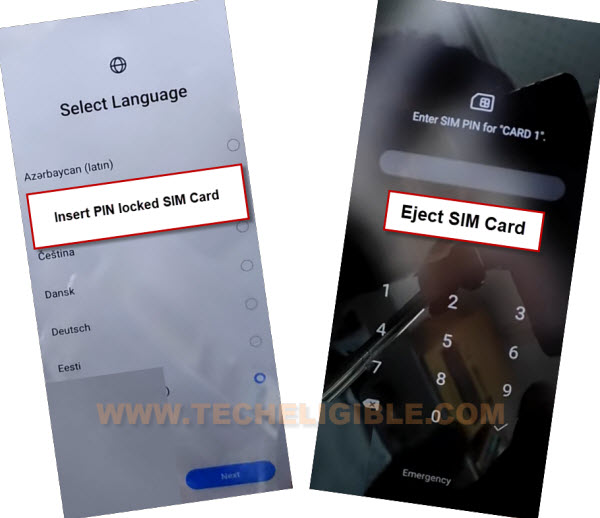
-Remove the SIM card through ejecting SIM tray and press the (Power button) to wakeup the phone screen. There, you will see (Not Signed-in) popup screen.
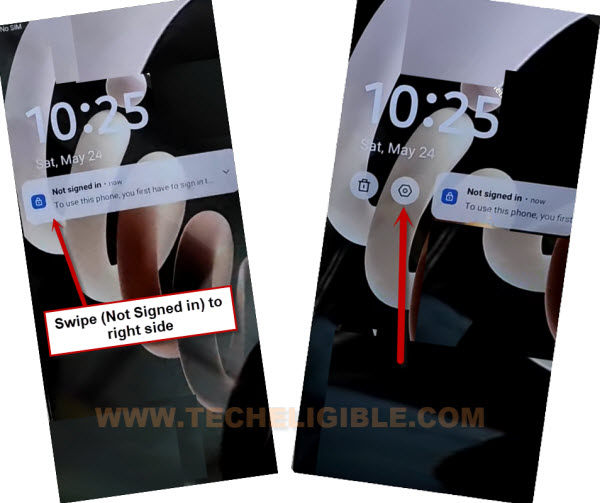
-With one finger, swipe the (Not signed-in) message to right side and quickly tap on “Settings” gear option.
Note: If the setting is not working, then, swipe the (Not signed in) to left side and tap on “Settings” icon.
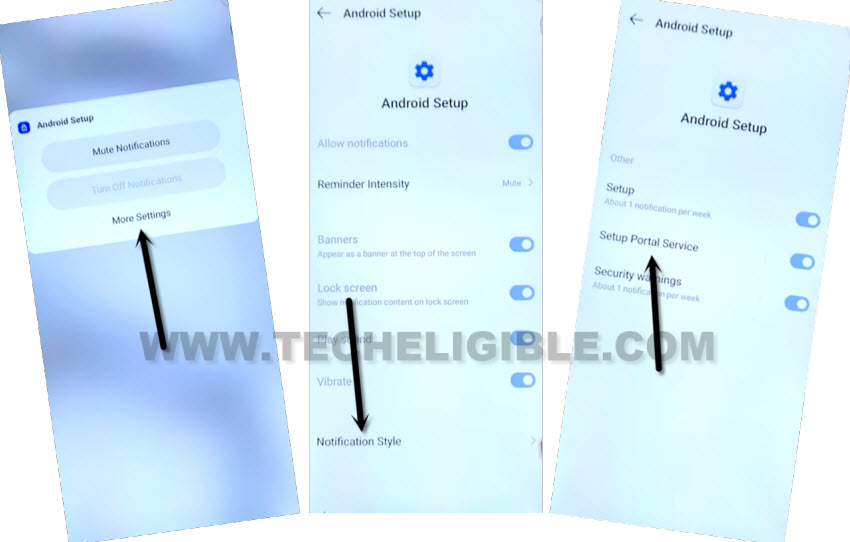
-Afterwards, go to > More Settings > Notification Style > Setup Portal Service.
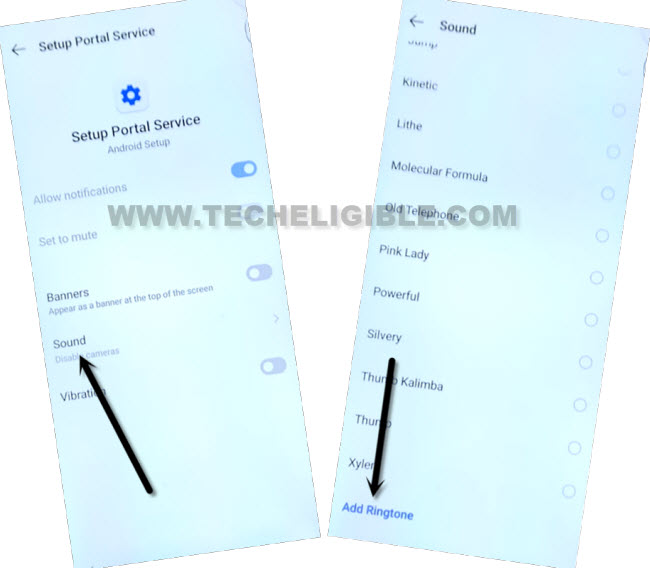
-Click over the “Sound” and go all the way down and tap at “Add Ringtone”.
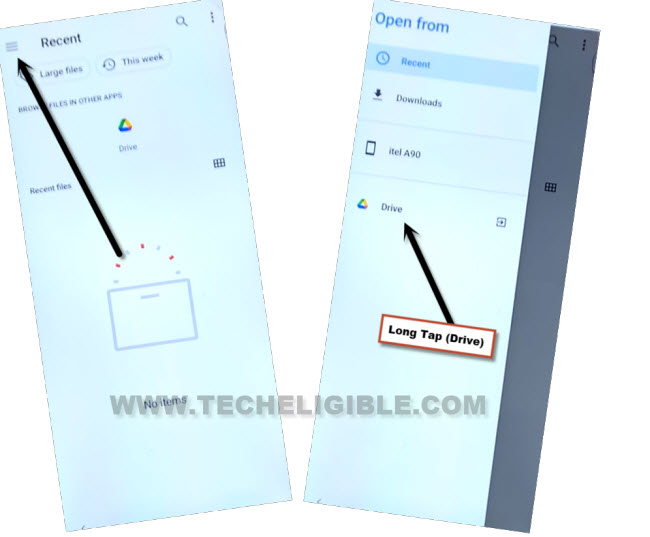
-Hit on the “Menu” option from top left corner and long hold at “Drive”.
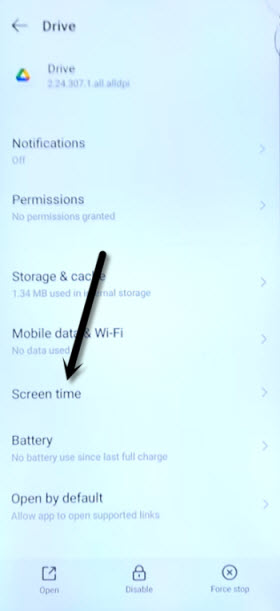
-From the next screen, tap on the “Screen Time”.
Go to Youtube Site through Help Page
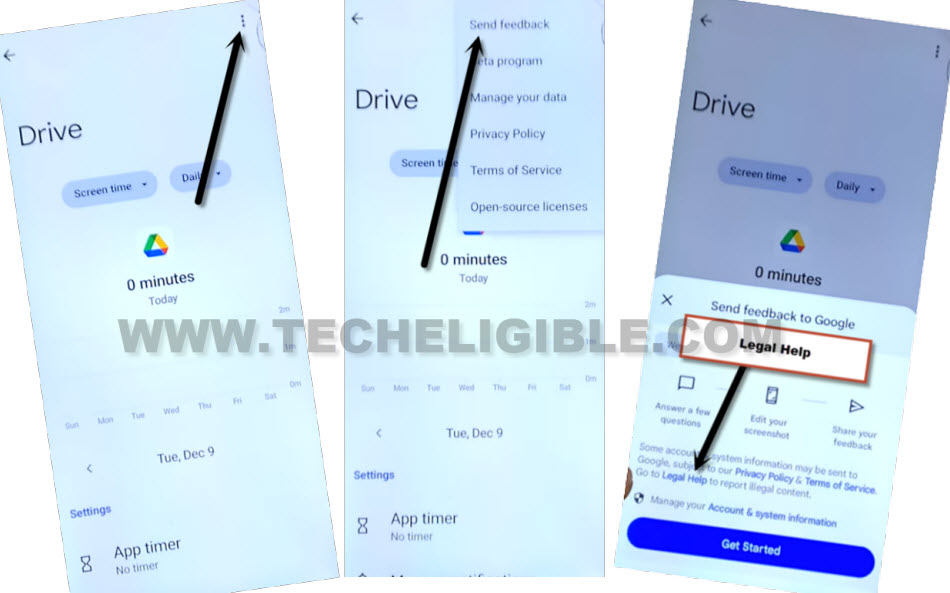
-After that, tap on “3 dots” icon from top right corner and go to “Send feedback”. After that, you will be shown a popup window, from there, hit on the link “Legal Help”.
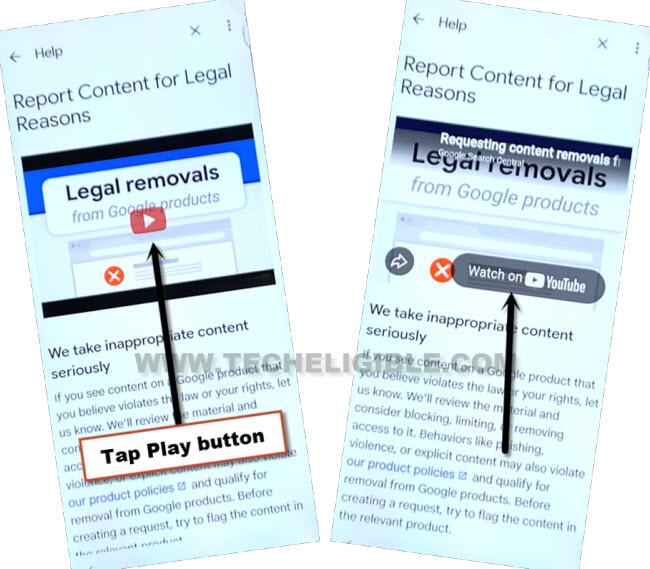
-You will be redirected on the (Help) page, there you will see youtube video, just tap on the “Video play button”. After few seconds, you will see youtube video further options. From there, tap on “Watch on youtube”.
-From popup window, hit on “Allow”.
-This action will lead you to the main youtube official site.
-Let’s open up the video main channel page by tapping on “Google Search Central” option.
-Tap > 3 dots > Help & feedback.

-Open up the search bar by tapping on “Search help” box.
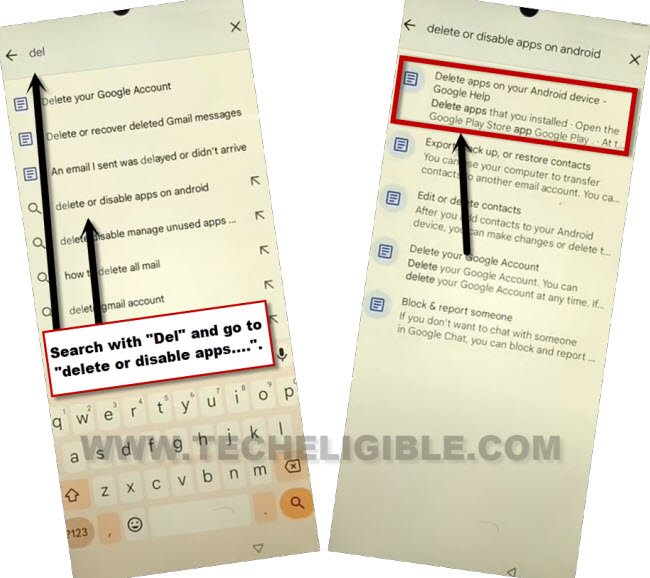
-Type on search box “Del” and go to “delete or disable apps on android”. To make search with, tap to “Search” icon from keyboard bottom right corner.
-You will be displayed searched result list, from there, tap on “Delete apps on your android device – google help…”.
Disable Apps by going to App List Page
-Go to link “Tap to go to application settings”.
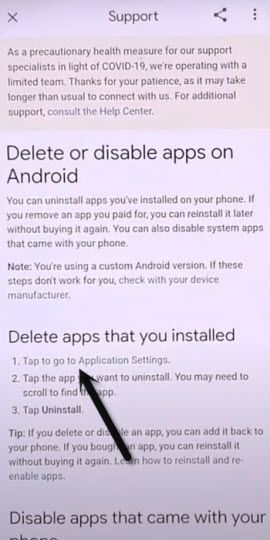
-After reaching at the (App list) screen, go down and tap on “Settings” gear icon to access the main settings options of the itel A90 phone.
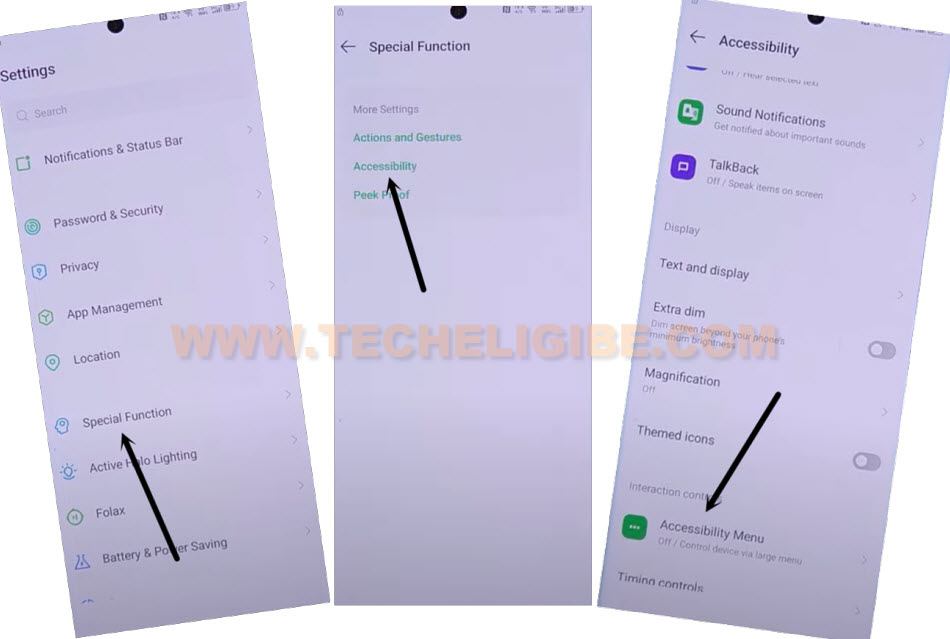
-From the settings page, simply, tap on the “Special Function”.
-Afterwards, go to “Accessibility”. Finally, tap to “Accessibility MENU”.
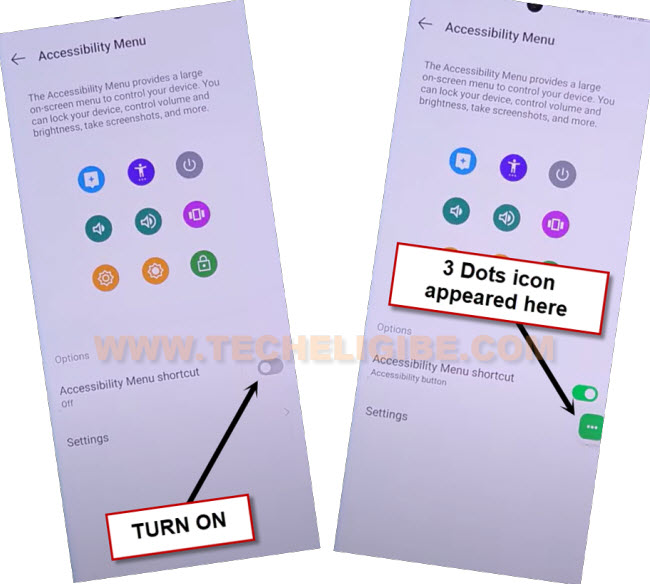
-Toggle on the “Accessibility Menu Shortcut”. After that, just tap on > Allow > Got it.
-You will be shown a green colored (3 dots) icon. We will use this option later on.
-Tap on back arrow and get back to main (Settings) page.
-Afterwards, simply, hit over the “App management”. Finally, hit on “App list” page to reach on the app list screen.
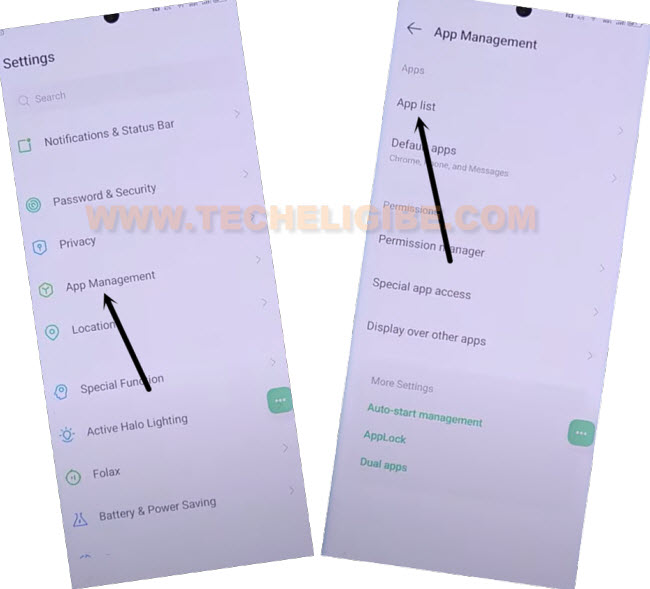
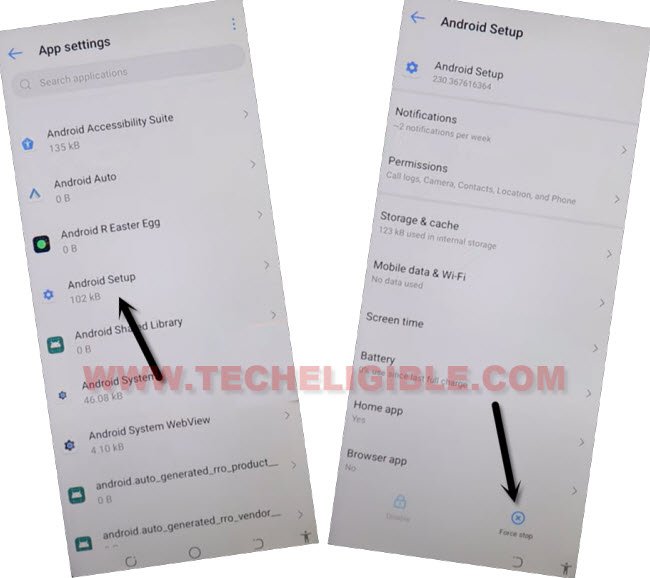
-Hit over the “Android Setup” application.
-Let’s force stop this application by tapping on > Android Setup > Force > Ok.
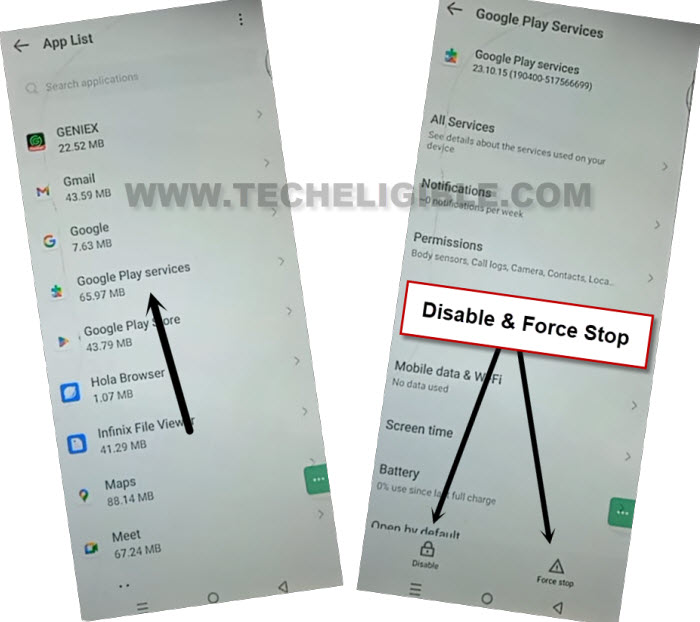
-Return to the app list screen. From there, find and hit on “Google Play Services” app.
-We have to click on the “Disable > Disable this app”. After that, click on the “Force Stop > Ok”.
Restart Phone & Enable Google Play Service
-Restart your device just by long holding the “Power key” and choose the “Restart” option.
-From the first startup screen of (Select Language), just go to > Next > Next > Skip.
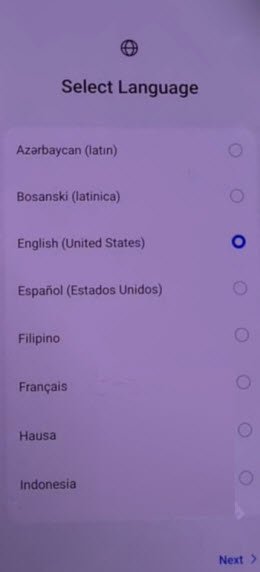
-Once you have a WiFi page, just connect to your WiFi network. After that, go to > Next > Don’t Copy.
-Wait for a minute on the (Checking for updates….) page. It will not finish up. We will have to use here (3 dots) icon.
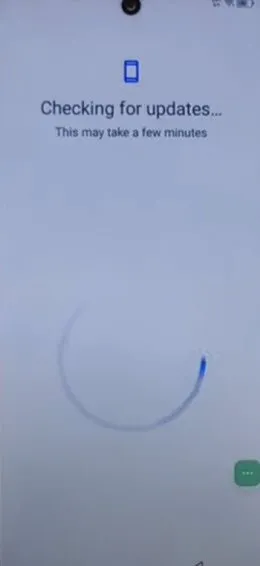
Use Accessibility Shortcut Menu
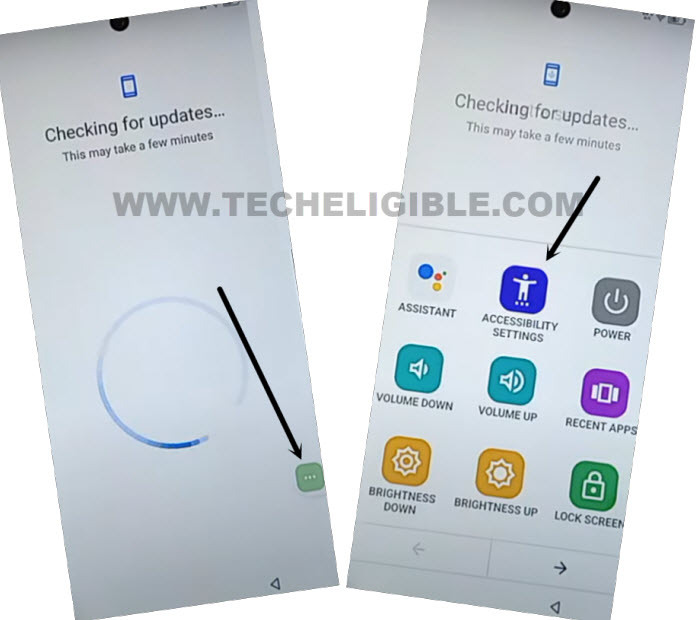
-Let’s hit over the “3 dots” icon and then, go to “Accessibility Settings”.
| Note: Keep repeating these steps until you reach on the (Accessibility) page. |
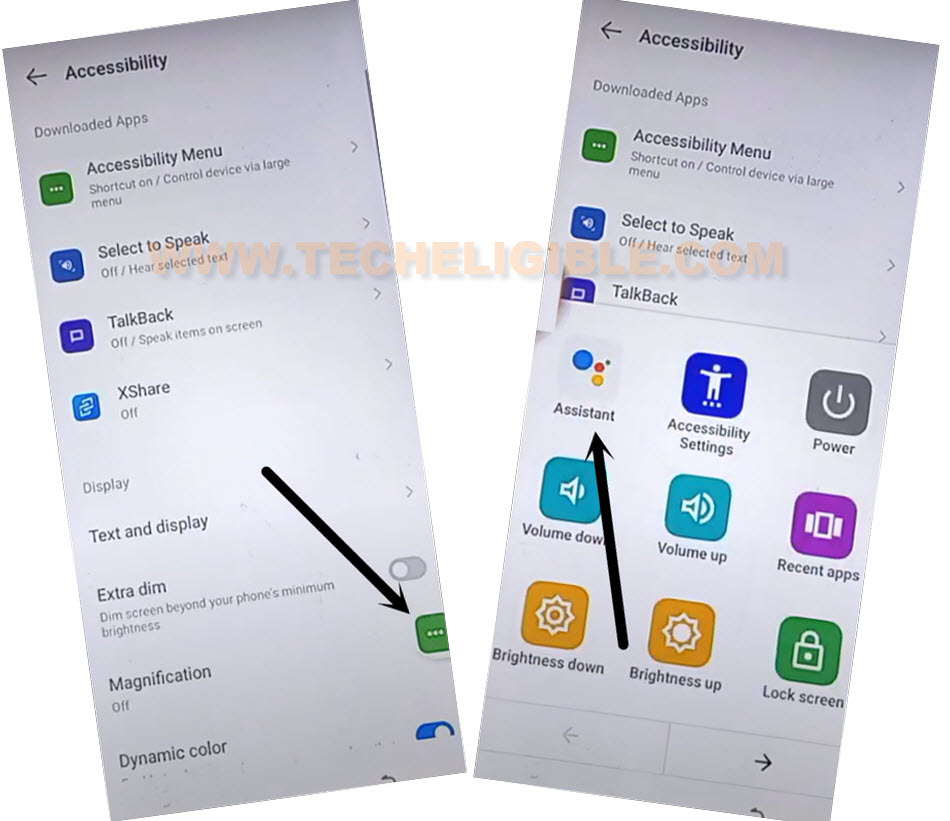
-Finally, you have reached on the (Accessibility) page. We just have to move on further by hitting again on > 3 dots > Assistant.
Note: If you see popup window with other option, just choose “Use without an account”.
-You will be shown a popup window, tap at “Human” icon same as shown in below image.
-Go at “Help” option.
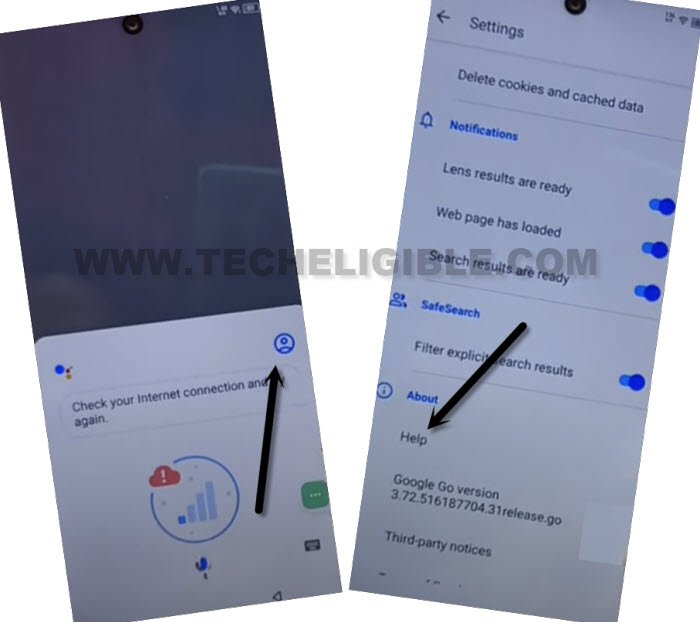
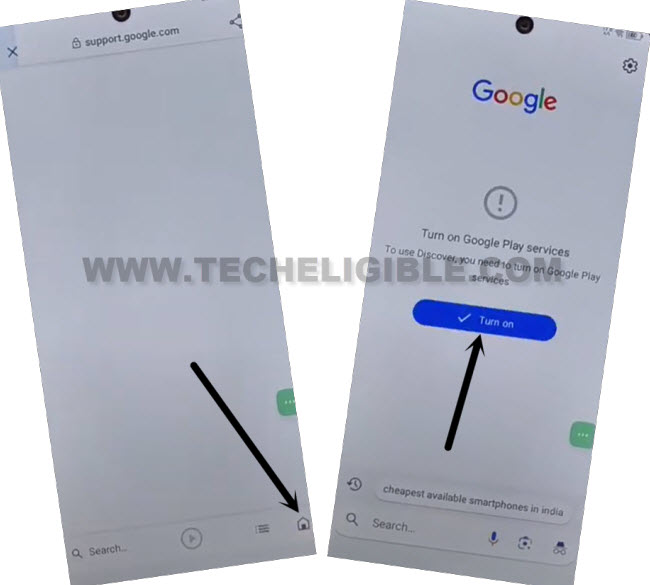
-Finally, tap on the “Home” icon.
-You will be asked for enabling the google play services app, just tap on “Turn on” option.
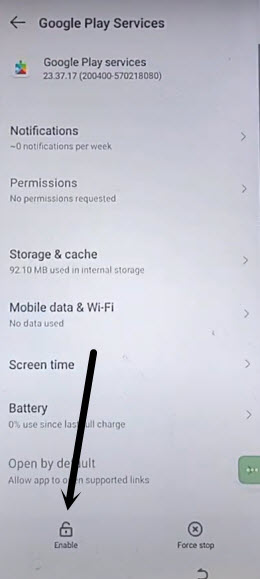
-Hit on the “Enable” option.
-Let’s start tapping on the back arrow and go back to loading page that is (Checking for update…).
-This loading screen will go away within a seconds and you can finish up all remaining steps on your own.
Conclusion
On a frp locked itel A90 phone, we simply inserted the (PIN Locked) sim card and accessed to the youtube website just through (Legal) help option. After that, reached on the main (Settings) page and enabled the (Accessibility Menu Shortcut). After that, we just disabled (Google Play Services) application. Finally restarted the phone used the (Accessibility) option to enable again (Google Play Services).