
Have you found it impossible to log back into your Google account on a phone, you have done a data wipe or factory reset? If your response is affirmative, it indicates that you are now locked by FRP. You will be barred from accessing this device again until you validate your ownership by logging in with the pre-existing Gmail account. Don’t worry, we are available to help you with this issue. To resolve this situation, follow up our exceptional Guide to Bypass FRP Oukitel WP55.
Disclaimer: It is strongly advised that you utilize this technique solely on your own device. If you are not the legitimate owner or have come across this information elsewhere, you must return it to the rightful owner. This technique is intended for instructional purposes only.
Let’s Begin with Bypass FRP Oukitel WP55
You will definitely need a computer and a free application (BFT V.17). We will provide a link in this post for you to download this application and set it up on your computer. This tool is entirely free and will assist you in bypassing the FRP account with just a few clicks. Make sure to closely follow the provided instructions.
Install BFT Tool on PC
-Obtain the computer application using the link provided below. Download it to your computer.
| ⇒ BFT Tool V1.7 [DOWNLOAD]. |
Note: Always temporarily disable or turn off your computer’s @ntivirus software while using the (BFT Tool).
-Once the BFT application is downloaded, install it on your computer. Now, let’s open it.
-Select the “Login” option to log-in with the default user ID and password.
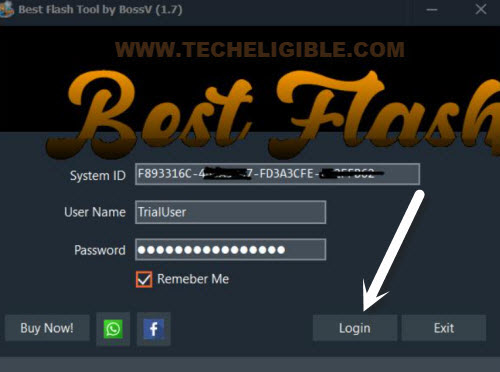
-We need to choose the appropriate processor and chipset name from the application interface. For this step, select “0-UNISOC.”
-Afterwards, you need to select the chipset labeled “[AUTH] Tiger T606 (64).”

Install All the Necessary Drivers on PC
-It is essential to install the correct USB drivers on your computer to avoid any issues when connecting the phone to the computer.
-On the same BFT application screen, click on the “Drivers” option from extreme top right corner and then, choose the “Install SPD Driver” to proceed with.
-If you see a pop-up window for driver installation, simply select the “Next” option and complete the installation guide.
-Following that, you need to install the second driver called “Install LibUSB Filter Driver.”

-Once the installation is done, a pop-up window for the (LibUSB filter driver) will appear. Let’s proceed to > Install a device filter > Next.
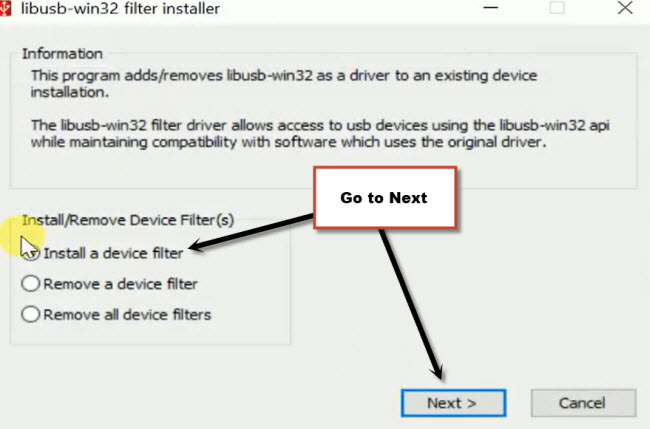
-Power off your Oukitel WP55 phone and connect it to the computer while simultaneously pressing the (Volume UP + Down) buttons. This action will allow the LibUSB driver to detect your phone and show you a driver to install.
-From this window, select the pop up driver and click on the “Install” button.
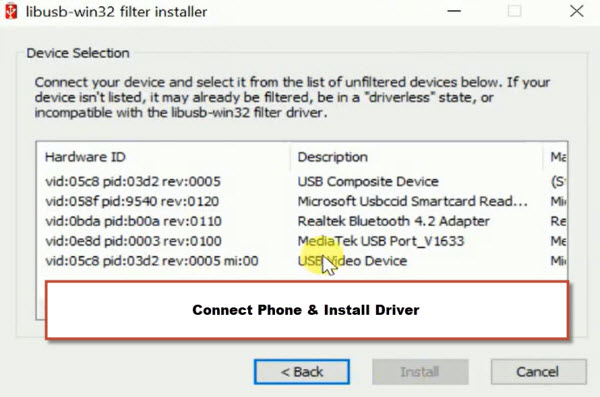
-After the installation of the driver is finished, disconnect the phone.
Clear FRP Now by Clicking on (Reset FRP) Button
-From the (BFT Tool) interface, navigate to > Service > Reset FRP.
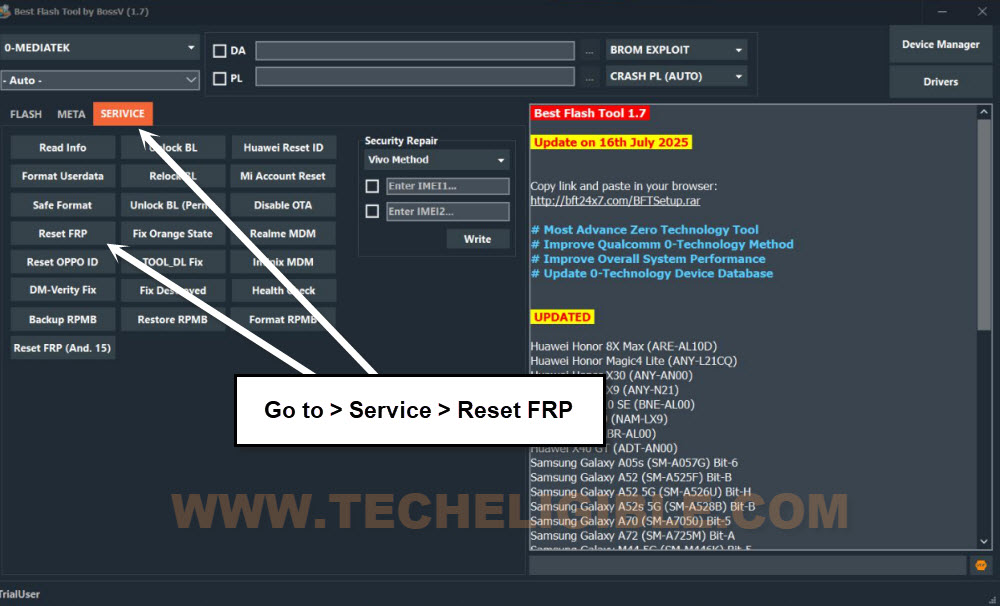
-You will need to reconnect the phone to the computer. Continue to hold both buttons (Volume UP + Down) while connecting the phone to the computer.
-When the BFT Tool detects the device, you can release both pressed (Volume keys). The FRP bypass procedure will start within a few moments.
| Note: It is important to keep holding both Volume Up/Down keys while connecting your phone to the PC. |
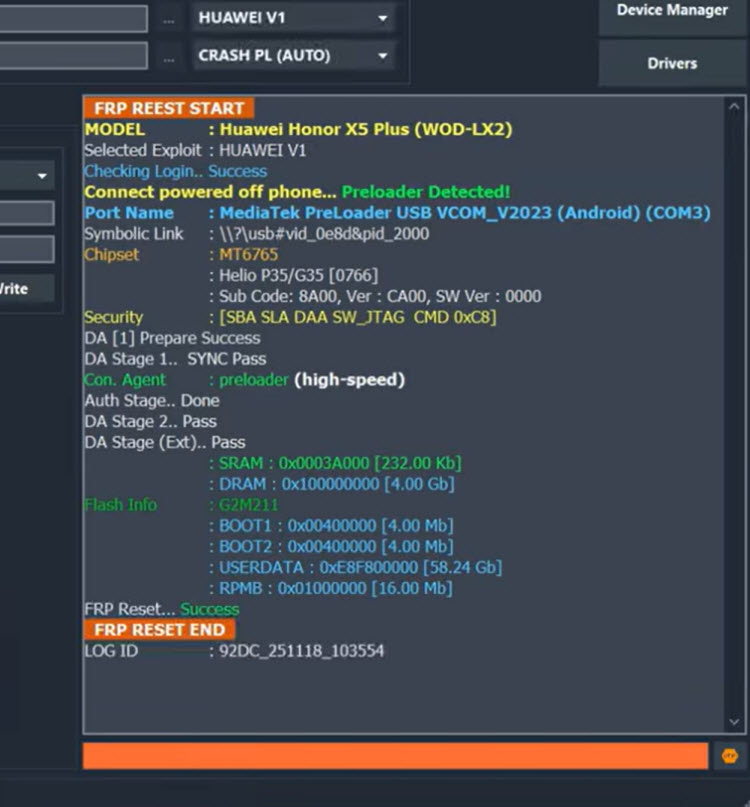
-In just a few seconds, your device will have the FRP lock protection removed, and you will see a message saying (FRP Reset END) on the tool’s display.
-Next, proceed to the setup wizard screen by disconnecting the phone from the computer.
-Complete all the steps in the setup wizard yourself. If the (Google Verification) screen appears again, select the option > Skip > Skip.
Remember: If your phone hangs on the loading page, perform a hard reset by accessing (Android Recovery Mode). After that, go through the setup wizard steps once more.
Note: If you are experiencing difficulties with the download and installation of the (SPD Drivers) on your computer or if your device remains unrecognized by the software, consider attempting a manual approach.
|
The Bottom Line
All that is needed is a computer and the free application (BFT V1.7). Upon downloading the application, we simply logged in using the default username and password. Next, we chose the appropriate processor and chipset names. After that, we ensured the correct USB Drivers were installed on the computer. Finally, we connected the phone to the PC and pressed the (Rest FRP) button within the tool to finalize the FRP bypassing procedure.