
Unable to determine how to fix the access problem on your own device after being shut out due to FRP lock security? This situation occurs when you are unaware of the Gmail account that you were logged into after executing a hard reset. The FRP locking function will ultimately present you with the Google sign-in page to finish the verification steps. Nevertheless, if you have completely forgotten the account details, proceed with the steps outlined below to Bypass FRP Xiaomi Redmi A3 (Android 14/15/16) with and without PC.
Keep in mind: Do not attempt this FRP technique on a phone that is not yours; this is a serious offense. If you are attempting to circumvent FRP on a phone that has been stolen, you could face imprisonment. This procedure is intended solely for the rightful owner of the device and for the purpose of education only.
Method 1: Bypass FRP Xiaomi Redmi A3 With PC (Android 16/15)
-Start this process by downloading and activating the (Prime Tool X V26) on PC. This process is very simple, you just click the below link to reach to downloading page, from there, follow up the screen instructions.
| ⇒ Prime Tool X V26 [DOWNLOAD] |
-After you successfully installed the tool on your computer, just run this tool now.
-From the tool interface, go on the “USB” icon option from left side panel.
Install Mediatek + UsbDK Drivers
-Download & install the “Mediatek + UsbDK” drivers on computer.
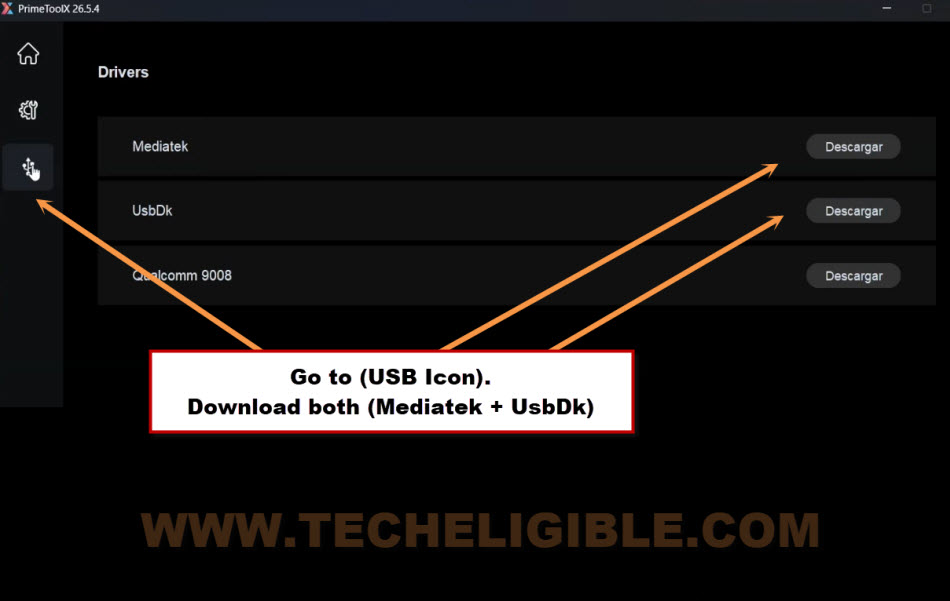
-Now, without facing any connectivity issue, we can continue the FRP bypassing steps through the tool easily.
Select Redmi A3 Model & Click to (Remove FRP) Function
-Click on “Settings” icon from left side panel. From there, click on the “Mediatek” tab from top.
-Click on “Xiaomi” phone brand from there.
-Finally, choose the “Redmi A3” device from left side of the tool interface.
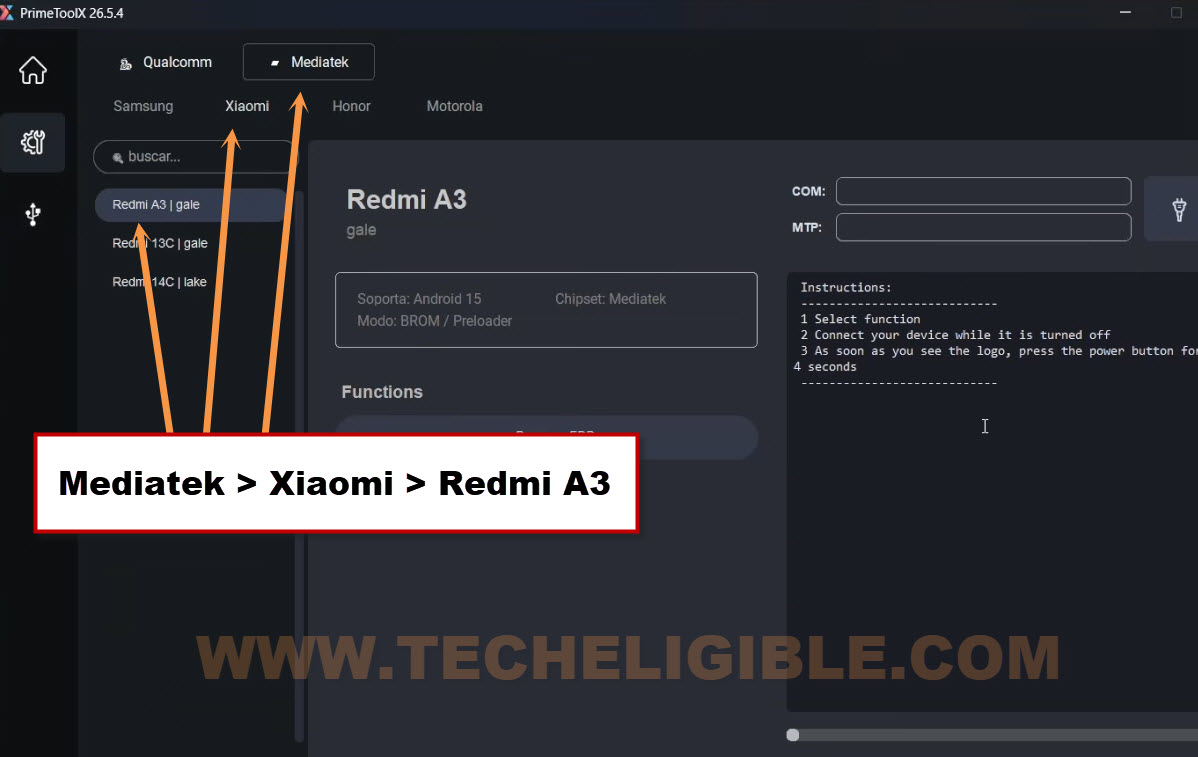
-Let’s Turn off the Xioami A3 phone and wait for 10 seconds.
-Click once on the “Remove FRP” option.
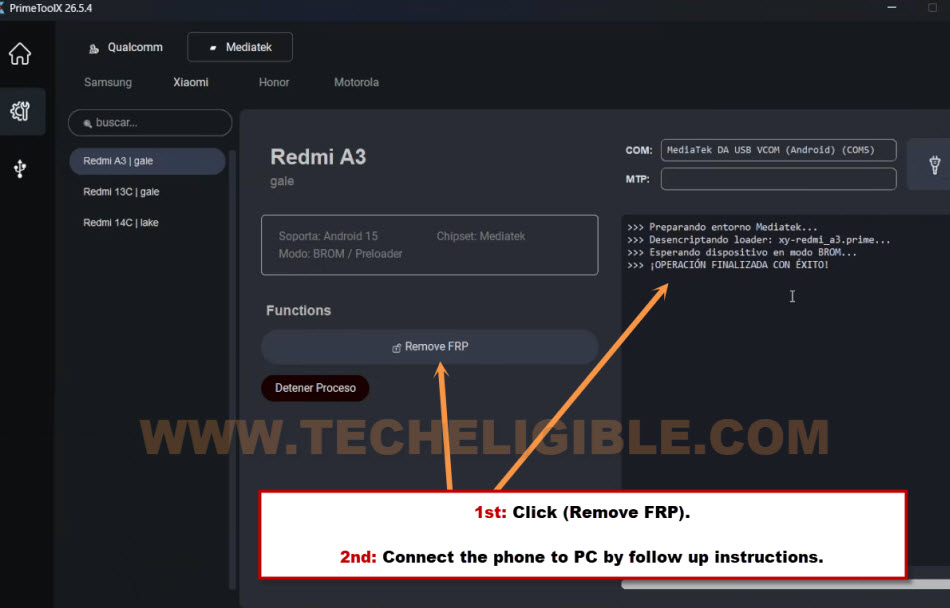
-Then, you just connect the USB cable to PC and Xiaomi phone, you don’t need to press any button right now, you just simply, connect the phone to PC in power off mode.
Switch off Phone & Conect to PC
-Once the (Mi Logo or Charging Logo) appear on screen, just long hold the “Power button” for 4 seconds, then release it.

-After that, the device will be detected the Prime tool and FRP will be bypassed within few seconds. Disconnect the phone once you see the message (Operation Finalized) on tool screen.
Note: If the tool does not recognize the phone, or FRP is not bypassed, you just restart your PC once and try again complete methods. We hope, this time, you will be able to bypass frp Xiaomi Redmi A3 easily.
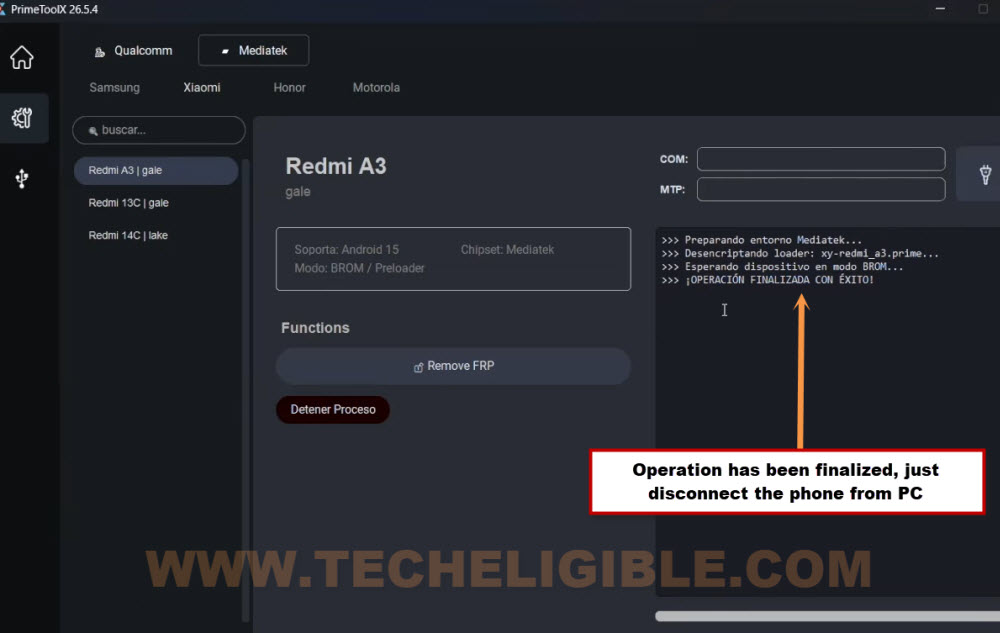
Complete Startup Steps
-Lets turn on device and access to (Connect to WiFi) screen. There you will see (Setup offline) option.
Note: If you don’t get the (Setup offline) option, you just connect the device to WiFi. After this option will start appearing up the on phone display.
-Let’s choose the > Setup offline > Continue.

-Complete restart steps on your own. Its all done.
Method 2: Bypass FRP Account Xiaomi Redmi A3 (Without PC)
-Turn on device & Connect WiFi first.
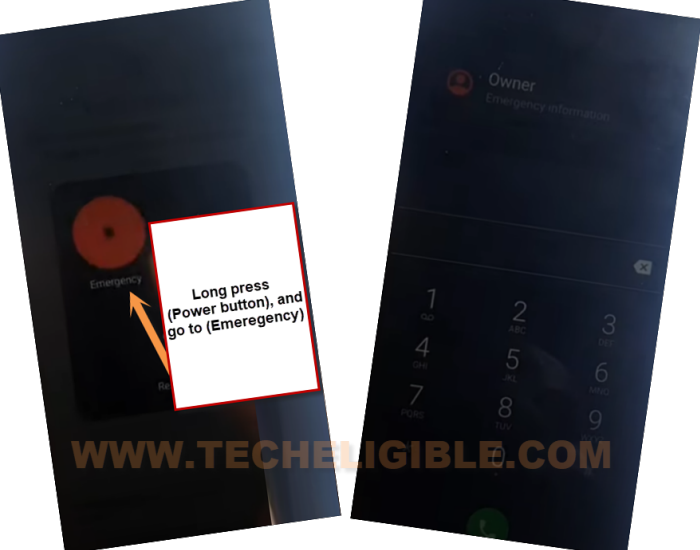
-Long press “Power button”, from there, choose “Emergency” option.
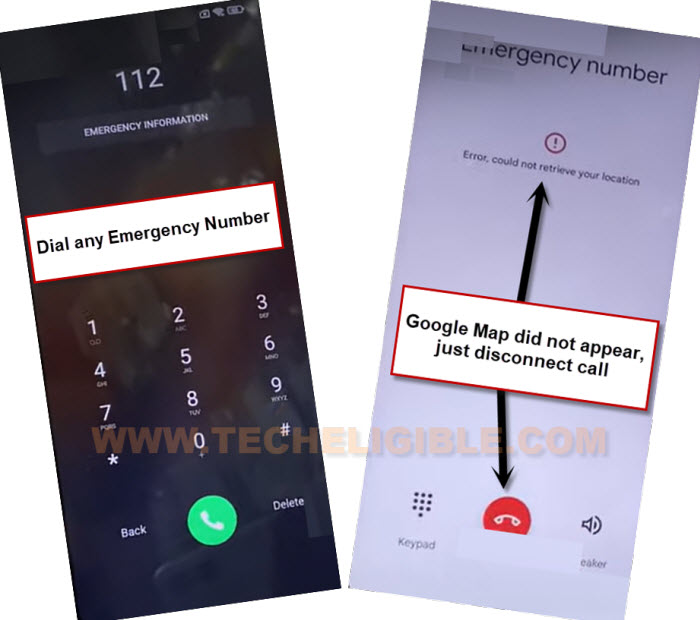
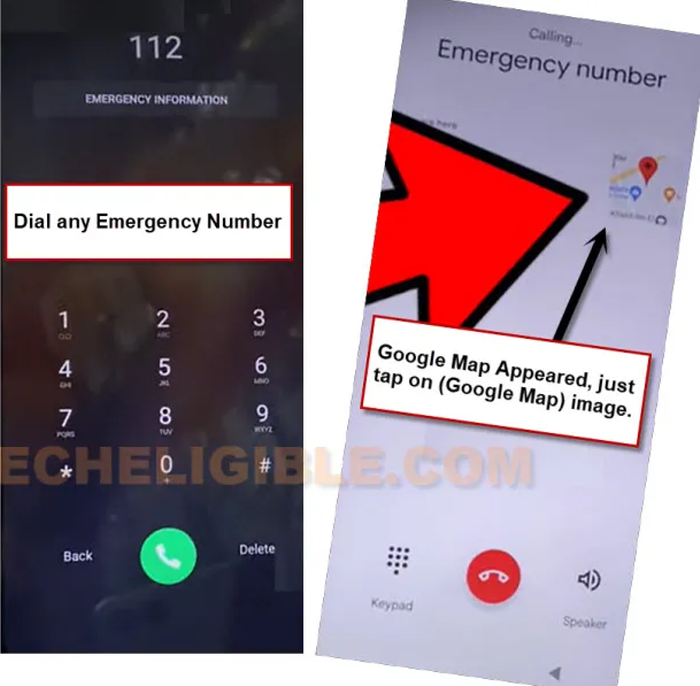
-Afterwards, dial any emergency number on screen. from the call connecting screen, if you see (Exclamation) sign or any error, just disconnect call. Dial again emergency number (112), and keep trying this multiple times until you see there a (Google Map) on dialing screen.
-Once you get a google map on screen, just tap over that “Google Map” image.
-After reaching inside the google map, look at the top left corner, if there is (Call icon), that means call is going on emergency number, just tap over that “Call” icon from there, and disconnect your call. After that, you will get back to (Google Map).
-Search any location there, after that, tap to “Share” option.
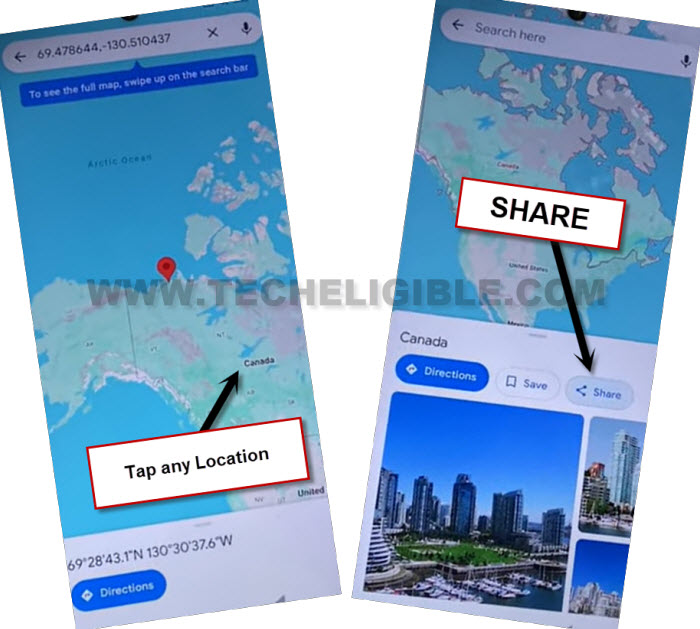
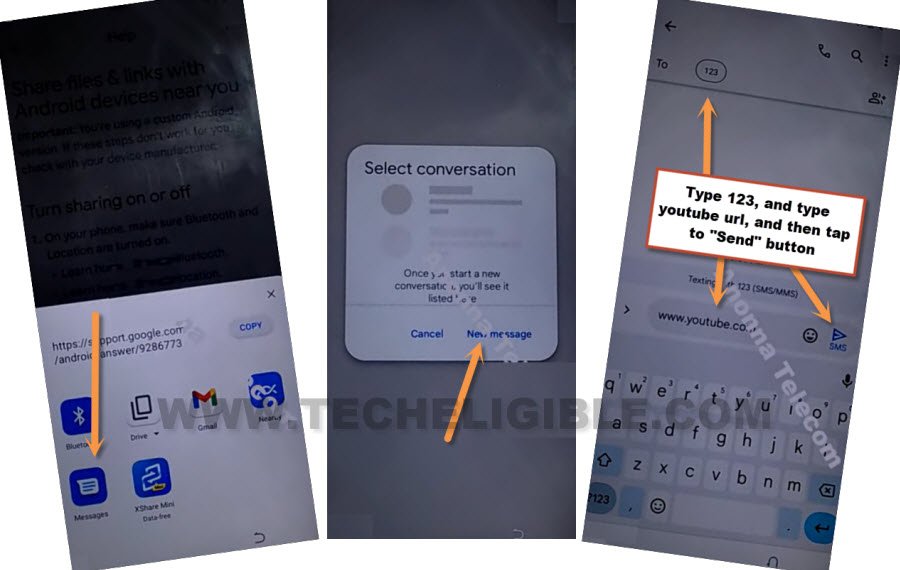
-From popup window, tap over > Message > New Message.
-Send “WWW.YOUTUBE.COM” url as text message to any random number.
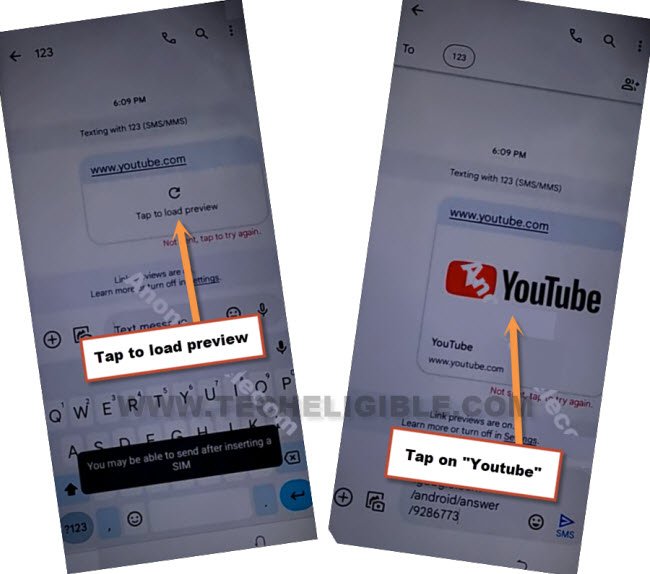
-After that, the url will convert to a hyperlink, just tap over “Tap to load preview”.
-Now hit on “Youtube” same as shown in below image.
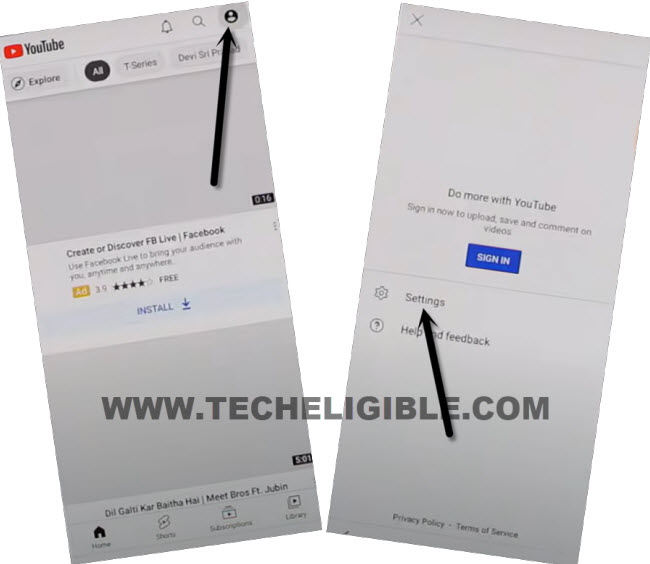
-Tap on “Profile icon” from top corner, and go to > Settings > About > Yotube Terms of services.
-From chrome window, tap to > Accept & Continue > Next > No Thanks.
Access to Phone Settings:
-Let’s reach to frp tools page by searching in browser with “Techeligible“. After that, tap to 1st searched result to access techeligible site.
-From there, hit on a > Menu icon > Download FRP Tools.

-Tap over “Access Device Settings” option from FRP tools page to Bypass FRP Account Xiaomi Redmi A3.
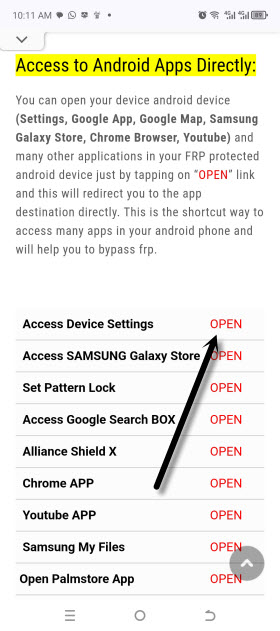
-Let’s turn on (Accessibility feature) by going to > Accessibility > Accessibility MENU. Turn on from there (Accessibility Menu shortcut) option.
-Tap to > Allow > Ok from popup window.
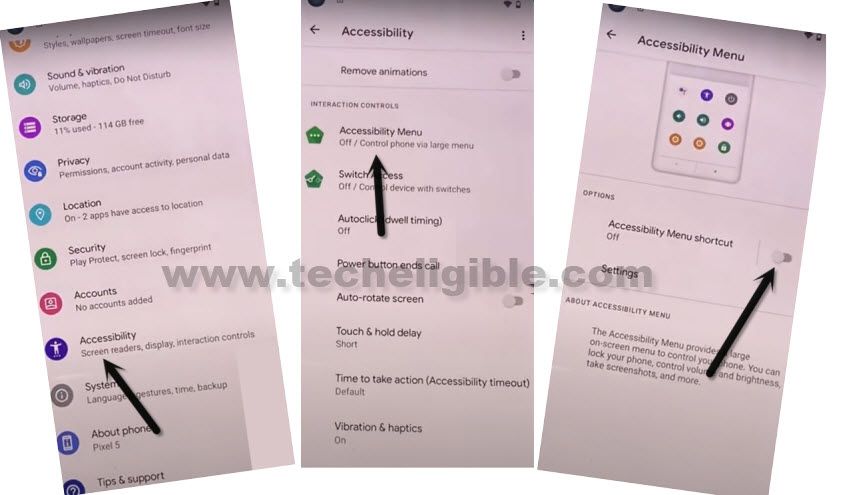
-After turning on menu shortcut option, you will start having (3 dots icon) at the right edge of the screen.
-After that, go back to main “Settings” page again.
-From there, hit on > Apps > App battery usage.
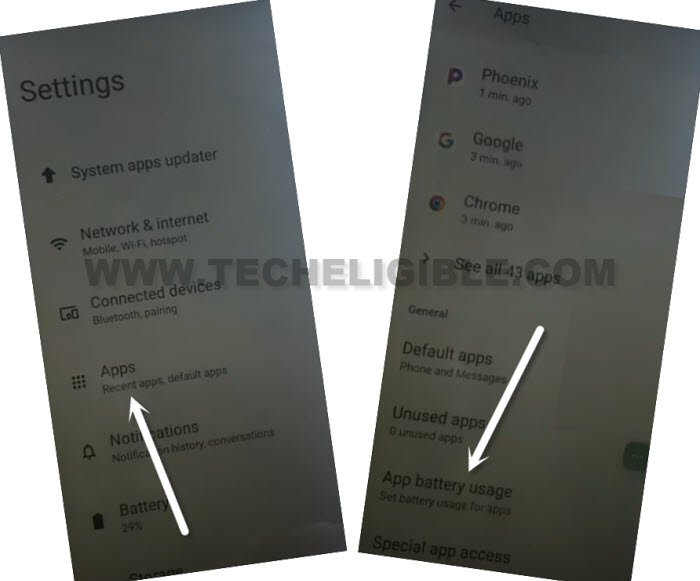
Install Phoenix Browser
-From app list, find and go to > GetApps > Open.
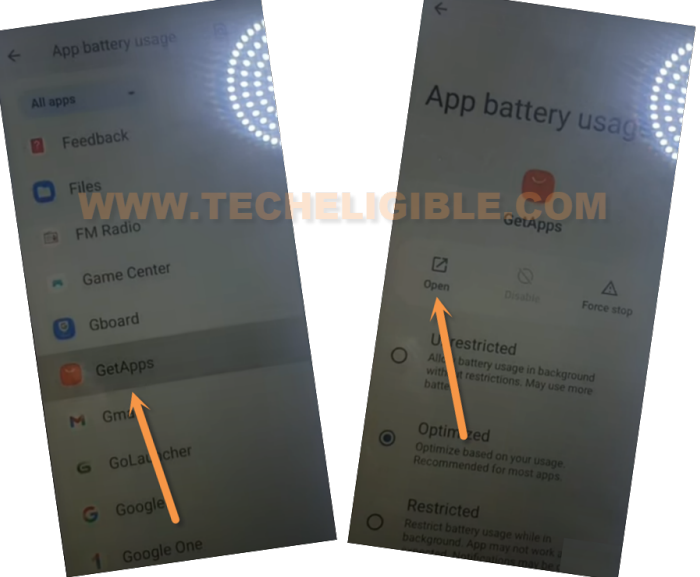
-Tap over “Skip” from top right corner.
-Search & Install “Phoenix” application.
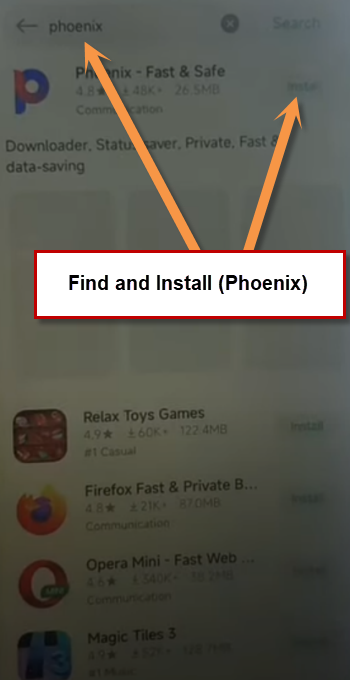
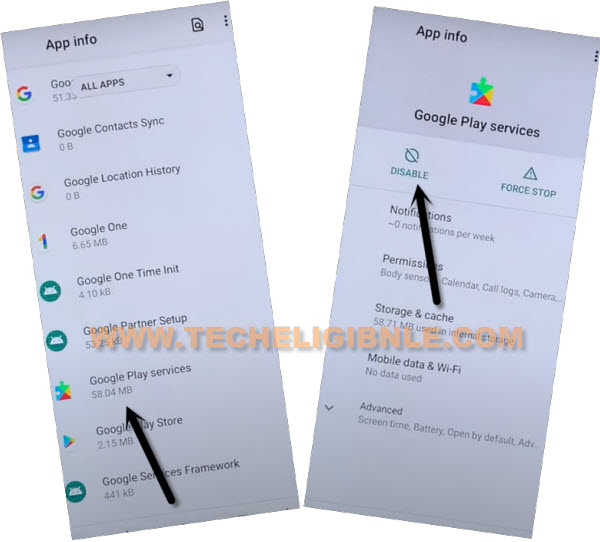
-After you installed (Phoenix browser) successfully, just go back again on (App list) page by hitting back arrow few times from bottom. (See below image).
-We have to disable google app by going to > Google Play Services > Disable > Disable App.
-After that, tap to > Force Stop > Ok.
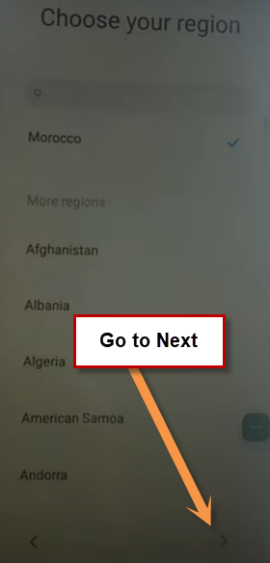
-Go all the way back to (Choose your region) screen by hitting back arrow from bottom multiple times.
Note: If you stuck on any screen while going to main initial start up screen, you can restart your device in that condition.
-After that, from first start up screen, tap to “Next” icon, check mark option (i have read and agree…), and hit on “Next” icon.
-Tap to “Skip” form connect your mobile network screen.
-Wait over loading screen, after that, tap to “Don’t Copy” option from bottom.
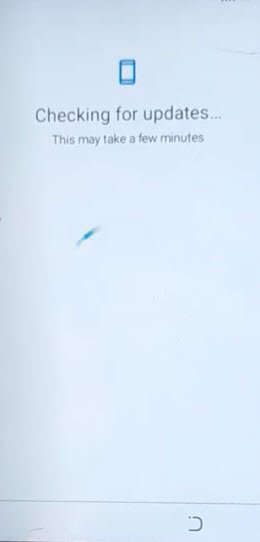
-Your device will stuck on (Checking for update…) screen. We have to enable back google play services app to complete setup wizard to Bypass FRP Account Xiaomi Redmi A3.
Enable Google Play Services App
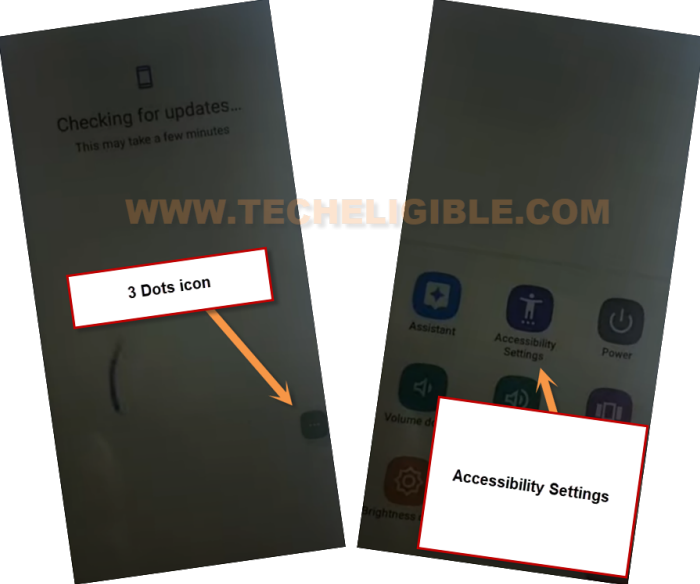
-Let’s tap to > 3 dots icon > Accessibility Settings. After that, you will get into the main (Accessibility Settings) page to Bypass FRP Account Xiaomi Redmi A3.
| Note: If you fail reaching on (Accessibility Settings) page, and get back to (Checking for update) page. In this case, you have to tap again over > 3 dots icon > Accessibility Settings. keep repeating this as quick as possible until you get into the page of (Accessibility settings). You may have to repeat this for about 10-15 times. |
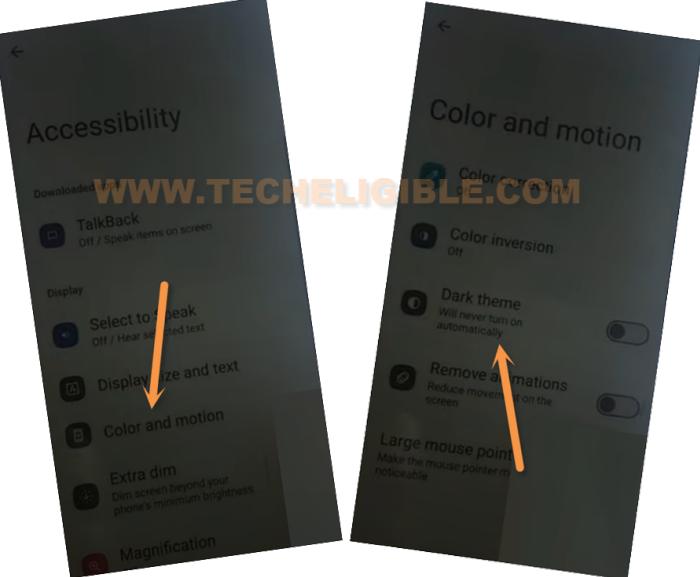
-From the (Accessibility settings) page, go to > Color & motion > Dark theme.
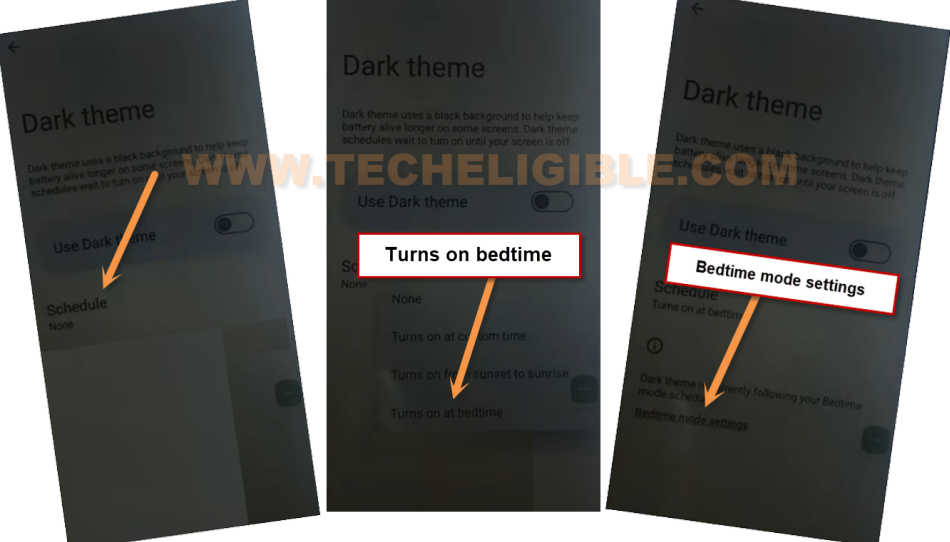
-Tap over “Schedule”.
-Select option “Turns on at bedtime”. After that, tap to a blue link “Bedtime mod settings”.
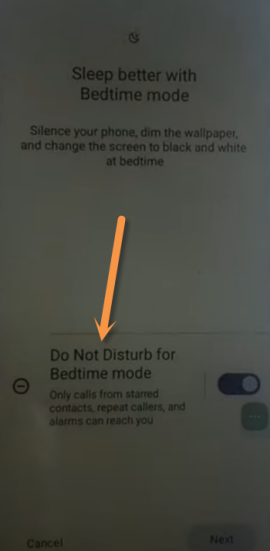
-Insert any SIM card that has some (Contacts) saved already.
-After that, go to “Do not disturb for bedtime mode”.
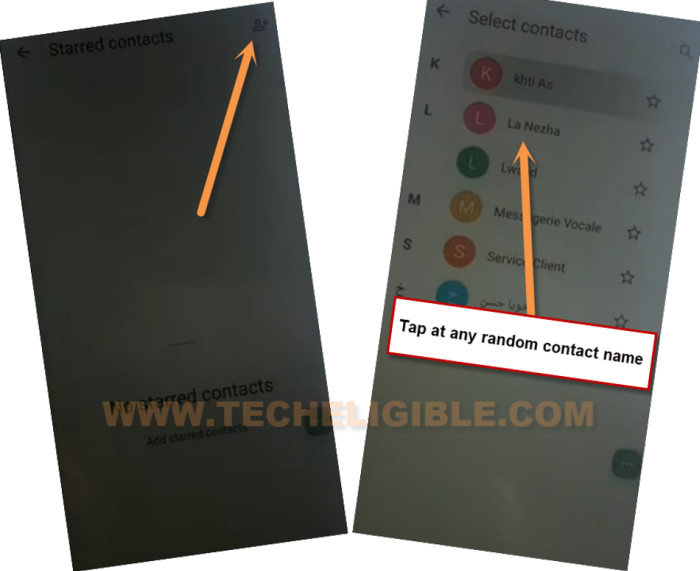
-Tap over “Human icon” from top right corner.
-You will be displayed your SIM contacts list. Tap to any contact name from the list.
-After that, tap to > 3 dots> Share> Continue.
-Choose “Phoenix TXT Read” from popup window. After that, google app will be launched.
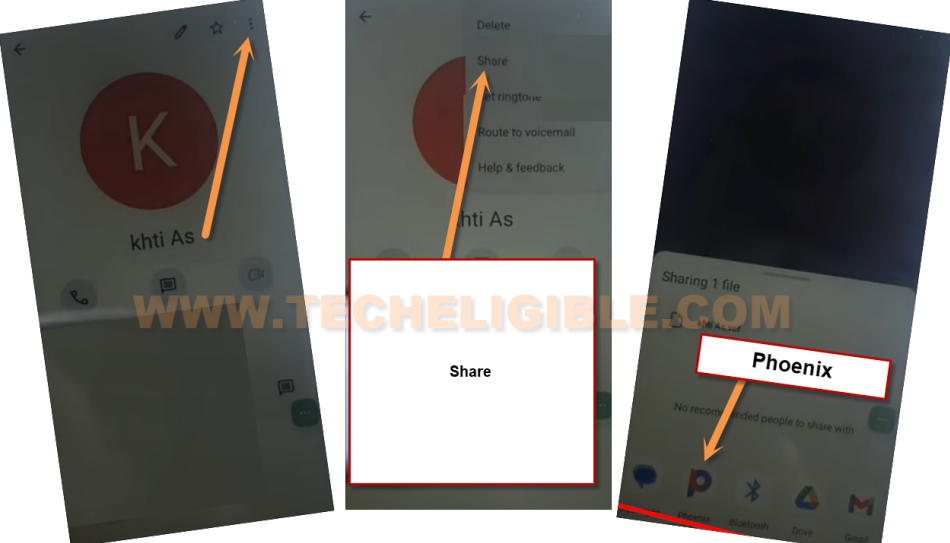
-If you see error of (Unable to open this file), just hit over “Cross icon” from top right corner. After that, you will be inside google app.
Enable Google Play Services App:
-Search from top address bar with the text of “Download FRP Tools Techeligible“, and go to our website 1st searched result.
-Go to Redmi A3 Settings directly by hitting over “Access Device Settings” option from our FRP Tools page.
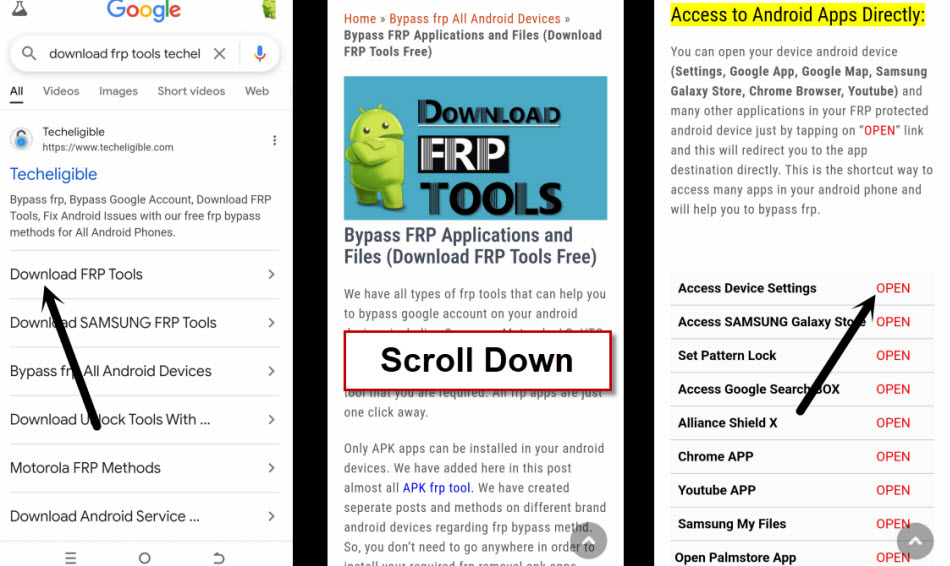
-Go to > Apps > App battery usage.
-Find and go to > Google Play Services > Enable. We have enabled this app successfully, now, we can easily complete setup wizard. Because, you are all done from Bypass FRP Account Xiaomi Redmi A3.
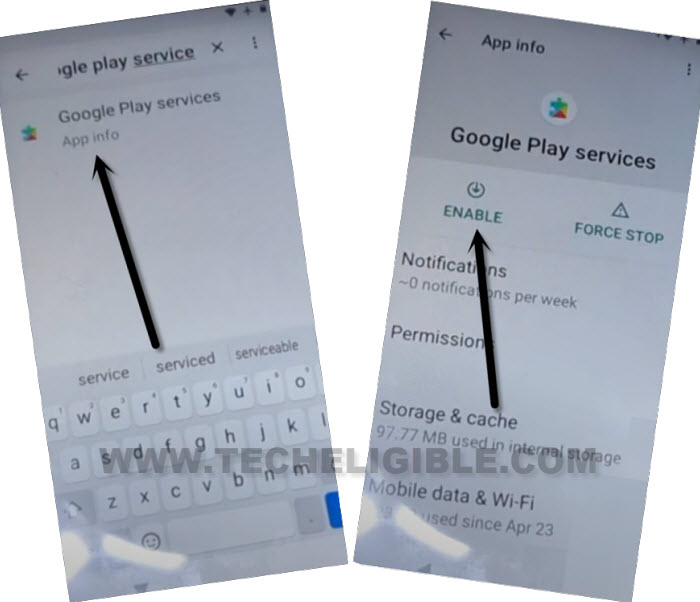
-Go all the way back to (Checking for update) page by hitting back arrow few times from bottom. After that, this loading screen will finish. You can now easily complete setup wizard on your own.
The Bottom Line
In the first method: We just downloaded and installed the (Prime Tool X) software on PC. Once its done, launch this tool and then, downloaded the (Mediatek + UsbDk) drivers from the tool interface by going to (Driver section). After that, we switched off the Redmi A3 phone completely. Then, chose the (Redmi A3) model from the tool and clicked over the (Remove FRP) button. Finally, we connected the phone with PC and FRP were bypassed with few seconds.
In the 2nd method: We simply accessed on the (Emergency Settings) menu. From there, launched the google map and then, reached to primary settings page of the phone. Then, we disabled the google play services and then, got back to on the (Startup page). Once we got the (Checking for update) page, from there, with the help of (Accessibility Settings) option, we successfully enabled back the google play services app and completed setup wizard steps.