
Have you hard reset your Docomo Arrows phone without knowing your google account? After reach hard reset, you will be asked to login back with previously setup google account in order to complete setup wizard steps. If you have forgotten your google account, then, you can follow up this way to Bypass FRP Docomo Arrows 5g F-52A (Android 12) without using any PC.
Disclaimer: We are creating this post to educate people about how to get back their lost device due to forgetting Google account. This method is only for device owner and for educational purpose only.
Let’s Start to Bypass FRP Docomo Arrows 5g F-52A:
-Turn on your docomo arrows device & Connect WiFi first.
-From same WiFi page, tap to “Add new network” option. After that, you will see “Keyboard” icon at bottom corner of your device. Just tap to that “Keyboard” icon and select “Japanese” language from popup window.

-Tap on a “Menu” from there. After that, hit on a “Panda icon”.
-Tap to “Search phonebook” from popup screen.

-Go to > Docomo Phonebook > Open.

-Afterwards, tap to > Accept & Go on > Ok > Ok.
-From popup screen, tap to > Allow > Agree > Next > Next > Next.
-You will reach on a “Easy & Safe Access” screen. From there, go back by tapping once on the “Back Arrow” icon from bottom.
-Let’s add any new random contact name by hitting on “+” option from there.
-Tap to “Device”.
-Give any random name in “Contact named” field tab. Scroll down little bit, and type any random numbers in “Phone” field tab.
-Save this contact contact details by hitting on “Save” option from top corner.
-Tap to “Message” icon, that is aside your contact name. After that, go to > Next > Next > Allow.
-Tap once on the “Back Arrow” icon from message screen.

-Hit over a “Mypage” option from bottom right corner.
-Tap to > About Message > Open source licenses.
-Hit on a “first blue link” from there to get into the source licenses page.

-Long hold at any random text from that page and tap to “Share” option.
-From popup screen, just tap to “Nes Suits” app.
-Hit on “Get Started”.

-You may reach to blank (No post) page. From there, tap to “Back Arrow” icon from top left corner.
-After that, new suits app will be launched there. From there, tap at any random post.

-Tap over a “Share” icon from bottom corner, and tap to “Share to other apps” option from popup screen.

-Long hold on a “Gmail” application.
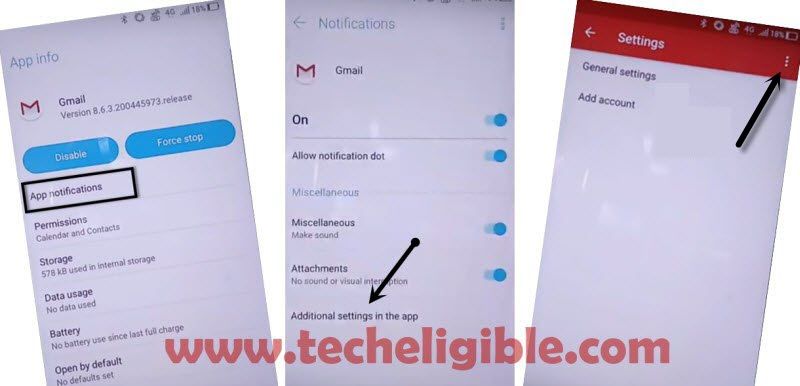
-After that, go to > Notifications > Additional Settings in the app.
-You will successfully reach on Gmail app settings page. From there, hit on a “3 dots” menu from top corner and tap to “Help & Feedback”.
-Tap to “Search bar” from top. After that, change your keyboard language by tapping on “Keyboard” icon. Choose “Gboard” option from there. Your keyboard language will switch back to English.
-Type in search bar “Delete or disable apps on android” and tap to “Search” icon from bottom keyboard to start searching.
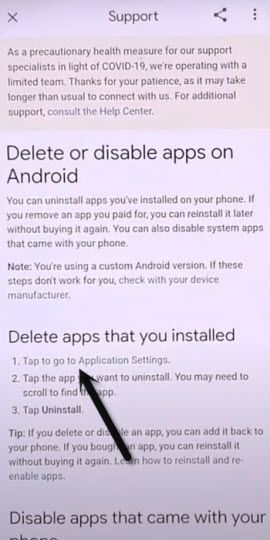
-You will be displayed all relevant searched result, from there, tap to “Delete apps on your android device…..” article.

-From article page, just hit a on link “Tap to go to application Settings” to Bypass FRP Docomo Arrows 5G F-52A.
Disable Some Apps from there:
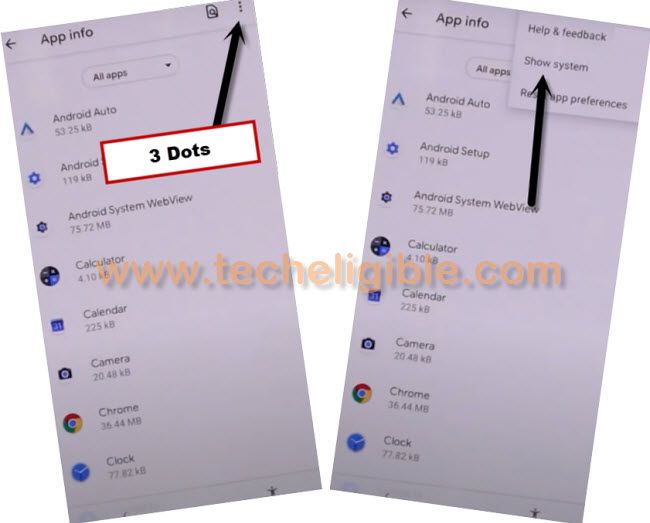
-Let’s get disabled some hidden app first by tapping on a “3 dots ” menu from top corner and go to “Show system”.
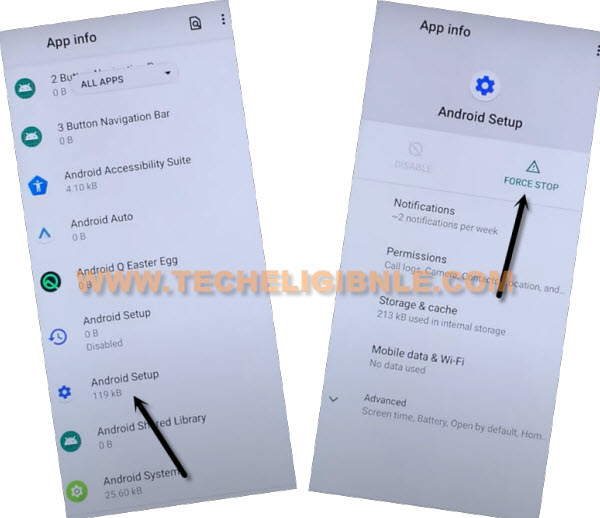
-From app list, go to > Android Setup > Force Stop > Ok.
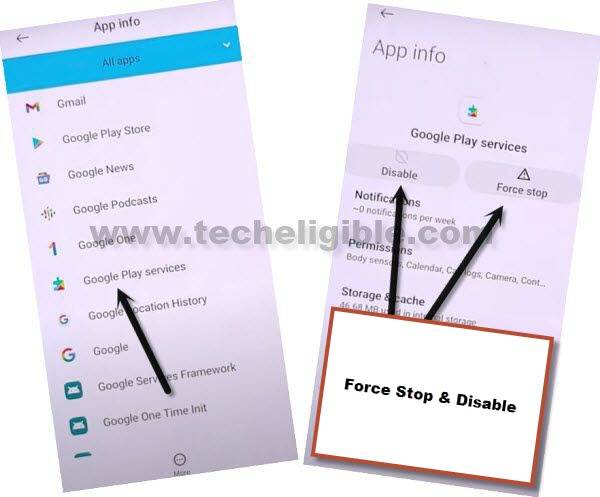
-Go back to app list page. From there, find and tap to > Google Play Services > Disable > Disable this app.
-After that, tap also on > Force Stop > Ok.
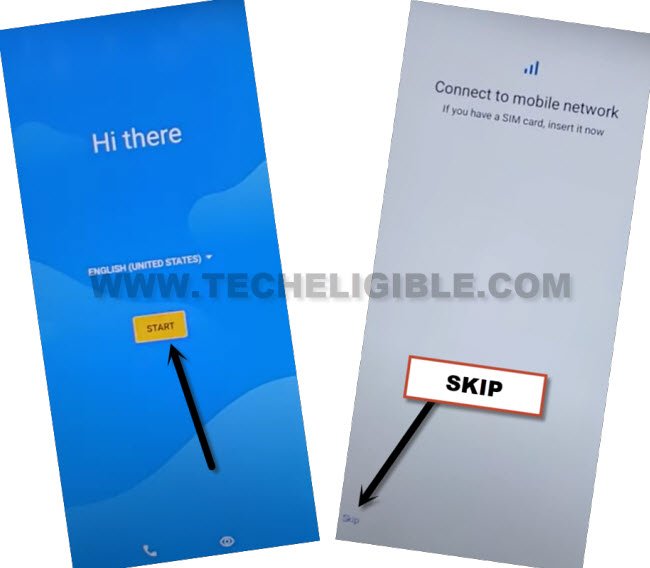
-Go all the way back on first “Hi there” startup page by hitting on back arrow several times.
-Once you reach back to (Hi there) screen, just tap to > Start > Skip > Don’t Copy.
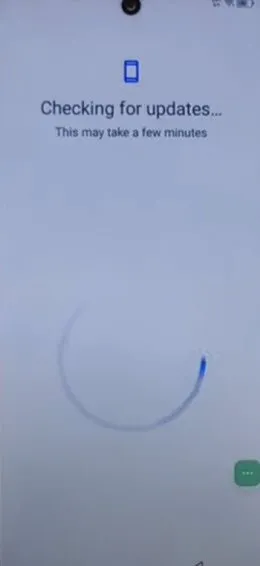
-You will see (Checking for update…) screen there.
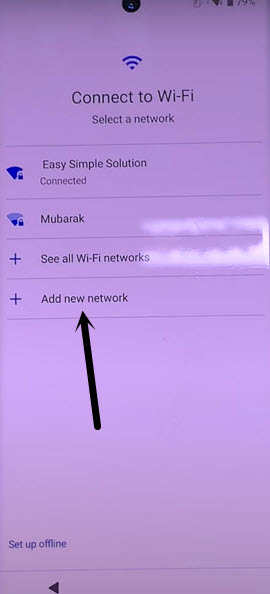
-Tap few times on “Back Arrow” to go back on a (Connect to WiFi) page.
-From there, hit on a “Add new network” option.
Repeat Steps to Reach back on App List Page:
-From same WiFi page, tap to “Add new network” option. After that, you will see “Keyboard” icon at bottom corner of your device. Just tap to that “Keyboard” icon and select “Japanese” language from popup window.
-Tap on a “Menu” from there. After that, hit on a “Panda icon”.
-Tap to “Search phonebook” from popup screen.
-Go to > Docomo Phonebook > Open.
-You will be redirected to the recently saved contact info screen. From there, hit on “Message” icon.
-Tap once on the “Back Arrow” icon from message screen.
-Tap to > About Message > Open source licenses.
-Hit on a “first blue link” from there to get into the source licenses page.
-Let’s long hold any text and go to “Share” option.
-From popup screen, tap on a “Gmail” app icon.

-You be taken to the Gmail app page. From there, hit on a “Skip”.
-After that, you will be asked to enable google play services app first. So, hit on a “Enable” option from popup window.
-Tap to “Enable” button from google play services screen.

-Its all done now from Bypass FRP Docomo Arrows 5g F-52A. Just go all the way back on “Connect to WiFi” screen by hitting on back arrow icon several times.
-After reach back to (Connect to WiFi) page. Simply, tap on > Setup Offline > Continue.

-Complete setup wizard steps easily on your own and access back to your device main home-screen.
-Let’s factory reset device from settings page.
-Open device menu, from there, go to “Settings”.
-Scroll down from main settings screen and tap to “About Phone” option.
-Tap 7 times rapidly on “Build Number” option to enable developer option.
-Tap once on the back arrow icon from bottom to reach back to main settings page.
-Tap to > System > Developer Options. Turn on “OEM Unlocking” option from there.
-You have to tap on “Enable” option from popup screen.
-Go back to (System) screen by tapping once on the back arrow icon from bottom.
-From there, hit on > Reset Options > Erase all data > Erase all data > Erase all data.
-After that, your docomo device will restart.
-You can easily complete setup wizard steps on your own. Its all done now from Bypass FRP Docomo Arrows 5g F-52A.