Are you unable to complete your device verification process after hard reset and forgetting currently setup google ID? You can fix this issue on your own just by using free (Clone Phone) application. We will get help of another android device to install this clone phone app and connect with our OPPO A60 device to Bypass FRP Account OPPO A60 (Android 14) without using any PC.
Disclaimer: We highly recommend you to apply this method only on your own device. If you are not owner of this device, or you found this phone from somewhere, you must return this phone to its real owner. This method is for educational purpose only to educate the device owner, how to get back their own device after forgetting google account.
Let’s Start to Bypass FRP Account OPPO A60:
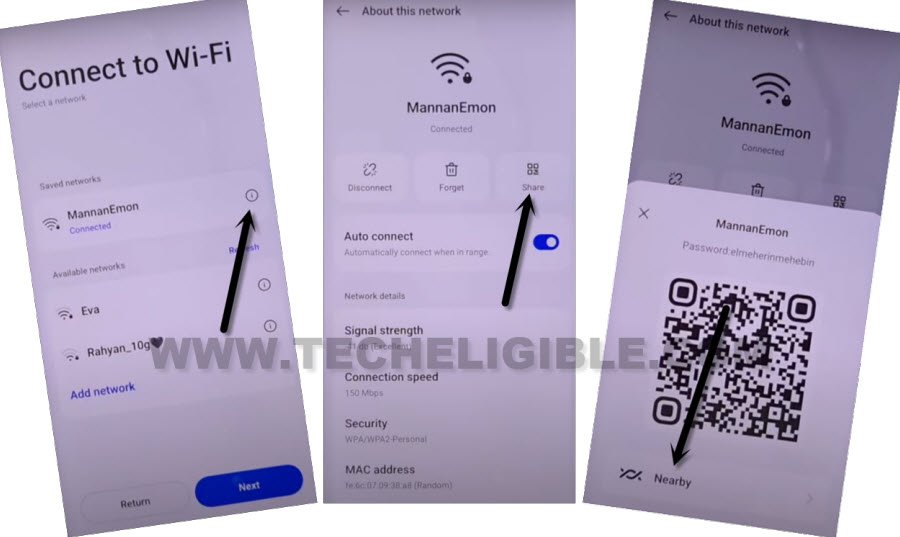
-Turn on OPPO A60 phone and connect to WiFi first.
-From same (Connect to WiFi) page, you have to hit on your connected WiFi name.
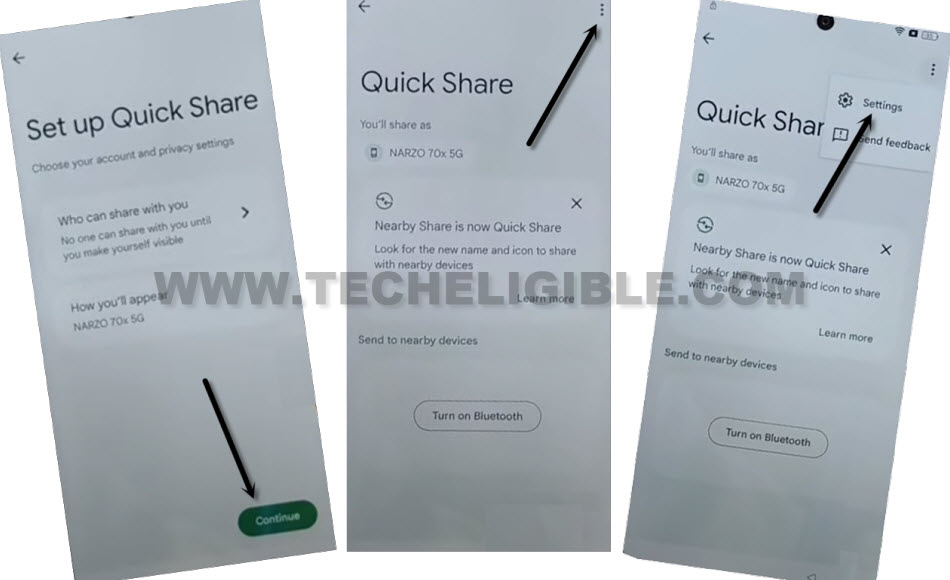
-Let’s hit over a > Share > Nearby > Continue.
-Let’s reach to (Quick Share) settings page by hitting on “3 dots” kebab menu from extreme top corner. After that, tap to “Settings” gear icon from there same as shown below.
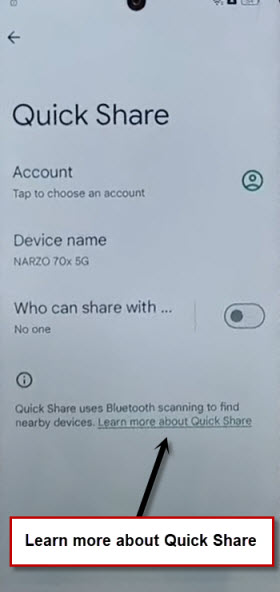
-Tap to this blue link “Learn more about Quick Share”.
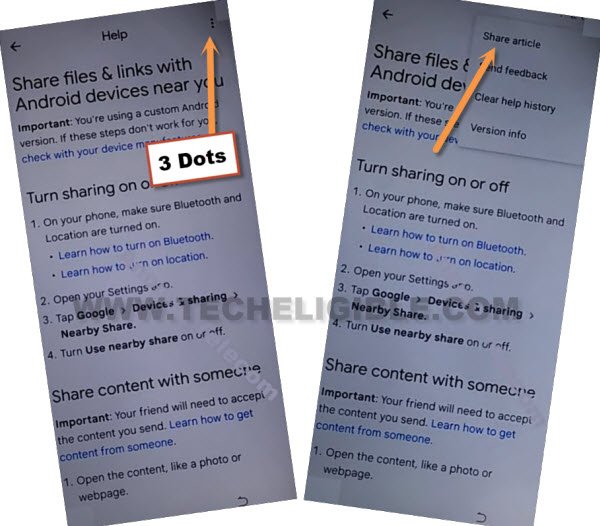
-We have to launch chrome browser, for this, tap again on a > 3 dots > Share article.
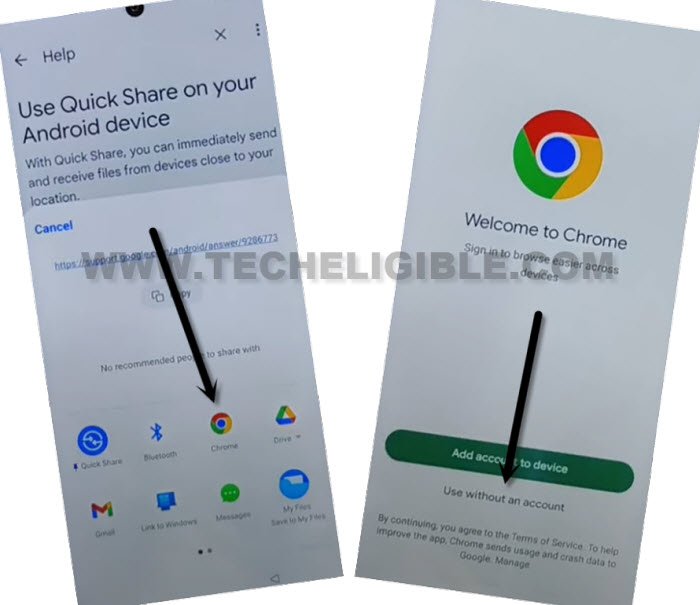
-Hit on a “Chrome” browser icon from bottom popup window. This will appear up only after hitting on a (Share Article) option.
-Tap to “Use without an account” option as well from next screen of (Welcome to chrome).
Access OPPO A60 Main Menu:
-You have to type in chrome browse search bar “Techeligible“. After that, visit same searched result as shown in below screen shot.
-From official site, go to “Menu” icon from top corner and hit over the “Download FRP Tools” option to access to frp tools page.

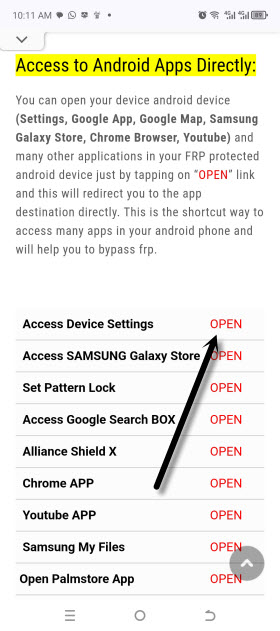
-After accessing to the frp tools page, just tap to “Access Device Settings” option from there.
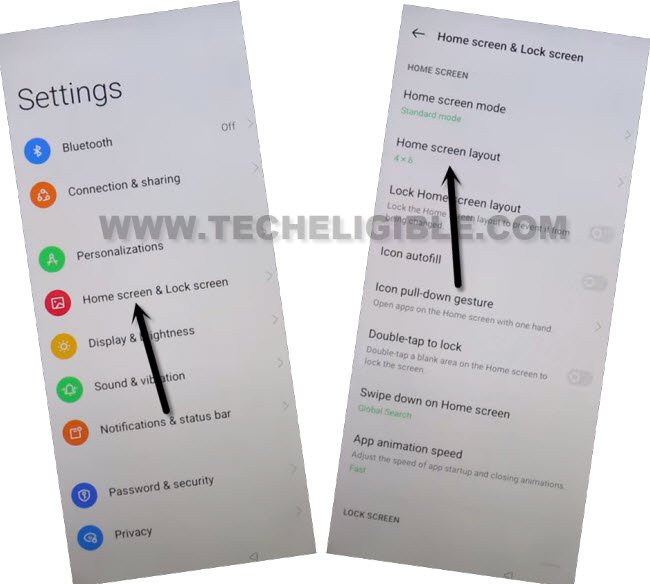
-After that, tap to this option “Home screen & Lock Screen “.
-After hitting this option “Home Screen Layout”. You will be redirected to your device main home-screen.
-From your device main menu screen, tap on a “Clone Phone” application. We will use this app to connect our device with second android phone.
-Once the clone phone app is fully launched, from there, tap on “This is the new device”.
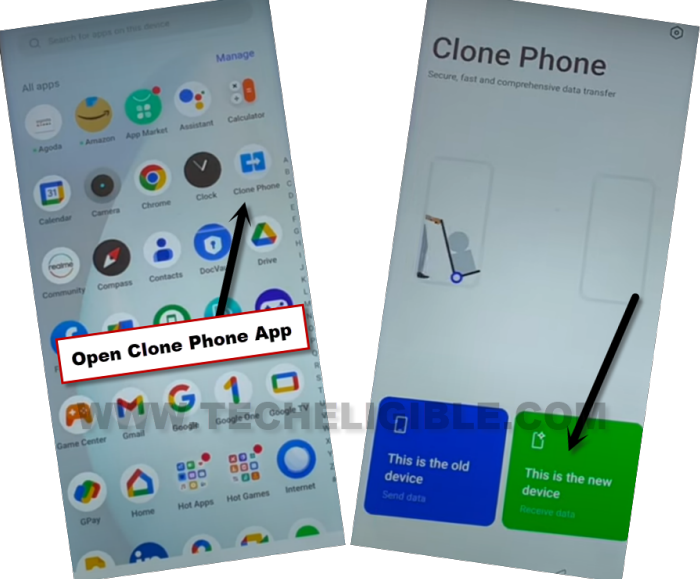
-After that, tap few more options > Allow > Other Android.
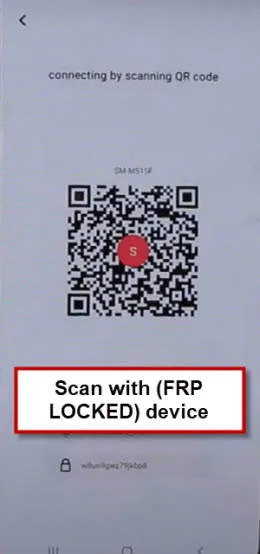
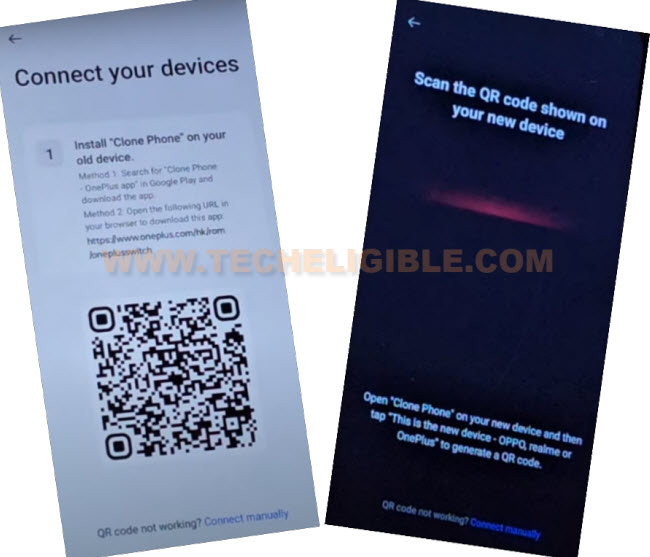
-After that, you will see QR Code on your device screen.
-Let’s use 2nd android device to scan this code and connect both devices together to Bypass FRP Account OPPO A60.
Lets Use 2nd Android Phone:
-You have to follow up below steps in your 2nd android device.
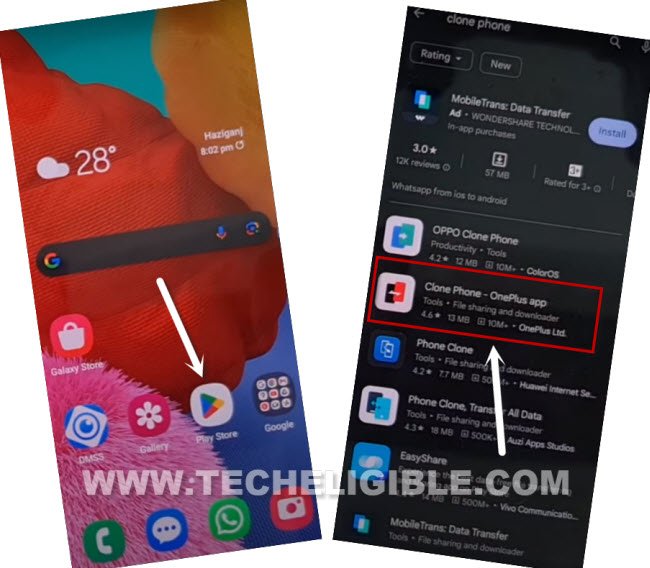
-Open “Google Play Store” application and install “Clone Phone – Oneplus app” in your second android device.
| Note: If you are unable to find “Clone Phone – Oneplus app”. Don’t worry, you can use any renown clone phone app. |
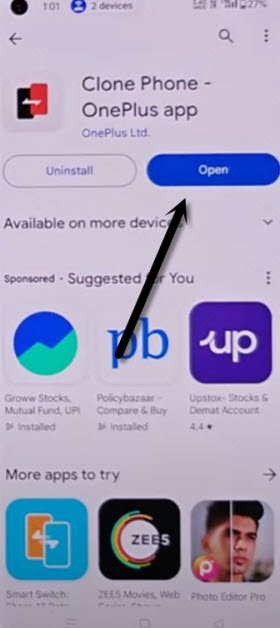
-Once the installing process is done, just tap on a “Open” option to launch your clone phone application.
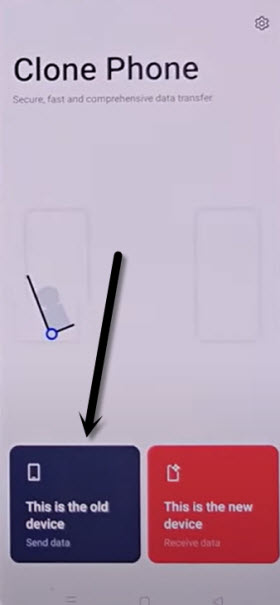
-After that, tap on a “This is the old device” option.
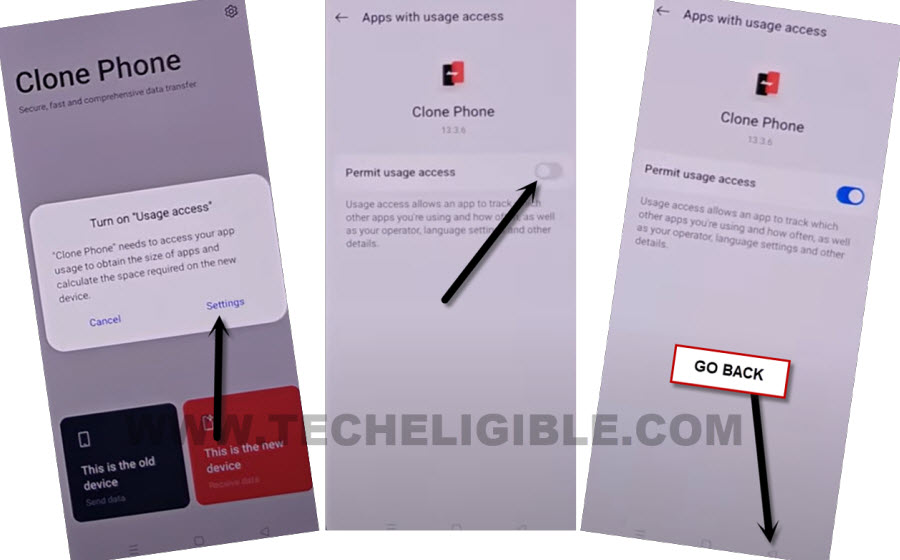
-You will have to give some permissions to this app. Whenever, you see a popup window, simply, tap to “Settings” and allow permission from there. After that, go back by hitting on a “Back Arrow” icon.
| Note: You may have to this few times, from popup screen, go to “Settings” and turn on permission from there and go back. Keep doing this this popup window stops appearing up. |
-Once the app is fully launched, just hit on “Start Migration” button as well to Bypass FRP Account OPPO A60.
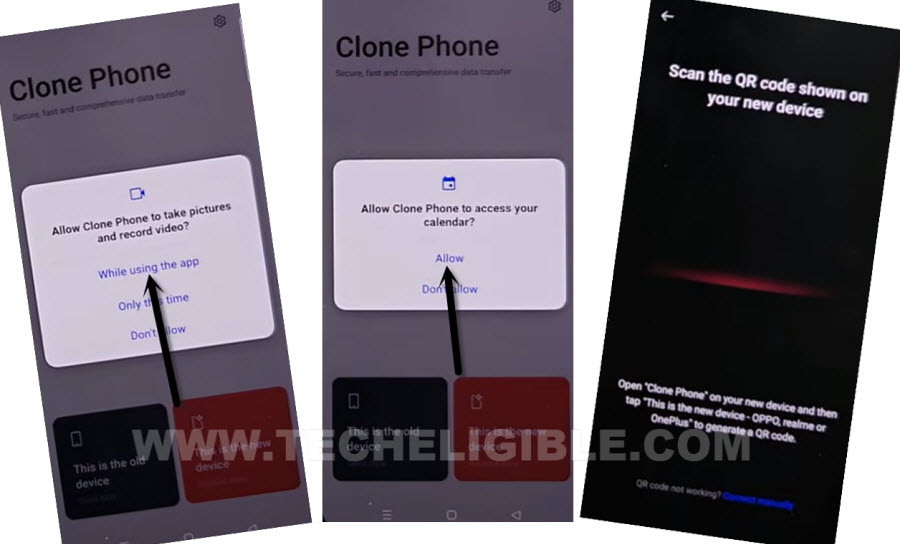
-You may have to give more permission to this app by hitting on “Allow & While using the app”. After that, you will have a (QR Scanner) on your second android device screen.
-Let’s connect both devices together by scanning QR Code from OPPO A60 device.
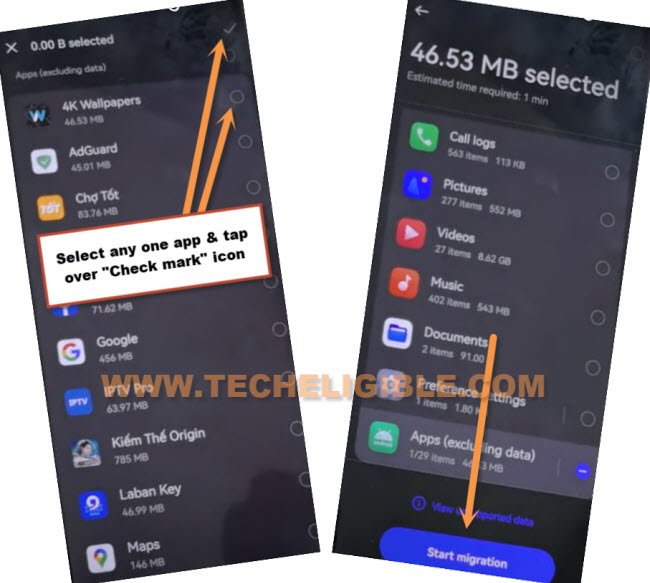
-In your second android device, you will be displayed your device all installed applications list. From there, select any one small size random application to send.
-Tap to “Next” option and hit on ”Start migration” button to send this app to your OPPO A60 phone.
-After both devices connected together successfully, you will see (App List) page there on your other android device.
-Select any small size random app from there and tap to > Next > Start Migration.
-Once the transferring process is completed, you will be notified on your both devices display.
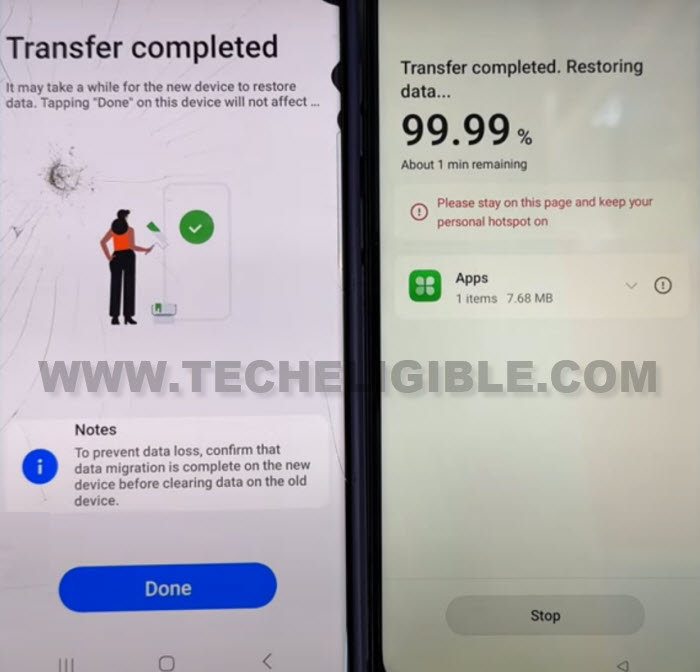
-From your OPPO A60 phone display, just go to > Resume > Done > Skip.
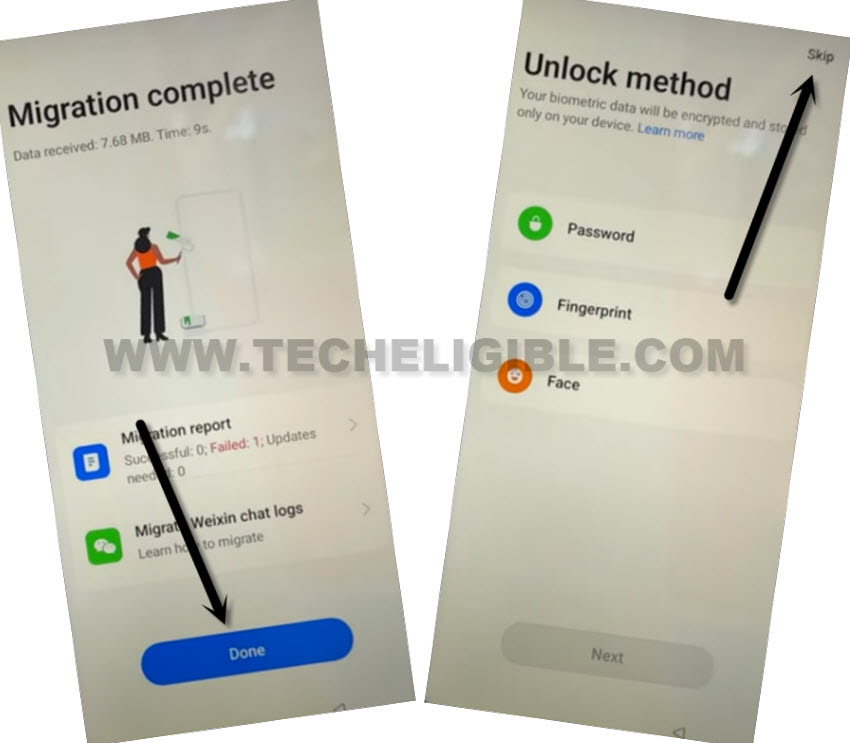
-Let’s hit over a “Next” and tap choose “Button”. After that, hit on “Done”.
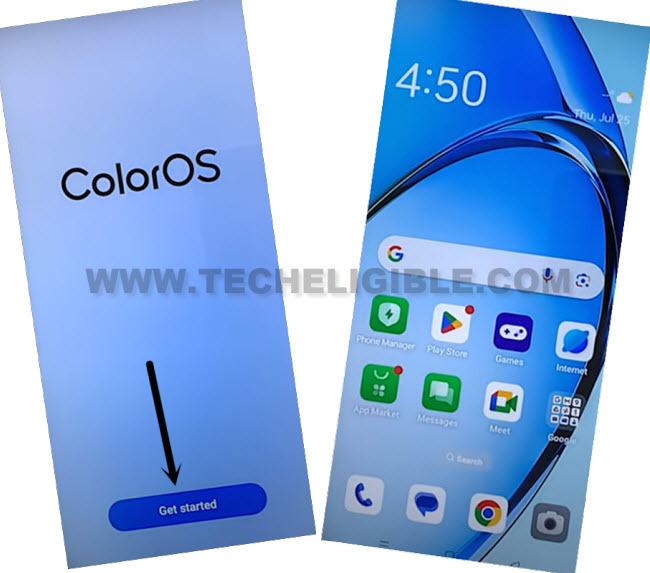
-Finally, tap to “Get Started” option to reach your device main home-screen directly.
Reset OPPO A60 from Settings:
-After reaching inside your device main home-screen. Just open your device main “Settings” page.
-After that, go to > Settings > Additional Settings > Back up and reset > Reset phone > Erase all data.
-Tap two more times on “Erase data” option to Bypass FRP Account OPPO A60 completely.
-Your device will auto restart. After that, you will be able to finish up your device start up steps on your own.