
Are you stuck on a google sign in screen and unable to verify your device ownership just because of forgetting google account? If this is the case, then, you can follow up this method to Remove FRP Tecno Phantom 6s (Android 6) without using any paid tool and services. We will install only a (Quick Shortcut Maker) to fix this problem easily.
Disclaimer: We highly recommend you to apply this method only on your own device, if you are not owner of this device, or you found this from some where, you must return to its real owner. This method is for educational purpose only.
Let’s Start to Remove FRP Tecno Phantom 6s:
-Start this frp bypass method by turning on device and go to (Select WiFi network) page. From there, connect WiFi to your device.
-Go back to (Select WiFi network) page.
-From same WiFi page, just go to “Add another network” option.

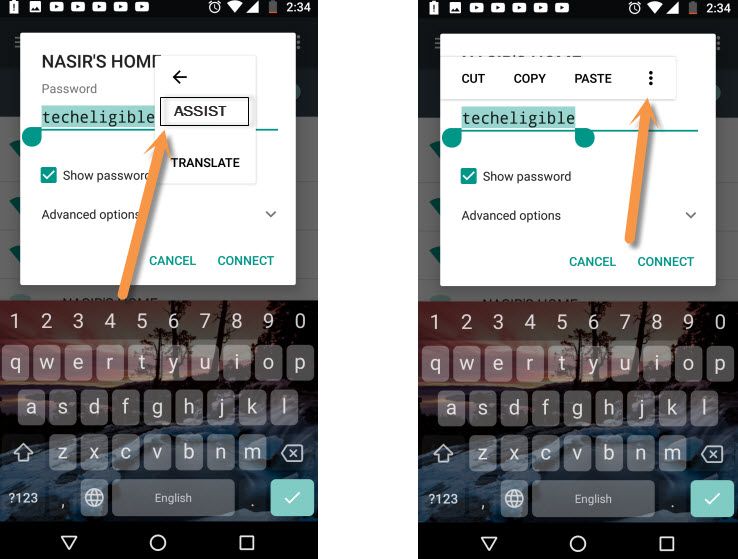
-Type “techeligible” text there same as shown in below screen shot. After that, long tap on your typed text.
-From popup options, just go to “3 dots” and tap on a “Assist” option.
Note: If you see (No Thanks) option, just hit on that option to access google app screen.
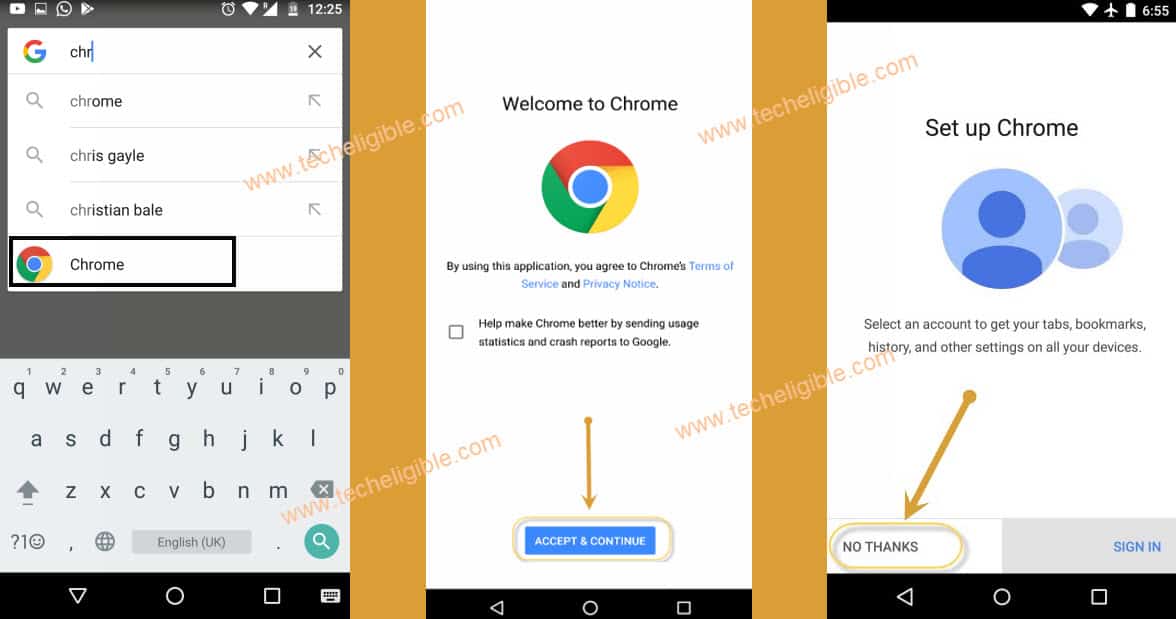
-Let’s search there “Chrome” and tap on a “Chrome” icon from searched result.
-Hit over a > Accept & Continue > No Thank.
Download Quick Shortcut Maker FRP App:
-You have to type in chrome browse search bar “Techeligible“. After that, visit same searched result as shown in below screen shot.
-From official site, go to “Menu” icon from top corner and hit over the “Download FRP Tools” option to access to frp tools page.

-Scroll down and download from there “Quick Shortcut Maker” application.
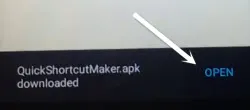
-After downloading is done, you will surely get a “Open” link at the bottom bar. Just tap on that “Open” to access to download folder.
-In download folder, you will be able to see your downloaded application. Let’s hit on “Quick Shortcut Maker” app.
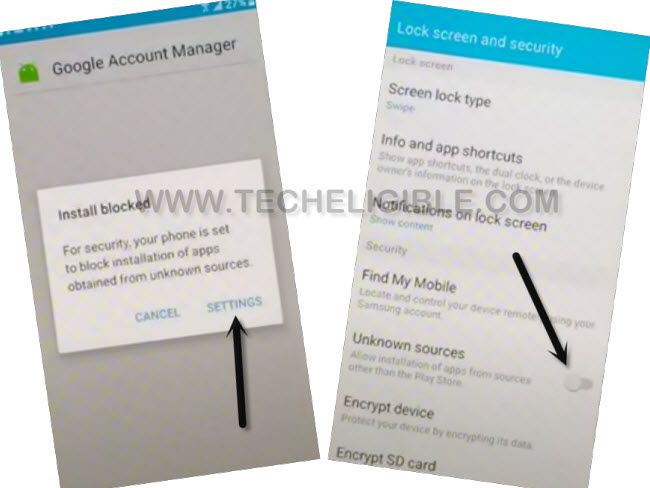
-After that, from (Installation blocked) popup screen, just go to “Settings”. Turn on “Unknown Sources” option.
-Long hold your device “Power” button and restart your device.
Repeat Steps to Install Quick Shortcut Maker:
-Go back to (Select WiFi network) page.
-From same WiFi page, just go to “Add another network” option.
-Type “techeligible” text there same as shown in below screen shot. After that, long tap on your typed text.
-From popup options, just go to “3 dots” and tap on a “Assist” option.
Note: If you see (No Thanks) option, just hit on that option to access google app screen.
-Search there “File” and hit on a “File Manager” searched result same as shown in below image.
-After reaching inside file manager, just tap on a “Apps” option to see your recently downloaded app.

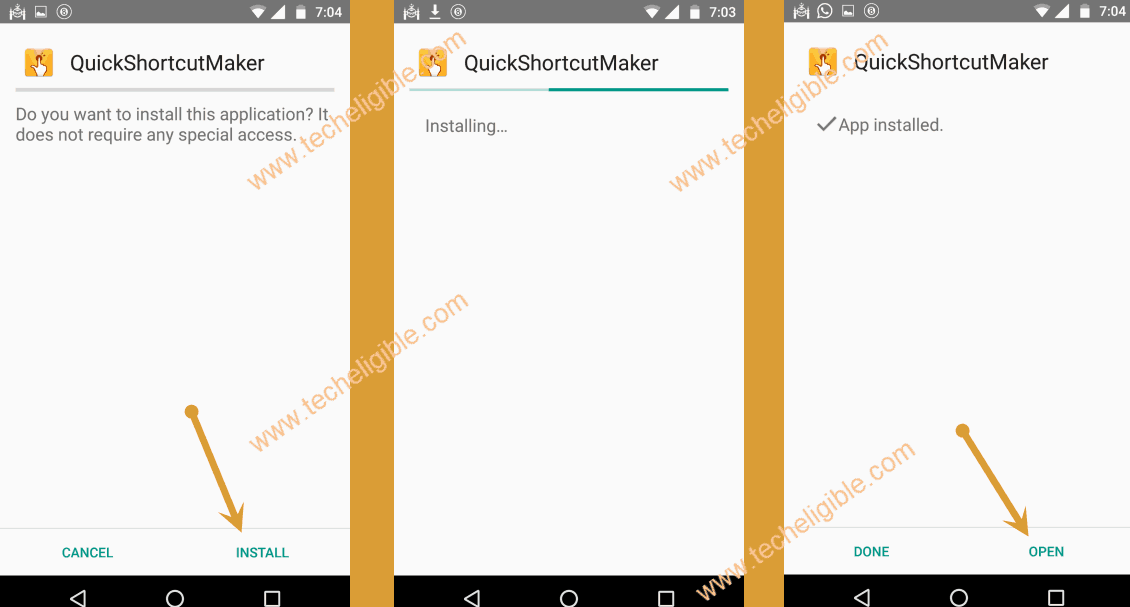
-Let’s install downloaded app now by tapping on > Quick Shortcut Maker > Install > Open.
-You will have a huge app list there. Scroll down, find and tap on a “OOBE”.
-Tap again on a first “OOBE” same as shown in below screen shot. After that, hit on “Try”.

-Select “Algeria” language and go to > Next Arrow > Next Arrow > Next Arrow > Next Arrow > Next Arrow.
-After that, you will see a (Not signed-in) popup window, just tap “Setup Phone” option.

-After few seconds or a minute later, you will see again same (Not signed-in) popup screen.
-Let’s restart your device again by long pressing “Power” button and swipe up the screen to restart.
-Once the restarting is done, your device will reach to main home-screen without finishing up the setup wizard steps.
