We can fixup our device frp issue just by using (Shareme) application. If you’ve forgotten google account and looking for a way to get back your device with updated google account. You can follow up this way Remove FRP Xiaomi Redmi Note 14 Pro, Redmi note 14 pro+ (Android 14) without using any paid tool.
Disclaimer: We highly recommend you to apply this method only on your own device, if you are not owner of this device, or you found this from some where, you must return to its real owner. This method is for educational purpose only.
Let’s Start to Remove FRP Xiaomi Redmi Note 14 Pro, Pro+:
-We’ve to connect WiFi first in our device. After that, go to (Terms and conditions) page. From there, tap on “Privacy Policy” option.
-Scroll down little bit and tap on this link “account.xiaomi.com”.

-After hitting on link, you will be taken to the xiaomi account setup page. Let’s hit on > Sign in with google > Help.

-In google search box, search with “Delete” and go to article that has an “Youtube” video same as shown in below image.

-Tap on a “Play button” from video and go to > 3 dots > Share.

-You have tap again on “3 dots” and tap on “Share” option to see all available sharing applications.
| Note: If you don’t get same top bar as being shown in below screen shot, don’t worry, you might not have tap correctly on (3 dots). Try again. This may require 5-6 tries. |

-Let’s open with “Shareme” app from bottom popup.
-To use shareme application, you will have to grant some permissions by tapping on (Next, While using the app and allow).
-After that, you will have a QR Scanner on screen.

Install Shareme App in Other Android Phone:
-You have to use one more android device to install (Shareme) app in that android device. After that, we will connect our Xiaomi phone with other android device using (Shareme) app.
-Firstly, install “Share” application in your other android device by google play store.
-After installing is done, just tap to “Open” to launch this app.
-Grant some permission to this app, so that, you could use this app easily.
-Tap on “Receive” option from there.

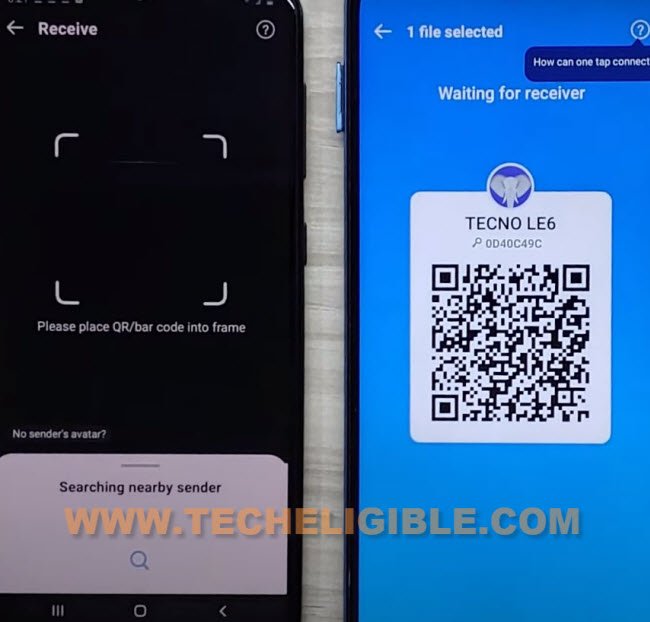
-After that, you will be displayed (QR Code) on your device other android phone.
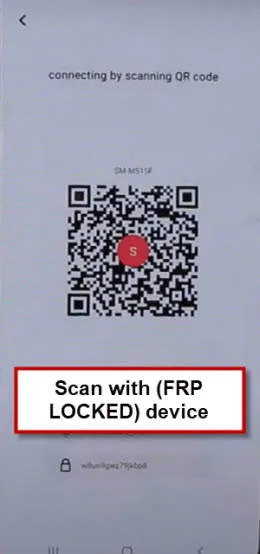
-You have to scan QR code using Xiaomi Redmi Note 14 Pro and Pro+.
-After scanning the code successfully, you will see a popup option on your xiaomi redmi note 14 device screen. Just, tap to “Connect” button from there.
Follow Up Steps in Xiaomi Redmi Note 14 Pro | Pro+:
-Tap on a youtube link from xiaomi redmi device and tap to “Mi browser” from popup.

-Type in google search box “Se” and go to “Security”.
-After accessing inside security app. Just swipe up from bottom to see more options there.
-Go to “Second Space” app.

-Tap to “Turn on Second Space” option from next screen.
| Note: If your device screen goes black and nothing is shown up there. You just restart your device and repeat all steps from the beginning. |
| Note: If, after repeating steps, you are back on a (Second Space) screen. Just tap to “Delete” icon first from top corner to delete your recently created second space. After that, tap on “Turn on second space” button again. |

-If, this is your 2nd attempt to creating second space. Then, you will have to delete your old one first. Tap to “Delete” option from top corner.
-After that, create fresh one second space by tapping on “Turn on second space” button.
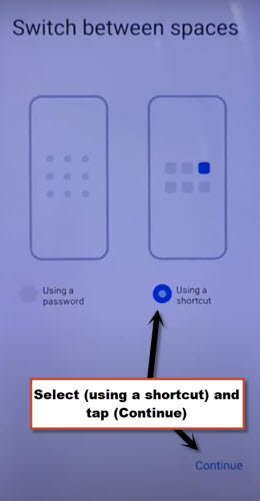
-After successfully setup second space, you will be redirected to the (Switch between spaces) screen. From there, select “Using a shortcut” and go to “Continue”.
-Tap to “Skip” from next page. After that, you will be inside xiaomi phone main home-screen.
-Restart your device now. Because, we’ve to manual reset our device too.
-After restarting is done, you are back to your device main home-screen. Simply, go to > About Phone > Factory Reset > Erase all data > Factory Reset > Next > Ok.
-Your device will auto restart and your forgotten google account will be removed. After that, you can complete setup wizard steps again.