
We have free tool for you to fix up frp issue from your Samsung device. If you can’t recover your google ID and your device is on FRP protection. Then, you can follow up this latest 2025 method to Bypass FRP Samsung Galaxy A06 with the help using free (Prime ToolX) software. Which is PC software. You just have to turn off your Samsung device and connect with PC. Follow steps from below.
Disclaimer: We highly recommend you to apply this method only on your own device, if you are not owner of this device, or you found this from some where, you must return to its real owner. This method is for educational purpose only.
Download & Use Prime ToolX to Bypass FRP Samsung Galaxy A06
Firstly, you have to download Prime ToolX with the below given link on your PC. After downloading is completed. simply, extract and run this free Tool on your PC. After that, we will install some USB drivers through this tool. This has already mentioned in below step by step guide. Once the drivers installation process is done, after that, you can connect your Galaxy A06 with PC to start FRP Bypass Process.
-You are required a PC or laptop to accomplish this process. Because, we will download below given tool in our PC. After that, using this Prime ToolX, you will be able to bypass frp with one click.
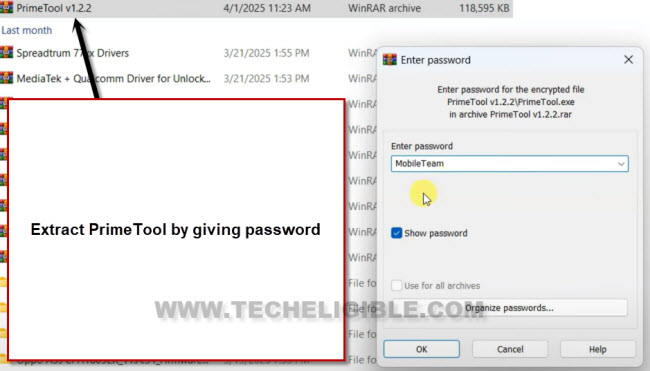
| ⇒ Prime ToolX V3.4 [DOWNLOAD] Password: MobileTeam |
-Extract downloaded tool by using above given password.
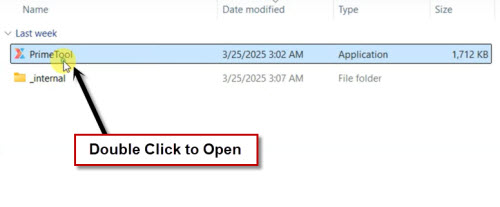
-Go to extracted folder and run “Prime ToolX” tool in your PC.
Install Drivers from Prime Tool X:
-Go to “Drivers” tab from Primetoolx screen.

-Install both drivers from there same as shown in below image.

Choose Model (Galaxy A06) & Click to (Erase FRP) Button
-Once the installing process is done. Just go back to main home-screen of Prime ToolX.
-Select “Samsung A06” model from there and click to “Erase FRP” button.

-Turn off Samsung Galaxy A06 device & Connect with your PC using data cable to bypass frp.

-Within few seconds, you will see frp will be bypassed completely. On prime toolx screen, you will some texting there. That means, the frp has been bypassed successfully.
-If you don’t see anything there on Prime ToolX screen, then, reconnect your Samsung device with PC. Just unplug and plug again data cable to your Samsung device. This time, your device will be detected by the tool and frp removal process will continue shortly.

Disconnect Device & Complete Setup Wizard Samsung A06
-Once the FRP bypass process is done, just disconnect your device from computer.
-Turn on Samsung Galaxy A06.
-We have to finish up remaining setup wizard steps now by tapping at > Start > Agree > Set up manually.

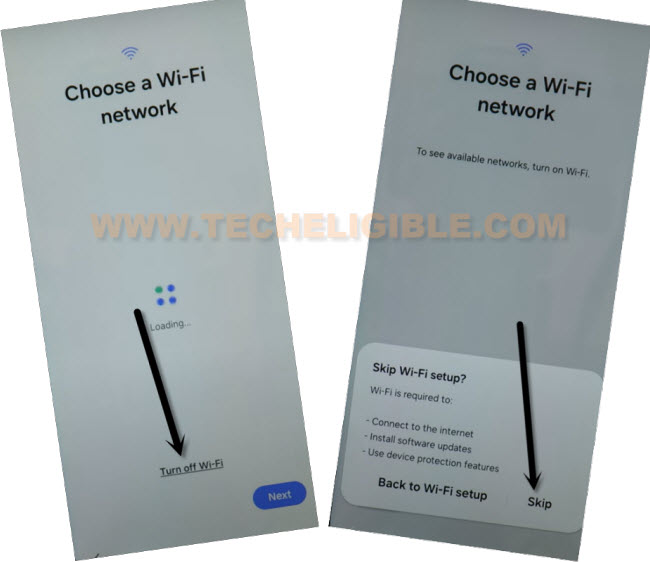
-After that, you will access to WiFi page. From there, tap to “Turn off WiFi” option from center and hit on “Next”.
-Tap on “Skip” from popup window for frp bypass.
-Wait on (Just a few moment) screen and hit on “Don’t Copy” option.
-Go to > More > More > Accept.
-From setup Pattern lock screen, just hit on > Skip > Skip Anyway > Agree > Next > Next.
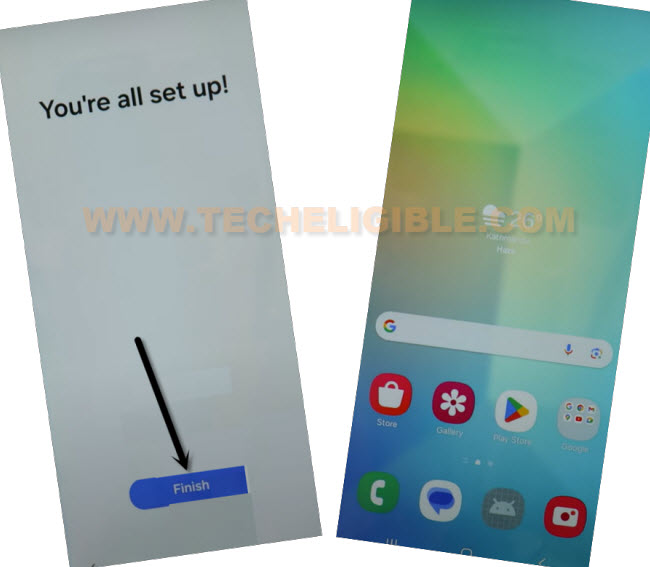
-Finally, tap to final button “Finish” button to Bypass FRP.
-Tap to “Skip” from top corner and hit on “Yes”. After that, you will be redirected to your Samsung Galaxy A06 main home-screen.
FAQ’s on Samsung A06 FRP Bypass:
Is Prime Tool X free?
Yes, Prime Tool X is free and can be used easily on Samsung Galaxy AO6 device.
Do i need USB Drivers for Galaxy A06?
Without USB drivers installation, your device can't be detected by the Tool & PC. You do require USB drivers to install first on PC.
How to Install Drivers for Samsung AO6 frp bypass?
You can install drivers from Prime Tool X interface. Open Prime tool x software on PC, go to (Drivers) tab from there. Install both drivers (Driver Mediatek & Driver USBdk).
Read More: