
We will show you an easy way to fix your device accessing issue. If you can’t recover your lost account and wanna use back your device. Then, follow up this instruction to Bypass FRP Ulefone Armor X8 (Android 11,10) just by setup another PIN lock code. After that, you will be able to skip google sign in screen.
Warning: Do not try this frp method on a stolen phone, this is a serious crime, if you are trying to bypass frp on a stolen phone, you may also be jailed, this process is for device owner and for educational purpose only.
Let’s Start to Bypass FRP Ulefone Armor X8:
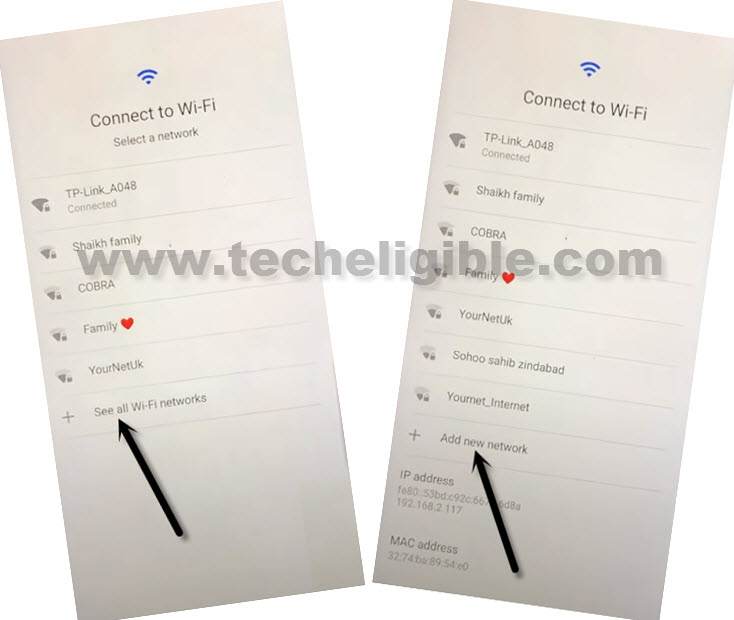
-Firstly, turn on device and connect WiFi.
-From same (Connect to Wifi) screen, just go to > See All WiFi Network > Add New Network.
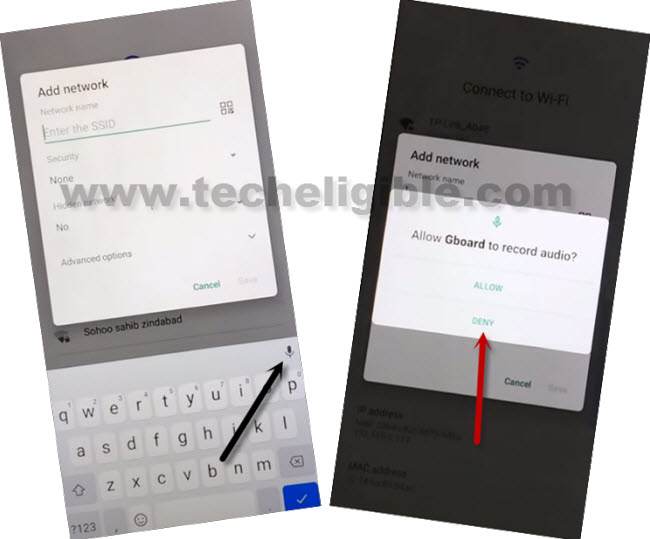
-You will have a (Add network) popup window. From there, hit on a “Mic” icon from keyboard and tap to “Deny” from the popup screen.
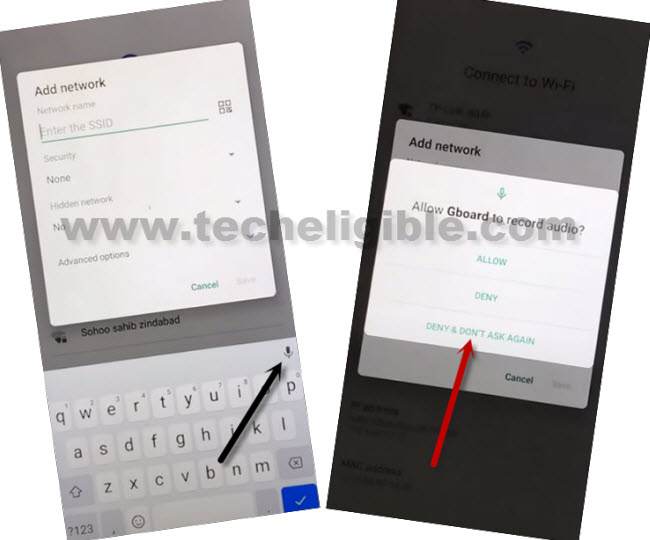
-After that, tap again on a “Mic” icon from the keyboard.
-Hit on “Deny & Don’t Ask Again” option from the popup window.
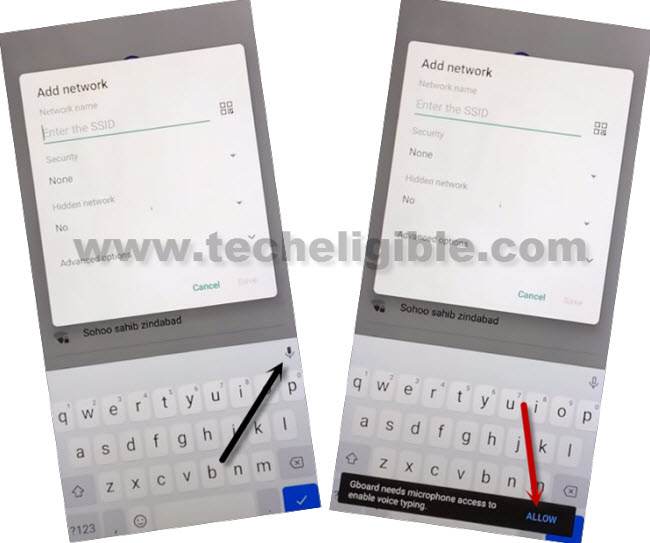
-You have to hit once more time on a “Mic” icon. This time tap to “‘Allow” from black popup message.
-You will be taken on a (Gboard) page. From there, go to “Permission”.
-After that, hit over a “Search” icon from top corner.
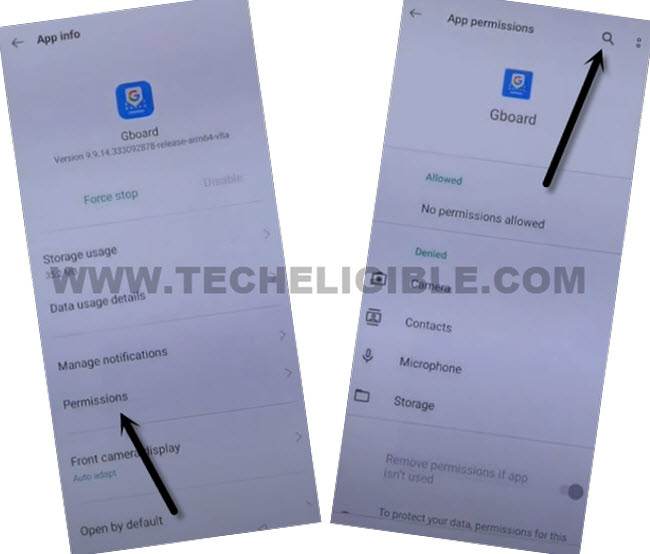
-Search in top searching area “Settings”.
-Scroll down and tap to “Settings app info” option same as shown in below image.
-To reach to your device main settings page, just hit on “Open” link.
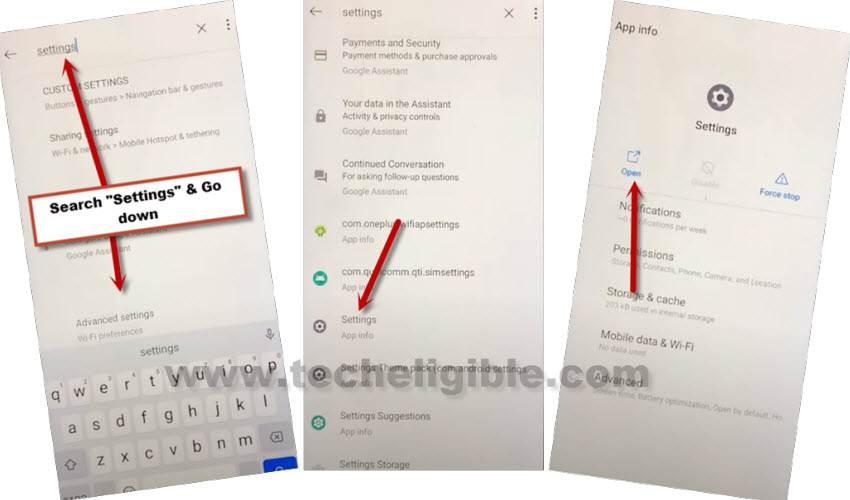
-Congrats on reaching to your frp protected device settings page. Scroll down from there and go to “Security” option.
Let’s Add new PIN code:
-We are gonna setup new PIN code on this device to Bypass FRP Ulefone Armor X8.
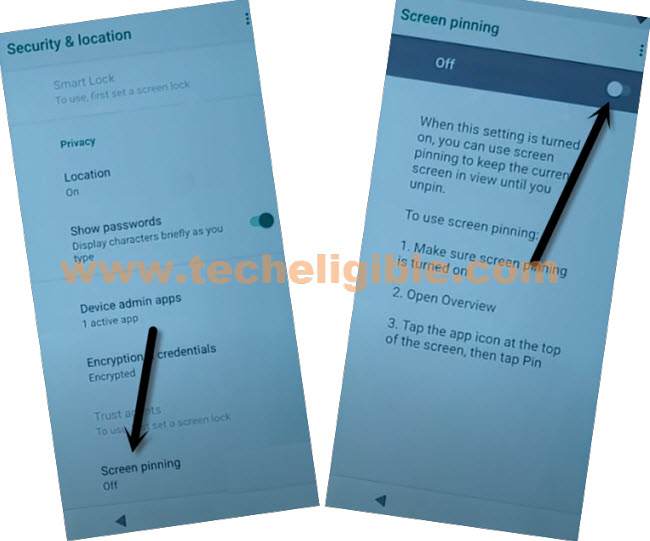
-Hit over the “Screen Pinning” option.
-After that, turn on screen pinning from top right corner same as shown in below image.
-Turn on also “Lock device when unpinning” option.
-After that, you will be taken to the pin lock setup screen. From there, tap to ”
–Hit on “Fingerprint + PIN” option.
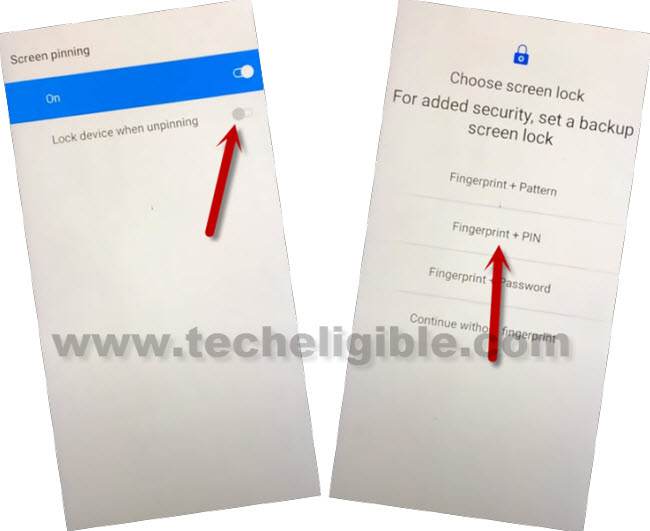
-You can give any 4 digits PIN code there and tap to “‘Next”.
-After that, give again same 4 digits PIN code and tap to “Confirm” option.
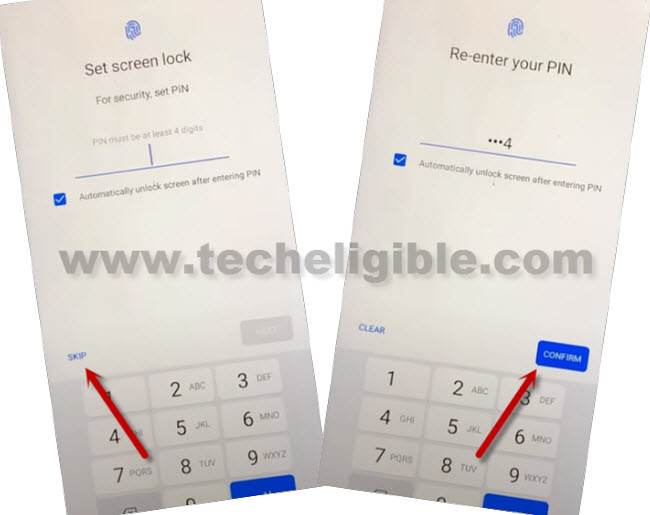
-Once the PIN lock code is setup successfully, that means, you are all done from Bypass FRP Ulefone Armor X8.
-Restart your device.
-You can complete all remaining setup wizard steps by yourself without any extra help.
-When you have a (Verify PIN) screen, just give your recently setup PIN code there.
-Once you reach to (Sing in) screen. Just, hit on > Skip > Skip.
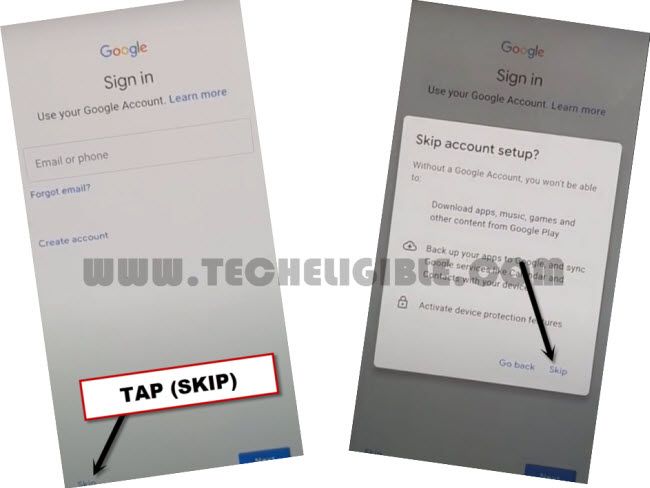
-Its all done now. Finish other all remaining step on your own.