
We can resolve our this device frp bypass issue just by switching the device language from English to Russia. After that, we will access to main settings screen of this device and setup new PIN/Pattern lock protection to Bypass FRP Ulefone Armor 6E without using any paid sevices and PC. Follow up guideline from below.
Warning: Do not try this frp method on a stolen phone, this is a serious crime, if you are trying to bypass frp on a stolen phone, you may also be jailed, this process is for device owner and for educational purpose only.
Let’s Start to Bypass FRP Ulefone Armor 6E:
-First of all. Connect WiFi and go back to first (Hi there) screen.
-Tap to “English” Language and change your device language to (Russia) same as shown in below screen shot.
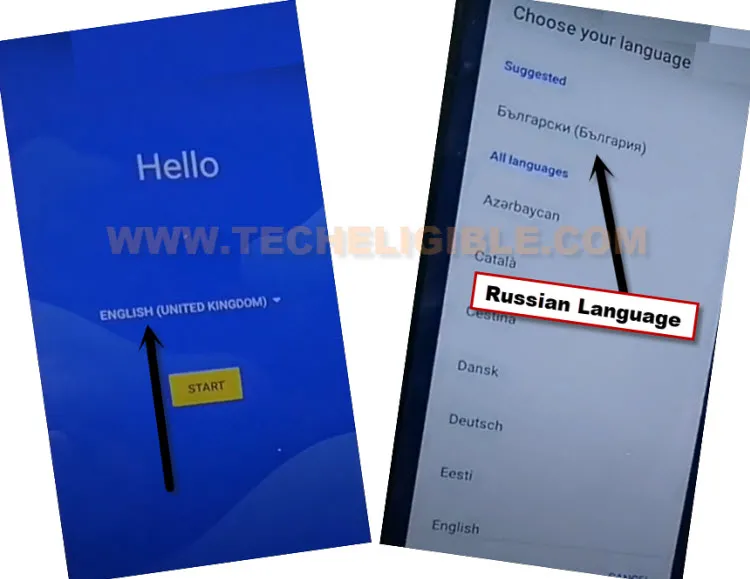
-From your first startup page, just hit on a “Yellow” option from center.
-Tap to “Left option” from bottom.

-Tap again on a “Left option” from bottom. Afterwards, tap to “Google” link from next screen same as shown in below image.
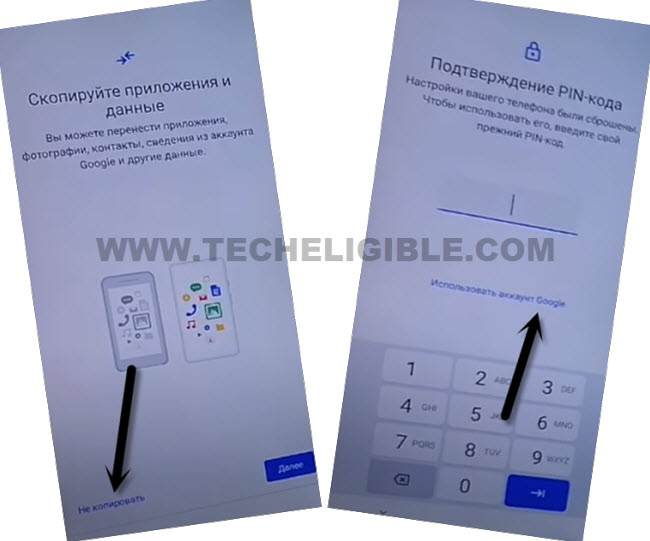
-You will be redirected on a (Google) screen. From there, tap to (Center box) to bring up your device keyboard.
-Long hold at “World” icon from there. From popup screen, tap on a “Blue / Green link”
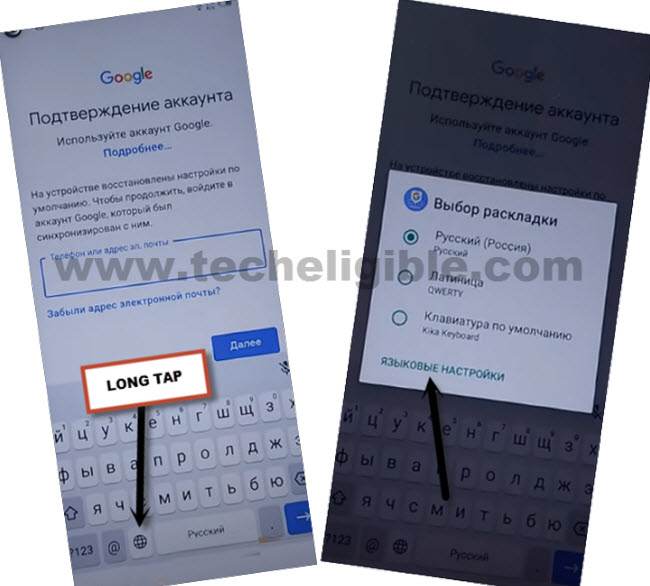
-Go to “‘Center Blue” option from bottom.
-Tap at any language from next page and tap to “Blue option” from bottom right.
-Hit again on “Blue option” from center.
-Choose any random language and tap to “Blue option” from bottom right.
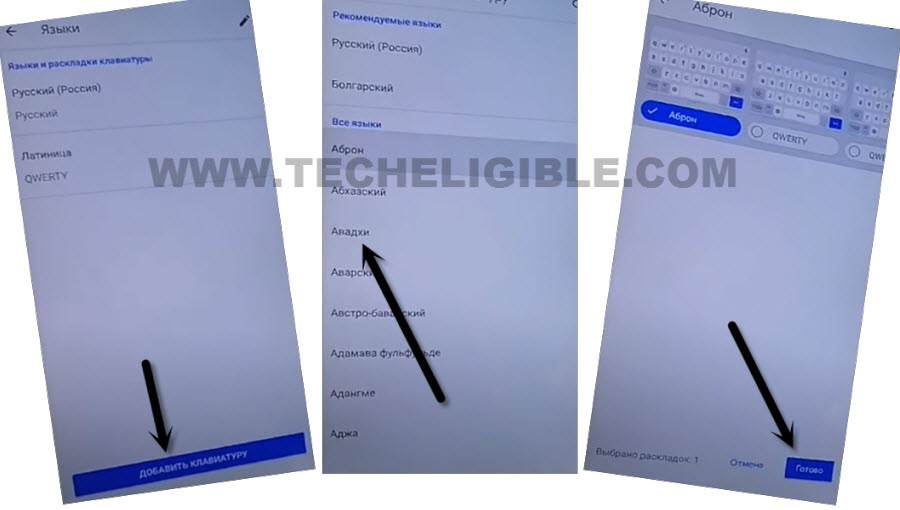
-Get back to first startup (Hi there) screen. Let’s change your device language to (English).
-After that, go to “Verify your account” screen same as shown in below image.
-Tap on a centered (Email or Phone) tab to bring up the device keyboard. From keyboard, long hold on a “World icon”. After that, new popup window will appear up on screen.
-From that popup window, tap on a last “Blue link” option same as shown in below image.
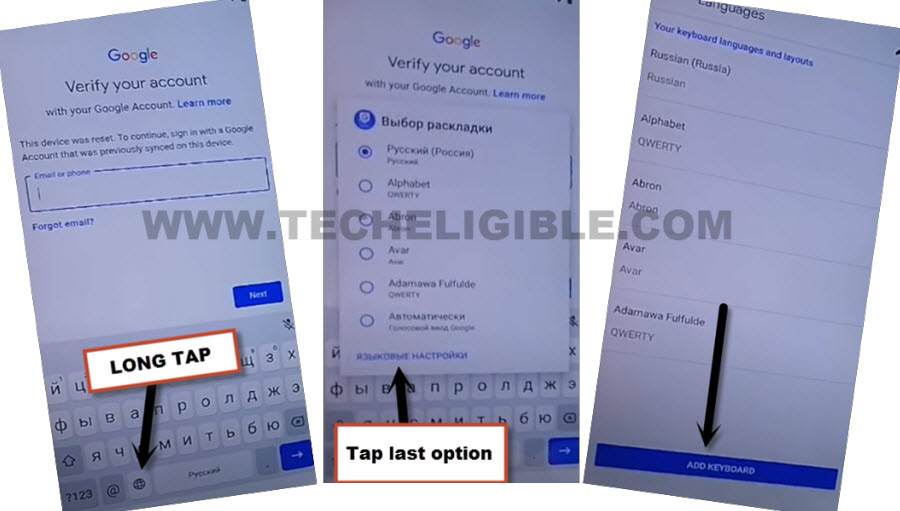
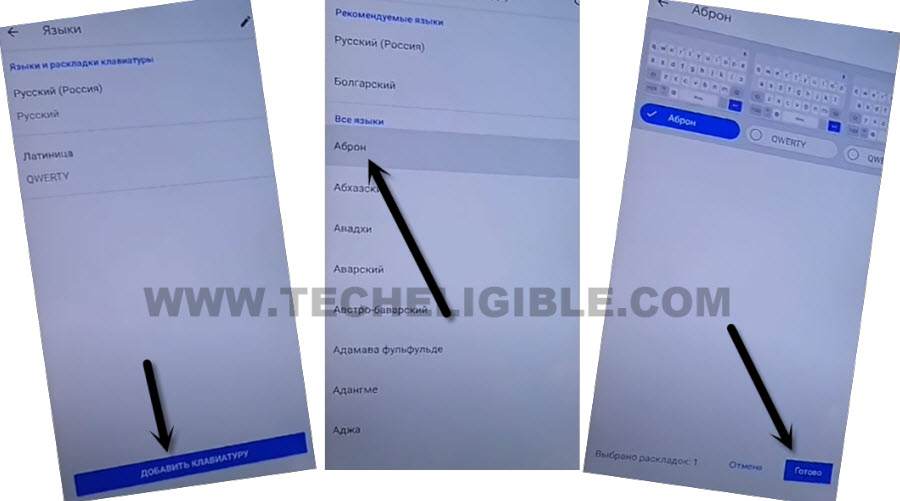
-Let’s hit on a “Add keyboard” button from bottom center to Bypass FRP Ulefone Armor 6E .
-Tap at any arrow mentioned language from keyboard language page.
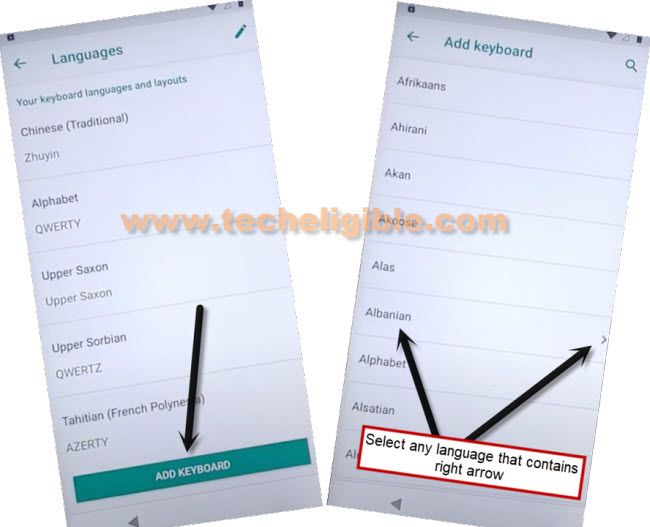
-Go to > 3 dots > Help & Feedback.
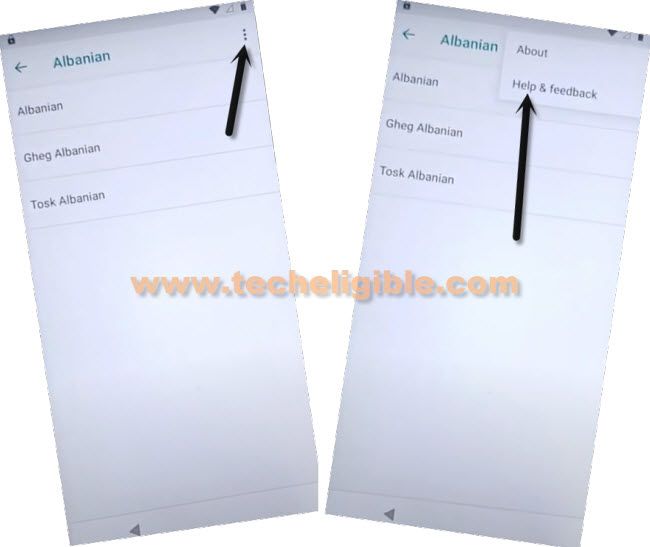
-From (Support) page, hit on a top searched box and from your keyboard, tap once on the “World icon” option to change your keyboard language to English.
-Type in search box “Morse” and go to “Write in Morse Code” searched result.
-From next page, just go to “Share” option from top of the page.
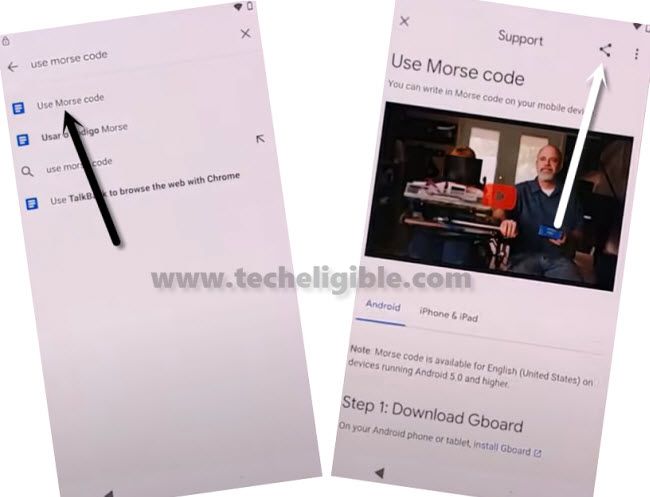
-From pop screen, tap on “Message” icon and tap to “New Message”.
-Type any 112 and hit on a “Check mark” icon from your device keyboard.

-After that, go to “Call” icon from top corner.
-Type there this code *#*#4636#*#*

-You will be redirected to the (Testing) page. From there, go to “Usage statistics”. After that, tap on “Back Arrow” icon from top left corner.
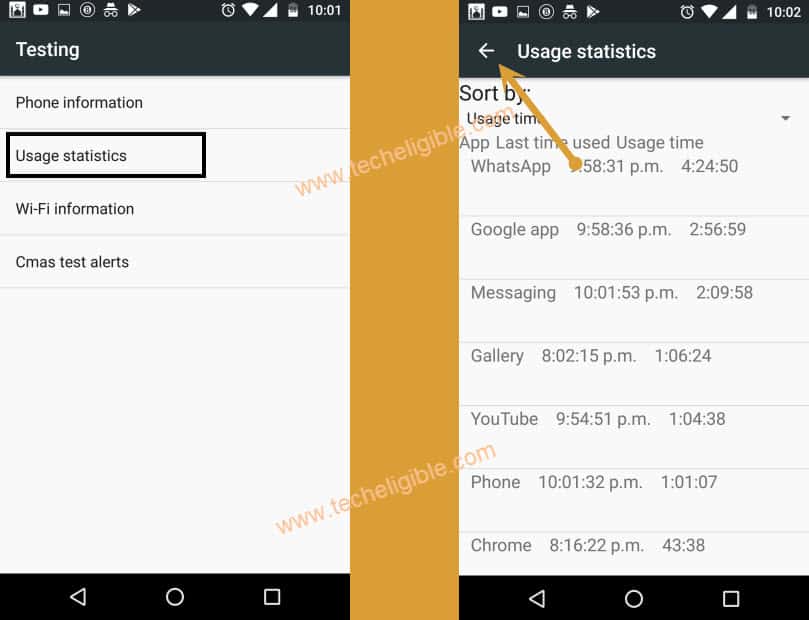
-Congrats, we have accessed to main settings page successfully. Let’s setup new PIN lock protection on our device to Bypass FRP Ulefone Armor 6E.
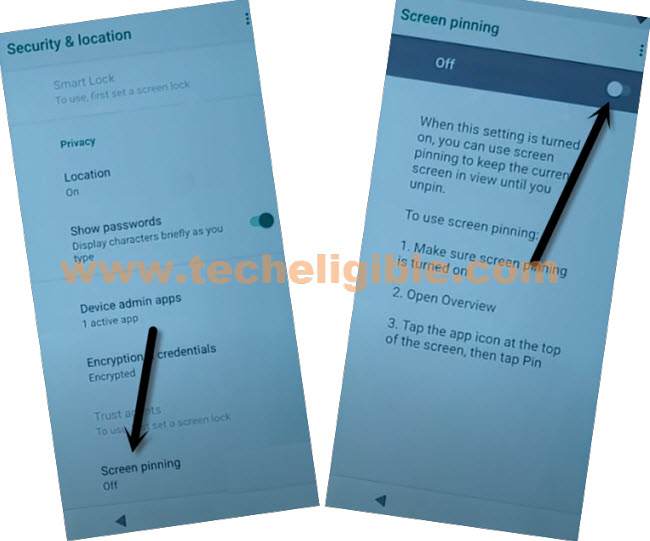
-Go to “Security & Location”.

-Afterwards, go to “Advanced” option from very last of the screen.
–Hit on > Screen Pinning > Turn on.
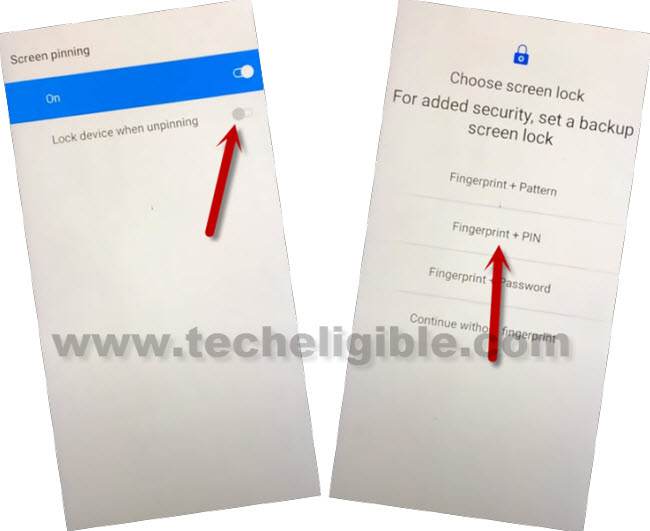
-You have to turn on also “Lock Device When Unpinning”. After turning on this, you will be redirected to the PIN lock setup page.
-From there, tap on “Fingerprint + PIN” option.
-You will reach on a (Secure start-up) screen. From there, hit on “No”.
-Setup any 4 digits PIN code on screen and hit on “Next”.
-Setup again same 4 digits PIN code and hit on “Confirm” button.
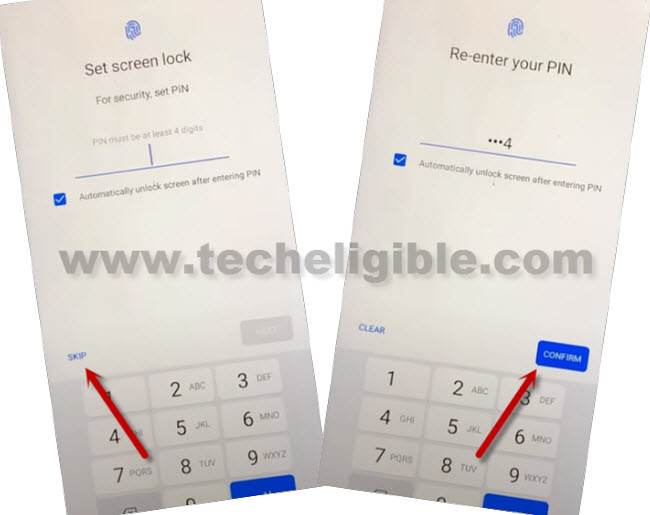
-After that, you will be redirected to the (Touch the sensor) screen. From there, tap on > Skip > Skip Anyway.
-Keep tapping on “Back Arrow” icon until you reach back to (Copy Apps & Data). From there, hit on “Don’t Copy” option.

-You will be asked to enter your PIN first. Just enter recently setup PIN code to bypass the screen.
-From google sing in page, hit on a > Skip > Skip.
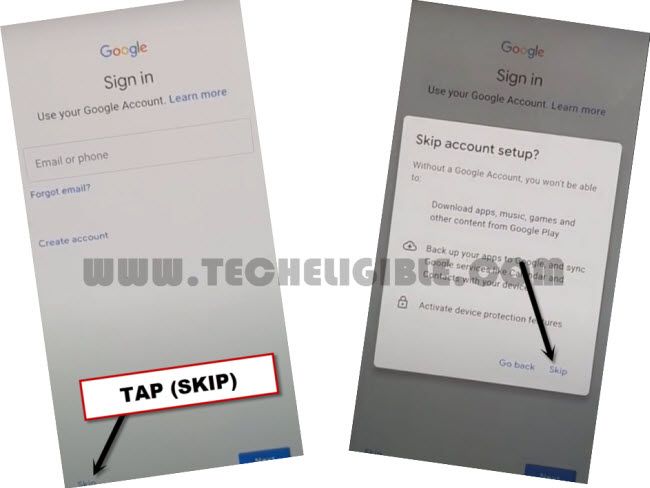
-Finish up all remaining step and reach to main home-screen.
Manually Reset Ulefone Armor 6E:
-Open up your device main “Settings” page.
-From there, go to > System > Advanced.
-Go to > Reset Options > Erase all data (Factory data reset) > Reset Phone.
-Give your PIN code and tap on “Erase everything” option. After that, you can use back your device normally.