Can’t complete the verification process on the Google verification screen because of a hard reset on your device? This issue arises when you cannot recall the Gmail account that was configured previously. The FRP lock operates with the Google account that was set up earlier and becomes active when someone performs a hard reset without logging back into the same Google account. If you are the rightful owner of the phone, you can follow the subsequent steps to bypass FRP ZTE Blade A53/A53+/A53 Pro utilizing a complimentary tool known as the (Best Flash Tool).
Disclaimer: It is strongly advised that you utilize this technique solely on your own device. If you are not the legitimate owner or have come across this information elsewhere, you must return it to the rightful owner. This technique is intended for instructional purposes only.
Continue Steps for Bypass FRP ZTE Blade A53 Pro, A53 Plus, A53:
In this guideline, firstly, we will download and install the (BFT tool) on desktop system. After that, with the help of the bft tool, we will download ZTE phone drivers and installed it properly. Finally, we just have to connect the device with PC and click to (Reset FRP) option from the tool. Check steps below.
Steps to Follow
-Begin this process by downloading the tool first on your computer.
| ⇒ BFT Tool V1.7 [DOWNLOAD]. |
Note: Remember to temporarily disable any active antivirus software on your PC. This action should only be for a short time. Once BFT Tool has been used, you can reactivate your @ntivirus.
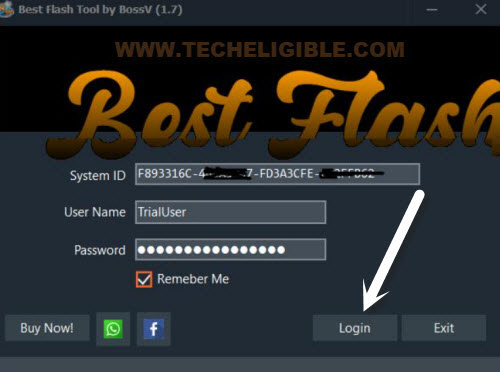
– After successfully running the tool, simply click on the “Login” option from the pop-up screen.
-Select the “0-UNISOC” processor for your ZTE device.
-Next, check mark for the “Manual” option and input “[AUTH] SC9863A (64)“.

Install Drivers Properly:
-On the tool’s interface, navigate to the “Drivers” option, then select “Install SPD Driver” and wait for it to download and automatically initiate the installation.
-In the installation pop-up window, proceed to install this driver by clicking on the “Next” option.
-Upon completion, let’s download the additional driver “Install LibUSB Filter Driver“.

-Now, let’s also install this (LibUSB filter driver).
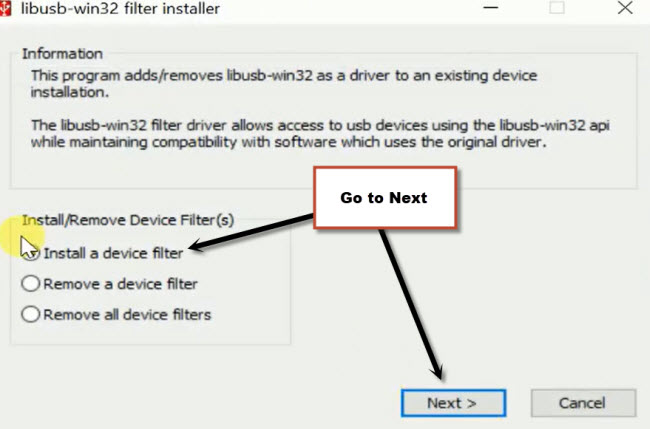
-In the installation pop-up window, select the “Install a device filter” option, then press “Next”.
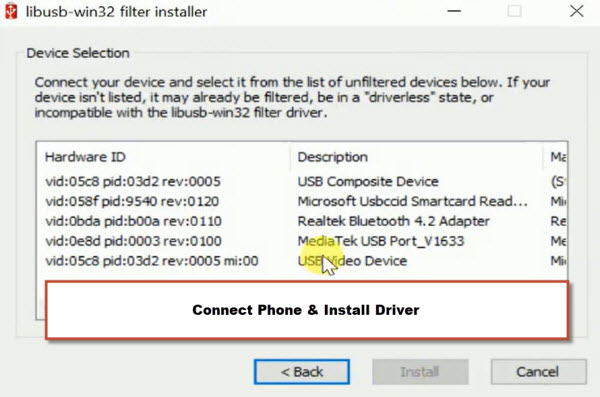
-We will now install the correct ZTE drivers. To achieve this, power off the phone, press and hold the (Volume Down) button, and connect the phone to the PC.
-Following this, another (Driver Name) will appear on the LibUSB pop-up screen. Simply select that driver and click on the “Install” option.
-Once you have successfully installed the drivers, disconnect your phone.
-Return to the BFT tool interface and click on the “Service” option.
-Next, just hit over the “Reset FRP” button to proceed with the FRP Bypass process.
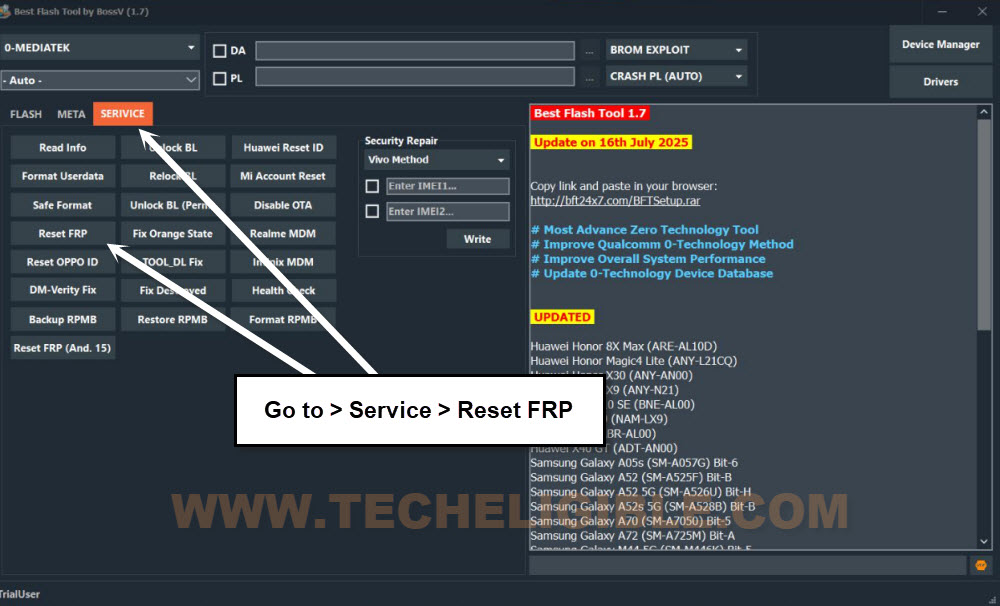
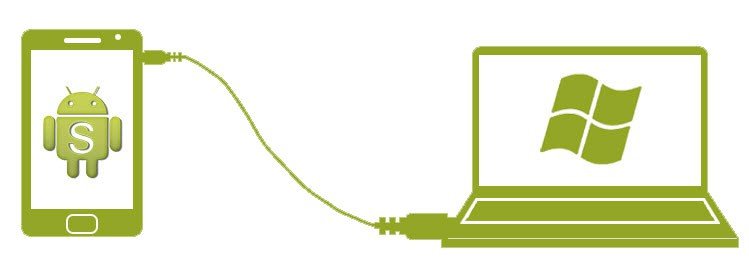
-Now, reconnect the phone to the PC while continuing to hold down the (Volume Down) button.
Note: Maintain pressure on the volume down button while connecting the phone to the PC.
-Afterward, the BFT tool will automatically detect your device and initiate the process for Bypass FRP ZTE Blade A53, A53+, A53 Pro.
| Note: If you encounter an error and the FRP is not bypassed, close and restart the BFT Tool program. Then, attempt again by selecting a different chipset name from the (Manual) section, such as [Tiger T610 (64)] or [Tiger T606 (64) V2].
Don’t know your device chipset detail, check it out on (GSM Arena site) with your device model name. After that, select the correct chipset name. |

-Once you have successfully completed the FRP bypass, a notification will appear on your display indicating (FRP Reset END).
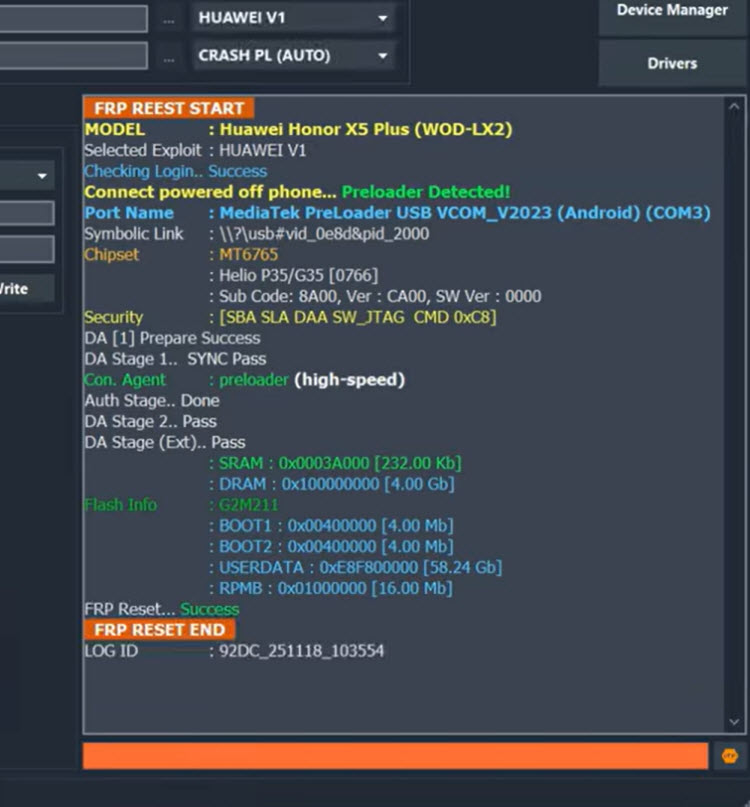
-Next, simply disconnect the device from your computer and carry out the setup wizard steps independently. You should not encounter the Google sign-in screen again. In case it appears, there will be a (Skip) option available. Just click on that > Skip > Skip.
Remember: If your phone is stuck on loading page, simply hard reset it by getting into (Android Recovery Mode). After that, complete setup wizard steps again.
Note: Having issues in downloading and installing the (SPD Drivers) on computer or your device is still being unrecognized by the tool, then, try it manually.
|
Conclusion:
I downloaded and set up the free and easy (BFT Tool) on my computer. Then I ensured the drivers were correctly installed via the BFT tool. After that, I connected my ZTE A53/A53+/A53 pro phone to the computer. I chose the (Unisoc) processor option within the tool and proceeded to select the (Reset FRP) option. The FRP bypass process typically takes only a few seconds to a minute to complete its process.