
Are you totally unable to proceed past the Google verification page and finish the setup process? This situation can be quite annoying, especially if you find yourself without access to your device right after performing a factory reset. The issue arises because your device is secured with full FRP lock protection, and you’ll need the credentials of a Gmail account that was previously signed in to regain access and finish the ownership confirmation. If you have forgotten your account details and have exhausted all recovery methods, you have only one option left: to utilize the Bypass FRP Xiaomi Redmi 15C HyperOS 2 (Android 15) method.
Disclaimer: We strongly advise you to use this approach only on your own device; if you do not own this device or obtained it from somewhere else, you must return it to its rightful owner. This method is intended solely for instructional purposes.
Bypass FRP Xiaomi Redmi 15C HyperOS 2 (Android 15)
In this simple guideline, we will use the pin locked setup SIM card for getting the (Not Signed-in) popup message. Once we got that message, then, we will be able to reach on the (Calendar) application by tapping on (Date & Time). After that, We will just download & install the activity launcher application to creating second space on the phone to access the main home-screen without completing the google verification process.
Continue Process in Stepwise Guide:
-Firstly, hire any other android phone and insert your SIM card on that phone. After that, open up phone settings and setup 4 digits PIN lock code on the inserted SIM card.
Note: Don’t know, how to setup 4 digits PIN lock? Check steps here.
-We’ve prepared a PIN locked SIM card successfully. We will use this SIM on our FRP locked Xiaomi phone.
-Turn on the Xiaomi 15C device and connect WiFi. After that, insert already pin locked setup SIM Card on the Xiaomi phone.
-Once you see the (SIM PIN) screen, just remove the inserted SIM Card from the phone.

-There, you will get the (Not signed in) message. Let’s swipe down from top bar to bring up the top notification bar. After that, tap to “date & time”.
-We’ve accessed on the calendar screen, before that, tap to > Allow > Allow.
-Now, from the calendar page, go to “3 dots” option. Then, hit on “Settings”.

Access to GetApps App & Install App
-Go all the way down and tap to “About this app” option.
-Then, from next page, hit at “Check for updates”.
-Select the last option labeled “About this app.” Navigate to “Check for updates.”

-You will be taken on the update screen, just tap on “Mi Calendar” option from there.
Note: If you don’t see the (Update…) screen, don’t worry, you must see the popup window, just tap to (Get apps) option from there. After that, search and install the (Activity Launcher) app.
-Let’s go to “Search” icon from top corner and make search with the “Activity Launcher”.
-Install the “Activity Launcher” application, once its finishes, just tap to “Open” option to launch this application on our phone.

Prepare a Second Space on Phone
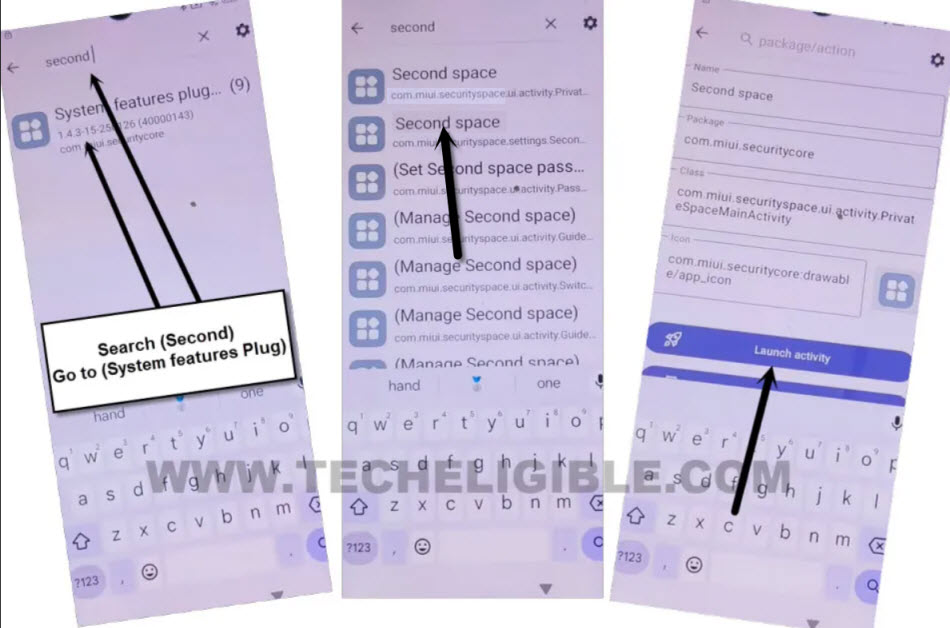
-After you get inside the app successfully, simply, search there with “Second” and tap on the searched result “System feature plug…”.
-This will you 2 results of (Second Space), from them, we have to tap on the 2nd number “Second space (com.miui.securityspace.settings.Secon…)”.
-From th next screen, tap on the button “Launch Activity”.
-We are gonna create new second space on our phone, for this, just tap to > Turn on second space > Continue.
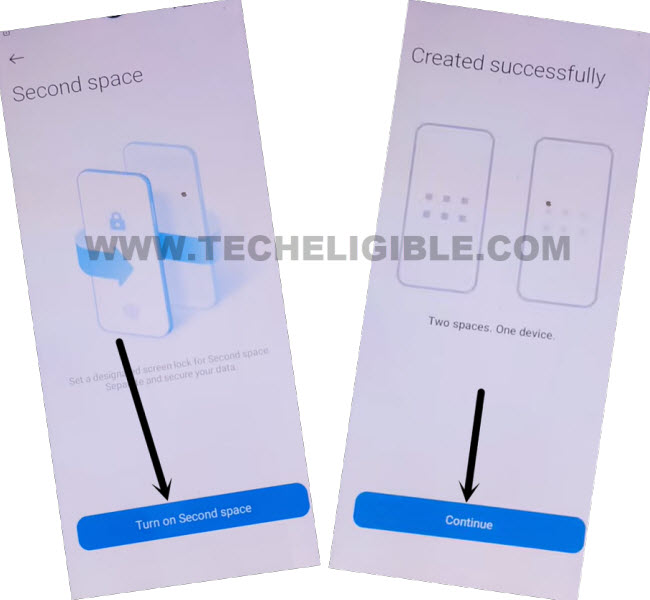
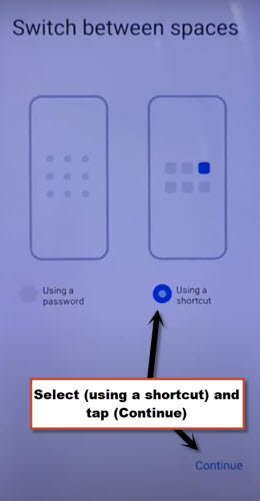
-Once the second space is created, just complete steps easily by choosing the “Using Shortcut” option and go to “Continue”.
-You may see the (Set password) screen, just, skip this screen and boom, we have managed accessing the main home-screen of the phone successfully.

Reboot Device & Access Primary Screen
-We need to reboot our phone now. For this, long hold (Power button) and choose the “Restart” option.

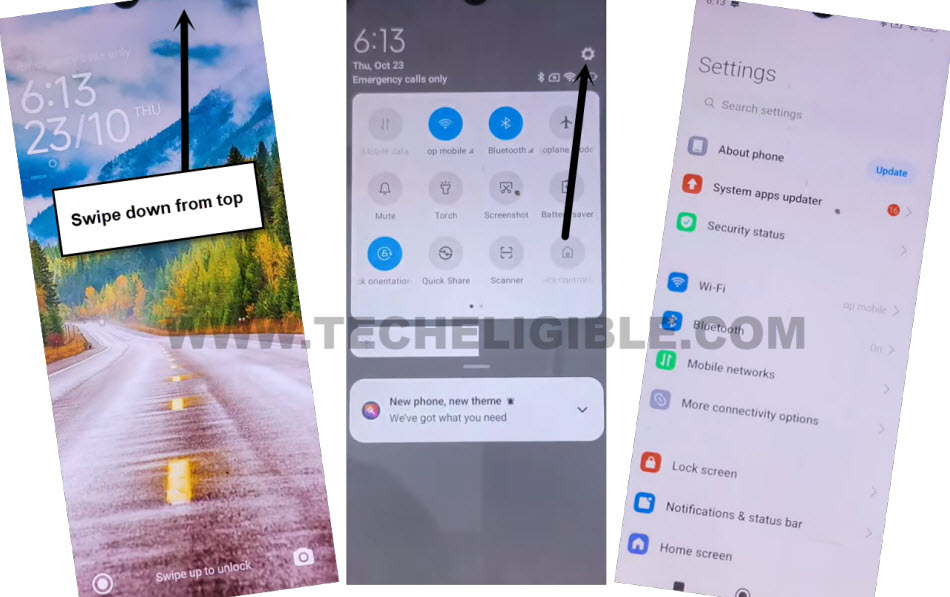
Note: Once restarting process is completed, the phone screen may not respond you on touch, if face this type situation, just try to bring up top notification bar by pulling it down and go to “Settings” gear icon.
-Sometimes, device respond very well, simply, go to main “Settings” screen of the phone.
-Don’t forget to setup new screen lock and login with another gmail account.
Conclusion
We prepared a SIM card with 4 digits PIN locked setup. After that, inserted that SIM card on the phone for accessing the (Get Apps) screen. From there, we manually installed and launched the (Activity Launcher) application and successfully created second space. After that, we just reached over the primary home-screen. Then, we just reboot our device and accessed to main home-screen for setup new security lock protection.