
Unable to reach the primary home screen on your own Lenovo Tab after doing a factory reset or data wipe from the recovery menu? This indicates that you have forgotten the credentials for the Gmail account you previously logged into, which has resulted in the activation of the FRP lock, preventing you from proceeding with the Google verification process. To regain access to your Tab, attempt to restore your lost account through the recovery methods available. If recovery is not possible, then refer to the detailed instructions provided below to Bypass FRP All Lenovo Tab Android 10.
Disclaimer: Do not try this frp method on a stolen phone, this is a serious crime, if you are trying to bypass frp on a stolen phone, you may also be jailed, this process is for device owner and for educational purpose only.
Bypass FRP All Lenovo Tab Android 10
-Begin this process through turning on the Lenovo Tab and connecting to WiFi network.
-Then, get back on the first startup screen and change the phone language to Hindi (हिंदी).
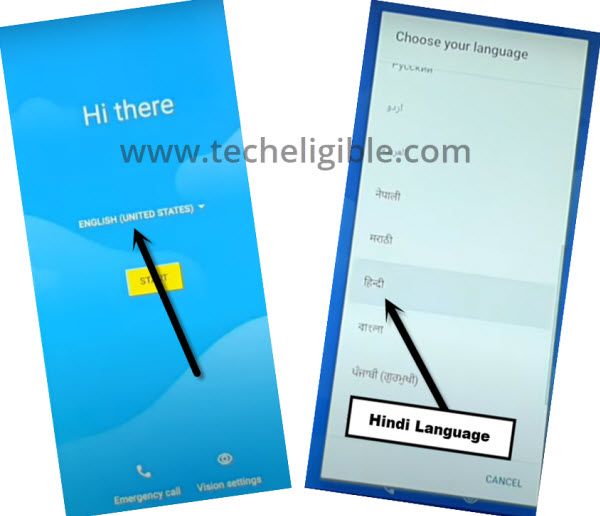
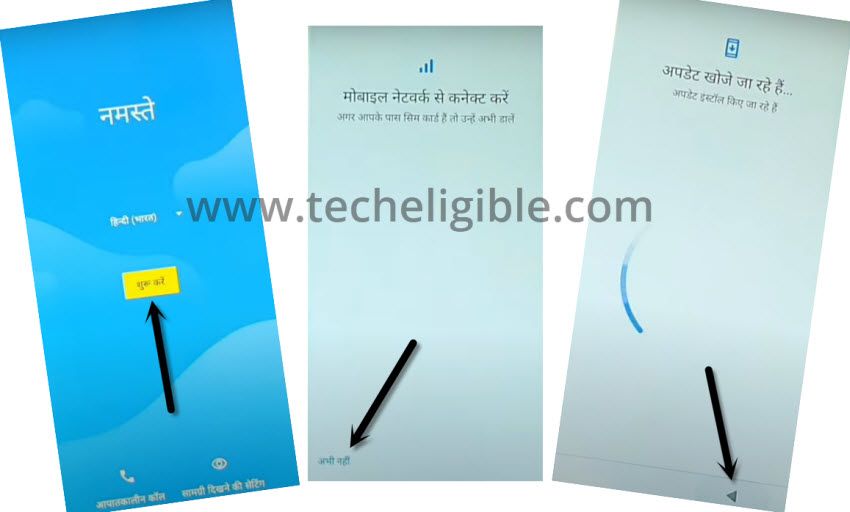
-We can go to next step by tapping on “Yellow Start” option. After that, hit on “Left option”.
-As soon as, you reach on the loading page, quickly tap on “Back Arrow” option. You will reach on the WiFi screen.
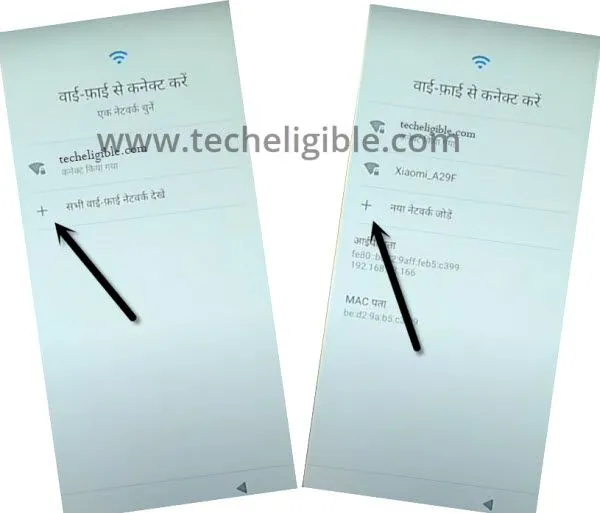
Go on WiFi Page & Launch Keyboard
-From there, hit over the > + Option > + Option.
-Let’s get the keyboard relevant popup window through long holding at “World” icon. Then, hit on the “Last Link”.
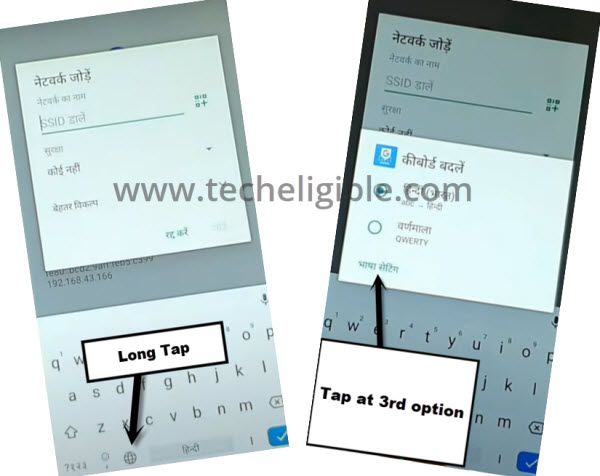
-Hit on “Center option” from bottom to access on the keyboard language list.
-After that, tap at any language name that contains an arrow icon.
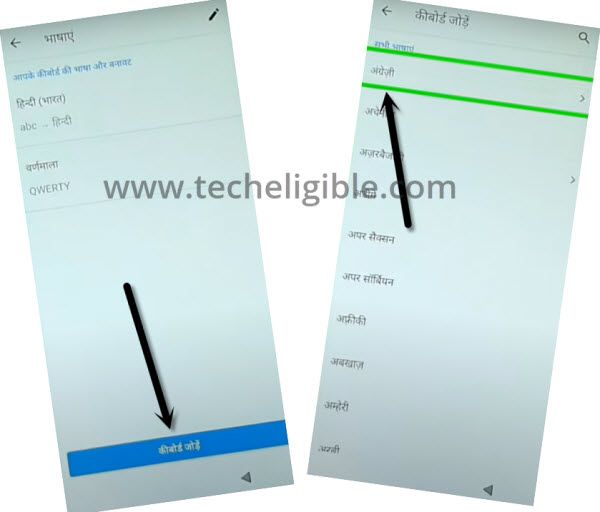
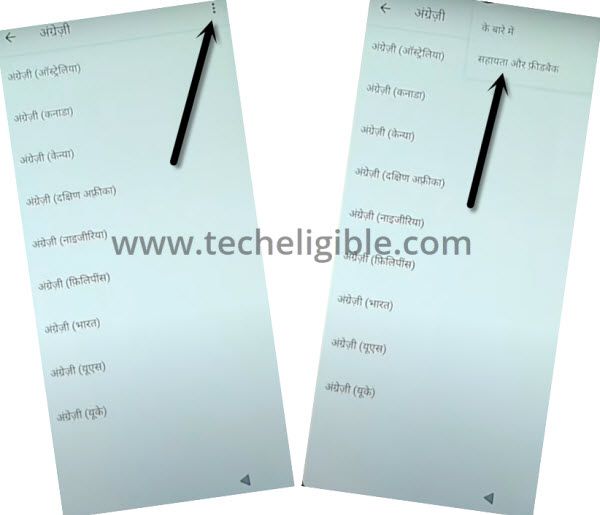
-Go on the “3 dots” icon from upright corner of the phone display.
-Choose “2nd option” from display menu.
Search and Access on (Delete or Disable Apps on Android) Page
-Let’s hit on the “Search bar” to get your lenovo tab keyboard.
-If your device keyboard language is not changed into English, simply, tap once on the “Keyboard” icon.

-Search with the “del” text and go to 1st article option “delete or disable an apps on android”.
-On next article screen, tap on the hindi blue link same mention in the below illustrated screen.

-From the next app list page, simply, find and tap on the “Settings” icon.

-Hit on “Open” option.

Change Lenovo Tab Language to Eng
-We’ve reached on the settings page successfully, from there, go to 2nd last option.
-Tap over the “World icon” option and then, tap to “A” icon option.

-Go on the “+” icon to access the language list screen and choose the “English” language from there.
-Choose “United Statutes”.

-Keep the “English” language at the top by long tap on it and swipe it up.

-Let’s go back on the primary (Settings) screen by tapping 3 times on back arrow option.
-After successfully reaching back on (Settings) page, just go to “Accessibility” option.
-Then, tap on the “Accessibility Menu Shortcut” option and turn on “Use Services” option from upright corner.
-On popup screen, hit on the > Allow > Got it.
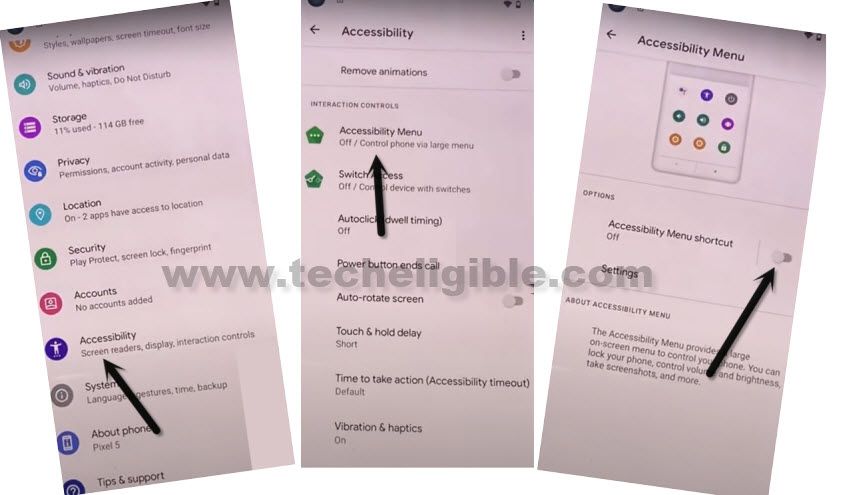
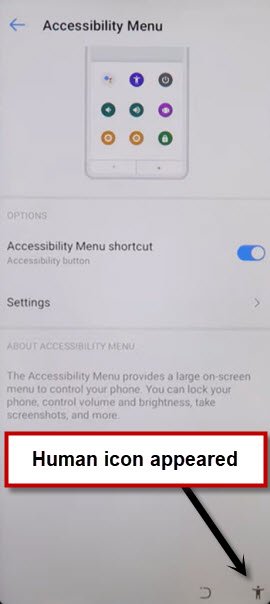
-You will be having a (Human) icon on bottom right corner. We will use this option while completing the setup wizard steps.
Disable Few Apps from App List Page
-Get back on (Settings) page, from there, tap over the “Apps & Notification”.
-Then, tap to “App info / See All” option.
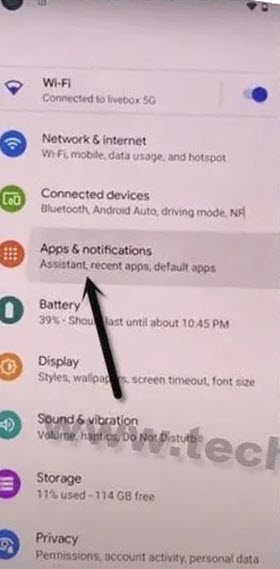
-We need to get shown all the hidden apps, just go over the “3 dots” menu option and choose “Show system”.
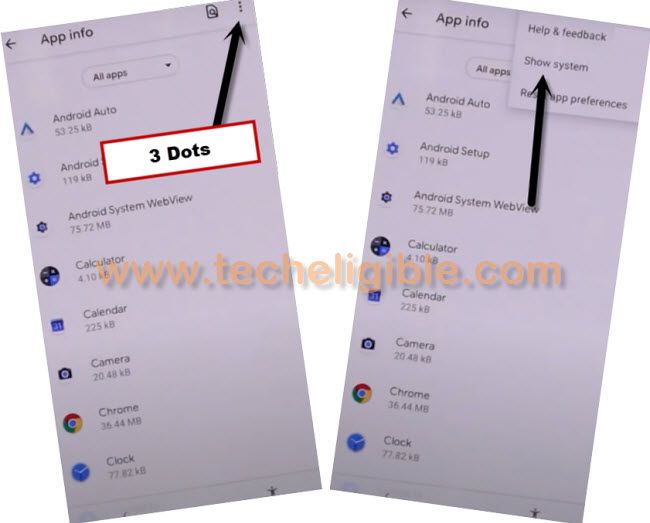
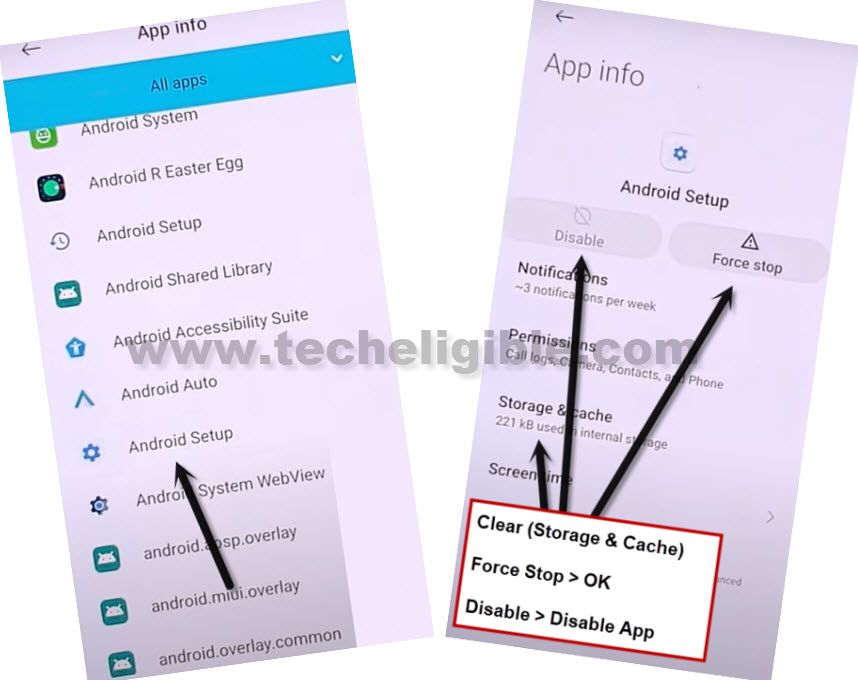
-From the app list page, find and hit over the “Android Setup” app which has an clock icon.
-Go on the “Storage & Cache” option and clear both storage and cache.
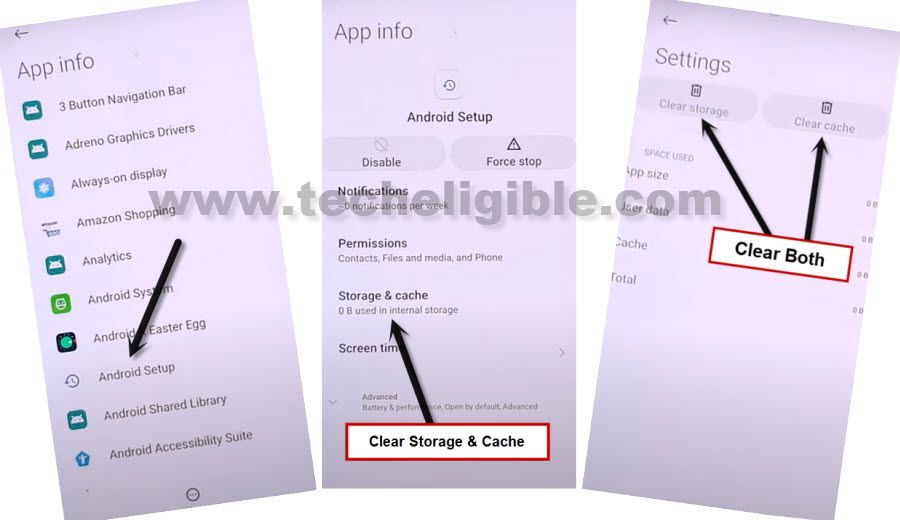
-Tap once over the “Back Arrow” option. From there, disable the “Android Setup” app by tapping on the > Disable > Disable App.
-Force stop this app as well by hitting on the > Force Stop > Ok.
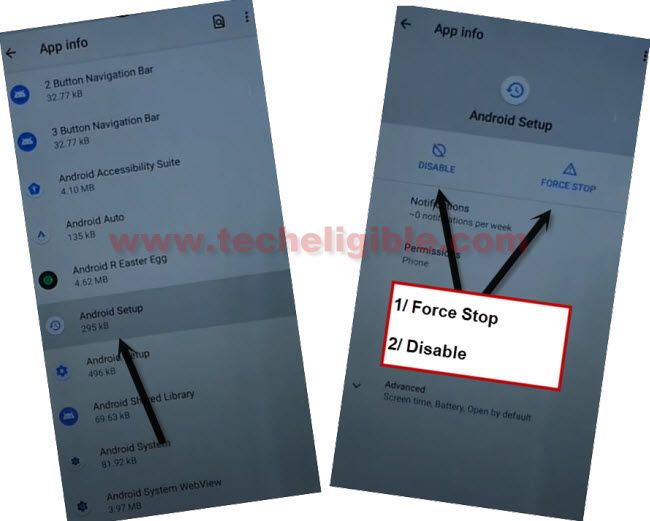
-Let’s get back on app list page. From there, find and hit over the “Android Setup” app, this app has an settings gear icon.
-Simply, tap to > Force Stop > Ok.
-Go to > Storage & Cache > Clear Cache.
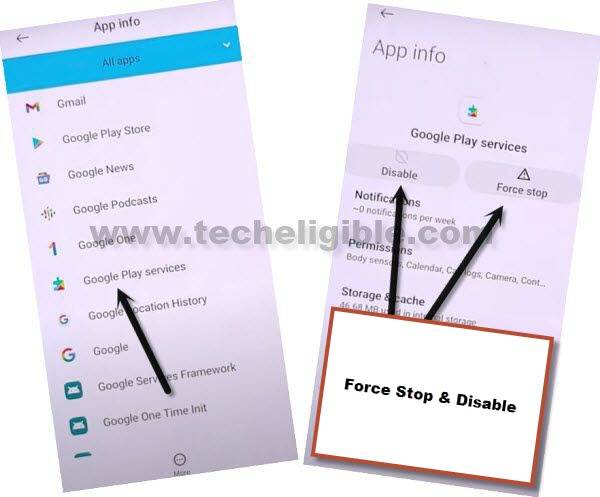
-Navigate back to app list page. Then, tap on another app named “Google Play Services”.
-Disable & Force Stop this app too.
-Keep hitting on “Back Arrow” icon few times until you reach over the (Lenovo) screen same as displayed below. From that page, tap to > Next > Skip.

-You will see the loading page of (Just a sec..), wait on this page for 10-20 seconds, after that, use the accessibility function here by hitting on “Human” icon from bottom corner.
Use Accessibility Menu to Turn on Google Play App
-Choose “Assistant” option. Finally, tap to “Settings”.

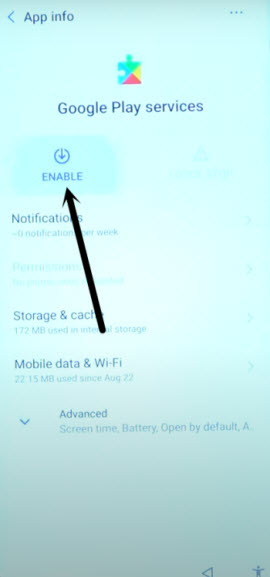
-Hit on “Enable” button to enable back the google play services application.
-Tap 1-2 times on back arrow option get back on (WiFi) page. After that, complete the setup wizard steps using the (Setup offline) option.
-Let’s hit on > Setup offline > Continue.

-After accessing on google services page, go to > More > More > Accept.

-Complete all the remaining startup steps on your own. Its all done from frp bypass on Lenovo Tab.
Conclusion
We changed the lenovo tab language to hindi. Then, accessed over the app list page directly through using the (Delete or disable apps on android) article page. From there, we launched the settings of the Tab directly. Finally, we disabled, force stopped and cleared cache of some apps. Then, we got back to first startup page and completed setup wizard steps easily by using the (Setup offline) option.