
Have you perform hard reset your Lenovo Tab and now, you are stuck on google verification page? If you can’t login with the same Gmail account, that was setup earlier the hard reset tablet, then, the FRP feature will not accept any other google account. Firstly, go with recovery options to recover your account and login again. If you cant recover it, then, check out our easy steps here to Bypass FRP All Lenovo Tab Android 11 without using any PC.
Disclaimer: Do not try this frp method on a stolen phone, this is a serious crime, if you are trying to bypass frp on a stolen phone, you may also be jailed, this process is for device owner and for educational purpose only.
Bypass FRP All Lenovo Tab Android 11 [Without PC]
-Continue method through turning on your tab and connect it with WiFi.
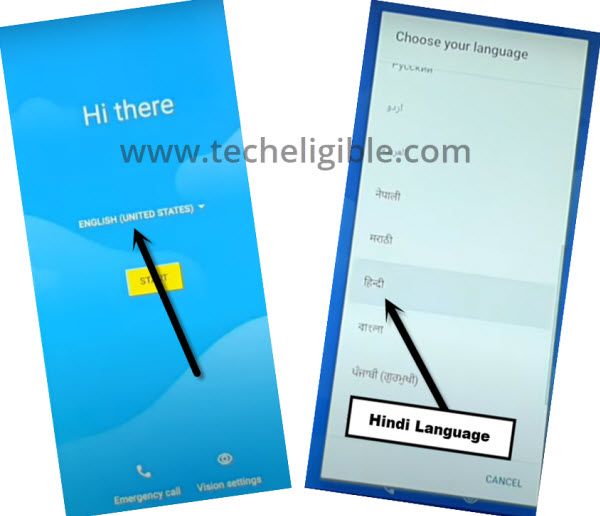
-Return over the (Hi there) startup screen and switch the tab language from English to Hindi (हिंदी).
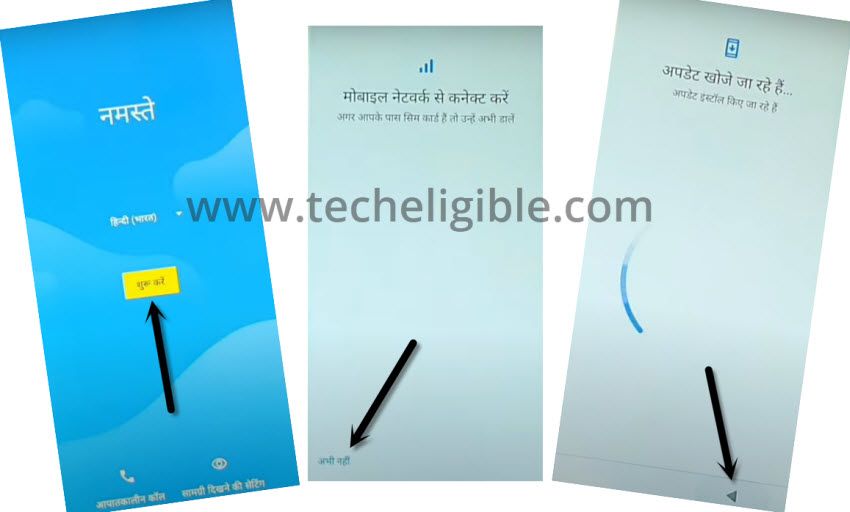
-Let’s hit over the (Yellow) option to go to next page and from next screen, hit on “Left option”.
-When, you see the loading screen continues, just tap on “Back Arrow” icon quickly, this action will lead you to the WiFi setup page.
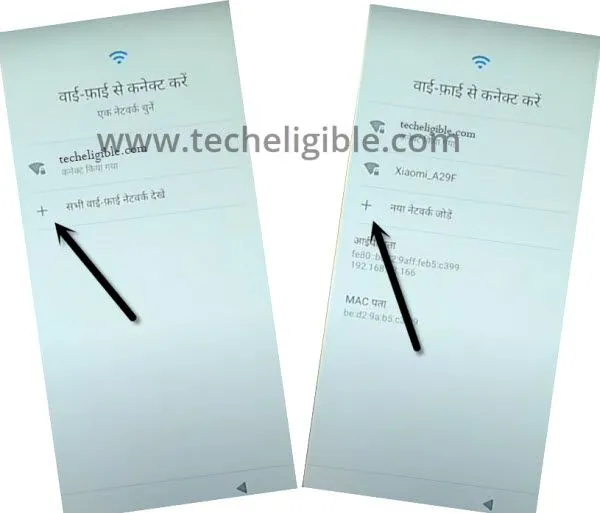
Access on WiFi Setup Page
-Bring up the lenovo tab keyboard by accessing to WiFi setup page. For this, tap to > + Option > + Option.
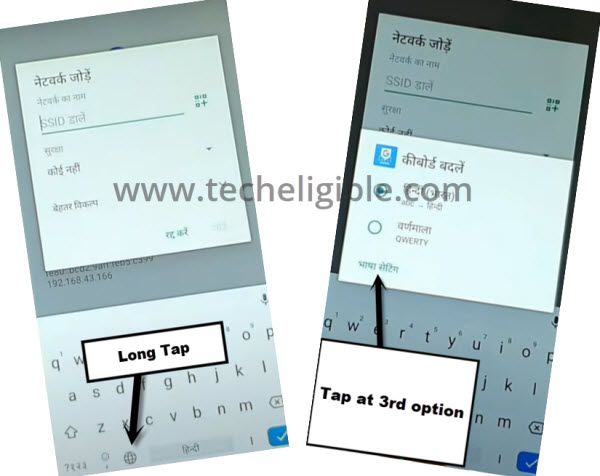
-We need to get the popup screen simply by long holding at “World” icon and then, tap on “Last link” from popup window.
-Let’s tap to “Center” option from bottom. Then, tap at any language that has an arrow icon.
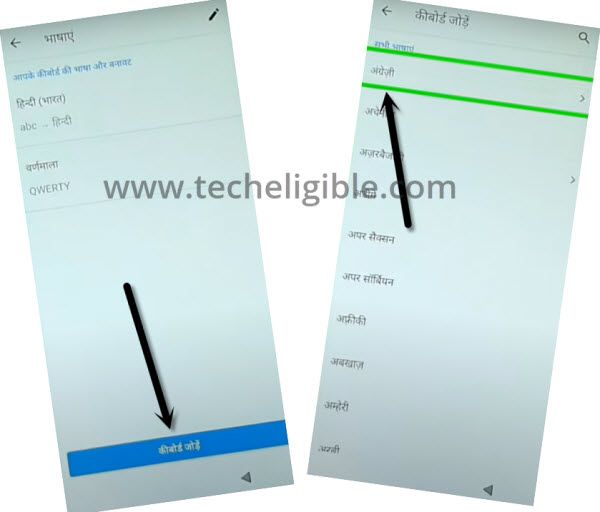
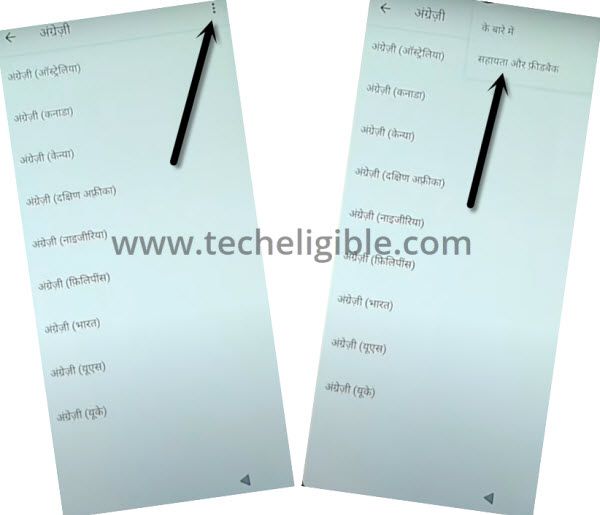
-Tap on the “Menu” icon from top corner, then, simply go to “2nd option”.
Alter the Language back to (English)
-Tap once on the (Search bar). then, you will be shown a keyboard. If the keyboard language is in hindi language, you can change this to English by tapping once on “World icon”.

-Type the text “del” in search bar.
-Tap over the “delete or disable an apps on android”.
-Finally, go to app list page by tapping at the hindi text hyperlink.

-Search and tap to “Settings” gear icon.

-Then, tap to “Open” link to access directly over the primary settings page of your FRP locked Lenovo Tab Android 11.

-Scroll down from settings screen and go to “2nd last” option for switching the phone language.
-After that, hit on > World option > A option.

-Add English language by tapping on “+”.

-Swipe up the “English” to top of the language list.

Toggle on Use Services of Accessibility
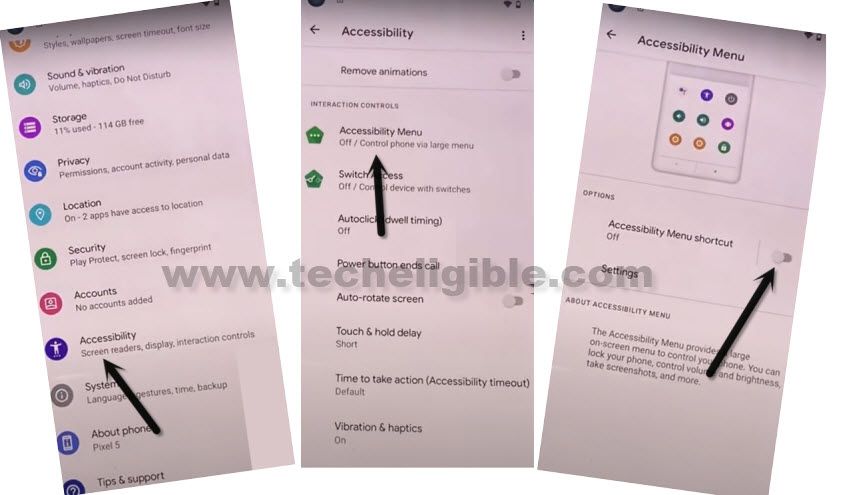
-Get back on (Settings) screen. Then, we need to enable the (Accessibility function).
-Tap to > Accessibility > Accessibility Menu Shortcut.
-Let’s toggle on “Use Services” option.
-A popup window will come up, just allow this by hitting on > Allow > Got it.
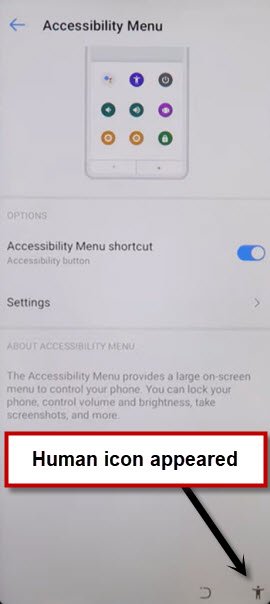
-Then, you will see the (Human) option of the accessibility menu shortcut will be displayed on corner of your device screen.
Disable, Force Stop & Clear Cache of App
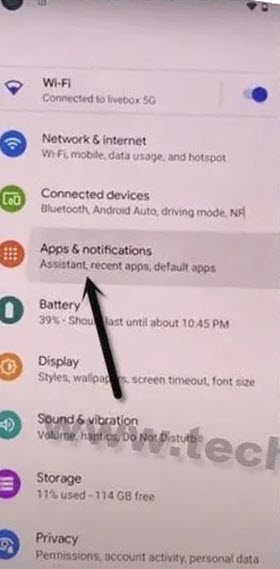
-Let’s return to the (Settings) screen. Afterwards, tap to > Apps & Notification > App info / See All
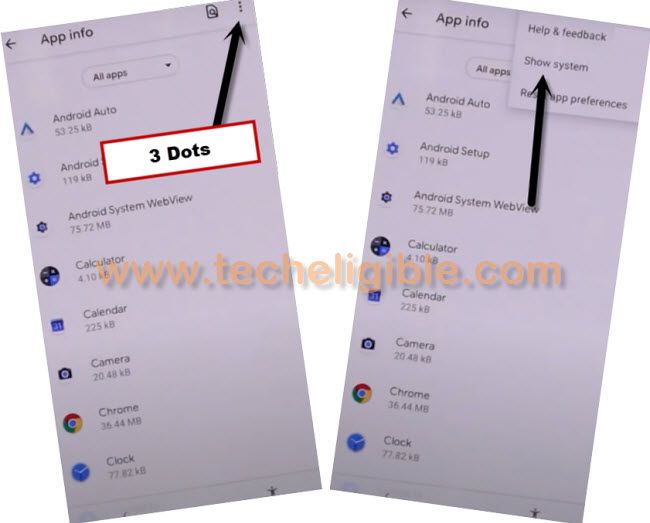
-After reaching on the app list screen, go to > 3 dots > Show system.
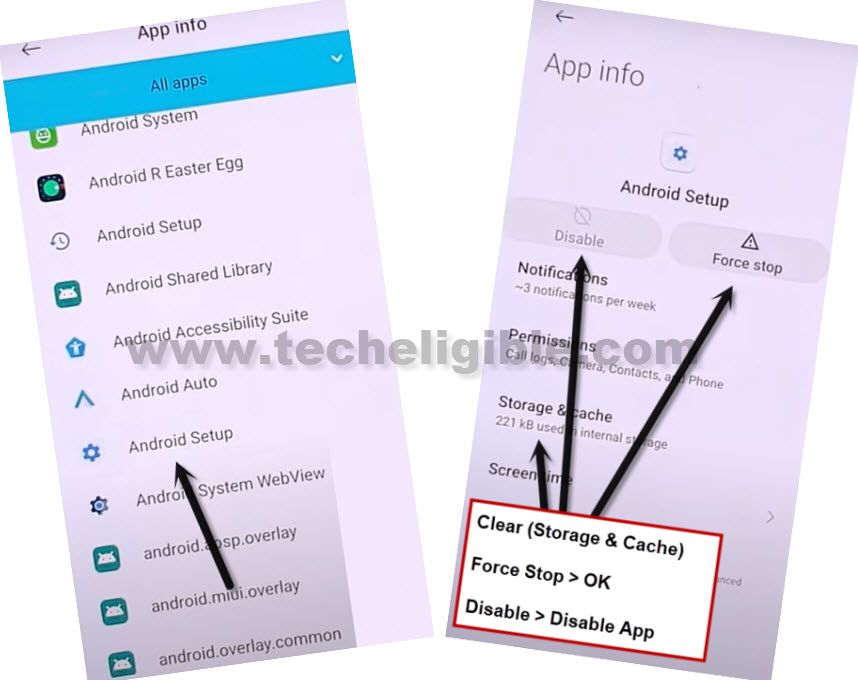
-Go on the clock icon “Android Setup” app. Then, simply, clear storage and cache of this app by going into the “‘Storage & Cache” option.
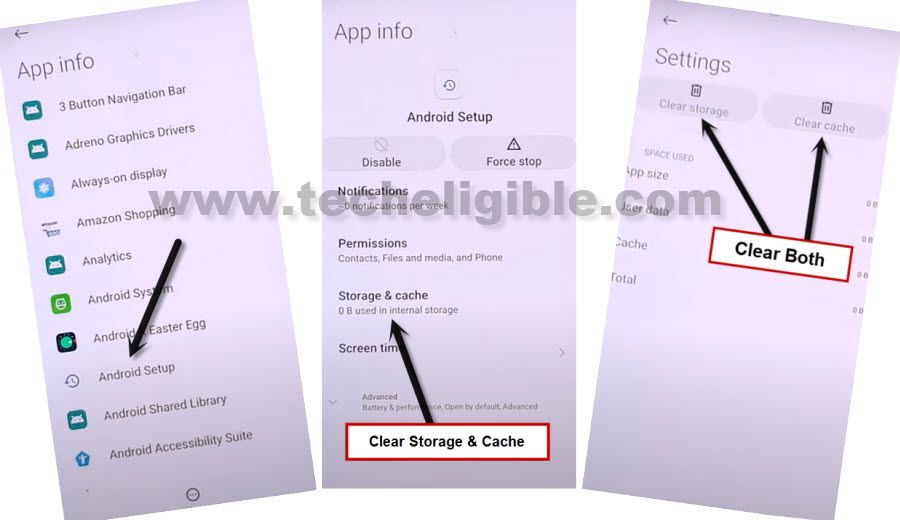
-After clearing the cache and storage, tap once on back arrow option.
-Disable & Force stop also the (Android Setup) app same mentioned in below image.
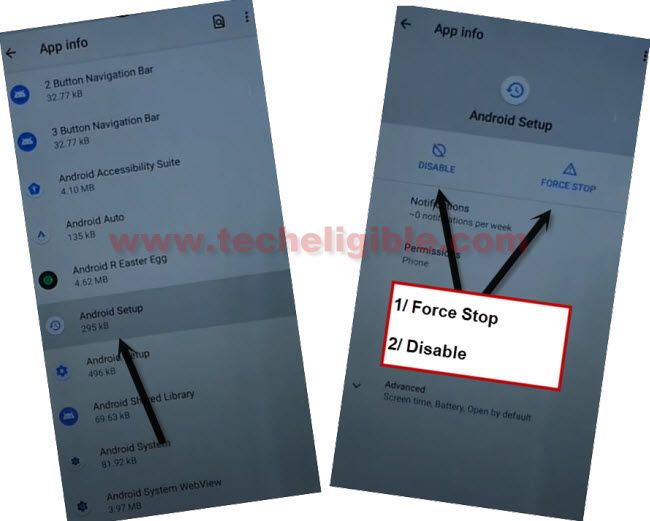
-Tap on back arrow option to get back to app list screen again. From there, tap on another settings gear icon “Android Setup” application.
-Force Stop & Clear Storage and cache of this app as well.
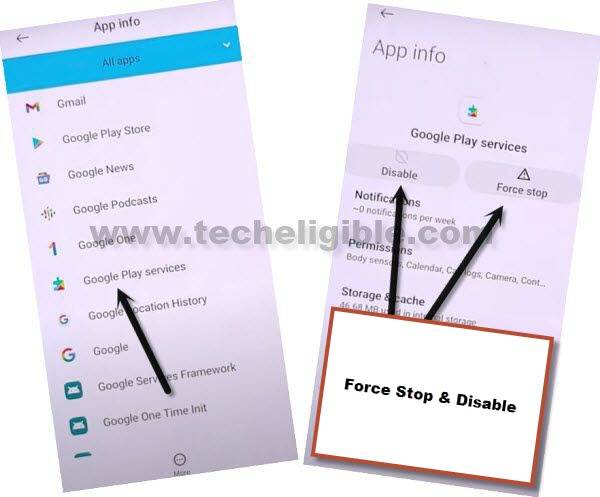
-Return on app list screen. From there, go to on the very important application “Google Play Services”. Then, disable & force stop this app too.
Return to Lenovo Startup Page
-Return on the startup page (Lenovo) screen by hitting several times on back arrow option. From there go to “Next”.

-Then, go to “Skip” option.
Turn on Again the Google Play App
-The lenovo tab will stuck over the (Just a sec…) loading screen. We need to get enabled the google play services here using the (Human) icon of accessibility function.
-Tap to > Human icon > Assistant > Settings.

-Finally, hit over the “Enable” option. This will turn on the google play services app.
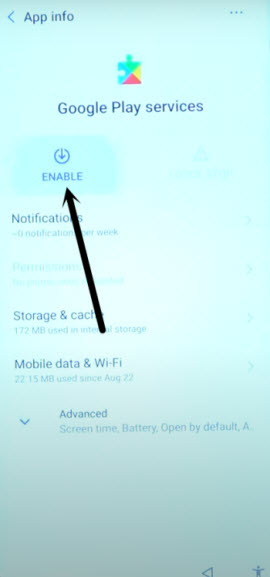
-Return to WiFi screen by hitting 1 or 2 times on back arrow icon from bottom.
-Let’s finish up the setup wizard steps by hitting on the > Setup offline > Continue.

-From the next screen of (Google Services), choose options respectively > More > More > Accept.

-Complete all the remaining startup steps on your own. Its all done from frp bypass on Lenovo Tab.
-Other all remaining steps can be finished up easily without any instructions. Complete all steps and access back to main home-screen of your Lenovo Tab Android 11.
The Bottom Line
With the help of language change to Hindi, we successfully bypassed the FRP Account on Lenovo Tab Android 11 device. We just accessed on the Lenovo primary settings page directly through language changing process. After that, enabled the (Accessibility Menu Shortcut) function and disable some applications by going into the (Apps & Notification) option. After that, got back on the startup screen and completed all setup wizard steps after enabling back the (Google Play Services) app.