
Cant access to the main home-screen on your own phone after doing a wipe data/factory reset from recovery page? That means, you have forgotten your correctly logged in Gmail account credential, that is why, the FRP lock is activated and don’t allow you to go through the google verification process. To successfully access back to your phone, recover your lost account using recovery options, if you can’t recover as well, then, check step by step method below to Bypass FRP Account Lenovo K14 Plus.
Disclaimer: This method is only for a real device owner, who has lost his/her Gmail account after hard reset. If you are unknown to this phone & trying to gain access, you will be jailed once the device is traced. This is a serious crime & Sin. You must return this phone to its real owner.
How to Bypass FRP Account Lenovo K14 Plus (Without PC)
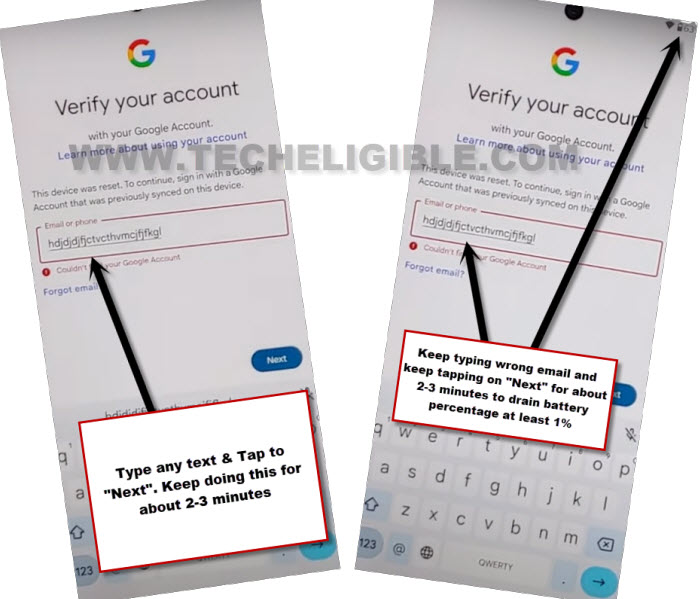
-Power on your phone and connecting to a WiFi network. Next, navigate to the page labeled (Verify your account), where you’ll need to sign in with your Google account.
-On this page, you will spend approximately 5 to 6 minutes entering random text in the email field and then selecting the “Next” button. You’ll need to repeat this action several times for around 5 minutes.
-Let’s proceed with this task now; input any random information in the email field, then click on “Next.” Continue to do this repeatedly until you reach the 5-minute mark.
Note: The purpose of this activity on this page is to access the (Google Play Services) application via the (Battery Usage) option. This will allow us to easily disable this app and finalize the startup process smoothly.
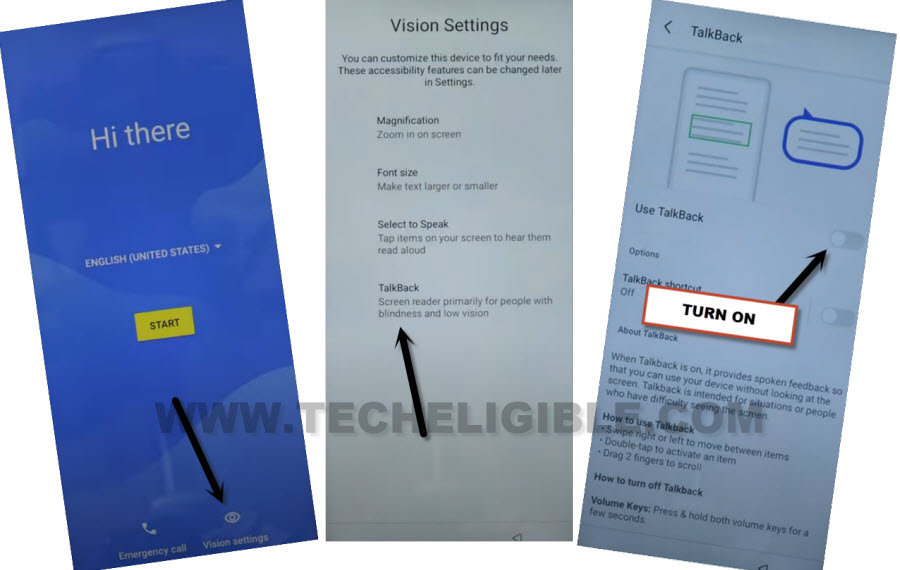
-By pressing the back arrow multiple times, return to the (Hi there) page, then navigate to > Vision Settings > Talkback.
-Simply activate the “Use Talkback” feature.
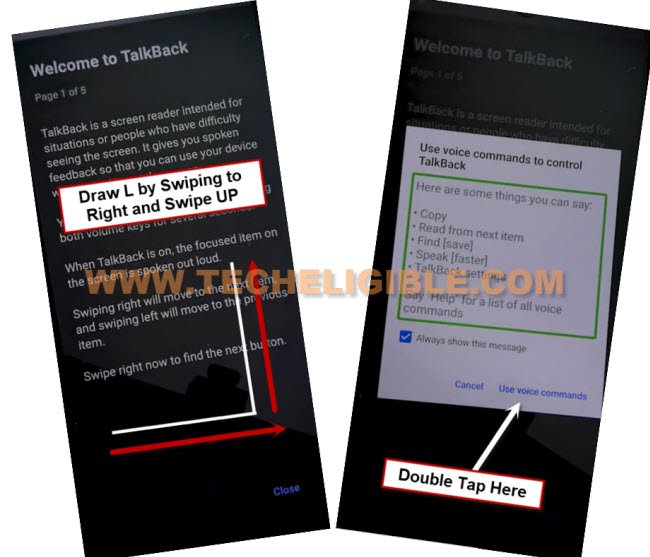
-Get the (Voice Command) screen by swipe right and swipe up on phone display same as mentioned in the below image.
-Afterward, a popup window will appear, from which you should double tap on > While using the app > Use Voice Commands.
-Following this, green lines will appear on the display. We will reach the assistant option by saying aloud, “Open Google Assistant.”
-When you see the (Google Assistant), say loudly again “Open Settings.”
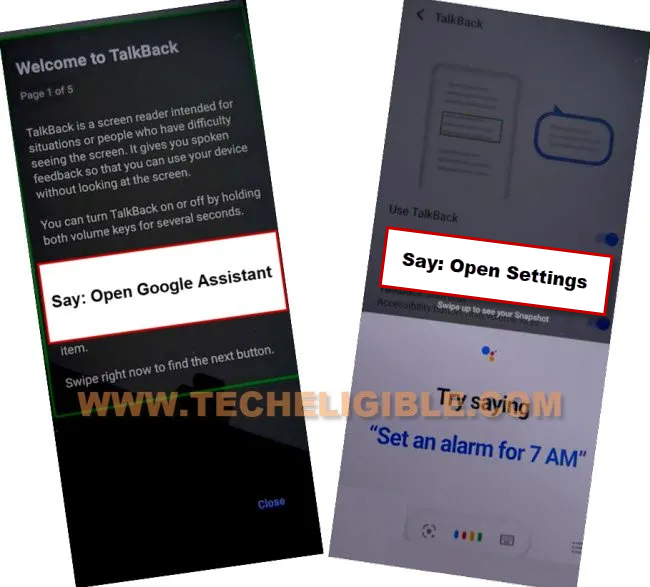
Activate the (Accessibility Feature) for Accessing the Settings
-After arriving at the main settings page, double tap on > Accessibility > Talkback.
-Ultimately, we will deactivate this talkback feature by turning off the “Use talkback” function.

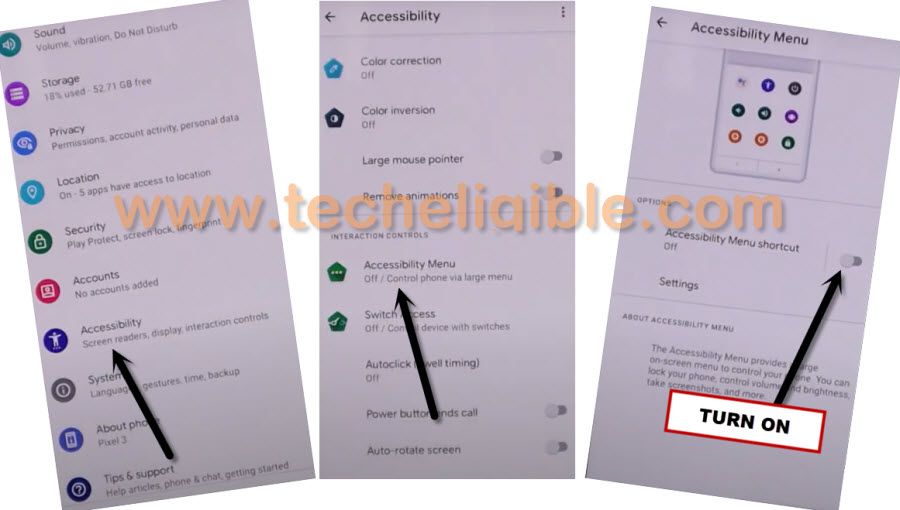
-After turning off the talkback feature, let’s return to the main settings page. From that location, select the > Accessibility > Accessibility MENU.
-Next, turn on the “Accessibility Menu Shortcut” option.
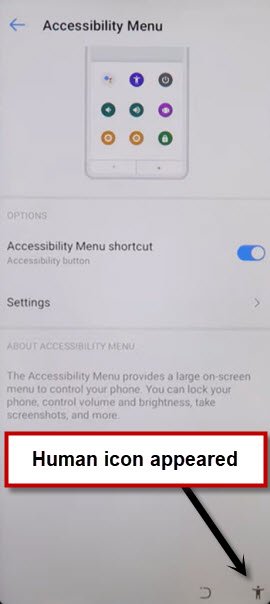
-You will see the (Human) icon on our phone’s display corner.
-A popup window will appear; simply click “Allow” and then tap “Ok.”
Disable Google Play Services App
-We’ve to deactivate the Google Play Services application. To proceed, return to the main (Settings) page. from there, go to “Battery”.
-Hit on the “3 dots” icon found in the upper right corner, and then select the “Battery Usage” option.

-Since we have already spent 5 minutes on the Google sign-in screen, you will be able to have the “Google Play Services” application listed there.
-Let’s force stop and disable the (Google Play Services) app.

Go to Settings Page Again & Enable Google Play Services
-Once you have successfully disabled this app, navigate back to the initial (Hi there) screen.
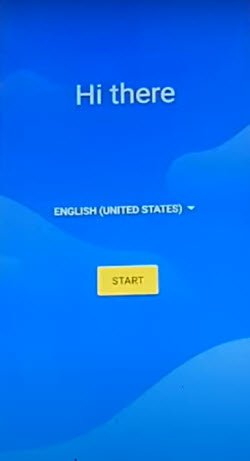
-Tap on > Start > Skip > Don’t Copy.
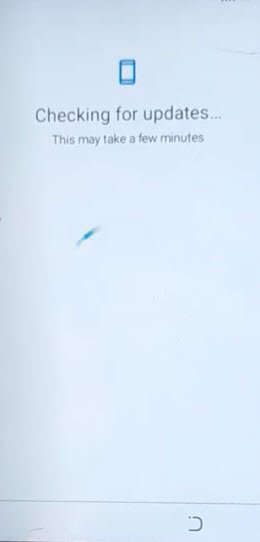
-Wait for a moment on the (Checking for update..) loading screen. This process will not finish because the Google Play Services app is currently turned off.
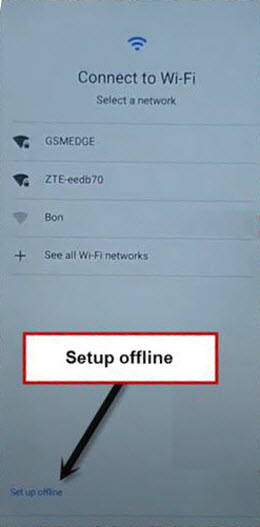
-You need to press the “Back Arrow” option at the bottom several times until you return to the (WiFi) screen. At that point, the (Setup offline) option will also be visible. However, at this moment, there is no need to select any option from this screen, nor should you navigate away from it.
-Utilize the (Accessibility Menu Shortcut) feature to directly access the phone’s settings. To do this, click on the “Human” icon located in the bottom corner and select “Assistant.”
-Loudly say “Open Settings” to navigate back to the main settings page.

-From this location, select > Battery > 3 dots > Battery Usage.
-At last, re-enable the Google Play Services app by tapping the “Enable” option.

-After reactivating the Google Play application, carefully return to the WiFi display by tapping the back arrow option 4-5 times.
-Once you arrive back at the WiFi page, select > Setup offline > Continue.

-All set, you can now proceed with the remaining startup steps on your own without encountering the Google verification screen.
-Remember to establish a pattern lock for security and log in with a different Google account after getting to the main home screen of the Lenovo K14 phone.
Conclusion
Activated the talkback function for accessing to the primary settings page. Then, we activated the (Accessibility function) as well. Finally, we disabled the google play services application. After that, went back over the startup page and completed setup wizard steps again in (Offline mode).